

Members imported via CSV won’t receive any emails as part of the import, including welcome emails.
Populate our sample CSV file with your member data
1
Open members
Go to Members.
2
Open member imports
Click Actions → Import members.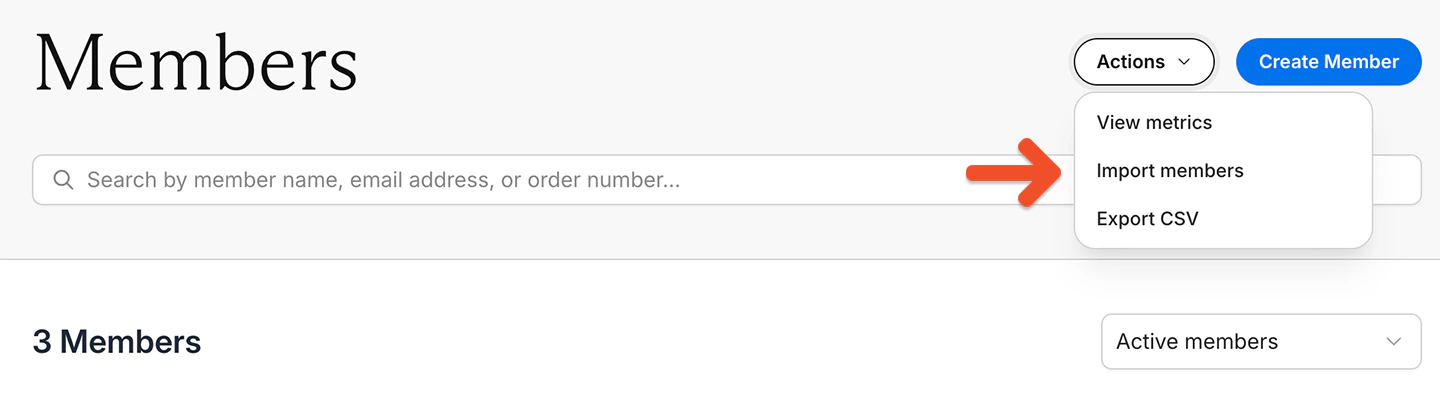
3
Download the sample file
Download our sample import file.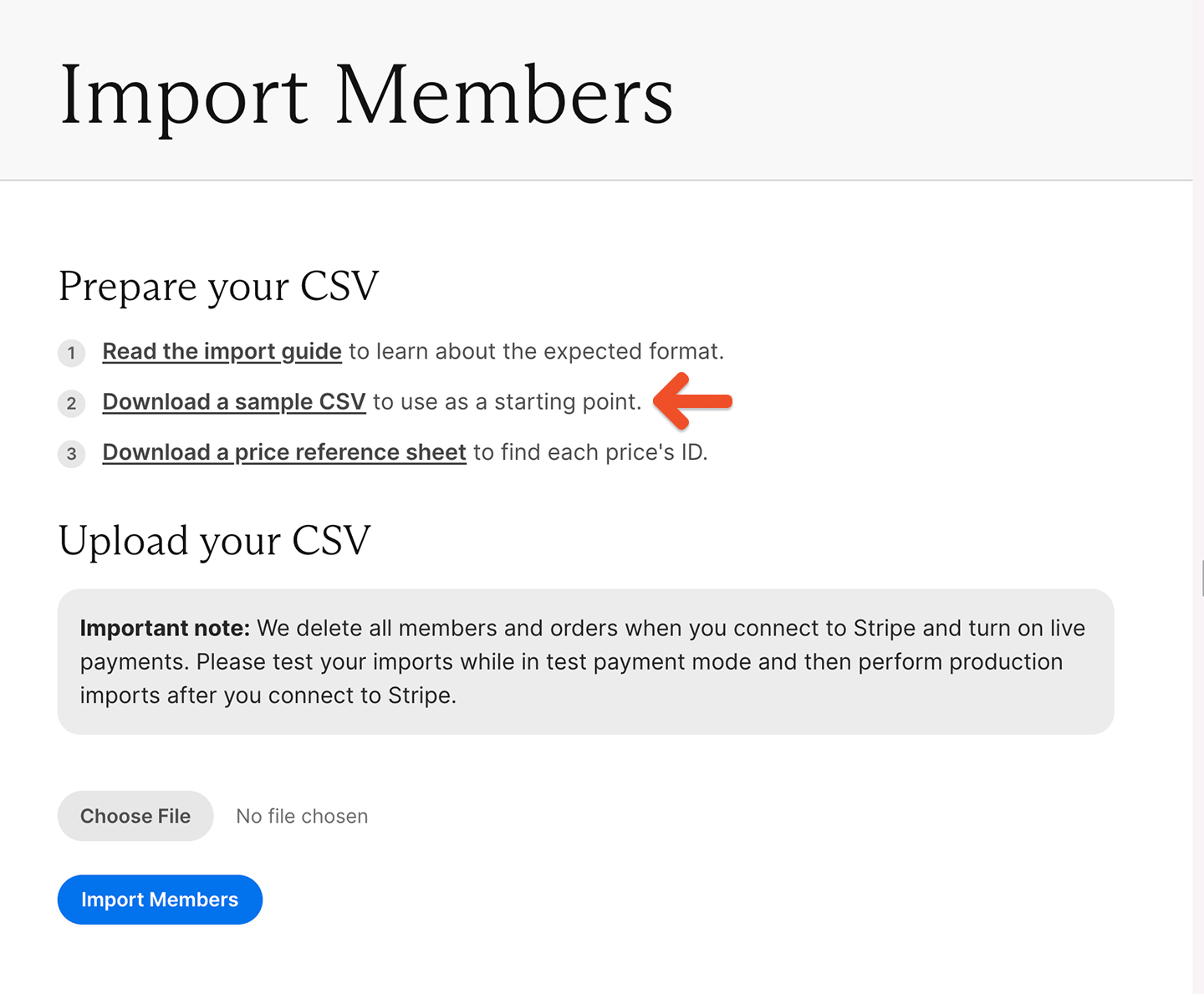
4
Open the sample in Google Sheets
Import it into Google Sheets to avoid issues with special characters. (Excel generates these special characters, so we recommend importing and exporting the CSV via Google Sheets.)
Make sure you keep the column headers in the first row of the sample CSV intact. If you change the column headers, your CSV import might not work.
5
Use the price reference file
The Import Members page also includes a downloadable price reference file with all plans and prices, along with their shortcode IDs. You can use this file to copy the correct values when preparing your CSV.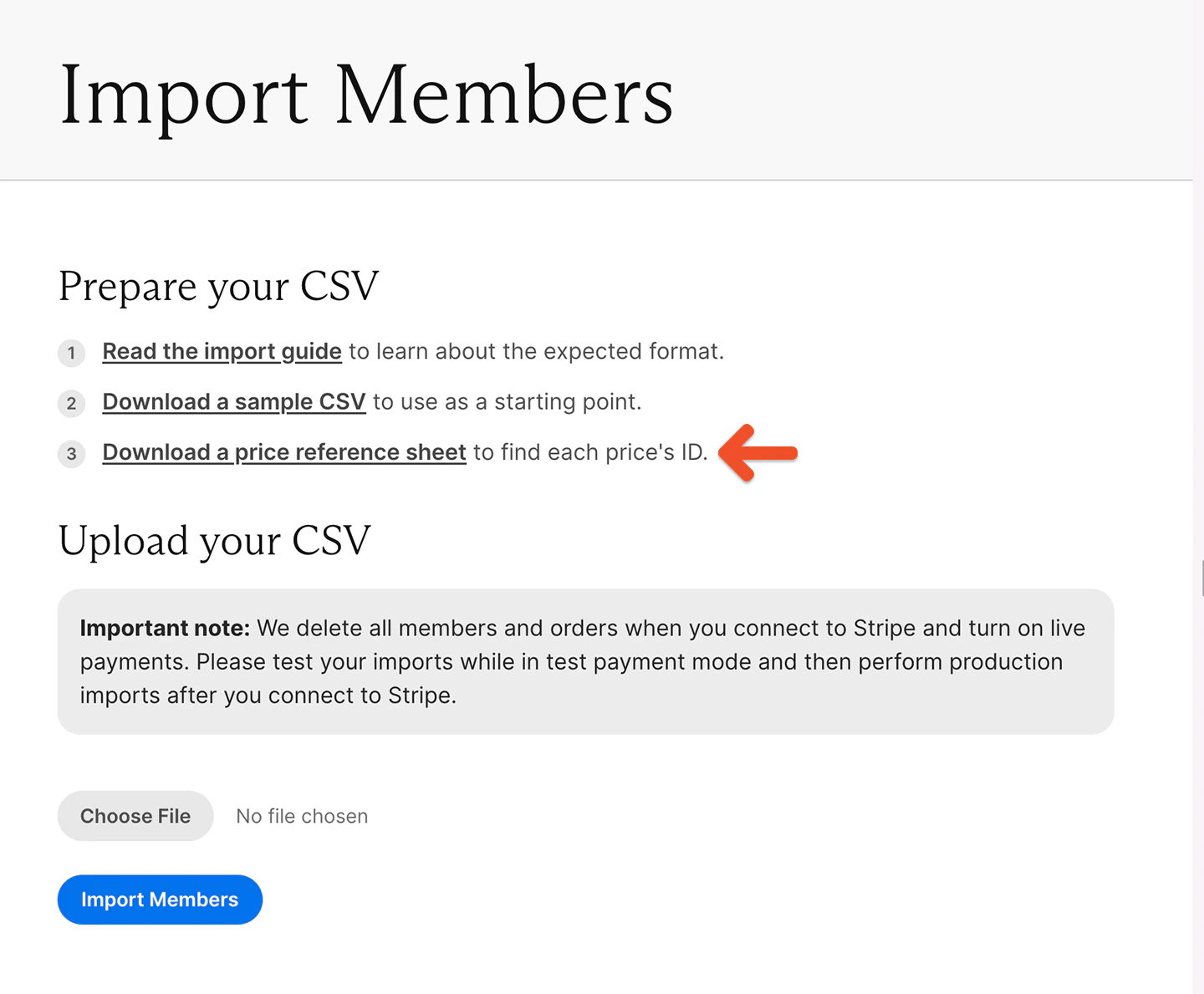
6
Add your member data
Export member data from your current membership system (if applicable) and format it in the Memberful import file. Refer to the list of fields below.
Importing group members
You can’t import members directly into a group subscription via CSV. Instead:- Import the group manager into a plan.
- Then add members using one of the following methods:
- Share their unique invite link.
- Import members without a plan and then add them to the group from your Memberful dashboard.
Upload your CSV file
On the Import Members page:- Click Choose File and select your CSV.
- Click Import Members to upload it.
- Check that your column headers match the sample file exactly.
- Confirm required fields are filled in correctly.
Avoid duplicate records in your CSV
Each member’s personal details should appear only once per subscription.- Multiple rows with the same member and the same subscription will create duplicate subscriptions.
- Use separate rows only when assigning different subscriptions.
Subscribe a member to multiple plans
To subscribe a member to multiple plans:- Add multiple rows for that member.
- Use a different subscription and price in each row.
Use price shortcode IDs for subscriptions
Subscriptions are assigned using price shortcode IDs instead of plan names. A shortcode ID looks like:42-pro-membership-10-monthly
- The number at the beginning uniquely identifies the price.
- The rest of the text is for readability only.
Using shortcode IDs ensures imports remain accurate even if plan names change.
Details on CSV import fields
Here’s a reference list of the columns in the sample CSV file.Legend:
- ✅ Required
- ❌ Optional
- ⚠️ Conditionally required