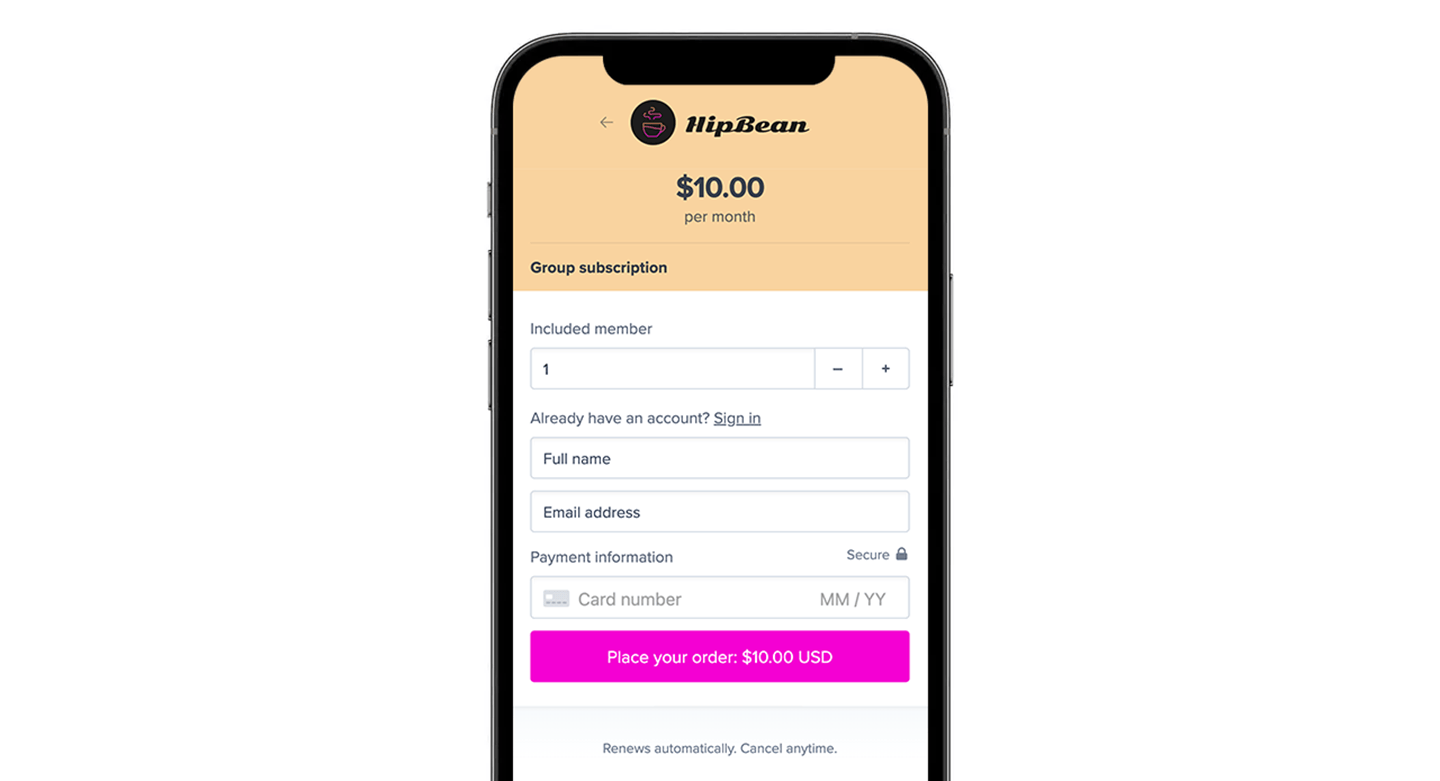
Create a Memberful group plan, configure included seats, and allow additional seat purchases so a single account can manage multiple memberships for a team.
Group plans let you sell multiple memberships through a single subscription. One account purchases and manages the subscription, then distributes access to individual members.In this help article, we’ll create a group plan, add or edit a price, enable group subscription settings, configure included seats and additional seat purchases, and copy the purchase link.
In the Memberful dashboard, go to Revenue → Plans and click Create plan.
Enter a plan name, then add a price and billing interval.
This first price should include all seats that come with the group plan by default. For example, if the plan includes 10 seats and each seat costs $10 per month, set the first price to $100 monthly.
The first price is the base price for the included seats. If you allow additional seat purchases later, you can set a separate price for those extra seats.
Toggle on Allow additional seat purchases if group managers should be able to buy more seats later under the same subscription.
Then configure these settings:
Seat price for the amount charged for each additional seat
Max seats for the maximum number of additional seats that can be purchased
Leave blank to allow unlimited additional seat purchases
Seat caps can affect bulk moves. If you later move group subscriptions to this price in bulk, the destination price must allow enough seats for each group subscription being moved.
Replace ACCOUNT-URL with your Memberful account subdomain. Replace 2 with your price ID.If you want to add a purchase link to your site or learn more about the different link options, see Add a link to buy a plan.
Memberful can send separate welcome emails to group managers and group members, in addition to the generic welcome email.In the Memberful dashboard, go to Members → Templates to review and customize those emails.