Restrict a single post or page
Restricting a single post or page lets you protect one WordPress post, page, or custom post type at a time. Use this method when you want direct control over access for a specific piece of content, including which members, plans, or download owners can view it. You can also add marketing content for visitors who do not have access, so they see a preview, sign-up prompt, or other message instead of the protected content. For full setup guidance, see Restrict access to a single post or page.Restrict by category or tag
Restricting by category or tag lets you protect all posts assigned to a specific WordPress category, tag, or custom taxonomy. Use this method when you want access rules to apply automatically to current and future posts in the same content group. This option is helpful when you publish recurring members-only content, such as premium articles, videos, or columns, and do not want to configure each post individually. For full setup guidance, see Restrict access by category or tag.Metered paywall
Metered paywalls let visitors read a limited amount of content before they encounter a subscription prompt. Use this method when you want readers to experience your content before asking them to subscribe. This approach can help you balance free access and paid conversion by giving visitors a preview of your work while still protecting premium content. For full setup guidance, see Set up a metered paywall.Control block visibility
Visibility controls let you show or hide individual blocks in the WordPress block editor and supported Beaver Builder components, including Shared Rows. You can control visibility based on a visitor’s login status or membership plan. Use visibility controls when you want to personalize part of a post or page without restricting the entire page. For full setup guidance, see Control content visibility in WordPress.Paywall Divider block
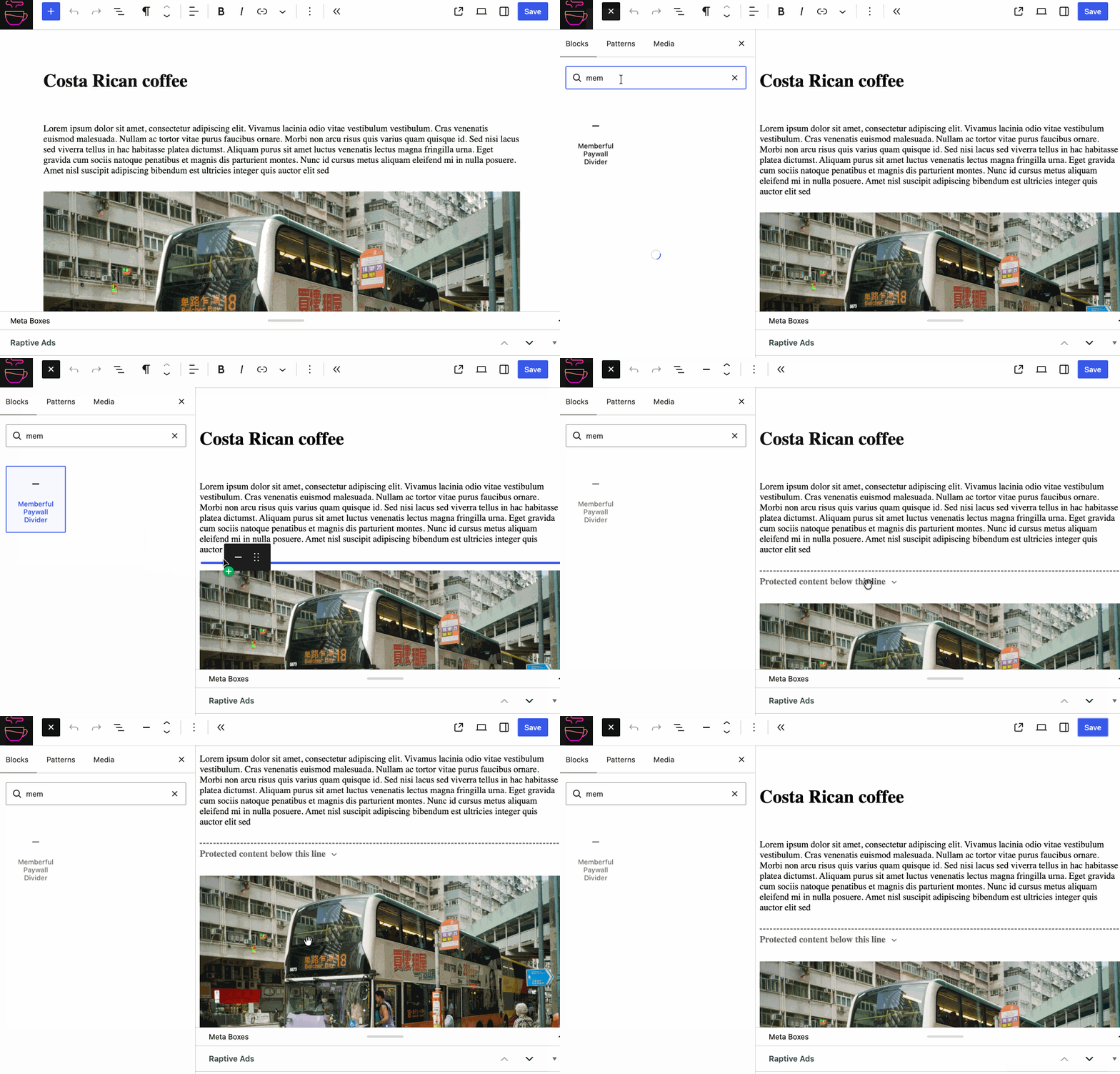
The Memberful Paywall Divider block gives you the power to choose exactly where free content ends and members-only content begins inside a post or page. Use this method when you want to create a tailored preview experience within a single piece of content. Place the divider block where the public preview should stop, and the remaining content is protected for members. For full setup guidance, see Use the Paywall Divider block.