

How a metered paywall works
Each reader can open a limited number of posts included by your metering rules. Each read counts toward the limit for the number of days you set, then drops off, making another free read available. Opening the same post again while it still counts toward the limit does not use another free read. Once the reader uses their allowance, your global paywall appears on the next matching post they open. Anonymous views are tracked in the visitor’s browser, while a free member’s views are connected to their WordPress account. Views recorded while someone is logged out do not carry over when they sign in. Paid members are not metered. Metering applies to public posts only. Members-only posts always show the paywall to visitors who can’t access them and do not use free reads.Metering controls when Memberful displays a paywall on public content, but it does not securely protect that content. Anonymous visitors can bypass reading limits by clearing their cookies or using another browser or device. Safari may also reset a reader’s free allowance if they visit your site less than once a week. Use Memberful’s access restrictions for content that must remain members-only.
Before you begin
Metering uses your global paywall when a reader reaches their free limit. Go to Settings → Memberful → Global Paywall in your WordPress dashboard and make sure the global paywall is enabled and configured before setting up metering.Move existing protected posts to metering
If you already restrict posts to specific Memberful plans, those posts are members-only and are not included in metering, even when they match your metering rules. To include them in metering, remove their existing Memberful access restrictions so they become public, then include them in your metering rules. This includes restrictions applied directly to individual posts or through category and tag rules. Only make this change for content you are comfortable making public. Keep your existing plan restrictions on content that must remain securely protected.Set up your metered paywall
1
Open and enable Metering
Go to Settings → Memberful, click Metering, and check Enable metering.
2
Set the free reading limits
Configure the allowance for each type of reader:Reset every: Enter how many days each read counts toward the limit.


3
Choose which content is metered
Under What counts toward the meter, create one or more rule groups. You can meter public WordPress posts, pages, and custom post types. Members-only content is not included, even when it matches one of your metering rules.Content is metered when it matches any rule group. Within each group, choose whether the content must match all or any of its conditions. You can create conditions based on: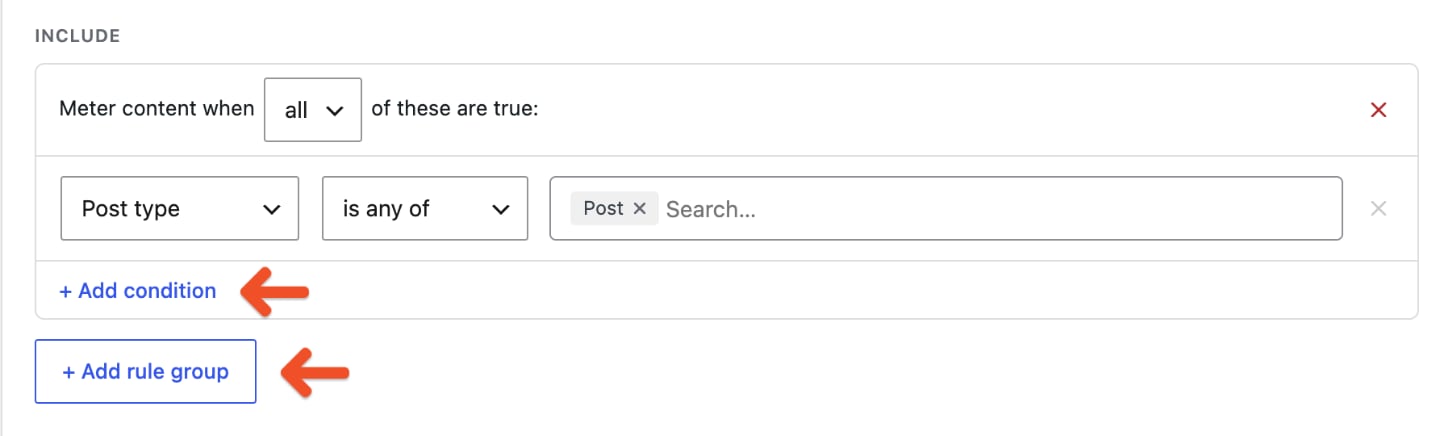
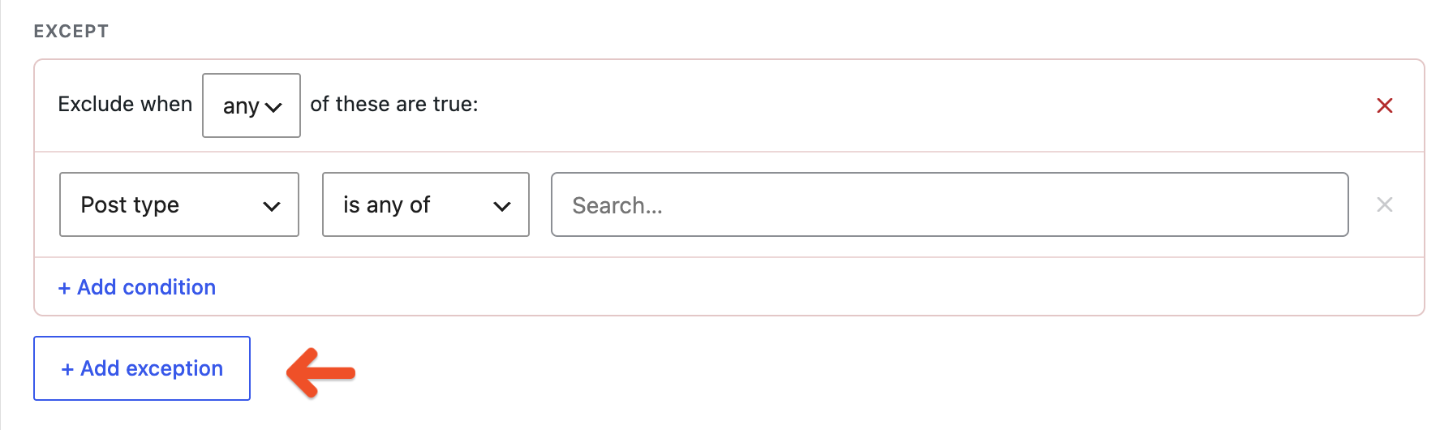
- Post type.
- Category or tag.
- Text contained in the URL.
4
Save your settings
Click Save Changes.
Exempt an individual post from metering
You can exclude a specific post without changing your main metering rules. Open the post in the WordPress editor and scroll to the Meta Boxes area at the bottom. Under Memberful: Metering, check Exempt this post from metering, then update the post.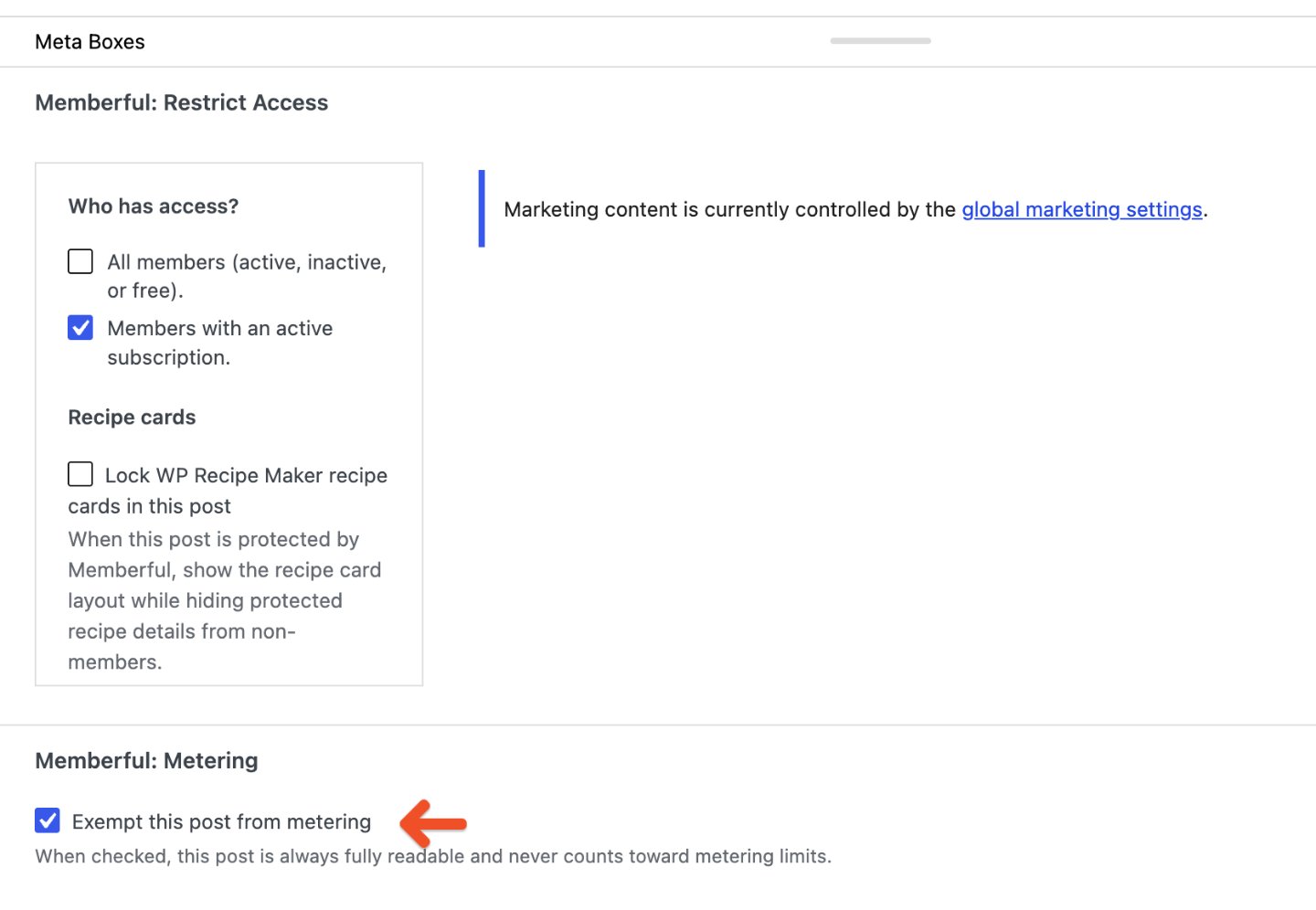
Show the free-view count on your paywall
You can show readers how many free articles they used directly on your global paywall. The free-view count is available when you build your paywall with the paywall builder. It is not available for custom HTML paywalls.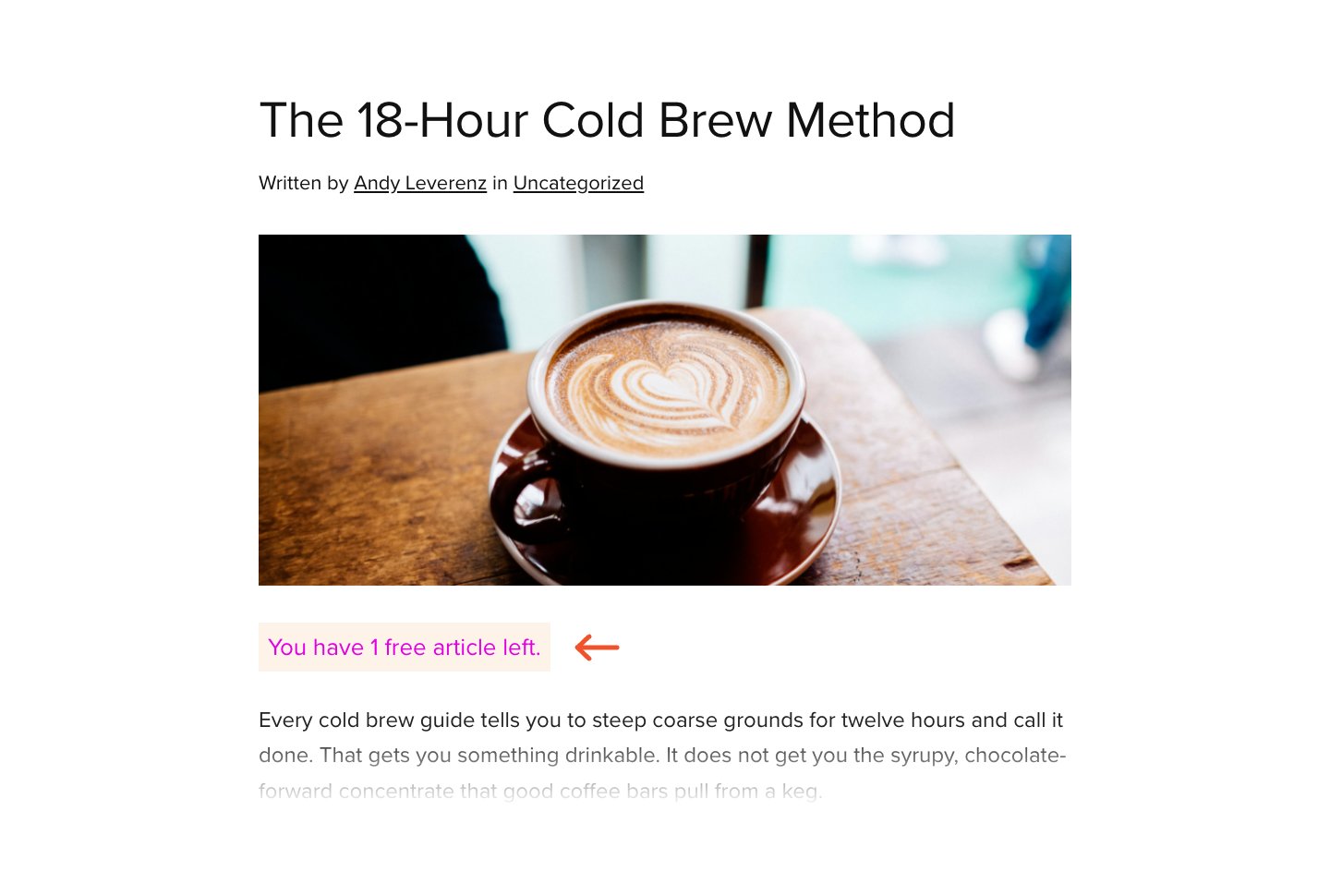
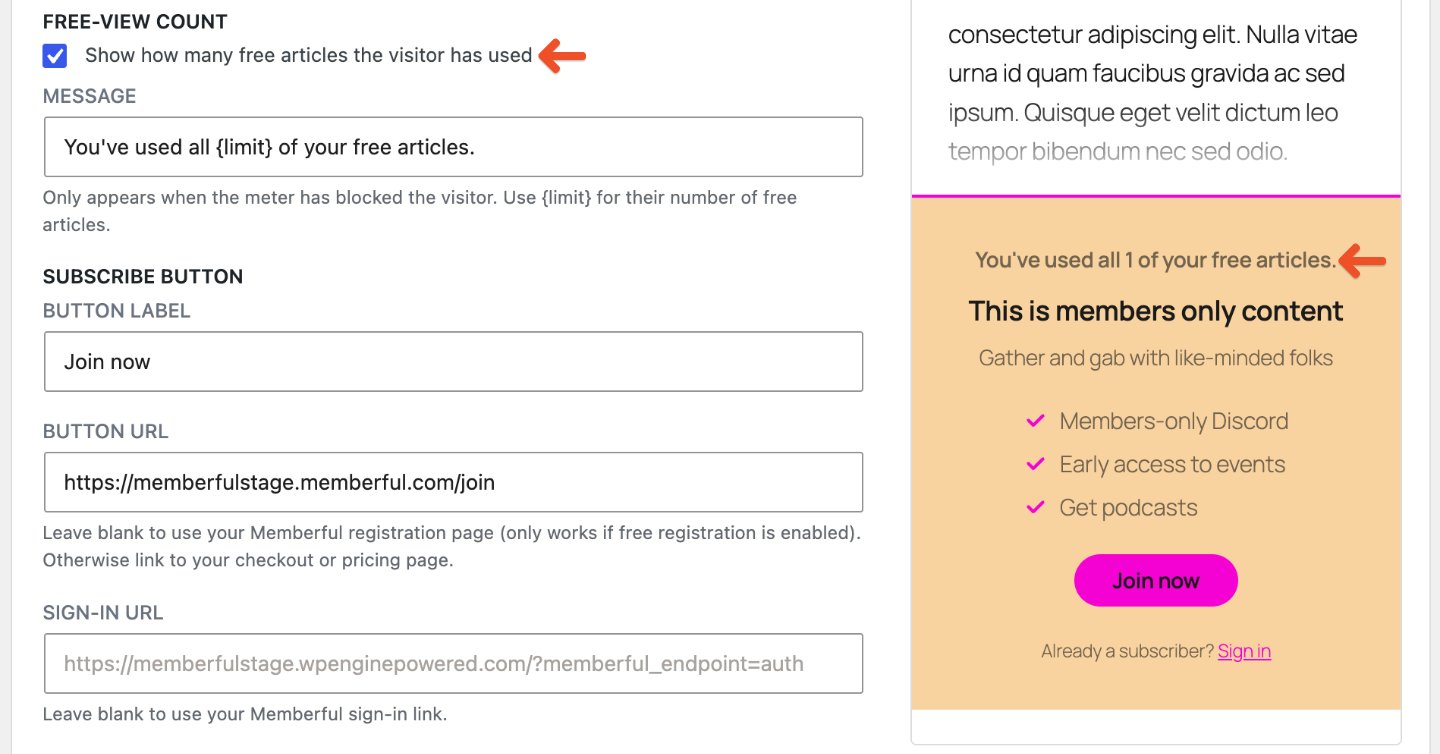
{limit} where you want the reader’s total free-article allowance to appear. The message only appears after the reader reaches their limit.
Add a countdown in a custom location
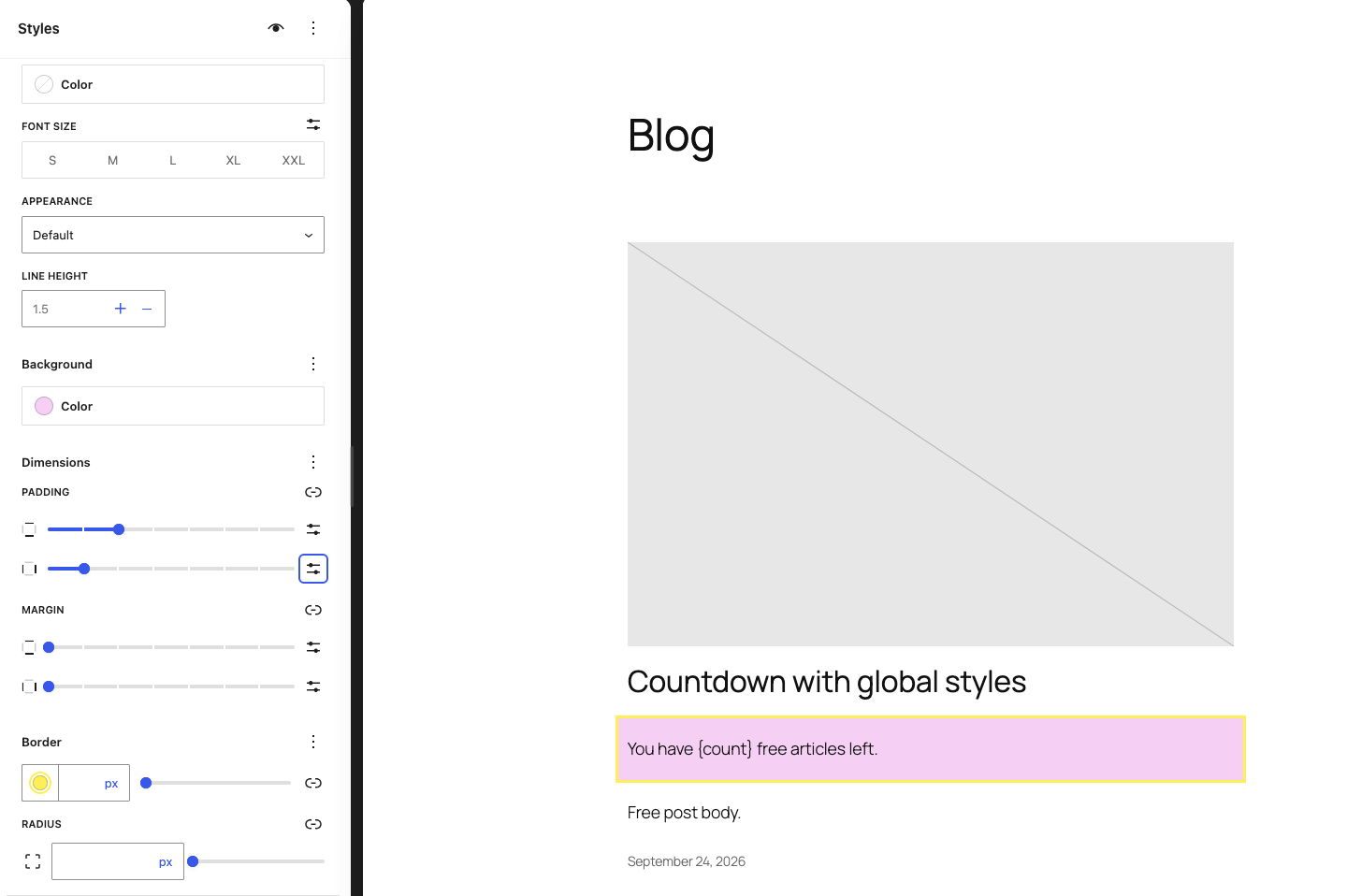
The Memberful Metering Countdown block is optional. Add it to a post, page, or custom post type when you want to show the reader’s remaining free views in a location you choose. The block only appears while the reader can access the post through their free allowance. It does not appear to paid members or after the paywall is shown. In the WordPress block editor, click Add block, search for Memberful Metering Countdown, and select the block.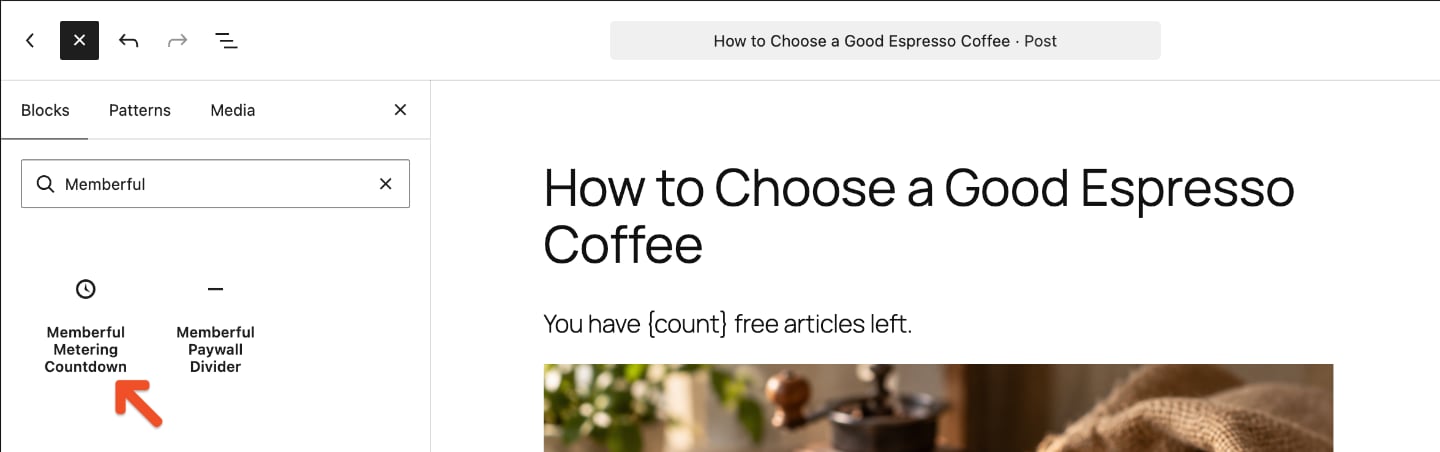
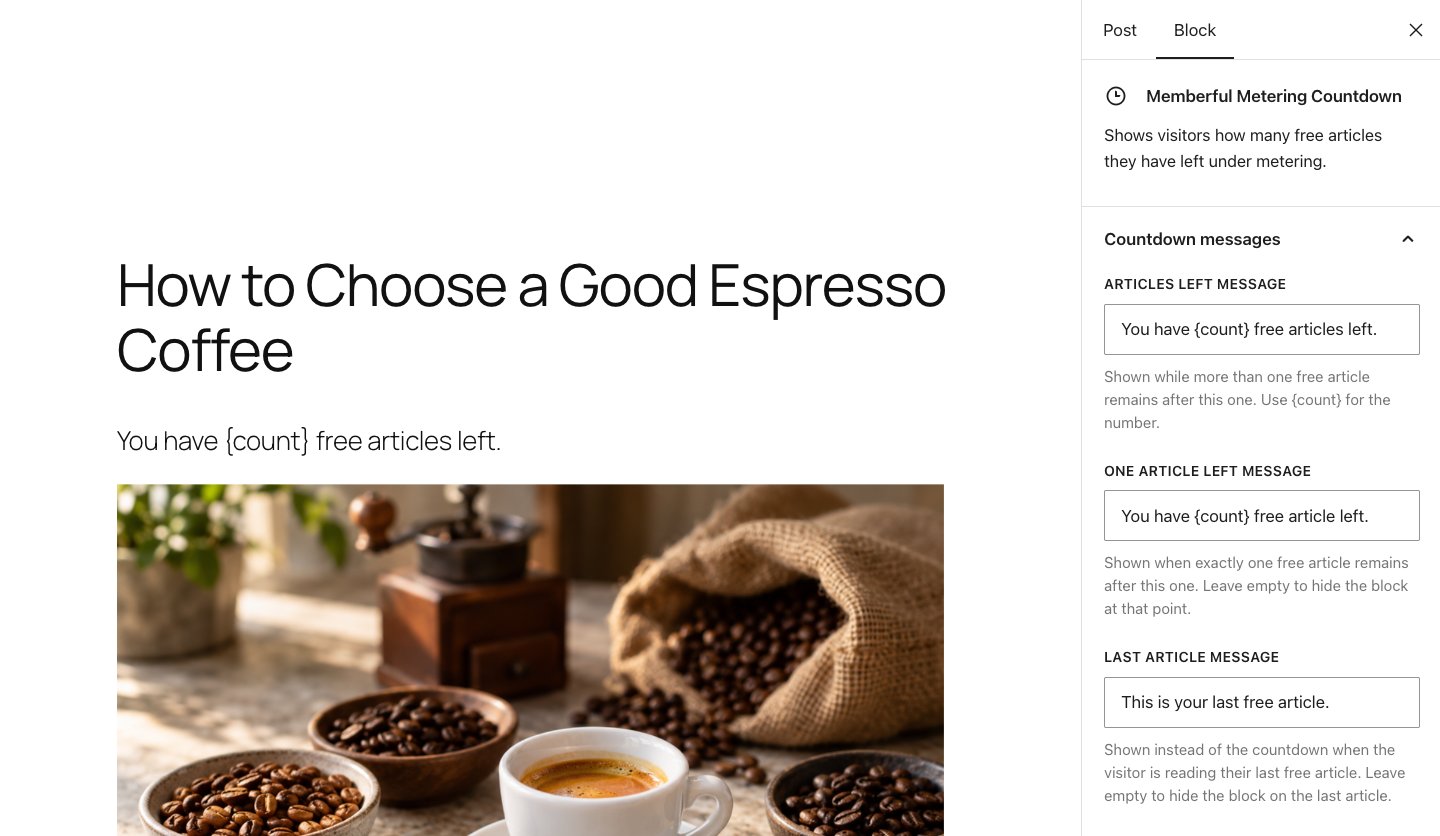
{count} for the number of free articles remaining.
- Articles left message: Shown while more than one free article remains after the current article. Use
{count}for the number. - One article left message: Shown when the reader will have one free article remaining after the current article. Leave it empty to hide the block at this stage.
- Last article message: Shown while the reader is viewing their final free article. Leave it empty to hide the block at this stage.
What readers see after reaching the limit
Once a reader uses all of their free reads, your global paywall appears on the next matching post they open.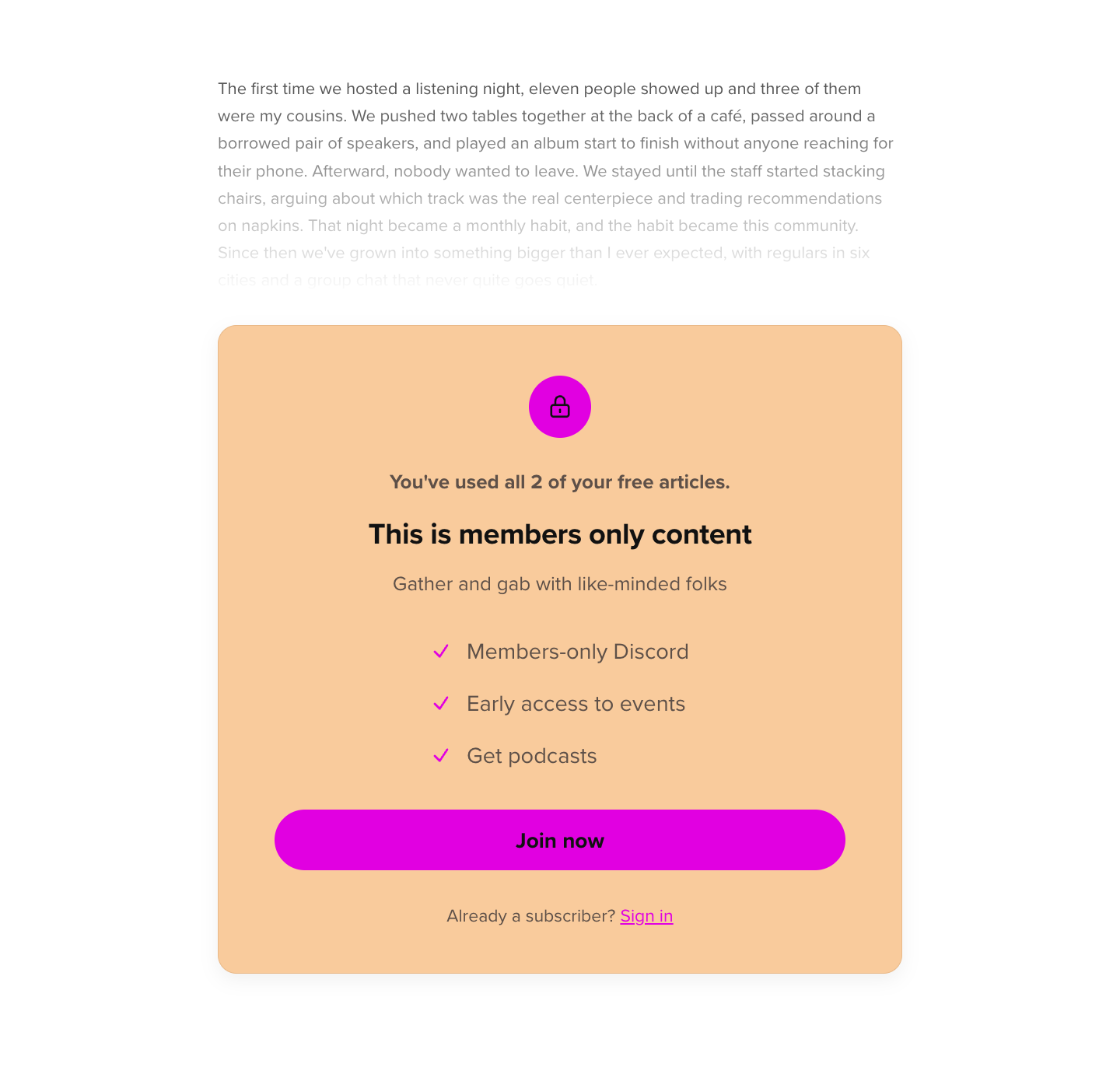
Metering does not apply to WordPress users who can edit posts. To test your metered paywall as an anonymous visitor, open a new private window. Alternatively, sign out of WordPress and Memberful and clear your browser data to start with a fresh allowance.