Integrate ActiveCampaign
Before connecting, you’ll need your API URL and API key from ActiveCampaign. To find them, go to your ActiveCampaign account, then go to Settings → Developer. In your Memberful dashboard, go to Content → Email marketing, then click Connect under ActiveCampaign. Enter your API URL and API key, then click Connect to ActiveCampaign.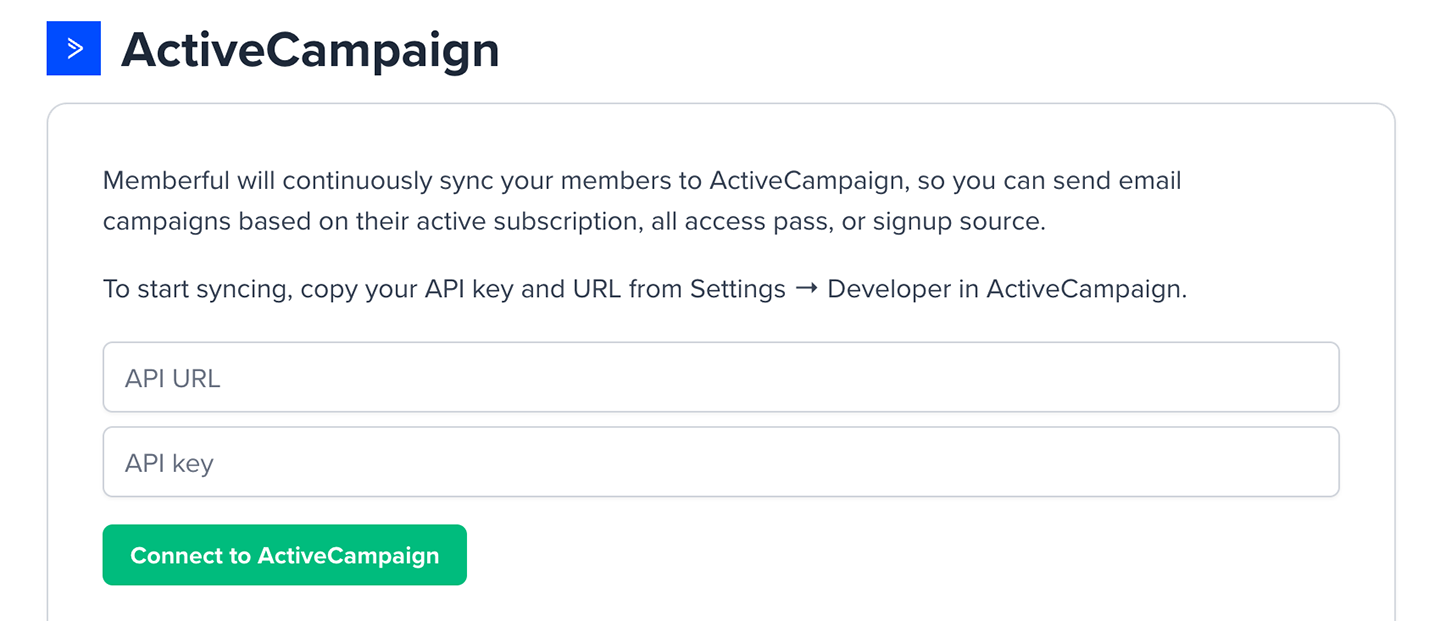
How we keep your list up to date and synced
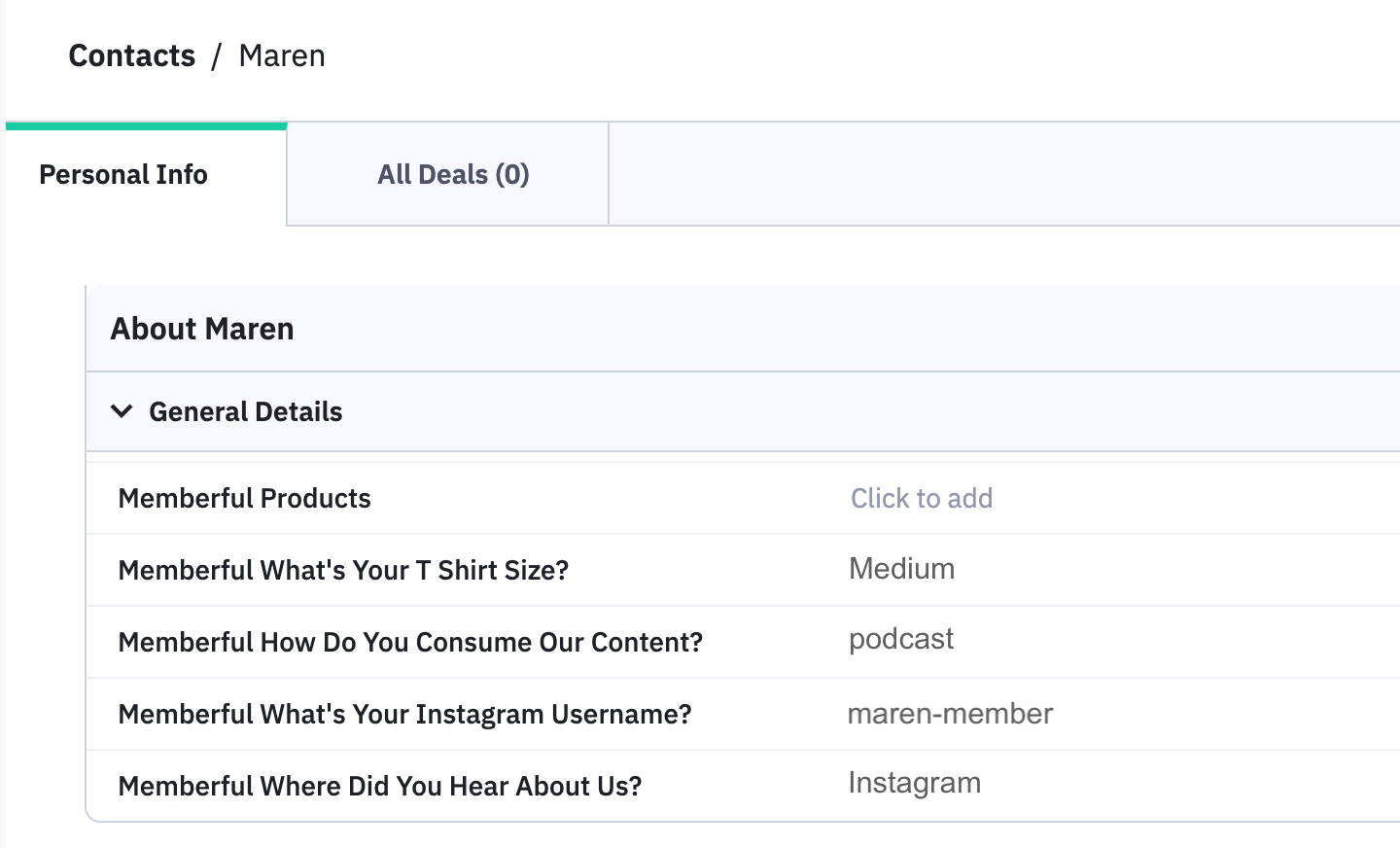
When you first connect, Memberful imports all your existing members as contacts into the list you selected. This list stays automatically synced — new members are added, existing members are updated, and key details are written as custom fields.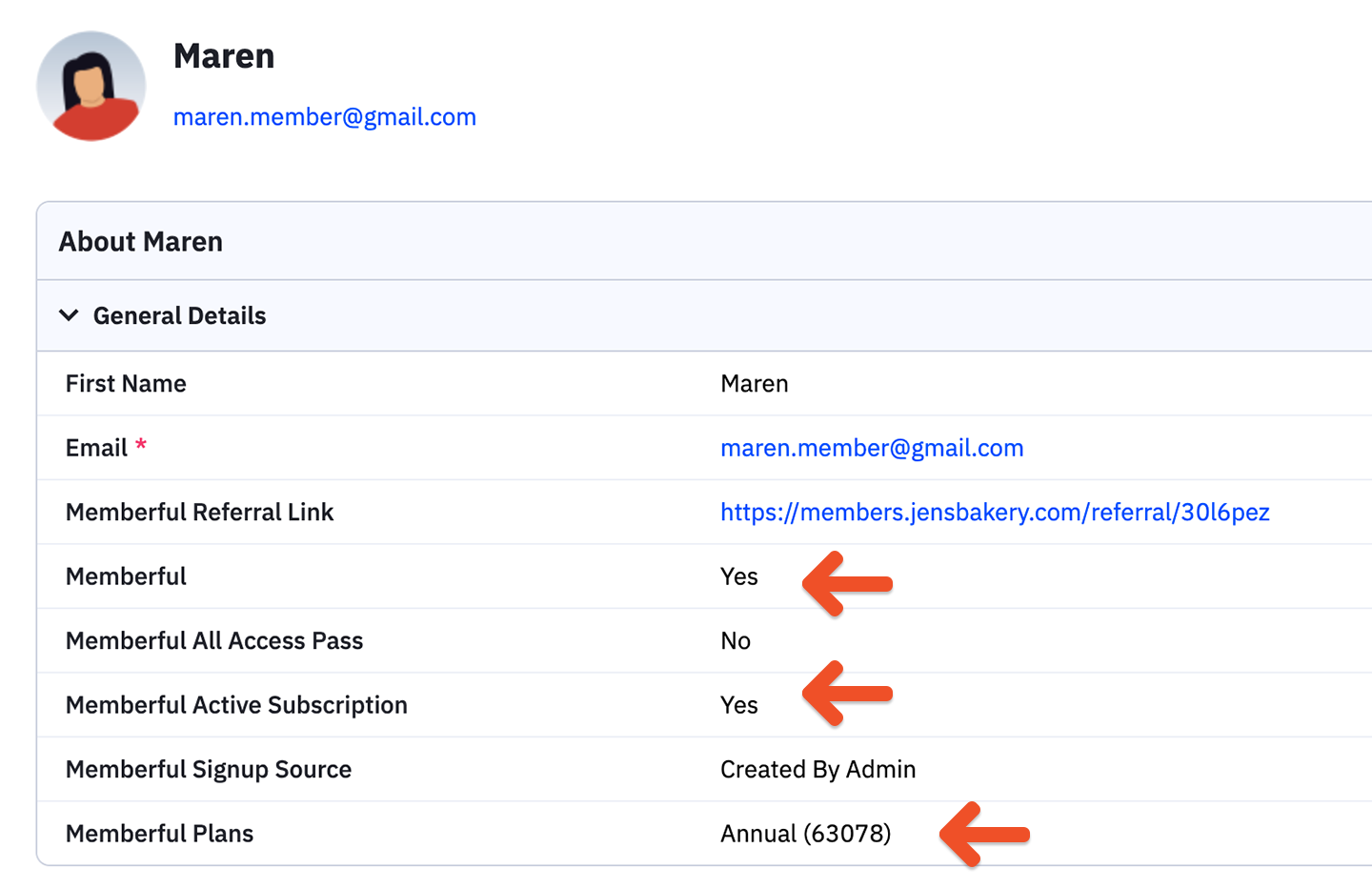
Don’t manually edit Memberful-managed custom fields in ActiveCampaign. Memberful uses these fields to keep members synced. Manual changes can cause some members to stop syncing correctly, make integration issues harder to troubleshoot, or require reconnecting the integration to refresh member data.
- Memberful: Always set to yes, indicating the contact is a Memberful member.
- Memberful Active Subscription: Set to yes if the member has an active subscription, no otherwise.
- Memberful All Access Pass: Set to yes if you or a team member granted an All Access Pass, no otherwise.
- Memberful Plans: A multi-select field updated with the member’s currently active plan names.
- Memberful Products: A multi-select field updated with the member’s purchased downloads.
- Signup Source:
- Checkout: Member signed up through the purchase form.
- Created By Admin: Member was created manually by you or a staff member.
- Free Registration: Member signed up through the free registration form.
- Gift: Member received a gifted subscription.
- Team Subscription: Member joined through a group subscription.
Members are not removed from your contact list when their subscription expires. If a member’s subscription ends, Memberful removes the related tags from their profile. If a member changes their email address, Memberful adds the new email as a new contact and removes Memberful data from the old one.
Send a targeted campaign
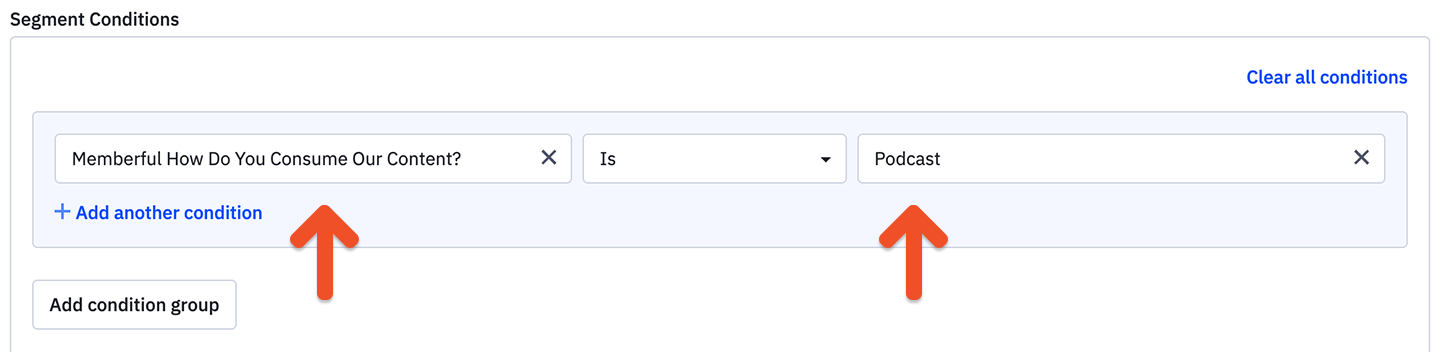
To send targeted campaigns, create a segment in ActiveCampaign using the custom fields synced from Memberful — for example, filtering by Memberful Active Subscription equals yes or Memberful Plans contains [your plan name].Add a referral link to your campaign
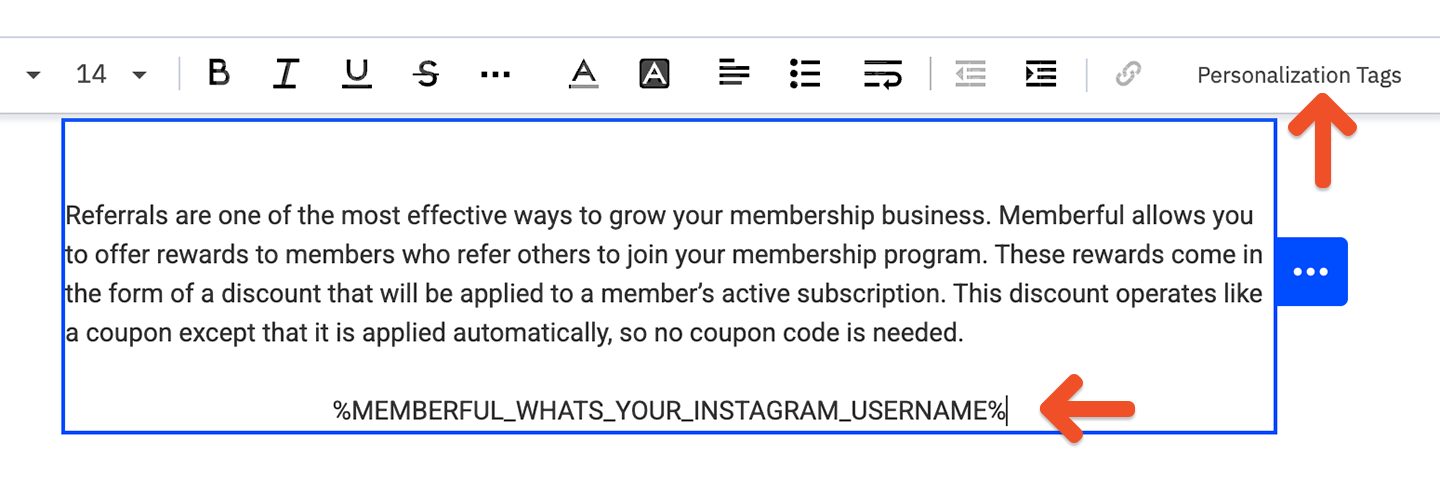
If you have enabled Memberful referrals, you can add a personalized referral link to your campaign so members can earn rewards for referring others. When creating your campaign in ActiveCampaign, use the Memberful Referral Link custom field personalization tag to insert each member’s unique referral URL.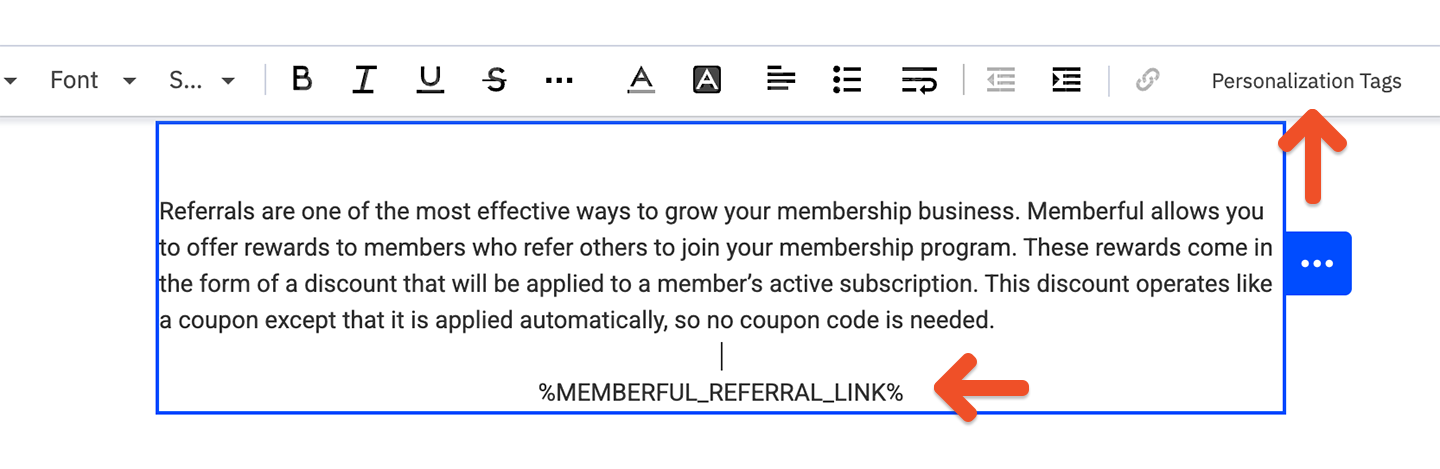
Create automations
You can use ActiveCampaign automations to trigger event-driven emails based on changes to Memberful custom fields — for example, sending a welcome series when Memberful Active Subscription changes to yes.Use custom field answers for segmentation and personalization
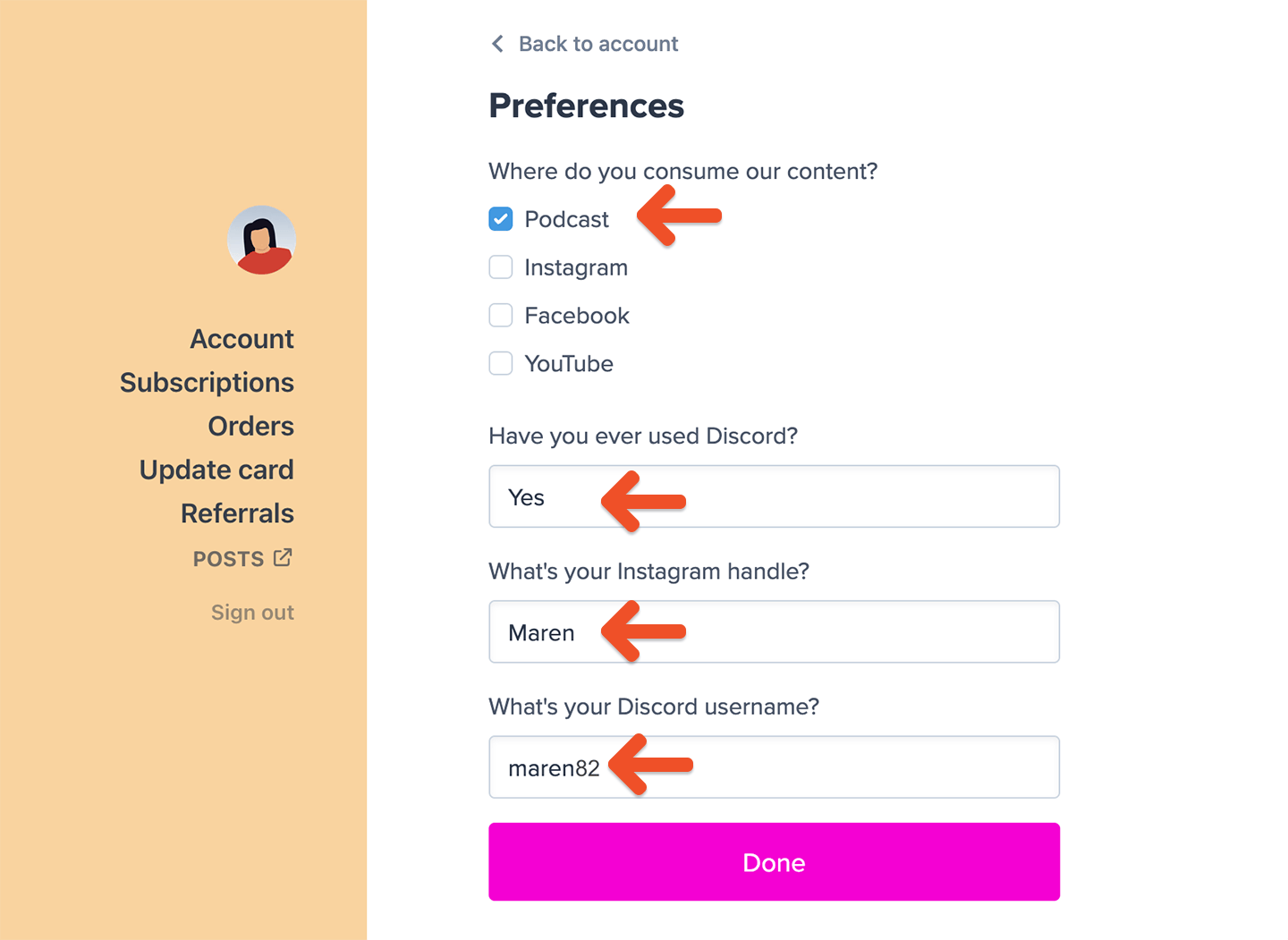
You can collect up to 5 custom fields from your members right after they complete the checkout form.