A sign-up link gives visitors who don’t have an account a way to join directly from your Memberful sign-in form. You can send them to your website, your subscribe page, your free registration form, or a custom URL. In this help article, we’ll show you where the sign-up link appears, how to choose its destination, and how to hide it. When enabled, the sign-up link appears on both the email address and password steps wherever the Memberful sign-in form appears, including sign-ins from your apps.
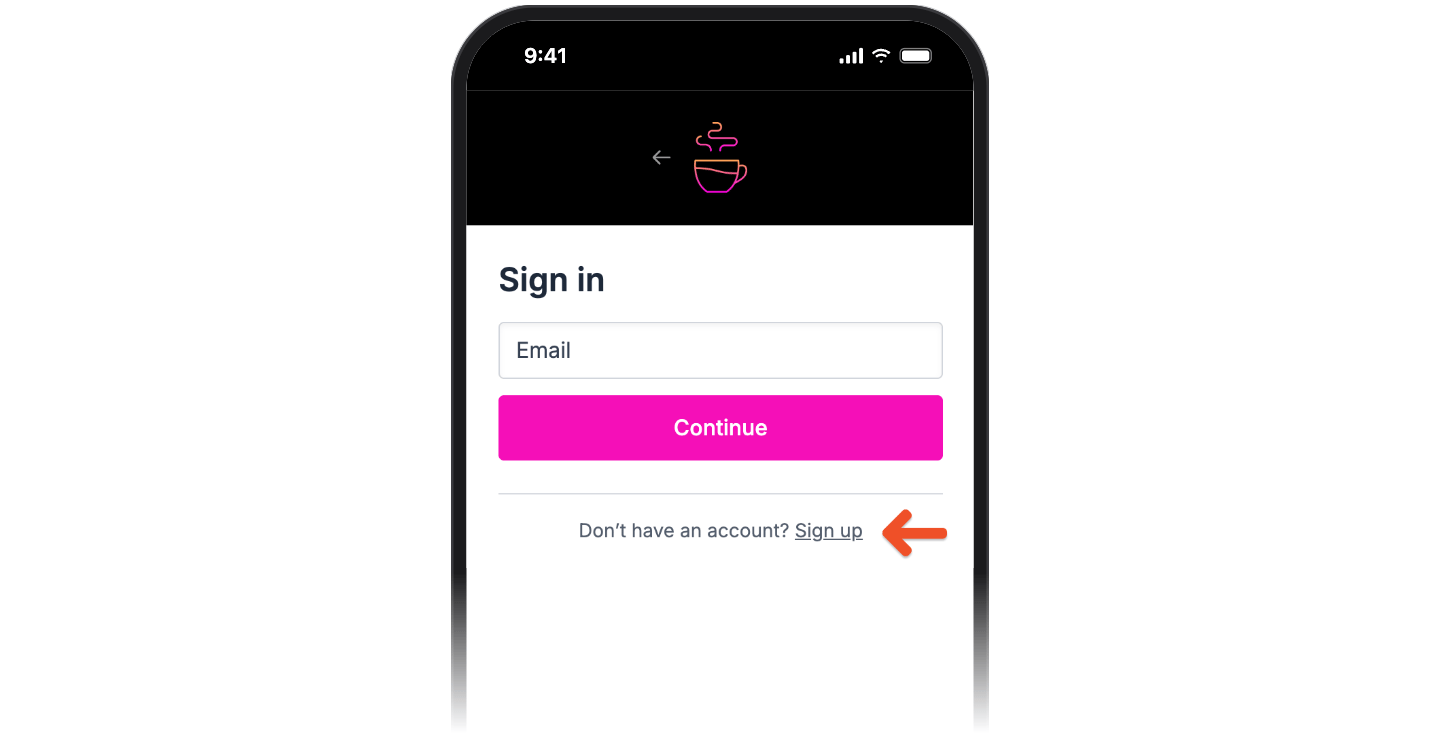
Sign-up link below the email field on the sign-in form

Choose where visitors go to sign up

Go to Website → General settings in your Memberful dashboard and find the Sign-in form section.
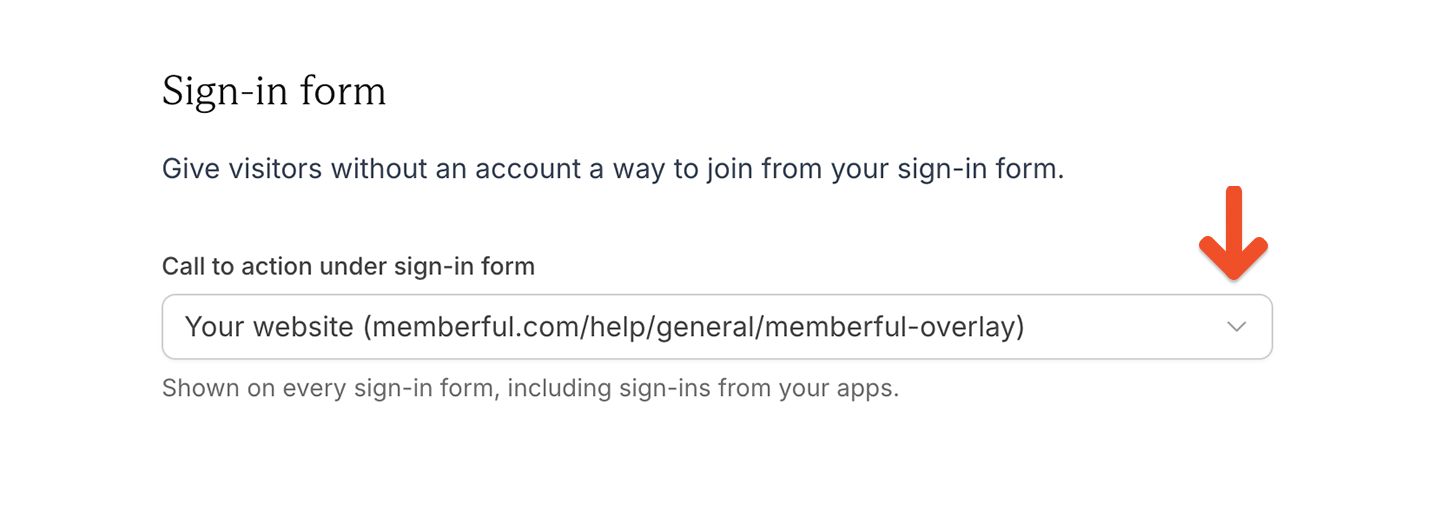
Call to action dropdown in the Memberful dashboard
From the Call to action under sign-in form dropdown, select an option:
  • None: Don’t display a sign-up link.
  • Your website: Send visitors to your website.
  • Your subscribe page: Send visitors to your Memberful subscribe page to explore your membership plans.
  • Your free registration form: Send visitors to your free registration form to create an account without purchasing a subscription.
  • Custom URL: Send visitors to a destination of your choice.
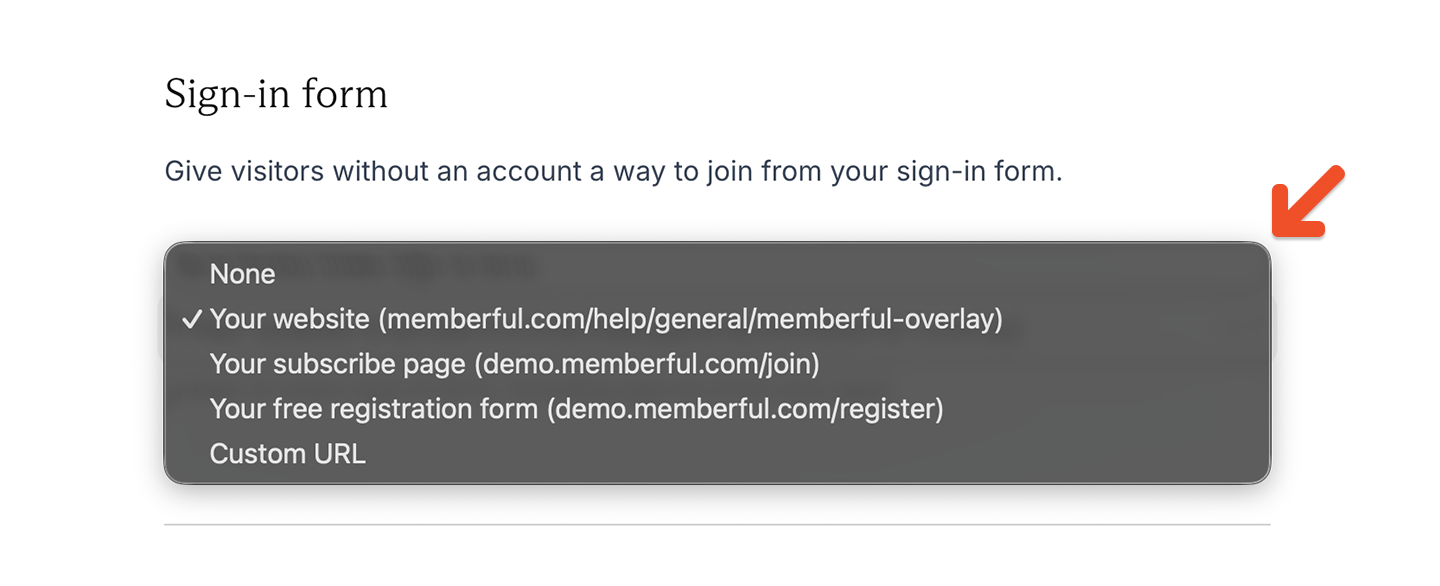
Available destinations for the sign-up link
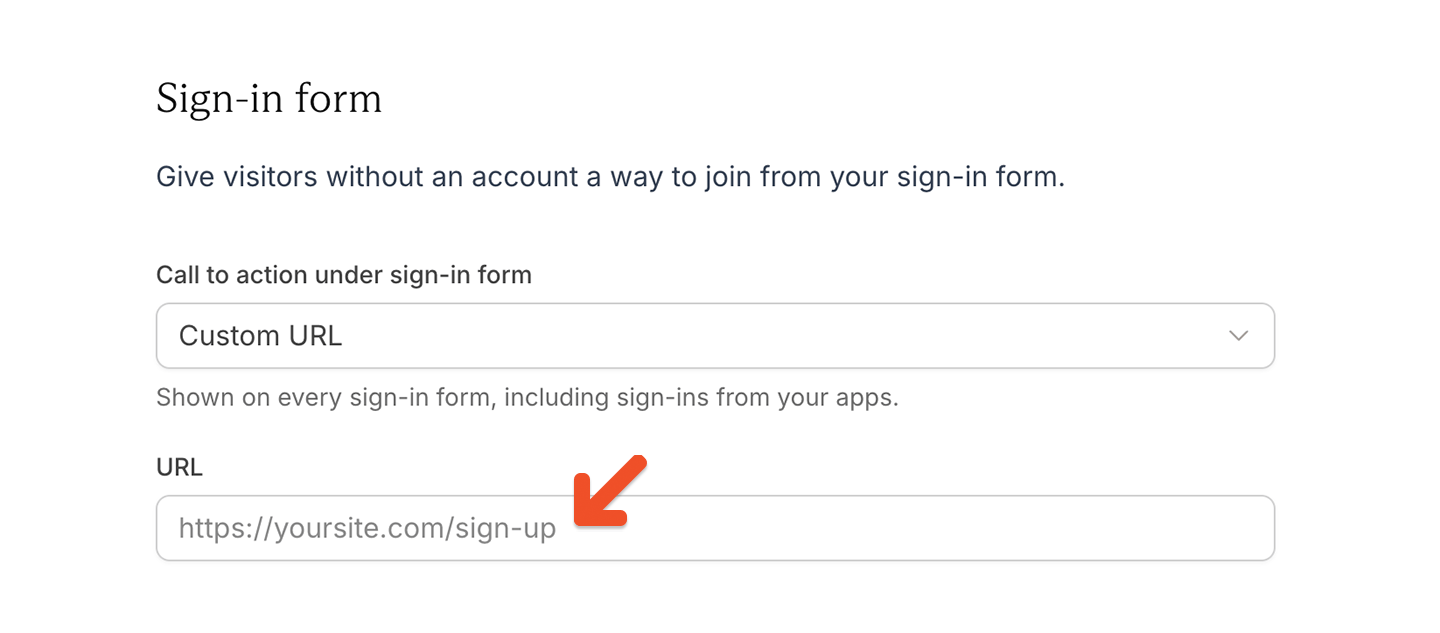
If you select Custom URL, enter the destination in the URL field.
URL field for a custom sign-up destination
Click Save changes at the bottom of the page. You can change the destination at any time. To hide the sign-up link, select None and click Save changes.