

Export member data
Go to the Members tab, and choose a filter: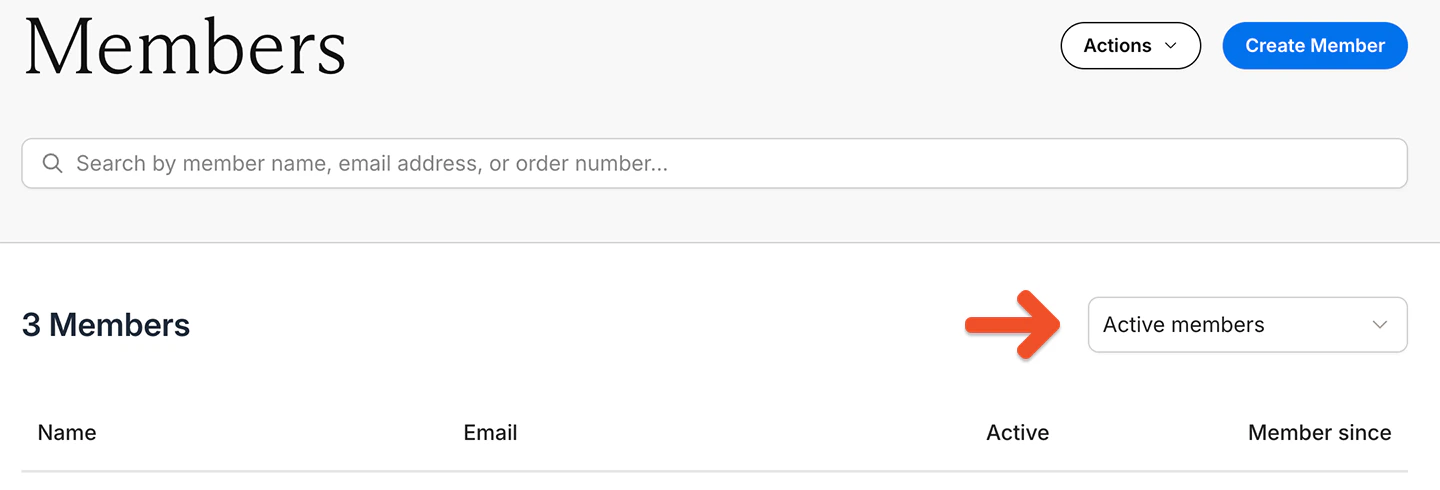
- Active members: Includes members with 100% coupons and members who made one-time payments
- Inactive members: No active subscriptions
- Free signup: Signed up via free registration and never subscribed to a plan
- All-Access Pass members: Comped access to all plans and downloads
- All members: Active, inactive, or free
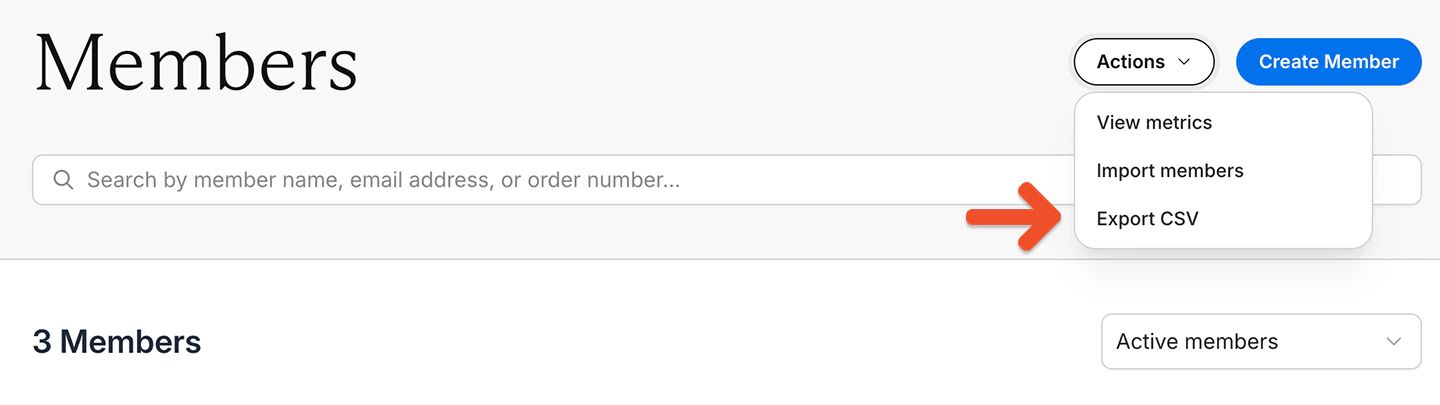
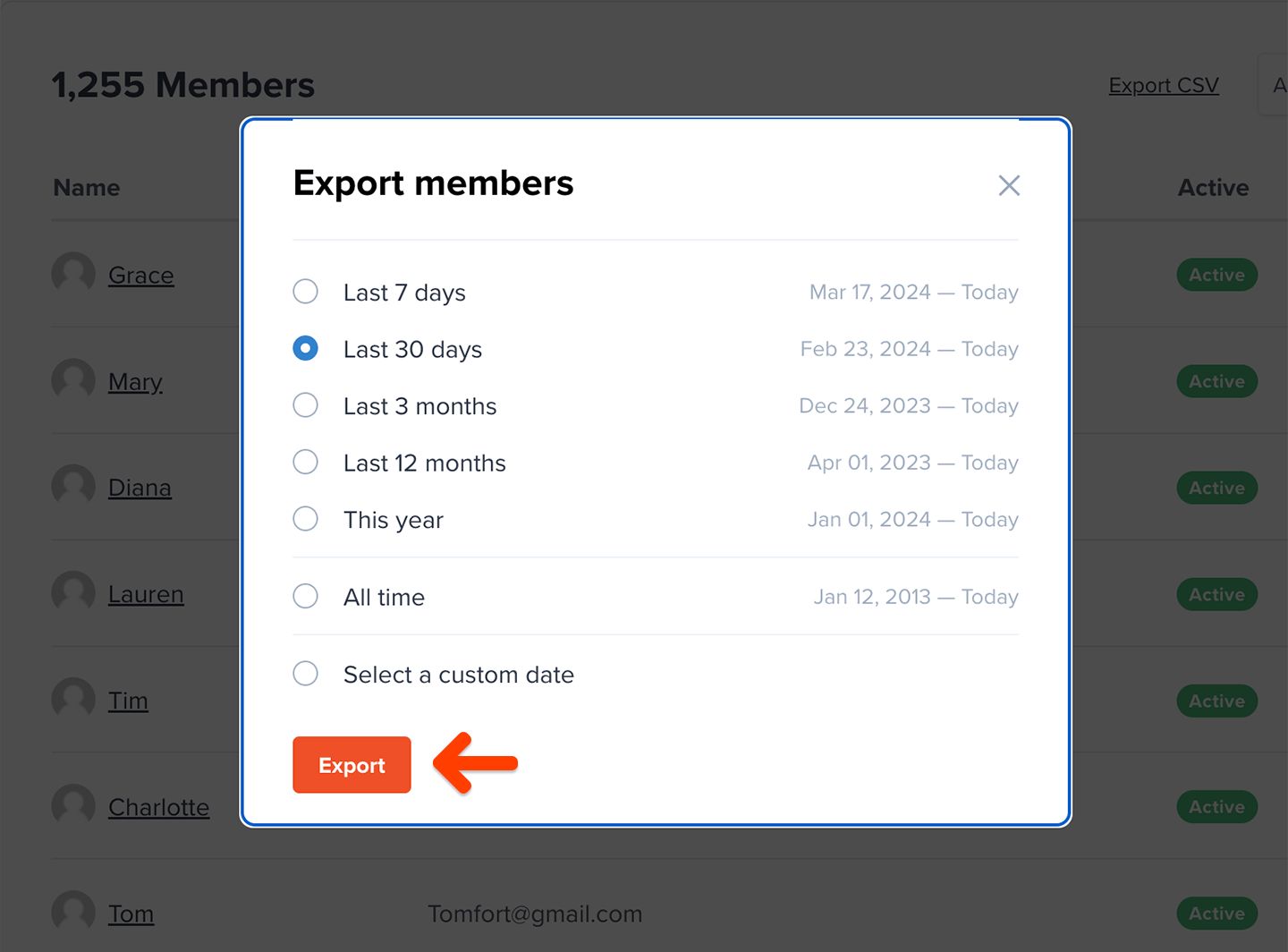
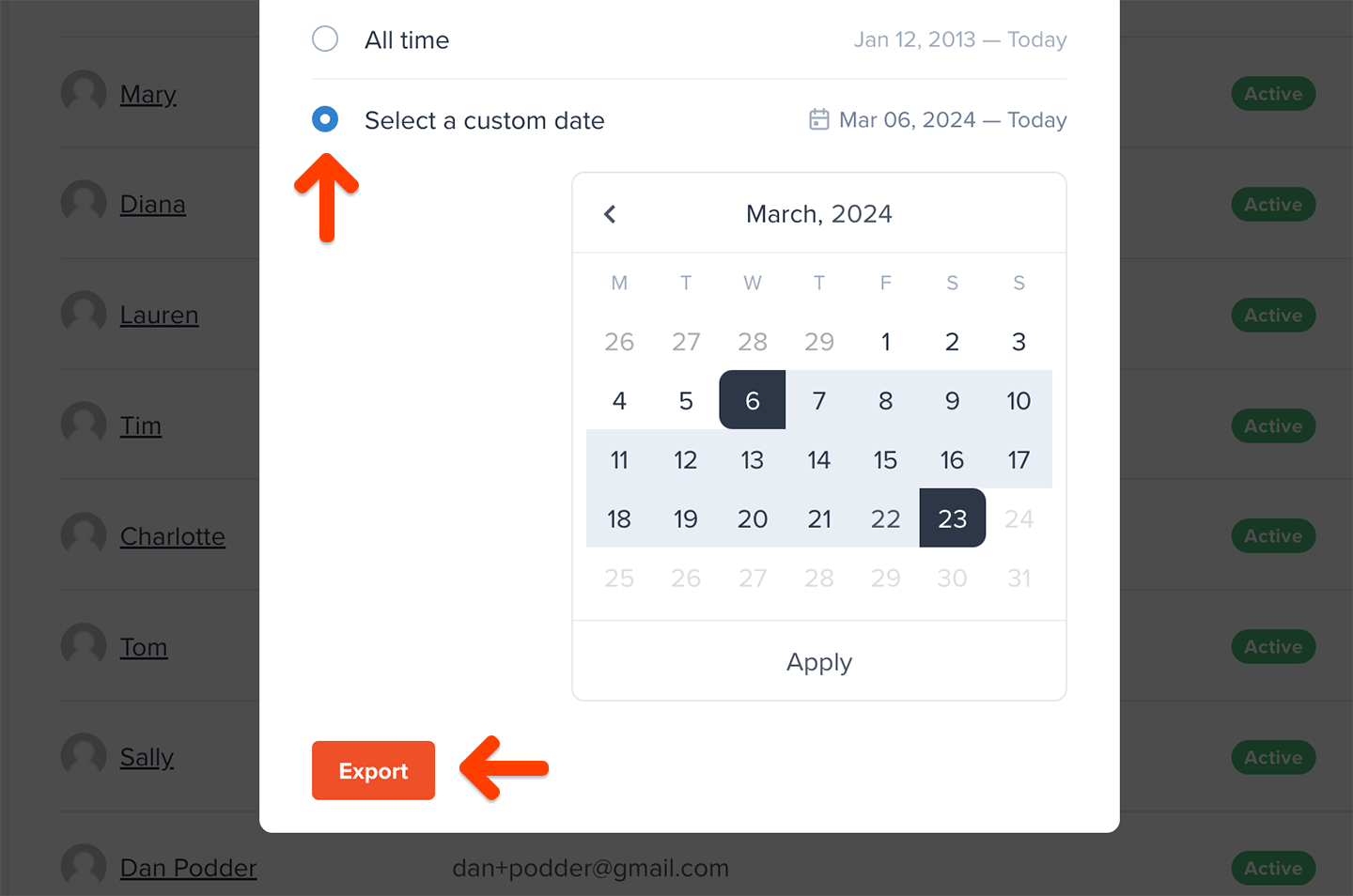
The export will include one row for each subscription associated with each member, so you might see multiple rows for each member.
If you selected Active members, we will include in the report every member that has at least one active subscription, but the export will include all of the subscriptions associated with those members, including their inactive/expired subscriptions.
All fields are self-explanatory, with these few exceptions:
- Memberful ID: Not member-facing
- All access pass: Refers to members who have free access to all plans and downloads
- Coupon: Only includes coupons currently in use; one-time coupons are not shown
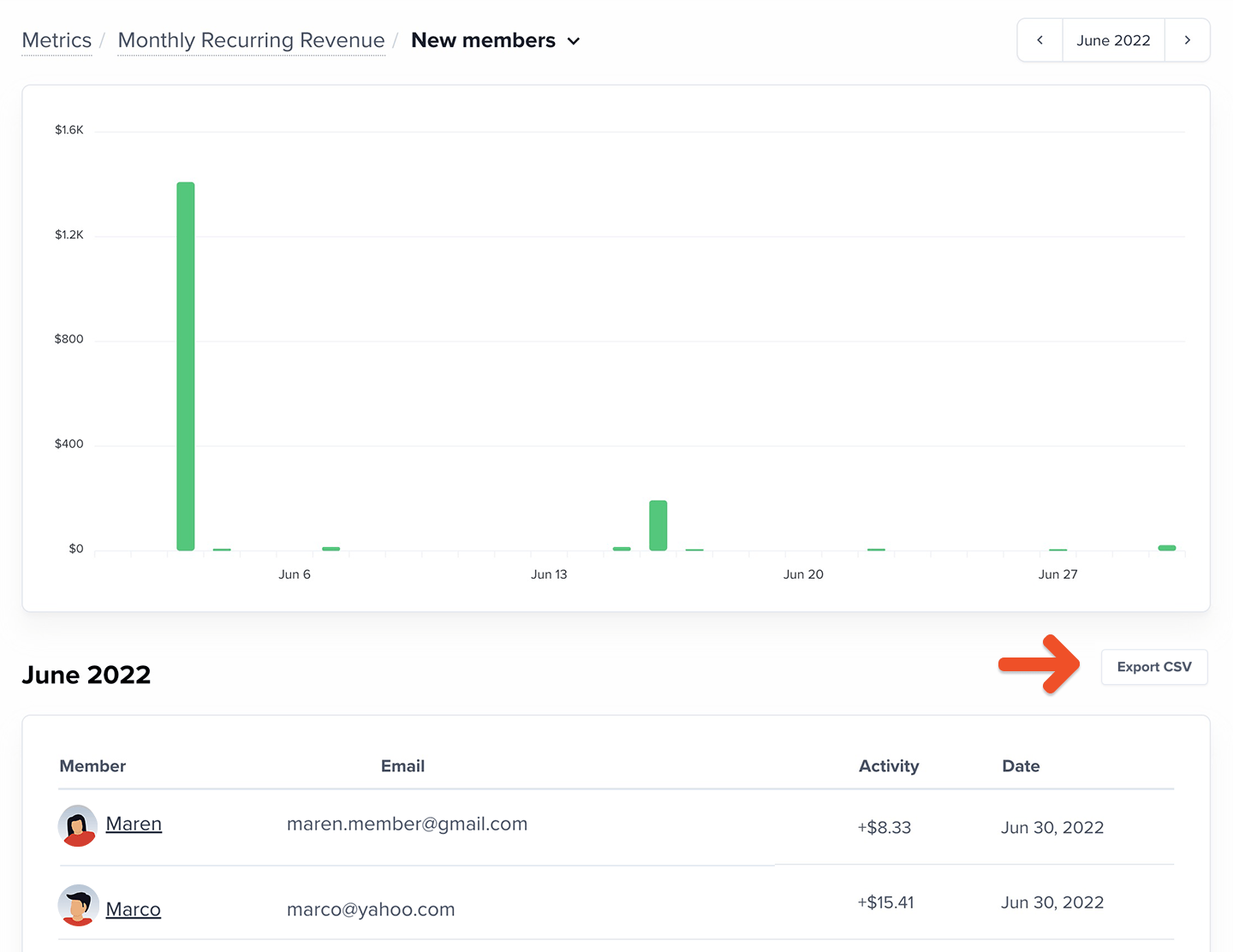
Export order data
Go to Revenue → Orders and choose a metric:- All orders
- New orders
- Renewals
- Refunds

Underneath the graph, we display the same data on a table, showing individual data segments that can be filtered by calendar day, week, or month.
Active members versus paying members
Active Members and Paying Members are calculated differently and therefore may not match.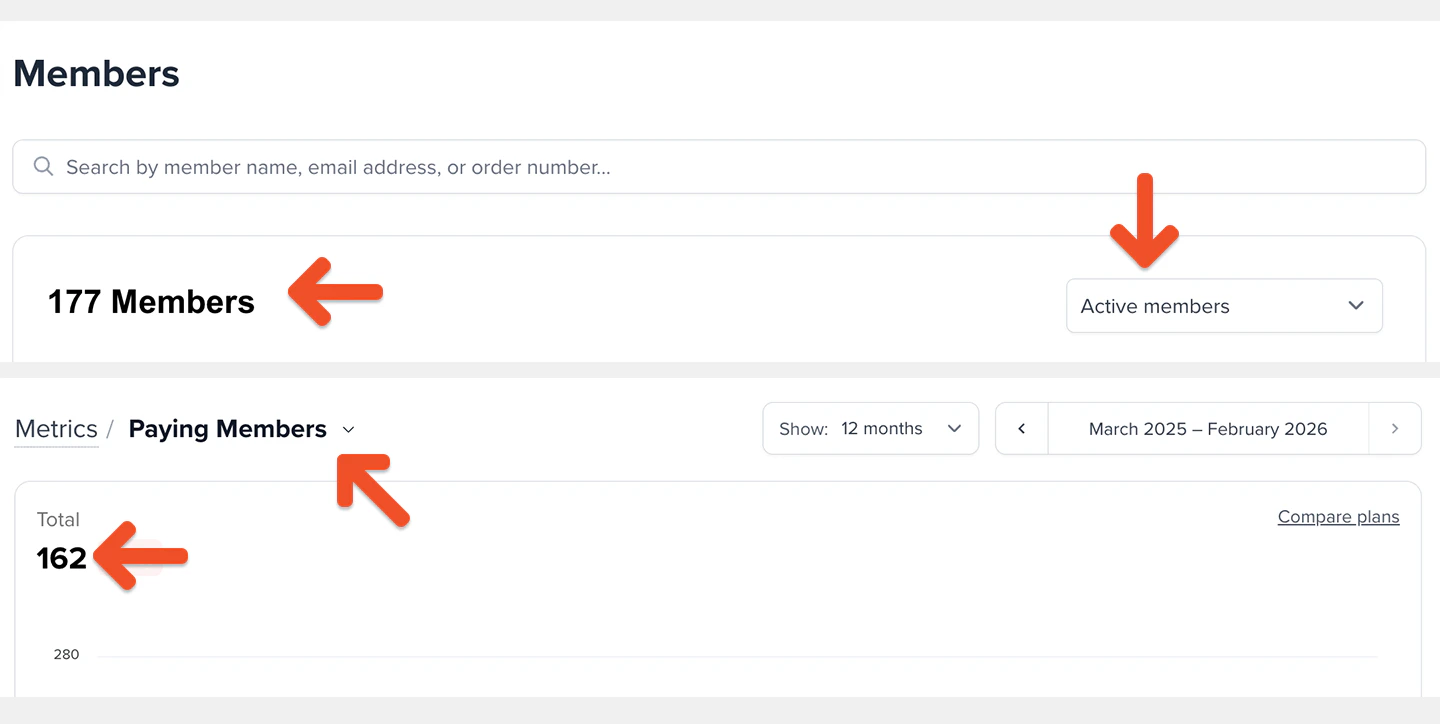
- Members with an all-access pass
- Members with a 100% coupon
- Members on a free trial
- Admin-created subscriptions with no initial charge
- Gifted subscriptions
Export metrics data
Go to Revenue → Metrics, and choose a metric. Underneath the graph, we display the same data on a table, showing individual data segments by calendar month.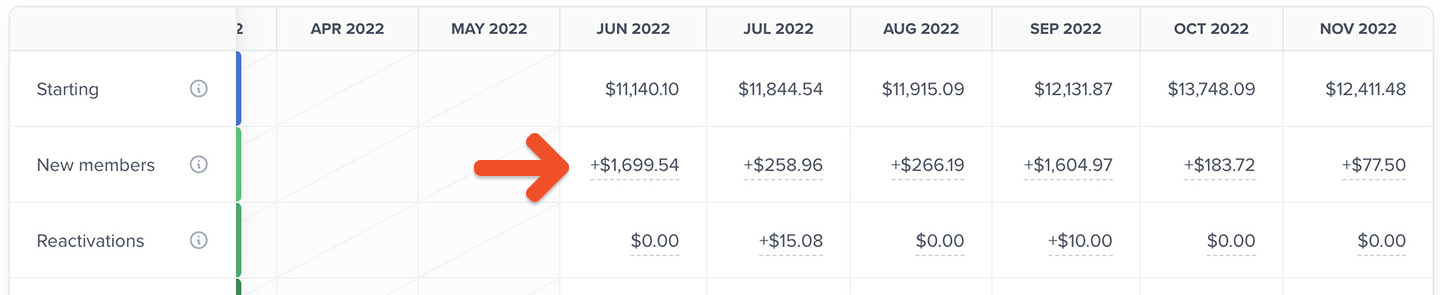
Export subscription data by plan
Go to Members → Subscriptions. Then choose a plan and a filter:
- Active subscriptions
- Inactive subscriptions
- Active but not renewing
- Past due
- On a trial
- All subscriptions

All fields are self-explanatory, with these few exceptions:
- Active since: This data can be used to reward member longevity
- Coupon: Only includes coupons currently in use; one-time coupons are not shown
- Custom field: Refers to the deprecated custom field feature
- Group manager: The group subscription owner
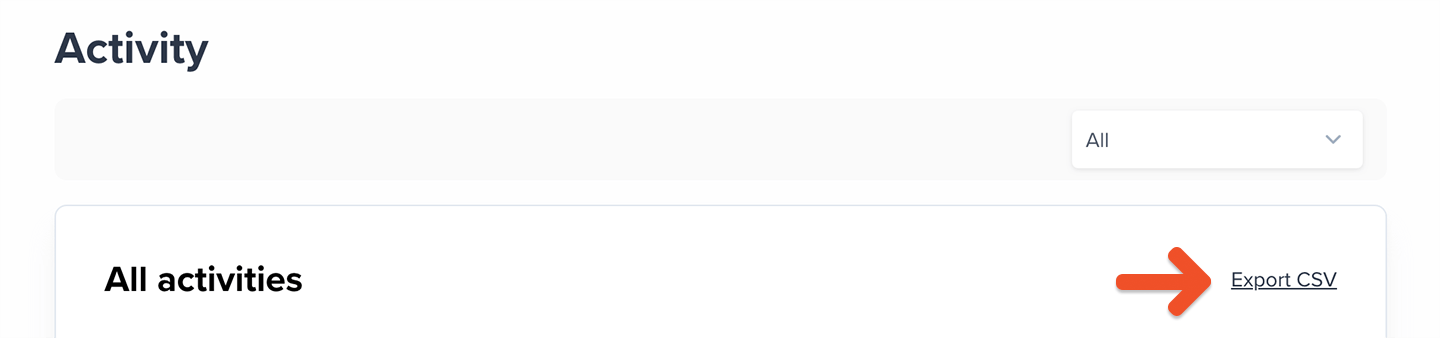
Export data by activity
Go to Members → Activity, and choose a filter: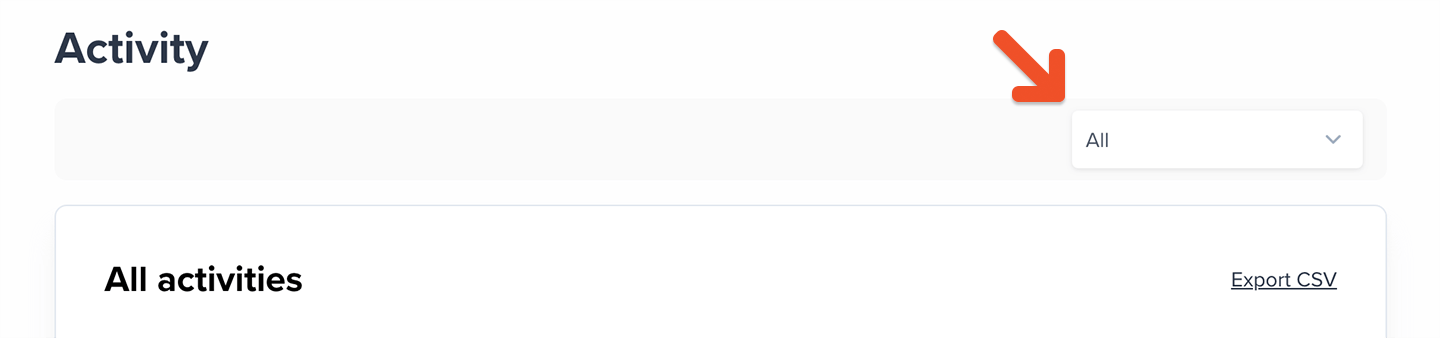
- Canceled subscription
- Enabled auto-renew
- Subscription moved
- External payment
- Externally paid renewal
- Free sign up
- Gift activated
- Member deleted
- New gift
- New order
- New group member
- Order completed
- Order refunded
- Order suspended
- Renewal
- Subscription deactivated
- Subscription deleted
- Group member delete
- Upgrade
Export cancellation data
Go to Revenue → Cancellations, select the Active or Expired tab, and choose a filter: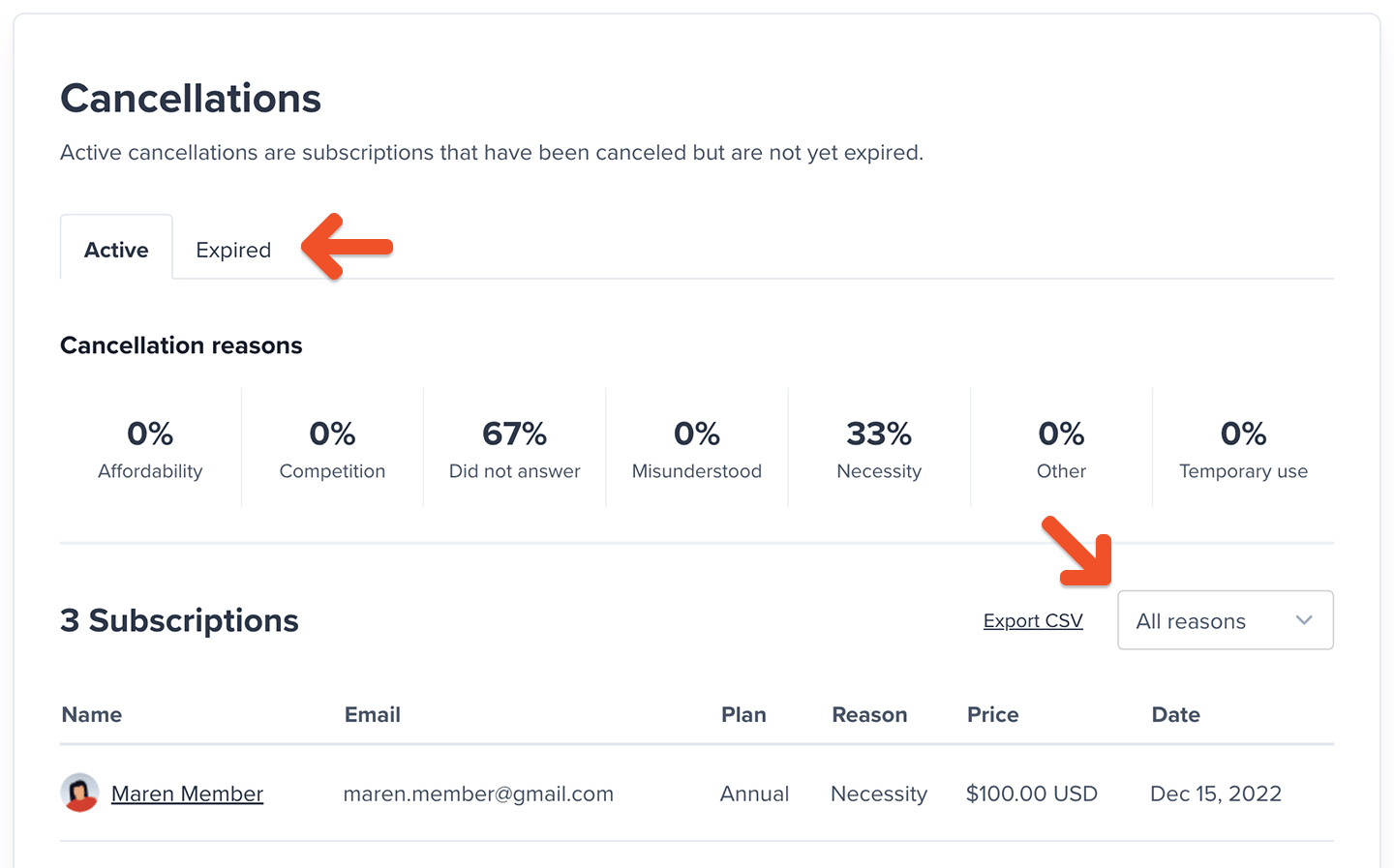
- All reasons
- Necessity
- Affordability
- Misunderstood
- Temporary use
- Competition
- Other
- Skipped

If a member canceled a subscription, allowed it to expire, and later reactivated, they’ll still appear in the expired cancellation survey export because the original cancellation remains part of their account history.The export displays the date the original cancellation took effect, not the renewal date of the member’s current active subscription. However, the Subscription price column always reflects the member’s current subscription price, which may differ from the price they were paying when they originally canceled.