

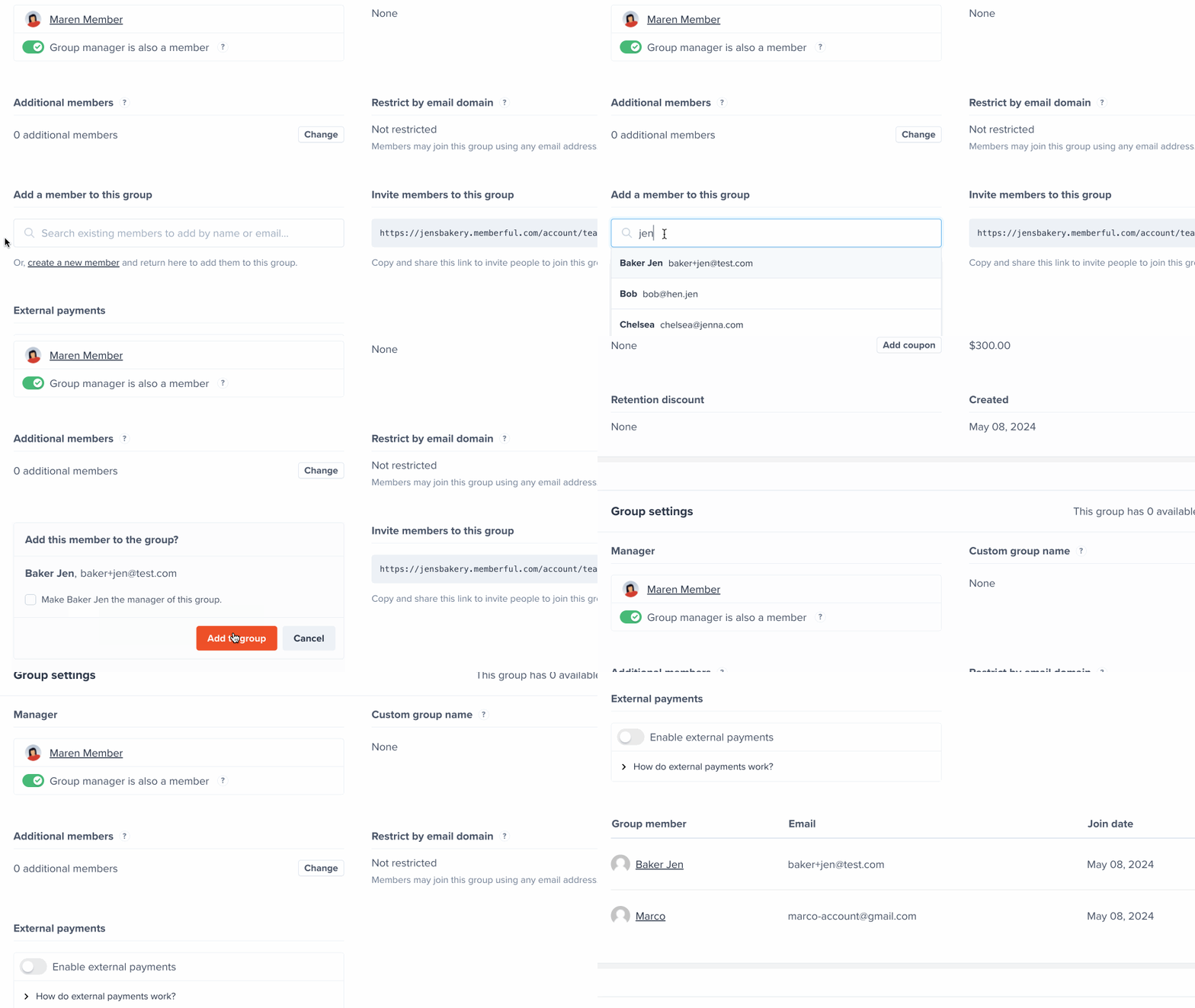

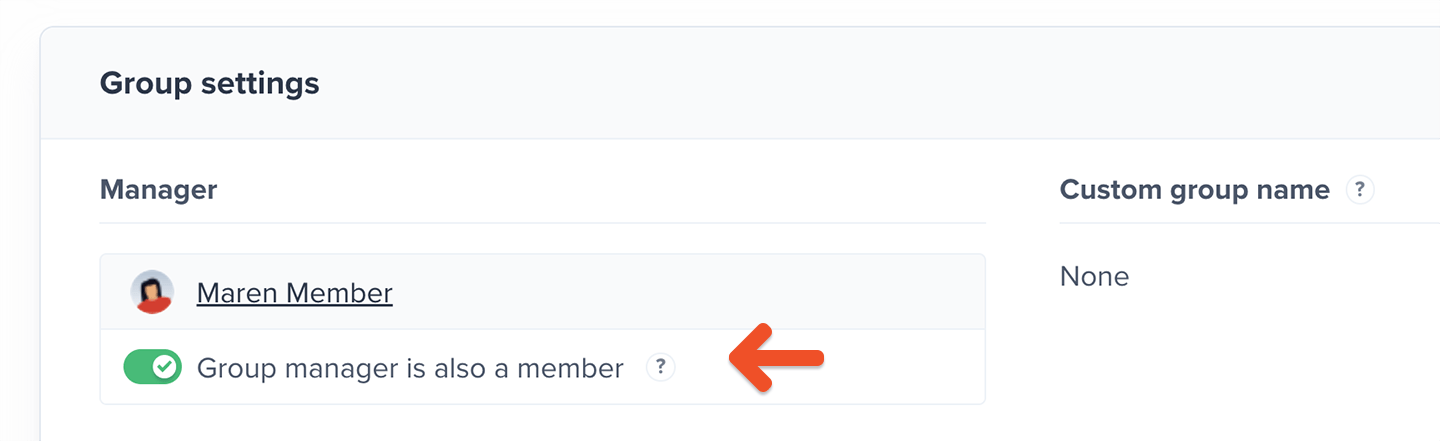
Exclude the group manager from the seat count
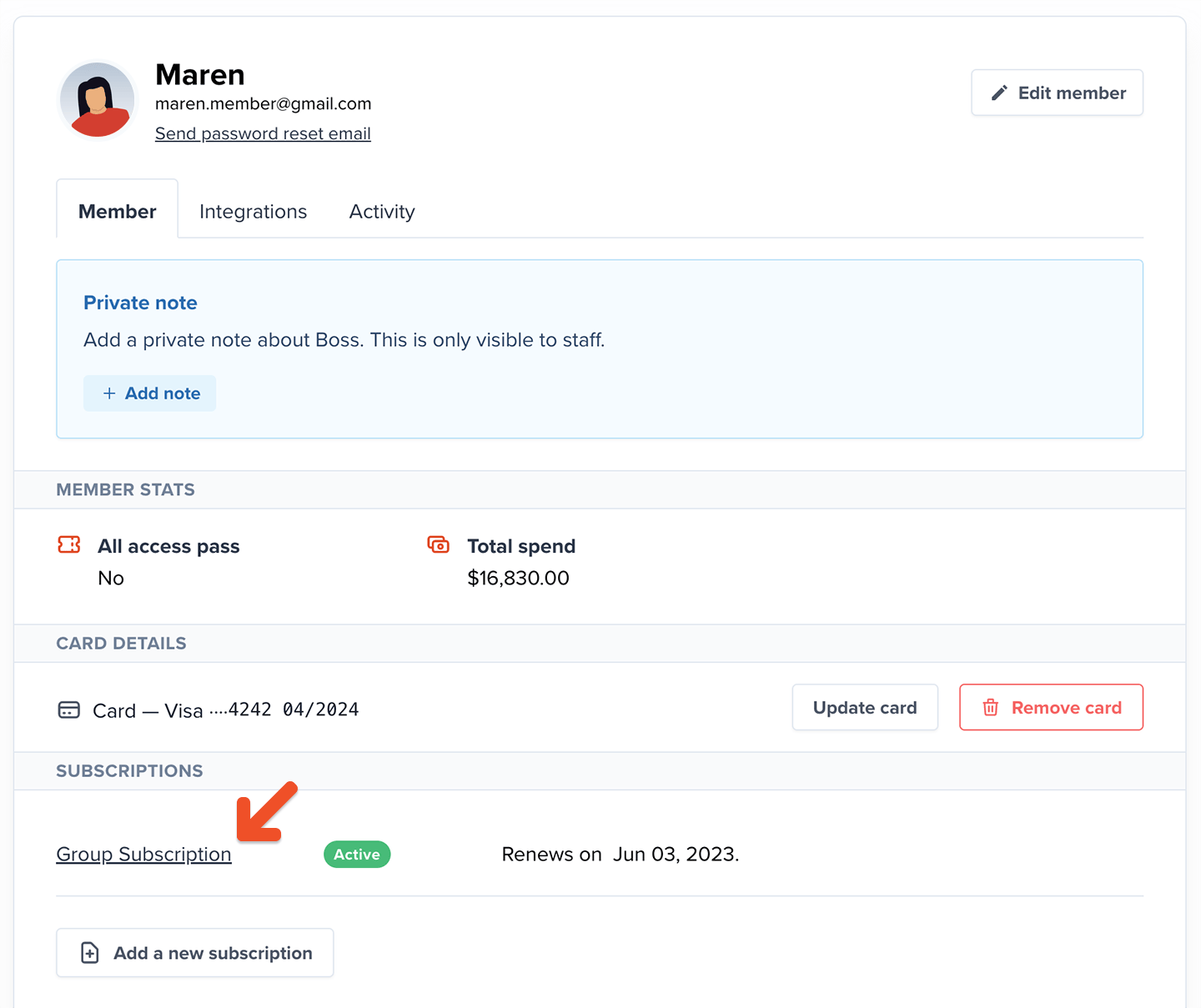
Group managers take up a seat in a group subscription and receive member benefits by default. However, they have the choice to be excluded from the seat count, and keep their involvement to billing and member management. Now, the group manager will no longer be included in the total seat count and will not receive member benefits (newsletters, Discord access, gated content, etc.). Both you, as a site admin, and the group manager, can access this setting. Learn how group managers can access this setting from their accounts. To access this setting as an admin, locate the group manager in the Memberful dashboard and click the subscription in their profile.
Add seats to a group plan
Admins can add additional seats to a group subscription from the Memberful dashboard. This lets the group manager invite more members without changing plans.1
Open the group manager's subscription
Locate the group manager in the Memberful dashboard, then click the subscription in their profile.
2
Open the additional member settings
Scroll down to Group configuration settings, then click Change under Additional Members.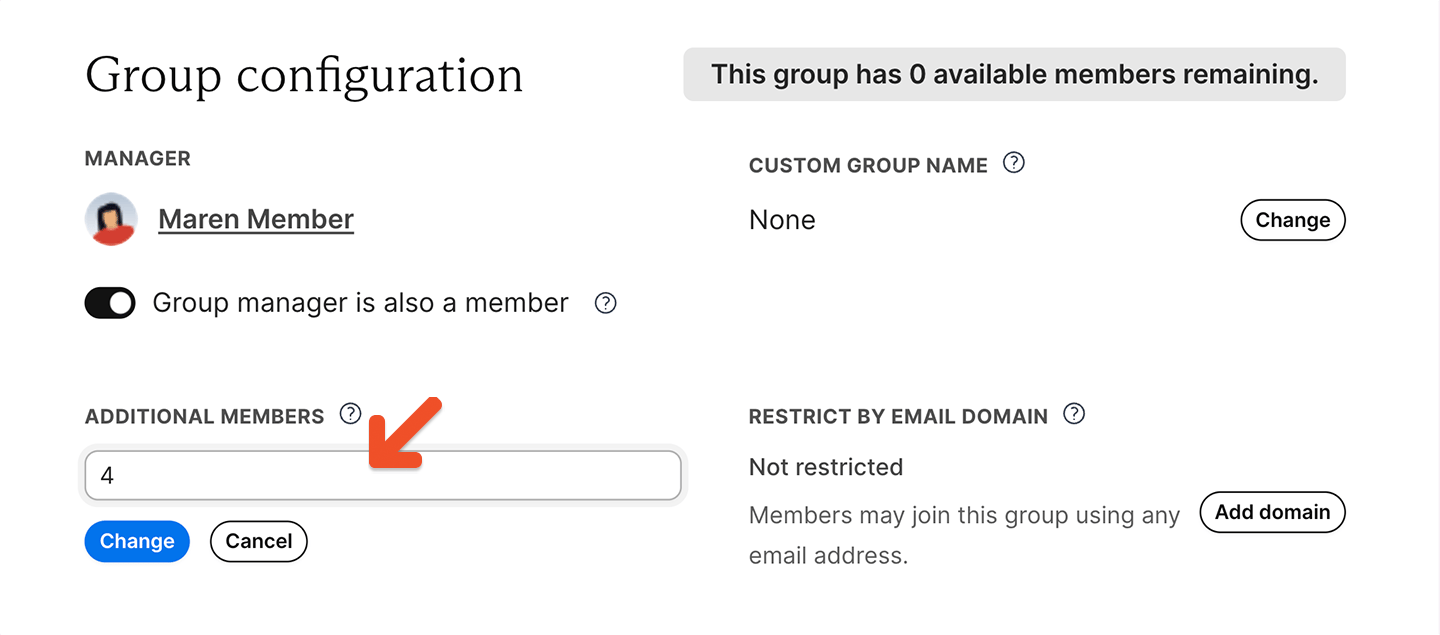
3
Add the seats
Select the number of seats to add, then click Change.
- The new seats are not charged until the subscription renews at the end of the current billing period.
- The admin can increase the seat count up to the limit set in Max seats settings.
- The group manager can use the additional seats as soon as they are added.