

Where to find this metric
Go to Revenue → Metrics in your Memberful dashboard, and click View next to Paying Members.What is a paying member?
A paying member is a member who has a recurring payment that’s active at the end of the month. These members don’t count toward Paying Members until their subscription renews and the payment is collected:- members with a 100% coupon
- members on a free trial
- admin-created subscriptions with no initial charge
- gifted subscriptions
Because the Active Members count is calculated differently, it may include members from the categories above even if they aren’t counted as Paying Members. This is one reason the two metrics may not match.
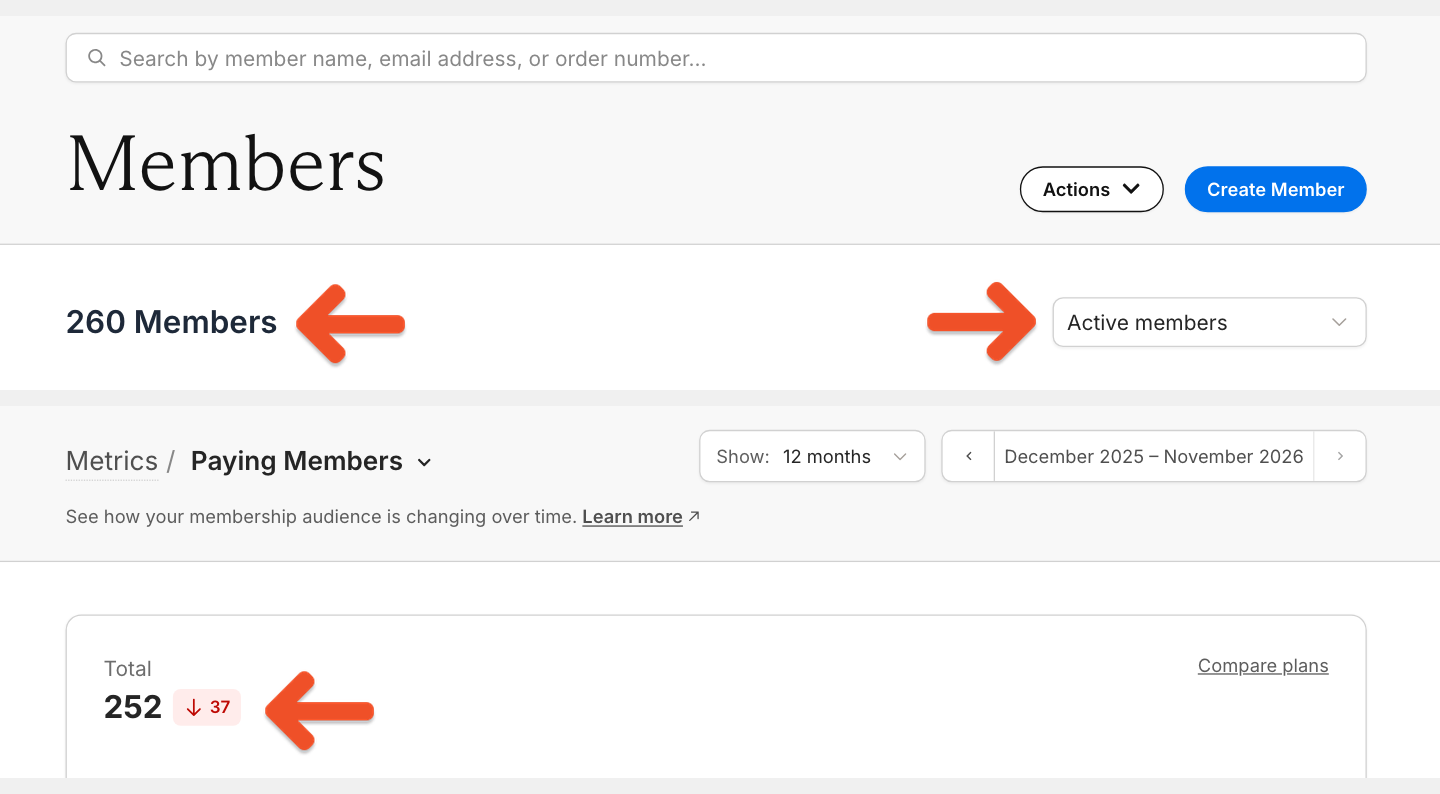
How is Paying Members calculated?
We count each unique member with at least one active recurring subscription at month-end. A member with multiple recurring plans still counts as one paying member. Metrics update daily at midnight UTC and reflect the previous calendar day.What affects my Paying Members total?
These segments change the Paying Members total each month:- New: Members who started a recurring subscription for the first time.
- Reactivations: Members who returned after previously canceling.
- Cancellations: Members who ended their recurring subscription.
- Failed payments: Members whose payment couldn’t be collected.
- Upgrades: Members whose subscription change increased their normalized monthly revenue.
- Downgrades: Members whose subscription change decreased their normalized monthly revenue.
Members whose payment fails are still counted as Paying Members for up to 30 days while we attempt to collect payment. If payment isn’t collected within 30 days, they’re removed from the Paying Members count.
How to explore your Paying Members data
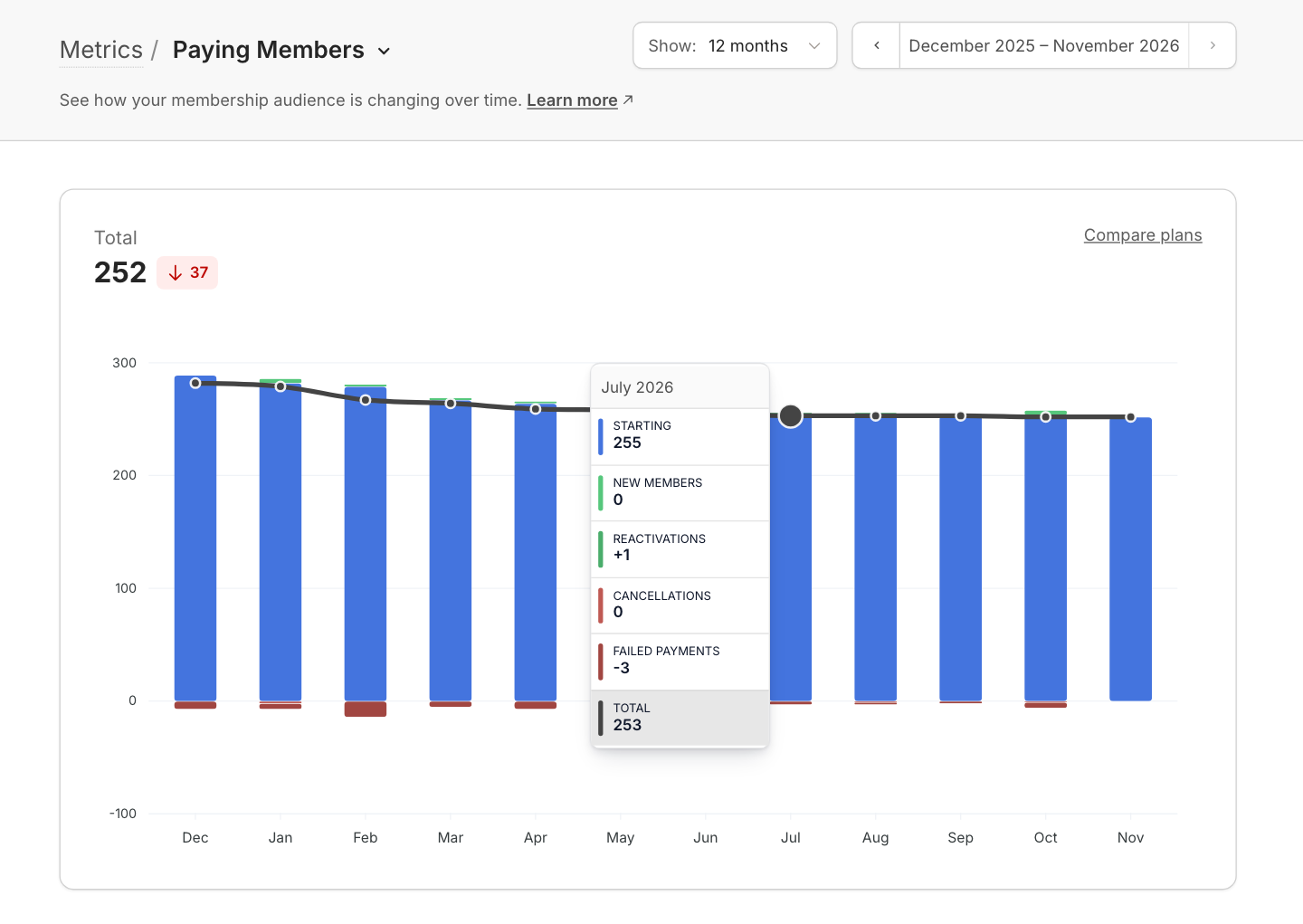
The Paying Members chart shows your monthly totals, including the current, partially complete month. You can view the last 12 months by default, or switch to 3- or 6-month views.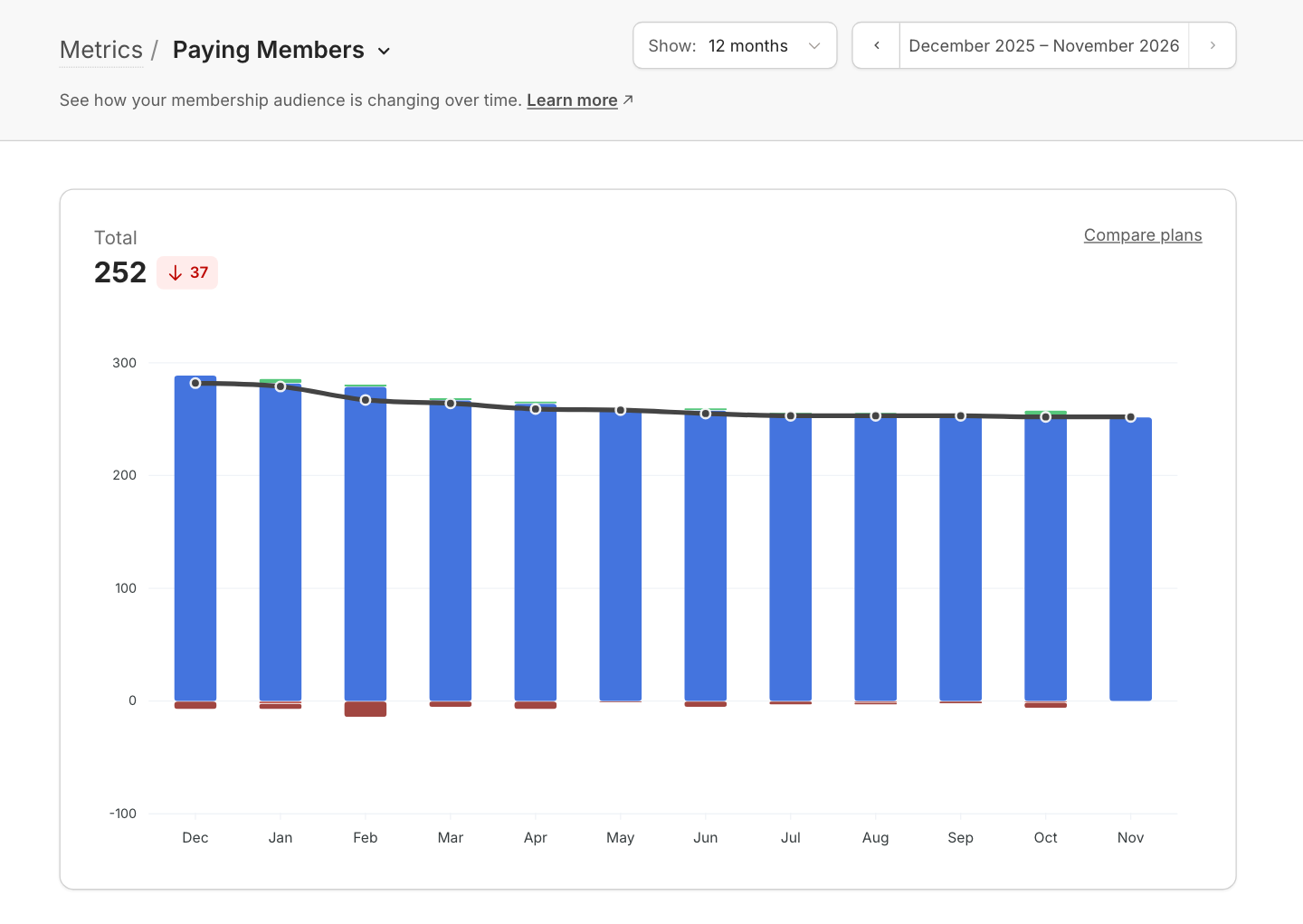
- the starting member count
- the segment values (new, reactivated, etc.)
- the total number of paying members for that month
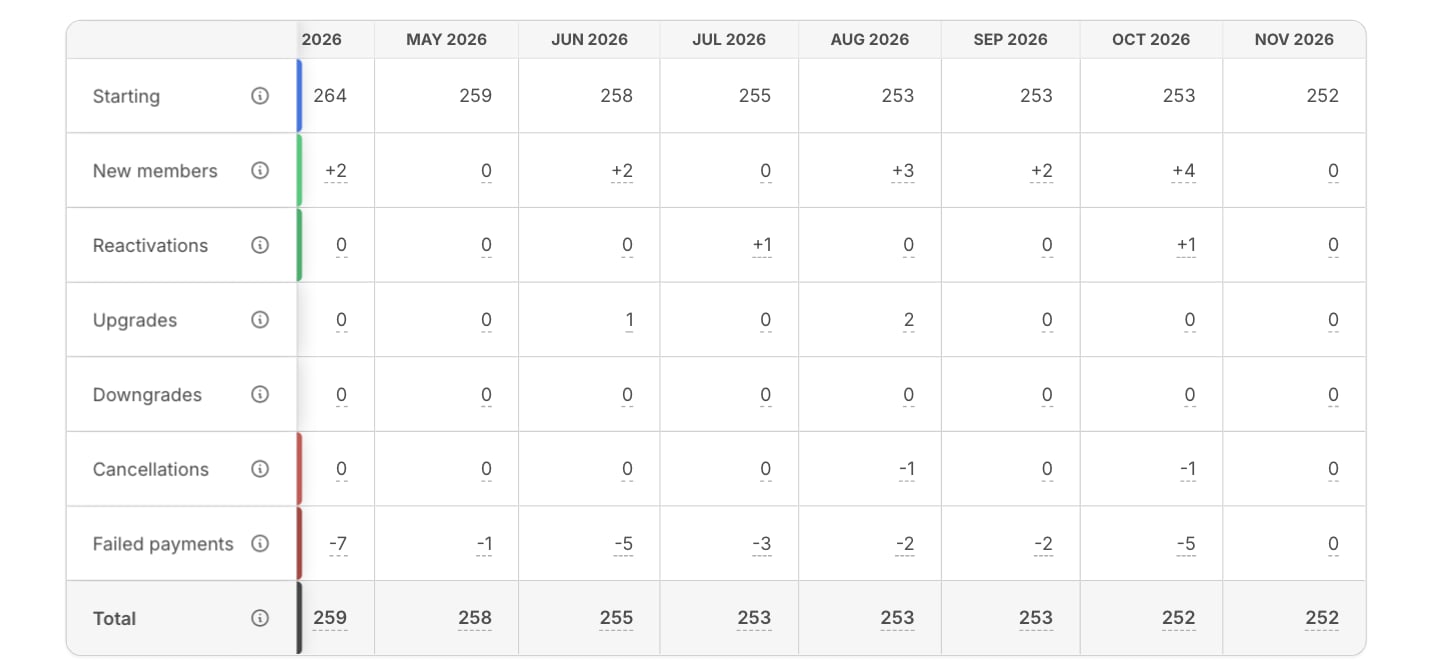
Want to compare Paying Members across plans? Learn More.
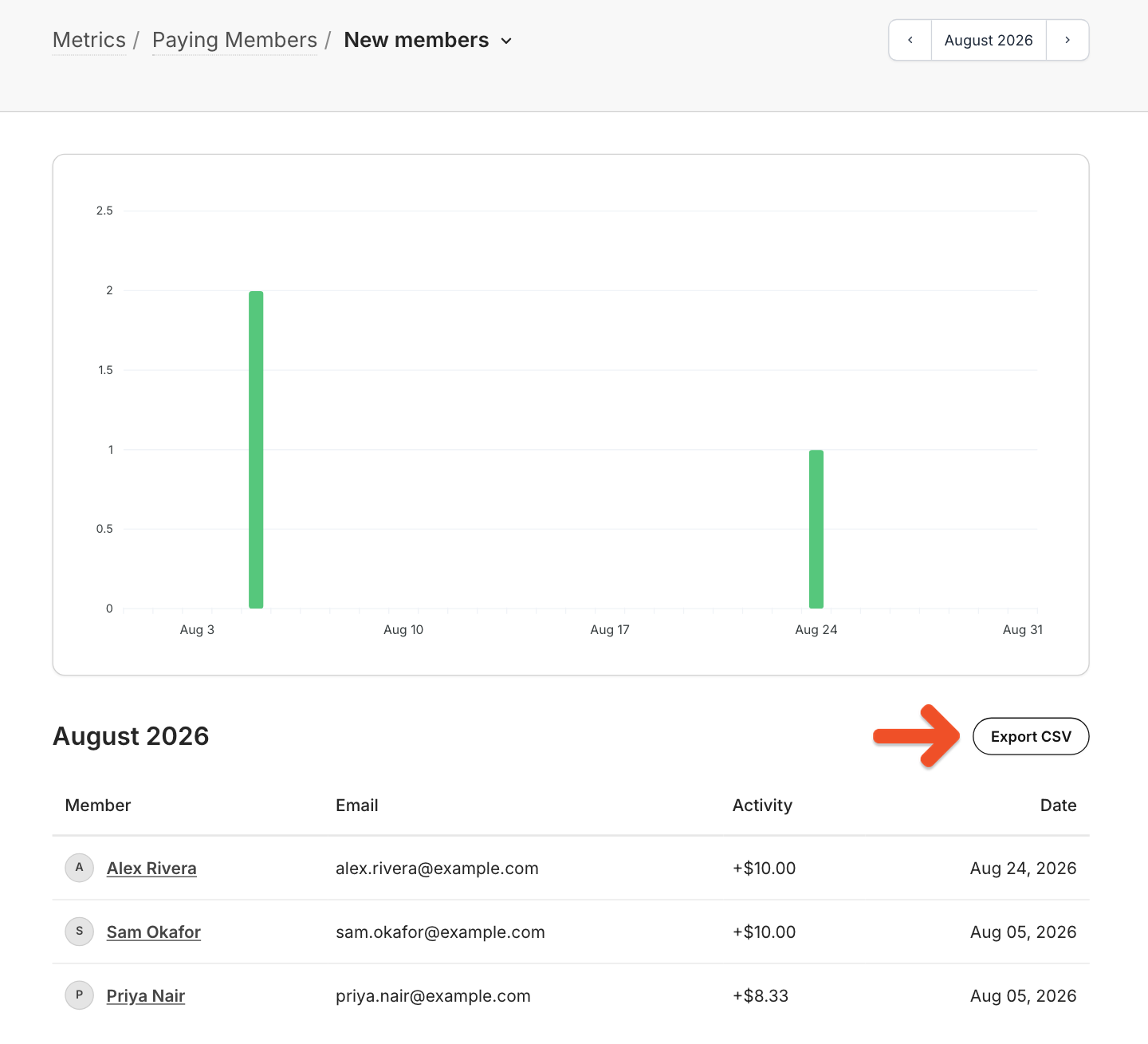
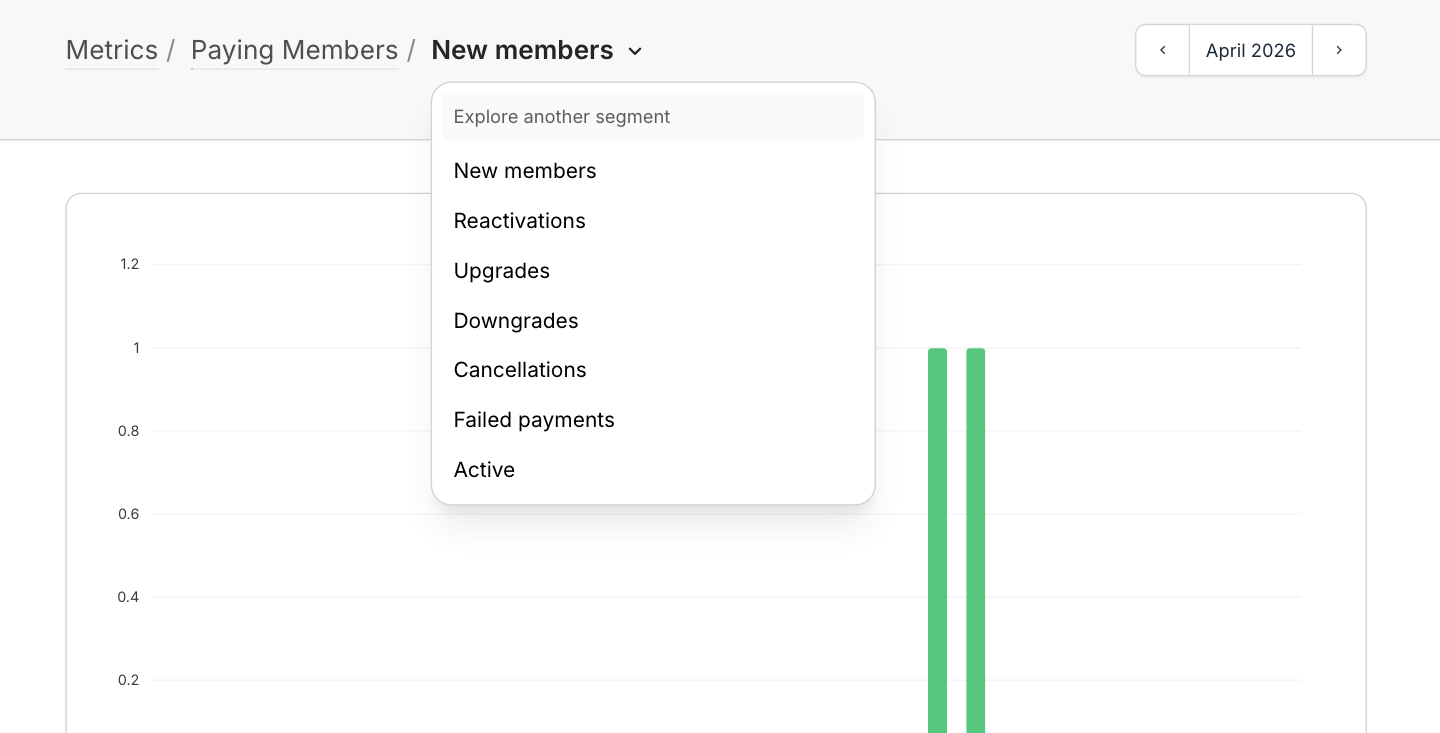
How should I use this metric?
The Paying Members metric helps you understand why your member count is changing. By reviewing activity segments, you can see what’s driving growth or causing declines — and adjust accordingly.Reactivations
Reactivations show how many former members return. Use this to measure the impact of win-back campaigns or re-engagement efforts.Upgrades
Upgrades increase the value of existing members. Use this to evaluate whether higher-tier plans or added benefits are resonating.Downgrades
A spike in downgrades may point to pricing friction or unmet expectations. Use this to assess plan value and identify areas for improvement.Cancellations
Cancellations are a strong signal of member satisfaction. If cancellations trend up, investigate potential triggers — pricing changes, content cadence, or fulfillment issues.Failed payments
- Reactivations: Show how many former members return. Use this to measure the impact of win-back campaigns or re-engagement efforts.
- Upgrades: Increase the value of existing members. Use this to evaluate whether higher-tier plans or added benefits are resonating.
- Downgrades: A spike may point to pricing friction or unmet expectations. Use this to assess plan value and identify areas for improvement.
- Cancellations: A strong signal of member satisfaction. If cancellations trend up, investigate potential triggers, such as pricing changes, content cadence, or fulfillment issues.
- Failed payments: Represent involuntary churn. Use this to monitor how often members lose access due to card issues and where additional nudges or communication could help.