

Demo
Create a plan
1
Create the plan
Go to Revenue → Plans in your Memberful dashboard and click Create plan.
2
Add the plan details
Enter a plan name, add a price and billing interval, and click Create plan.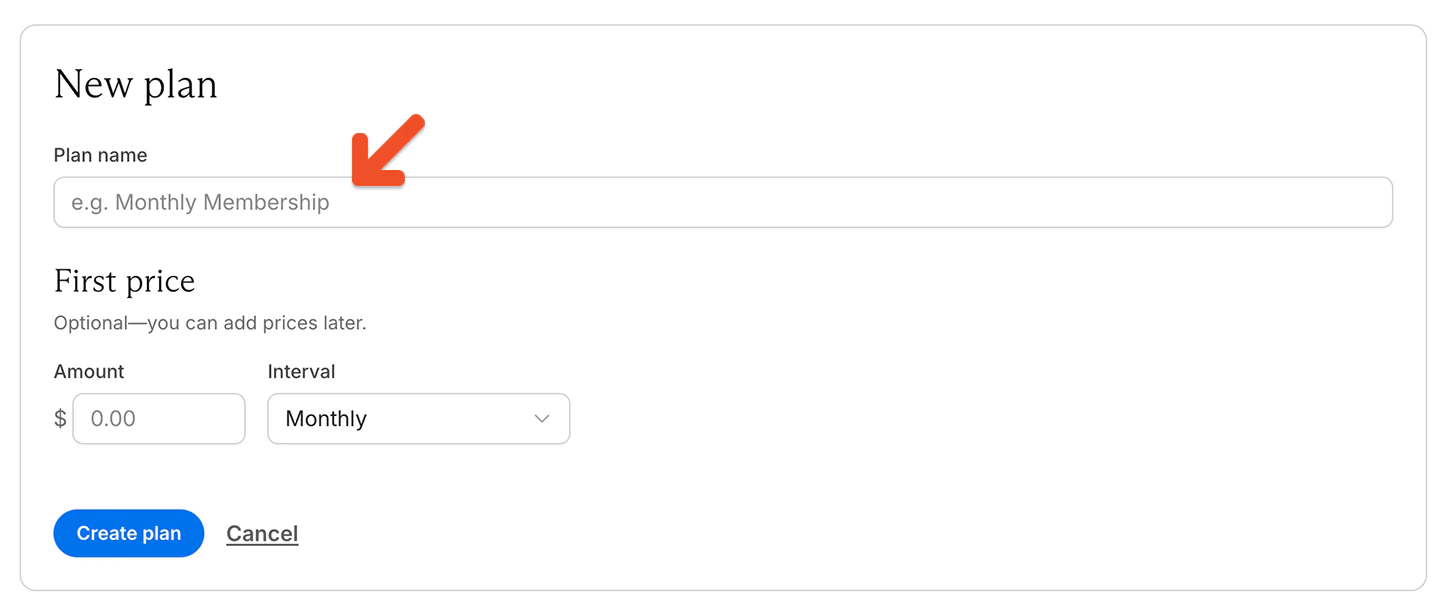
3
Edit the price
In Prices, click the ••• menu next to the price and select Edit price.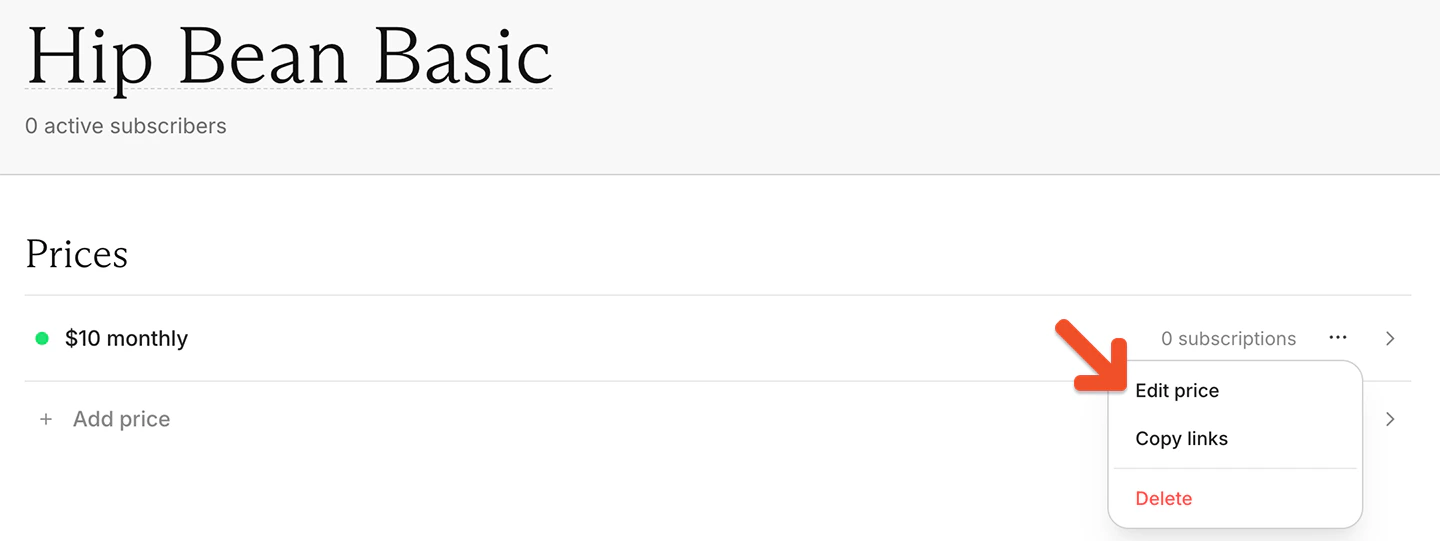
4
Enable choose-what-you-pay pricing
Toggle on Let members choose what to pay.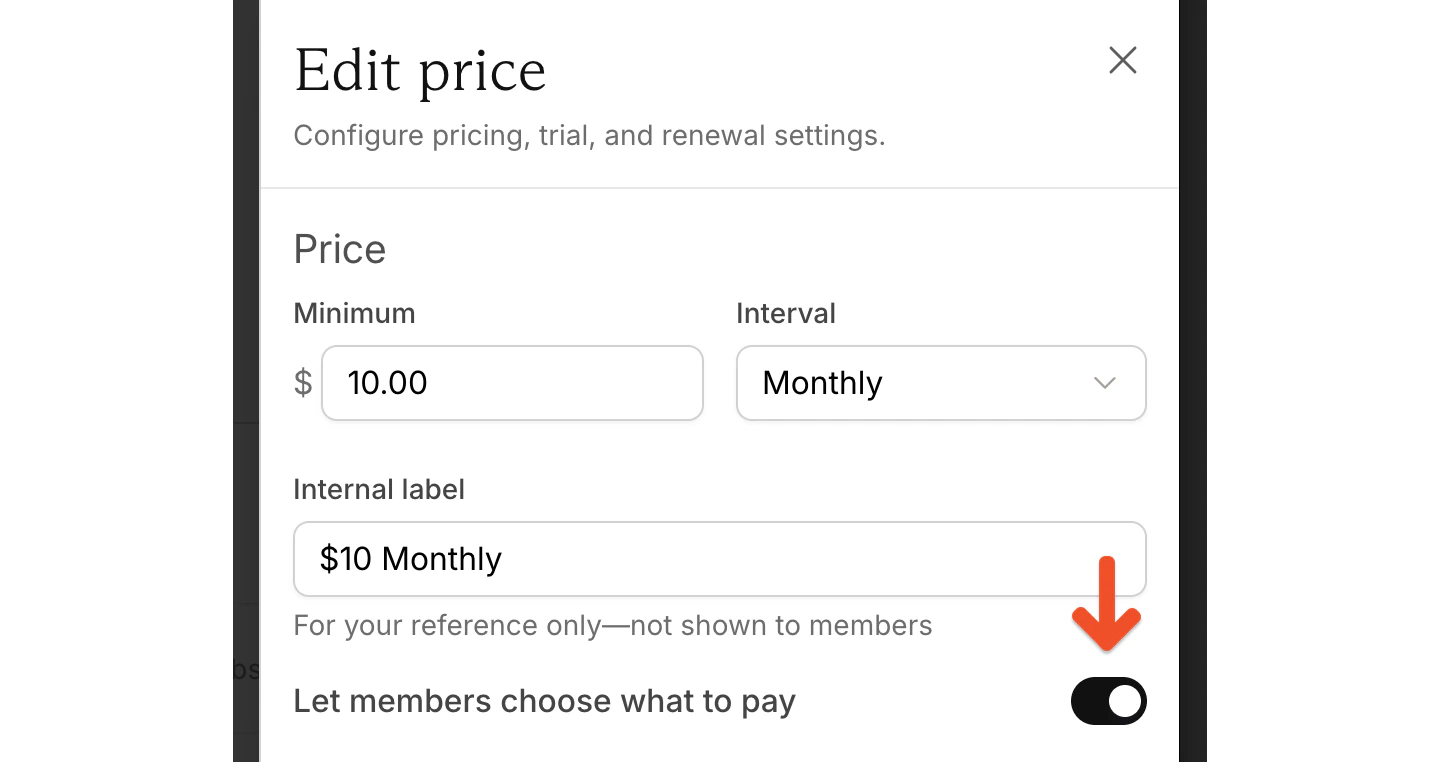
If you’re creating different tiers of benefits, such as Bronze, Silver, or Gold, set up a separate plan for each tier. If you’re offering different renewal schedules for the same benefits, such as monthly and annual billing, add separate prices to the same plan. You can also consider enabling upgrades and downgrades between plans.
Accept custom payments
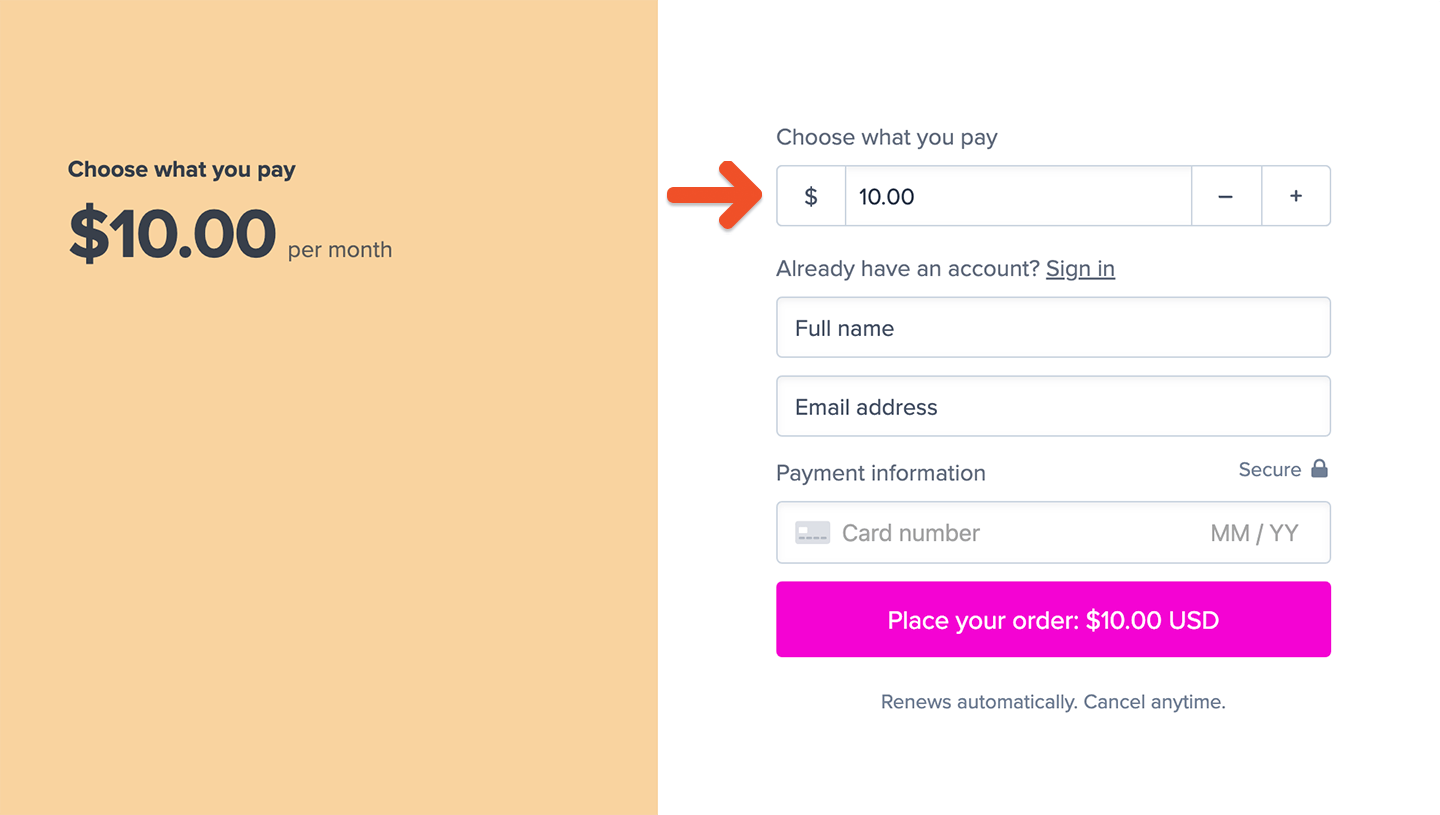
When purchasing the plan, members see a field where they can enter their own price. The amount must meet or exceed the minimum price. No matter how much a member pays, they receive the same access and benefits tied to the plan.Suggest an amount in a purchase link
You can suggest a price by passing the amount through aprice query parameter in the purchase link URL.
To suggest a payment of $50, use:
ACCOUNT-URLwith your account URL subdomain, which you can find under Website → Settings2with your plan ID, which you can find in the plan’s purchase link- the
pricevalue with the amount you want to suggest
Create a custom payment form
You can also create a text field where members enter their own amount before opening the checkout. Example HTML is available from the plan settings in your Memberful dashboard.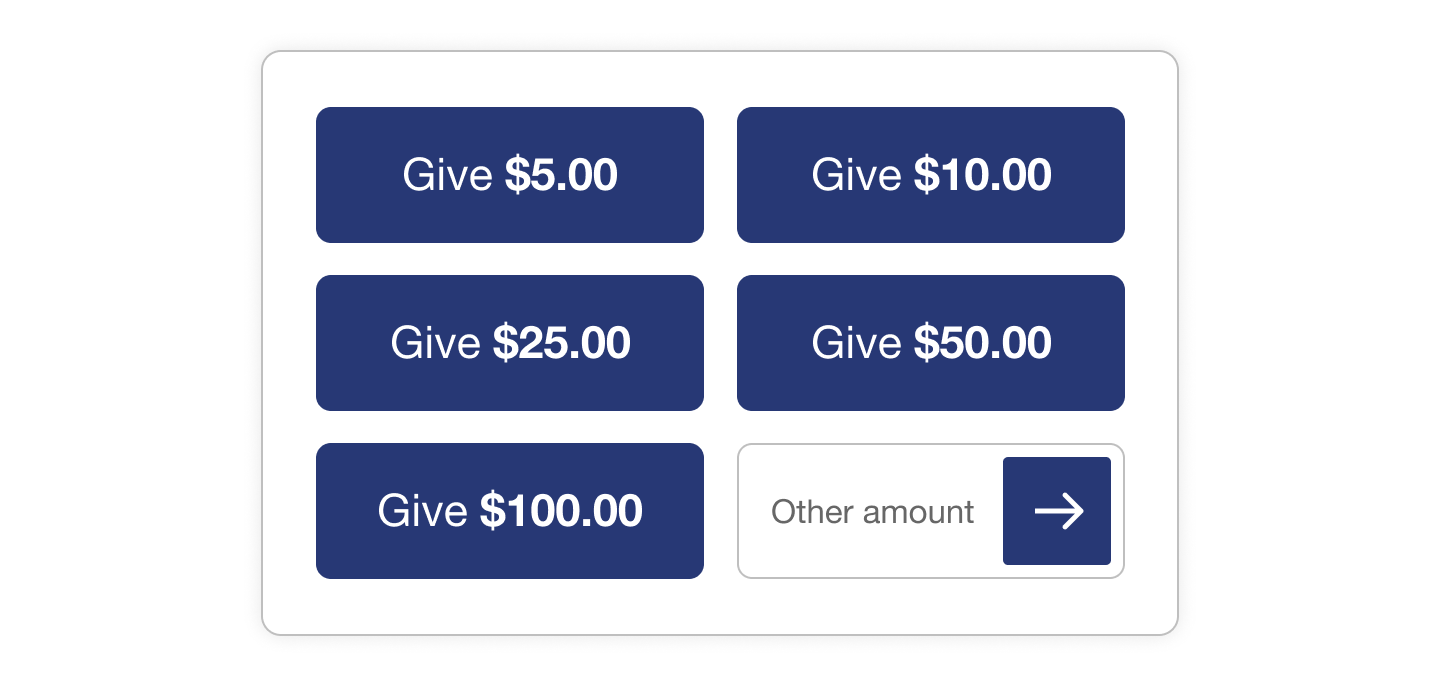
ACCOUNT-URLwith your account URL subdomain2with your plan ID60.00with the plan’s minimum price
Edit a member’s custom amount
You can edit the amount an existing member pays from their subscription in the Memberful dashboard. Search for the member by name or email and open their subscription. Under Custom price, click Change and enter an amount equal to or greater than the plan’s minimum price. The member will be charged the new amount at their next renewal and all future renewals.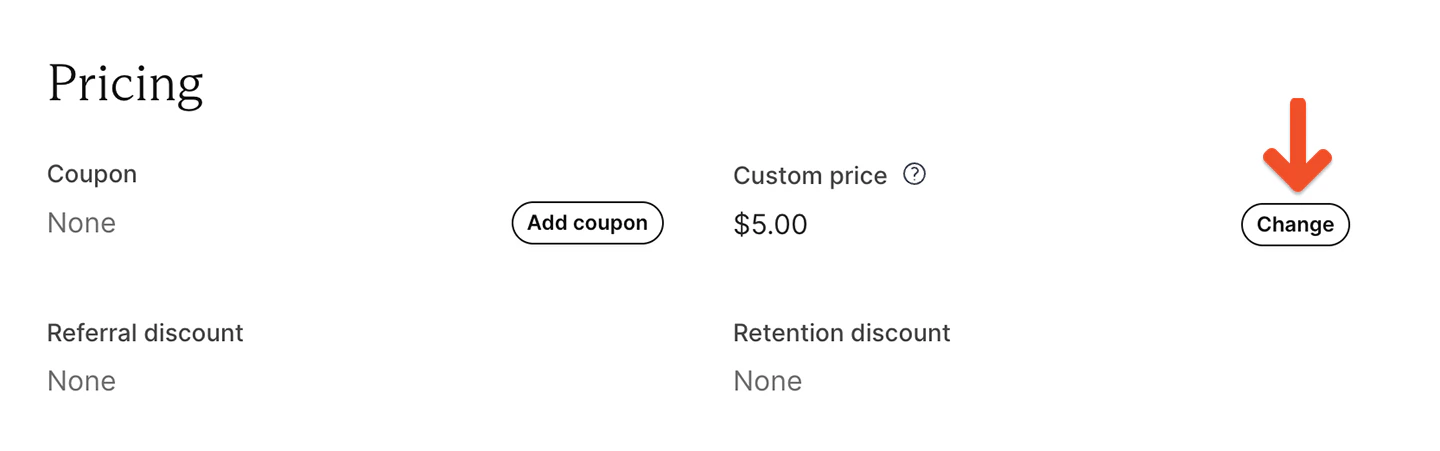
Move members with custom prices
When members are moved from one price to another, Memberful checks whether the destination price also allows members to choose what they pay.- If the destination price allows members to choose what they pay, members keep their custom price as long as it meets or exceeds the destination price’s minimum.
- If the destination price does not allow members to choose what they pay, the custom price is replaced with the destination price on the next renewal.