

Let members apply coupon codes
Depending on the coupon’s redemption settings, members can apply a code at checkout, to an existing subscription, or when changing plans. Keep in mind that:- Members can’t apply the same coupon code more than once.
- The coupon field appears at checkout only when at least one enabled coupon applies to the purchase and the field hasn’t been hidden.
- Recurring coupons remain on a subscription when it expires.
Members with expired subscriptions can still use an eligible coupon when upgrading or reactivating their subscription. Eligibility depends on the coupon’s settings, not whether the previous subscription is expired.
Apply a coupon code at checkout
Members can enter an eligible coupon code in the purchase form.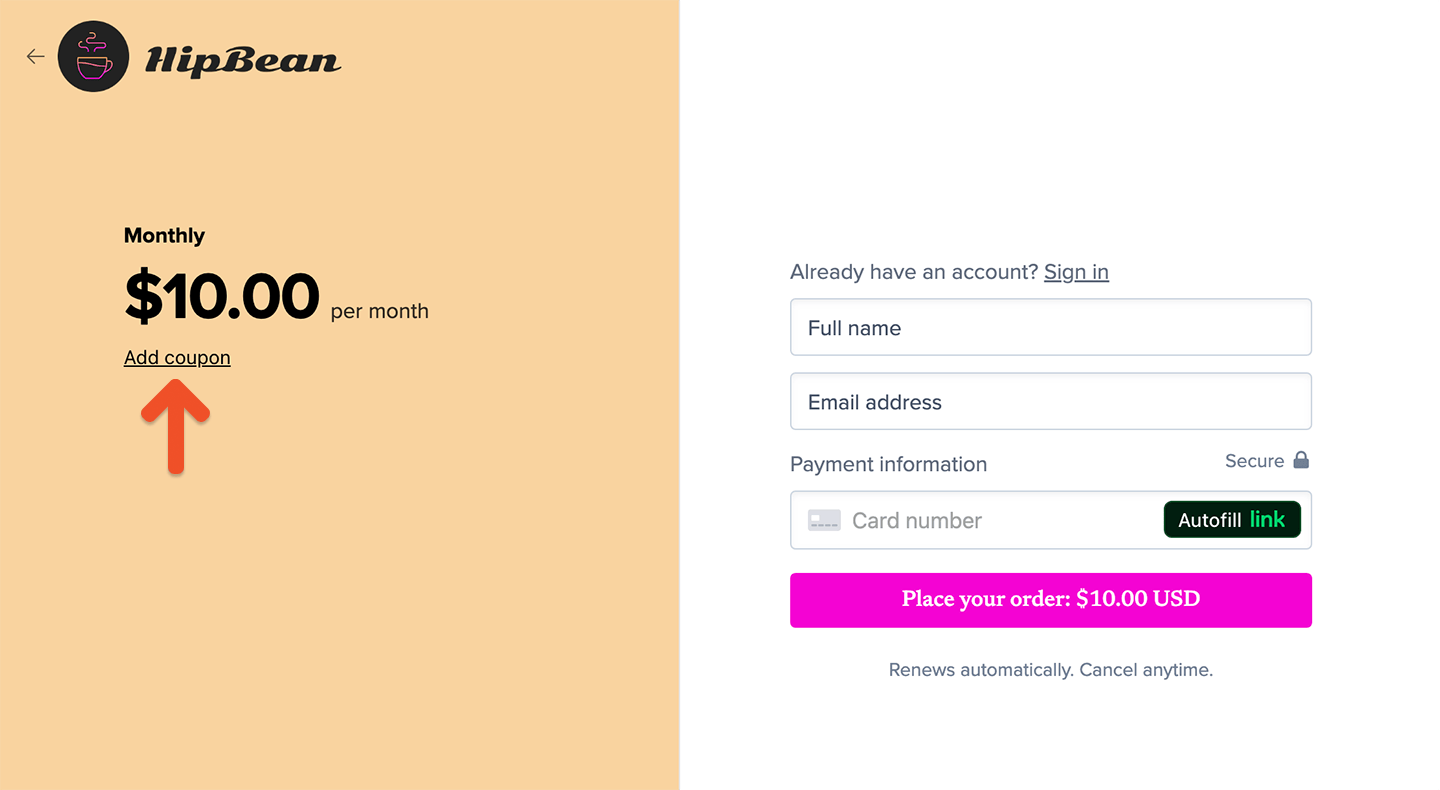
Share a purchase link with a coupon applied
You can share a purchase link that applies a coupon code automatically.1
Open the coupon
Go to Revenue → Coupons and click the coupon’s label.
2
Select a plan and price
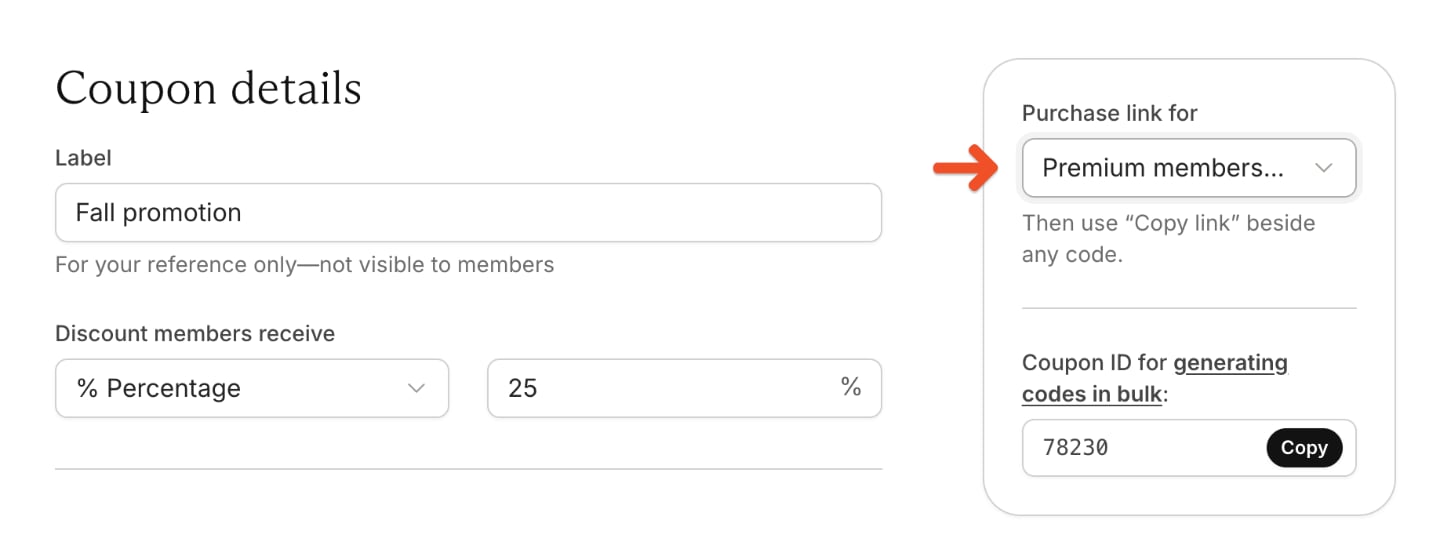
Select the plan and price from the Purchase link for dropdown.
3
Locate the purchase link options
4
Copy the purchase link
Scroll down to the Codes section and click Copy link next to the code you want to use.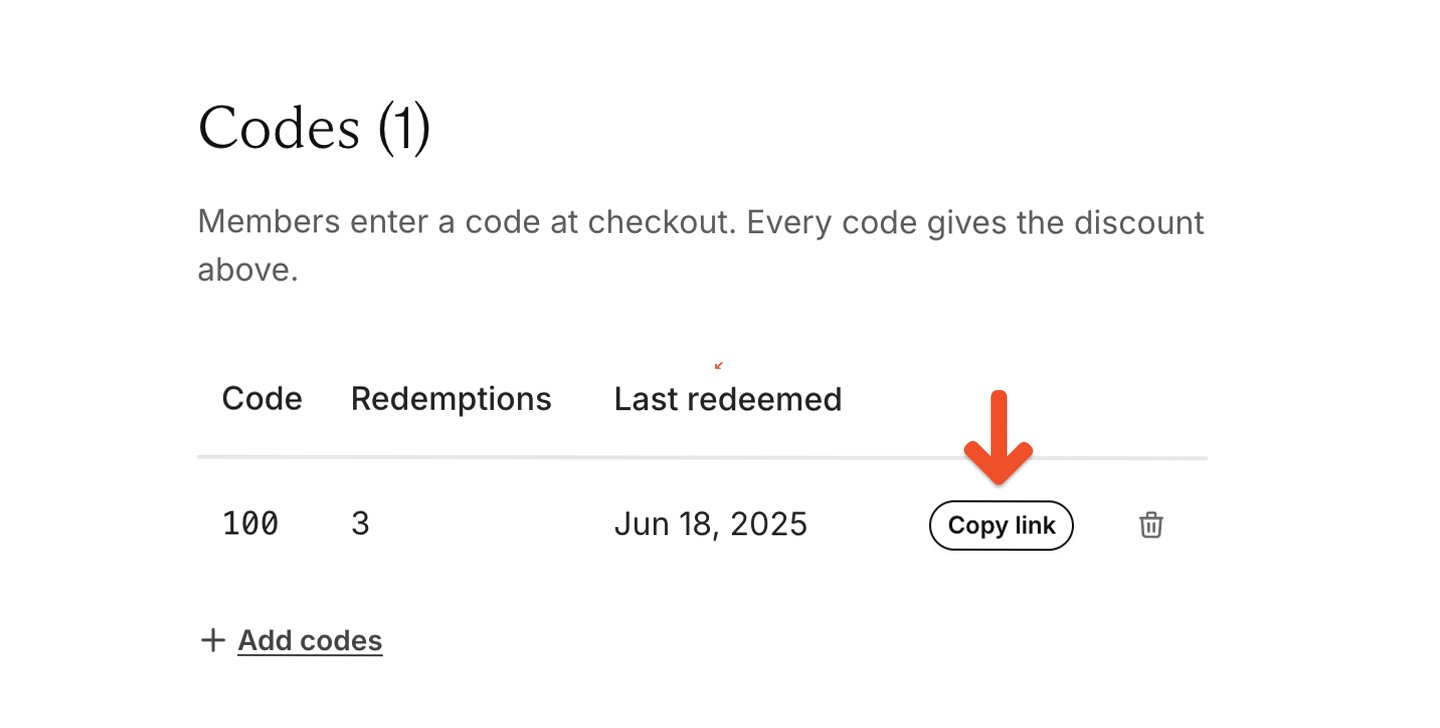
5
Share the purchase link
Share the copied link with your audience. The link opens checkout for the selected plan and price with the coupon code automatically applied.
Hide the coupon field
To hide the coupon field from checkout and gift checkout forms, go to Website → Checkout and toggle on the setting to hide the field.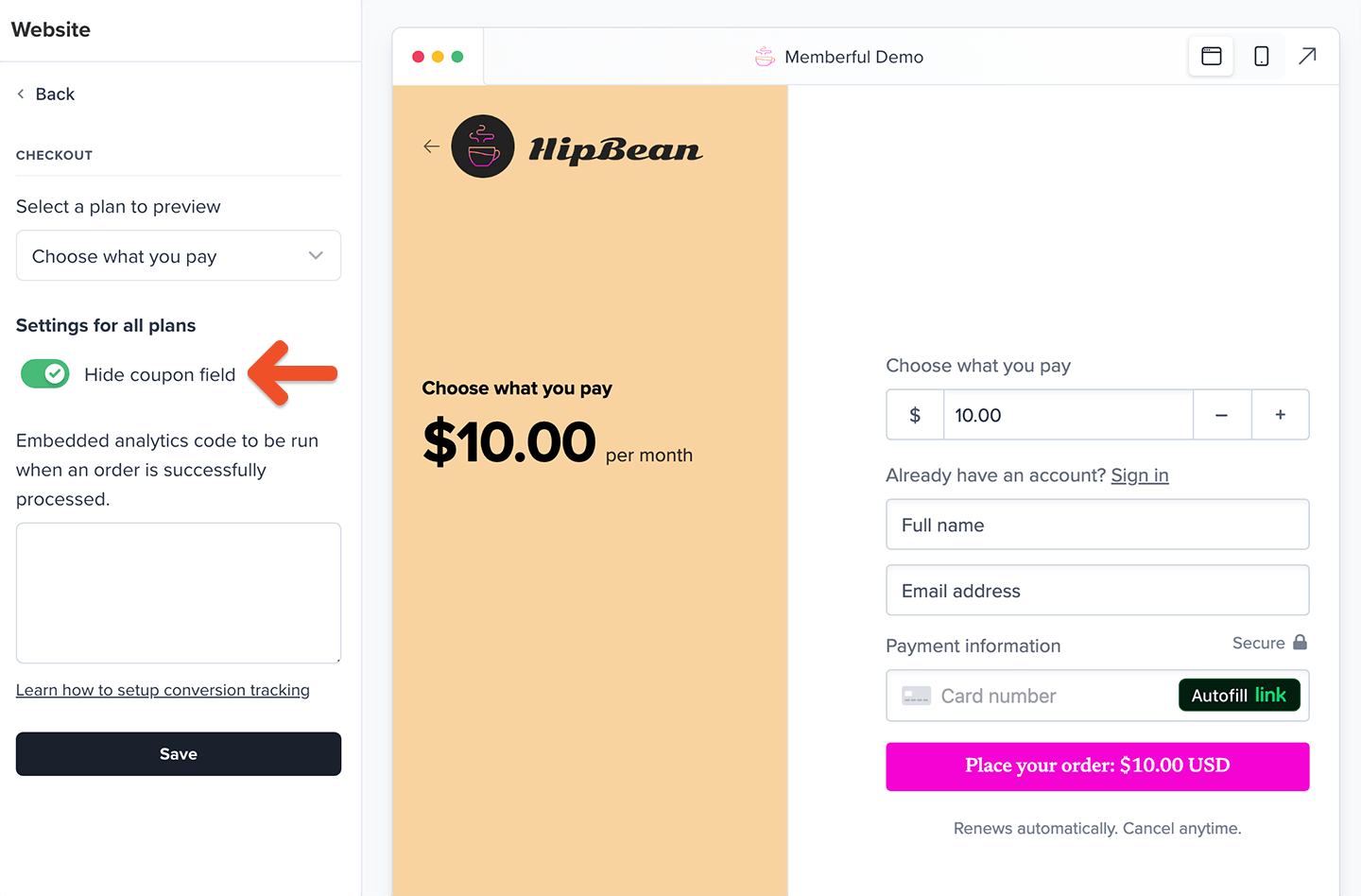
Apply a coupon code to an existing subscription
Members can go to Subscriptions in their account, click Add coupon, and enter the coupon code.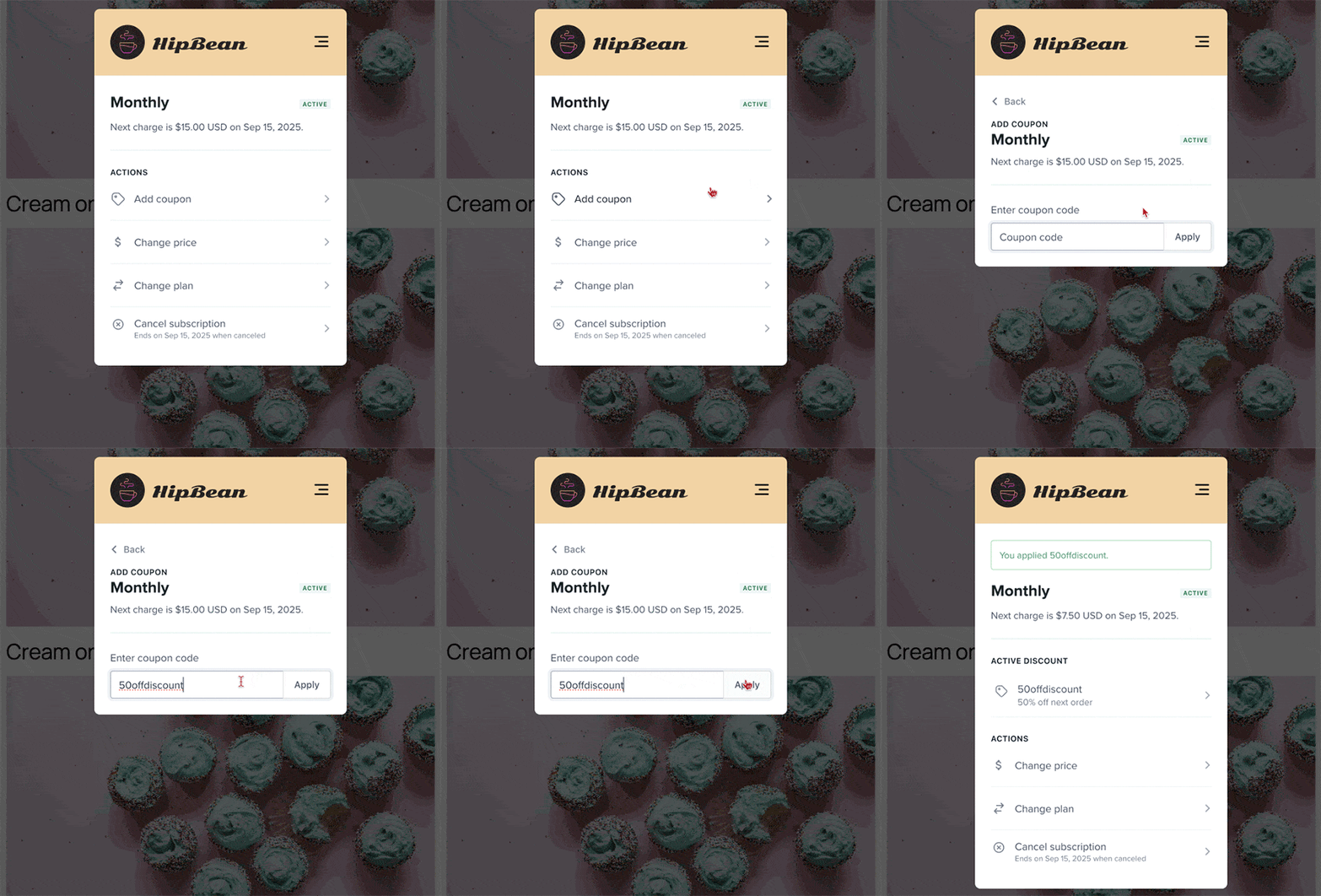
Apply a coupon code during a plan change
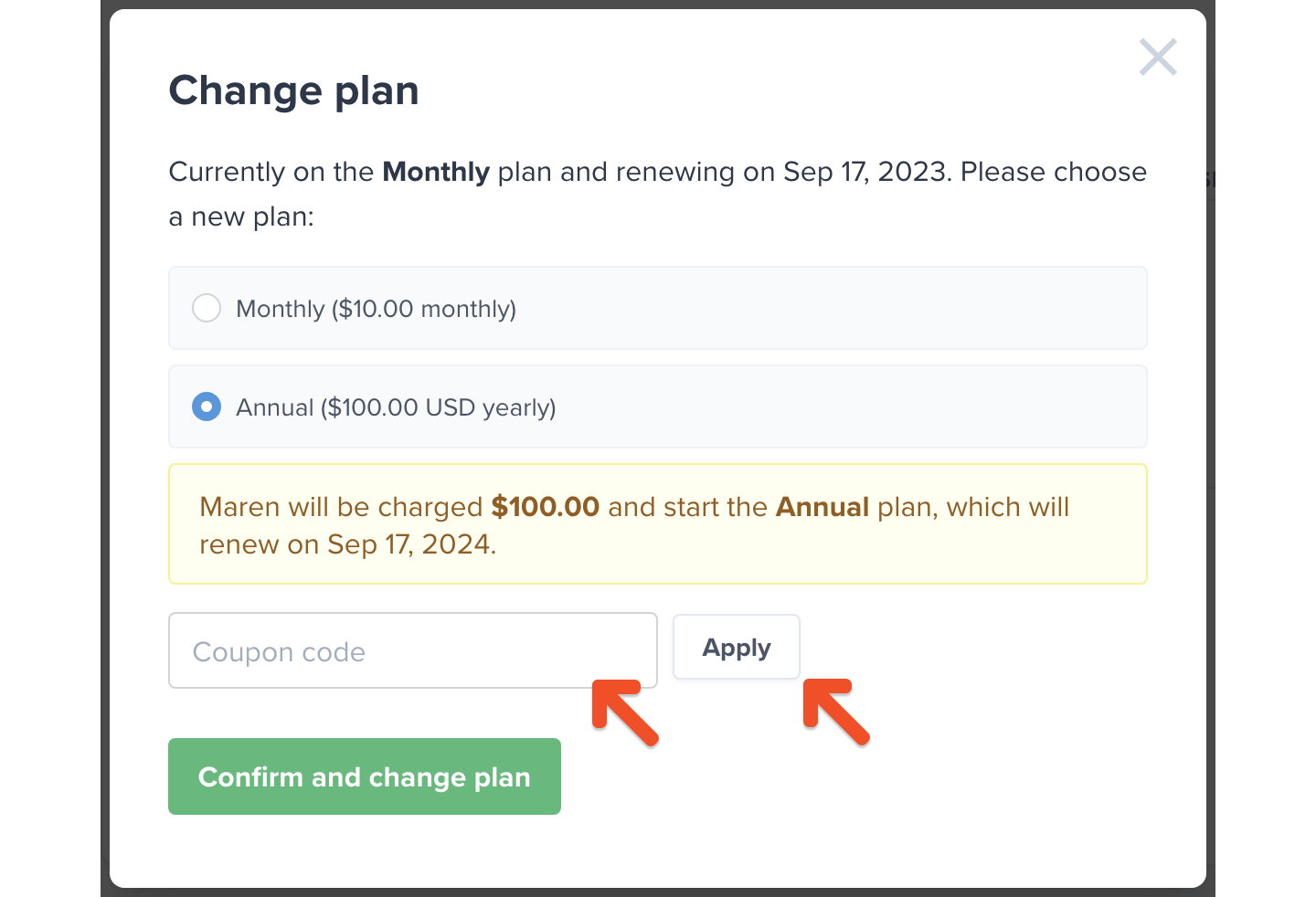
Members can go to Subscriptions in their account, click Change plan, and enter the coupon code while completing the plan change.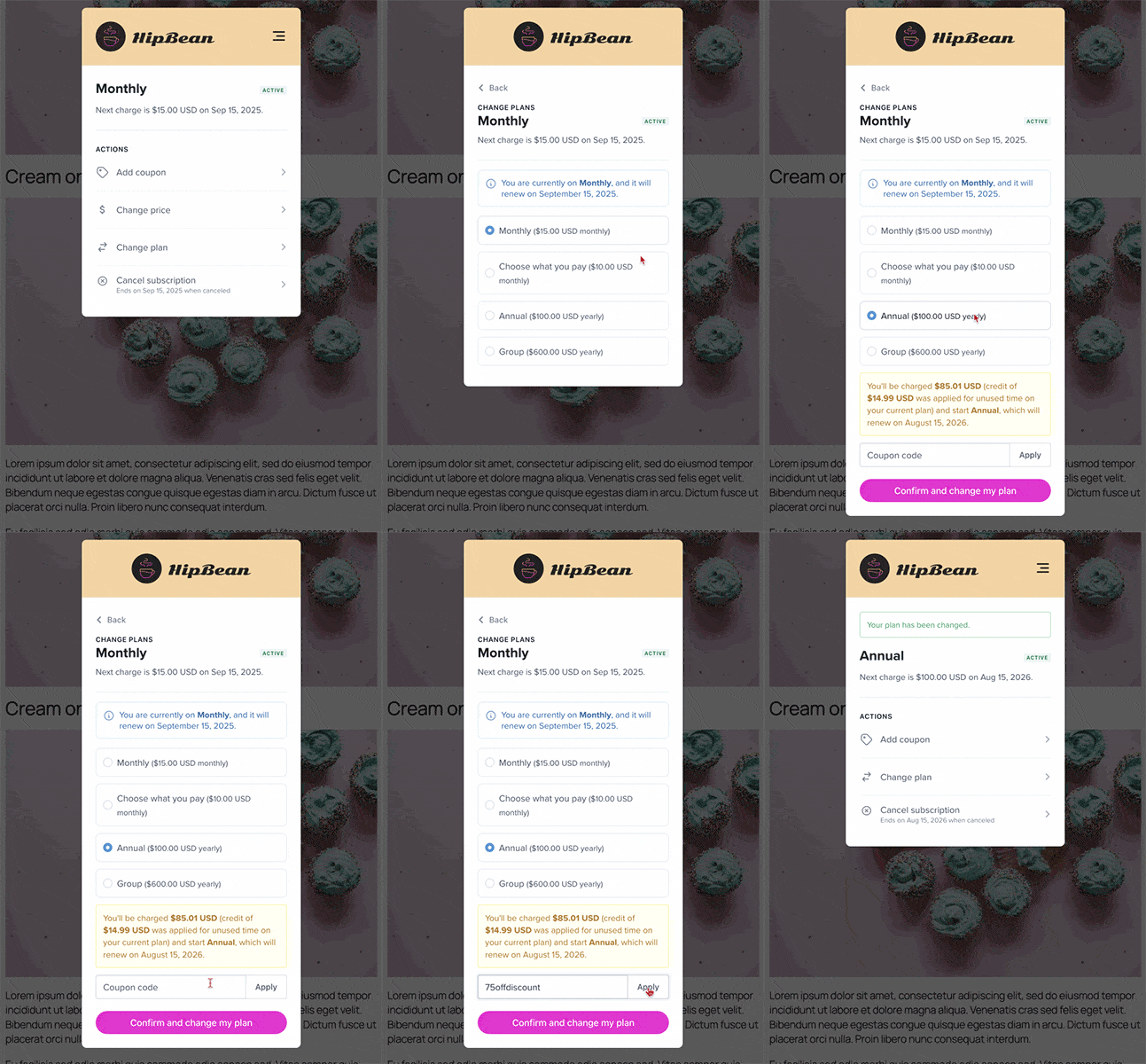
Troubleshoot a coupon code
If a member tells you a coupon code isn’t working, check whether:- the member has used the code before
- the coupon is enabled
- the coupon applies to the plan the member is purchasing
- the coupon’s redemption settings allow it to be used for this purchase
Apply or remove a coupon as an admin
Staff can apply coupons from the Memberful dashboard even when the coupon’s settings would normally prevent a member from applying it. For example, staff can apply the same coupon more than once for the same member.Apply a coupon code to an existing subscription
Go to the member’s profile, click the subscription link, and click Add coupon to apply the code.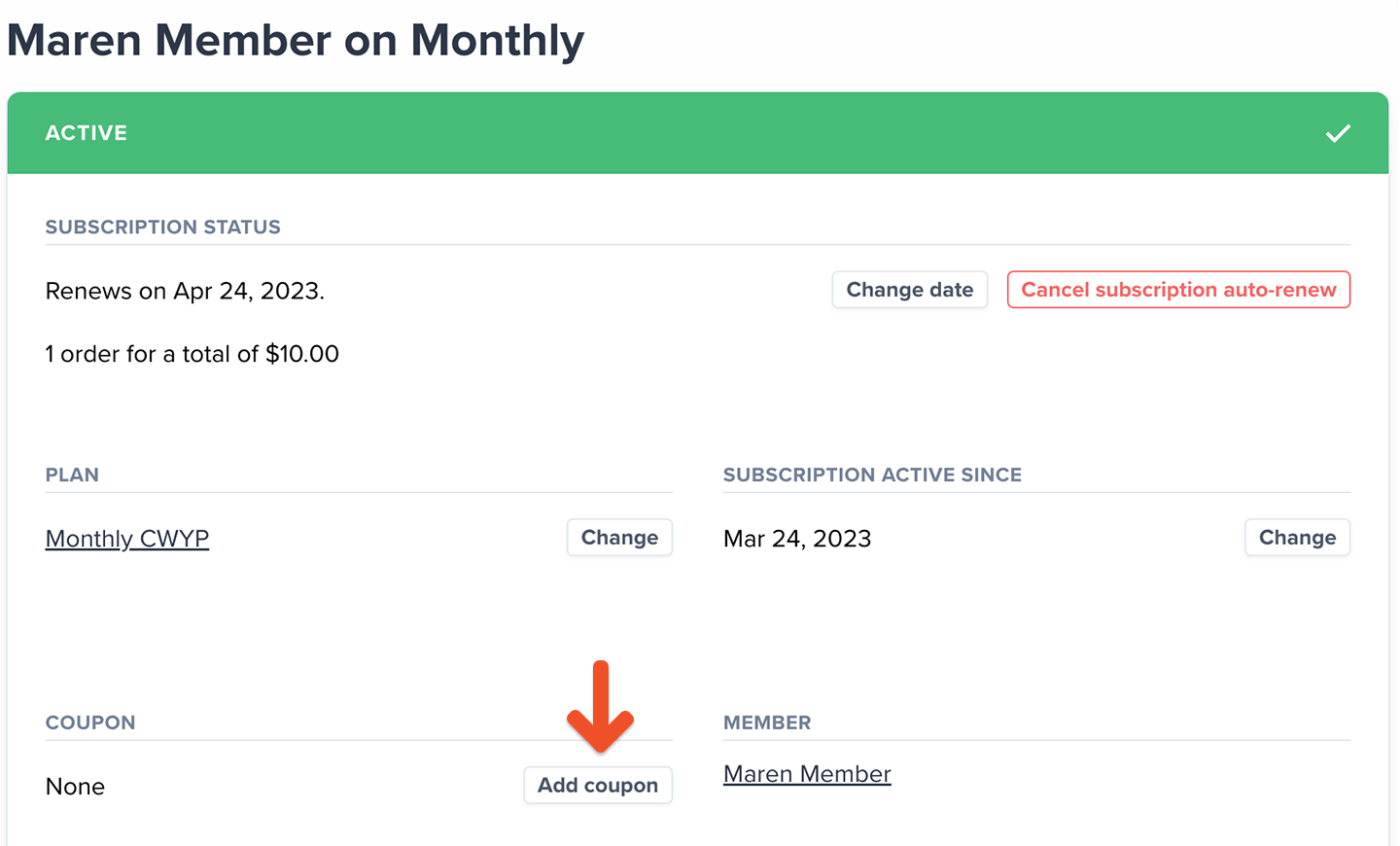
Admins can apply a disabled coupon code to a member’s subscription. This lets you use disabled coupons for one-off discounts or customer support gestures without making them available to members.
Apply a coupon code during a plan change
Click Change next to the plan name.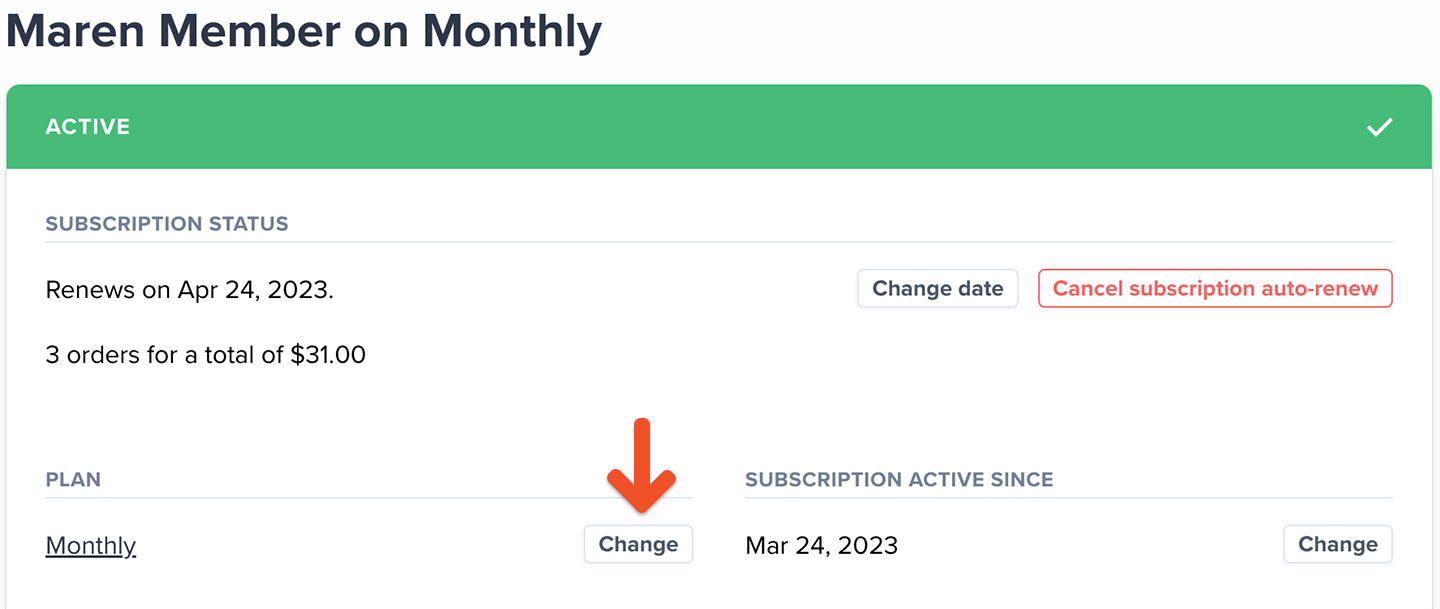
Apply a coupon code to a new subscription
1
Add a new subscription
Go to the member’s profile and click Add a new subscription.
2
Start the subscription without charging the member
Choose the plan, leave the option to charge the member’s card unchecked, and click Start the subscription.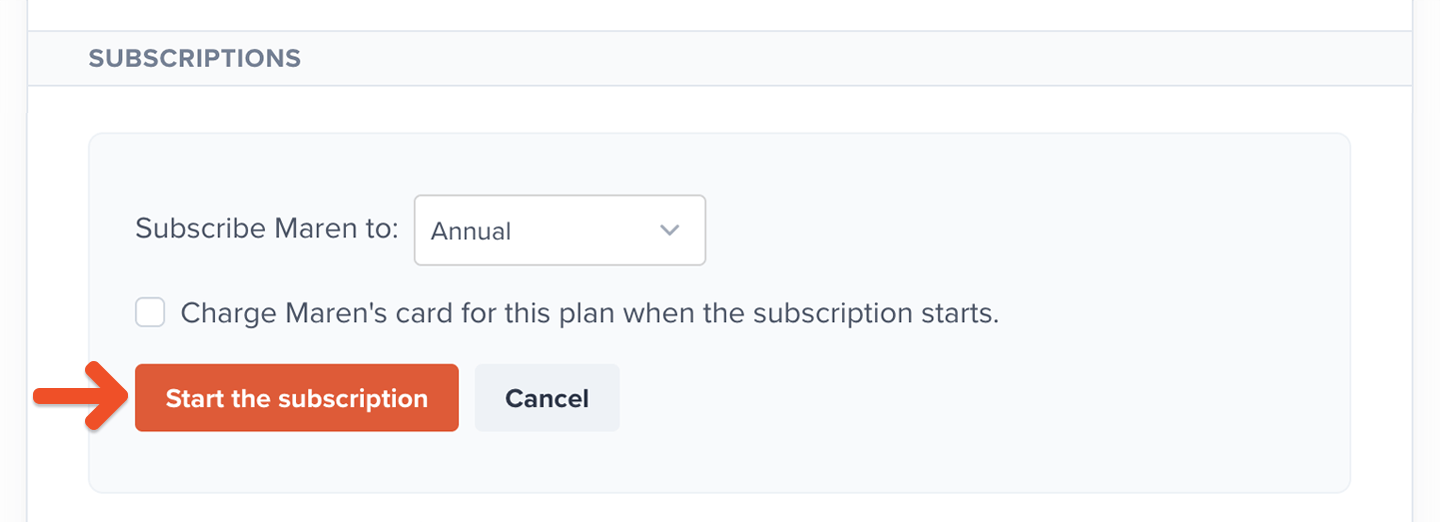
3
Apply the coupon code
Open the new subscription, click Add coupon, enter the coupon code, and click Apply.
4
Change the renewal date
Change the subscription’s renewal date to the following day. This triggers the paid renewal with the coupon applied.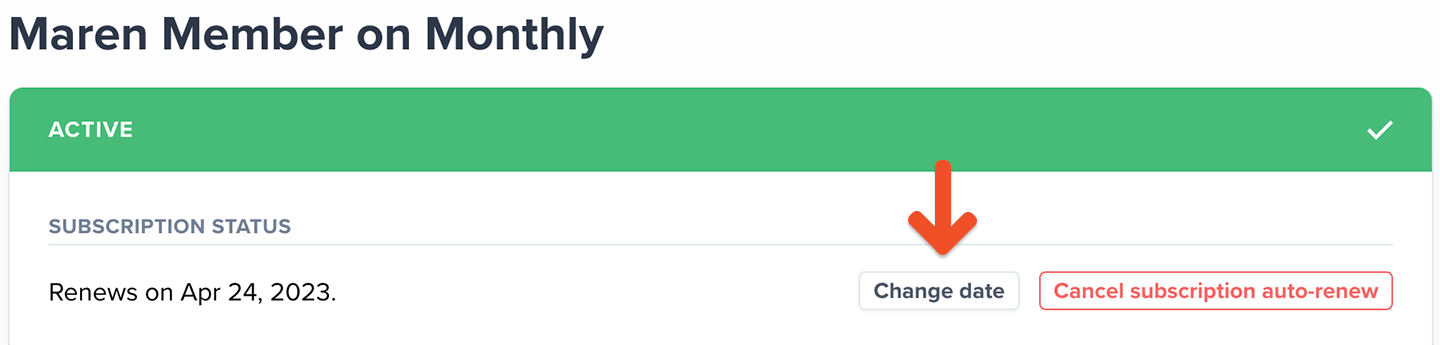
Remove a coupon from an existing subscription
Go to the member’s profile, click the subscription link, and remove the coupon.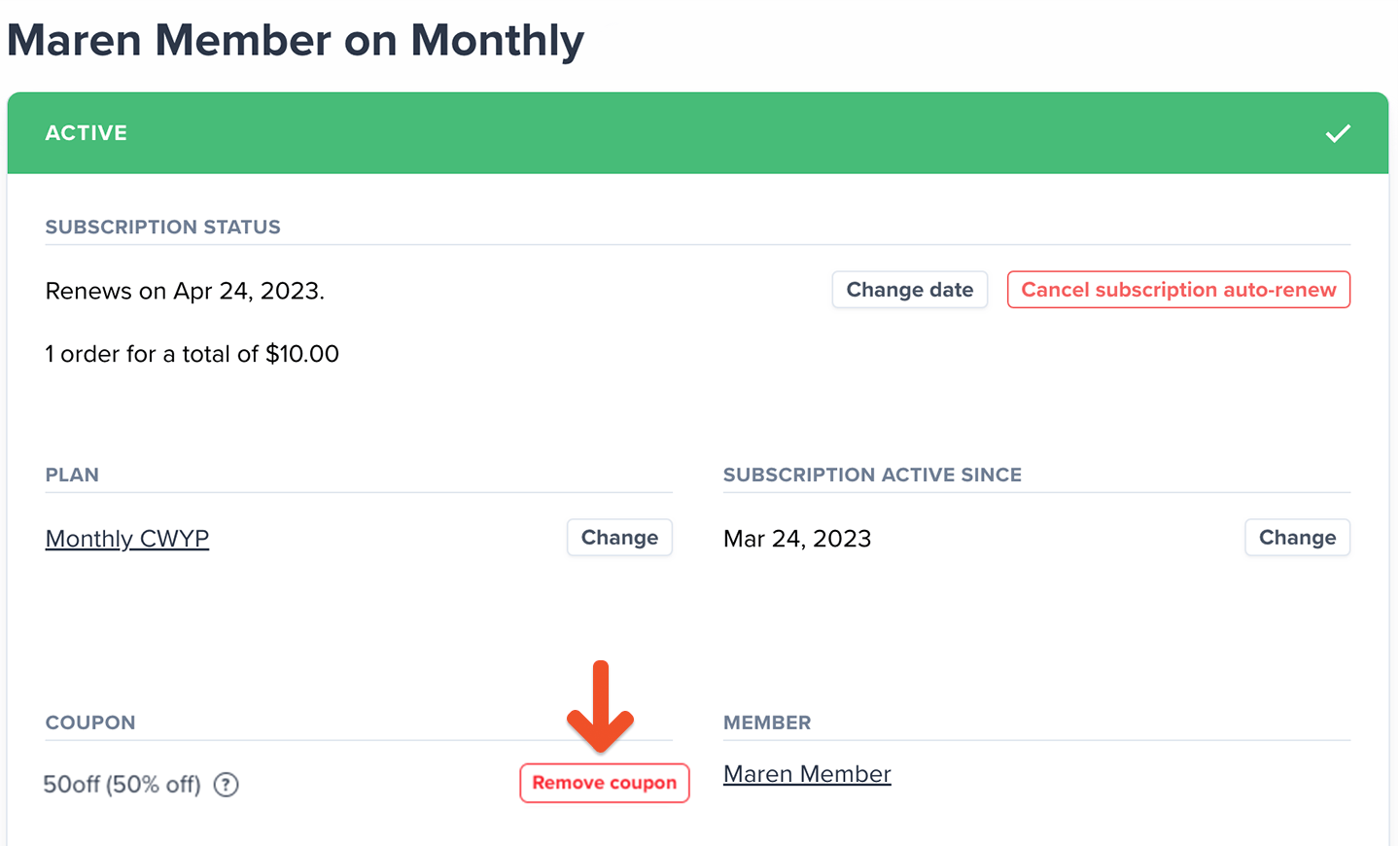
Manage coupons
Go to Revenue → Coupons to see all your coupons. The list shows each coupon’s label, discount, code count, total redemptions, status, and active period. Existing coupons use their previous code as the label. Click a coupon’s label to review its settings and codes.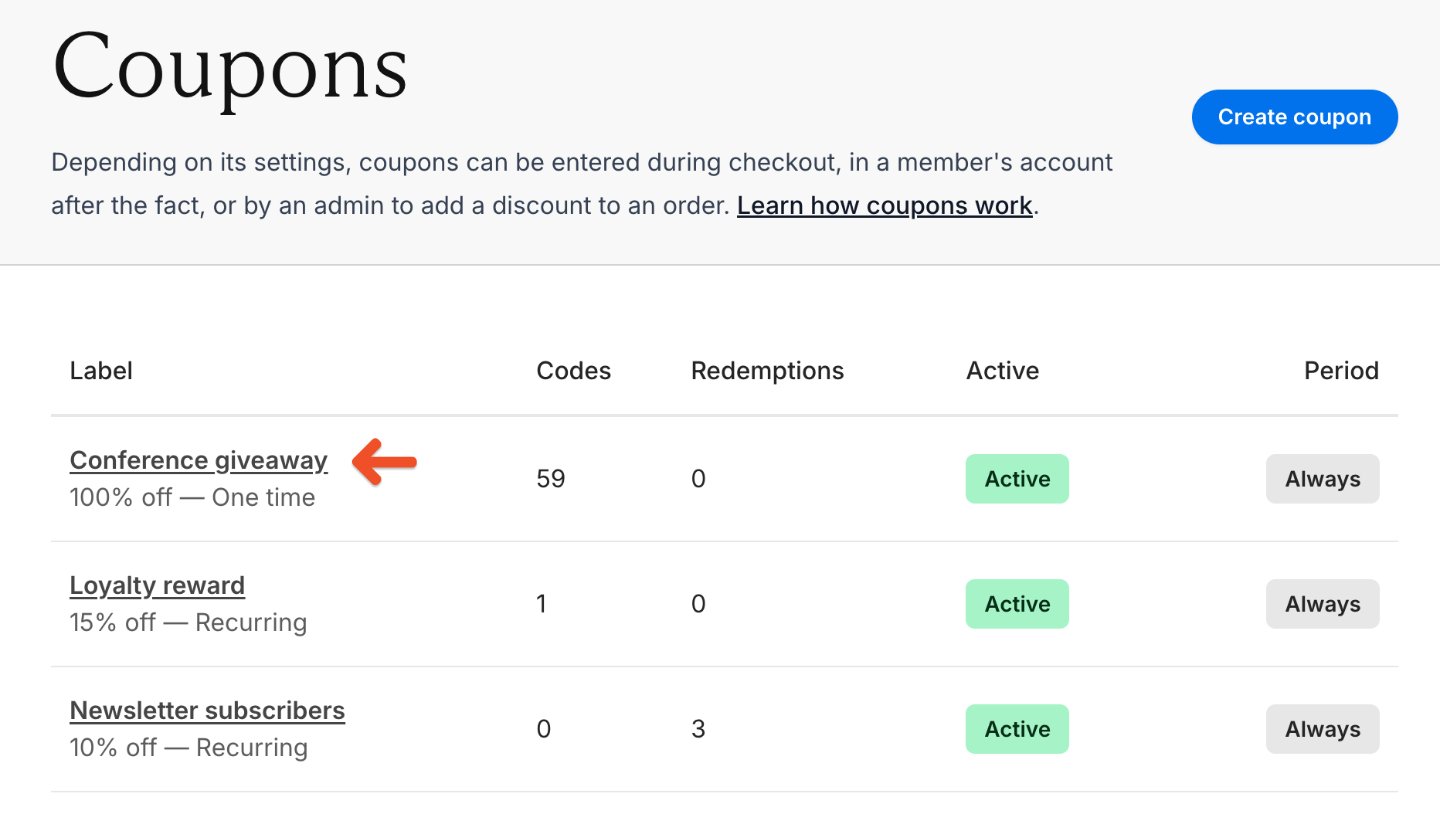
Review coupon codes
The Codes section lists each live code separately, including its redemption count and most recent redemption date. Click Copy link to copy a purchase link that applies the code automatically. For large lists, click Previous or Next to move between pages.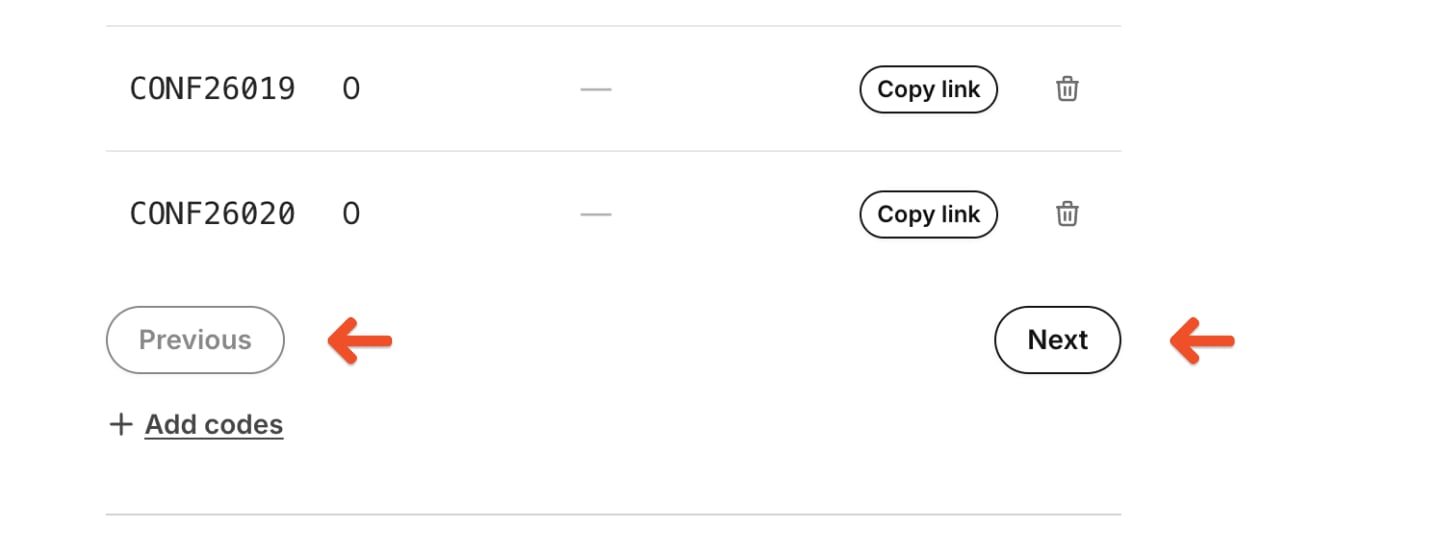
Delete a coupon code
Click the trash icon next to a code to delete it.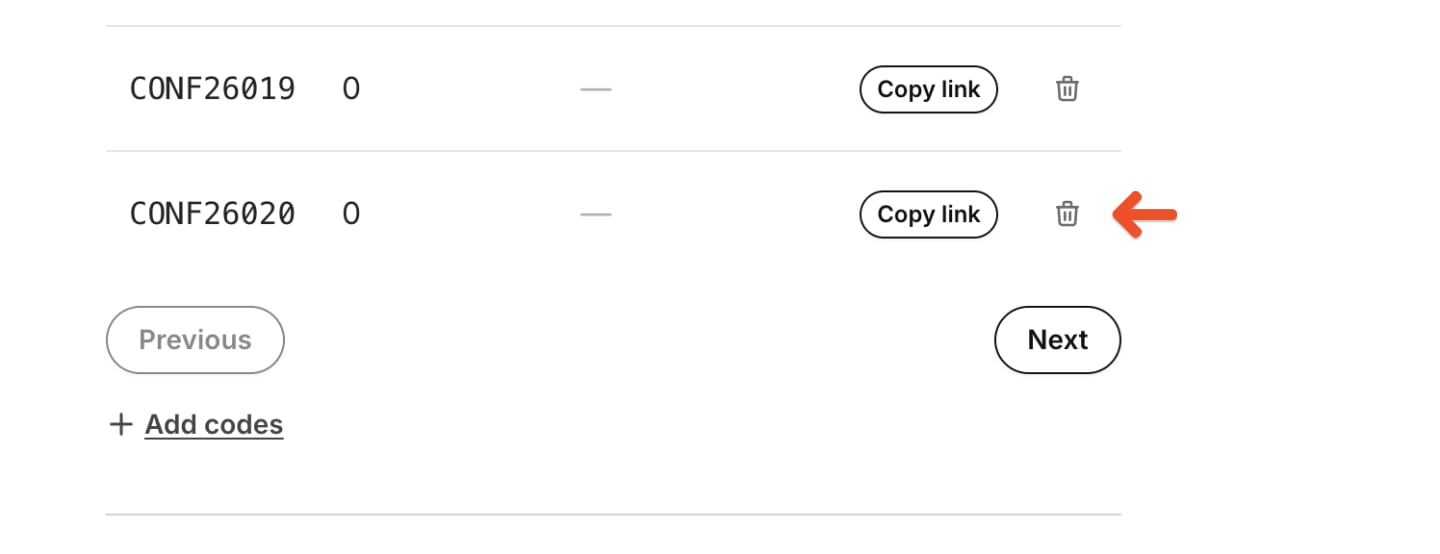
Duplicate a redeemed coupon
After any member redeems a coupon, its amount, discount format (percentage or fixed amount), and duration (one-time, recurring, or a set number of payments) are locked. These settings remain visible but can’t be edited.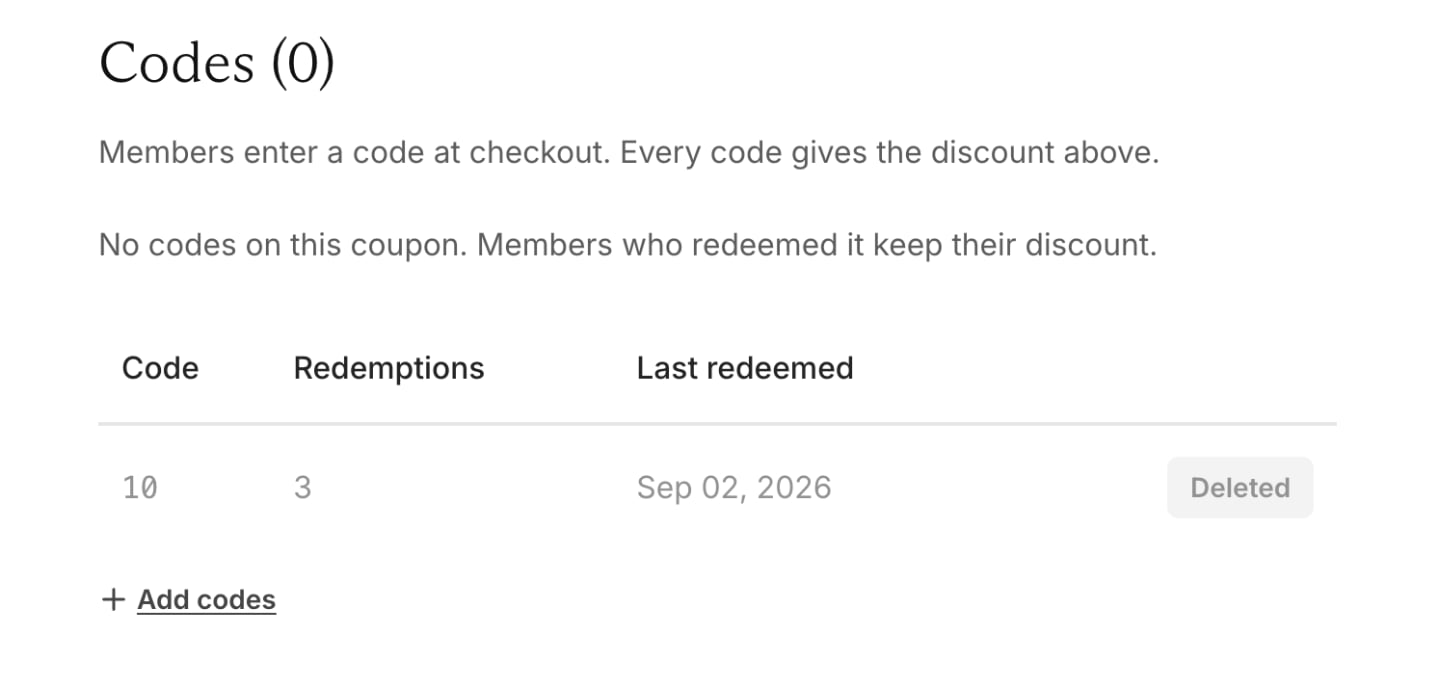
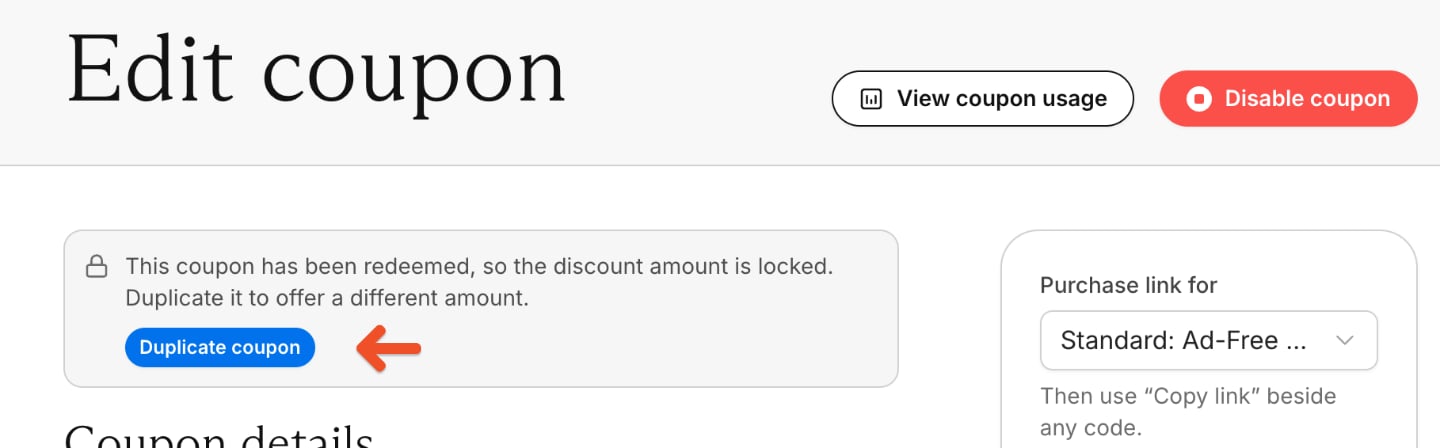
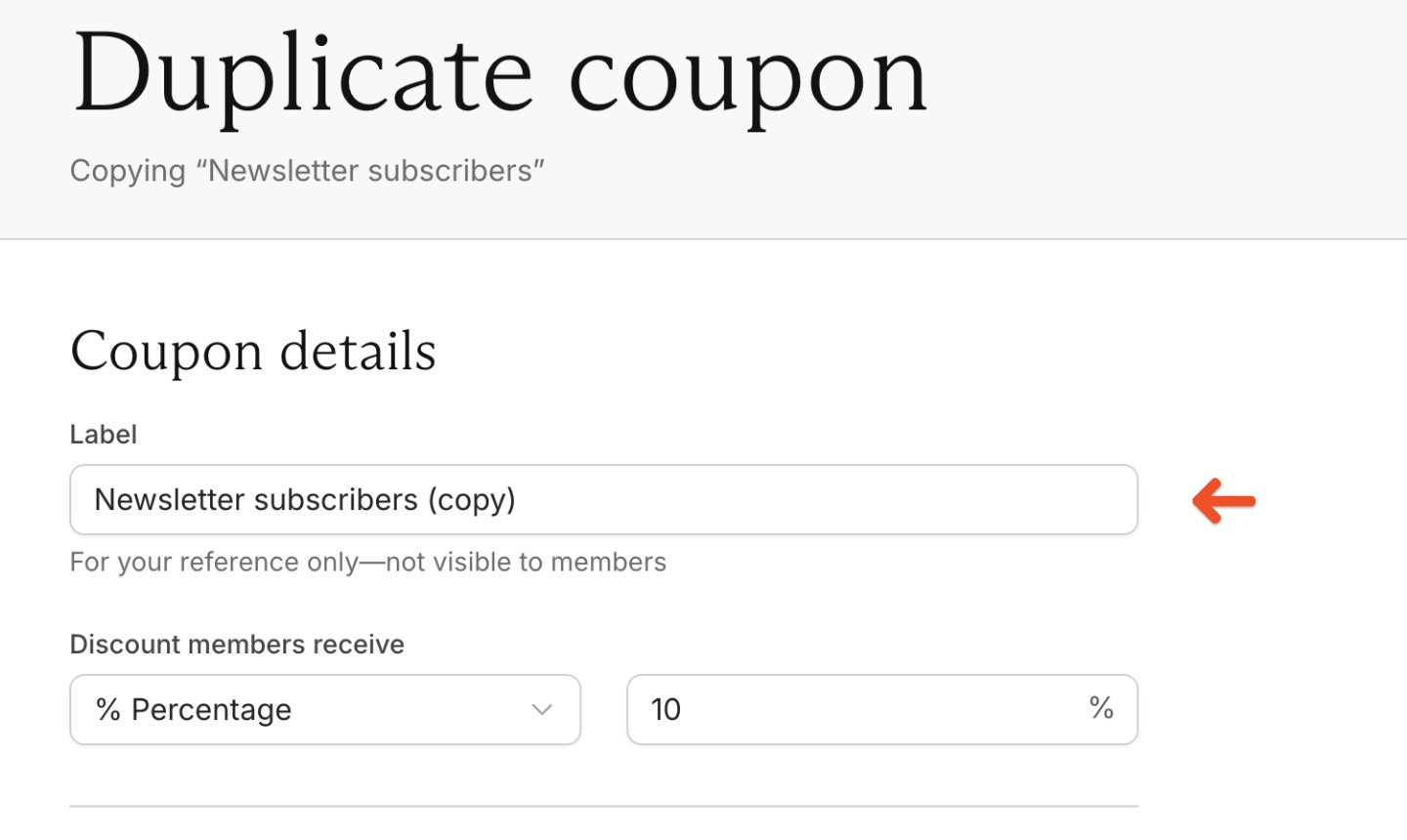
Disable a coupon
Disabling a coupon prevents new redemptions. It doesn’t affect members who are already using it.
Enable a coupon
Click Enable coupon to make the coupon available for new redemptions.
Delete a coupon
Click Delete Coupon to remove the coupon from every subscription using it.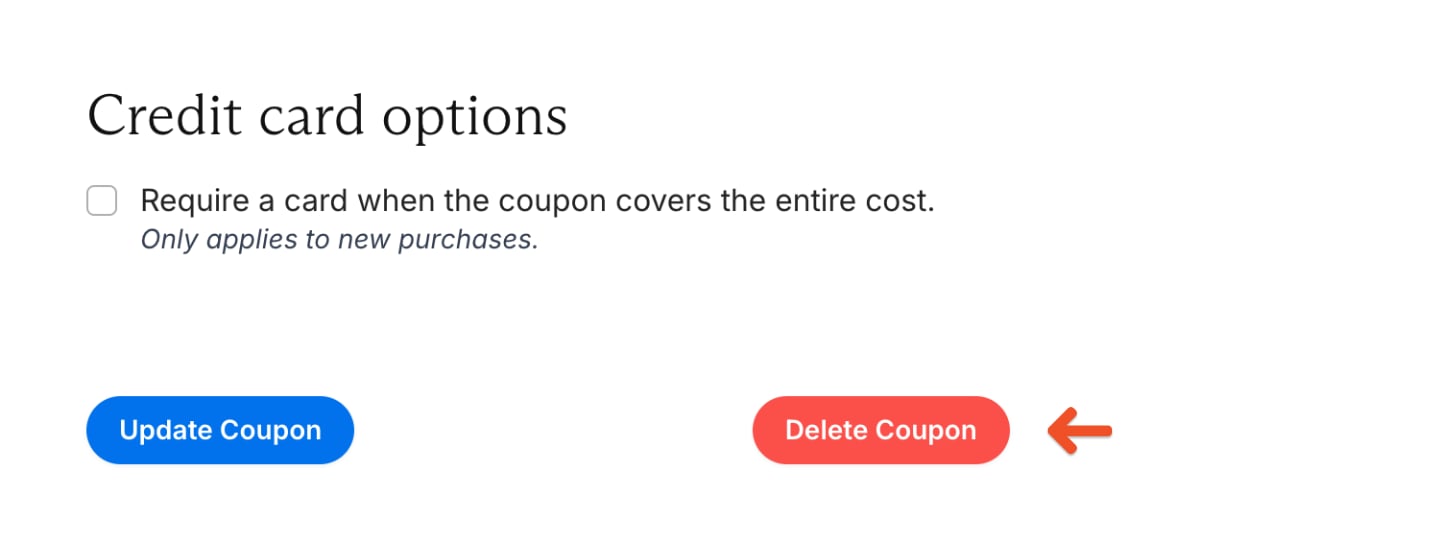
Deleting a coupon is irreversible. To stop new redemptions without removing existing members’ discounts, disable the coupon instead.
Track coupon usage
Click View coupon usage from a coupon’s edit page to see all its redemptions.
- the total revenue generated by the coupon
- the members who used it
- the order type, such as a new order or renewal
- whether the coupon is still in use
- how many payments it has been applied to
- when it was first applied