Who can change a staff email address
- Your own address: Staff members and account owners can change their own address, unless the organization uses single sign-on or they haven’t used the Memberful dashboard for over a year and still need to verify their email address.
- Another staff member’s address: Only the account owner and unrestricted admins can change it. On single sign-on sites, they can change it at any time. Otherwise, they can change it only if it hasn’t been verified or if email to it isn’t delivering.
- The account owner’s address: Unrestricted admins can’t change it. On sites that don’t use single sign-on, the account owner can change their own address. On single sign-on sites, if the owner’s address changes in your provider.
Change another staff member’s email address
These steps apply if your organization doesn’t use single sign-on. If it does, see Update a staff email address on single sign-on sites.1
Open the staff member's page
Go to Settings → Staff, then click the staff member’s name.
2
Send a confirmation link
Click Change email, enter the new address, then click Send confirmation link.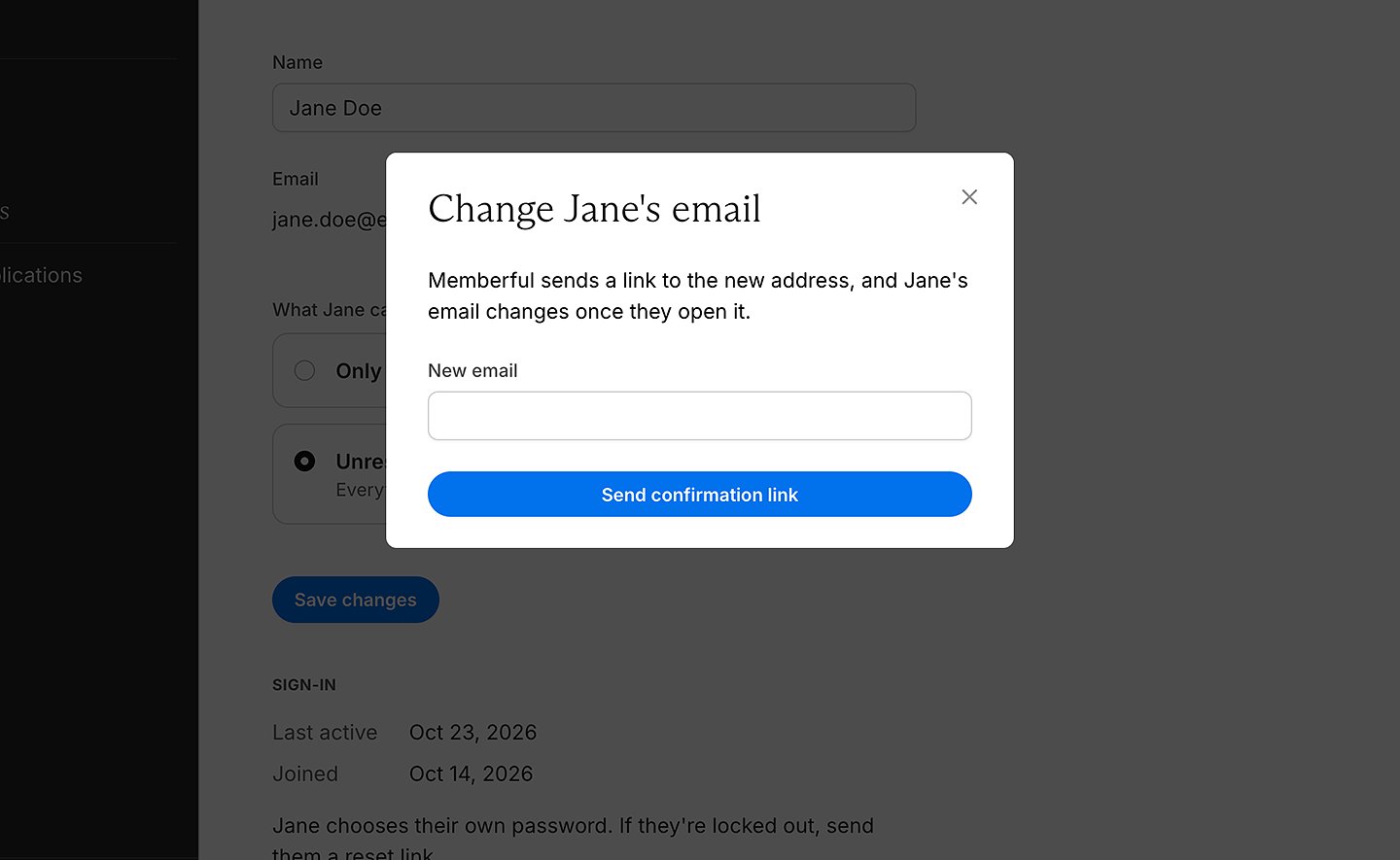
3
Confirm the new address
Ask the staff member to open the link sent to their new inbox. Their email address changes only after they confirm it.
Change your own email address
These steps apply if your organization doesn’t use single sign-on. If it does, ask an unrestricted admin to update your address.1
Open your account settings
Go to Settings → Account, click Sign-in and security, then click Change email.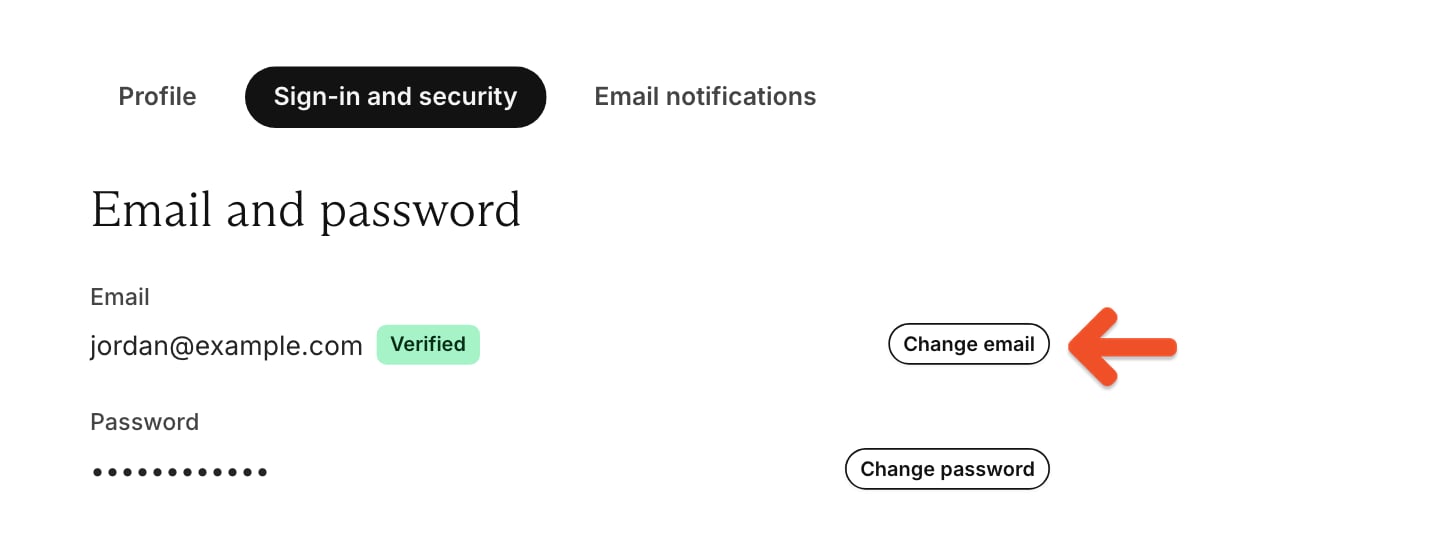
2
Send a confirmation link
Enter your new email address and current password, then click Send confirmation link.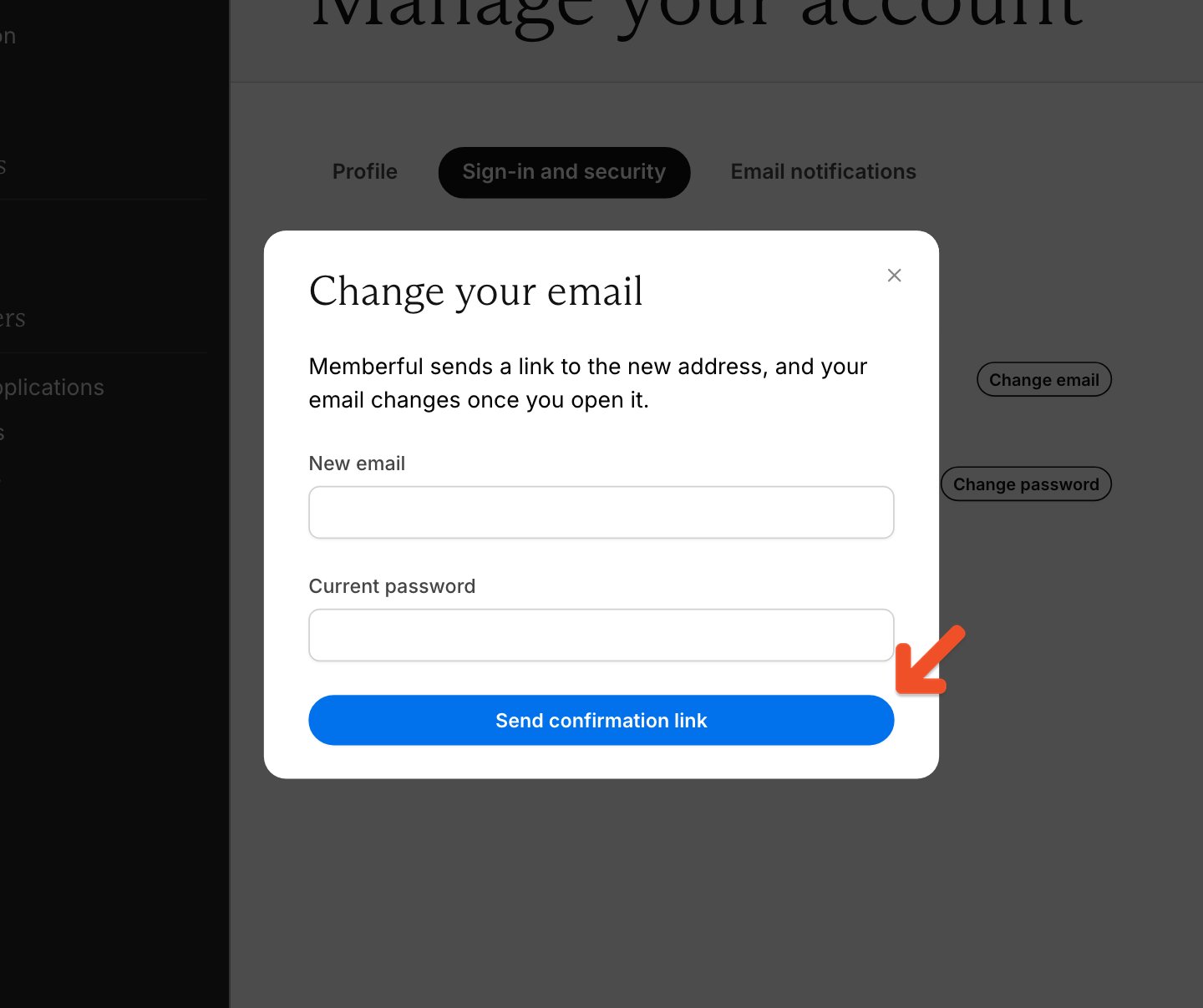
3
Confirm the new address
Open the link sent to your new inbox. Your email address changes only after you confirm it.
Update a staff email address on single sign-on sites
Staff email addresses in Memberful must match those in your single sign-on provider. If a staff member’s address changes in your provider, the account owner or an unrestricted admin can update it in Memberful. You can’t update your own address this way.1
Open the staff member's page
Go to Settings → Staff, then click the staff member’s name.
2
Open the email change
Click Change email next to their email address.
3
Enter the new address
Enter the address from your provider under New email, then click Change email.
Troubleshoot email changes
If staff have trouble signing in, try the fixes below. Some refer to the security check, which asks staff who sign in with a password to verify their email address. To learn more, see Verify your email address.If a staff email address isn’t delivering
If Memberful can’t deliver email to a staff member’s address, their entry in Settings → Staff shows Email isn’t delivering, and the security check shows Not delivered. Sign-in links, password resets, and notifications won’t reach the address. To fix another staff member’s address, click the delivery warning on their page and check the address.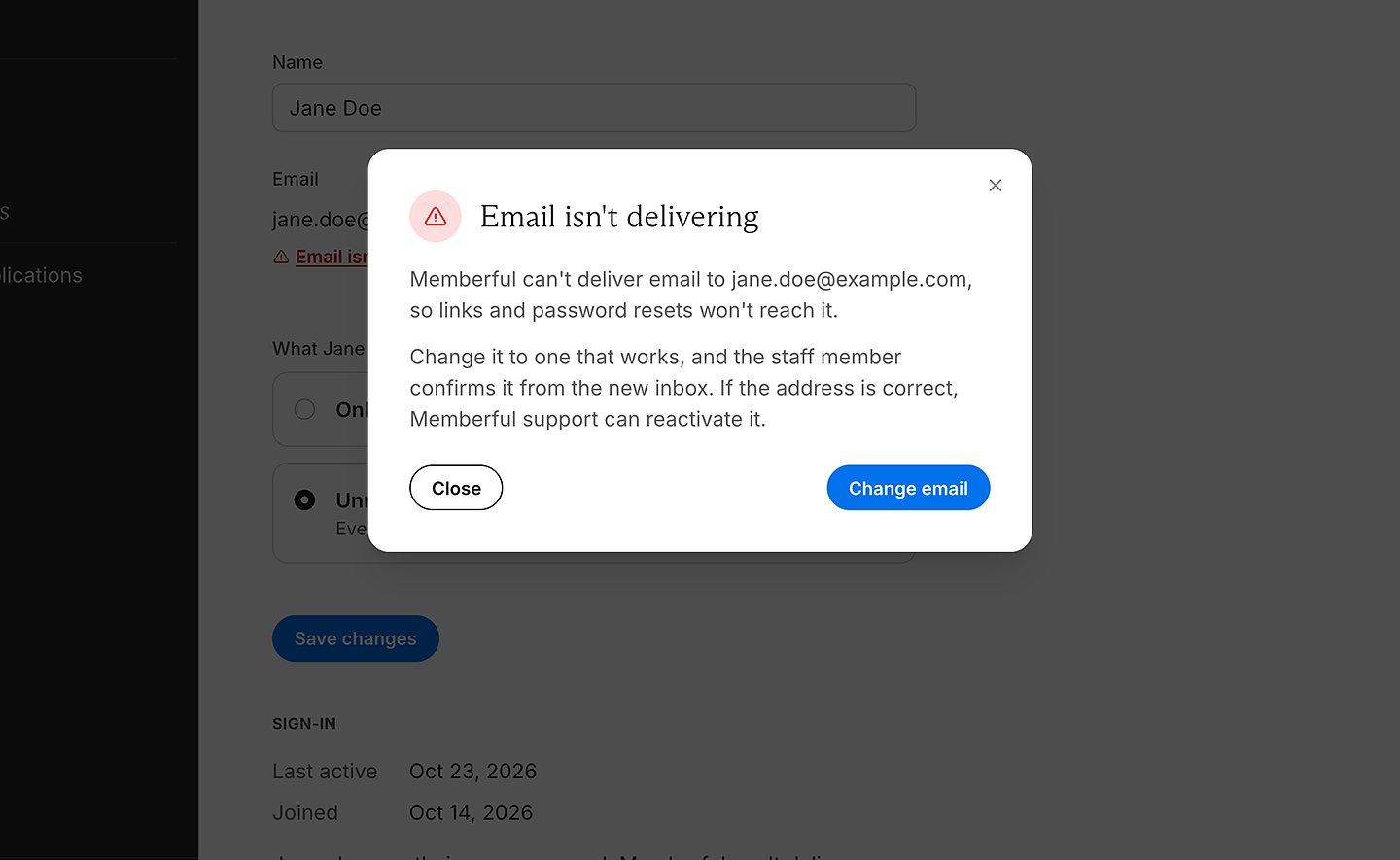
- If the address is correct, to reactivate it. Only Memberful support can do this.
- If the address is wrong, click Change email.
If you can’t complete an email change
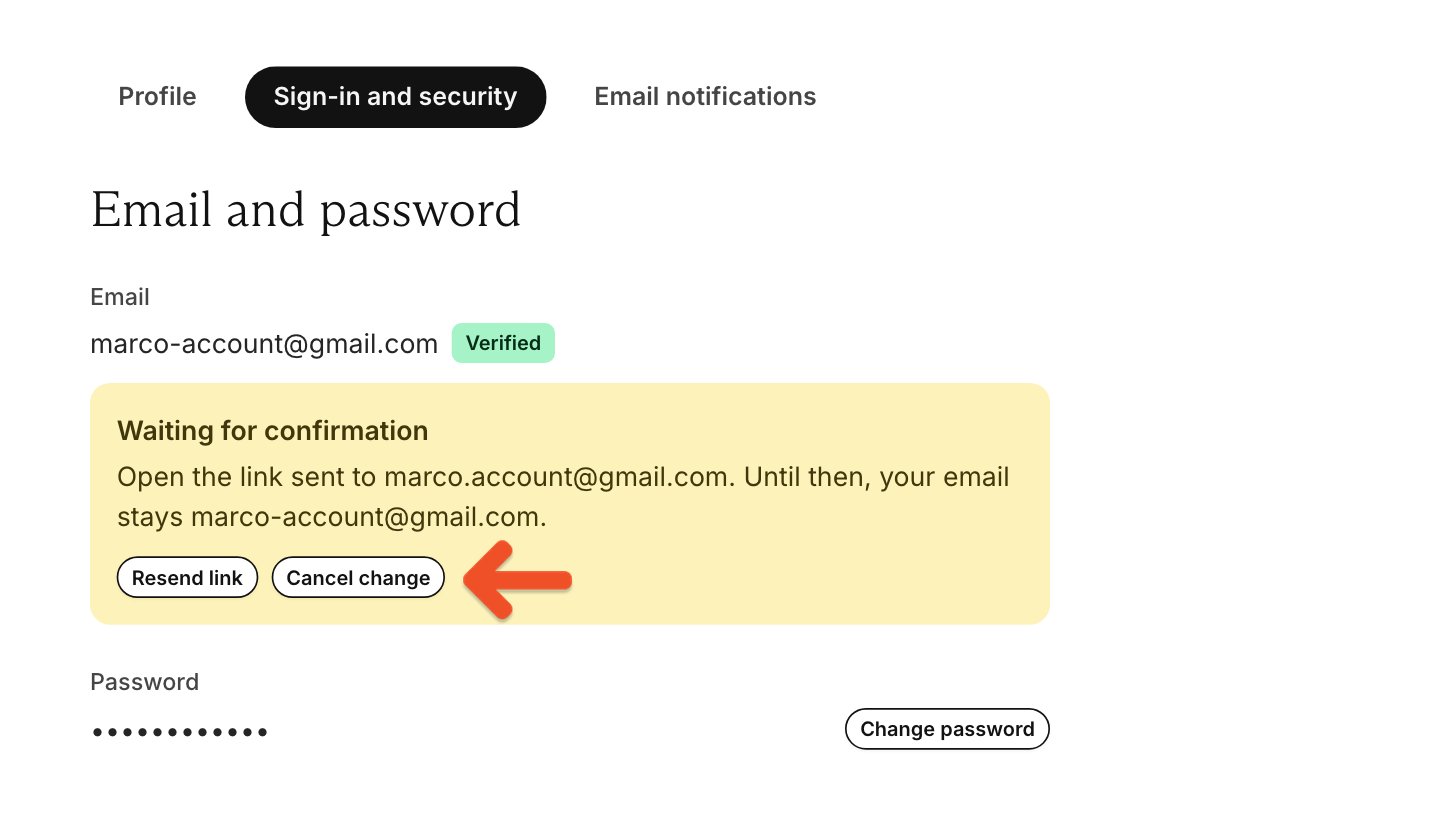
If you mistyped a new address, go to Settings → Account → Sign-in and security and click Cancel change under Waiting for confirmation, then try again. You can also cancel it from the security check.