

Toggle auto-renew or cancel a subscription
To modify a member’s subscription status:- Go to the member’s profile and click the subscription link.

- Enable auto-renew or cancel the member’s subscription auto-renew.
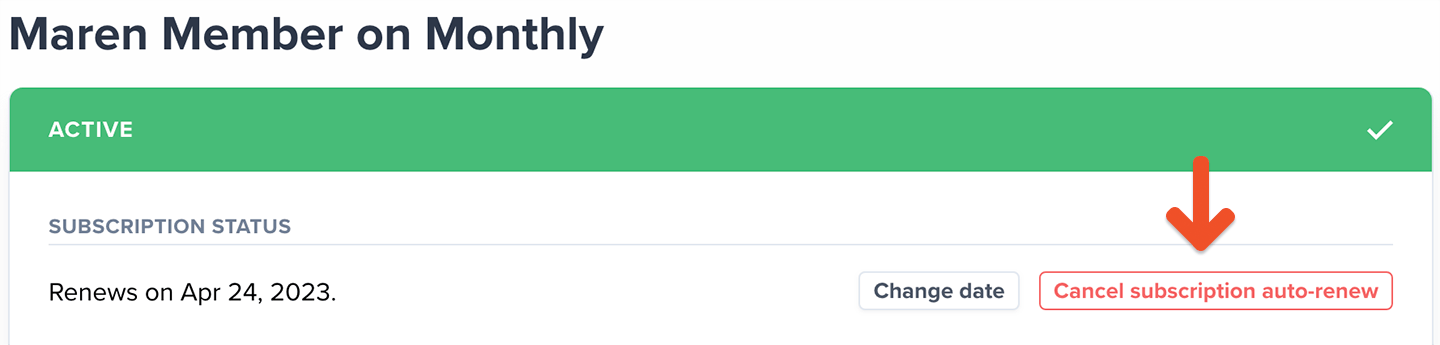
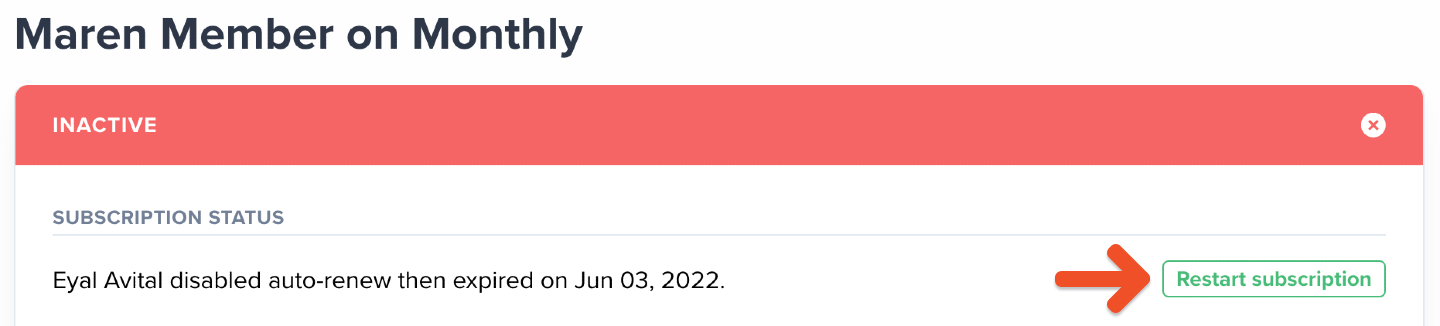
- Alternatively, restart a subscription that has already expired.
Edit a member’s custom amount
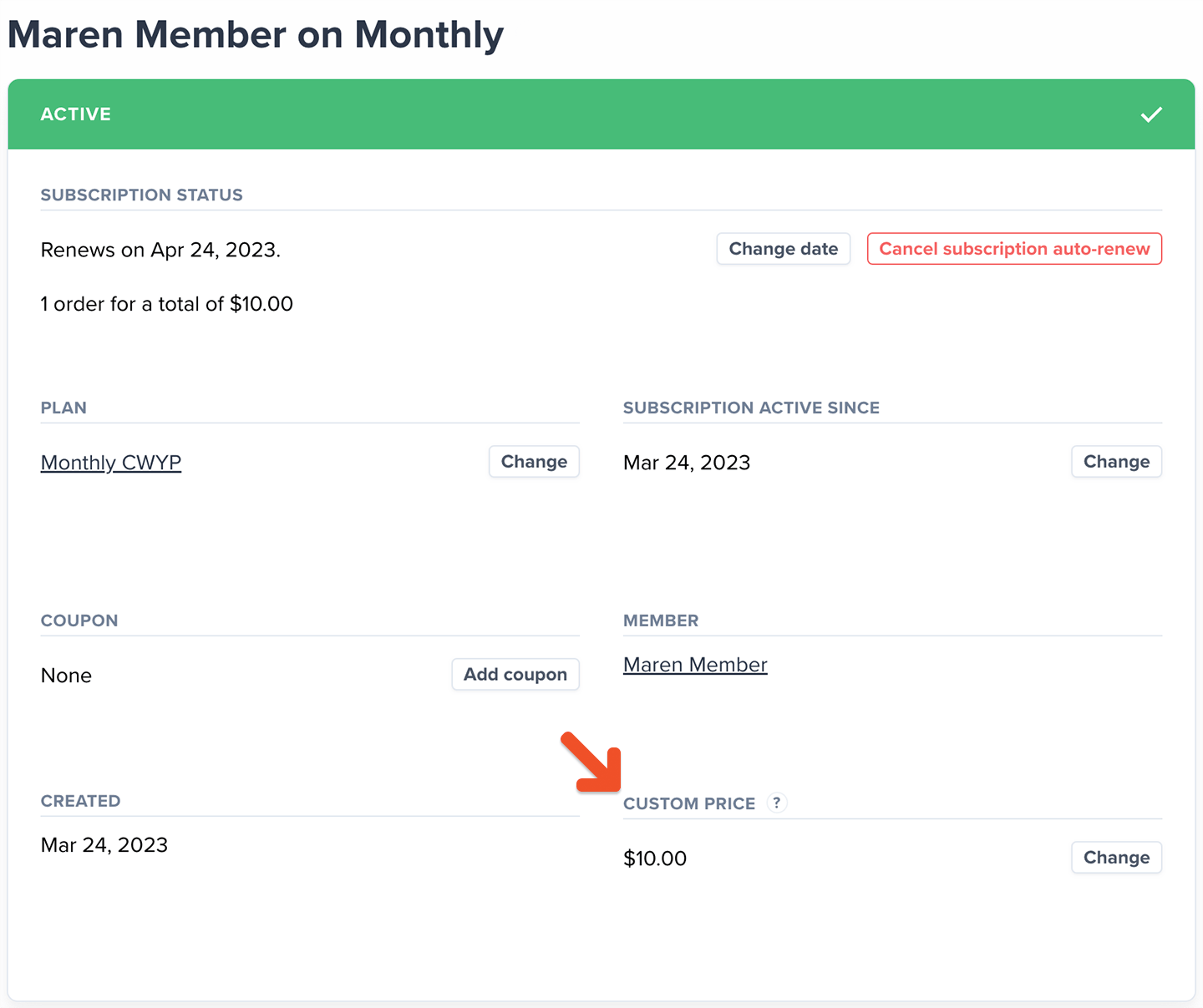
If you let members choose what to pay, you might need to update their contribution amount. To do this:- Go to the member’s profile and click the subscription link.
- Click Change under Custom price, then enter a new amount that’s equal to or greater than the plan’s minimum price.
Delete a member’s subscription
To delete a member’s subscription:- Go to the member’s profile and click the subscription link.
- Then, select Delete subscription in the bottom-left corner of the window.
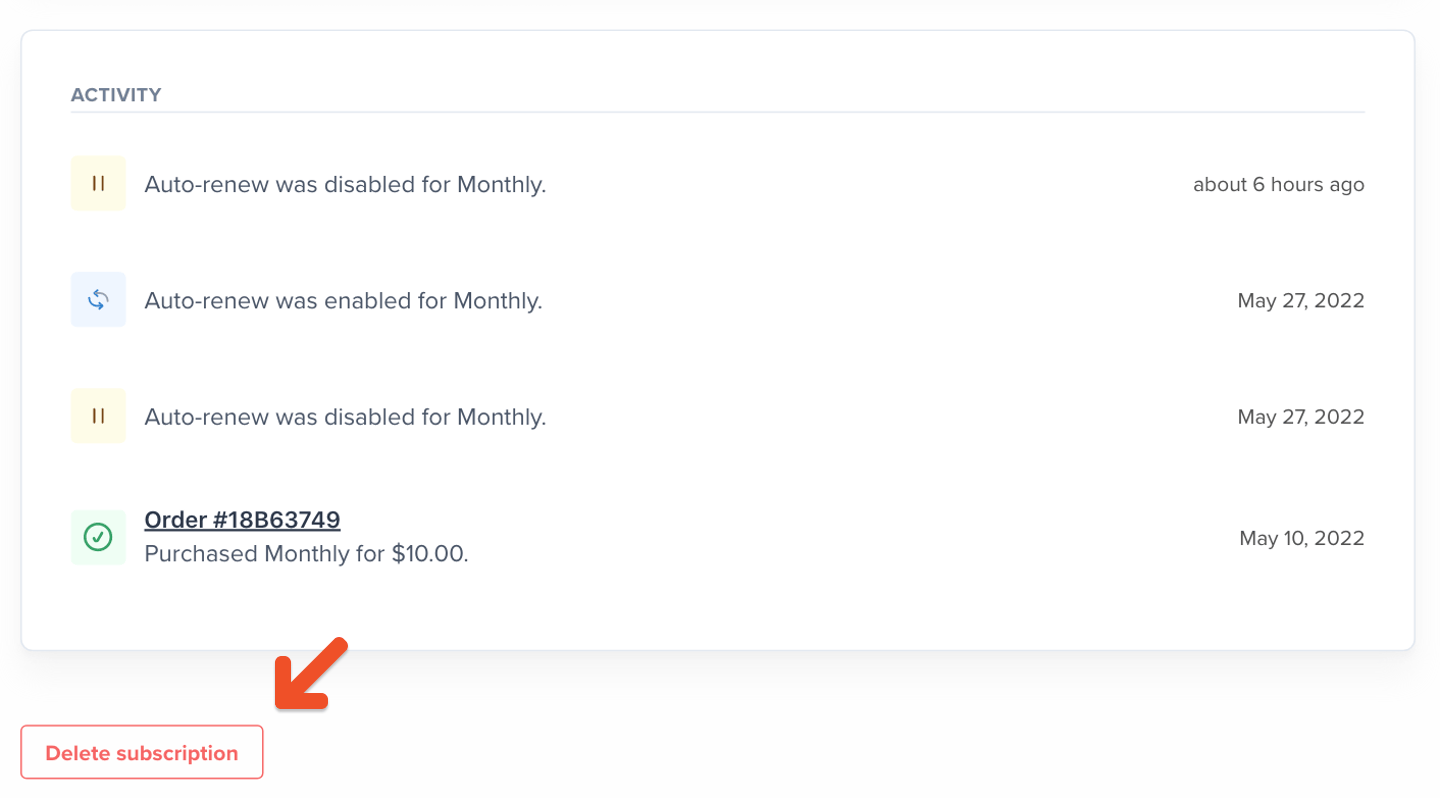
- Deleting a subscription immediately removes the member’s access to it and their associated benefits. They won’t be able to access it from their account.
- Canceling a subscription lets the member keep their access until the subscription expires. They’ll also have the option to renew it later from their account.
Change a member’s renewal date
To change a member’s renewal date:- Go to the member’s profile and click the subscription link.
- Click Change date.
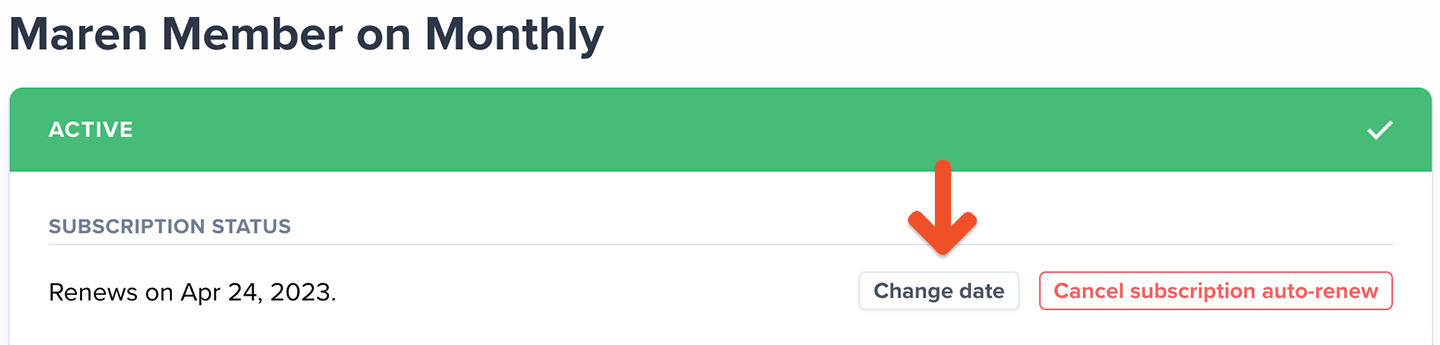
- Modify the renewal date to a date in the future, and then click Change.
Change a member’s plan
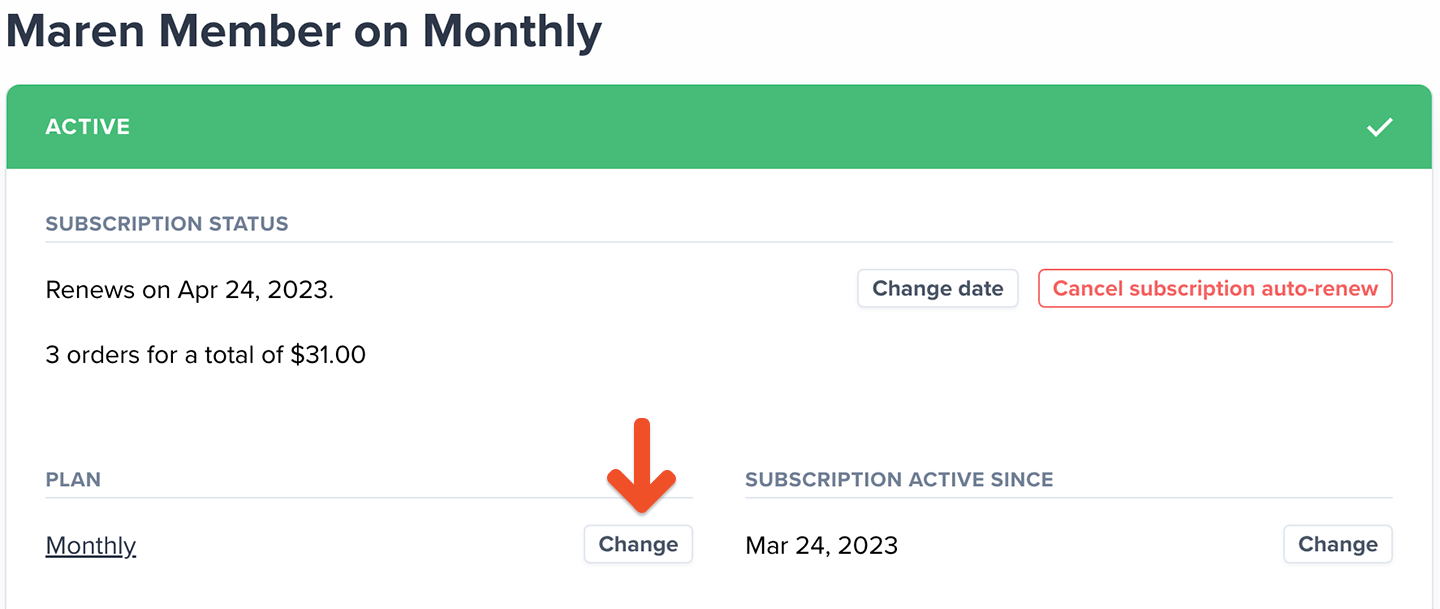
If a member’s plan is part of a Plan Group, you can switch it to another plan in the same group. To do this:- Go to the member’s profile and click the subscription link.
- Then, click Change, and select a different plan from the list. Your member will be charged accordingly.
Add a coupon to a member’s subscription
To add a coupon to a member’s subscription:- Go to Revenue → Coupons.
- Create a coupon or copy an existing coupon code.
- Then, go to the member’s profile and click the subscription link.
- From the subscription page, click Add coupon, and then Apply.
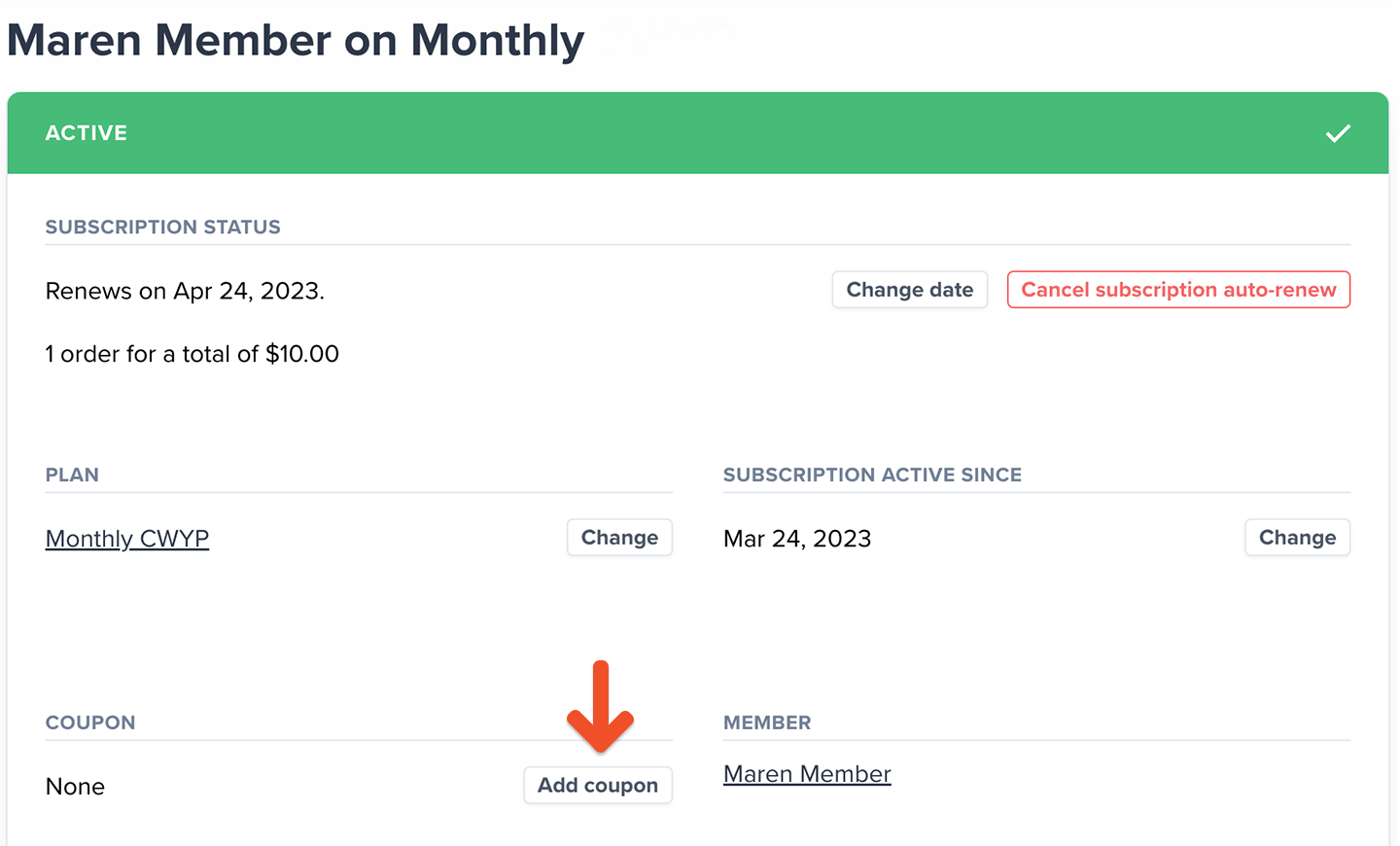
- Click Change next to the plan name.
- Choose the new plan, and then apply the coupon code.
Remove a retention discount from one member
Once a member accepts a retention discount, you can’t remove it from their existing subscription through the Memberful dashboard. To return the member to the plan’s regular price:1
Delete the existing subscription
Delete the member’s current subscription.
2
Add a new subscription
Add a new subscription for the same plan without charging the card on file.
3
Match the renewal date
Adjust the new subscription’s renewal date to match the original subscription so the member doesn’t lose paid access or get charged early.
This workaround only affects the individual member. Editing or deleting the retention offer affects the offer globally and does not remove it from a single subscription.