Create a public page on your Memberful member website to share information, offer free samples of members-only content, host videos, or invite new members.
Pages on your Memberful member website let you share information, host videos, and invite new members. You can build them from a set of blocks and choose who can view each block.In this help article, we’ll show you how to create and customize pages on your member website so you can shape the experience for visitors and members.
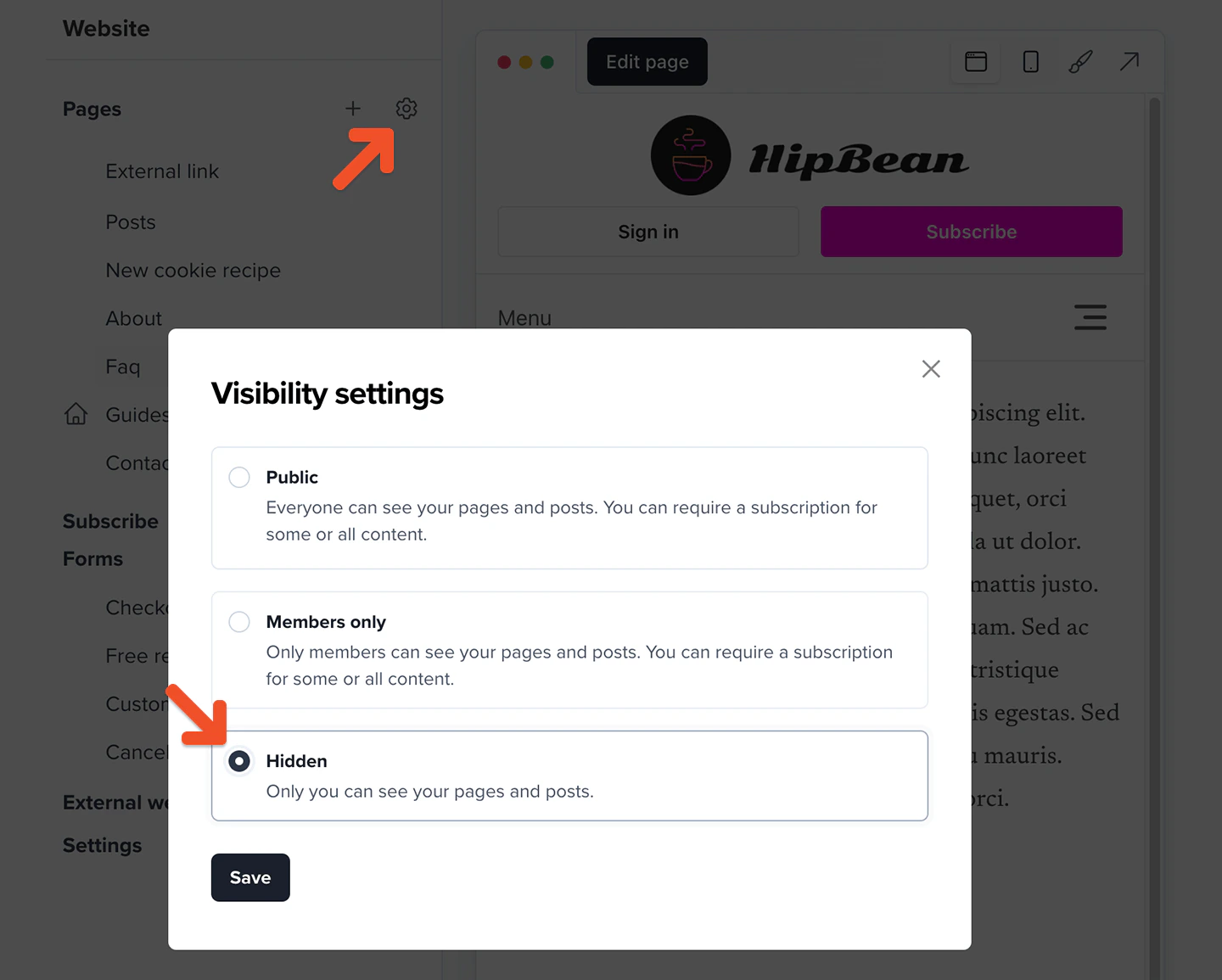
Memberful includes a member website feature, which is optional. This website saves you from having to set up and operate a custom website on your own server, so you can get up and running within minutes.Memberful’s member website is enabled by default, but you can disable it by going to the Website tab, clicking the gear icon, and selecting Hidden.
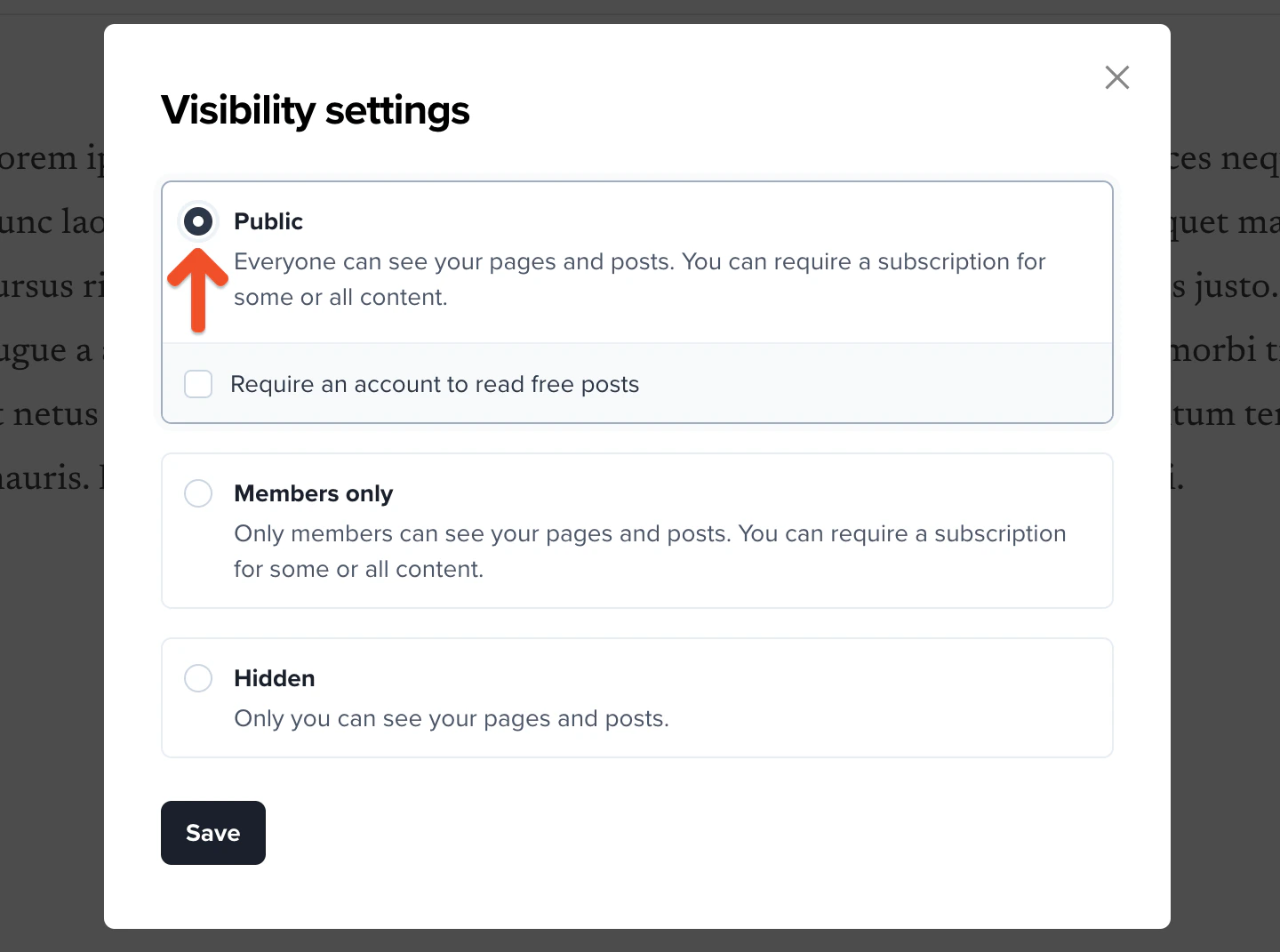
To enable the website again, go to the Website tab, click the gear icon, and select either Public or Members-only.
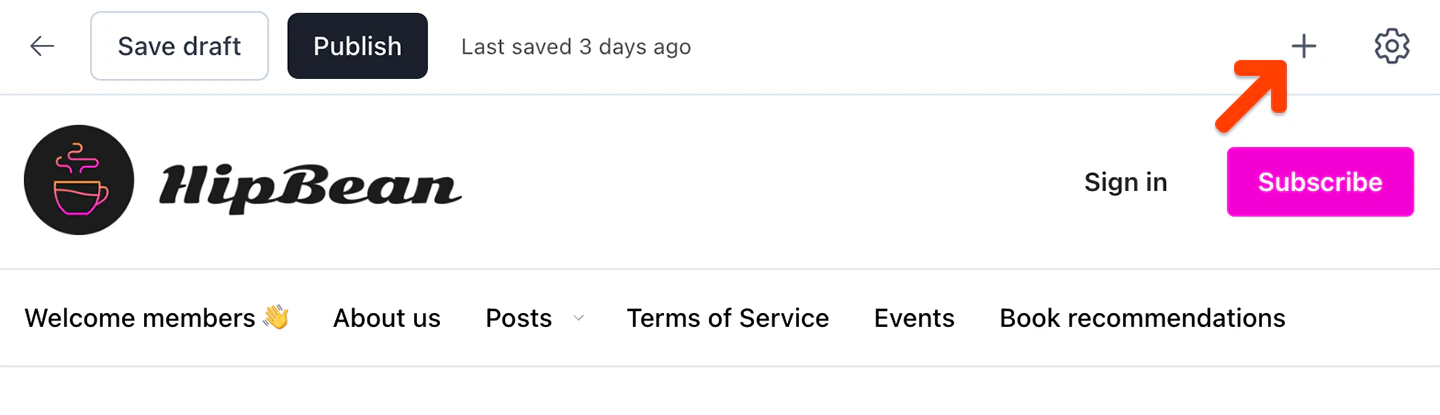
Click the plus icon in the top right corner to add a new block to the page.
You can also hover your cursor over an existing block and click the plus icon at the bottom of it to add a new block below it.
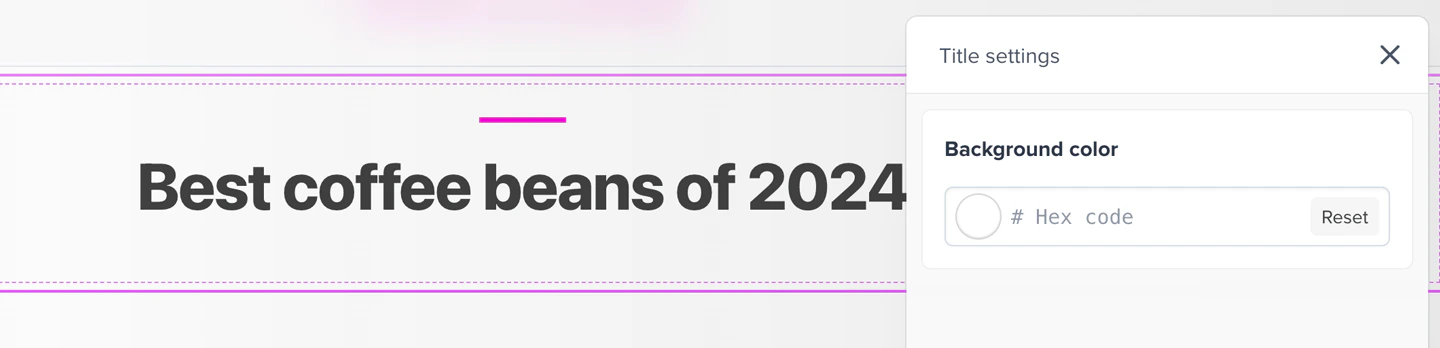
Choose the type of block you’d like to add. There are several types of blocks you can add to your page: Banner, Button, Columns, Content, Divider, Downloads, Image, Quote, Title, Video, Podcast banner, or Podcast episodes.
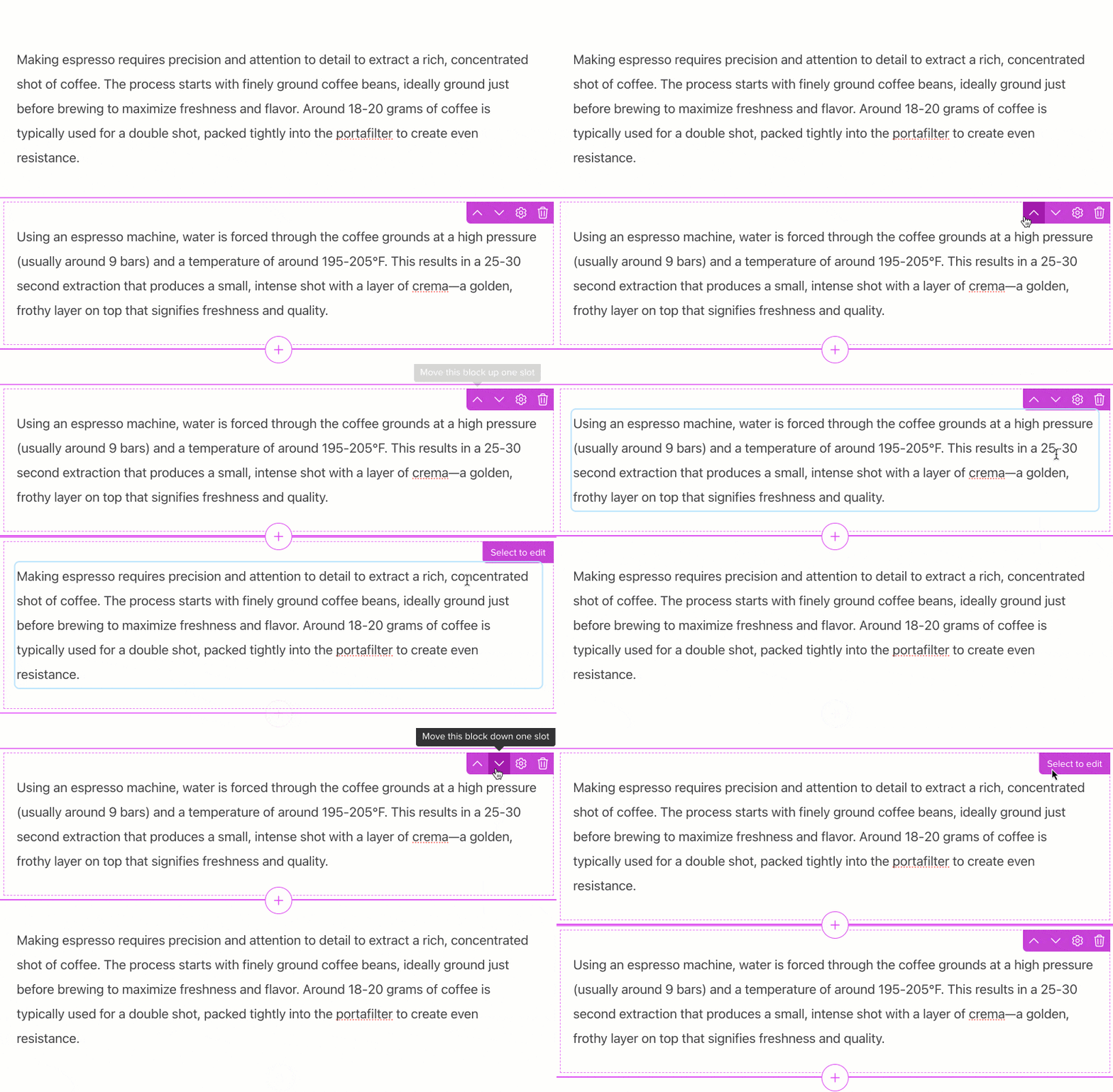
To rearrange the order of your content blocks, click the block you want to move to select it, then click the up or down icons that appear in the top right corner of the block.
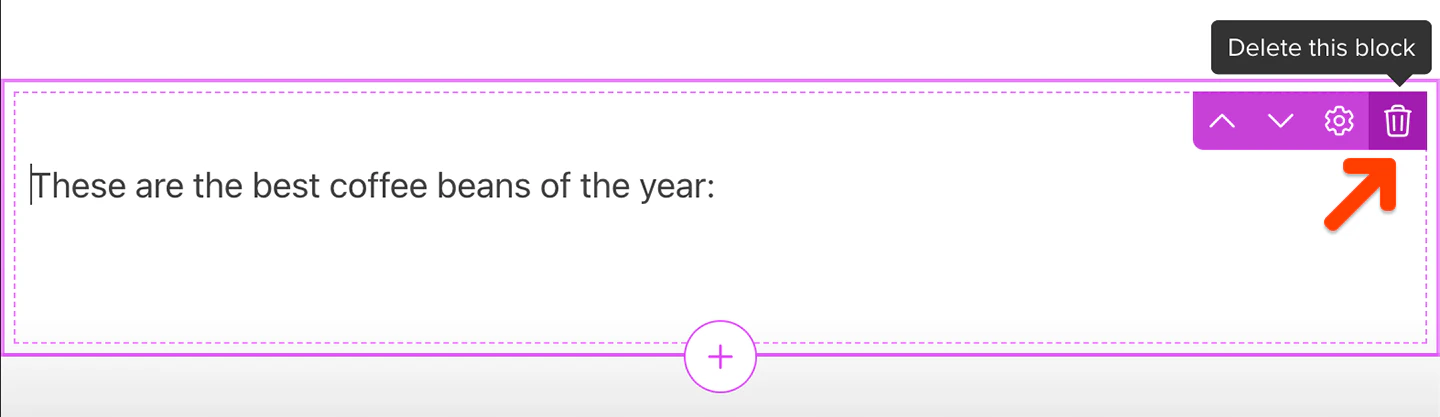
To delete a content block, hover your cursor over the block you want to delete, then click the trash can button that appears in the top right corner of the block.
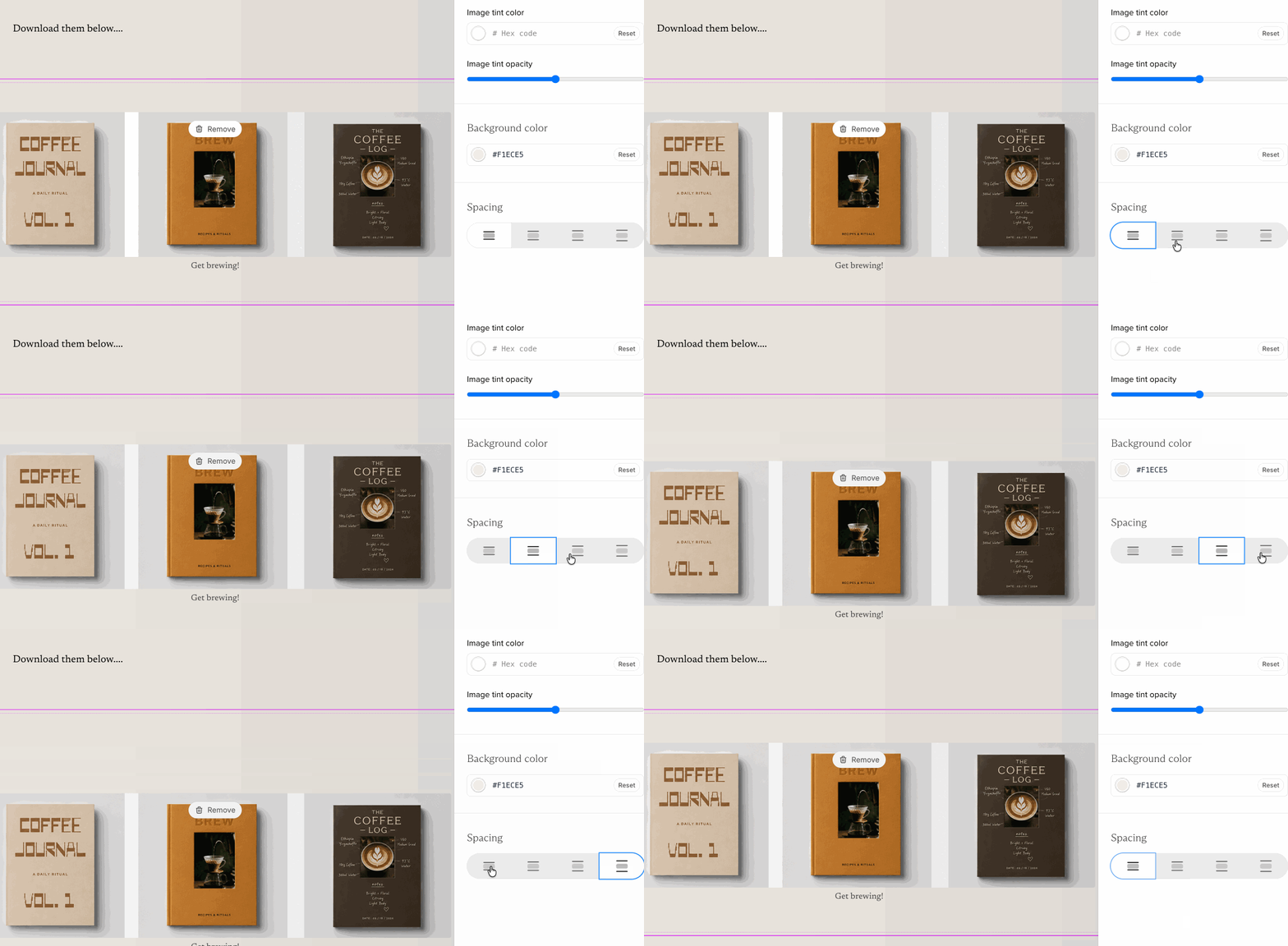
Every block includes spacing controls that adjust the space around the block’s content. Choose from four spacing options to create a tighter or more open page layout.
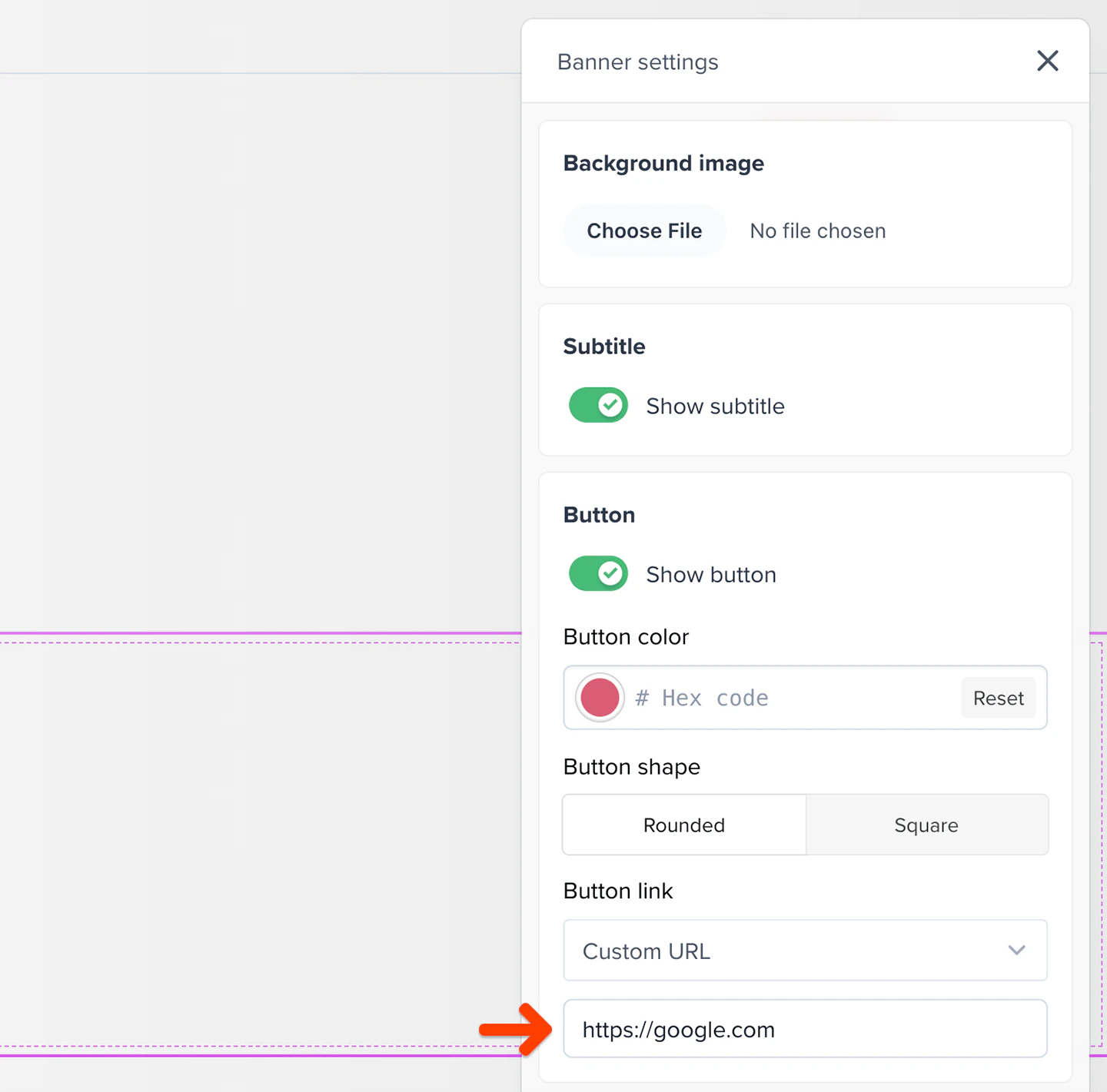
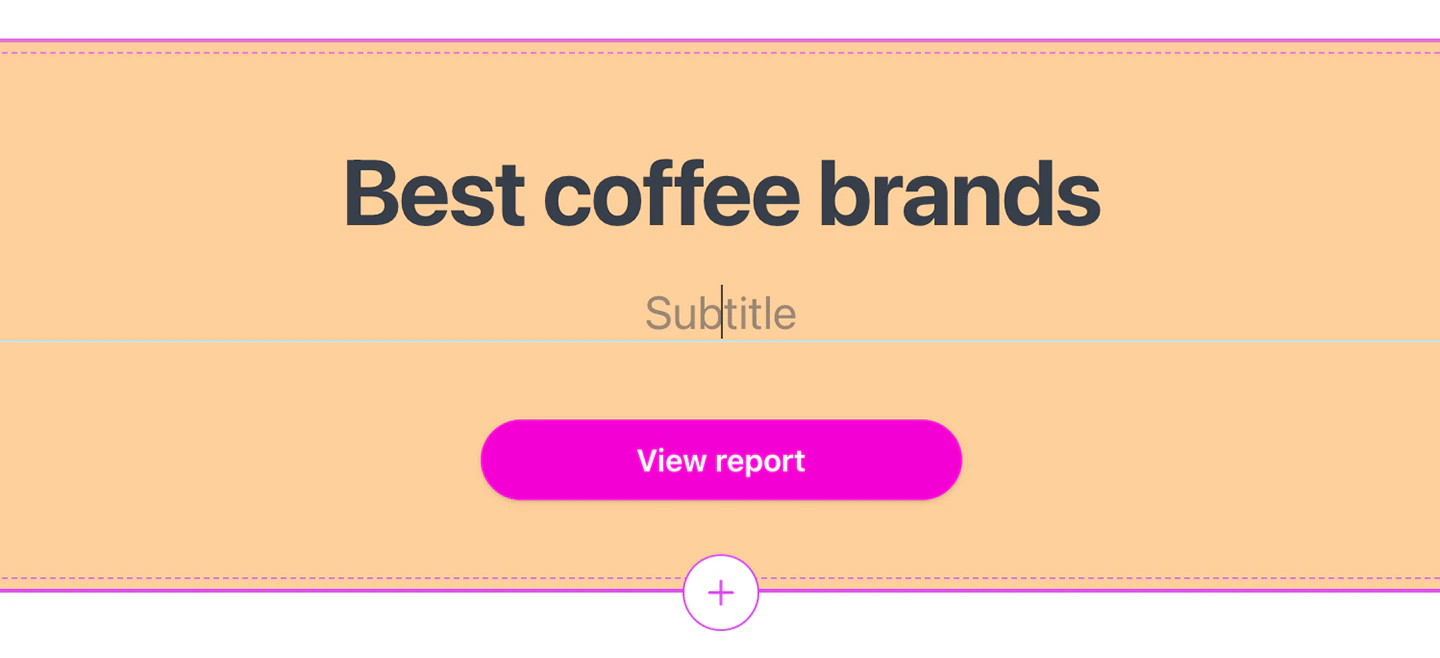
Banner blocks may include a background image, a subheading, and a button, although only the title is required.Banner blocks can have a background color or a background image. If you decide to add a background image, we recommend an image that is at least 1920px wide to ensure the best display quality.You can optionally add a subtitle and a button to the banner. If you enable the banner’s button, you can choose the button’s color, shape (rounded or square), and the link or destination visitors go to when they click it, whether that’s your subscribe page or a custom URL.
Click any of the labels in the preview area to edit them.
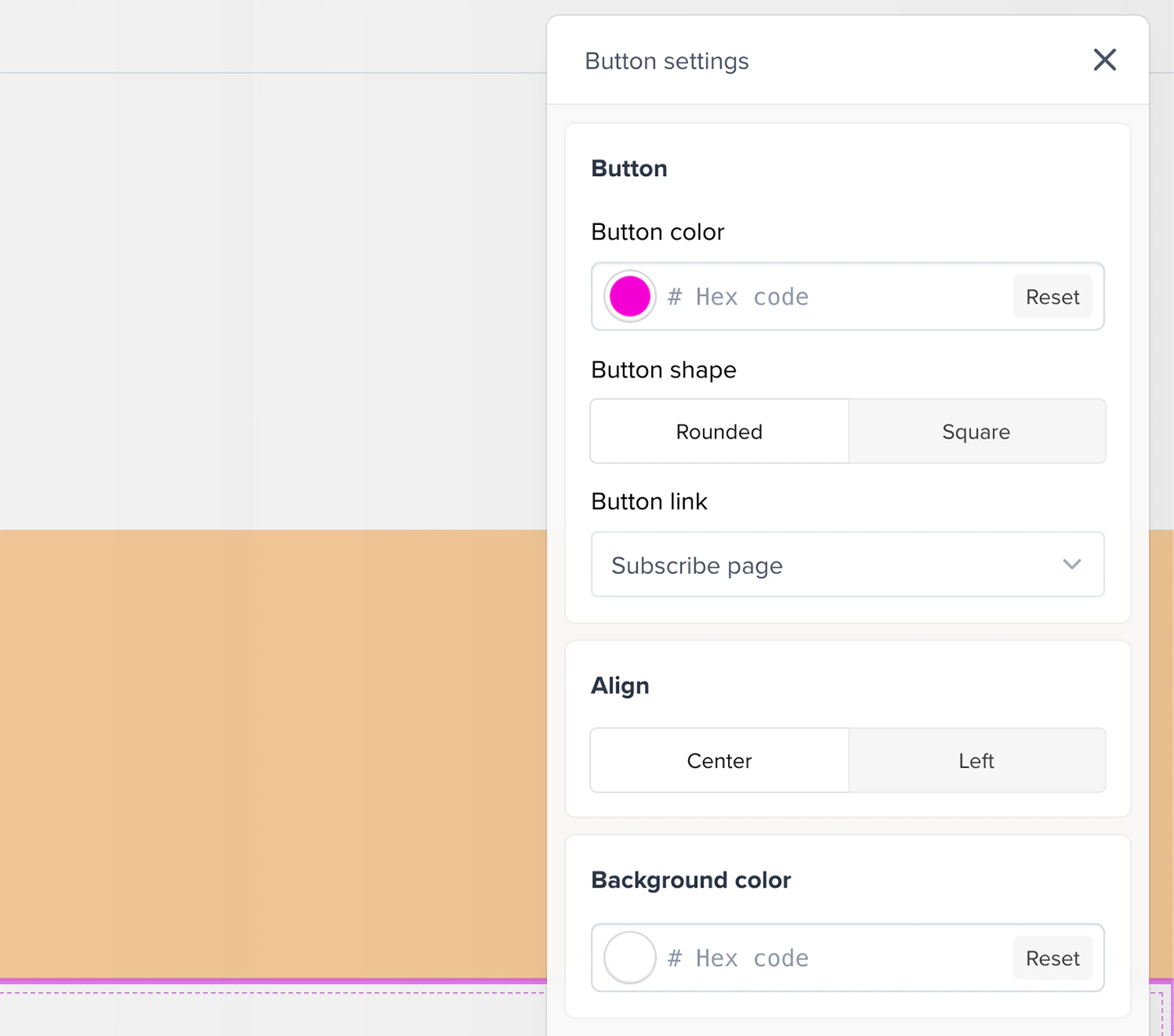
Button blocks are simple buttons that can be linked to a URL.You can choose a background color for your button block, as well as whether to align the button to the left or center.You can choose the button’s color, shape (rounded or square), and the link or destination visitors go to when they click it, whether that’s your subscribe page or a custom URL.
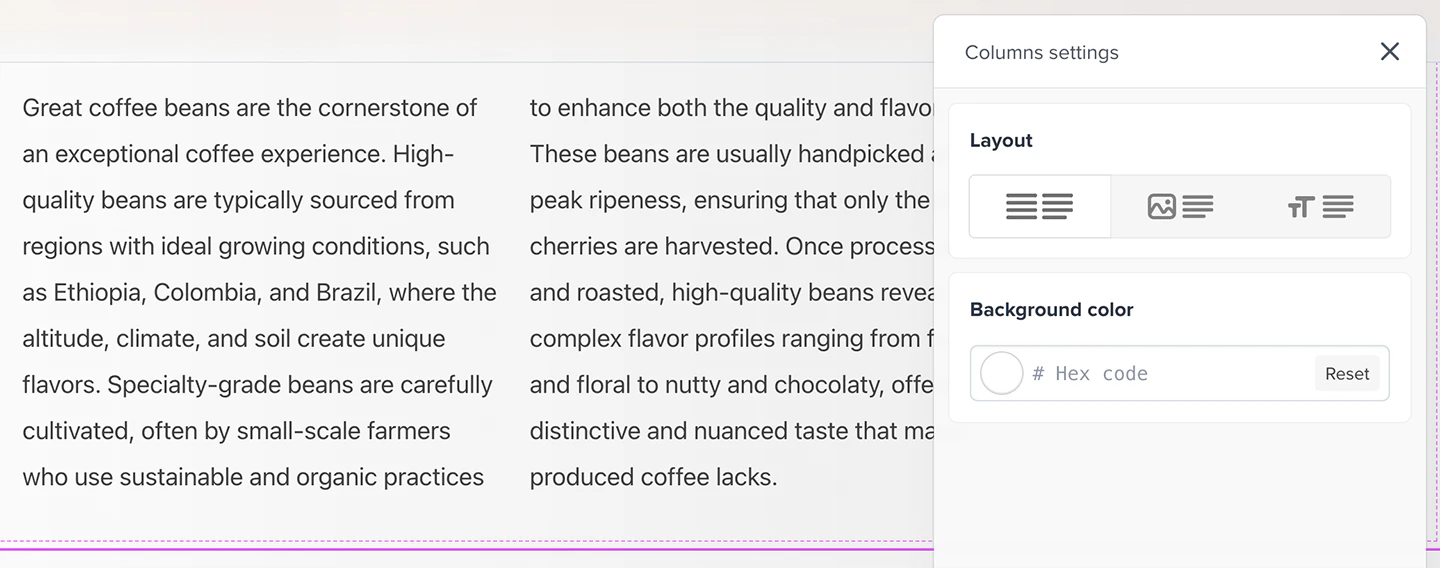
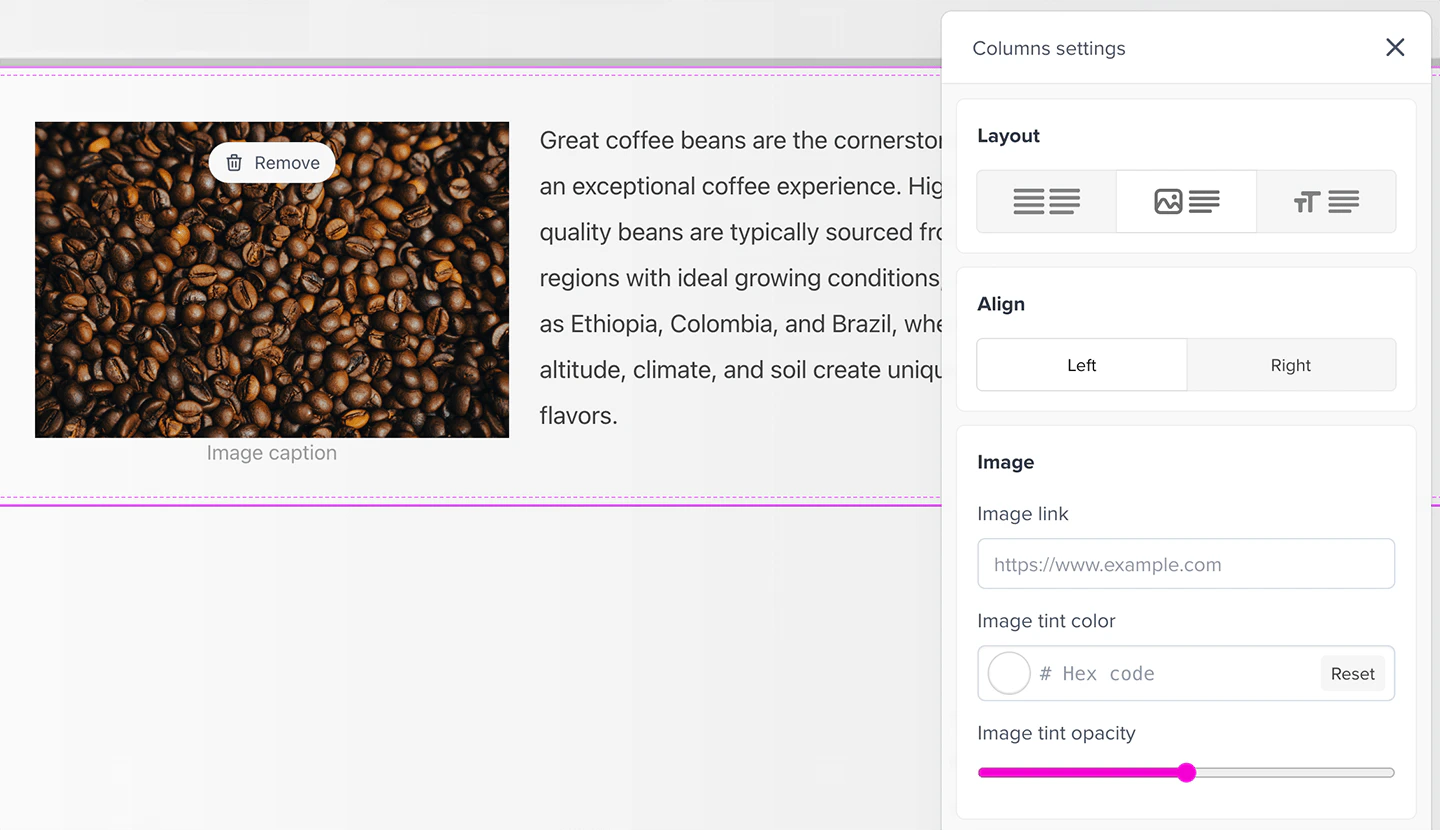
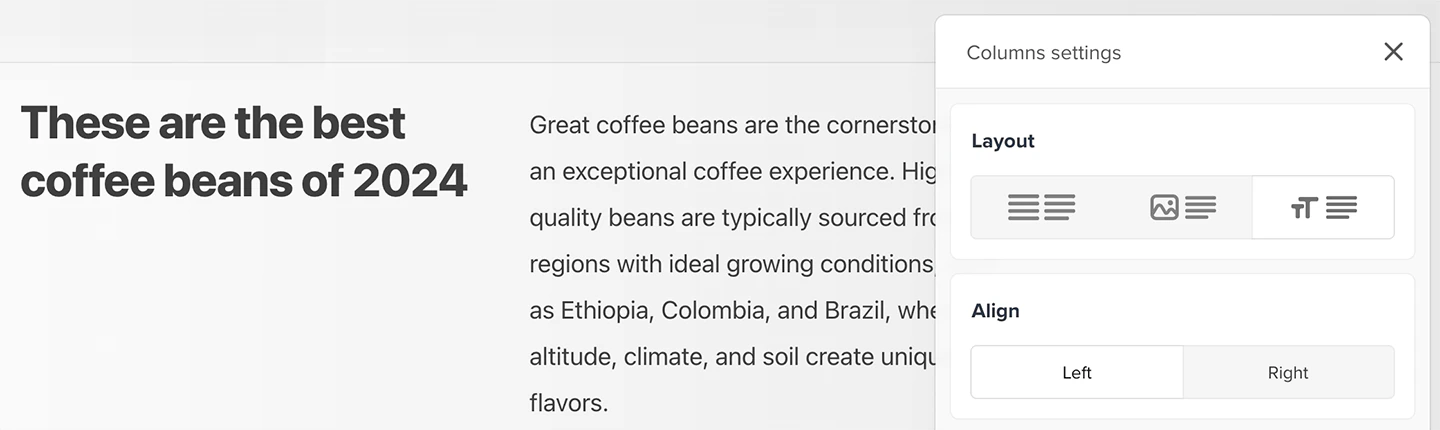
Columns blocks allow you to show two columns of content side by side, whether it’s two text columns, an image and text, or a title and text.You can choose a background color for your columns block, as well as its layout. You can choose between two columns of text, an image and text, or a title and text.
When using two text columns, the Columns block doesn’t create two separate text editors. Instead, it automatically styles your text into two columns once the content reaches a certain length.
If you choose an image and text layout, you can upload an image, choose its tint, and set its opacity. You can also choose whether the image should be aligned to the left or right.
If you choose a title and text layout, you can choose whether the text should be aligned to the left or right.
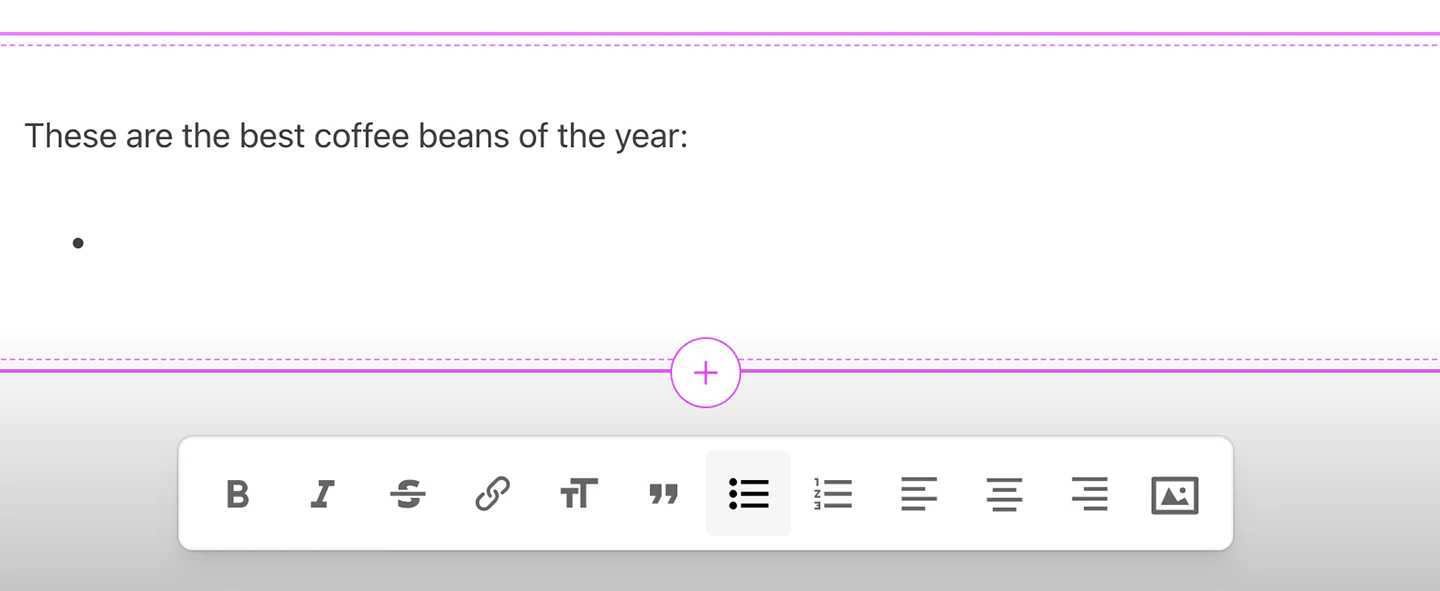
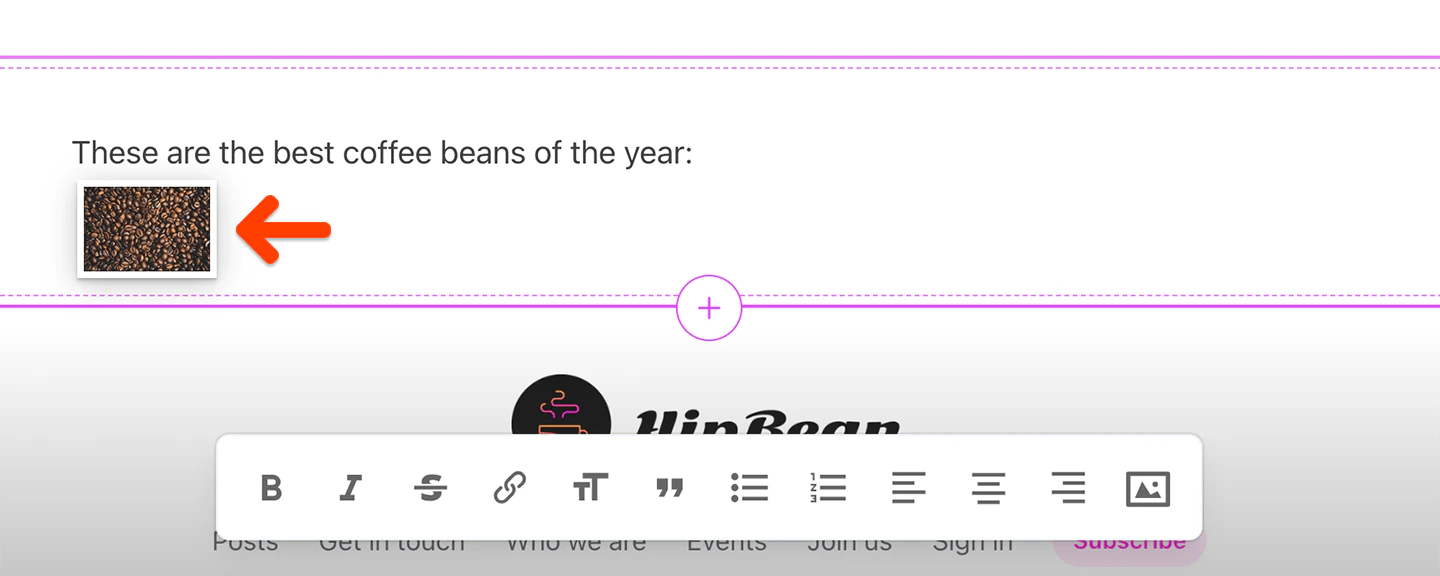
Content blocks let you add text to your page, and can also include images and videos.Use the icons at the bottom of the block to format your content and add elements like links and images.
To add a background color, click the gear icon in the content block, then select a color or enter a hex color code.
You can also drag and drop images from your computer into the content editor.
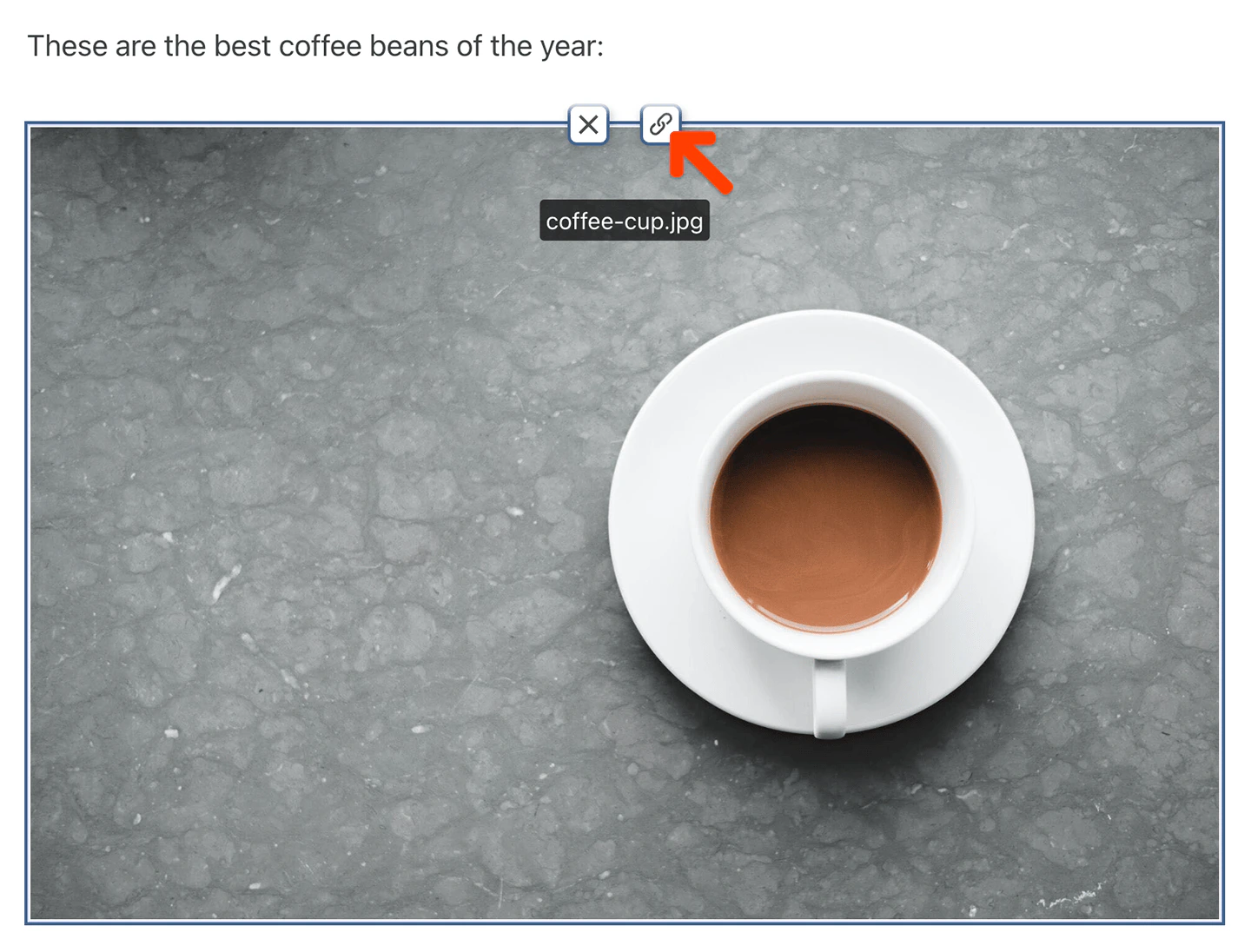
Memberful automatically resizes images to fit the width of the content area.If you’d like an image to appear smaller than the full width of the content editor, use your favorite image-editing app or a free online tool like this one to add some margins to the left and right of the image before uploading it.If you’d like to make the image cover the full width of the page, or if you’d like to use a different background color around it, add an image block to unlock further customization.To turn an image into a clickable link, click the image in the editor, then click the link icon that appears on it.
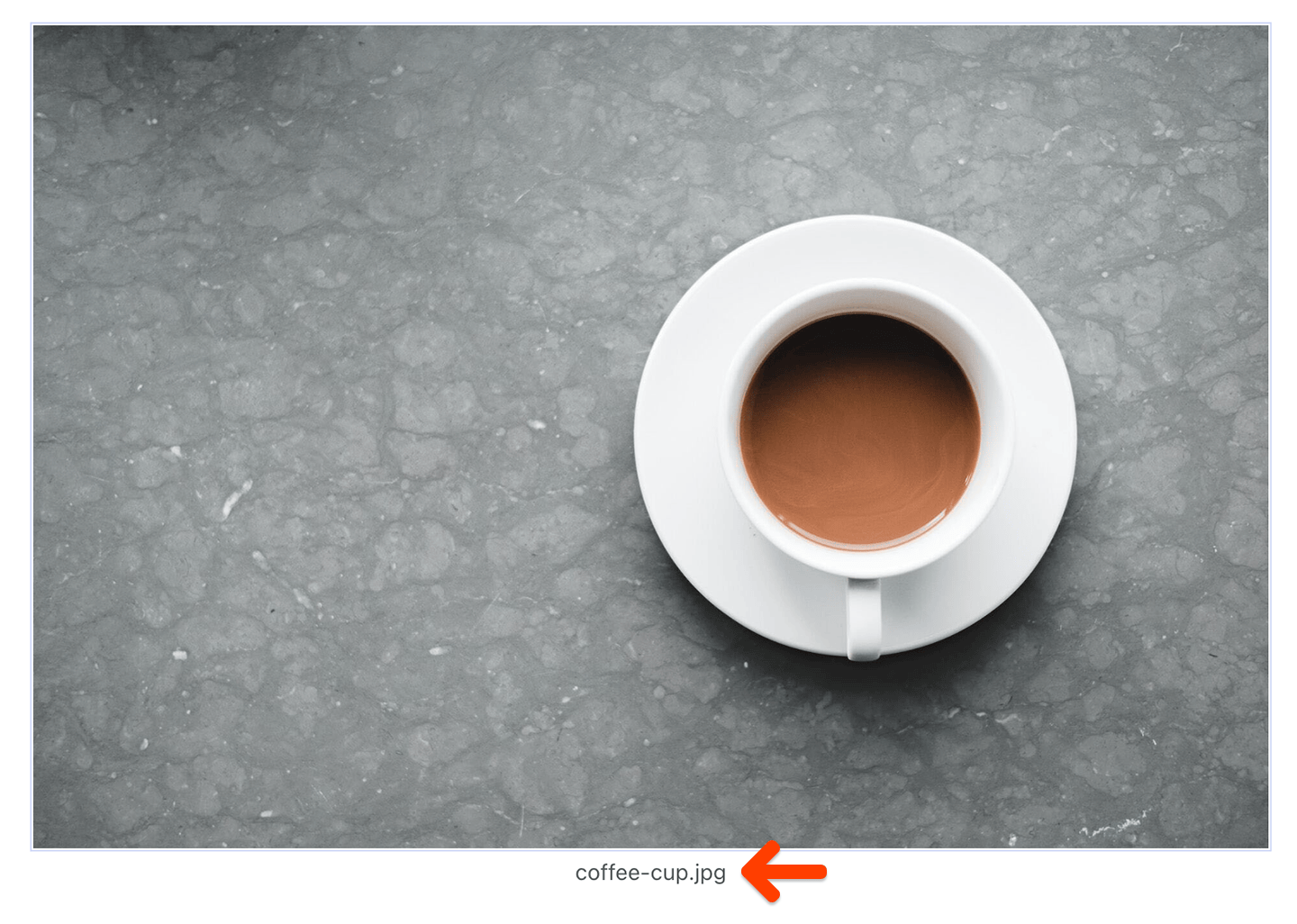
Memberful automatically uses the name of the image file as the caption. Click the caption to enter a custom one.
To embed a video, paste the URL of a video from YouTube or Vimeo into the content editor, and Memberful embeds it automatically. Only YouTube and Vimeo videos are supported at this time.While you’re in the editor, we’ll display a thumbnail of your video as a placeholder, but it will be replaced with the actual embedded video when you publish the page or preview it by exiting the editor.
Memberful automatically resizes videos to fit the width of the content area. If you’d like to make the video cover the full width of the page, or if you’d like to use a different background color around it, add a video block to unlock further customization.Additionally, you can configure who should be able to see this content, so you can display the content for members only. Learn more on selecting who can see a content block.
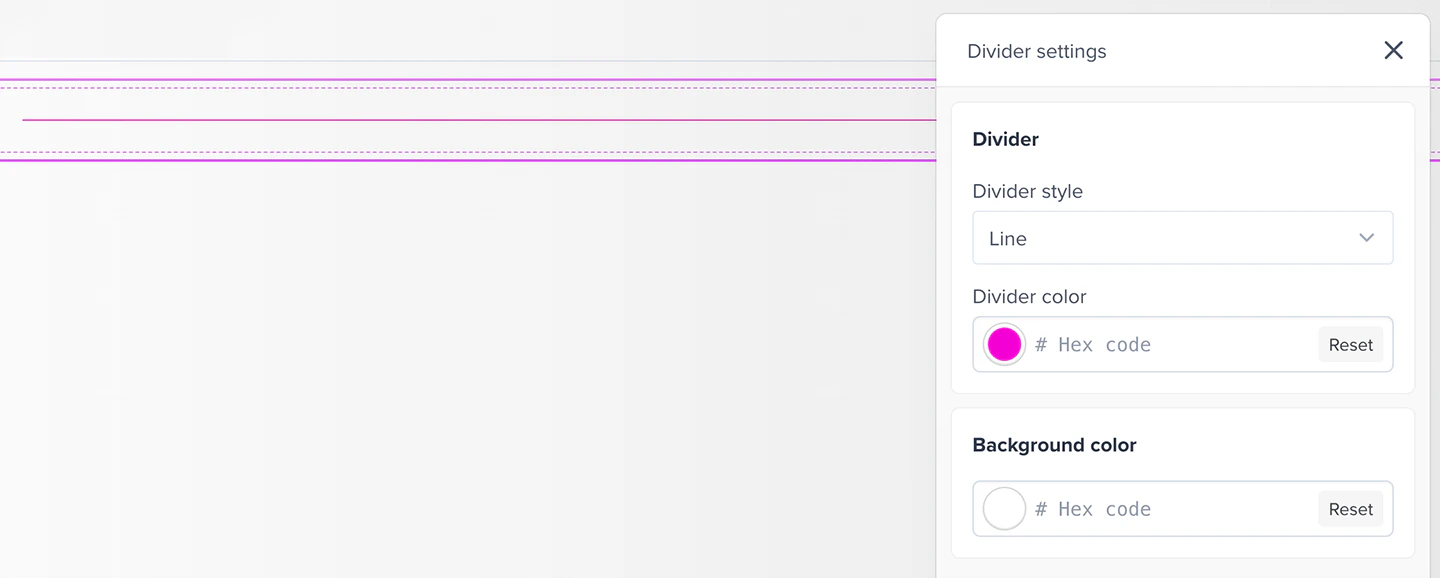
Divider blocks separate page content with a line or an empty space. Select Space from the Divider style menu to add vertical space without a line. You can also choose a line style and color, and set the block’s background color.
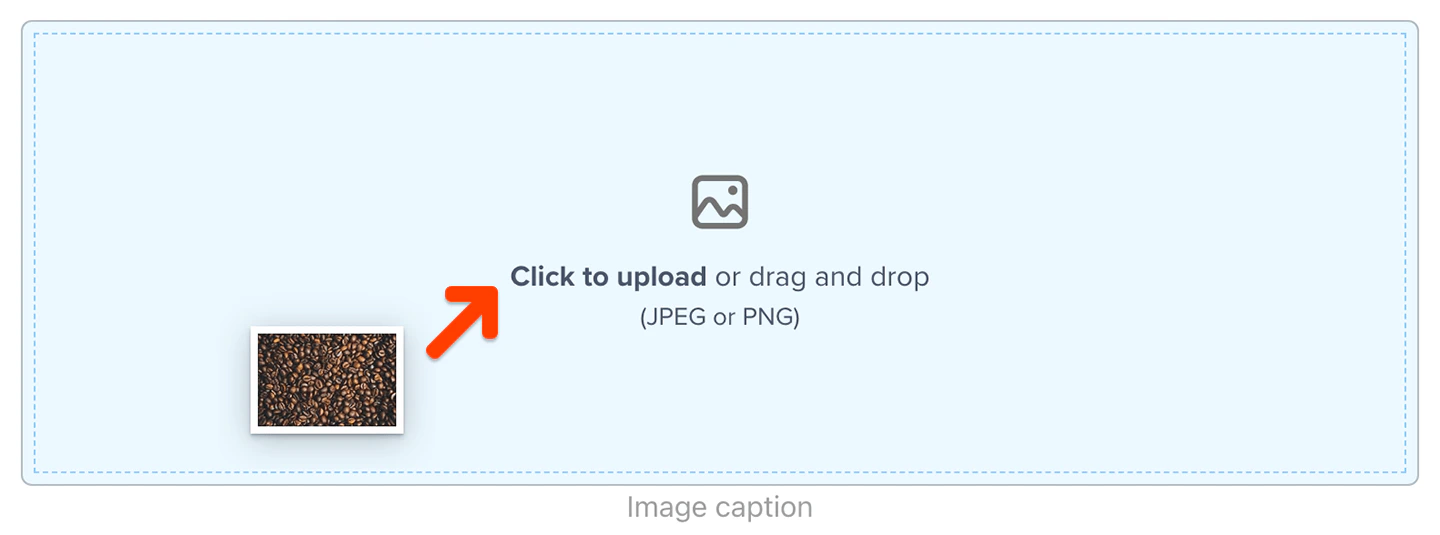
Image blocks allow you to display an image in its own block, as opposed to within a content block. This allows you to give it more room and put a different background color behind it, or to expand it to cover the whole width of the page.Click the image placeholder or drag and drop a JPEG or PNG file into it to upload your image.
Memberful automatically uses the name of the image file as the caption. Click the caption to enter a custom one.
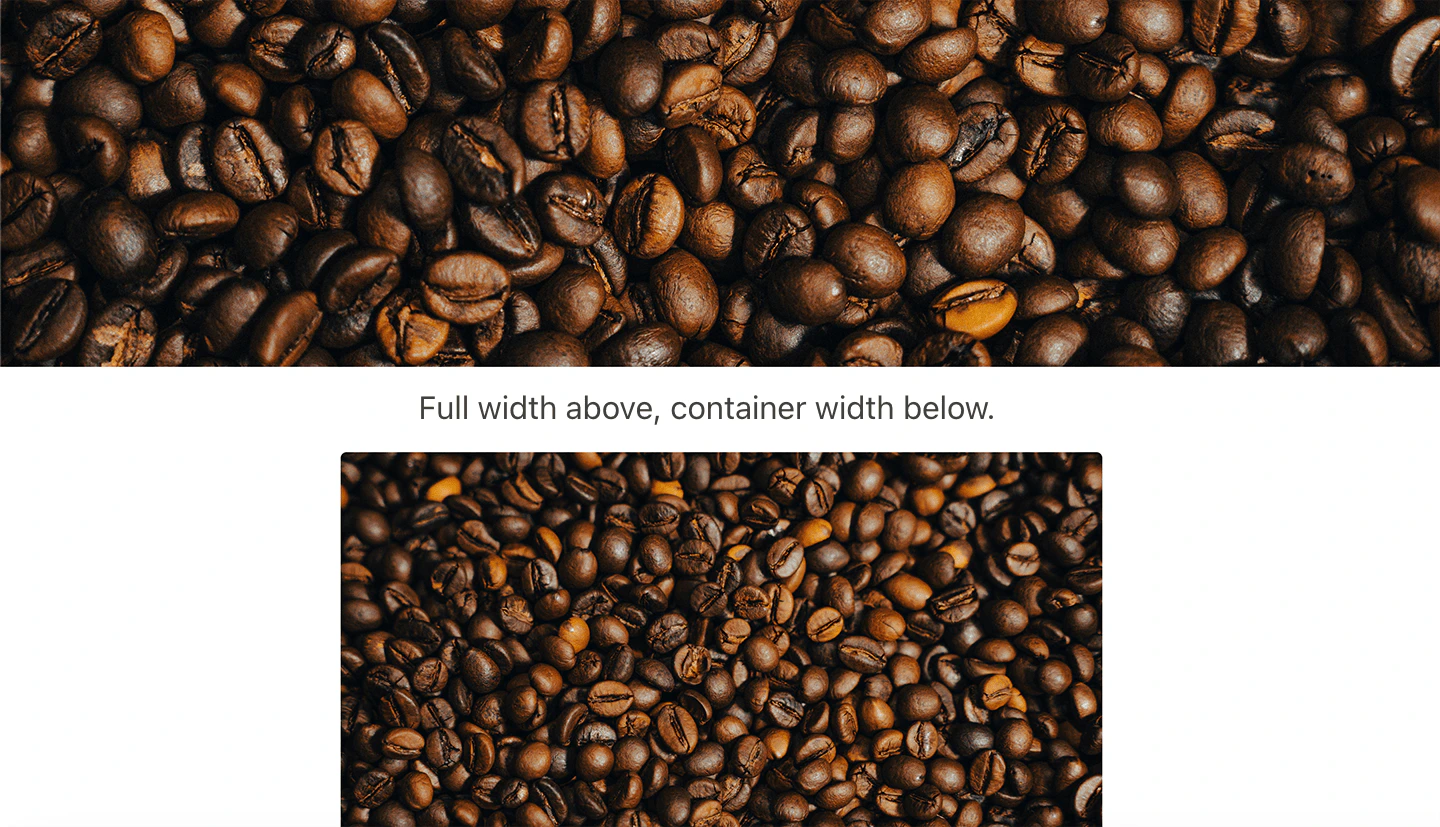
You can choose whether the image should be displayed at full width or within the confines of the main container (aligned with text content).
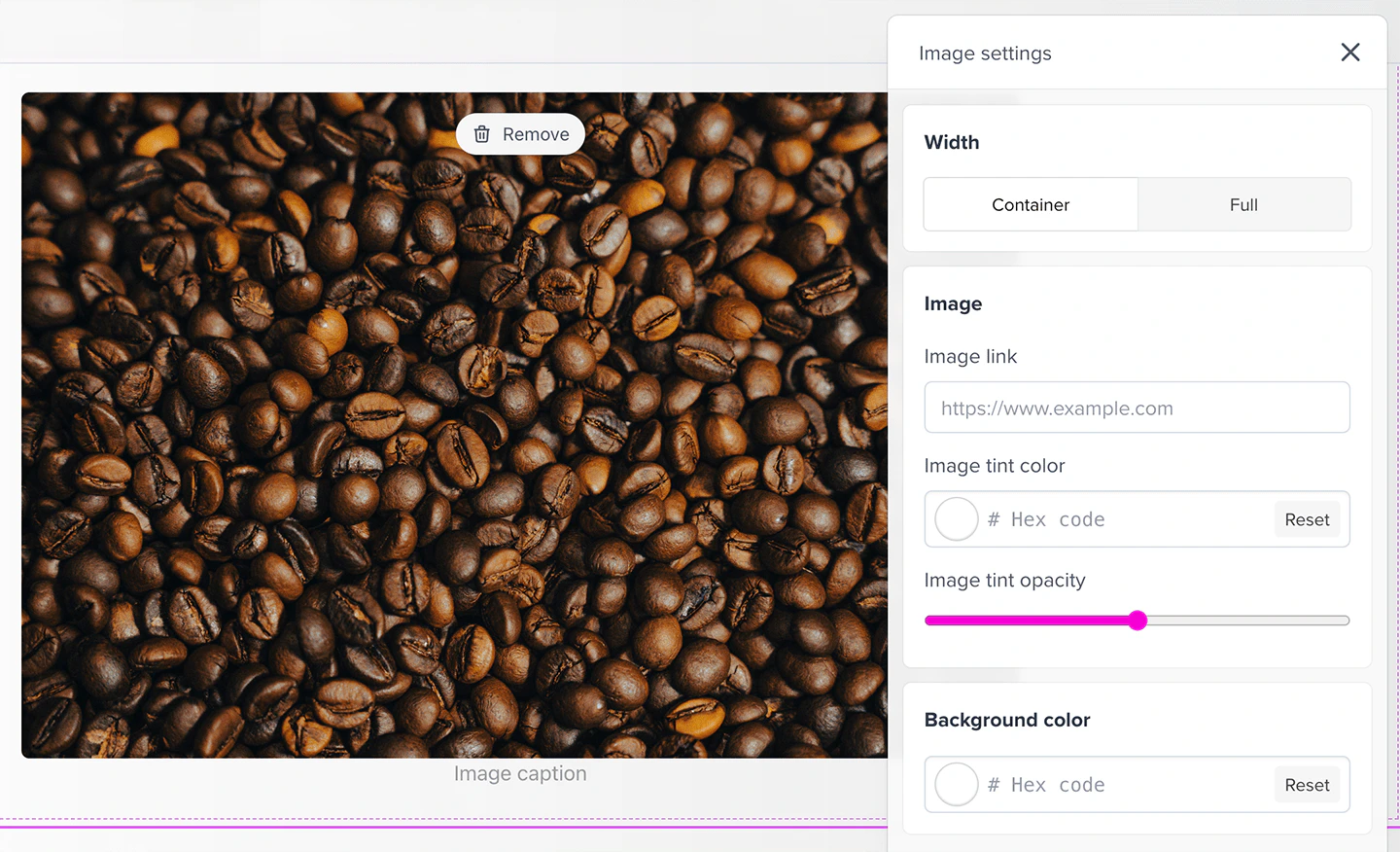
You can also choose whether the image should be clickable and where it should link to, as well as the tint color and opacity of the image.You can also choose a background color for the block (only visible if the image isn’t full width).
Quote blocks let you highlight a quote or testimonial on your page. Enter the quote in the block’s settings, then add the person’s name, subtitle, link, and photo if you’d like to include them.
The block uses your member website’s fonts and colors. You can customize its background color and spacing, and add a title block above it if you want a heading.
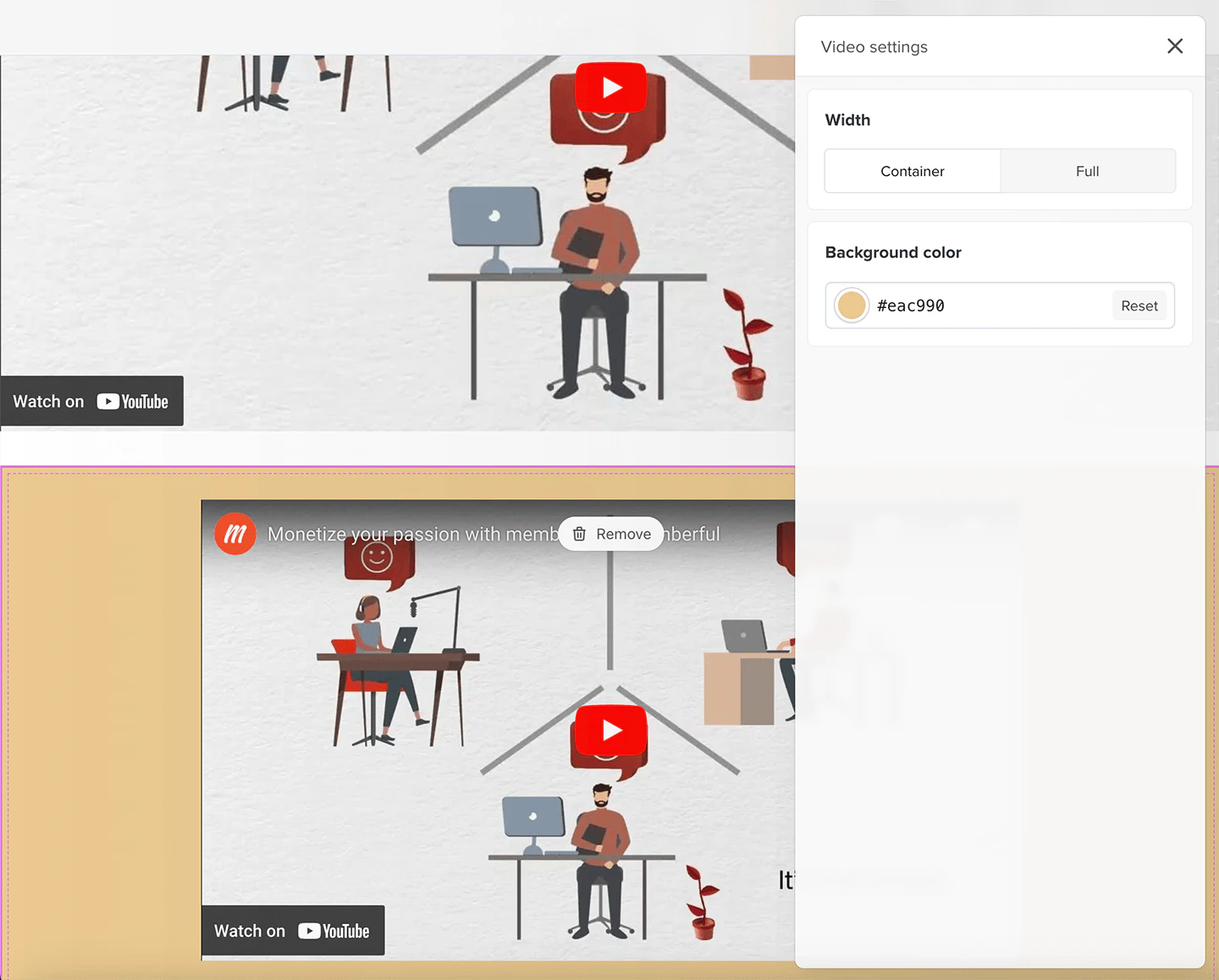
Video blocks allow you to upload hosted videos or embed video URLs to display a video in its own block, as opposed to within a content block. This allows you to give it more room and put a different background color behind it, or to expand it to cover the whole width of the page.
You can choose whether the video should be displayed at full width or within the confines of the main container (aligned with text content).You can also choose a background color for the block (only visible if the video isn’t full width).
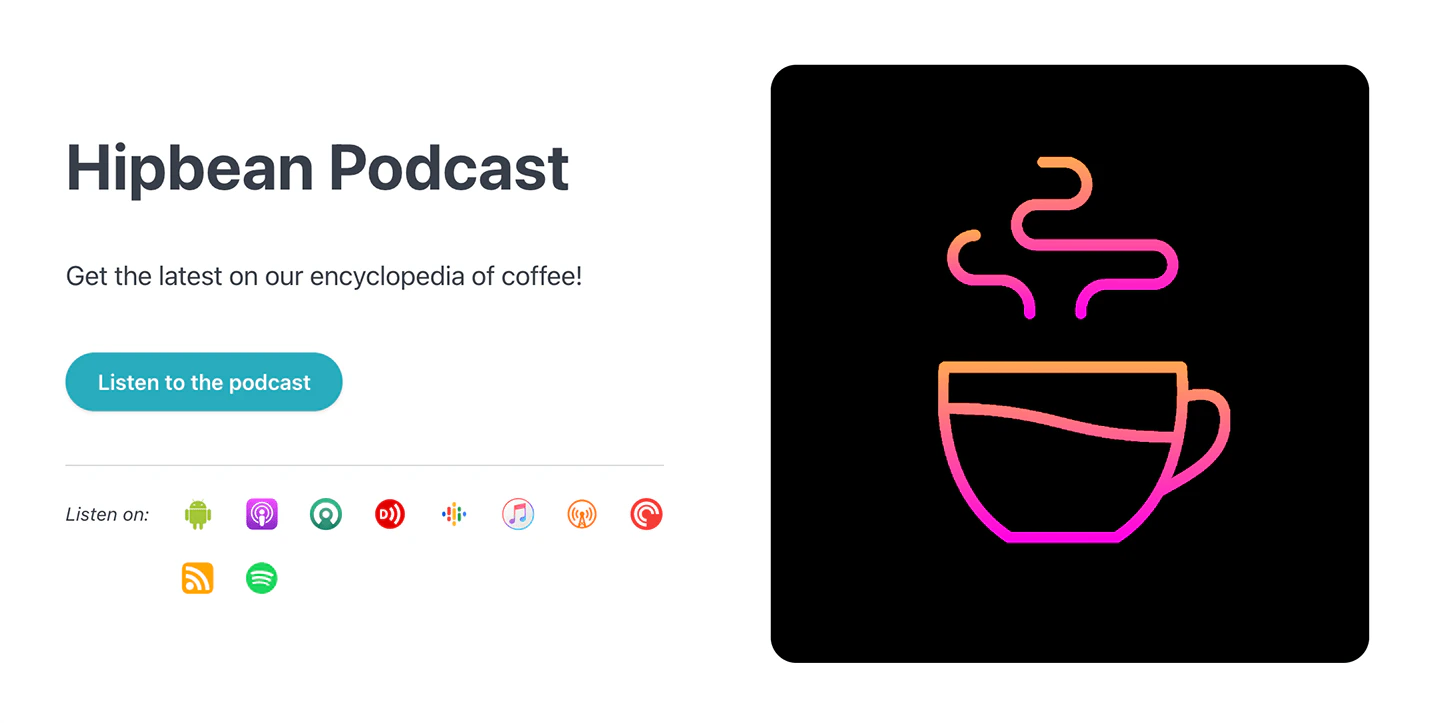
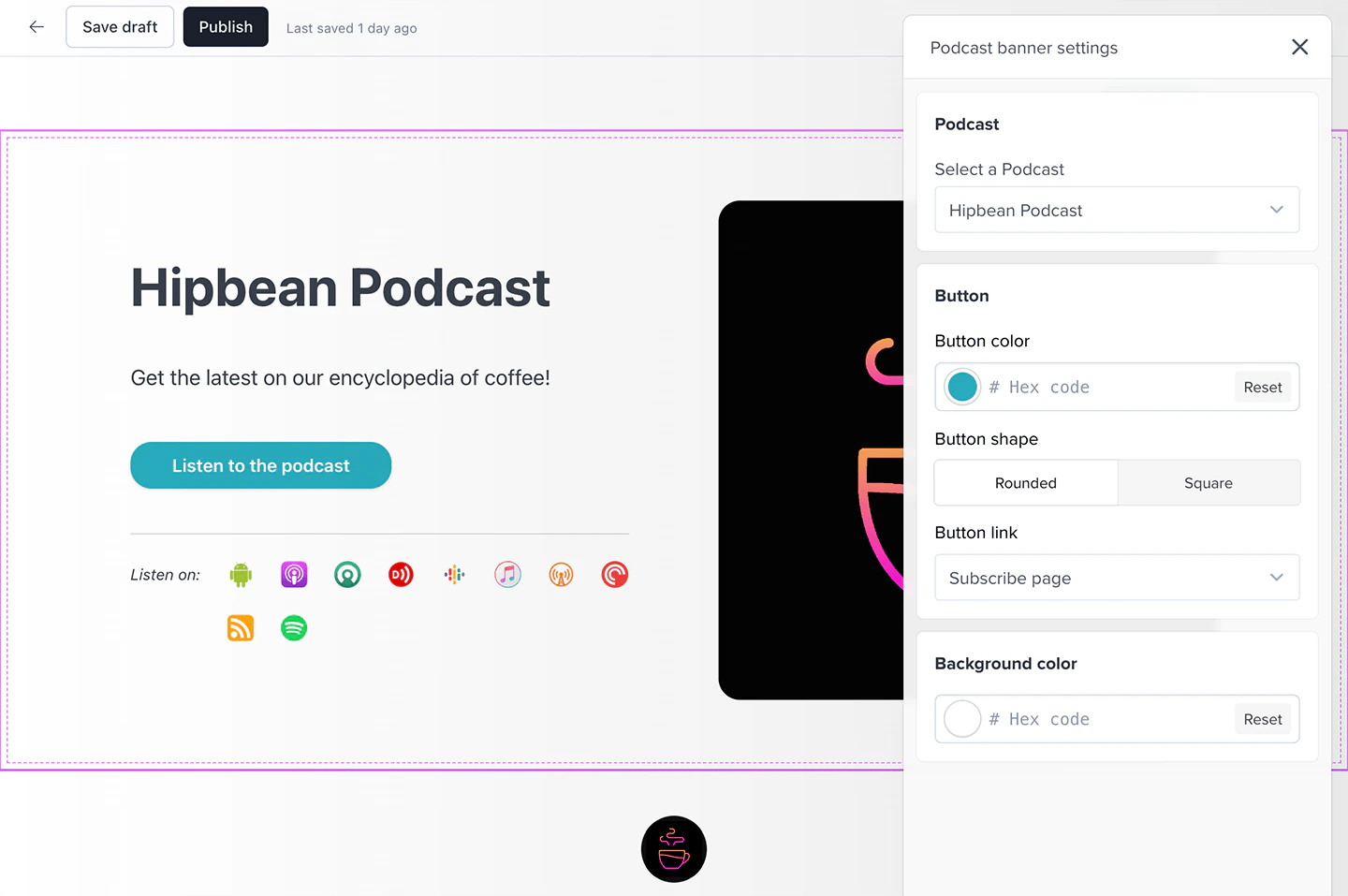
Podcast banner blocks allow you to showcase a members-only podcast on your page. Members see the podcast’s title, cover art, description, and a button with a call to action.
Once you select a podcast, the title and cover art are loaded from the RSS feed and cannot be edited. The description is also fetched from the RSS feed but it can be edited.You can choose the button’s label, color and shape (rounded or square), in addition to the link or destination visitors go to when they click it, whether that’s your subscribe page or a custom URL. You can also choose a background color for the block.
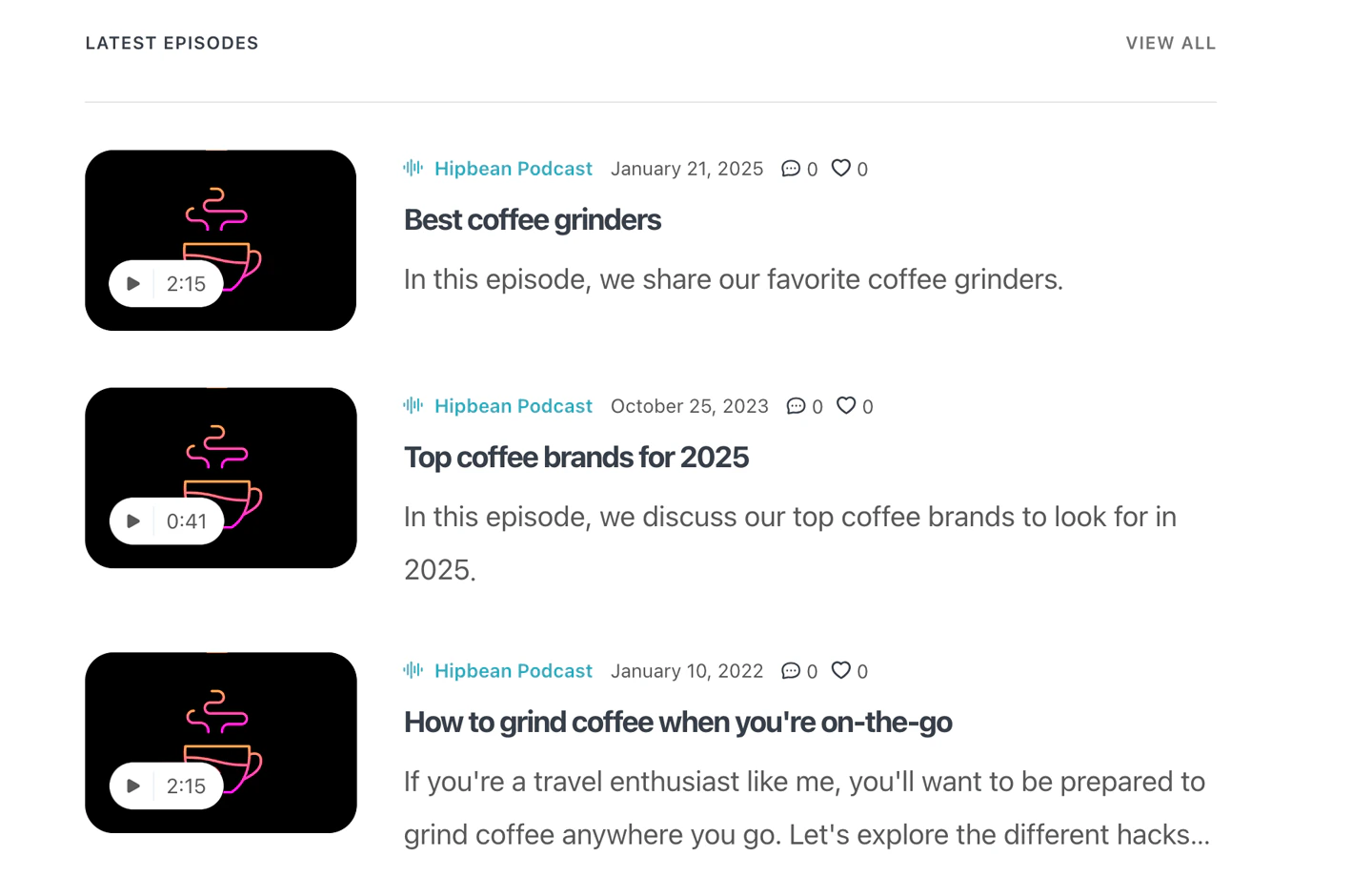
The podcast episodes block allows you to display a list of podcast episodes on your page.
Once you select a podcast, Memberful displays a list of episodes, each with its own cover art if it exists, or the podcast’s cover art if it doesn’t. The episode’s title, description, and duration (if available) are also displayed. The “view all” link takes the member to an archive page that lists the podcast’s episodes.Episodes are also posts, and if the post is assigned to a category, we’ll display a link to the category as well.The only setting for this block is the selection of which podcast to display.
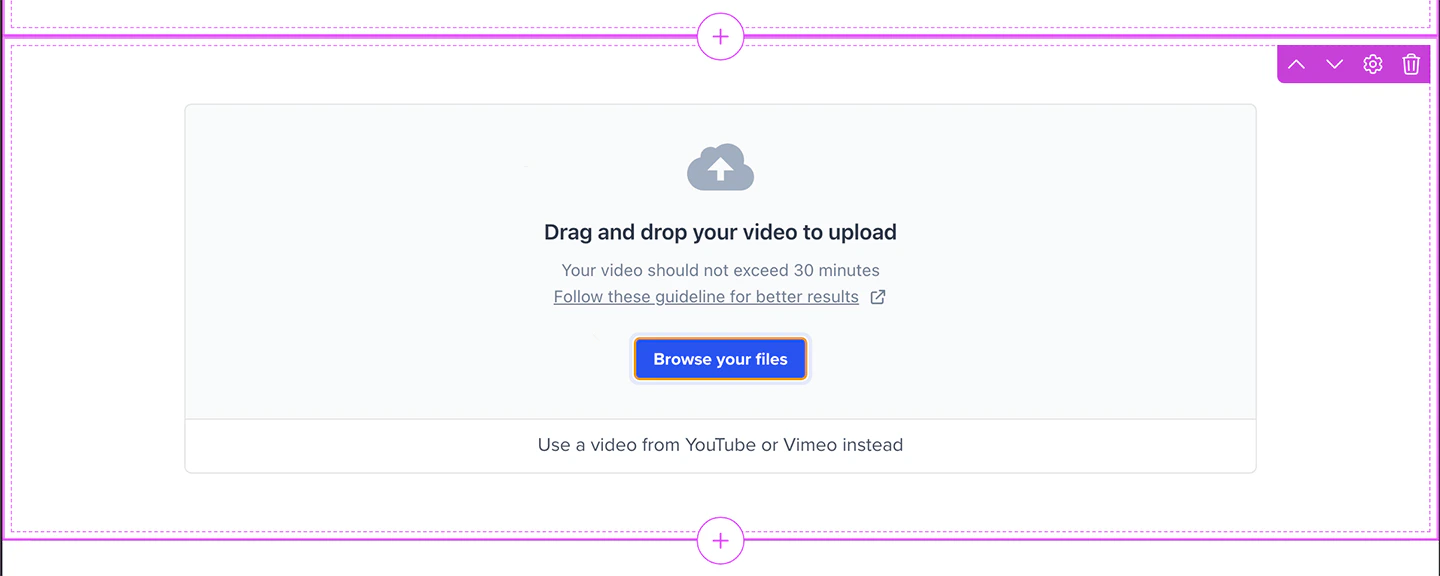
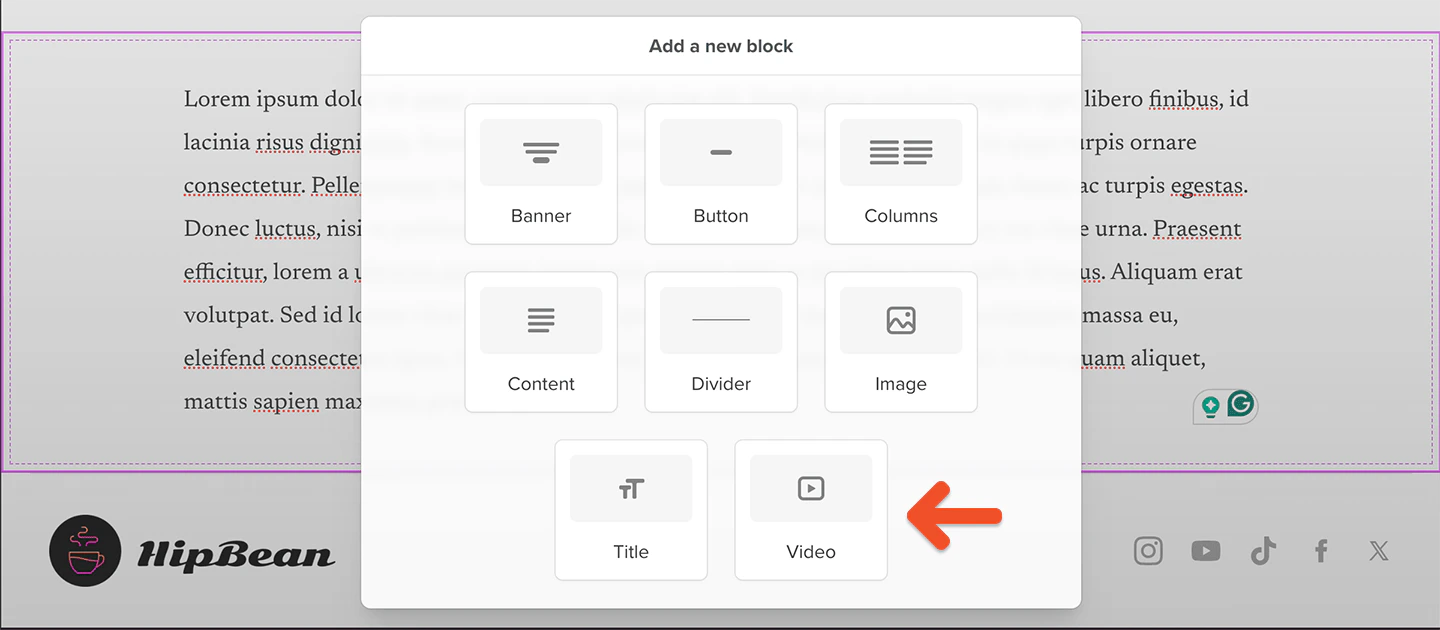
You can upload video files via video blocks or drag and drop video files into your page for paid members. When creating your video files we recommend following our video processing guidelines to ensure ideal streaming.To upload your video, go to your page, add content to your page and click the Video block icon:
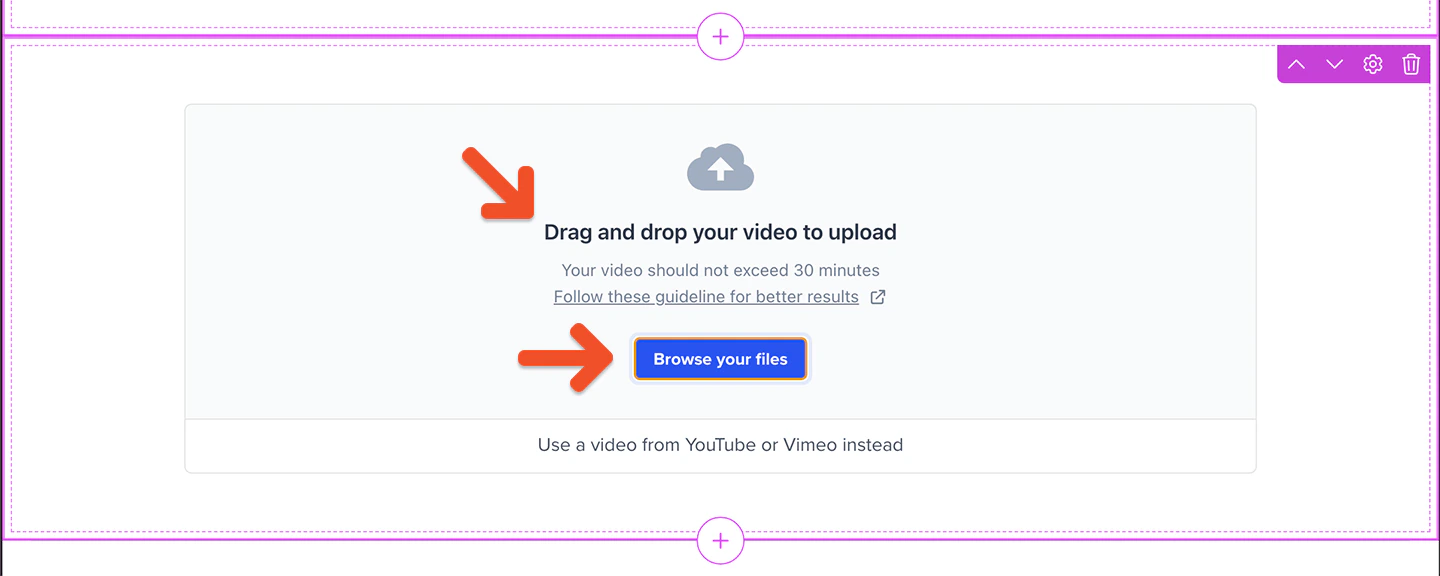
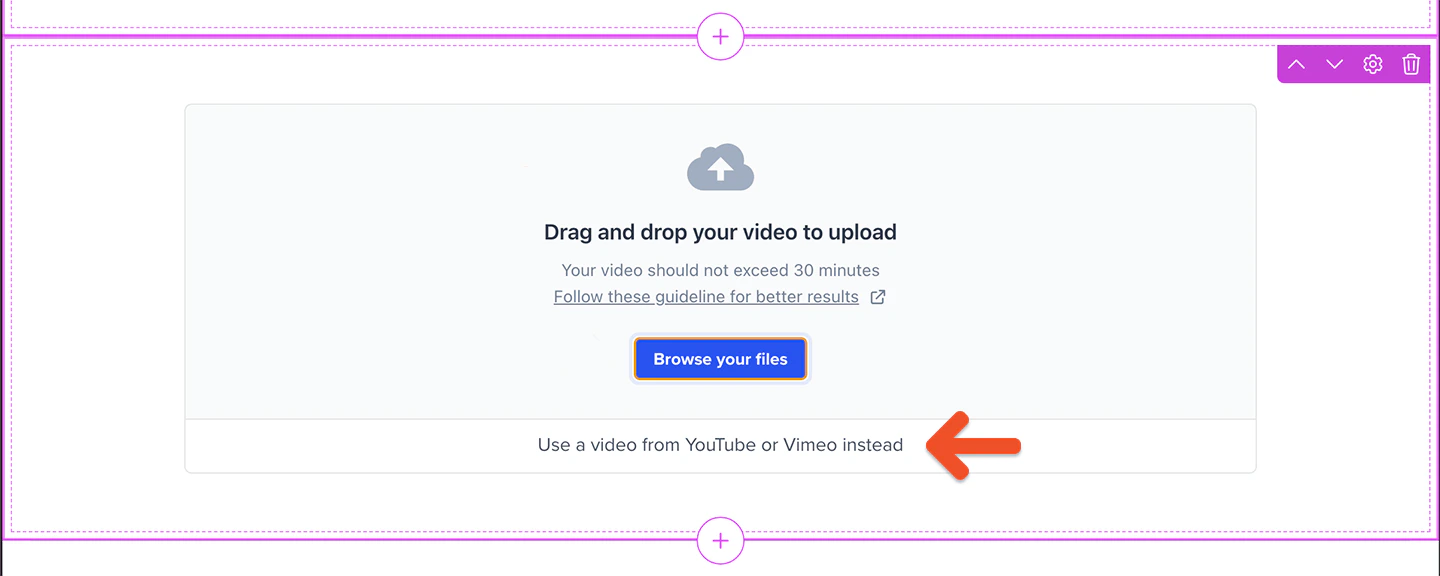
Drag and drop your video or click Browse your files to select the video file to upload:
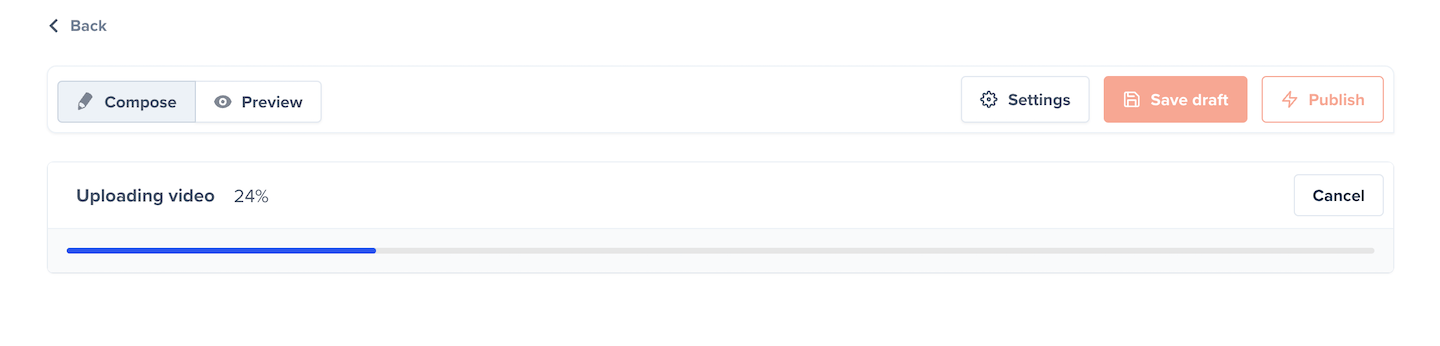
A progress bar keeps you informed as your video uploads and processes. If a post is saved while the video is still processing, the video will only be visible on the website after the processing is complete.Learn more about the video upload messages available.
Memberful Video gives you plenty of room to share your content: Up to 30 minutes per video on pages using website blocks. You also have an upload limit of 20 hours in any given month.
If you’d like to offer videos to free or inactive members, you can paste a YouTube or Vimeo video URL into the content editor of a video block.Learn more about using Vimeo or YouTube.
If you run into errors, learn more about troubleshooting videos.
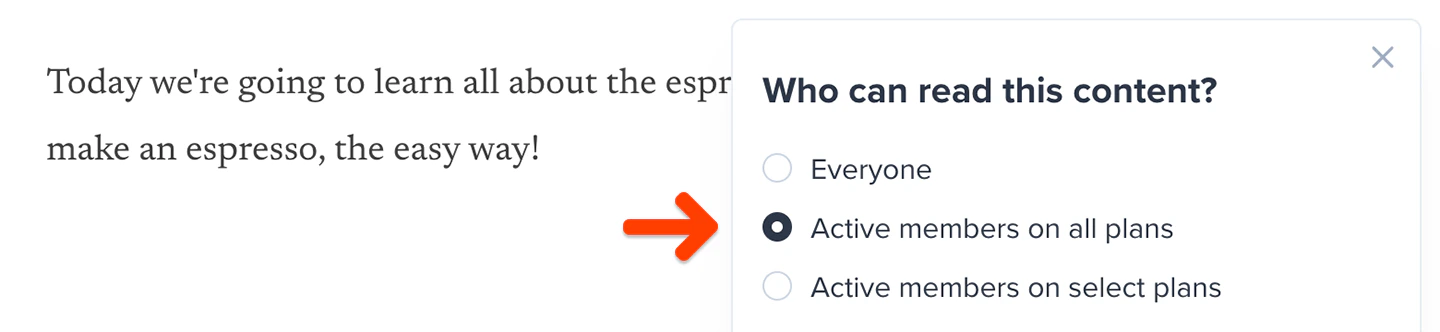
You can choose who can see individual content blocks on your page.To do so, click the gear icon in the top-right corner of the content block you want to configure. Then, select the appropriate option under Who can read this content?
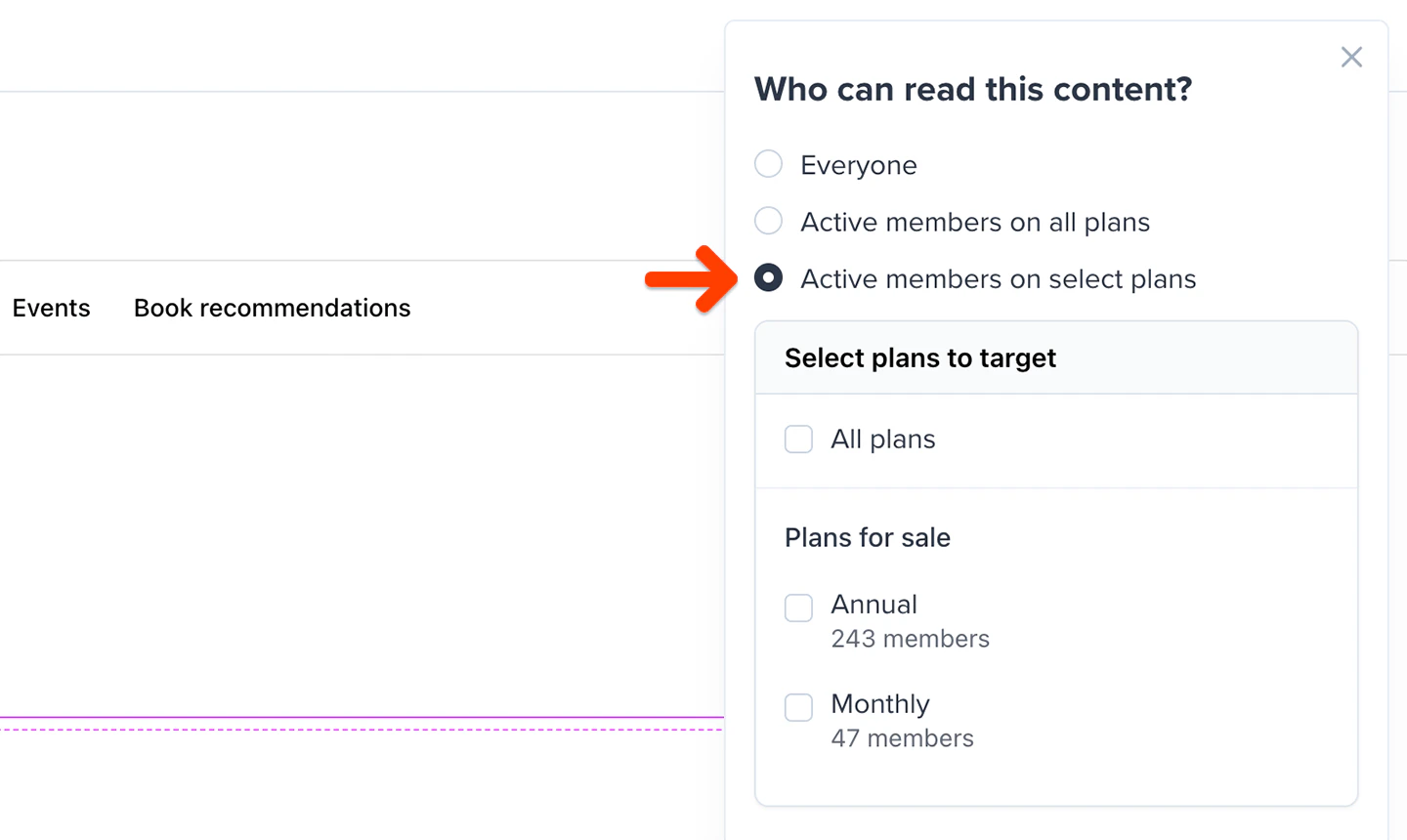
A content block on your page can be made available to everyone (including non-members), active members on all plans, or only to active members on select plans. However, a page with uploaded video can only be made available to paid members on all plans or select plans.When you choose to target only members on select plans, you can choose which plans should be included.
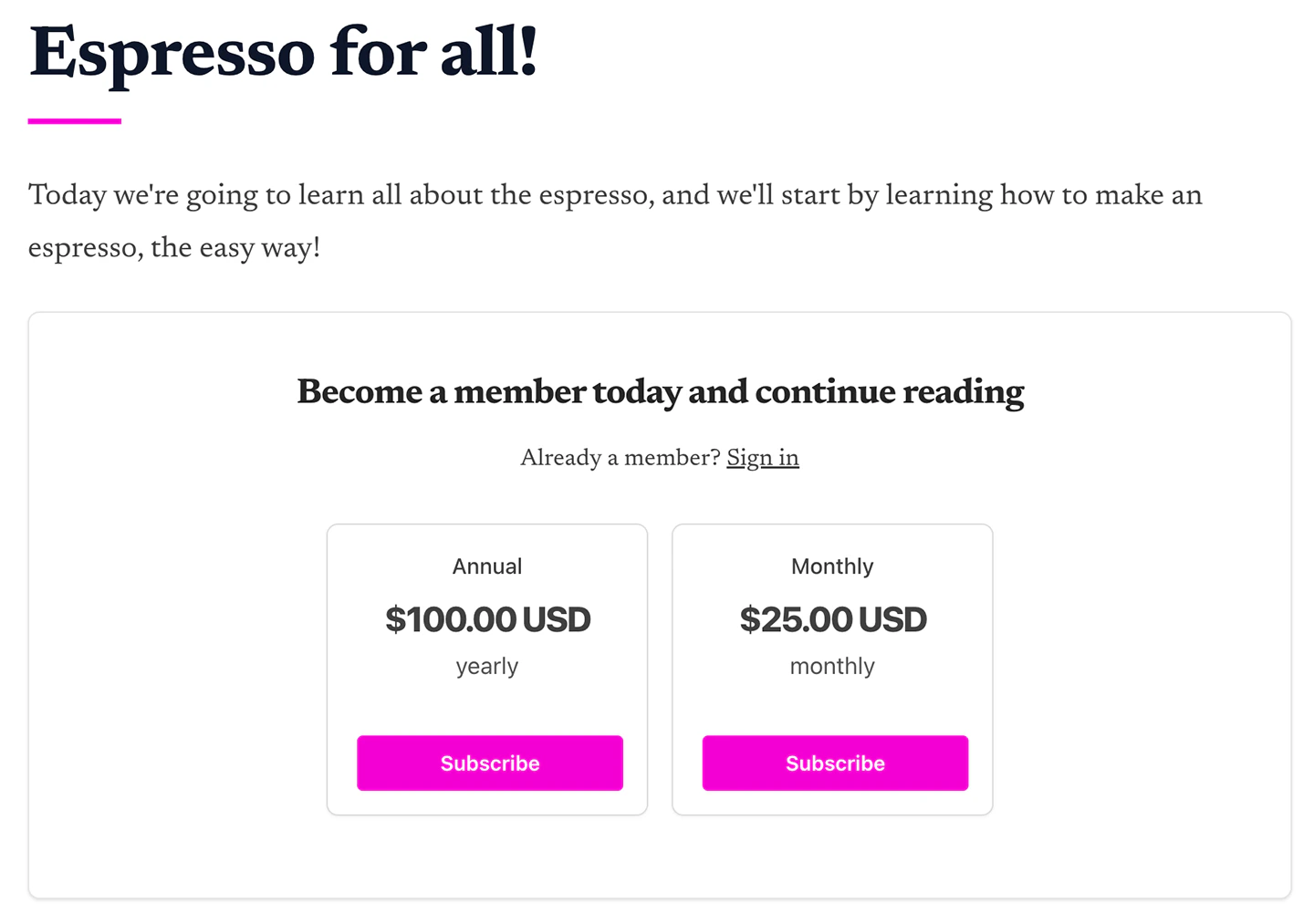
If your content block is set to be visible only to active members, you can choose whether to show a paywall or hide the content.
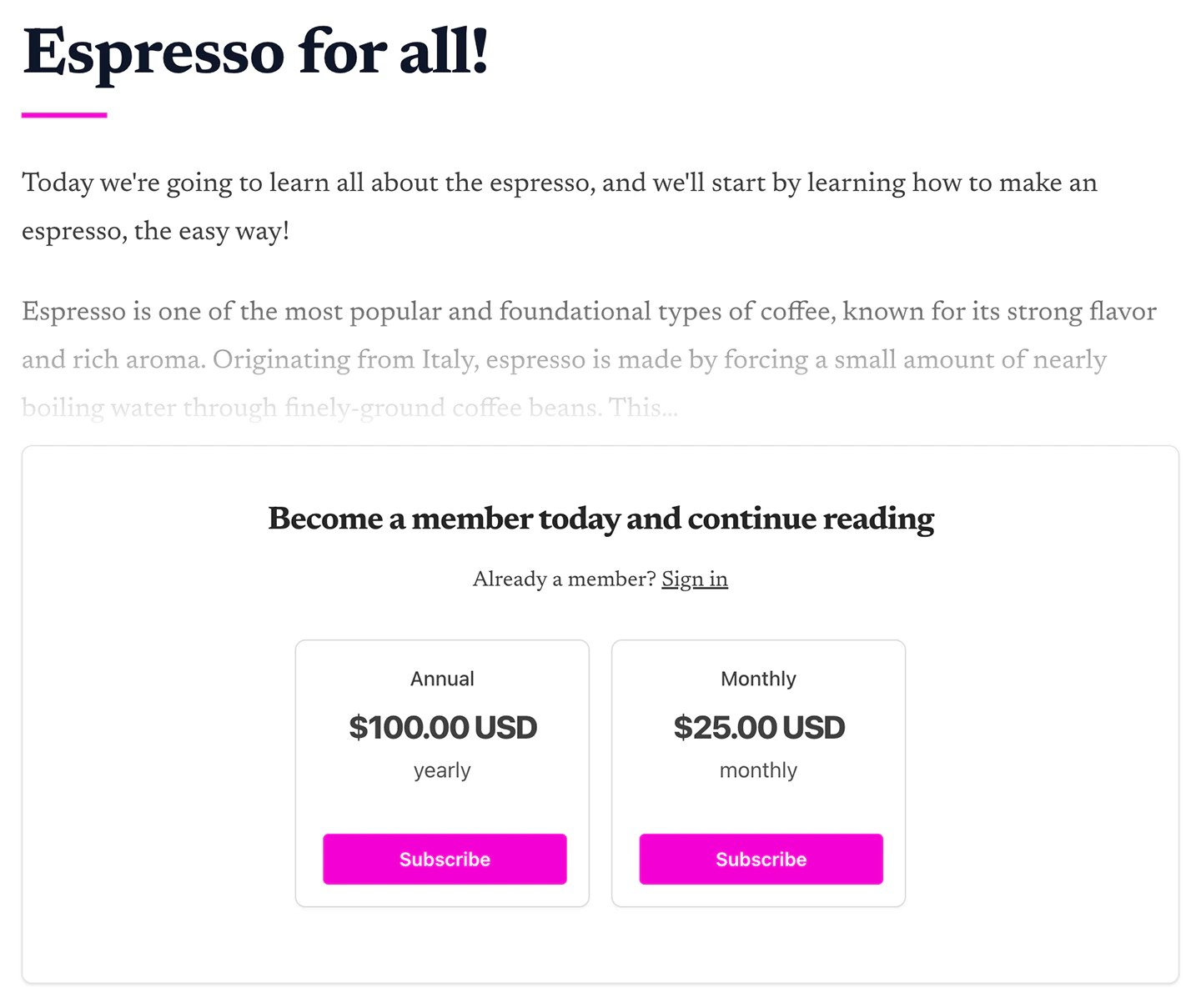
Here’s what a paywall looks like:
If you choose to show a paywall, you can choose whether to show a short excerpt of the content block, before fading out into a paywall.
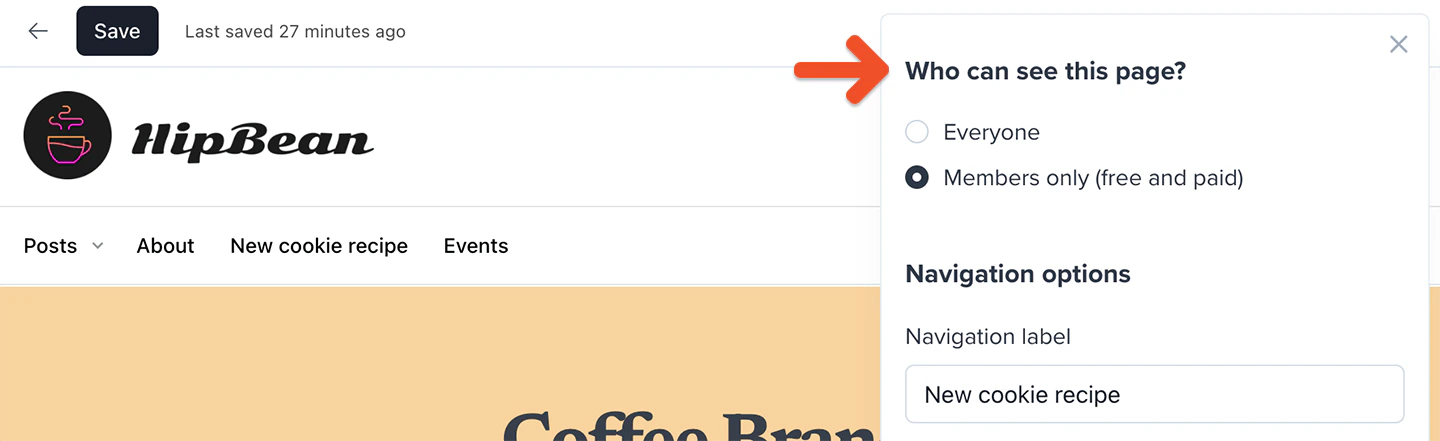
In addition to choosing who can view the content blocks on your page, you can choose who can see links to your page in their navigation: everyone (including non-members), or members only (free and paid).To choose who can see your page in their navigation, click the gear icon in the top-right corner of the page editor or hover your cursor over the page in the list of pages and click the gear icon. Then, select the appropriate option under Who can see this page?
Memberful shows a live preview of what the page will look like to your members. To see a more accurate preview of your page, exit the editor. The non-editable preview shows embedded videos and other elements that might not be accurately depicted while editing.Keep in mind that the preview doesn’t work exactly like your live member website, as the navigation elements won’t be clickable, and the paywall inviting non-members to subscribe won’t be displayed.
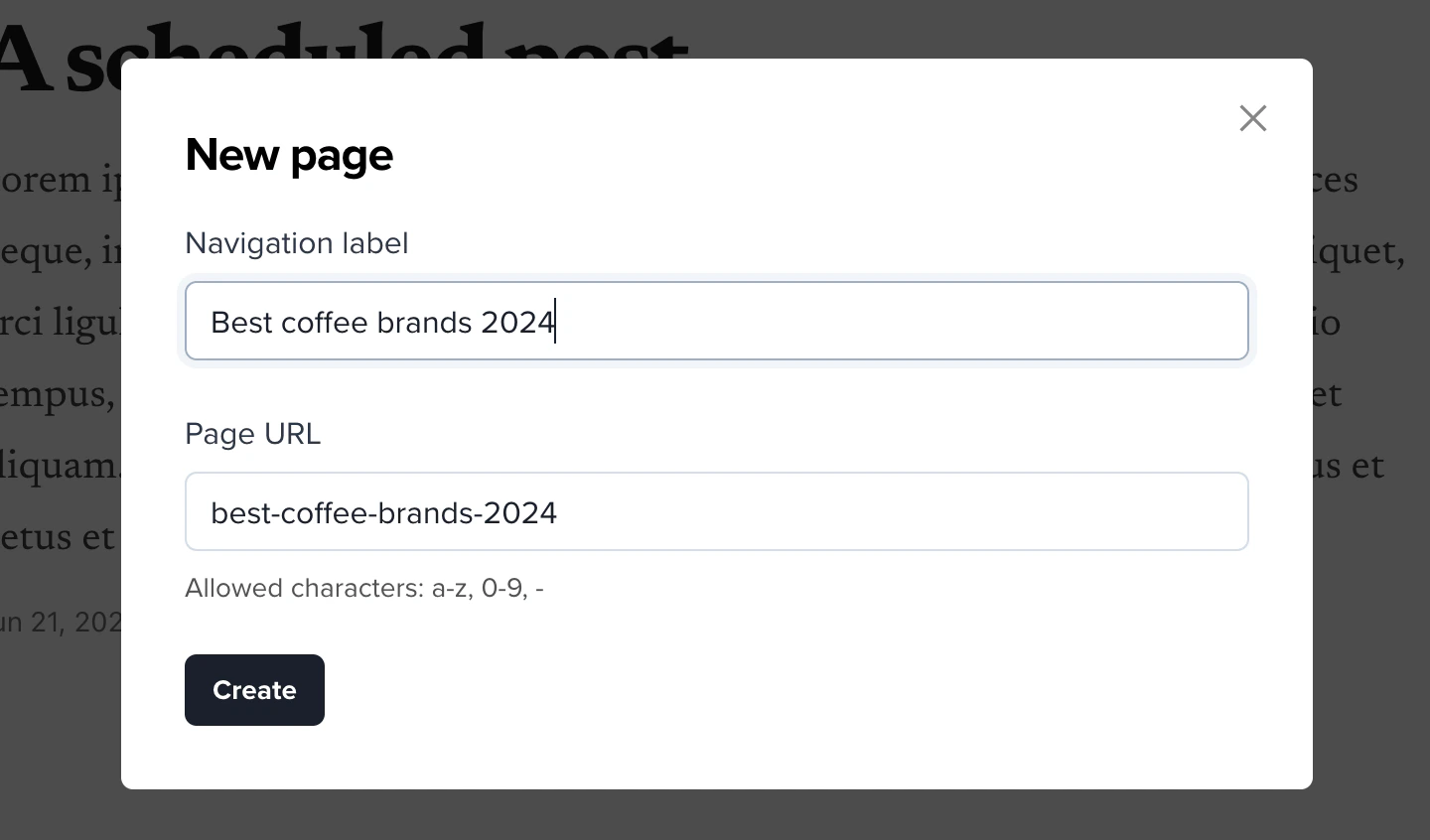
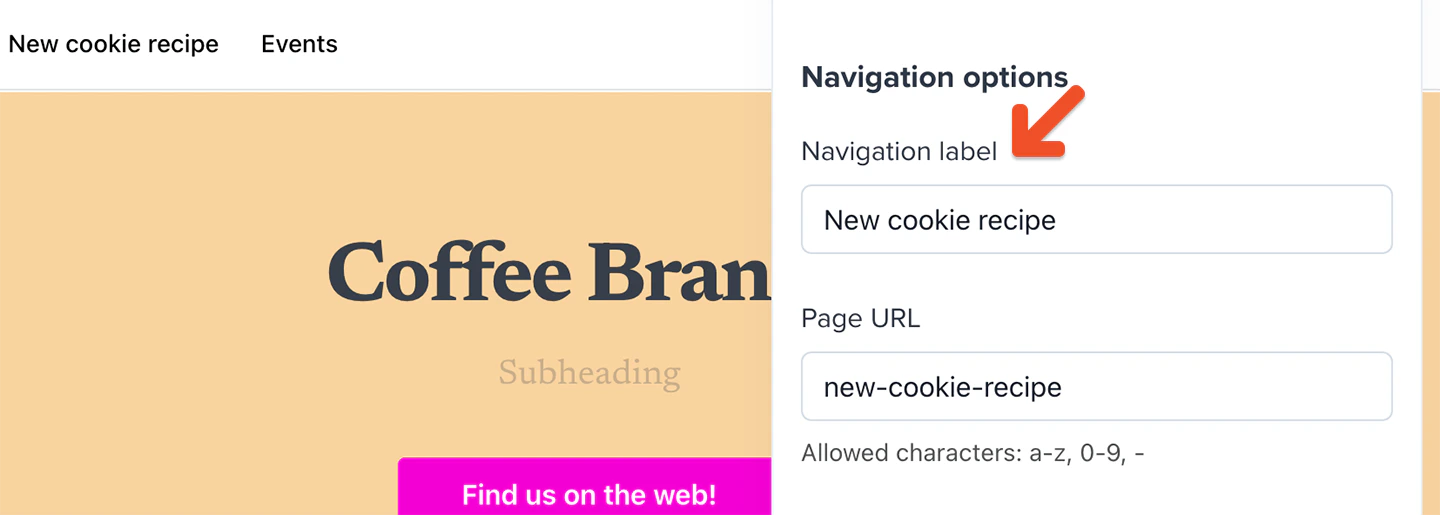
To choose a navigation label for your page, click the gear icon in the top-right corner of the page editor or hover your cursor over the page in the list of pages and click the gear icon. Then, enter the desired label under Navigation label.
If you later make this page your homepage, the navigation label is also used in the member account area menu.
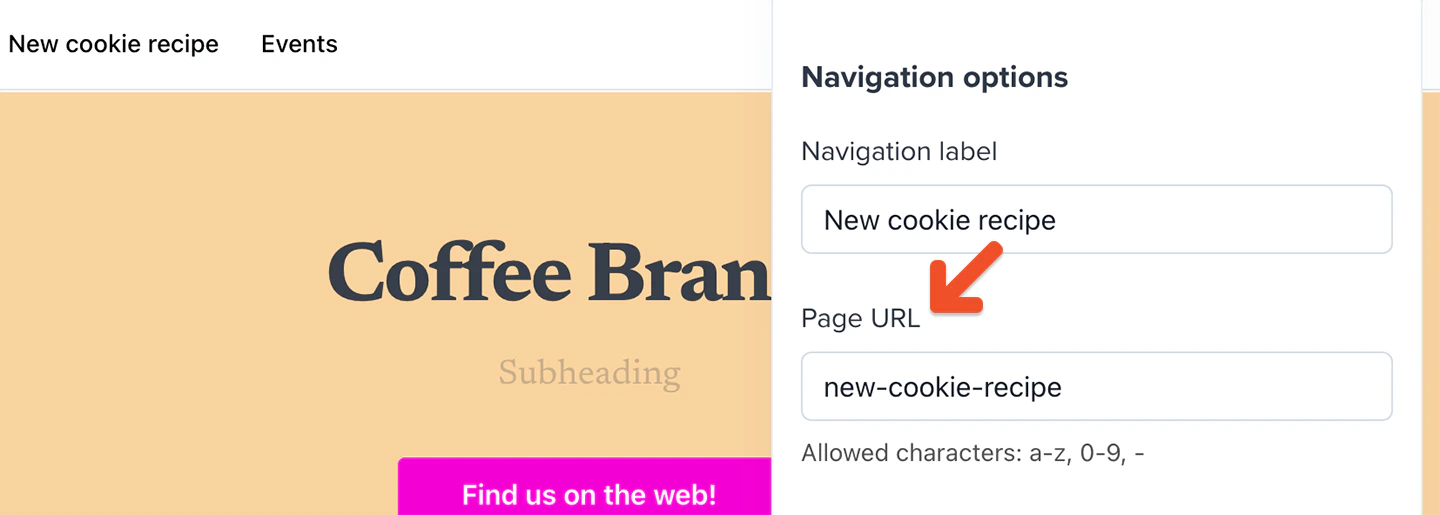
Memberful automatically generates a URL for your page based on the navigation label. You can specify a custom URL instead.To do so, click the gear icon in the top-right corner of the page editor or hover your cursor over the page in the list of pages and click the gear icon. Then, enter the desired URL under Page URL.
Keep in mind that this only determines what comes after your Memberful website’s domain name and the /pages/ subdirectory. For example, if your Memberful website is https://hipbean.memberful.com, and you enter coffee-beans as the page URL, the full URL for the page will be https://hipbean.memberful.com/pages/coffee-beans.
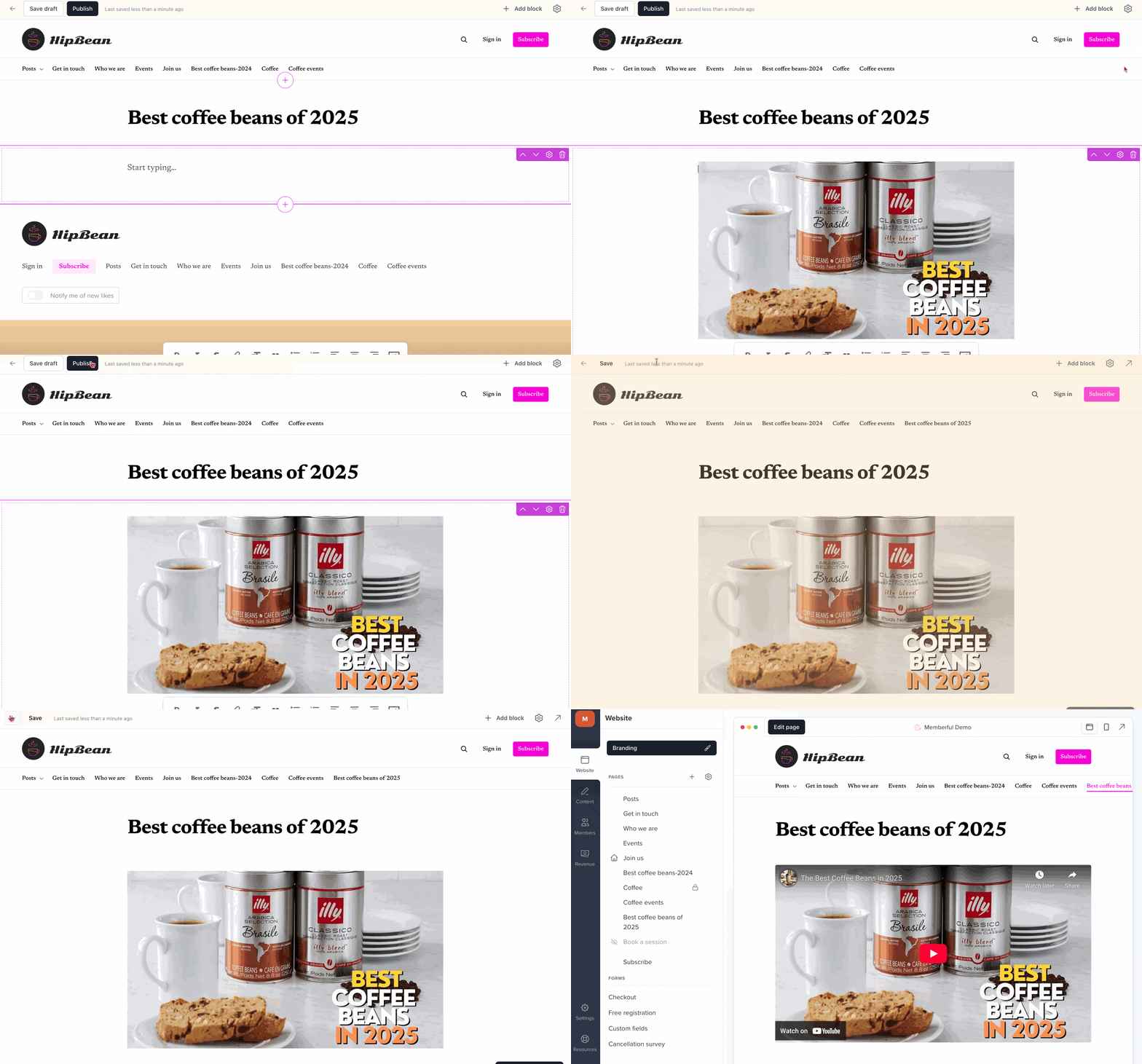
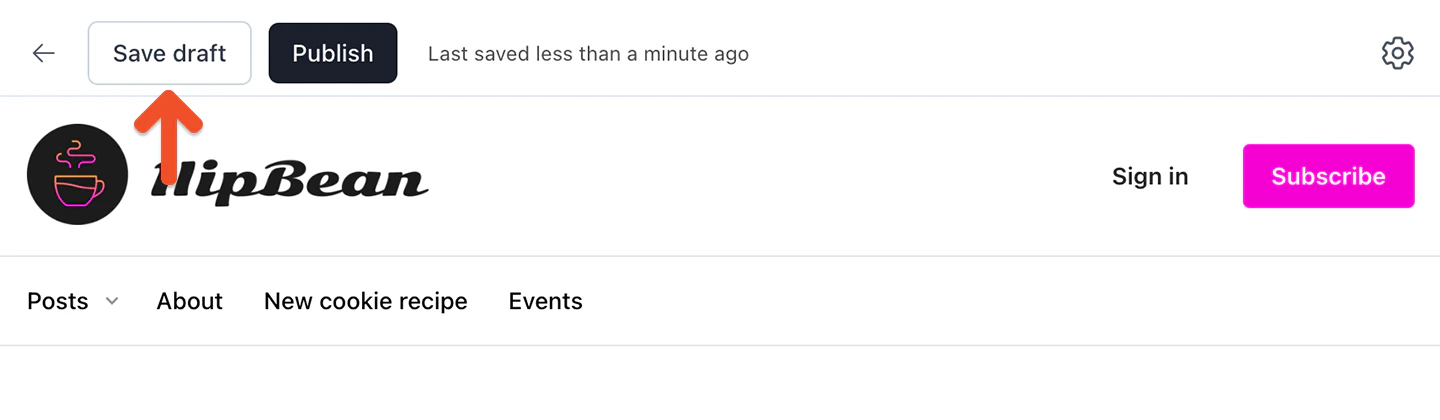
While you’re working on your page, you can save the current draft by clicking the Save draft button in the top-left corner of the page editor.
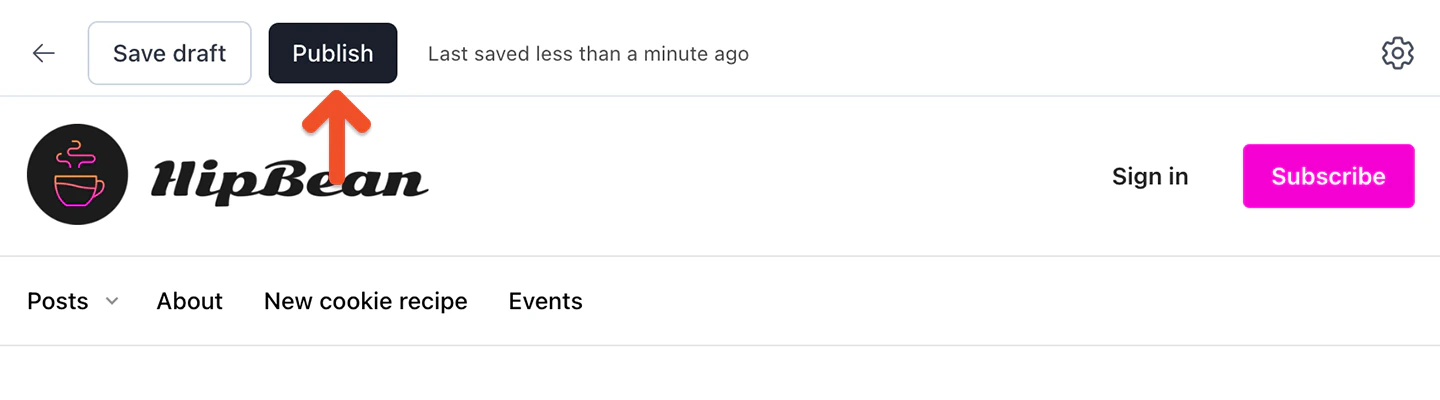
When you’re ready to publish your page, click the Publish button in the top-left corner of the page editor.
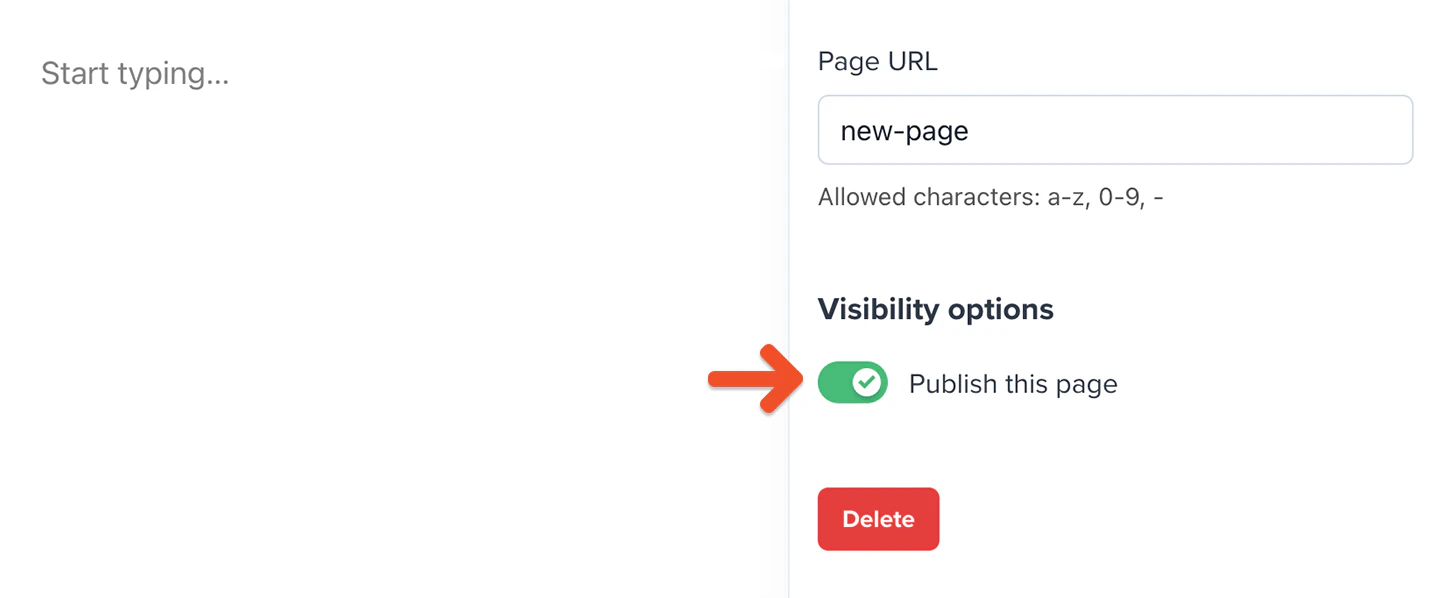
Alternatively, you can publish it via the page’s settings. Click the gear icon in the top-right corner of the page editor or hover your cursor over the page in the list of pages and click the gear icon. Then, toggle on Publish this page. If you later want to unpublish the page, you can toggle off this option.
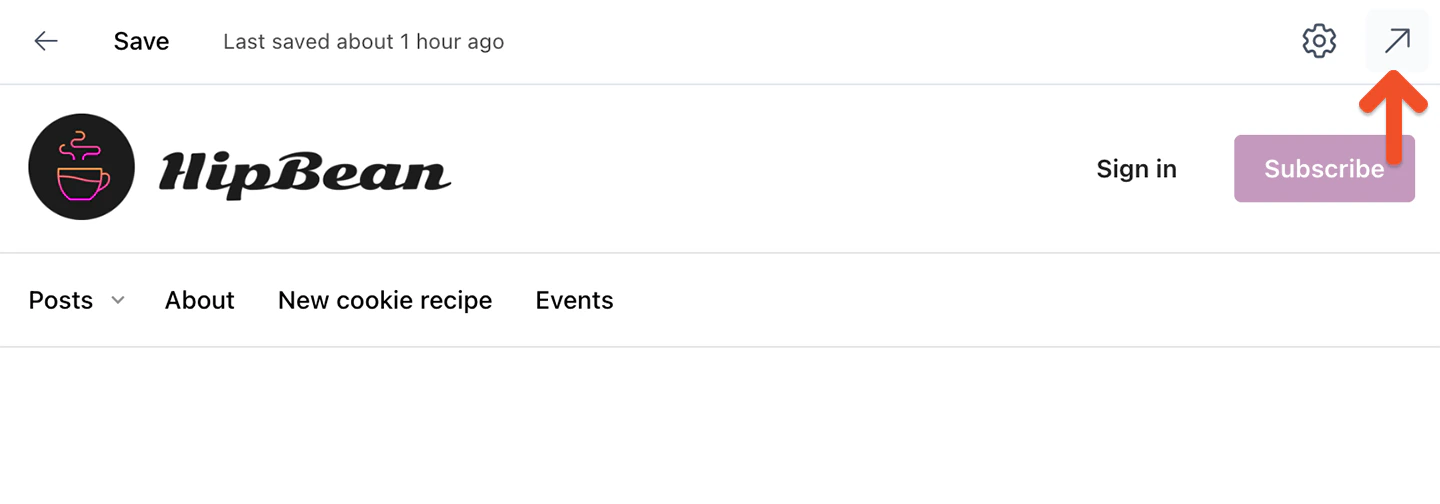
Once you’ve published a page and enabled the member website, you can view it on the live website by clicking the arrow icon in the top-right corner of the page editor.