

Set up UTM parameters
UTM parameters (utm_source, utm_medium, utm_campaign, utm_content, utm_term) are tags that you can add to a URL to track where your members came from. You can generate these URLs with Google’s URL builder.
You can add the UTM parameters to a URL pointing to your site or a specific plan purchase link. For example, this link would tell you which members visited your site from a specific Twitter campaign:
Set up tracking parameters
You can also track custom parameters (such as the number of viewed pages or some other custom data). There are three ways to do this. A) Via JavaScript Insert a JavaScript function calledmemberfulTrackingData() into the page that contains the plan purchase link.
SomeTrackingParameter with the name of the tracking parameter you want to track, and Some value with the data you want to assign for this member’s parameter.
On page load, Memberful adds stored tracking parameters to links to Memberful. If you define memberfulTrackingData(), Memberful passes the parameters to the function and uses its returned values on those links. The function changes the link URLs; it doesn’t change the values stored in the visitor’s browser. You can add the current page to help identify where a visitor clicked through from, but this approximates the page they clicked from rather than providing a complete last-touch history.
B) Via query strings on a plan purchase link
Add tracking parameters directly to a plan purchase link via query strings.
Start with a regular plan purchase link.
&) symbol, and for each parameter you’d like to track, add mt_ followed by the name of the parameter, and then an equal sign (=) followed by the value you’d like to assign to that parameter. You can replace spaces with plus signs (+). The final result should look like this:
mt_ followed by the name of the parameter.
Where does Memberful collect these parameters?
During checkout, Memberful collects the tracking parameters passed through on the purchase link and displays them as Attributes in the member’s profile.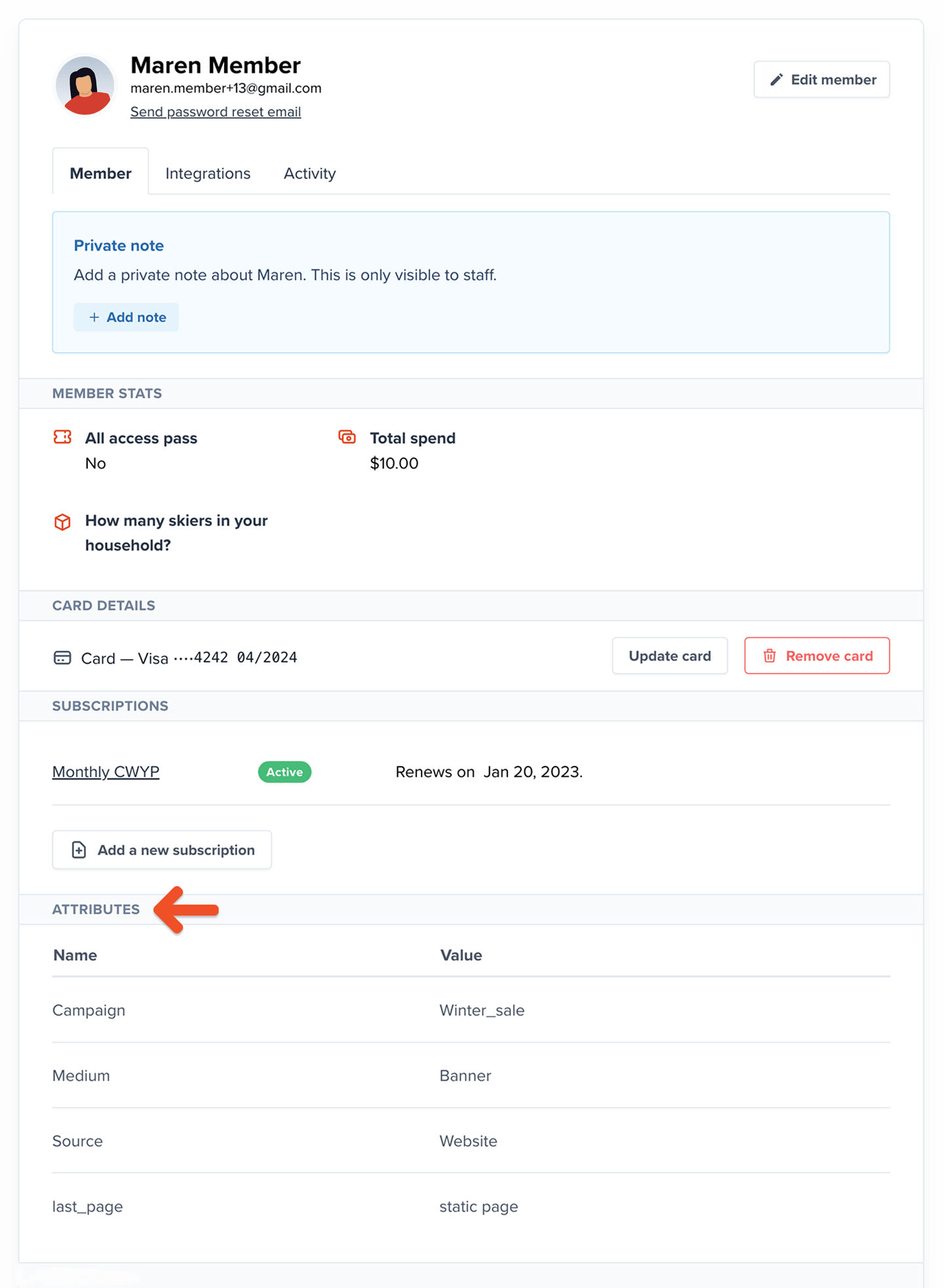
referral_code values in a page’s URL are stored in browser local storage for that site. A later page visit updates the stored value for each matching key, so the final set may combine values from different visits.
The referrer value is set on the first visit and isn’t overwritten on later visits in the same browser. If a visitor switches browsers or devices, or clears browser data before signing up, Memberful can set a new referrer value. Browser policies vary, but local storage typically remains unless the visitor clears it.
Member attributes, except for custom parameters, are also included in the Members CSV export, which you can generate from the Members tab. If you’ve configured the Google Analytics integration, Memberful passes custom parameters to Google Analytics.