

Search for a member
From your Memberful dashboard homepage or Members, enter the member’s name, email address, or order number in the search bar.
Manage a member’s account
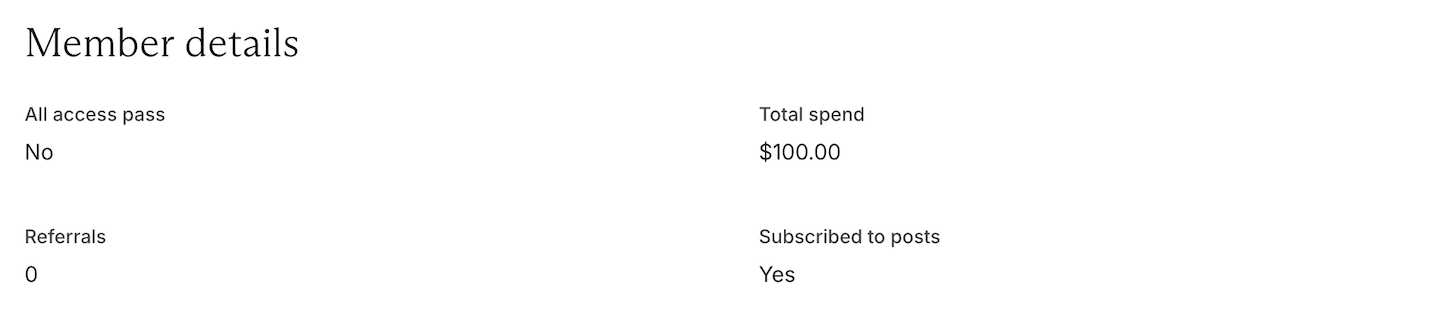
The Member area opens by default and contains the member’s account, payment, and subscription details.Add notes and review account details
Add a private note to record information such as support context, member preferences, or required follow-ups. Private notes are also included in the Members CSV export.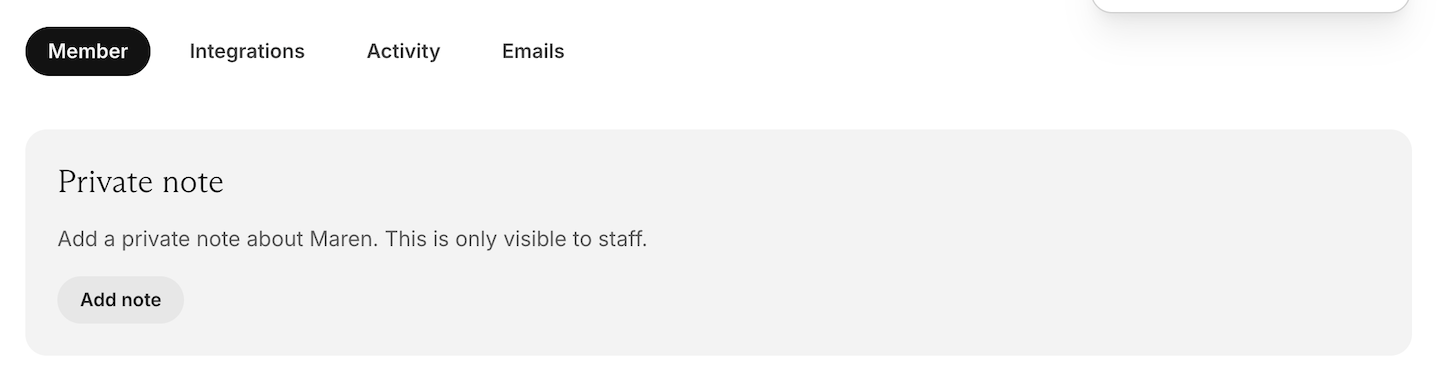

Manage payment methods and subscriptions
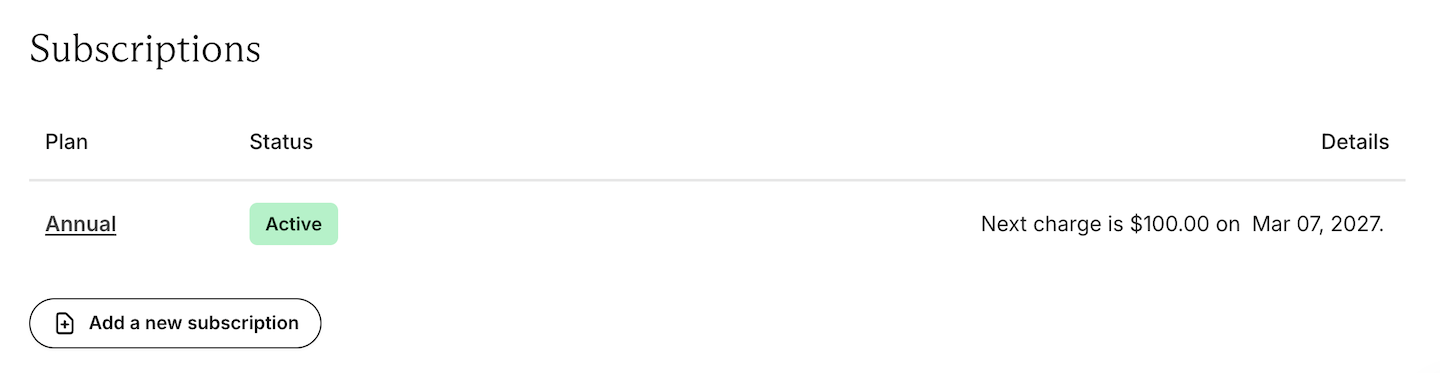
Review, update, or remove the member’s saved payment method.
If a member has no card saved in their profile when their subscription is due to renew, this may explain why the renewal charge failed and the subscription didn’t renew.
Send a sign-in link or password reset email
From Member, click Actions to send the member a sign-in link or password reset email.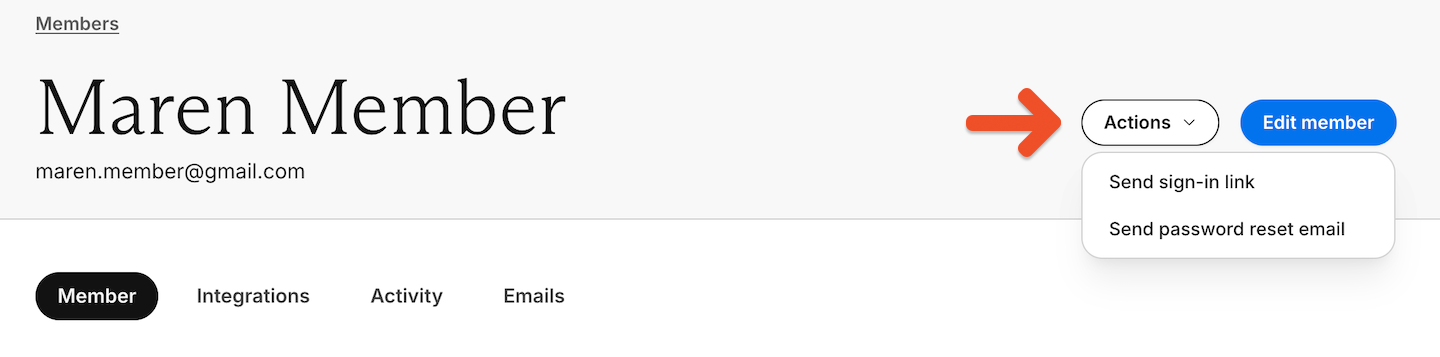
Check the member’s post email status
From Member, review the Subscribed to posts status to confirm whether the member is subscribed to receive Memberful posts.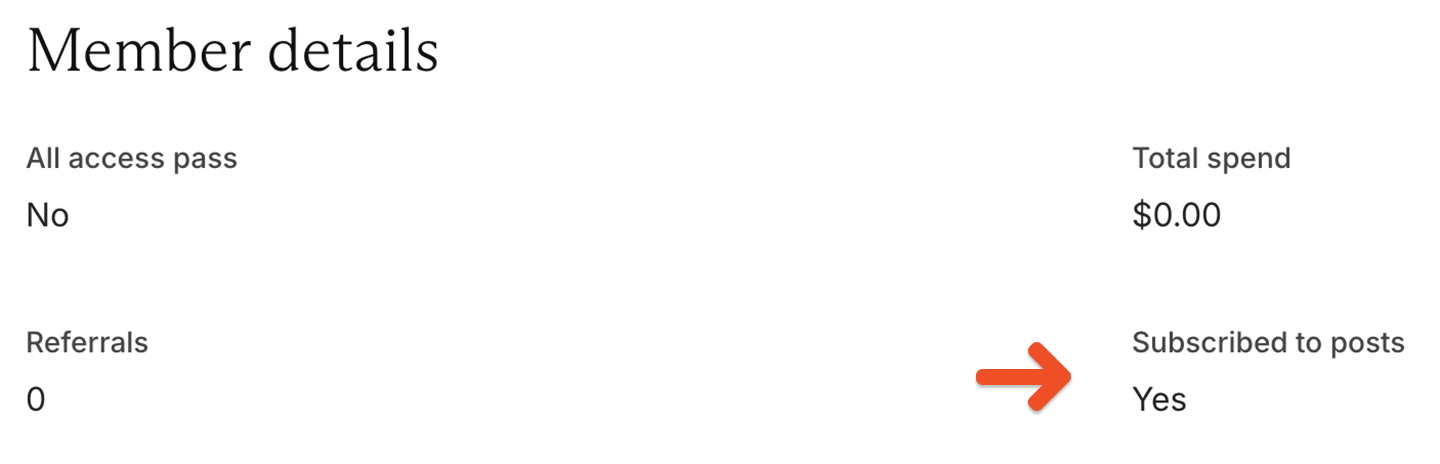
Edit or delete a member
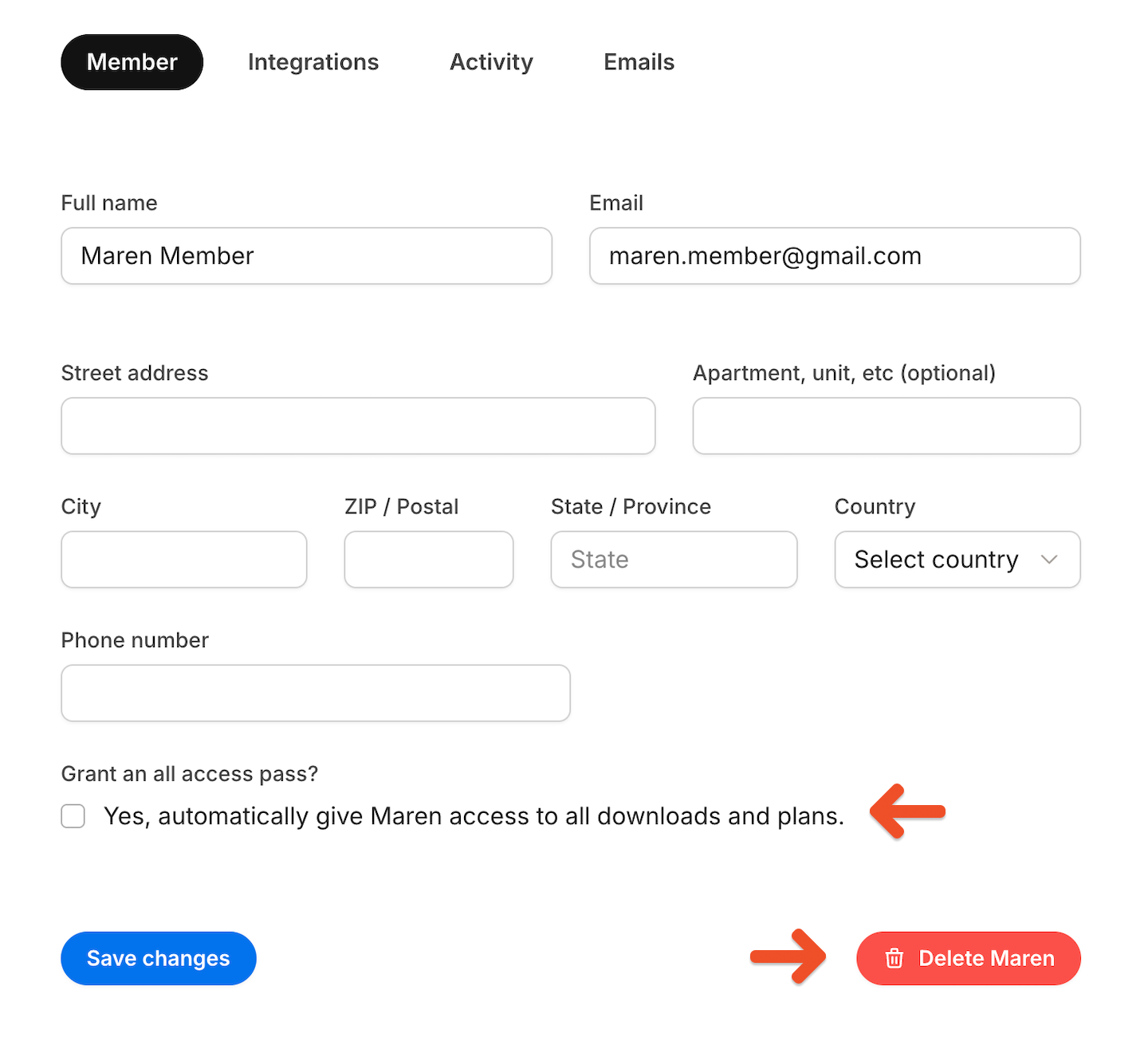
Click Edit member to update the member’s name, email address, address, or phone number when applicable. You can also add or remove an All Access Pass.
Review integration status
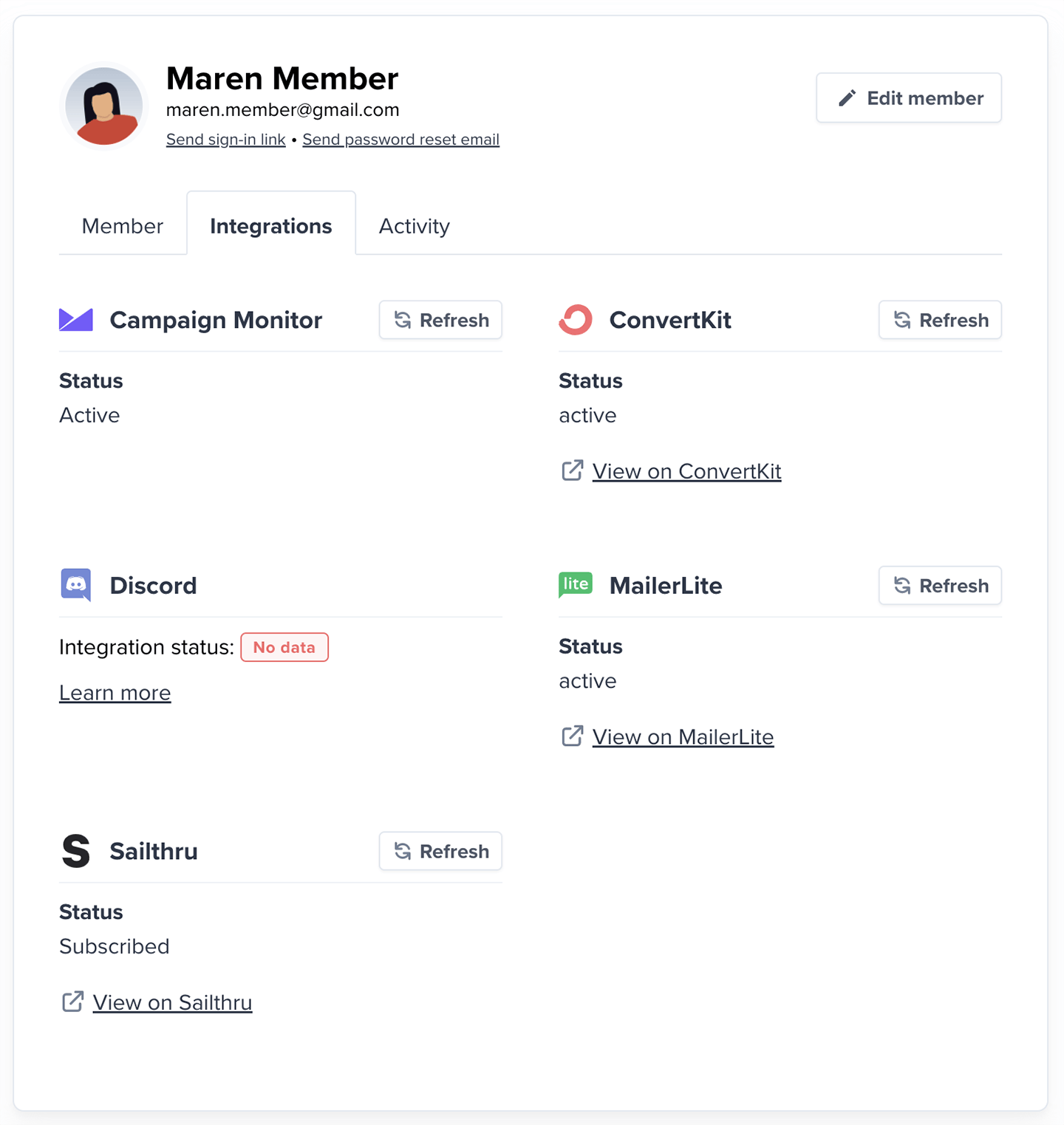
Open Integrations on the member’s profile to review their status with Campaign Monitor, Kit, Discord, Drip, Mailchimp, MailerLite, and Sailthru. The available statuses include:- Subscribed or a Discord username: The member synced successfully
- Pending: The sync is still in progress
- There is no data for this member and the integration: No integration status is available; review the possible causes below
Troubleshoot missing integration data
Member data might not appear for an integration because:- Invalid email: Some services reject certain email formats, such as addresses using
@example.com - Service-level block: The email address might be blocked by the service, such as after a hard bounce
- Discord issue: The member might not have connected their Discord account or might have been removed from a private server after their subscription ended
- Discourse issue: A Discourse account isn’t created until the member accesses Discourse for the first time
- The member unsubscribed and prevented further syncing. See how to handle unsubscribed members.
- The account reached a service limit, such as Mailchimp’s limit of 60 interest groups.
Review activity and invoices
Review member activity
Open Activity on the member’s profile to review their account and subscription activity.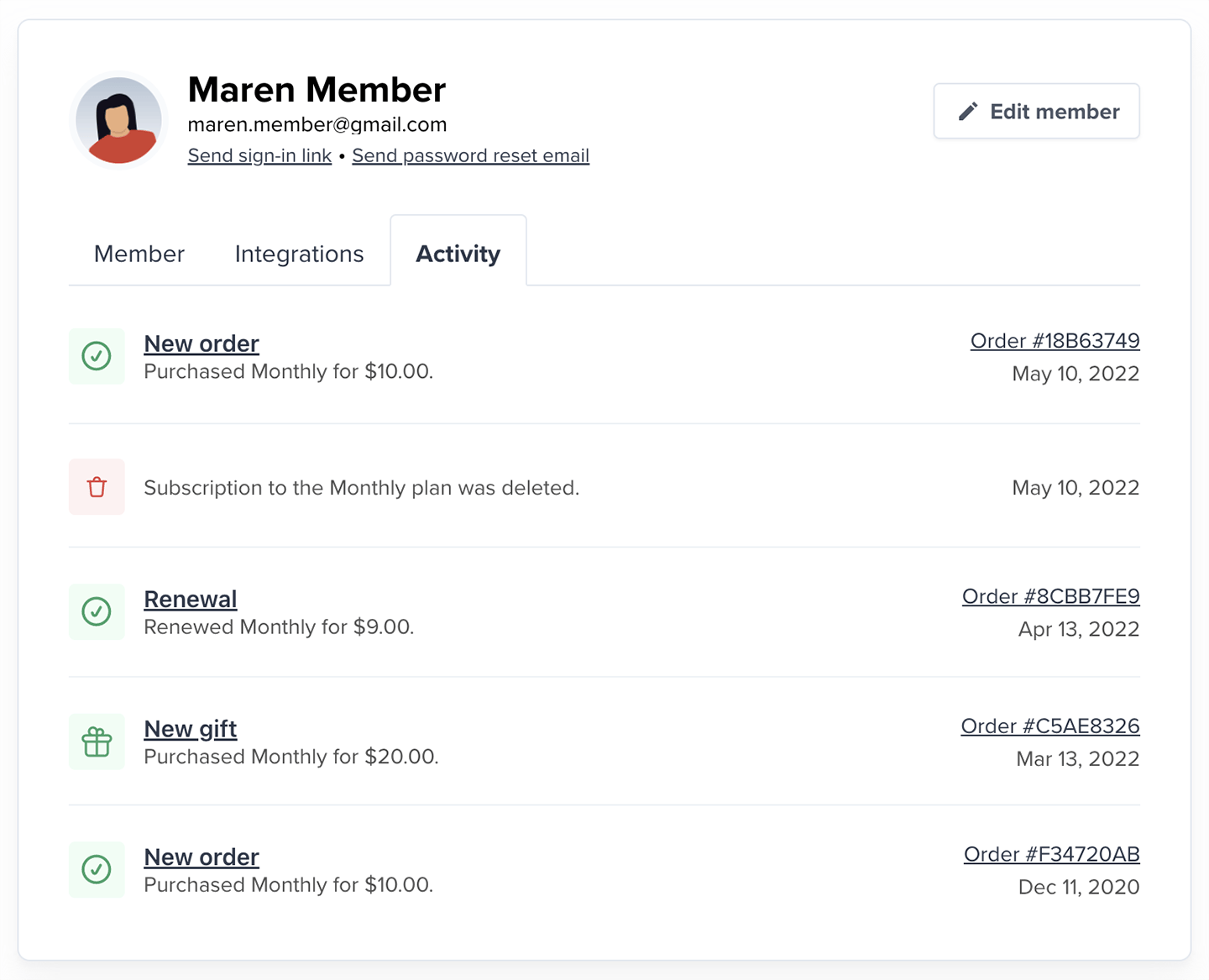
The member activity feed does not currently create a distinct entry when a downgrade or crossgrade is scheduled. When the change eventually takes effect, it may appear only as a normal renewal.
View or download invoices
From Activity, click the relevant Order # to access and download the invoice.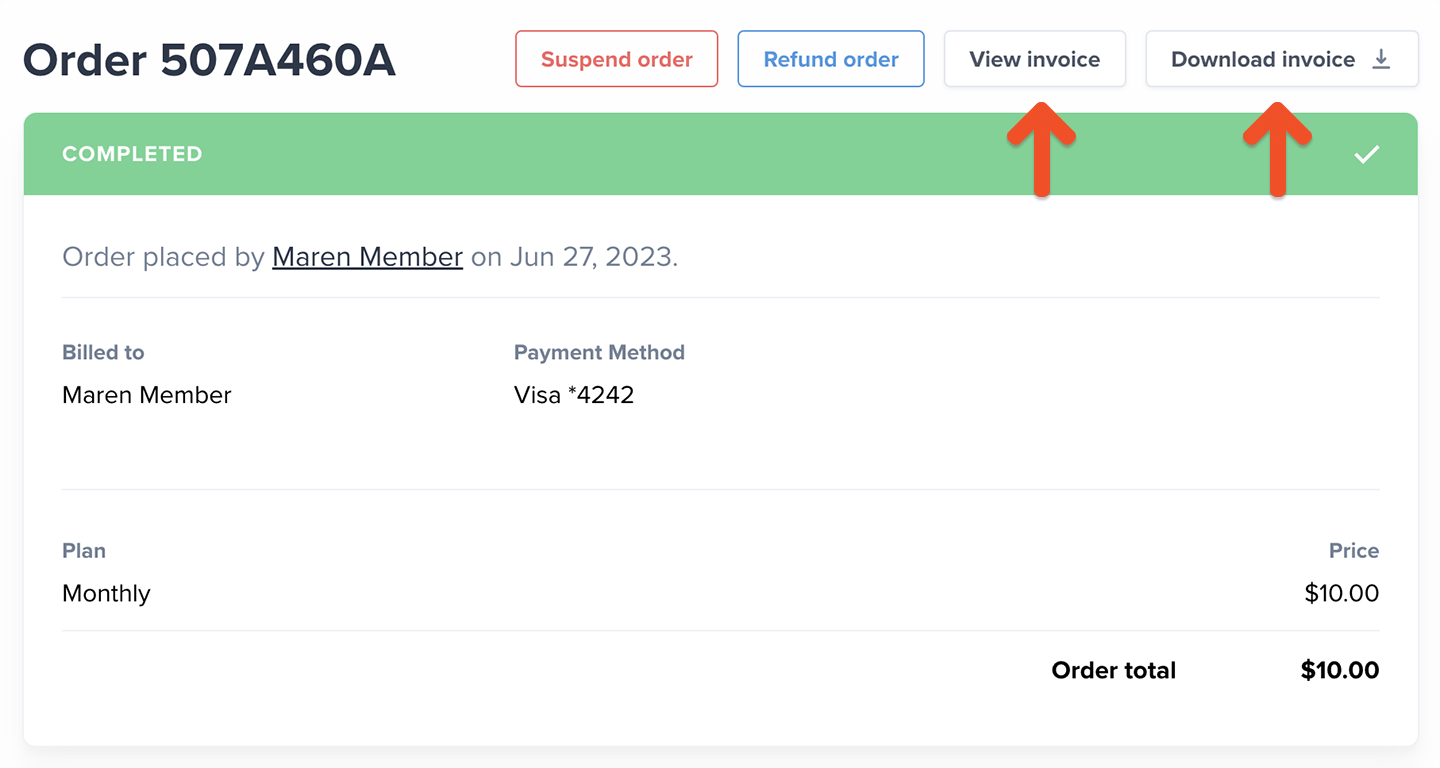
Review email history
Open Emails on the member’s profile to review their transactional email and post newsletter history.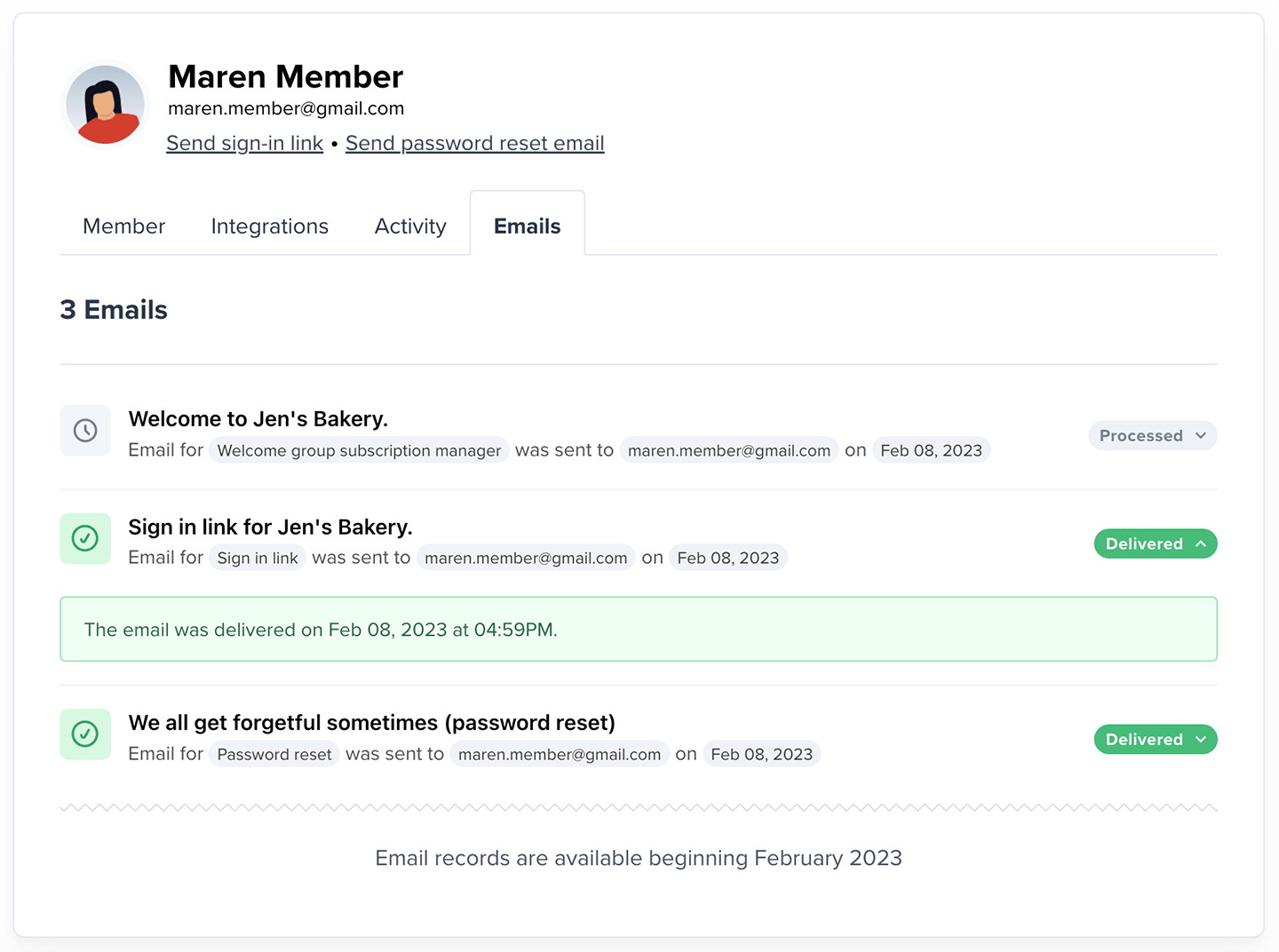
- Hard bounce: A permanent issue prevented the email from being delivered.
- Soft bounce: A temporary issue prevented the email from being delivered.
A Delivered status means the email reached the member’s email server. If the member still can’t find it, the issue is likely related to how their email provider handled the message. Ask them to check their spam or junk folders and contact their email provider for further help.