> ## Documentation Index
> Fetch the complete documentation index at: https://memberful.com/docs/llms.txt
> Use this file to discover all available pages before exploring further.
# Build a simple WordPress website
> Build a simple WordPress site with the Memberful plugin to sell memberships and restrict content. Walk through setup from install to your first members post.
export const Video = ({url}) => {
return
;
};
In this help article, we'll show you how to create a simple WordPress website. Once you've set up a strong foundation, [you can add the Memberful WordPress plugin](/overview/setup-guides/wordpress-membership-site/) to your site to sell memberships to your audience and restrict content for members only.
Looking for an alternative to WordPress? With Memberful's in-house member website, you can seamlessly integrate members-only emails, exclusive content, and enticing teasers for visitors — all in one place while elevating your unique voice and messaging. [Learn more →](/overview/setup-guides/hosted-member-site/)
Some terms you should be familiar with:
* **WordPress.org** is software you use to create a website; hosting is not included.
* **WordPress.com** is a commercial company that uses the WordPress.org software, but provides hosting. [Memberful only works with the Creator plan or higher.](https://wordpress.com/pricing)
* **A domain name** is your website's address.
* **Web hosting** is a service that stores your website on the internet.
* **SSL** establishes an encrypted link between your website and a web browser to ensure data passed between them remains private.
* **A theme** is a template you add to your site to set the design and layout.
* **Plugins** let you add features and functions to your site that don't come built in.
## Choose reliable, managed WordPress hosting
WordPress.org is a free website building platform. It's the **house** for all your content. Once you build your website, you need to make it available for people to access on the web; this is accomplished through hosting providers. Hosting is the **street** where your website lives.
Having reliable, managed hosting is important. If you're running a business, you can't afford for your site to go down for a few hours or for pages to load slowly.
[Choose a hosting provider](/wordpress-plugin/setup/wordpress-hosting-providers/) that offers one-click WordPress installation. [Siteground](https://www.siteground.com/wordpress-hosting.htm) is a good option for smaller sites. After you sign up for a hosting plan, your host will take you through a few steps to set up your website.
## Register your domain name
Your domain name is like your site's **home address** (e.g. `https://yoursite.com`). You need a domain name so people can access your website by typing your address into their browser's URL bar. Choosing the right name is important, so [give it some thought.](http://www.wpbeginner.com/beginners-guide/tips-and-tools-to-pick-the-best-domain-for-your-blog/)
To keep it simple, choose a host that includes domain names with their plans or [sells domain names for an annual fee](https://www.siteground.com/domain_names.php#tab-1). Alternatively, you can buy a domain name from a company such as [Hover.com](https://www.hover.com/) or [Namecheap.com,](https://www.namecheap.com/) and then transfer it to your host. Don't forget to renew your name before the end of your term (yearly or other) so your domain name registrar doesn't put it back up for sale.
## Install an SSL certificate on your site
SSL establishes an encrypted link between your website and a web browser to ensure data passed between them remains private. You'll know a website has an SSL certificate when the web address starts with http**s**:// instead of http\:// ("s" stands for secure).
Think of SSL as an **alarm system** for your website: When a customer makes a purchase through your site, SSL keeps their personal information protected.
[Let's Encrypt](https://letsencrypt.org/) is a free, high-quality SSL certificate. All our [recommended WordPress hosting providers](/wordpress-plugin/setup/wordpress-hosting-providers/) support easy SSL certificate installation.
## Install a theme on your site
A WordPress theme is a template you add to your website to set the design and layout. Themes are the **decorative aspects** of your website akin to the paint color in your living room. [There are many free and paid themes to choose from.](https://www.wpbeginner.com/showcase/best-wordpress-themes-for-membership-sites/)
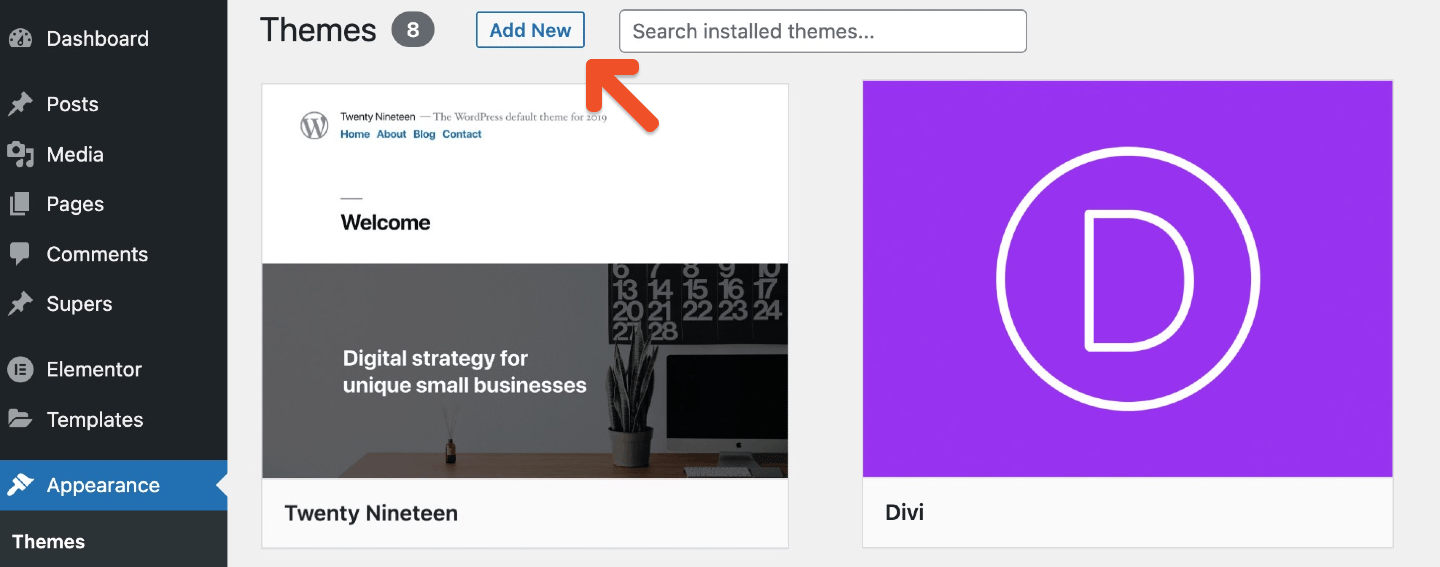
To install your theme, go to *Appearance → Themes* from the sidebar in your WordPress dashboard, and click **Add New.** Search for your theme and click **Install.**
 Like the paint color on your living room walls, themes aren't permanent. You can change your theme without impacting the pages, posts, and content on your site.
## Set up your pages, posts, and menu
With WordPress, you can create pages and posts for all your content. [Pages and posts](http://www.wpbeginner.com/beginners-guide/what-is-the-difference-between-posts-vs-pages-in-wordpress/) are like the **rooms** in your house.
* **Pages** should be used for static information. Some common website pages are Home, About, Services, and Contact us.
* **Posts** should be used for dynamic content, like a newly written blog post. Unlike pages, posts can be categorized.
**To add a page,** go to Pages from your WordPress dashboard and click **Add New.** This will open a WordPress editor, where you can build your page with text, images, and more. Click **Update** to save your work.
Like the paint color on your living room walls, themes aren't permanent. You can change your theme without impacting the pages, posts, and content on your site.
## Set up your pages, posts, and menu
With WordPress, you can create pages and posts for all your content. [Pages and posts](http://www.wpbeginner.com/beginners-guide/what-is-the-difference-between-posts-vs-pages-in-wordpress/) are like the **rooms** in your house.
* **Pages** should be used for static information. Some common website pages are Home, About, Services, and Contact us.
* **Posts** should be used for dynamic content, like a newly written blog post. Unlike pages, posts can be categorized.
**To add a page,** go to Pages from your WordPress dashboard and click **Add New.** This will open a WordPress editor, where you can build your page with text, images, and more. Click **Update** to save your work.
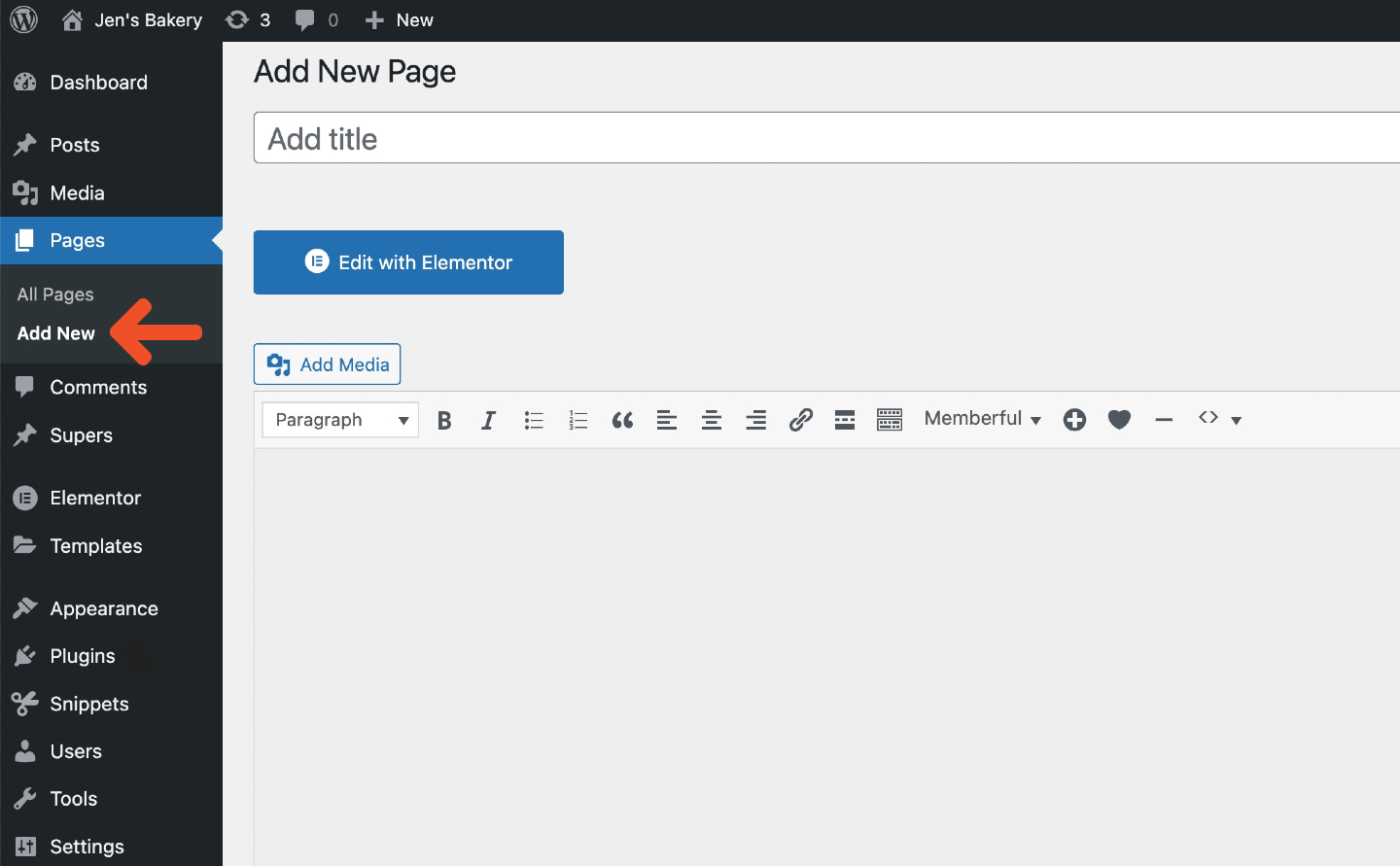 **To add a post,** go to Posts from your WordPress dashboard and click **Add New.** Add your content, [categorize your post](http://www.wpbeginner.com/glossary/category/), and then click **Update** to save your work.
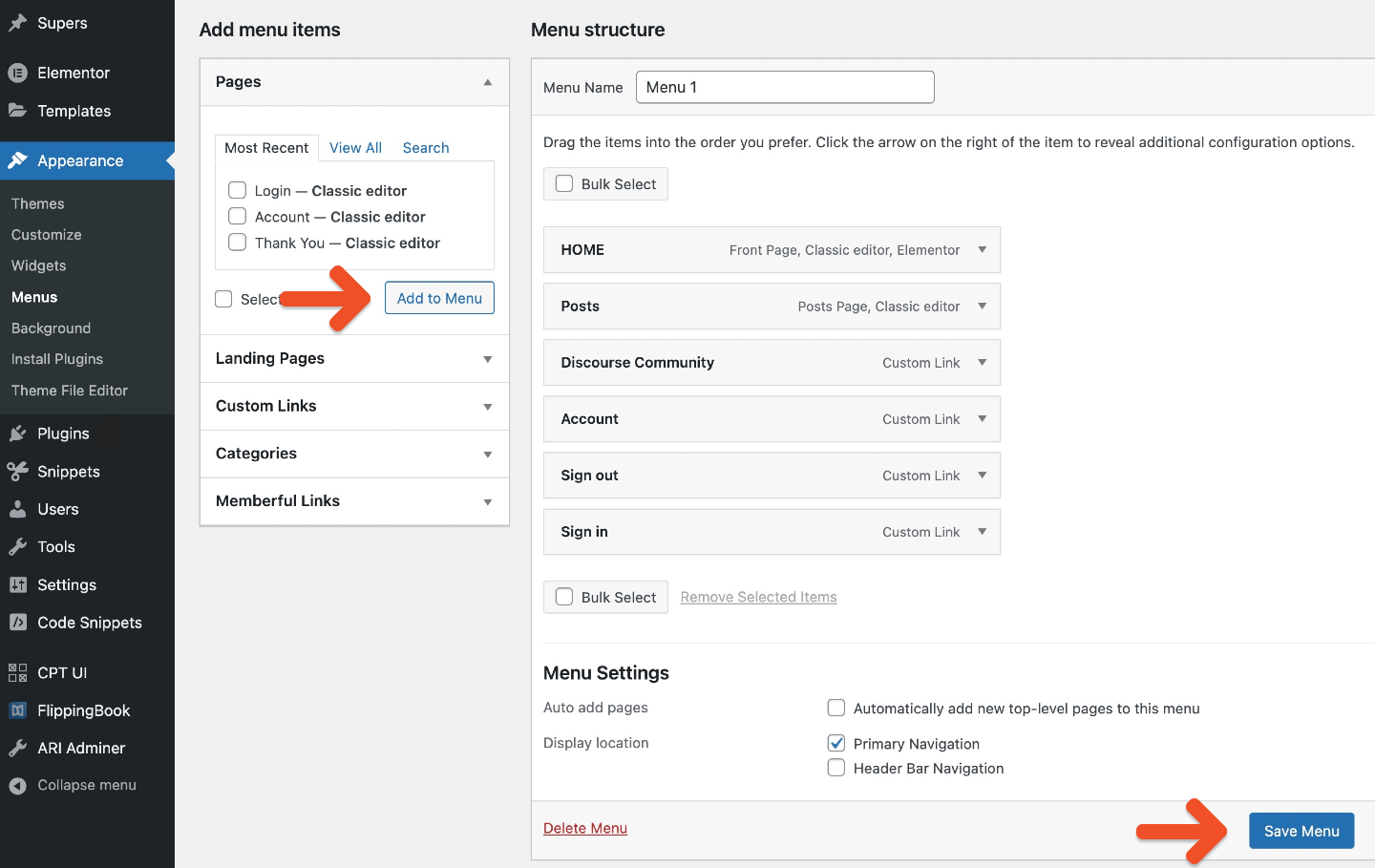
To add your pages or categorized posts to the navigation bar, go to *Appearance → Menus* from your WordPress dashboard. Click the checkbox next to the pages and categories you want to add to your menu, and then click **Add to Menu.** Rearrange the menu items if required and click **Save Menu.**
**To add a post,** go to Posts from your WordPress dashboard and click **Add New.** Add your content, [categorize your post](http://www.wpbeginner.com/glossary/category/), and then click **Update** to save your work.
To add your pages or categorized posts to the navigation bar, go to *Appearance → Menus* from your WordPress dashboard. Click the checkbox next to the pages and categories you want to add to your menu, and then click **Add to Menu.** Rearrange the menu items if required and click **Save Menu.**
 ## Customize and tweak your site
There are a few settings you'll want to tweak to further customize your site. It's like adding **a welcome mat and a few potted plants to your house.**
You'll want to:
* [Set up a static homepage;](https://www.wpbeginner.com/wp-themes/how-to-create-a-custom-homepage-in-wordpress/) most WordPress themes show your most recent blog post as your front page, which is not always ideal. (*Settings → Reading)*
* [Change your website's title, tagline, and time zone.](https://www.wpbeginner.com/glossary/settings/) (*Settings → General)*
* [Add a favicon](https://www.wpbeginner.com/wp-tutorials/how-to-add-a-favicon-to-your-wordpress-blog/) which is an icon associated with your site. (*Appearance → Customize → Site identity*)
* [Enable Permalinks](https://www.wpbeginner.com/glossary/permalinks/) to show the page title in the web address instead of a random string of letters, numbers, and characters. *(Settings → Permalinks → Permalink Settings)*
## Install key plugins
Now it's time to [install a few key plugins](http://www.wpbeginner.com/glossary/plugin/) to enhance your site's functionality. Plugins let you add features and functions to your WordPress site that don't come built in. This is like adding a **surround sound system** to your home.
To add a plugin to your site, go to Plugins from your WordPress dashboard and click **Add New.**
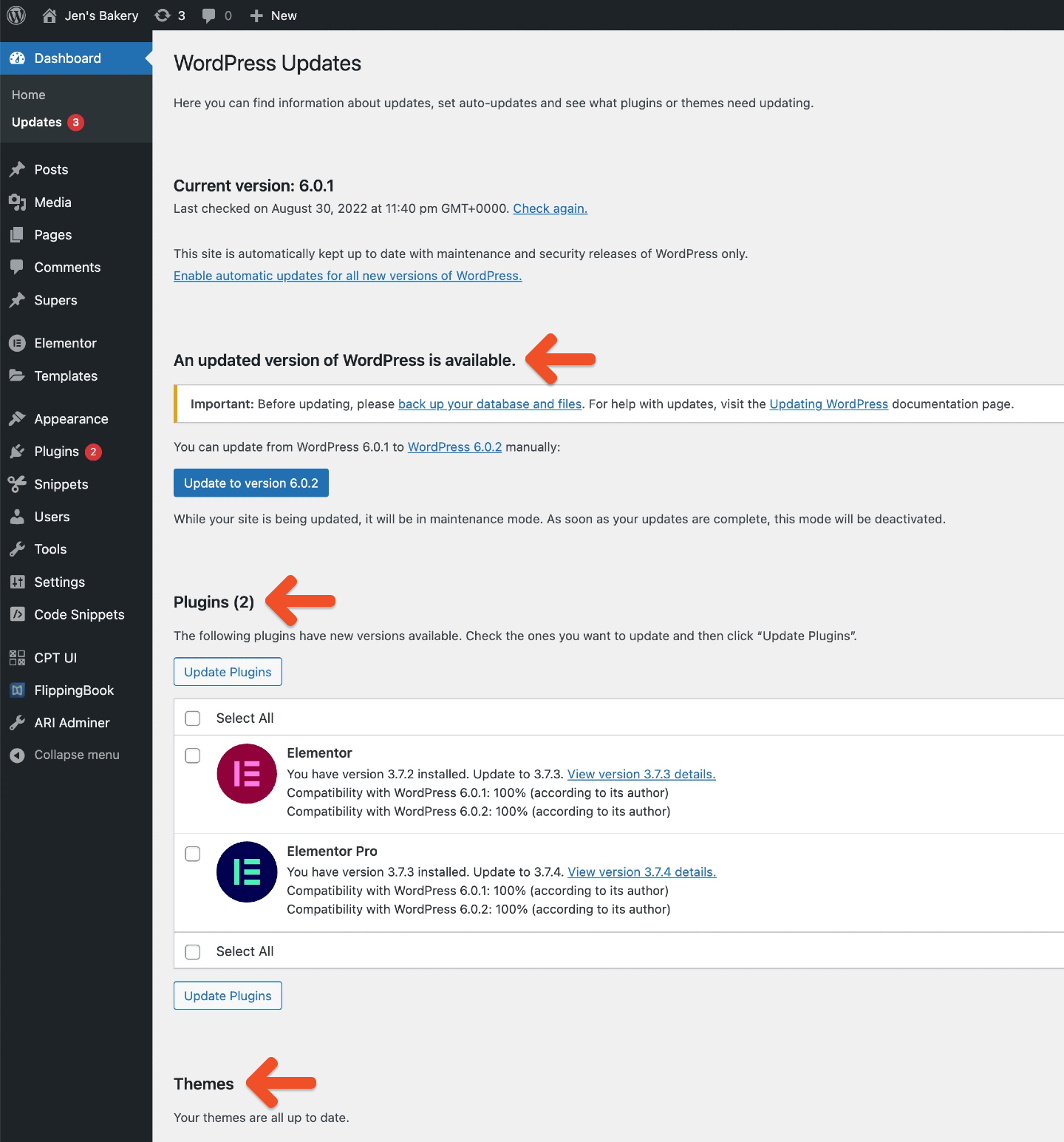
Keep in mind that WordPress and the third-party plugin developers will make bug fixes, add new features, and release security updates periodically. You must [update your WordPress site and plugins](http://www.wpbeginner.com/beginners-guide/how-to-properly-update-wordpress-plugins-step-by-step/) as soon as the updates are released so that you're running the latest, safest versions. Many managed WordPress hosts automatically update WordPress for you.
## Customize and tweak your site
There are a few settings you'll want to tweak to further customize your site. It's like adding **a welcome mat and a few potted plants to your house.**
You'll want to:
* [Set up a static homepage;](https://www.wpbeginner.com/wp-themes/how-to-create-a-custom-homepage-in-wordpress/) most WordPress themes show your most recent blog post as your front page, which is not always ideal. (*Settings → Reading)*
* [Change your website's title, tagline, and time zone.](https://www.wpbeginner.com/glossary/settings/) (*Settings → General)*
* [Add a favicon](https://www.wpbeginner.com/wp-tutorials/how-to-add-a-favicon-to-your-wordpress-blog/) which is an icon associated with your site. (*Appearance → Customize → Site identity*)
* [Enable Permalinks](https://www.wpbeginner.com/glossary/permalinks/) to show the page title in the web address instead of a random string of letters, numbers, and characters. *(Settings → Permalinks → Permalink Settings)*
## Install key plugins
Now it's time to [install a few key plugins](http://www.wpbeginner.com/glossary/plugin/) to enhance your site's functionality. Plugins let you add features and functions to your WordPress site that don't come built in. This is like adding a **surround sound system** to your home.
To add a plugin to your site, go to Plugins from your WordPress dashboard and click **Add New.**
Keep in mind that WordPress and the third-party plugin developers will make bug fixes, add new features, and release security updates periodically. You must [update your WordPress site and plugins](http://www.wpbeginner.com/beginners-guide/how-to-properly-update-wordpress-plugins-step-by-step/) as soon as the updates are released so that you're running the latest, safest versions. Many managed WordPress hosts automatically update WordPress for you.
 You now have a simple, yet powerful, WordPress website up and running. The next step is to [integrate Memberful](/overview/setup-guides/wordpress-membership-site/) so you can start selling memberships to your audience.