Related help docs:
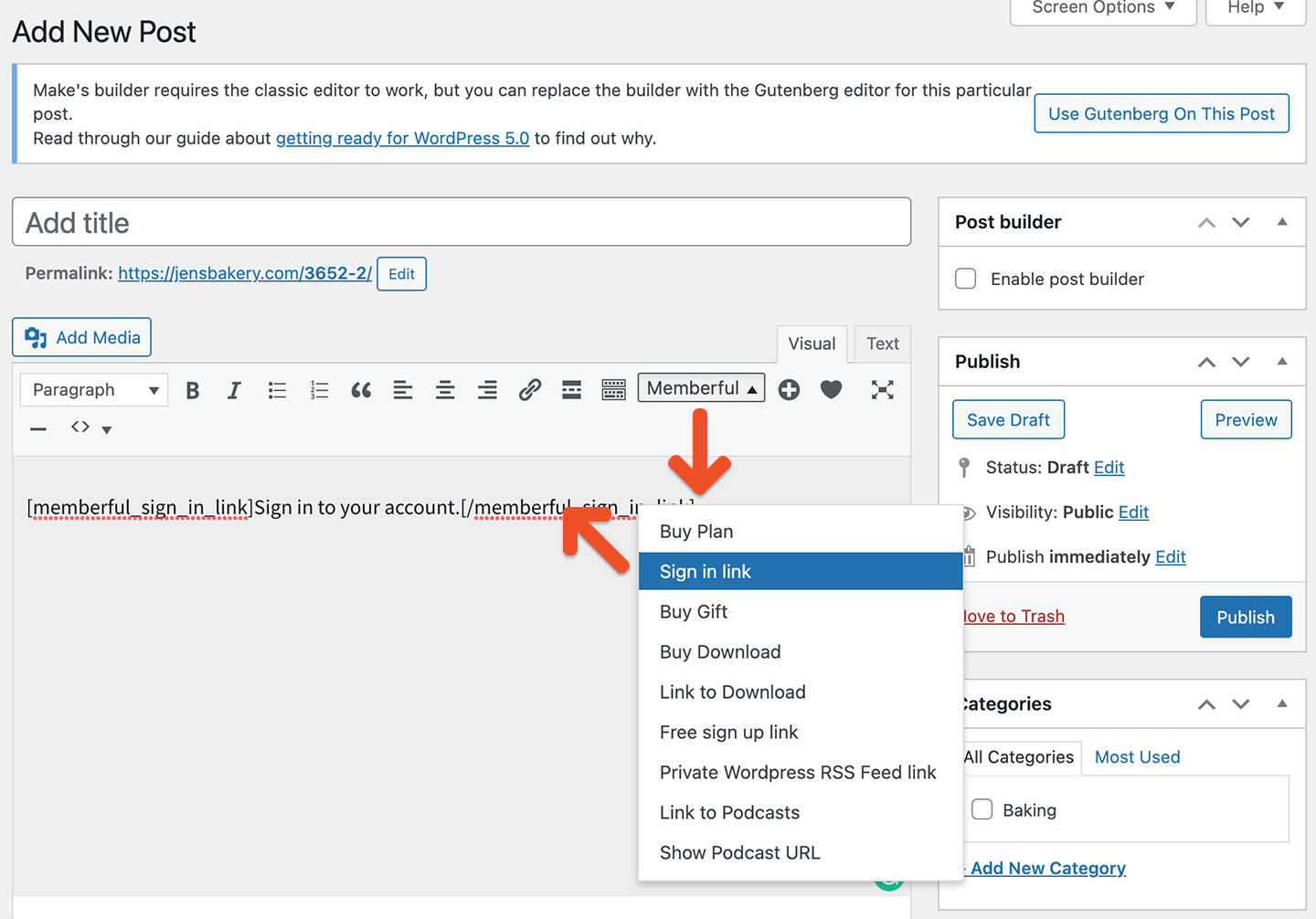 If you'd like to create a sign-in button instead of a text-based link, [use the URL below with a button builder.](/plans/promote-and-sell/add-a-link-to-buy-a-plan/#create-a-purchase-button-with-any-website-builder) Replace YOURSITE.com with your actual website URL.
```text theme={null}
https://YOURSITE.com/?memberful_endpoint=auth
```
To add a sign-out link, add the URL below anywhere on your site. Replace ACCOUNT-URL with your actual account URL subdomain, which can be found in your Memberful dashboard via *Website → Settings.*
```text theme={null}
https://ACCOUNT-URL.memberful.com/auth/sign_out
```
## Add Memberful menu links
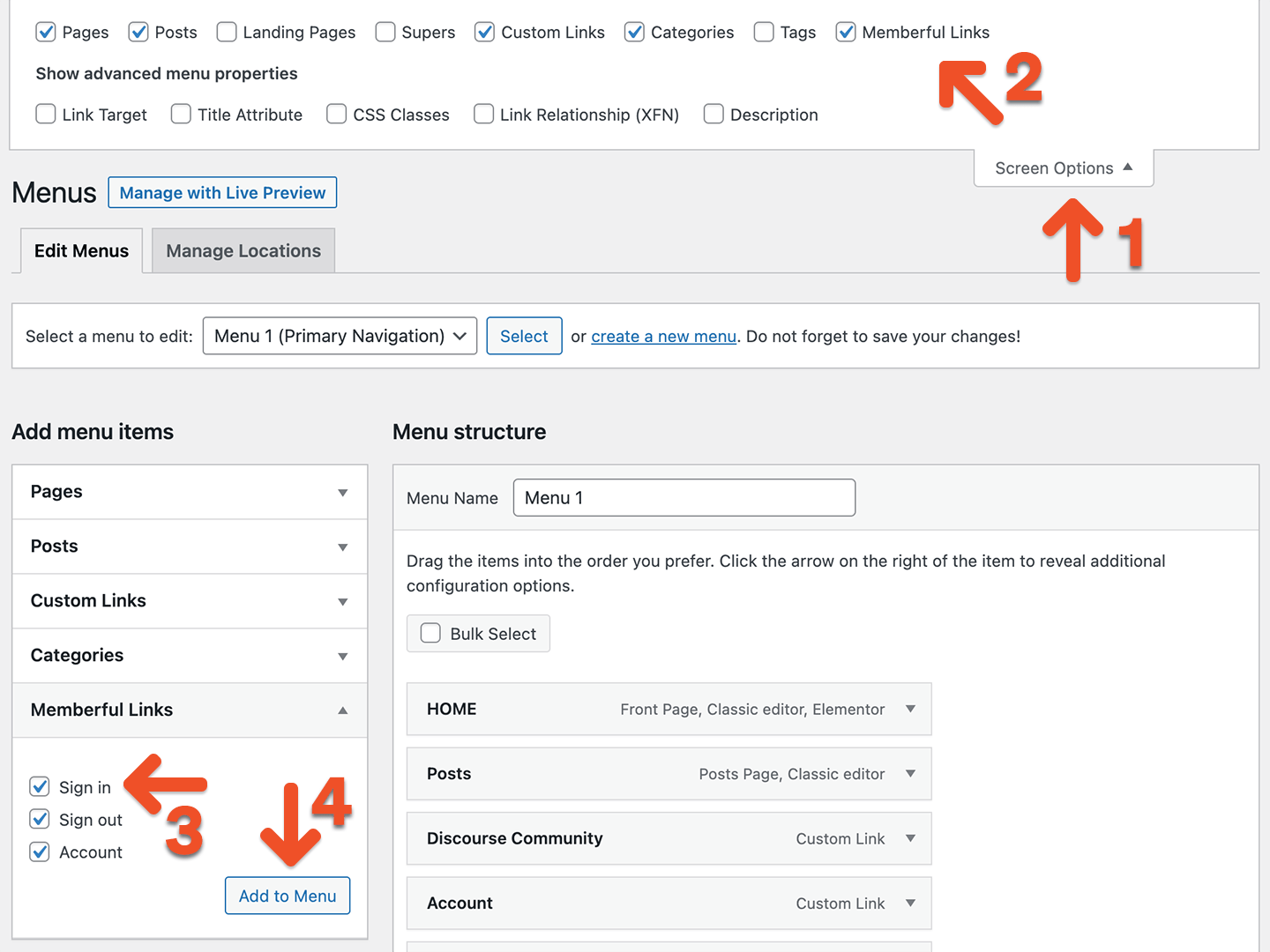
From your WordPress dashboard, go to *Appearance → Menus.* Click **Screen Options** and then select **Memberful Links.** From the Memberful Links list, select *Sign in, Sign out,* and *Account,* and then click **Add to Menu.**
If you'd like to create a sign-in button instead of a text-based link, [use the URL below with a button builder.](/plans/promote-and-sell/add-a-link-to-buy-a-plan/#create-a-purchase-button-with-any-website-builder) Replace YOURSITE.com with your actual website URL.
```text theme={null}
https://YOURSITE.com/?memberful_endpoint=auth
```
To add a sign-out link, add the URL below anywhere on your site. Replace ACCOUNT-URL with your actual account URL subdomain, which can be found in your Memberful dashboard via *Website → Settings.*
```text theme={null}
https://ACCOUNT-URL.memberful.com/auth/sign_out
```
## Add Memberful menu links
From your WordPress dashboard, go to *Appearance → Menus.* Click **Screen Options** and then select **Memberful Links.** From the Memberful Links list, select *Sign in, Sign out,* and *Account,* and then click **Add to Menu.**
 By default, we will show the *Sign in* link to logged-out members, and the *Sign out* and *Account* links to logged-in members. To [disable this setting](/wordpress-plugin/setup/install-the-memberful-plugin/#review-the-plugin-settings), go to *Settings → Memberful* in your WordPress dashboard.
## Update links in your theme, content, and plugins
Any links in your theme and content (as well as links added by plugins) will need to be updated.
For example, your theme most likely displays a sign-in link in the comments section, and you'll need to update this link to use the Memberful sign-in URL:
```text theme={null}
https://YOURSITE.com/?memberful_endpoint=auth
```
## Add a Memberful profile widget
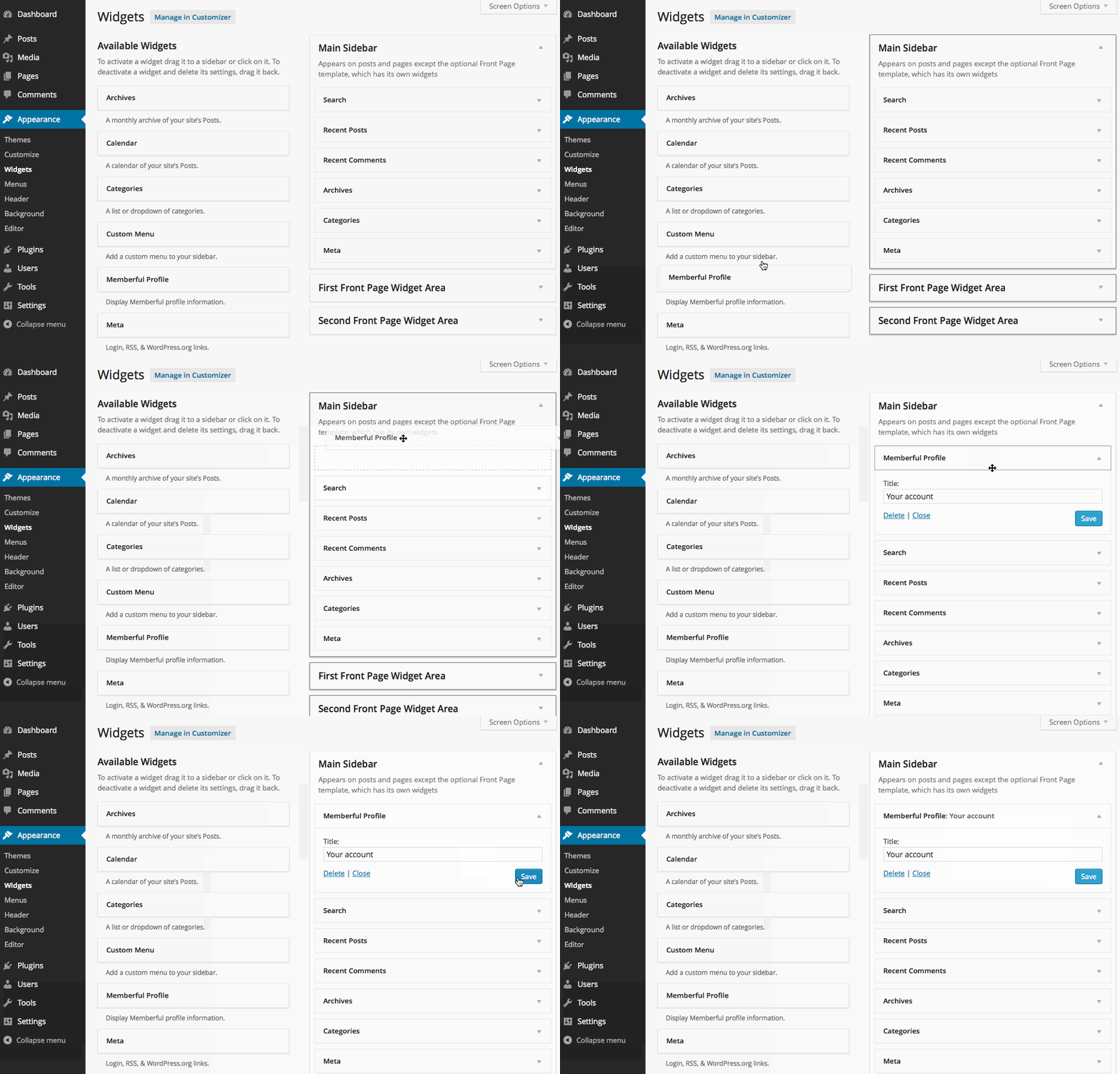
From your WordPress dashboard, go to *Appearance → Widgets,* and drag the Memberful profile widget to your sidebar.
By default, we will show the *Sign in* link to logged-out members, and the *Sign out* and *Account* links to logged-in members. To [disable this setting](/wordpress-plugin/setup/install-the-memberful-plugin/#review-the-plugin-settings), go to *Settings → Memberful* in your WordPress dashboard.
## Update links in your theme, content, and plugins
Any links in your theme and content (as well as links added by plugins) will need to be updated.
For example, your theme most likely displays a sign-in link in the comments section, and you'll need to update this link to use the Memberful sign-in URL:
```text theme={null}
https://YOURSITE.com/?memberful_endpoint=auth
```
## Add a Memberful profile widget
From your WordPress dashboard, go to *Appearance → Widgets,* and drag the Memberful profile widget to your sidebar.
 When a member is signed in, the widget will display the member's Gravatar photo, a link to their Memberful account page, and a link to sign out of Memberful and your WordPress site.
Use the URL below to add a member account management link anywhere on your site. Replace ACCOUNT-URL with your actual account URL subdomain, which can be found in your Memberful dashboard via *Website → Settings.*
```text theme={null}
https://ACCOUNT-URL.memberful.com/account
```
### Removing the CSS from the widget
To remove all the plugin-generated CSS from the widget (presumably to style it yourself) add this code to the `functions.php` file of your theme:
```php theme={null}
```
### Add profile information to your WordPress theme via code
See the [WordPress functions documentation](/wordpress-plugin/protect-content/wordpress-functions/#show-profile-information-in-wordpress-themes) to learn how to add profile information by using our WordPress functions in your theme's code.
When a member is signed in, the widget will display the member's Gravatar photo, a link to their Memberful account page, and a link to sign out of Memberful and your WordPress site.
Use the URL below to add a member account management link anywhere on your site. Replace ACCOUNT-URL with your actual account URL subdomain, which can be found in your Memberful dashboard via *Website → Settings.*
```text theme={null}
https://ACCOUNT-URL.memberful.com/account
```
### Removing the CSS from the widget
To remove all the plugin-generated CSS from the widget (presumably to style it yourself) add this code to the `functions.php` file of your theme:
```php theme={null}
```
### Add profile information to your WordPress theme via code
See the [WordPress functions documentation](/wordpress-plugin/protect-content/wordpress-functions/#show-profile-information-in-wordpress-themes) to learn how to add profile information by using our WordPress functions in your theme's code.