> ## Documentation Index
> Fetch the complete documentation index at: https://memberful.com/docs/llms.txt
> Use this file to discover all available pages before exploring further.
# Install the Memberful WordPress plugin
> The Memberful WordPress plugin makes it easy to integrate Memberful with your WordPress website and protect content server-side, for members only.
export const RelatedDocs = ({link1, link2, link3, link4, link5, link6, link7, link8, link9, link10, className = ""}) => {
const links = [link1, link2, link3, link4, link5, link6, link7, link8, link9, link10].filter(Boolean);
if (!links.length) return null;
return ;
};
The Memberful WordPress plugin connects your Memberful site to WordPress so you can protect content server-side and give members access based on their subscription status.
In this help article, we'll cover how to install the plugin, review the available WordPress settings, and configure role mapping for members.
## Install the Memberful WordPress plugin
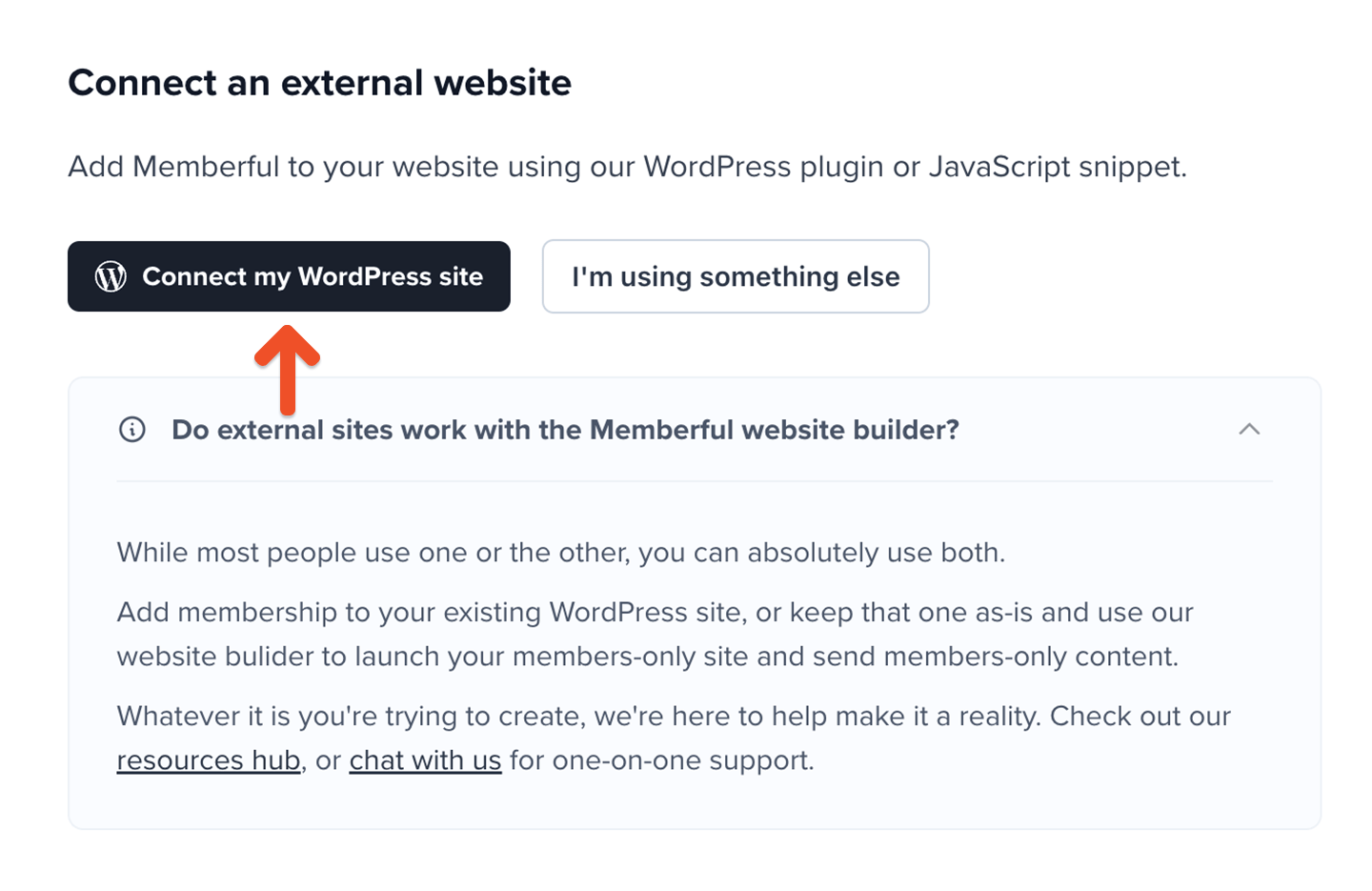
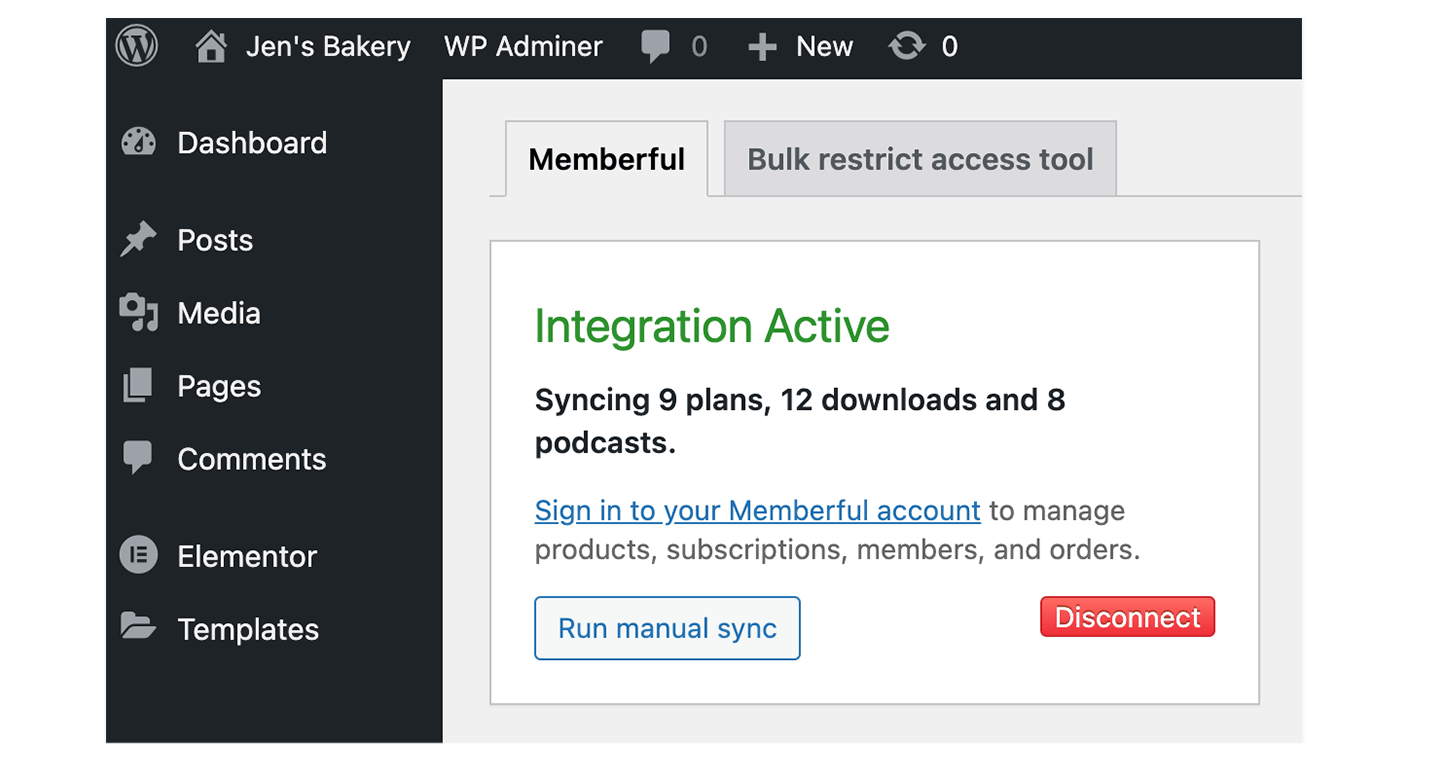
From your Memberful dashboard, go to **Website** → **External website**, then click **Connect my WordPress site**.
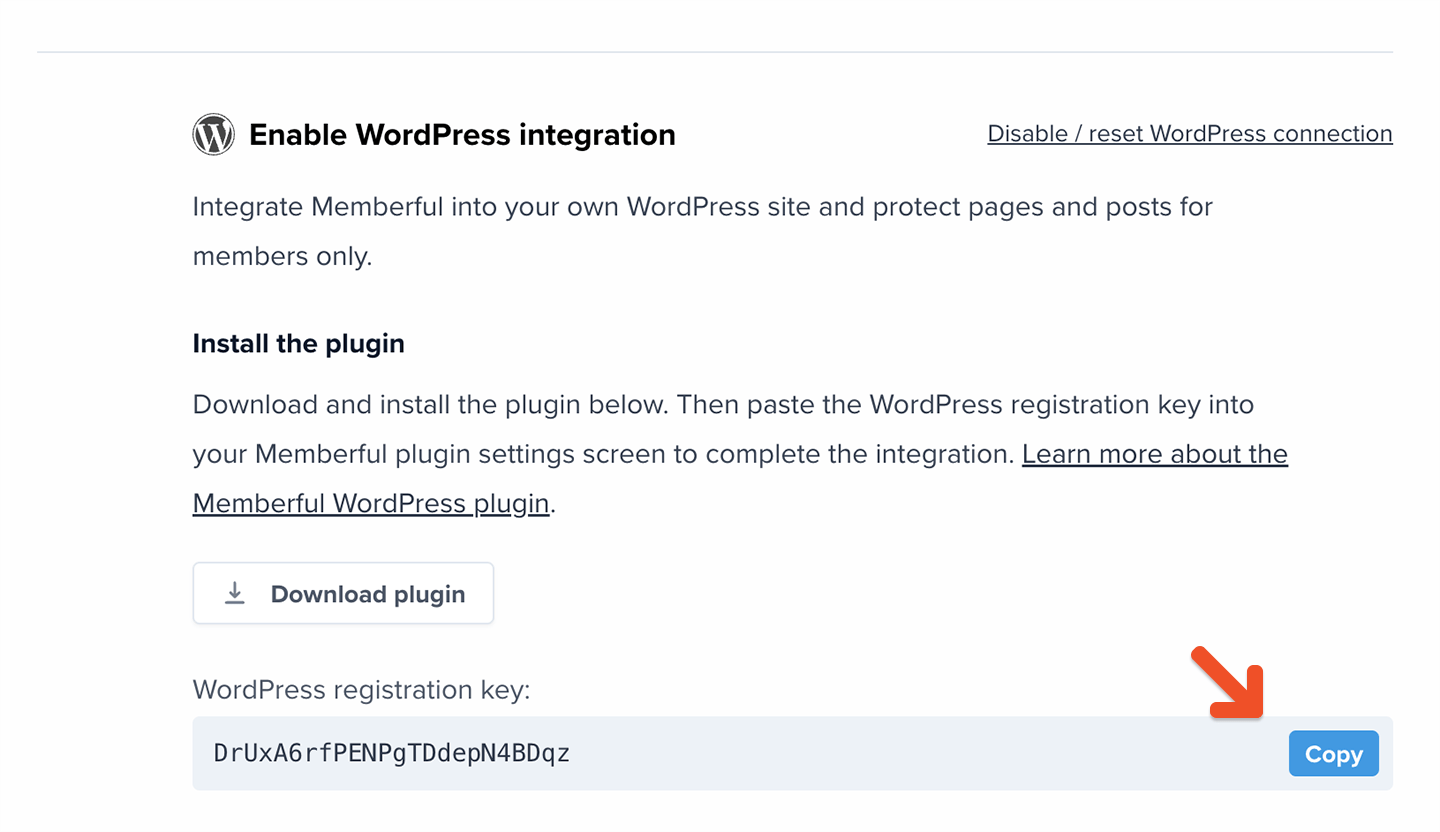
 Copy the WordPress registration key.
 On your WordPress site, install and activate the Memberful plugin.
Paste your registration key into the field, then click **Connect to Memberful**.
On your WordPress site, install and activate the Memberful plugin.
Paste your registration key into the field, then click **Connect to Memberful**.
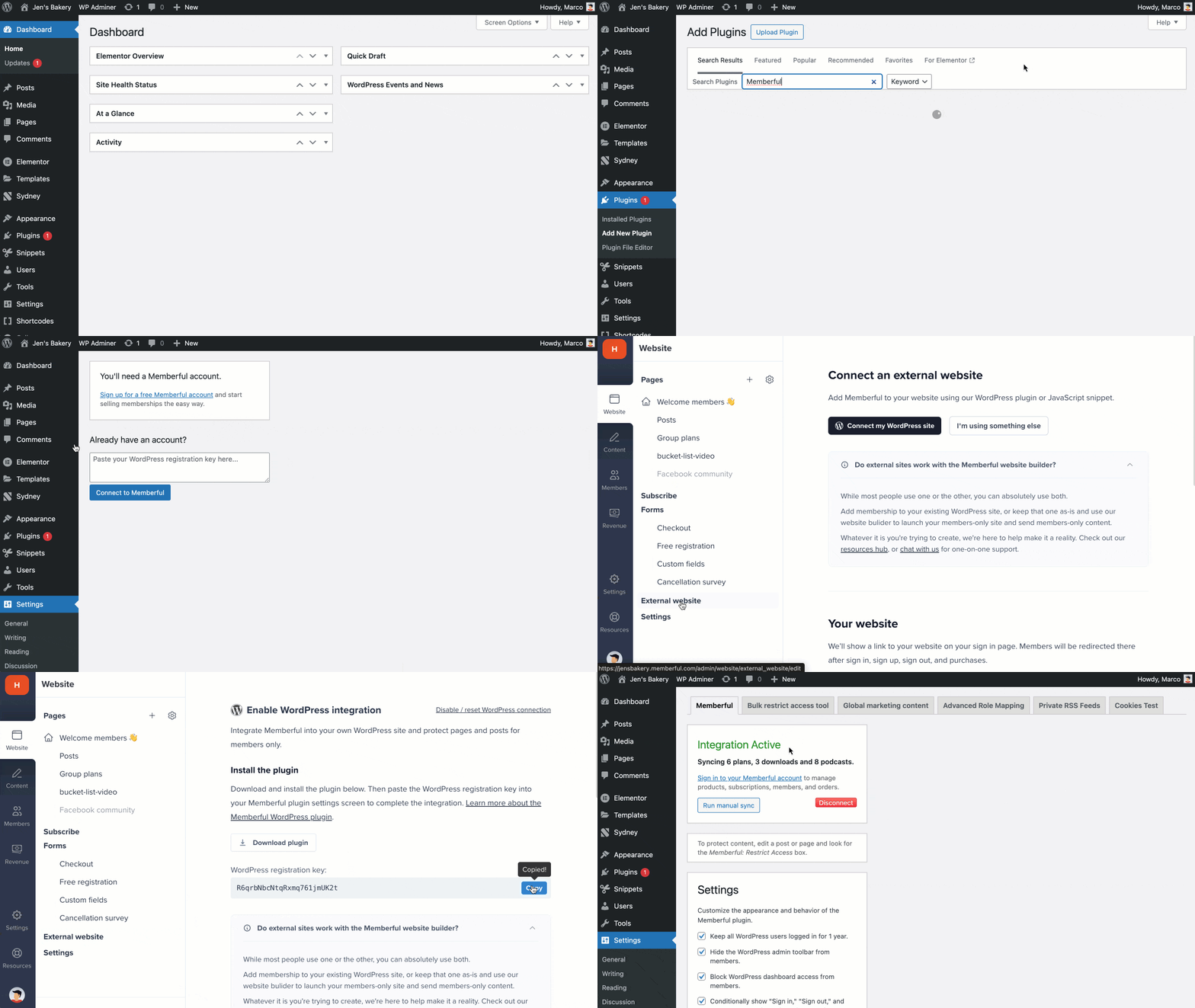 Once connected:
* members are signed in to WordPress when they sign in to Memberful
* members' plans sync automatically so you can [protect WordPress content](/wordpress-plugin/protect-content/restrict-access-to-a-single-post/).
Once connected:
* members are signed in to WordPress when they sign in to Memberful
* members' plans sync automatically so you can [protect WordPress content](/wordpress-plugin/protect-content/restrict-access-to-a-single-post/).
 ## Review the plugin settings
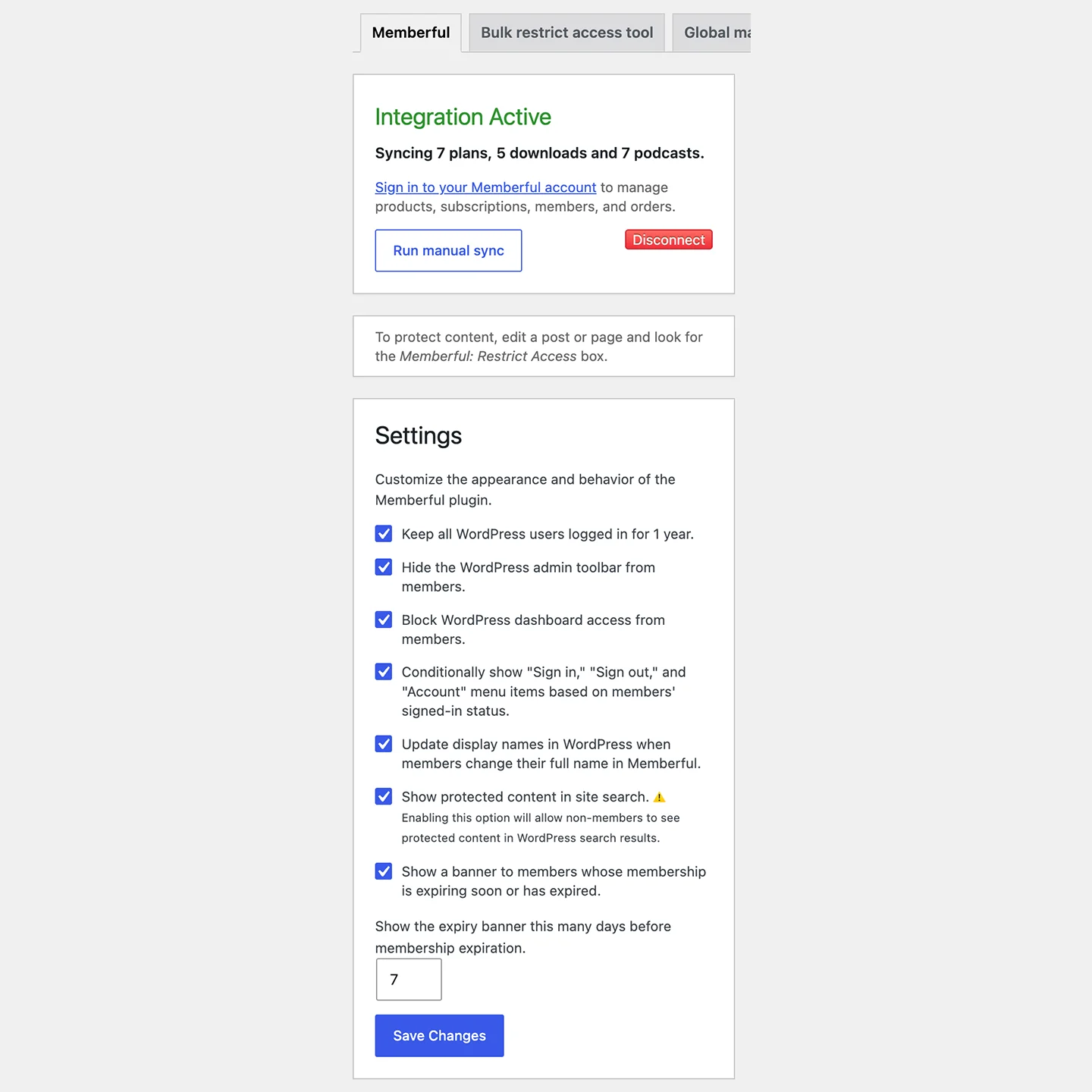
Go to **Settings → Memberful** in your WordPress dashboard to customize how the plugin works.
Options include:
* Keep all WordPress users logged in for 1 year
* Hide the WordPress admin toolbar from members
* Block WordPress dashboard access from members
* Conditionally show *Sign in, Sign out,* and *Account* menu items based on members' signed-in status
* Update display names in WordPress when members change their full name in Memberful
* Show protected content in site search
* Show a banner to members whose membership is expiring soon or has expired
## Review the plugin settings
Go to **Settings → Memberful** in your WordPress dashboard to customize how the plugin works.
Options include:
* Keep all WordPress users logged in for 1 year
* Hide the WordPress admin toolbar from members
* Block WordPress dashboard access from members
* Conditionally show *Sign in, Sign out,* and *Account* menu items based on members' signed-in status
* Update display names in WordPress when members change their full name in Memberful
* Show protected content in site search
* Show a banner to members whose membership is expiring soon or has expired
 Conditional menu items only work with classic WordPress menus. They are not supported in block-based WordPress since that system uses a different menu editor.
### Expiring membership banner
When enabled, members will see a banner at the top of your site notifying them that their subscription is expiring soon or has expired, with a Renew now link. You can set how many days before expiration the banner appears.
Conditional menu items only work with classic WordPress menus. They are not supported in block-based WordPress since that system uses a different menu editor.
### Expiring membership banner
When enabled, members will see a banner at the top of your site notifying them that their subscription is expiring soon or has expired, with a Renew now link. You can set how many days before expiration the banner appears.
 To configure the banner:
Check **Show a banner to members whose membership is expiring soon or has expired**.
To configure the banner:
Check **Show a banner to members whose membership is expiring soon or has expired**.
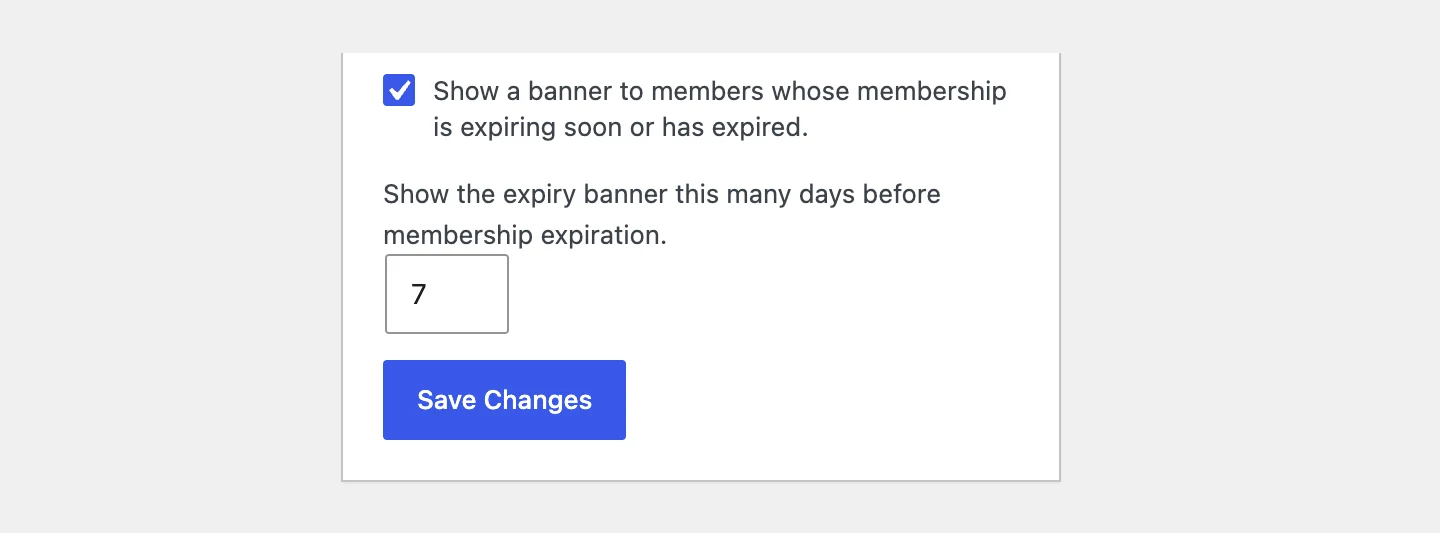 In the *Show the expiry banner this many days before membership expiration* field, enter the number of days before expiration when the banner should appear.
Click **Save Changes**.
## Configure role mapping
The Memberful WordPress plugin assigns WordPress roles to members based on their subscription status. It keeps those roles in sync as subscriptions start, change, or end.
Role mapping works best when you use custom WordPress roles provided by other plugins.
### How role mapping works by default
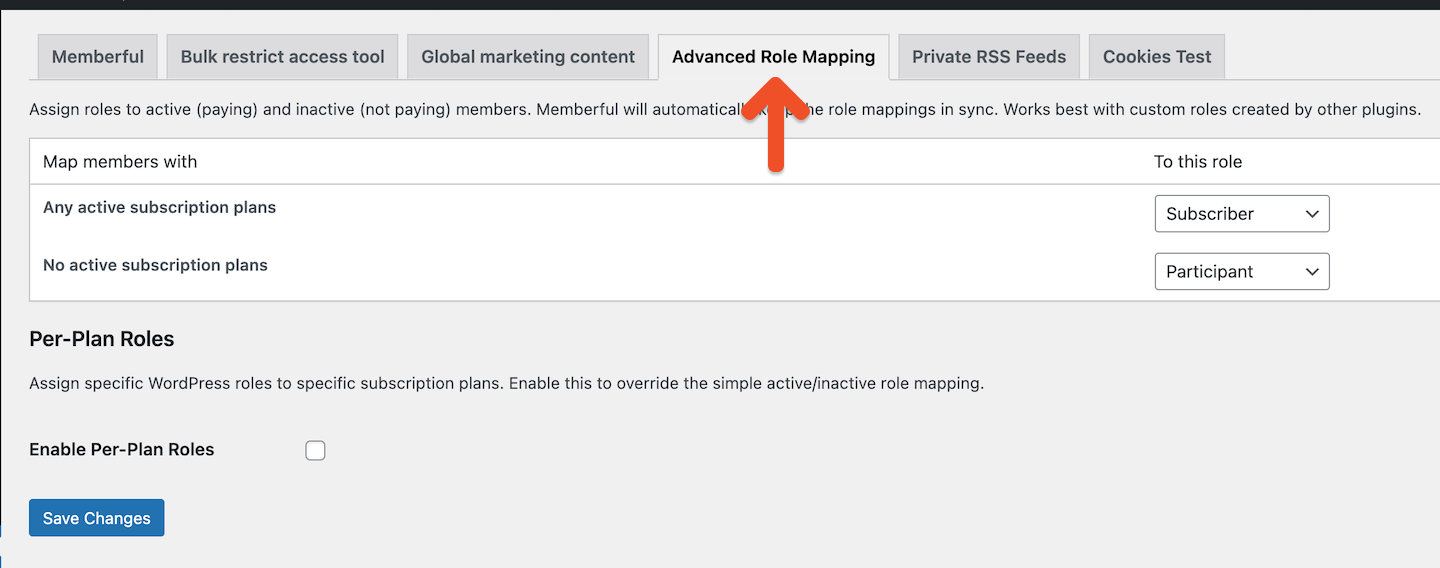
By default, the Memberful WordPress plugin can assign roles using a status-based rule:
* members with any active subscription plan receive one WordPress role
* members with no active subscription plans receive a different WordPress role
To enable status-based rules, go to **Settings** → **Memberful** → **Advanced Role Mapping** in your WordPress dashboard. Assign a role for members with an active subscription and a role for members with no active subscription.
In the *Show the expiry banner this many days before membership expiration* field, enter the number of days before expiration when the banner should appear.
Click **Save Changes**.
## Configure role mapping
The Memberful WordPress plugin assigns WordPress roles to members based on their subscription status. It keeps those roles in sync as subscriptions start, change, or end.
Role mapping works best when you use custom WordPress roles provided by other plugins.
### How role mapping works by default
By default, the Memberful WordPress plugin can assign roles using a status-based rule:
* members with any active subscription plan receive one WordPress role
* members with no active subscription plans receive a different WordPress role
To enable status-based rules, go to **Settings** → **Memberful** → **Advanced Role Mapping** in your WordPress dashboard. Assign a role for members with an active subscription and a role for members with no active subscription.
 ### Enable per-plan roles
Per-plan roles let you override the default active or inactive role mapping and assign roles at the individual plan level. Disabling this setting returns your site to the default role mapping behavior.
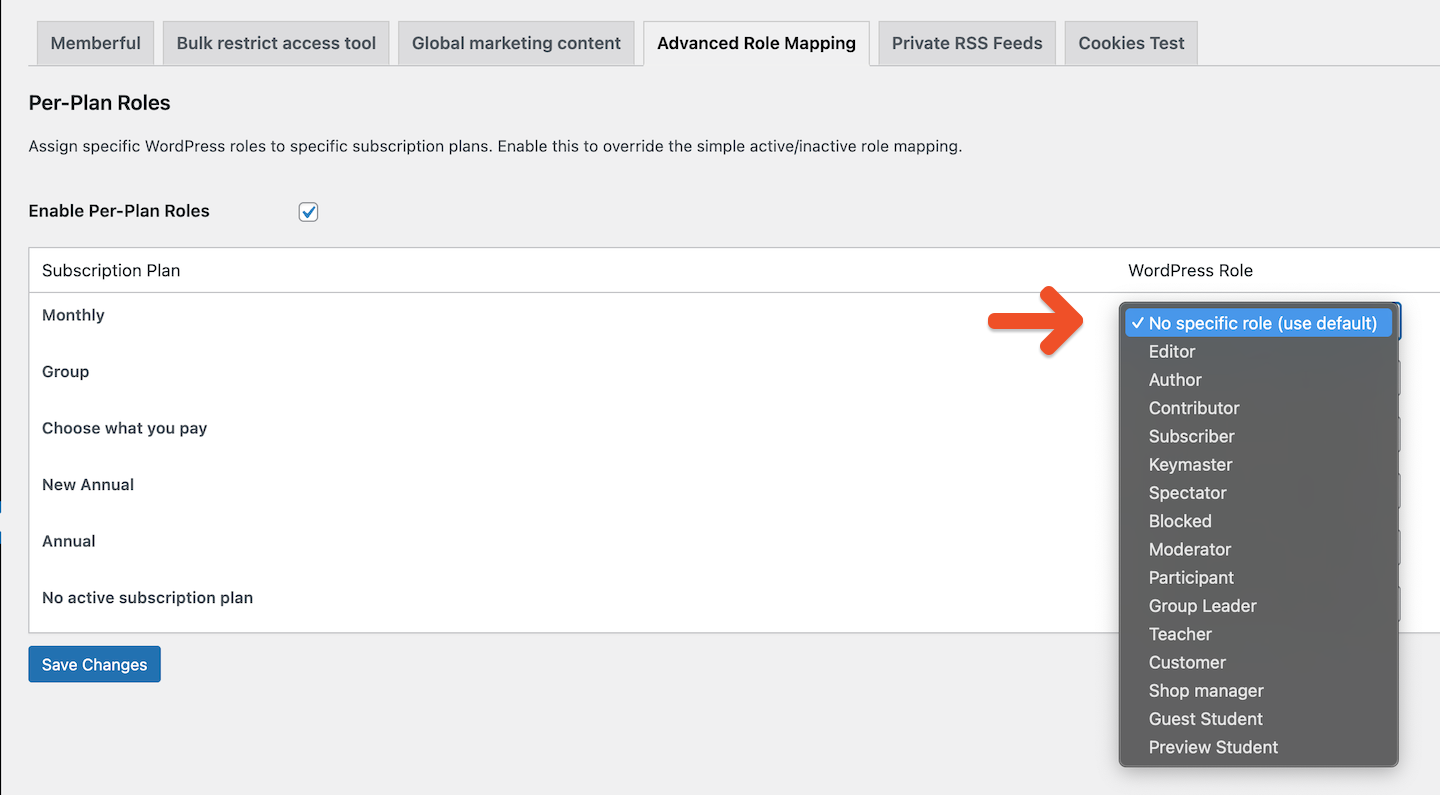
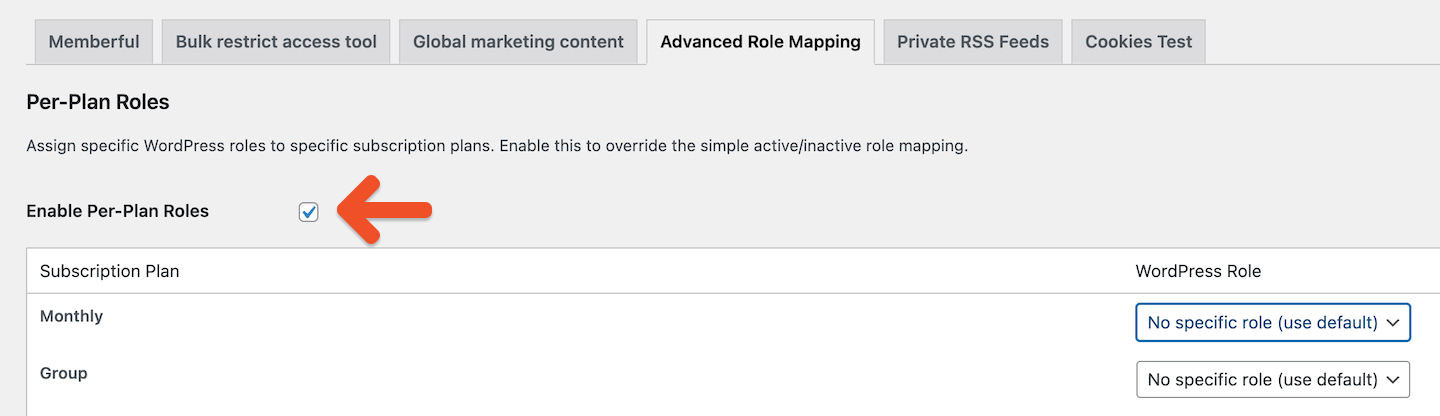
To enable per-plan roles, go to **Settings** → **Memberful** → **Advanced Role Mapping** in your WordPress dashboard, then check *Enable Per-Plan Roles*.
Once enabled, additional role options appear for each subscription plan.
### Enable per-plan roles
Per-plan roles let you override the default active or inactive role mapping and assign roles at the individual plan level. Disabling this setting returns your site to the default role mapping behavior.
To enable per-plan roles, go to **Settings** → **Memberful** → **Advanced Role Mapping** in your WordPress dashboard, then check *Enable Per-Plan Roles*.
Once enabled, additional role options appear for each subscription plan.
 Adding new prices to existing plans does not require updating your role mapping.
### Assign roles to individual plans
After enabling per-plan roles, you'll see a list of your Memberful plans with a WordPress role selector for each one.
For each subscription plan:
* choose the WordPress role members should receive while they have an active subscription to that plan
* optionally select **No specific role (use default)** to fall back to the default active role mapping
Members with no active subscription receive the role configured for *No active subscription plan*.
Adding new prices to existing plans does not require updating your role mapping.
### Assign roles to individual plans
After enabling per-plan roles, you'll see a list of your Memberful plans with a WordPress role selector for each one.
For each subscription plan:
* choose the WordPress role members should receive while they have an active subscription to that plan
* optionally select **No specific role (use default)** to fall back to the default active role mapping
Members with no active subscription receive the role configured for *No active subscription plan*.