> ## Documentation Index
> Fetch the complete documentation index at: https://memberful.com/docs/llms.txt
> Use this file to discover all available pages before exploring further.
# Restrict access to a single post or page
> Restrict access to a single WordPress post or page with the Memberful plugin. Choose which plans can view it and what visitors see when they don't have access.
export const RelatedDocs = ({link1, link2, link3, link4, link5, link6, link7, link8, link9, link10, className = ""}) => {
const links = [link1, link2, link3, link4, link5, link6, link7, link8, link9, link10].filter(Boolean);
if (!links.length) return null;
return ;
};
export const Video = ({url}) => {
return
;
};
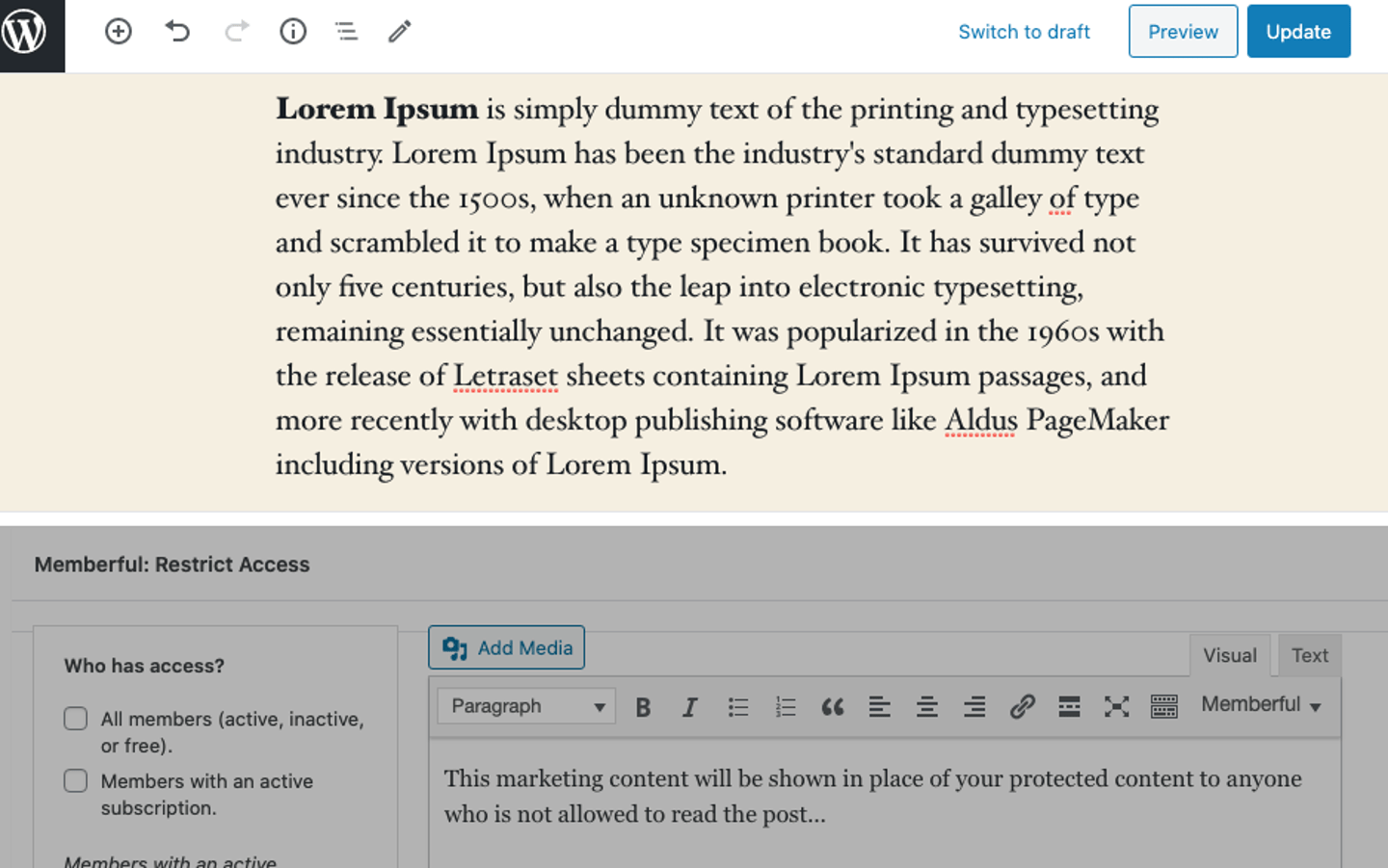
After you integrate the Memberful WordPress plugin, a metabox will appear below the post and page editor in your WordPress dashboard. This feature allows you to easily generate a paywall, control access, and specify which membership plans will grant the member access to the content of the page or post.
In this help article, we'll walk you through how to restrict access to a single post or page, choose who has access, add marketing content and members-only content, and display teaser text for non-members.
Once you've [installed the Memberful WordPress plugin on your site,](/wordpress-plugin/setup/install-the-memberful-plugin/) you'll see a Memberful: Restrict Access box below the post and page editor.
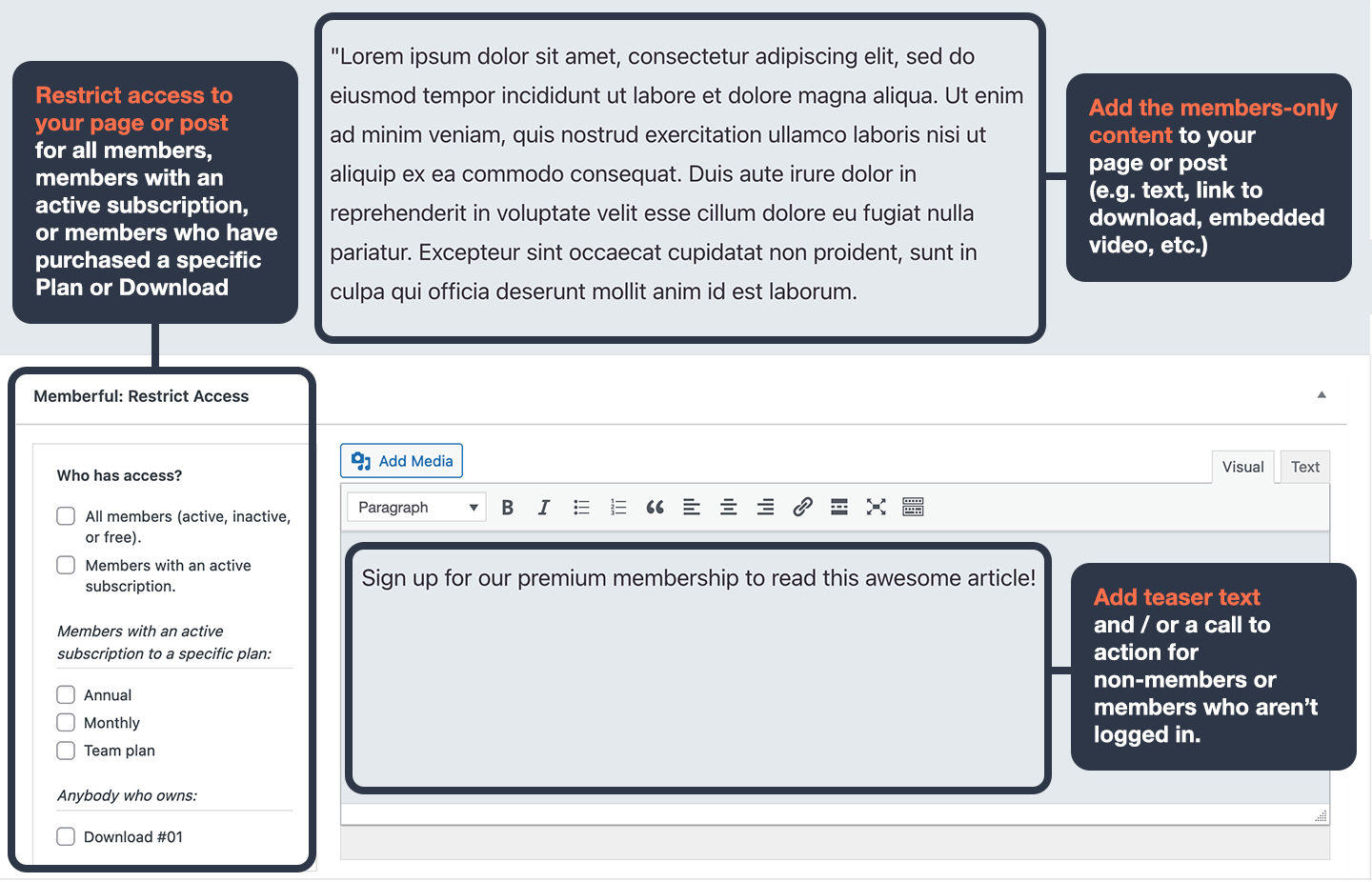 Choose who should have access to your page or post by checking the appropriate box(es):
* All members—active, inactive, or free (works well for a ["freemium" tier](/member-management/payments-and-access/give-free-access/#enable-free-registration))
* Members with an active subscription
* Members with an active subscription to a specific plan
* Anybody who owns a specific [download](/plans/plan-options/include-or-sell-downloads/)
Choose who should have access to your page or post by checking the appropriate box(es):
* All members—active, inactive, or free (works well for a ["freemium" tier](/member-management/payments-and-access/give-free-access/#enable-free-registration))
* Members with an active subscription
* Members with an active subscription to a specific plan
* Anybody who owns a specific [download](/plans/plan-options/include-or-sell-downloads/)
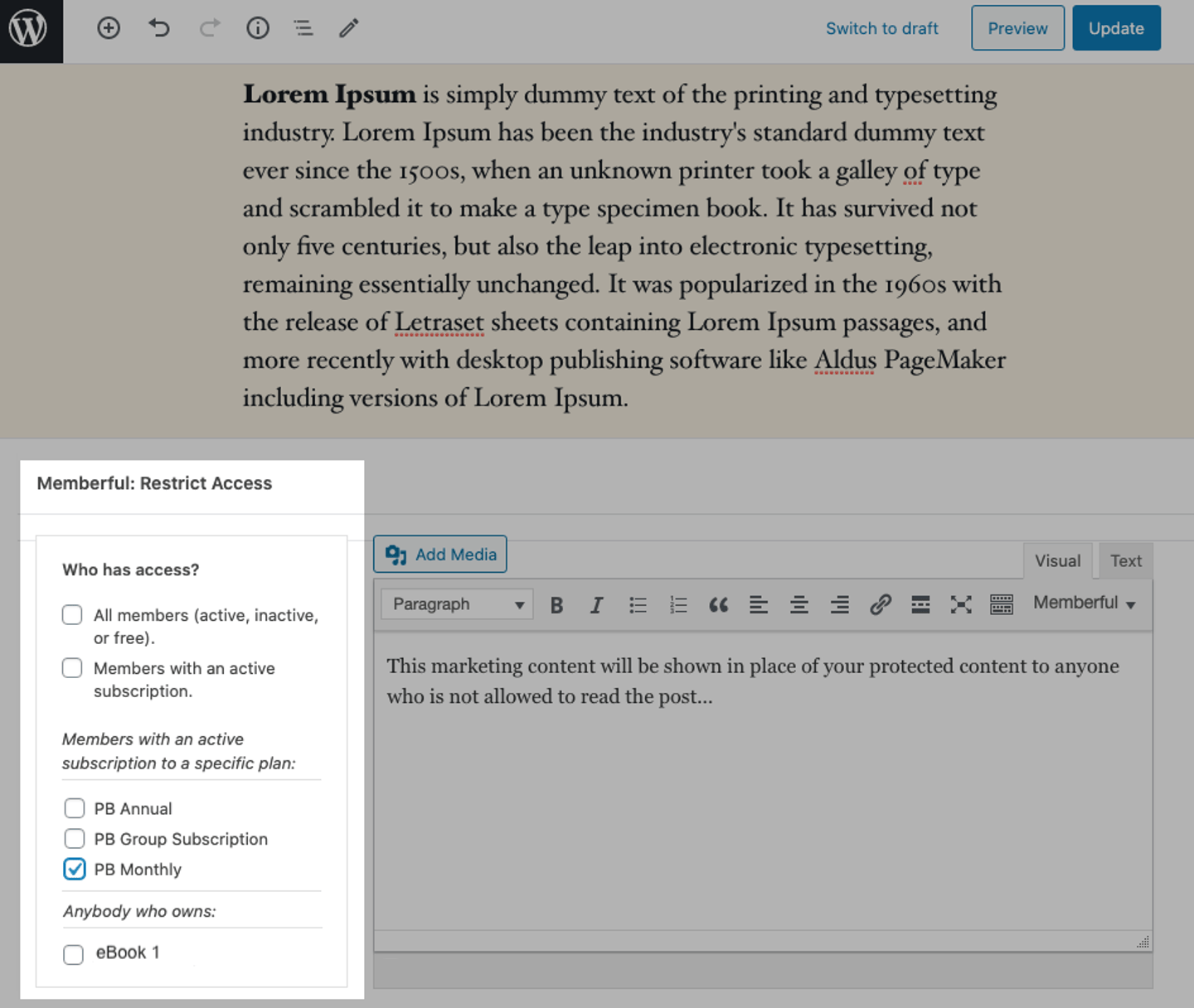 This method allows you to protect content displayed via the default WordPress content function (e.g. content in the default post/page editor). To restrict access to content that your theme displays in other locations, you may need to use our [shortcodes](/wordpress-plugin/protect-content/wordpress-shortcodes/) or [WordPress functions](/wordpress-plugin/protect-content/wordpress-functions/).
### Restrict access to custom post types
You can restrict access to custom post types in the same way you would restrict access to standard posts and pages.
First, make sure the custom post type has been registered in WordPress. [Here's an article showing a couple of ways to create custom post types.](https://www.wpbeginner.com/wp-tutorials/how-to-create-custom-post-types-in-wordpress/) To finish the registration process, go to *Settings → Permalinks* and click *Save Changes* to re-sync your permalink settings.
Once your custom post type is registered and you've created a new page with that post type, you'll see the *Memberful: Restrict Access* box at the bottom of the page, just like you would on a standard post or page.
## Review your options for adding marketing content
When you protect a page or post with the Memberful WordPress plugin, you have the opportunity to show marketing content or teaser text to non-members or members who aren't signed into your site.
For example, you might want to share a preview of the content behind the paywall along with a link to your sales pages and a [sign-in link for existing members.](/wordpress-plugin/setup/member-account-links/#option-1-memberful-sign-in-link)
Check out these customer examples for inspiration:
* [Mythical Society's members-only videos](https://www.mythicalsociety.com/series/rhett-link-stevie-go-to-halloween-horror-nights/welcome-episode-1)
* [Food Fix's paywall for members-only articles](https://foodfix.co/states-forge-ahead-with-universal-free-school-meals/)
There are several ways to add marketing content.
### Add marketing content to a single page or post
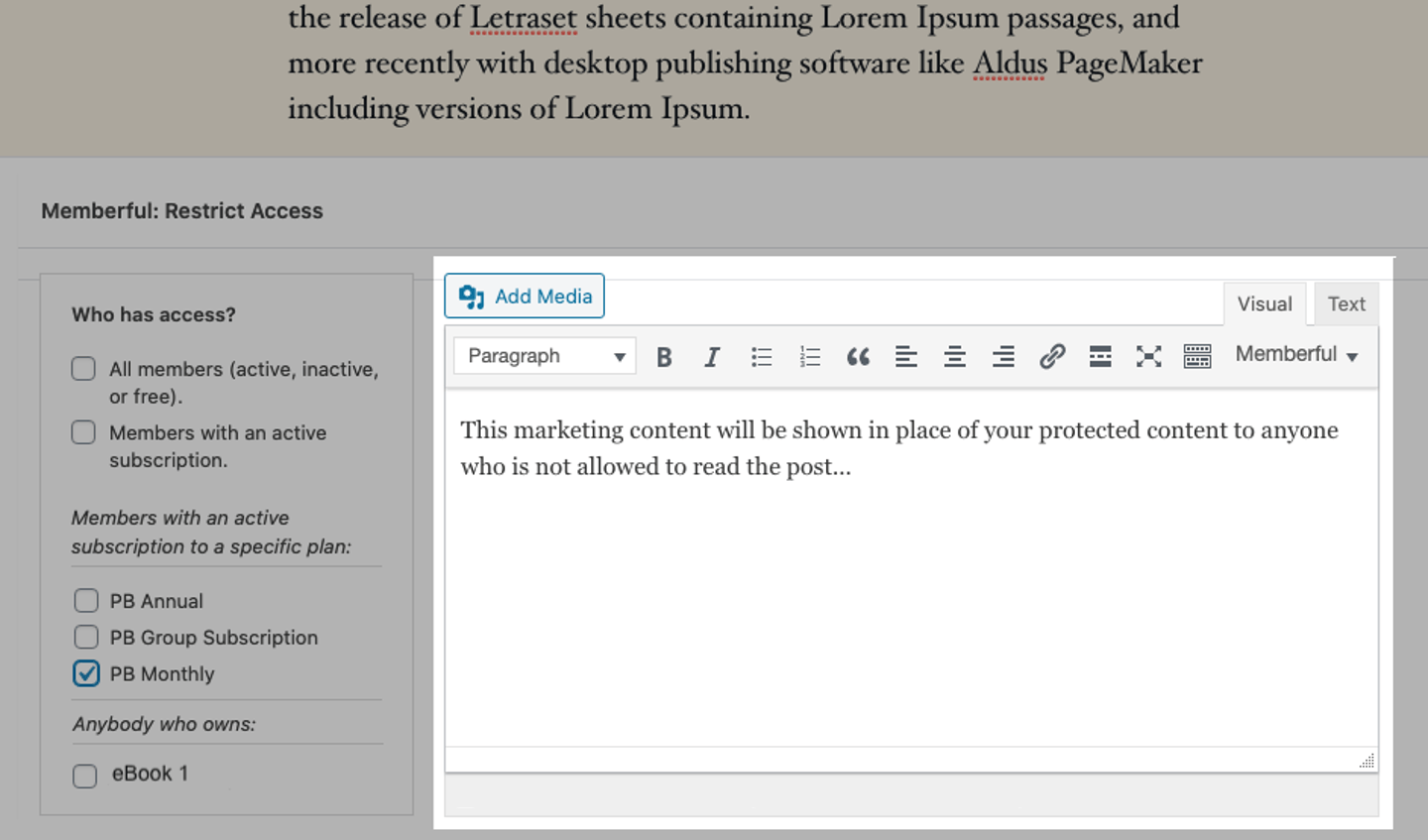
To add marketing content to a single page or post, scroll down to the **Memberful: Restrict Access** box below the page or post editor, add your content to the meta box, and then update your post.
This method allows you to protect content displayed via the default WordPress content function (e.g. content in the default post/page editor). To restrict access to content that your theme displays in other locations, you may need to use our [shortcodes](/wordpress-plugin/protect-content/wordpress-shortcodes/) or [WordPress functions](/wordpress-plugin/protect-content/wordpress-functions/).
### Restrict access to custom post types
You can restrict access to custom post types in the same way you would restrict access to standard posts and pages.
First, make sure the custom post type has been registered in WordPress. [Here's an article showing a couple of ways to create custom post types.](https://www.wpbeginner.com/wp-tutorials/how-to-create-custom-post-types-in-wordpress/) To finish the registration process, go to *Settings → Permalinks* and click *Save Changes* to re-sync your permalink settings.
Once your custom post type is registered and you've created a new page with that post type, you'll see the *Memberful: Restrict Access* box at the bottom of the page, just like you would on a standard post or page.
## Review your options for adding marketing content
When you protect a page or post with the Memberful WordPress plugin, you have the opportunity to show marketing content or teaser text to non-members or members who aren't signed into your site.
For example, you might want to share a preview of the content behind the paywall along with a link to your sales pages and a [sign-in link for existing members.](/wordpress-plugin/setup/member-account-links/#option-1-memberful-sign-in-link)
Check out these customer examples for inspiration:
* [Mythical Society's members-only videos](https://www.mythicalsociety.com/series/rhett-link-stevie-go-to-halloween-horror-nights/welcome-episode-1)
* [Food Fix's paywall for members-only articles](https://foodfix.co/states-forge-ahead-with-universal-free-school-meals/)
There are several ways to add marketing content.
### Add marketing content to a single page or post
To add marketing content to a single page or post, scroll down to the **Memberful: Restrict Access** box below the page or post editor, add your content to the meta box, and then update your post.
 ### Create default marketing content
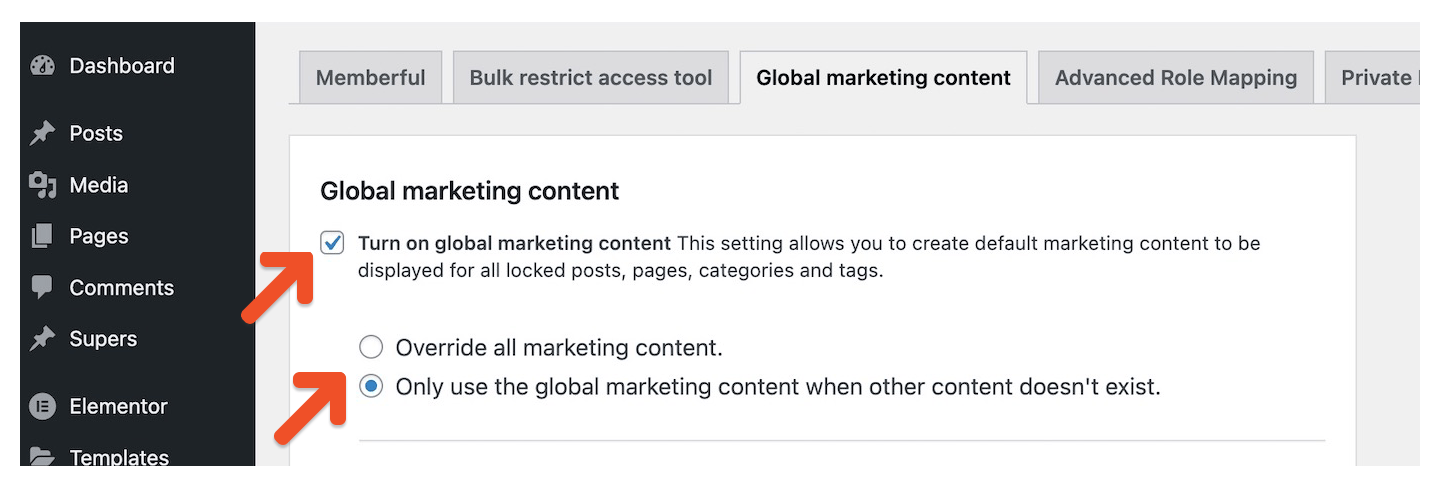
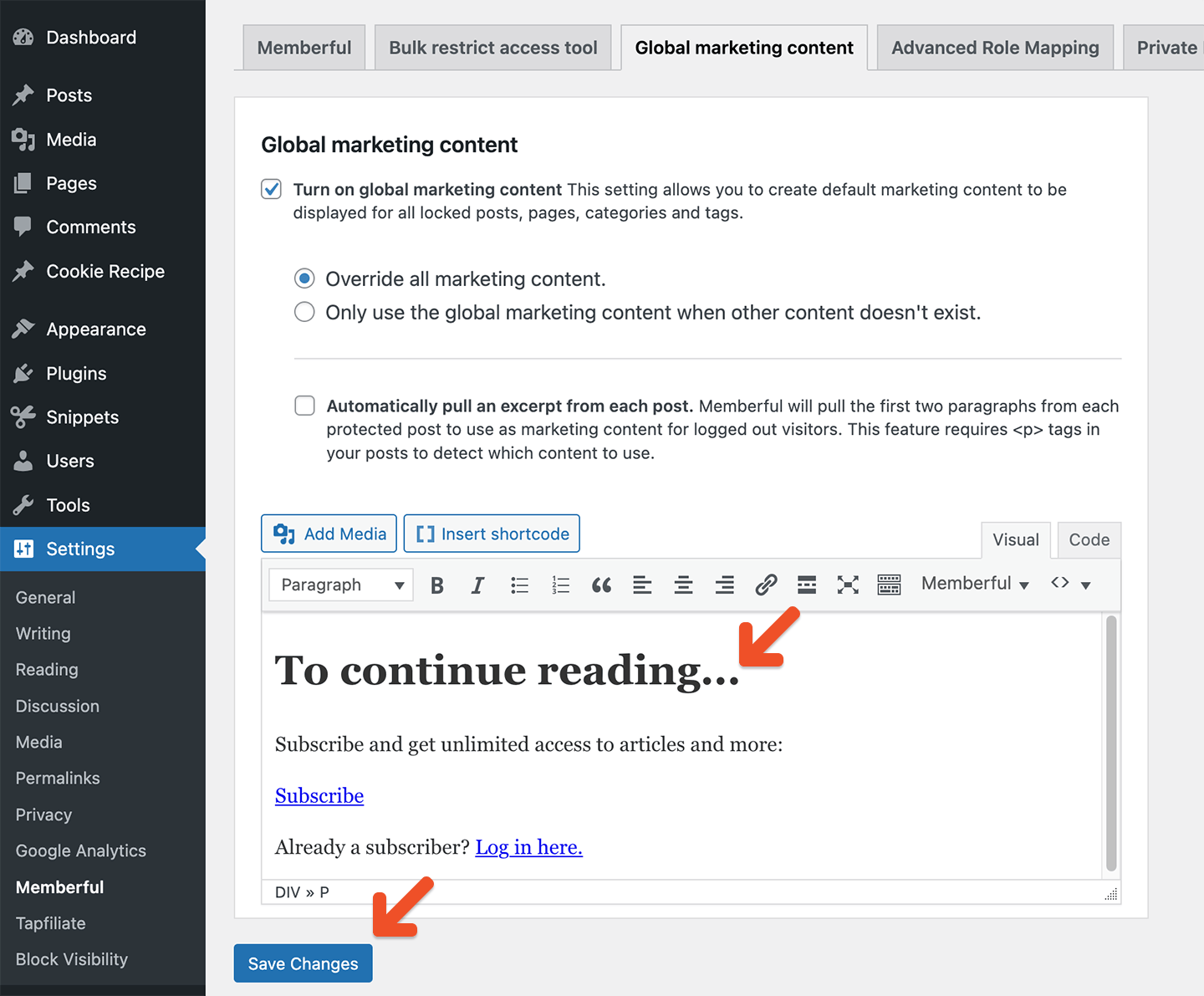
To create default marketing content for all pages and posts, go to *Settings → Memberful → Global marketing content* in your WordPress dashboard.
### Create default marketing content
To create default marketing content for all pages and posts, go to *Settings → Memberful → Global marketing content* in your WordPress dashboard.
 Check the setting **Turn on global marketing content,** and select one of the two options:
* **Override all marketing content:** Marketing content in Memberful's meta boxes will be replaced in all protected pages and posts.
* **Only use the global marketing content when other content doesn't exist:** The global marketing content will only be displayed on protected pages or posts that have an empty Memberful meta box.
Check the setting **Turn on global marketing content,** and select one of the two options:
* **Override all marketing content:** Marketing content in Memberful's meta boxes will be replaced in all protected pages and posts.
* **Only use the global marketing content when other content doesn't exist:** The global marketing content will only be displayed on protected pages or posts that have an empty Memberful meta box.
 Add your marketing content in the meta box and click **Save changes.**
 ### Fade out teaser text
To display a short excerpt from the beginning of your posts and then fade out to the marketing content, go to *Settings → Memberful → Global marketing content* in your WordPress dashboard.
Check the settings **Turn on global marketing content** and **Automatically pull an excerpt from each post.** Choose one of the two options:
* Override all marketing content
* Only use the global marketing content when other content doesn't exist
### Fade out teaser text
To display a short excerpt from the beginning of your posts and then fade out to the marketing content, go to *Settings → Memberful → Global marketing content* in your WordPress dashboard.
Check the settings **Turn on global marketing content** and **Automatically pull an excerpt from each post.** Choose one of the two options:
* Override all marketing content
* Only use the global marketing content when other content doesn't exist
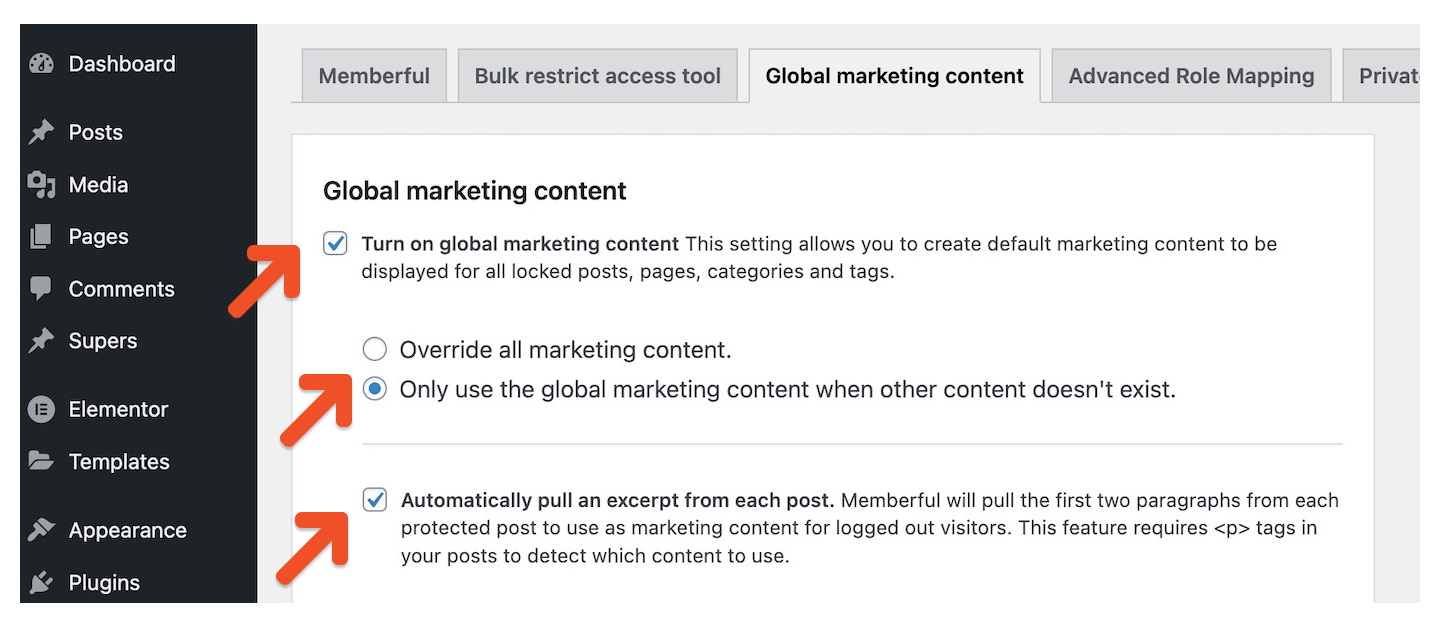 Add any additional marketing content in the meta box and click **Save changes.**
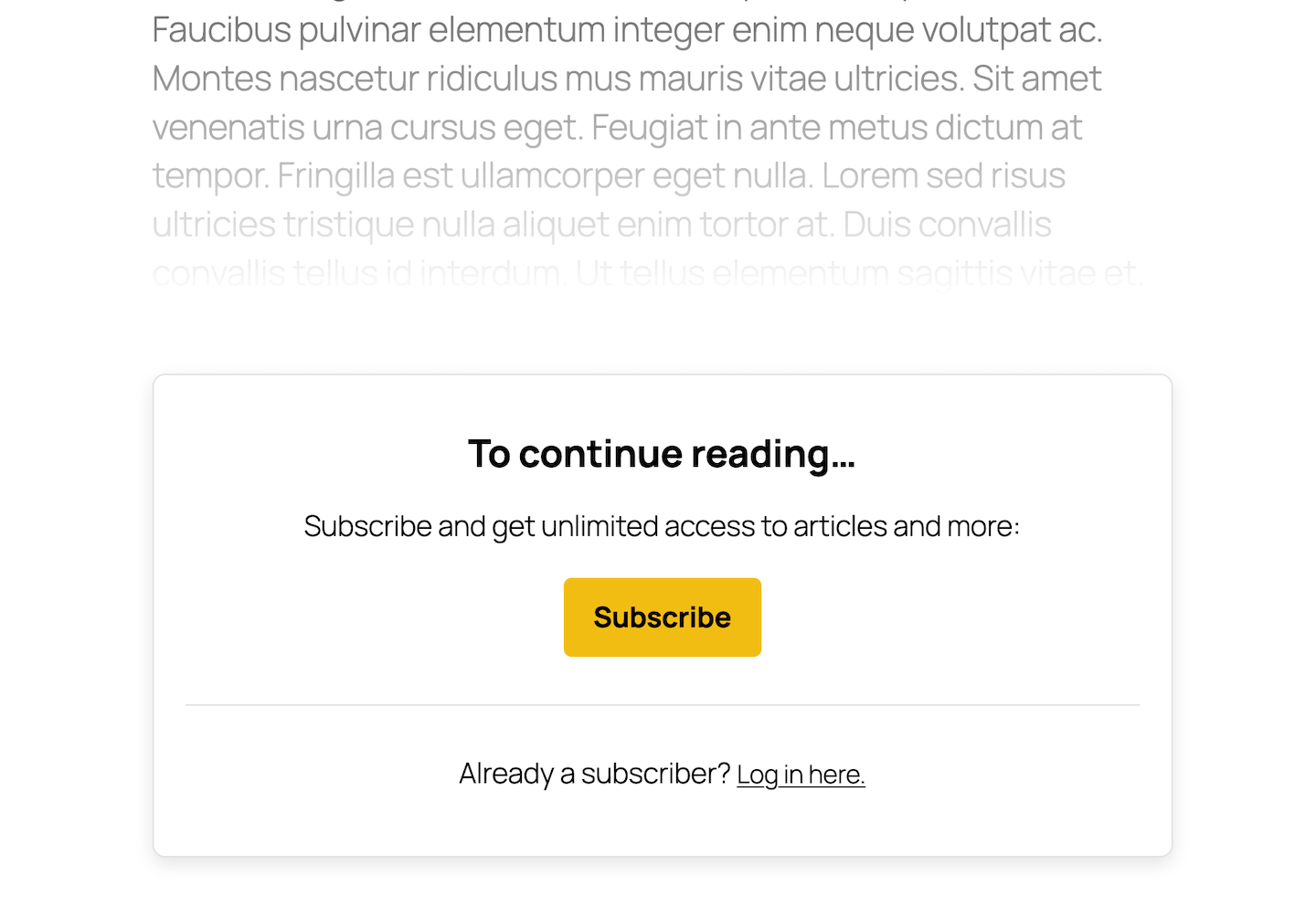
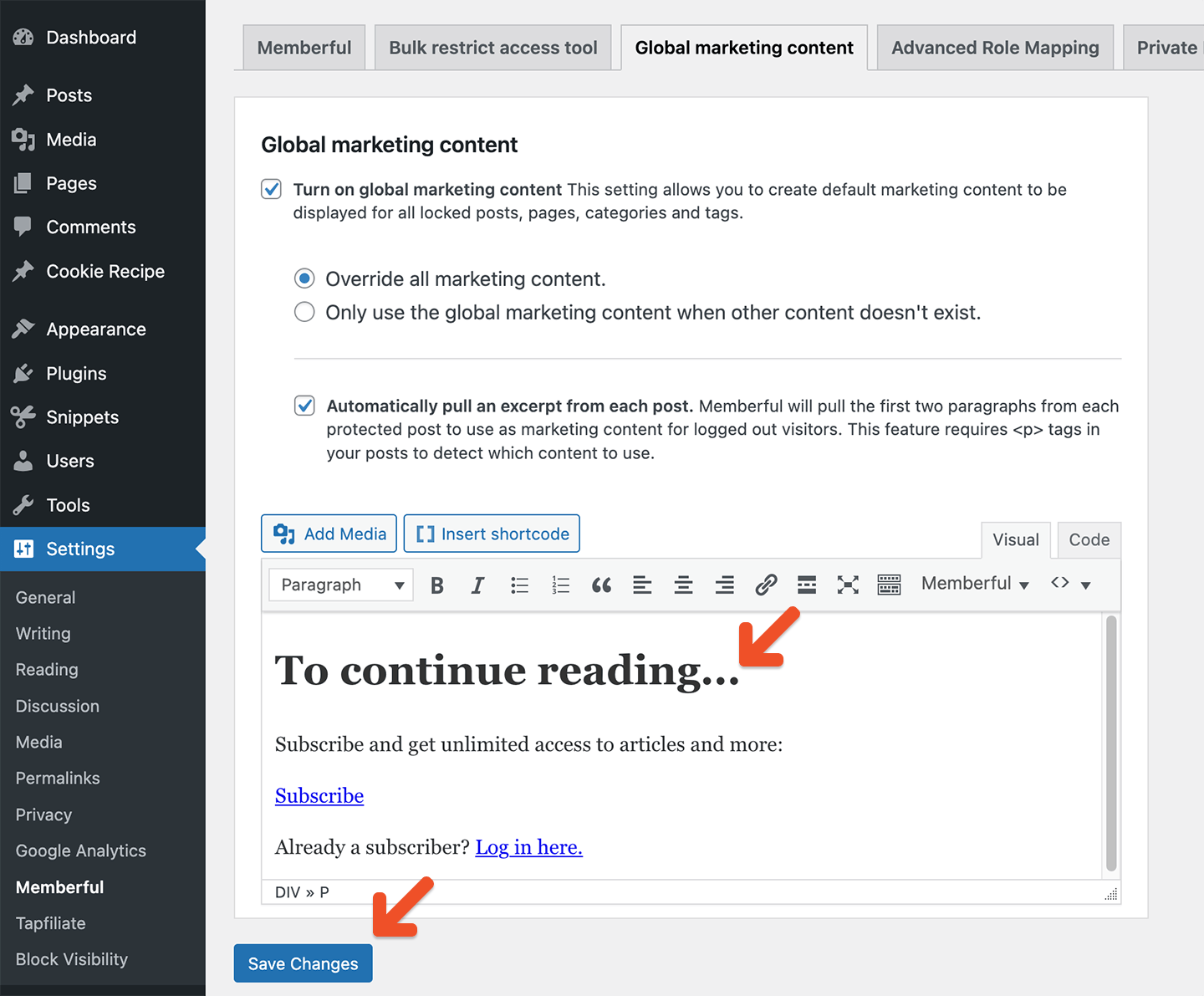 Memberful will pull the first two paragraphs from your protected posts to be displayed before the marketing content for logged out visitors. This feature looks for `
` tags in your posts to detect the first few paragraphs to use as teaser content, so make sure your content is properly formatted in paragraphs.
 ## Add members-only content
Add your members-only text, images, and video embed codes in the editor above the marketing content. Save your page or post.
## Add members-only content
Add your members-only text, images, and video embed codes in the editor above the marketing content. Save your page or post.
 If a member is [logged in to your site](/wordpress-plugin/setup/member-account-links/) and has the correct access, they'll be able to see the protected content on your page or post. If they don't have the right access or are logged out of your site, they'll see the marketing content.
To test the content protection on your site, log out of your WordPress administrator account and your Memberful dashboard, or access the page on a separate browser window. Incognito/private browser modes are not supported and will produce inaccurate results.
If you need to include marketing material in your unprotected (free) content, but want it to be hidden to members who've already paid, [use our shortcodes to manually protect WordPress content.](/wordpress-plugin/protect-content/wordpress-shortcodes)
If a member is [logged in to your site](/wordpress-plugin/setup/member-account-links/) and has the correct access, they'll be able to see the protected content on your page or post. If they don't have the right access or are logged out of your site, they'll see the marketing content.
To test the content protection on your site, log out of your WordPress administrator account and your Memberful dashboard, or access the page on a separate browser window. Incognito/private browser modes are not supported and will produce inaccurate results.
If you need to include marketing material in your unprotected (free) content, but want it to be hidden to members who've already paid, [use our shortcodes to manually protect WordPress content.](/wordpress-plugin/protect-content/wordpress-shortcodes)