Related help docs:
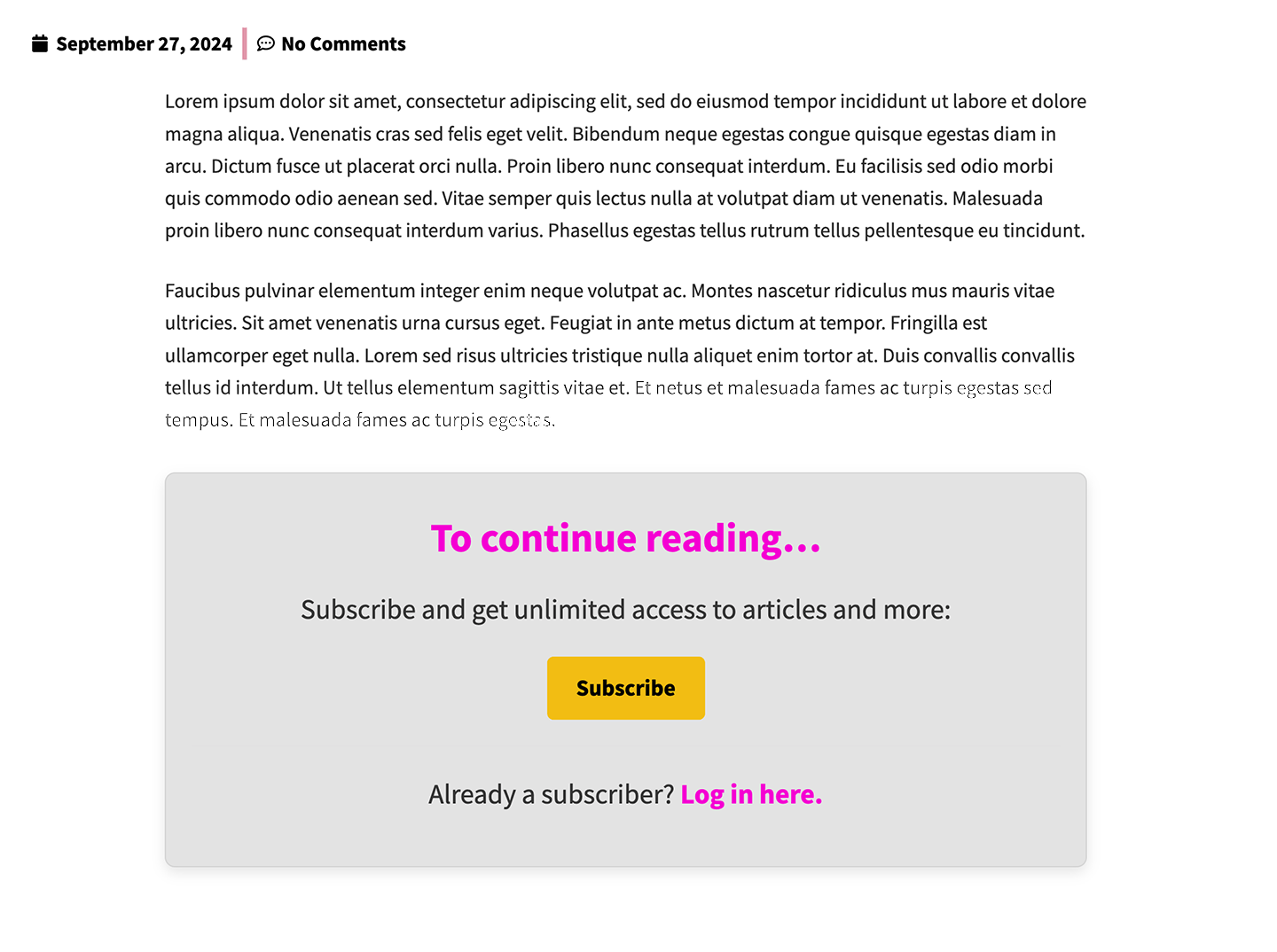 When you protect content like videos and articles with the Memberful WordPress plugin, you have the opportunity to [show marketing content or teaser text](/wordpress-plugin/protect-content/restrict-access-to-a-single-post/#review-your-options-for-adding-marketing-content) to site visitors. The goal of the text should be to prompt visitors to sign up for your membership.
In this article, we provide a paywall call to action template that you can customize and add to your WordPress site.
When you protect content like videos and articles with the Memberful WordPress plugin, you have the opportunity to [show marketing content or teaser text](/wordpress-plugin/protect-content/restrict-access-to-a-single-post/#review-your-options-for-adding-marketing-content) to site visitors. The goal of the text should be to prompt visitors to sign up for your membership.
In this article, we provide a paywall call to action template that you can customize and add to your WordPress site.
Compatibility with various WordPress themes, page builders, or plugins may vary, so it's essential to test it thoroughly on your site.
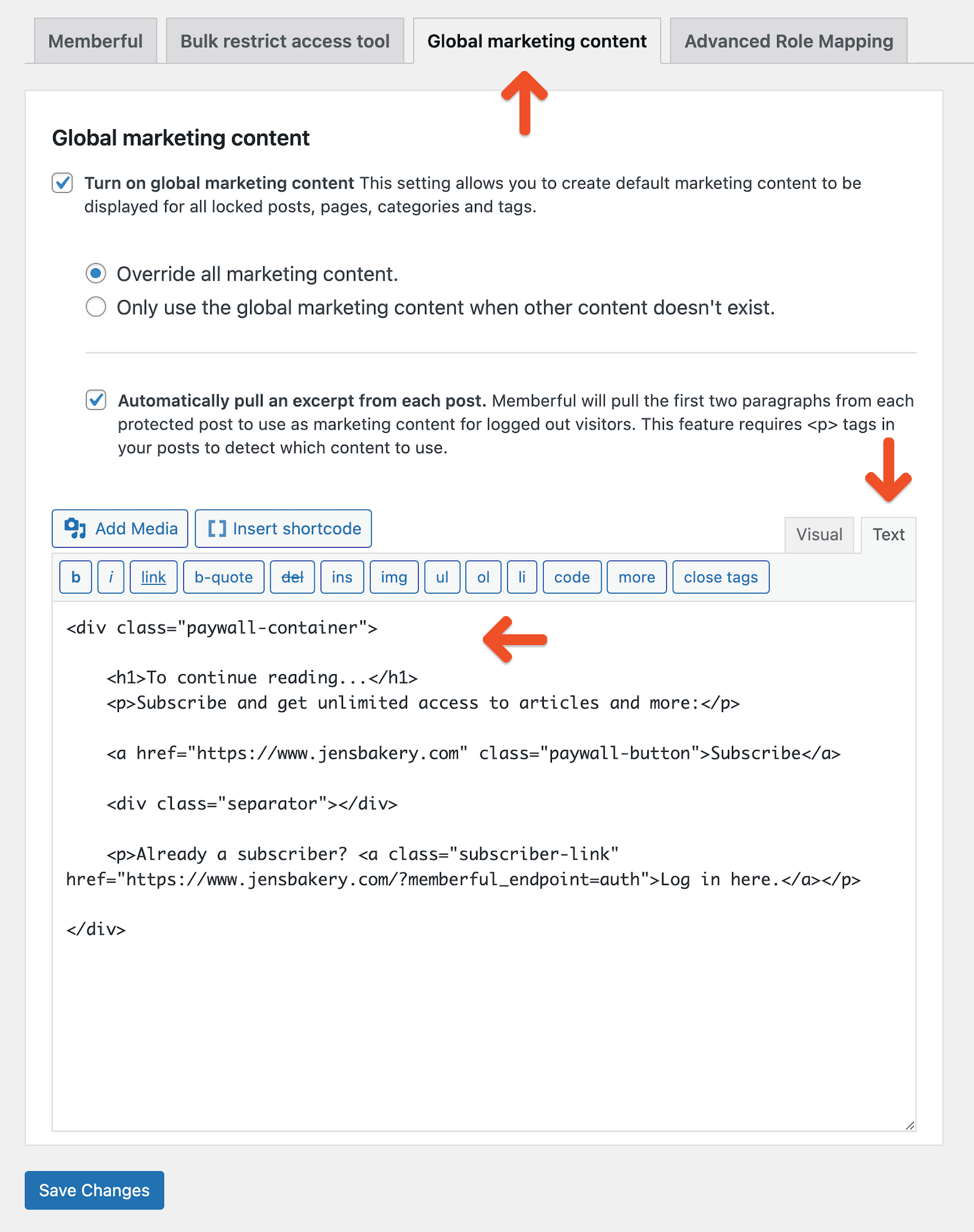 The following HTML code describes the elements that make up your paywall. It will prompt visitors to sign up for your membership and members to sign in.
1. Go to *Settings → Memberful → Global marketing content* in your WordPress dashboard.
2. Add the HTML (below) to the **Text** tab of the marketing content meta box.
3. Replace `WWW.YOURSITE.COM/subscribe` with your membership sales page and `WWW.YOURSITE.COM` with your actual website URL.
4. Click **Save changes.**
```html theme={null}
The following HTML code describes the elements that make up your paywall. It will prompt visitors to sign up for your membership and members to sign in.
1. Go to *Settings → Memberful → Global marketing content* in your WordPress dashboard.
2. Add the HTML (below) to the **Text** tab of the marketing content meta box.
3. Replace `WWW.YOURSITE.COM/subscribe` with your membership sales page and `WWW.YOURSITE.COM` with your actual website URL.
4. Click **Save changes.**
```html theme={null}
Subscribe and get unlimited access to articles and more:
SubscribeAlready a subscriber? Log in here.
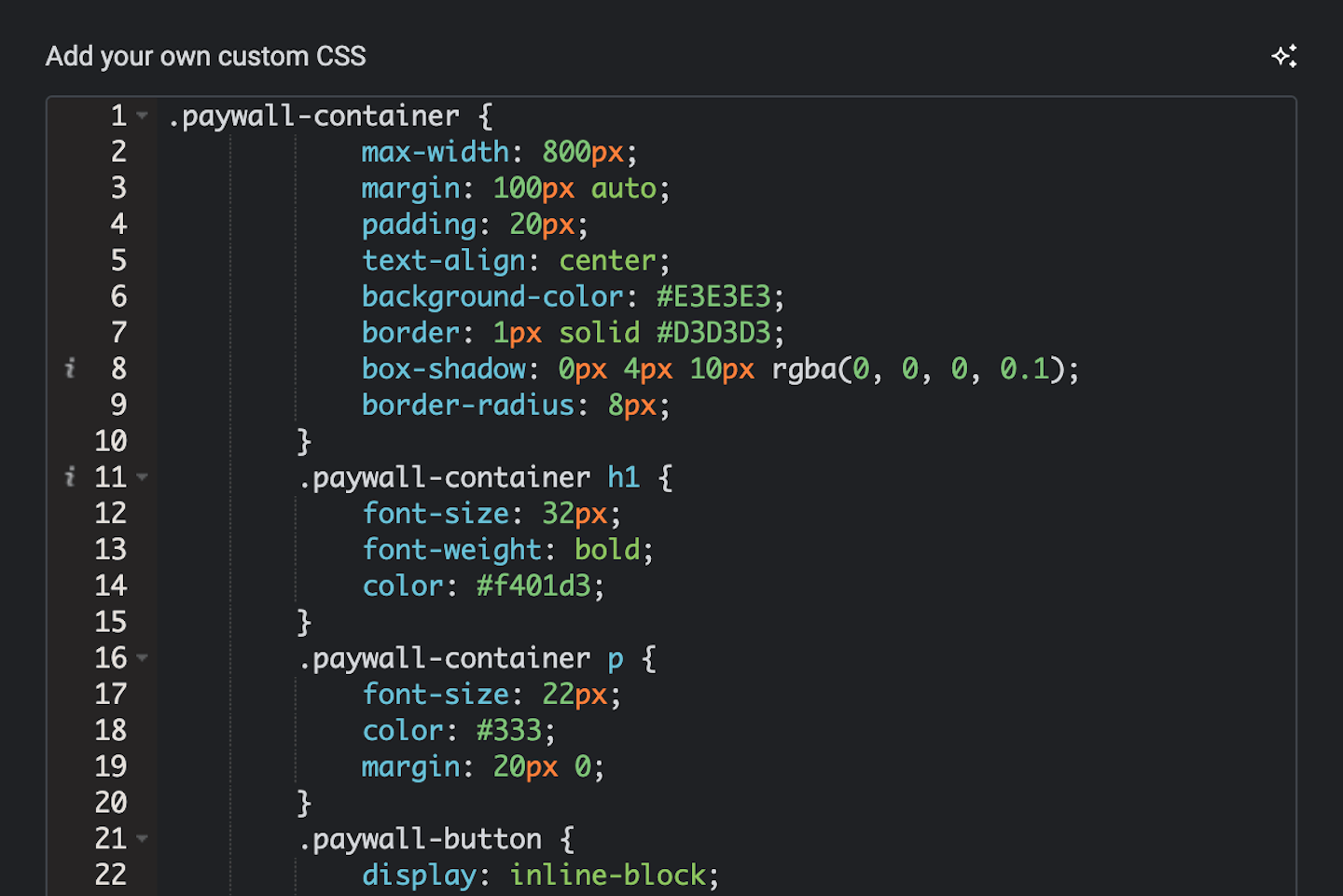 Now we'll add CSS code which describes how your paywall should look. Where you add CSS is different for every site builder.
1. See this article for help with [adding custom CSS to your WordPress site](https://www.wpbeginner.com/plugins/how-to-easily-add-custom-css-to-your-wordpress-site/).
2. Add the CSS (below) to your WordPress site.
3. Edit the hex codes (i.e. colors) to fit with your site design. See [this resource](https://htmlcolorcodes.com/) if you need help finding hex codes that match your brand.
```css theme={null}
.paywall-container {
max-width: 800px;
margin: 100px auto;
padding: 20px;
text-align: center;
background-color: #fff;
border: 1px solid #E1E1E1;
box-shadow: 0px 4px 10px rgba(0, 0, 0, 0.1);
border-radius: 8px;
}
.paywall-container h1 {
font-size: 24px;
font-weight: bold;
color: #000000;
}
.paywall-container p {
font-size: 18px;
color: #000000;
margin: 20px 0;
}
.paywall-button {
display: inline-block;
width: 125px;
height: 50px;
font-size: 18px;
font-weight: bold;
color: #000000;
background-color: #F2BD13;
border: none;
border-radius: 5px;
text-decoration: none;
cursor: pointer;
transition: background-color 0.3s ease;
display: flex;
justify-content: center;
align-items: center;
margin: 0px auto;
}
.paywall-button:hover {
background-color: #000000;
}
.separator {
margin: 30px 0;
border-top: 1px solid #E1E1E1;
}
.subscriber-link {
font-size: 16px;
color: #000000;
text-decoration: underline;
margin: 0;
}
.subscriber-link:hover {
text-decoration: underline;
color: #000000;
}
```
Now we'll add CSS code which describes how your paywall should look. Where you add CSS is different for every site builder.
1. See this article for help with [adding custom CSS to your WordPress site](https://www.wpbeginner.com/plugins/how-to-easily-add-custom-css-to-your-wordpress-site/).
2. Add the CSS (below) to your WordPress site.
3. Edit the hex codes (i.e. colors) to fit with your site design. See [this resource](https://htmlcolorcodes.com/) if you need help finding hex codes that match your brand.
```css theme={null}
.paywall-container {
max-width: 800px;
margin: 100px auto;
padding: 20px;
text-align: center;
background-color: #fff;
border: 1px solid #E1E1E1;
box-shadow: 0px 4px 10px rgba(0, 0, 0, 0.1);
border-radius: 8px;
}
.paywall-container h1 {
font-size: 24px;
font-weight: bold;
color: #000000;
}
.paywall-container p {
font-size: 18px;
color: #000000;
margin: 20px 0;
}
.paywall-button {
display: inline-block;
width: 125px;
height: 50px;
font-size: 18px;
font-weight: bold;
color: #000000;
background-color: #F2BD13;
border: none;
border-radius: 5px;
text-decoration: none;
cursor: pointer;
transition: background-color 0.3s ease;
display: flex;
justify-content: center;
align-items: center;
margin: 0px auto;
}
.paywall-button:hover {
background-color: #000000;
}
.separator {
margin: 30px 0;
border-top: 1px solid #E1E1E1;
}
.subscriber-link {
font-size: 16px;
color: #000000;
text-decoration: underline;
margin: 0;
}
.subscriber-link:hover {
text-decoration: underline;
color: #000000;
}
```