> ## Documentation Index
> Fetch the complete documentation index at: https://memberful.com/docs/llms.txt
> Use this file to discover all available pages before exploring further.
# Integrate with LearnDash
> Integrate Memberful with the LearnDash WordPress plugin to sell access to your courses and let members enroll automatically when they subscribe to a plan.
export const RelatedDocs = ({link1, link2, link3, link4, link5, link6, link7, link8, link9, link10, className = ""}) => {
const links = [link1, link2, link3, link4, link5, link6, link7, link8, link9, link10].filter(Boolean);
if (!links.length) return null;
return ;
};
[LearnDash](https://www.learndash.com/) is a learning management system (LMS) plugin for WordPress that makes it easy to create online courses. Memberful has built-in support for LearnDash.
In this help article, we'll show you how to install and activate LearnDash, how to use the Course Builder feature, and how to protect your course so only members can access it.
## Install and activate LearnDash
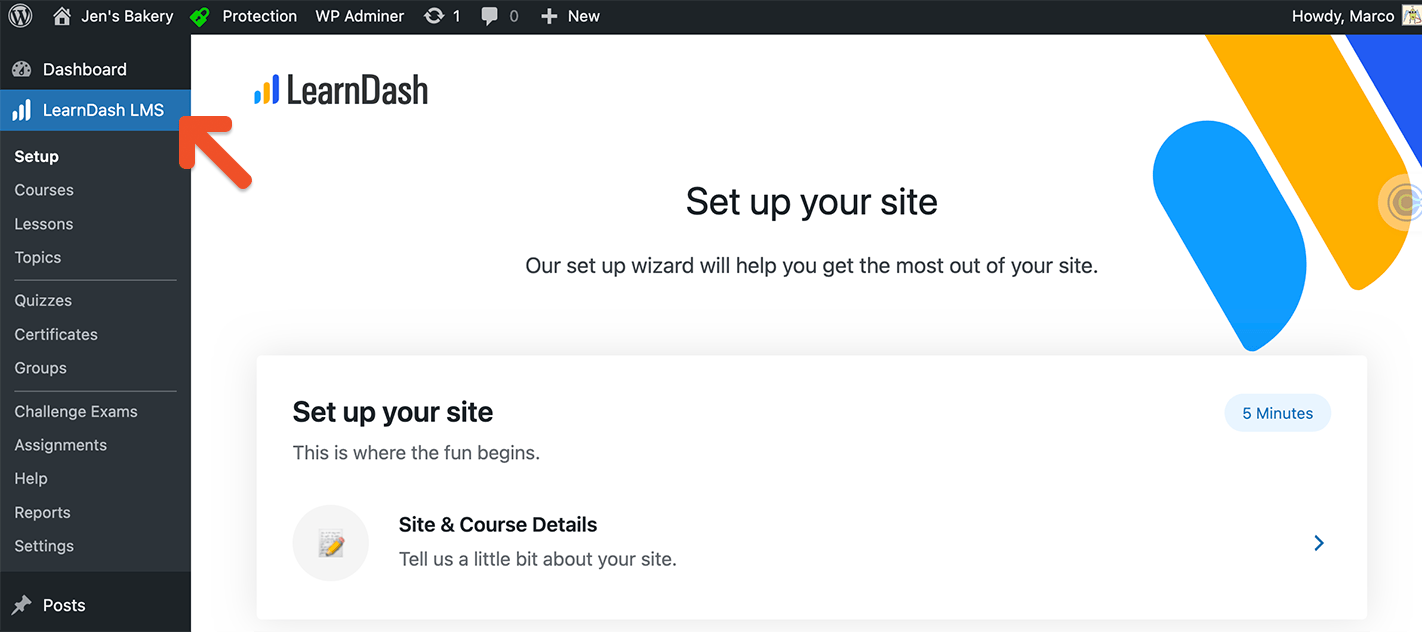
[Install LearnDash and activate your plugin](https://learndash.com/). Once you activate the LearnDash plugin, you'll see a new option appear in the WordPress dashboard. Click **LearnDash LMS** to access the LearnDash menu.
 You will use the **Memberful access restriction settings**, instead of the settings within LearnDash, to restrict access to your course for members only.
## Course structure
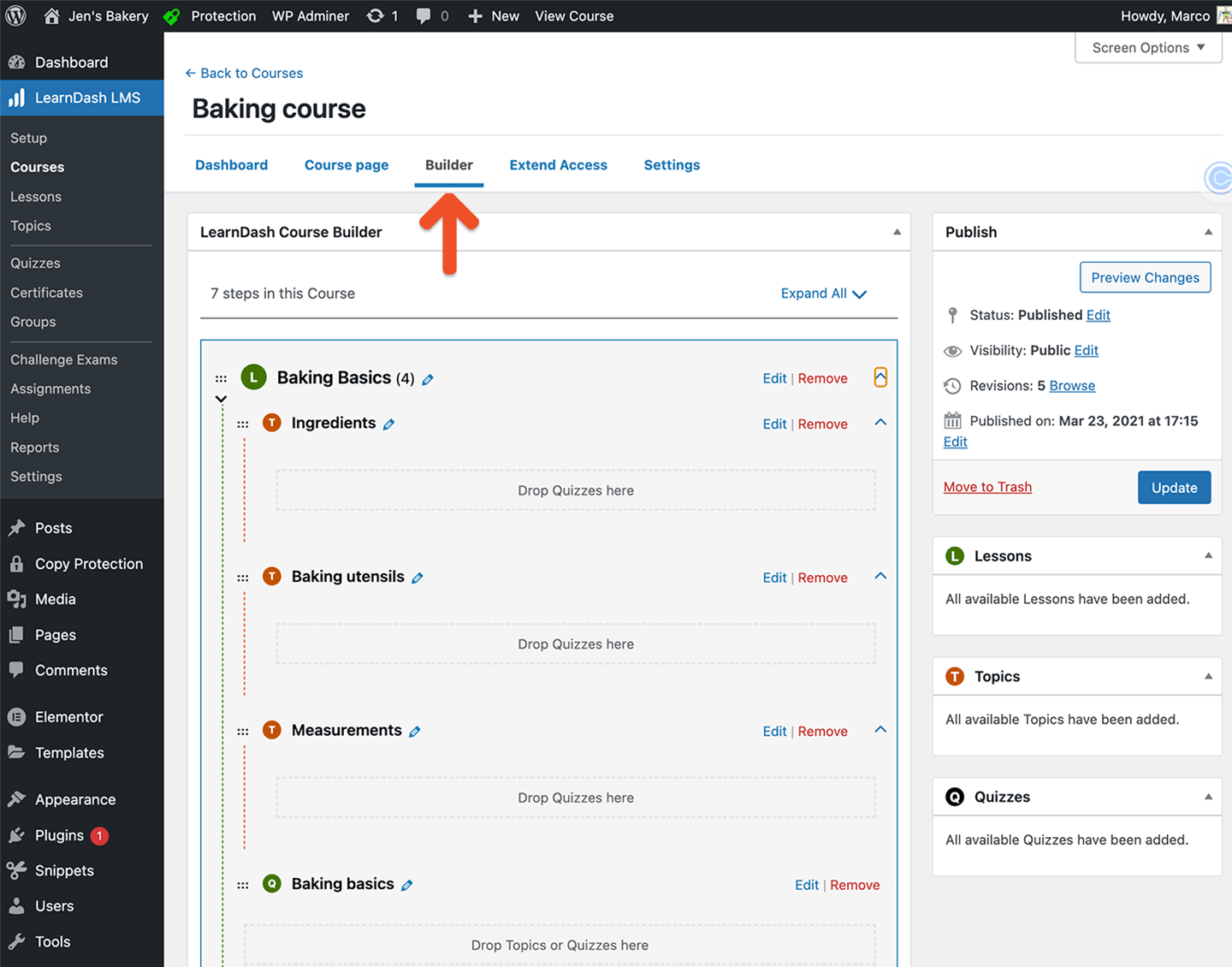
LearnDash courses are made up of **lessons, topics, and quizzes.** Here's an example of a basic course outline:
*Course title: Baking 101*
*Lesson 1: Baking Basics*
* *Topic 1: Ingredients*
* *Topic 2: Baking utensils*
* *Topic 3: Measurements*
* *Quiz: Baking Basics*
## Create a course
1. Under the Courses tab, click **Add New.** Enter a course title and description, and set the Access Mode to **Open** via the [Settings tab.](https://www.learndash.com/support/docs/core/courses/course-access/)
Drip-feed requires the student to have enrolled into the course, but *Open* courses skip over enrollment. If you're planning to use the drip-feed functionality in LearnDash, your course should be set to *Free*, not *Open*. Your members will have to go through the additional step of enrolling in the course.
2. Go to the Builder tab and build your course outline (e.g. lessons, topics, and quizzes).
You will use the **Memberful access restriction settings**, instead of the settings within LearnDash, to restrict access to your course for members only.
## Course structure
LearnDash courses are made up of **lessons, topics, and quizzes.** Here's an example of a basic course outline:
*Course title: Baking 101*
*Lesson 1: Baking Basics*
* *Topic 1: Ingredients*
* *Topic 2: Baking utensils*
* *Topic 3: Measurements*
* *Quiz: Baking Basics*
## Create a course
1. Under the Courses tab, click **Add New.** Enter a course title and description, and set the Access Mode to **Open** via the [Settings tab.](https://www.learndash.com/support/docs/core/courses/course-access/)
Drip-feed requires the student to have enrolled into the course, but *Open* courses skip over enrollment. If you're planning to use the drip-feed functionality in LearnDash, your course should be set to *Free*, not *Open*. Your members will have to go through the additional step of enrolling in the course.
2. Go to the Builder tab and build your course outline (e.g. lessons, topics, and quizzes).
 ### Add lesson content
1. From the LearnDash menu, go to *Lessons* and select a **lesson.**
2. Add some introductory information about the lesson in the WordPress editor. You can also use LearnDash shortcodes to add additional information to any course, lesson, or quiz.
### Add topic content
1. From the LearnDash menu, go to *Topics* and select a **topic.**
2. Add your text, media, and / or video embed code in the WordPress text editor.
### Add quiz questions
1. From the LearnDash menu, go to *Quizzes* and select a **quiz.**
2. Configure the quiz settings and enter your quiz questions.
## Protect your course for members only
Now that your course is built, you need to restrict access for members only.
1. Go to your course from the LearnDash menu and scroll to the bottom of the page to access the **Memberful: Restrict Access** meta box.
2. Select [a plan or plans](/plans/individual-plans/create-a-plan/) to [define which members can access the course.](/wordpress-plugin/protect-content/restrict-access-to-a-single-post/)
### Add lesson content
1. From the LearnDash menu, go to *Lessons* and select a **lesson.**
2. Add some introductory information about the lesson in the WordPress editor. You can also use LearnDash shortcodes to add additional information to any course, lesson, or quiz.
### Add topic content
1. From the LearnDash menu, go to *Topics* and select a **topic.**
2. Add your text, media, and / or video embed code in the WordPress text editor.
### Add quiz questions
1. From the LearnDash menu, go to *Quizzes* and select a **quiz.**
2. Configure the quiz settings and enter your quiz questions.
## Protect your course for members only
Now that your course is built, you need to restrict access for members only.
1. Go to your course from the LearnDash menu and scroll to the bottom of the page to access the **Memberful: Restrict Access** meta box.
2. Select [a plan or plans](/plans/individual-plans/create-a-plan/) to [define which members can access the course.](/wordpress-plugin/protect-content/restrict-access-to-a-single-post/)
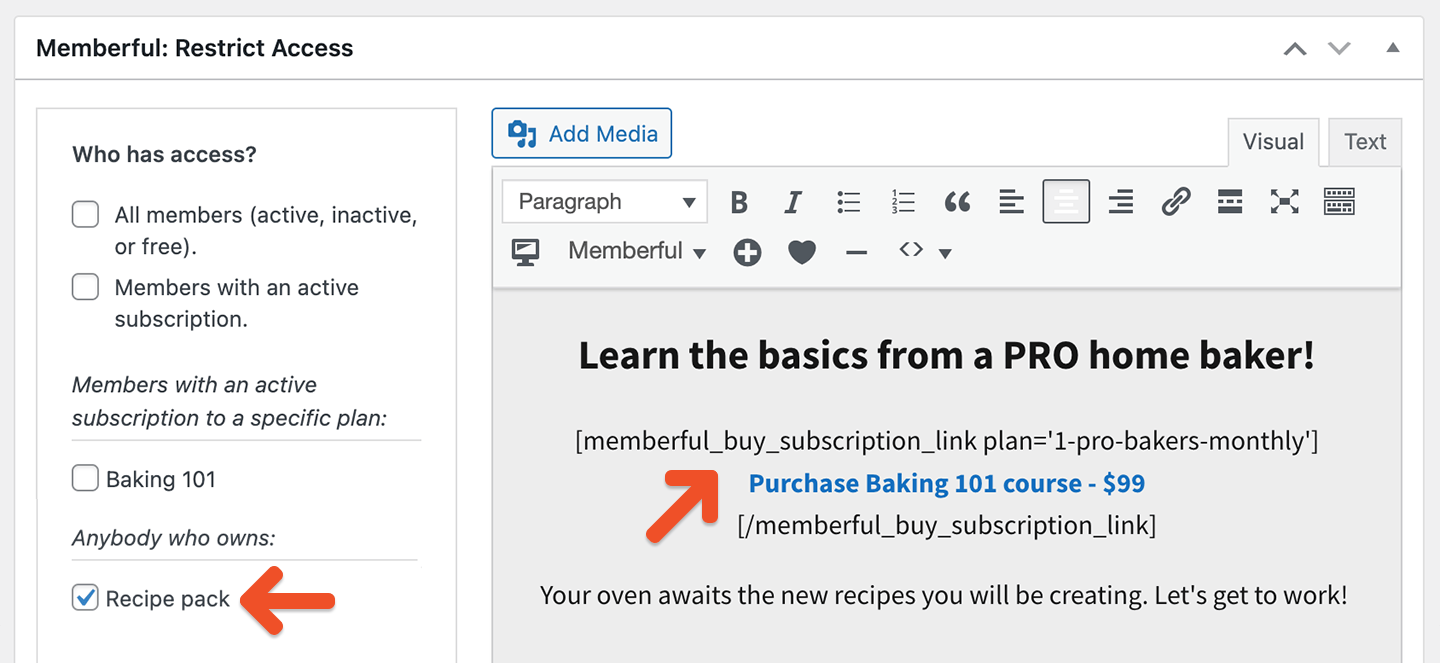 The content to the right of the *Who has access?* settings is shown to anyone without access. This is where you should add your [purchase link](/plans/promote-and-sell/add-a-link-to-buy-a-plan/) and marketing content.
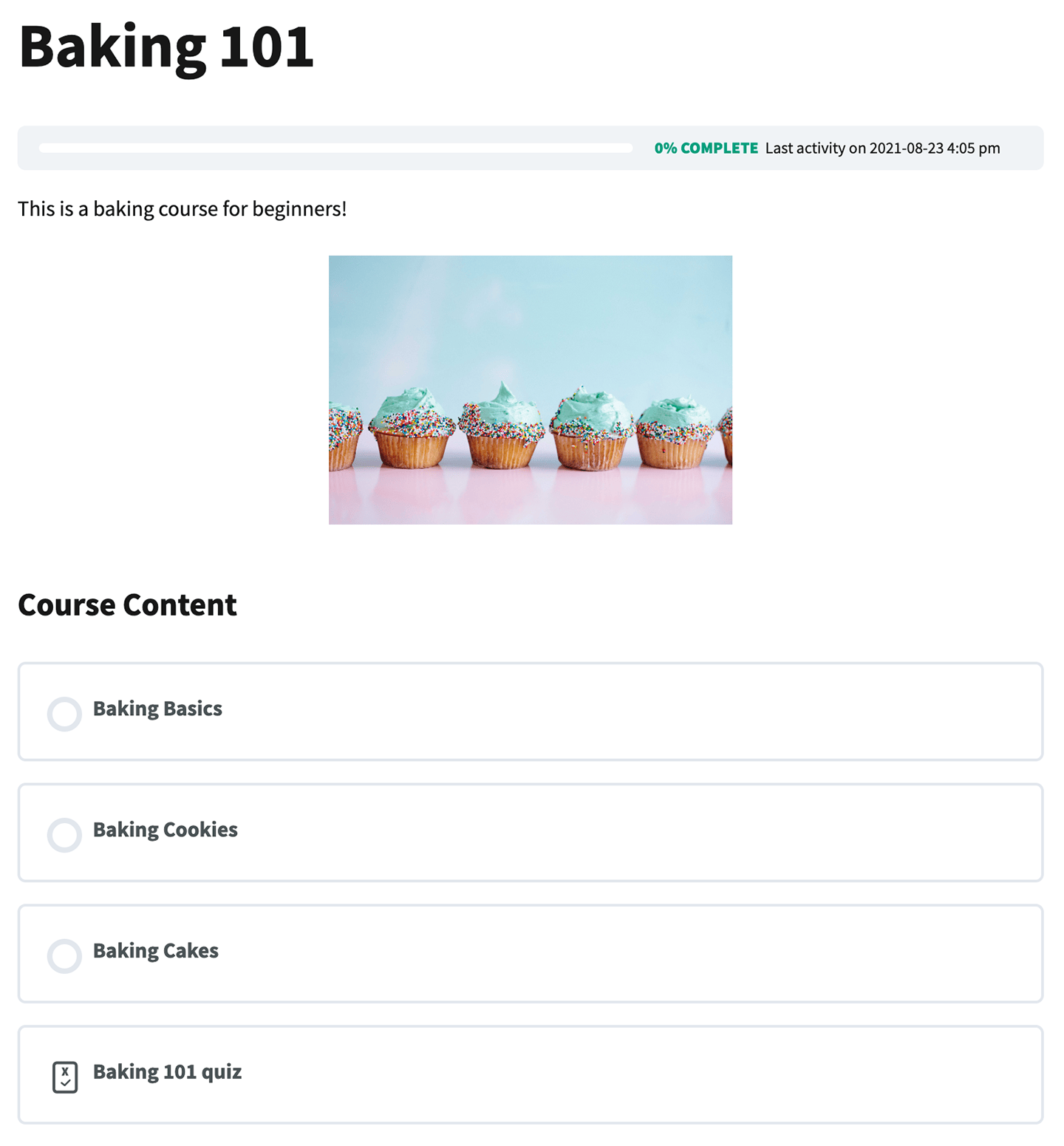
Here's what members of our example course will see once they purchase a plan to access our course:
The content to the right of the *Who has access?* settings is shown to anyone without access. This is where you should add your [purchase link](/plans/promote-and-sell/add-a-link-to-buy-a-plan/) and marketing content.
Here's what members of our example course will see once they purchase a plan to access our course: