Related help docs:
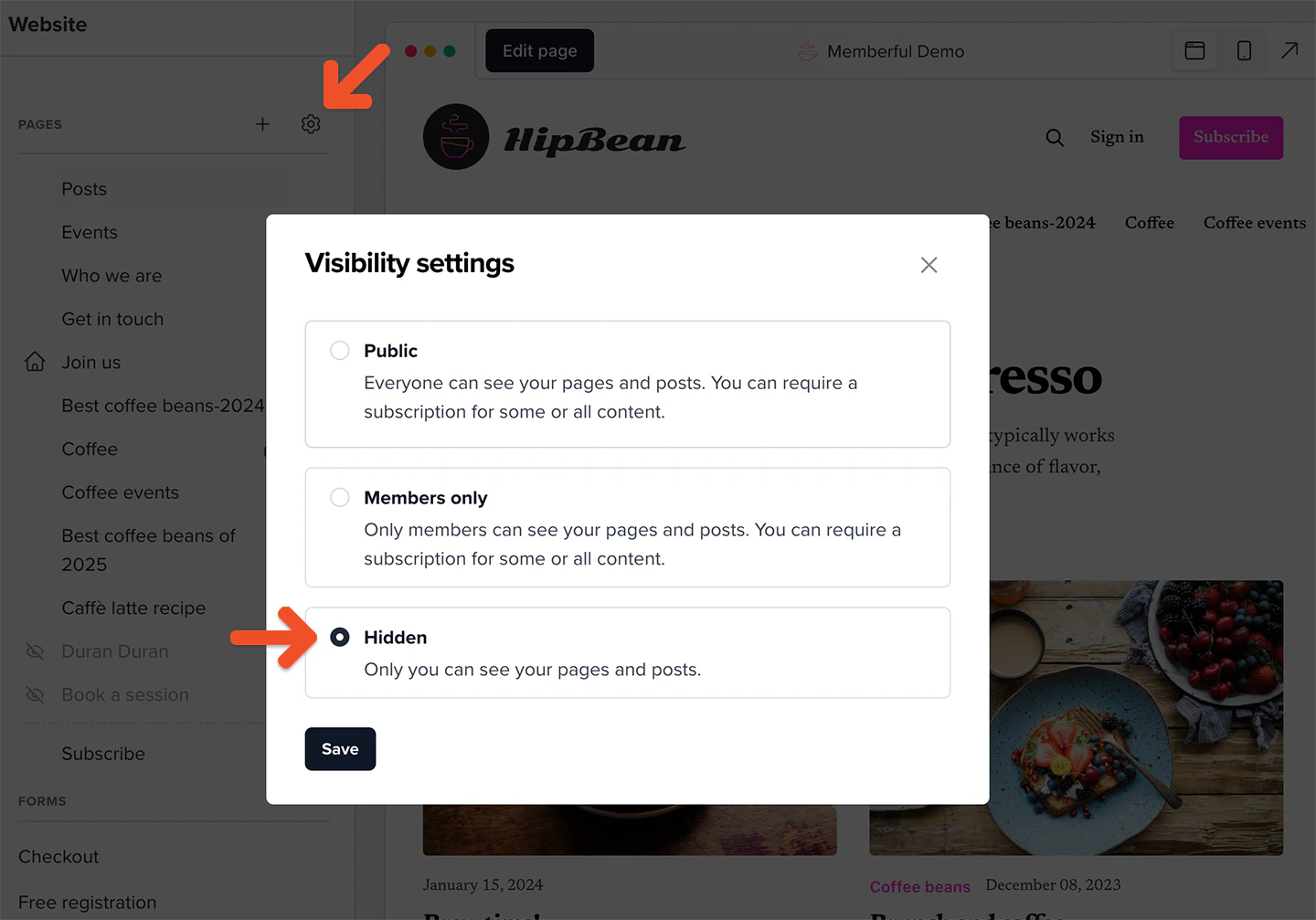 To enable the website again, go to the **Website** tab, click the **gear** icon, and select either **Public** or **Members-only**.
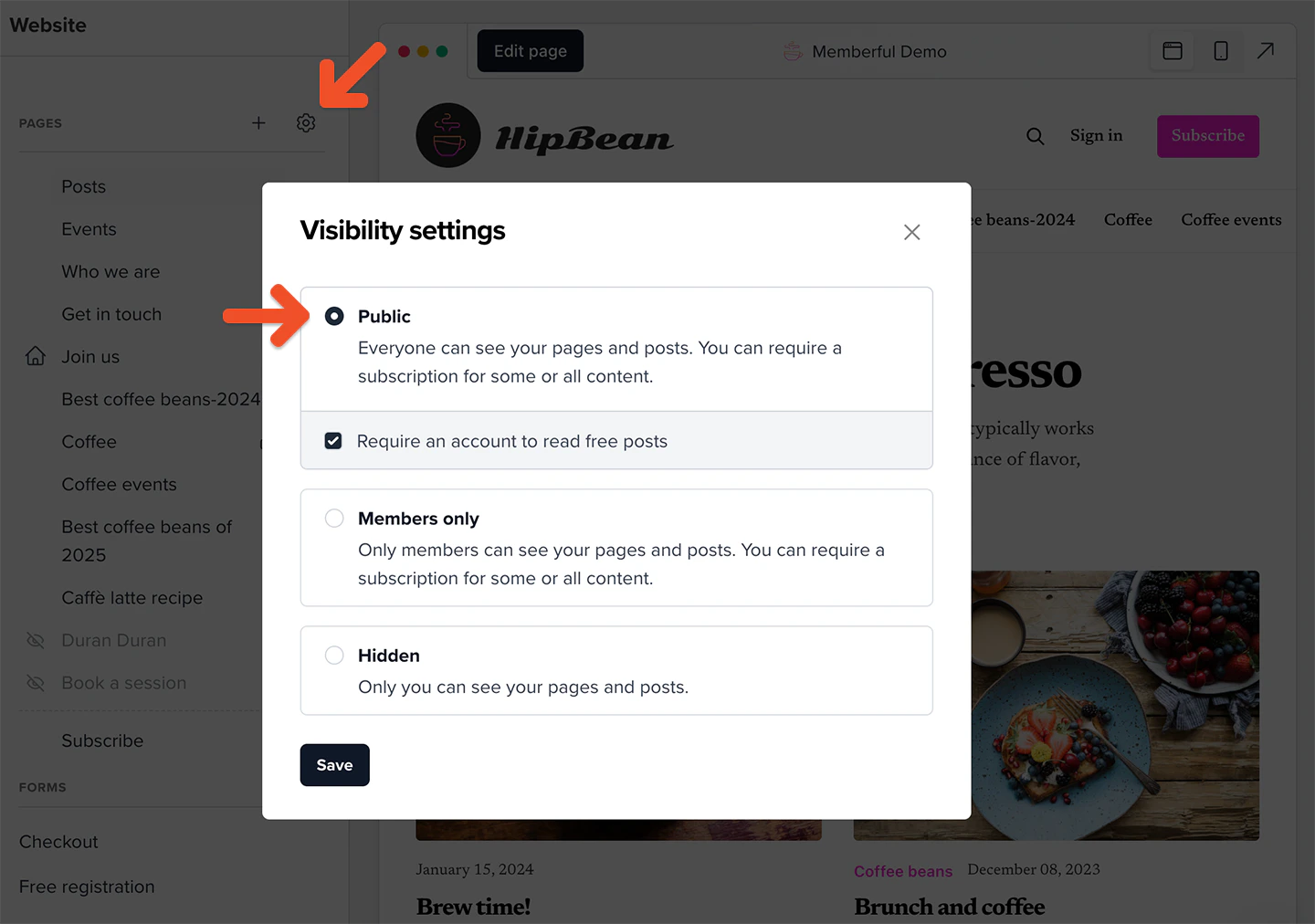 ## Make your pages and posts public or members-only
You can choose to make your website publicly available to everyone (while keeping certain protected content behind a paywall), or you can choose to make your entire site members-only, so only active members can access it.
To set the visibility of your website, go to the **Website** tab, click the **gear** icon, and select either **Public** or **Members-only**.
## Make your pages and posts public or members-only
You can choose to make your website publicly available to everyone (while keeping certain protected content behind a paywall), or you can choose to make your entire site members-only, so only active members can access it.
To set the visibility of your website, go to the **Website** tab, click the **gear** icon, and select either **Public** or **Members-only**.
 ### Public pages and posts
If you set your pages and posts as public, visitors will see pages and posts that have not been restricted to free or paid members.
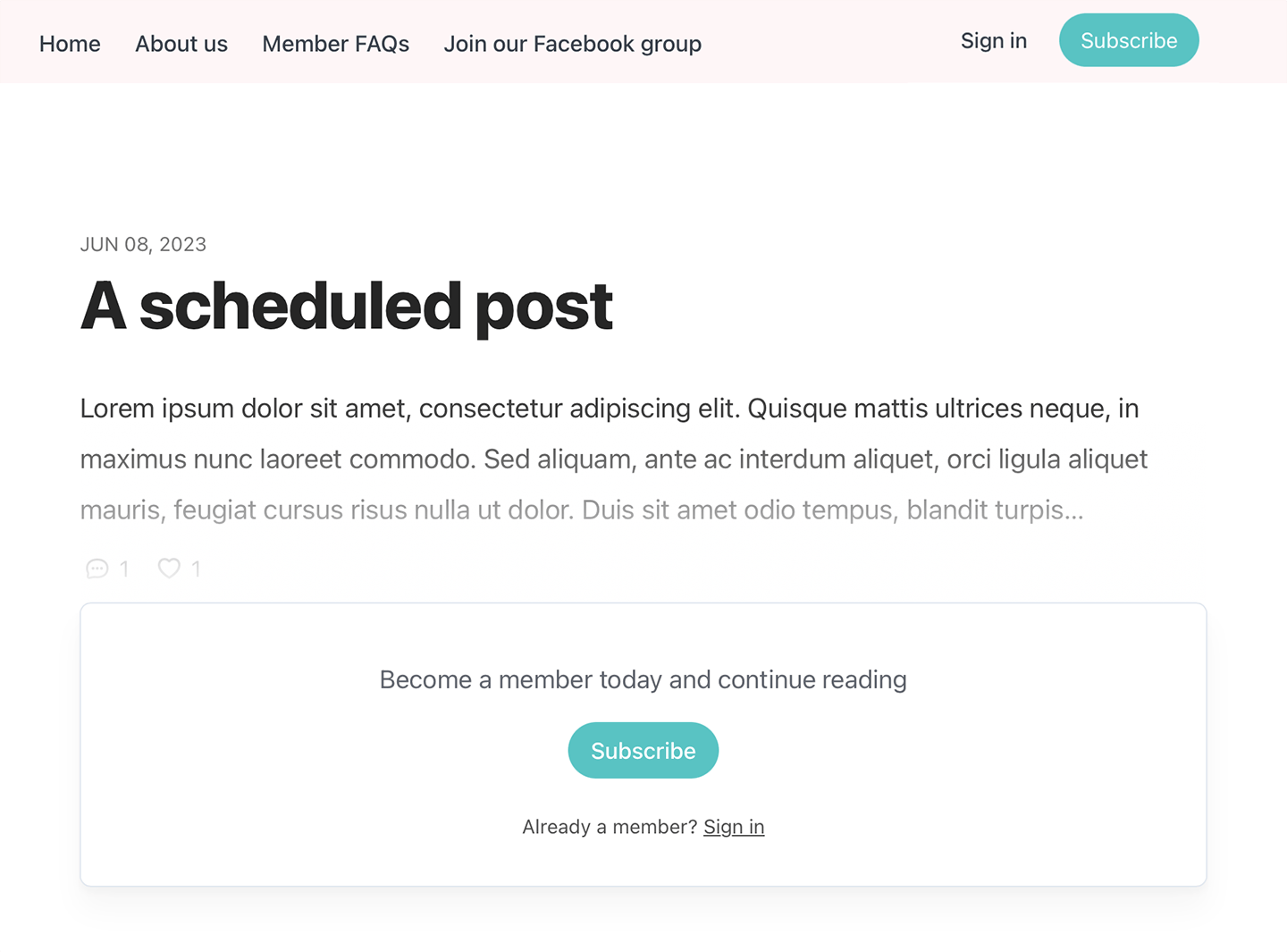
If a page or post has been restricted to members only, visitors who aren't members will only see a preview of that page or post.
This preview is often referred to as "teaser text." Teaser text lets visitors see a portion of a restricted page or post, while the rest of it is protected for members only. It's great for enticing visitors to become members.
### Public pages and posts
If you set your pages and posts as public, visitors will see pages and posts that have not been restricted to free or paid members.
If a page or post has been restricted to members only, visitors who aren't members will only see a preview of that page or post.
This preview is often referred to as "teaser text." Teaser text lets visitors see a portion of a restricted page or post, while the rest of it is protected for members only. It's great for enticing visitors to become members.
 You can also require visitors to create a free member account to read free posts.
Search engines are able to index all *public* Memberful websites. This means that search engines like Google will be able to see any public pages and posts on your website, although any restricted members-only content blocks inside those pages will not be available to search engines.
### Members-only site
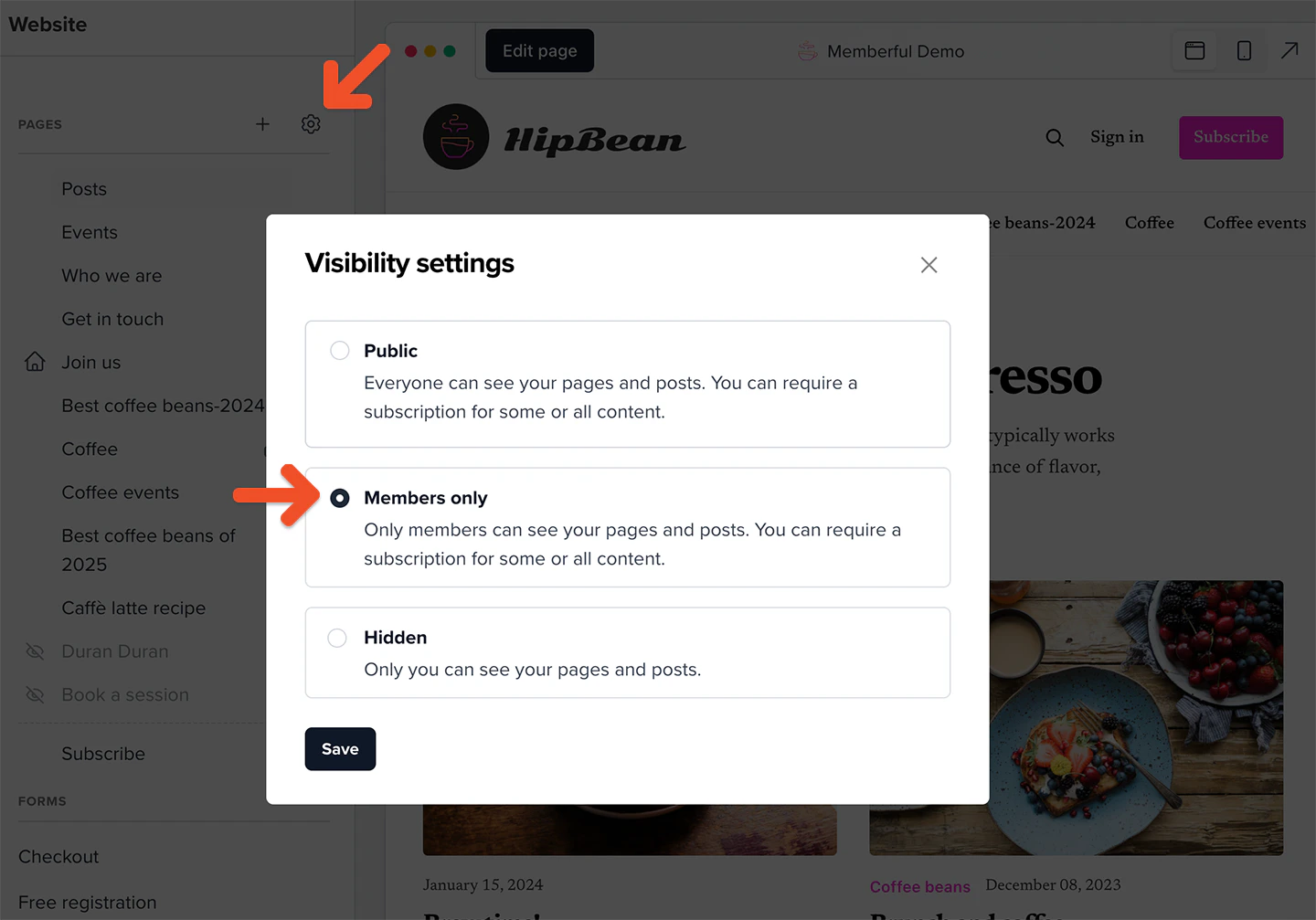
If you set your site as members-only, only active members will be able to see posts and pages. If a visitor or inactive member lands on a protected page or post, they'll be prompted to sign in to the site.
You can also require visitors to create a free member account to read free posts.
Search engines are able to index all *public* Memberful websites. This means that search engines like Google will be able to see any public pages and posts on your website, although any restricted members-only content blocks inside those pages will not be available to search engines.
### Members-only site
If you set your site as members-only, only active members will be able to see posts and pages. If a visitor or inactive member lands on a protected page or post, they'll be prompted to sign in to the site.
 Keep in mind that posts, pages, and content blocks can always be restricted to specific plans. Visitors and members on other plans will see a locked version. [Restrict content for specific plans.](/website-builder/pages/create-a-page#select-who-can-see-a-content-block)
## Choose your website name and account URL
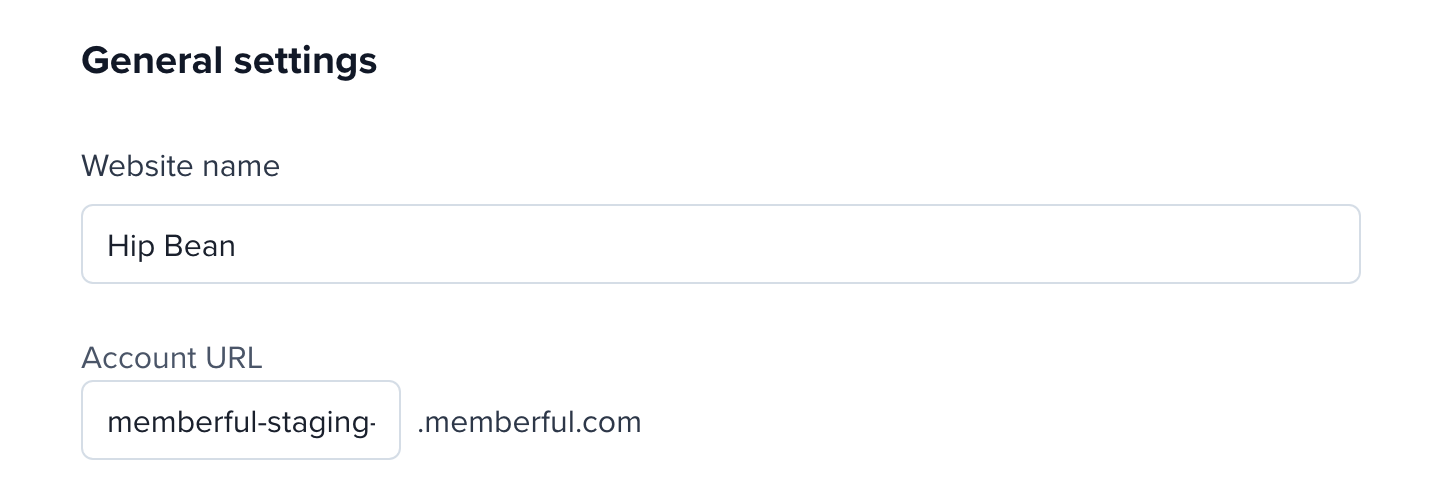
To configure your website's name and account URL, go to *Website → General settings → General settings* from your Memberful dashboard. Learn more about the implications of changing your [website name and account URL](/account-management/account-settings/update-your-site-and-account-settings/).
Keep in mind that posts, pages, and content blocks can always be restricted to specific plans. Visitors and members on other plans will see a locked version. [Restrict content for specific plans.](/website-builder/pages/create-a-page#select-who-can-see-a-content-block)
## Choose your website name and account URL
To configure your website's name and account URL, go to *Website → General settings → General settings* from your Memberful dashboard. Learn more about the implications of changing your [website name and account URL](/account-management/account-settings/update-your-site-and-account-settings/).
 ## Customize your subscribe page
You can [create a customized subscribe page](/website-builder/pages/subscribe-page/) hosted by Memberful, which will showcase your membership plans.
Go to the **Website** tab and click the **gear** icon next to *Subscribe*, then toggle on **Enable your subscribe page** to enable this page.
## Customize your subscribe page
You can [create a customized subscribe page](/website-builder/pages/subscribe-page/) hosted by Memberful, which will showcase your membership plans.
Go to the **Website** tab and click the **gear** icon next to *Subscribe*, then toggle on **Enable your subscribe page** to enable this page.
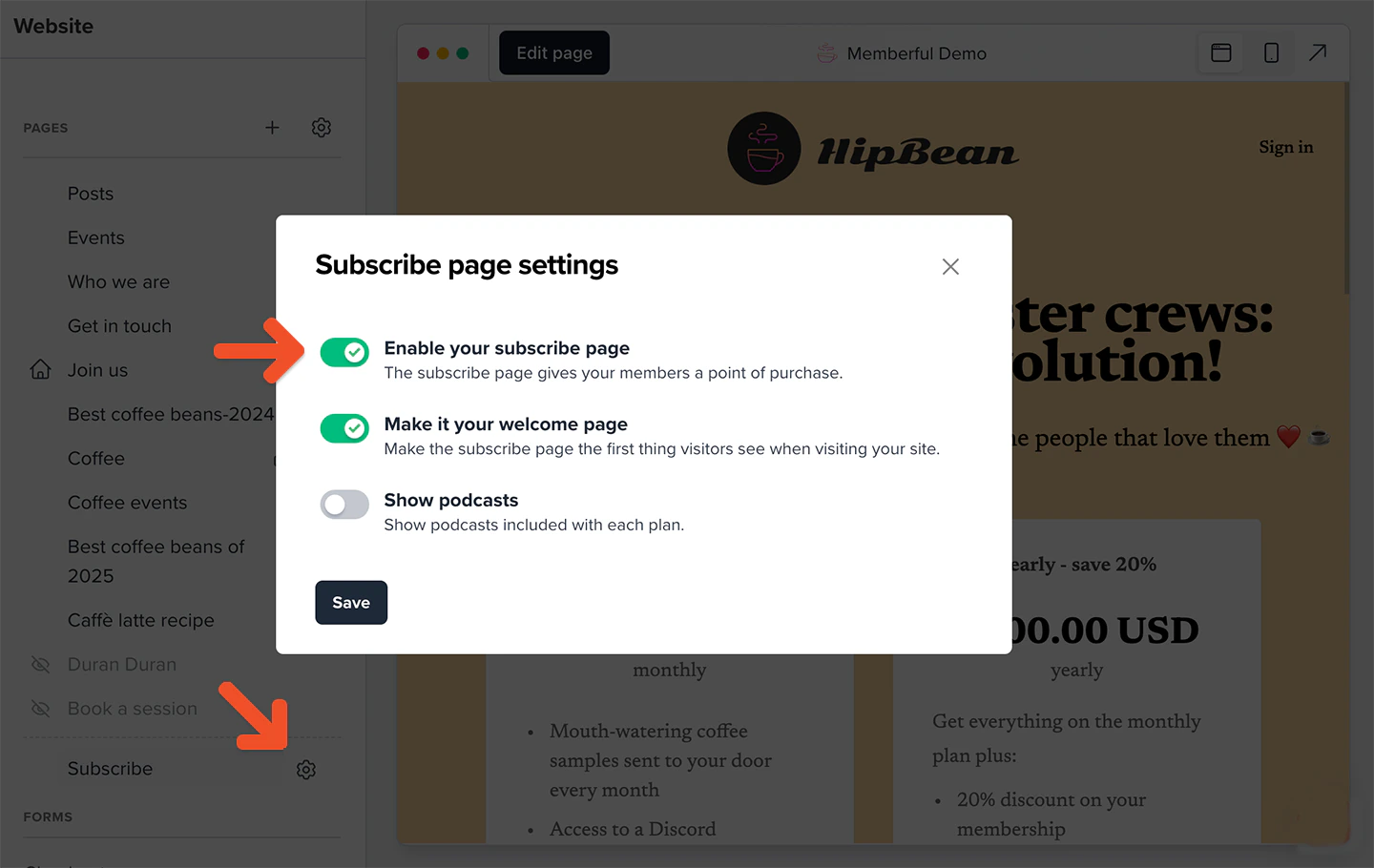 You can also enable **Make it your welcome page** to use your subscribe page as the first page that new visitors see when they access your website.
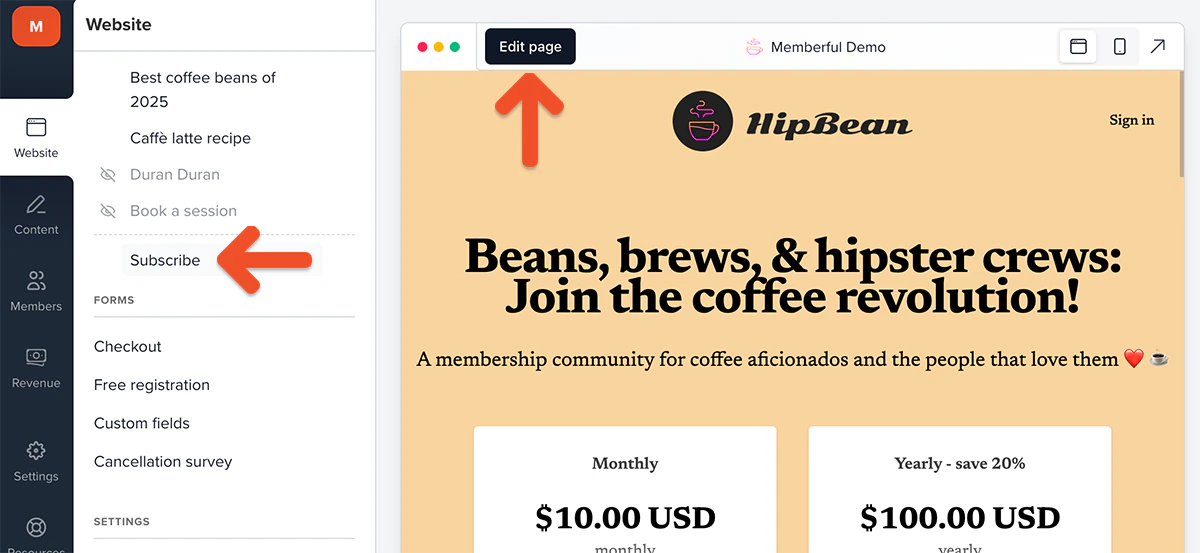
To edit your subscribe page, go to *Website → Subscribe* and click the **Edit page** button.
You can also enable **Make it your welcome page** to use your subscribe page as the first page that new visitors see when they access your website.
To edit your subscribe page, go to *Website → Subscribe* and click the **Edit page** button.
 ## Display terms of service and privacy policy
You can link to your terms of service and privacy policy pages in your Memberful website. Learn more about [how Memberful displays your terms of service and privacy policy](/configuration/feedback-and-policies/display-tos-and-privacy-policy/).
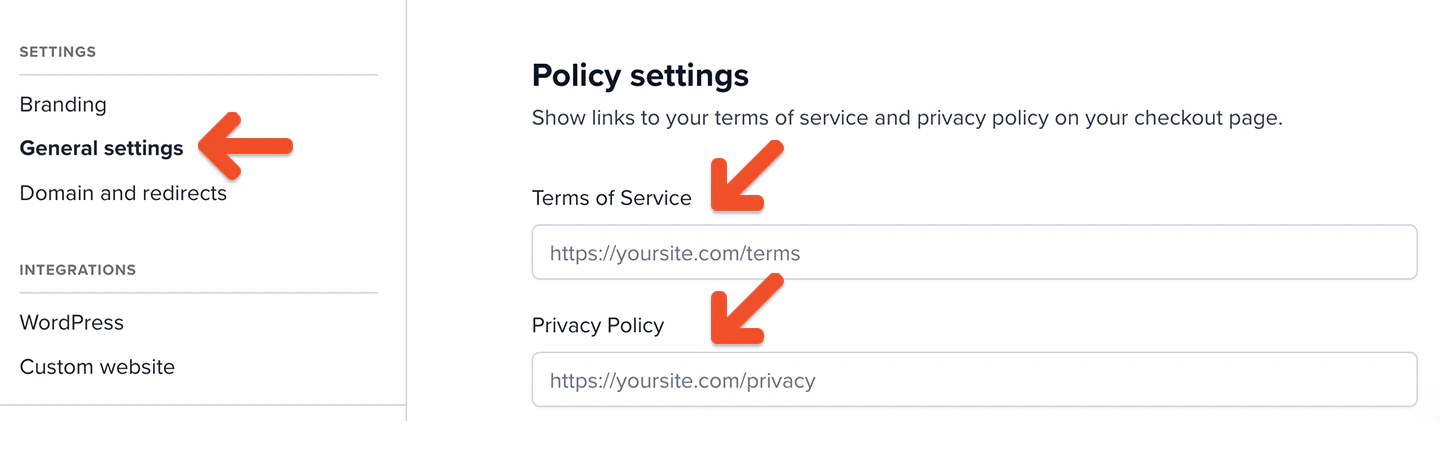
To configure your terms of service and privacy policy, go to *Website → General settings → Policy settings* from your Memberful dashboard.
## Display terms of service and privacy policy
You can link to your terms of service and privacy policy pages in your Memberful website. Learn more about [how Memberful displays your terms of service and privacy policy](/configuration/feedback-and-policies/display-tos-and-privacy-policy/).
To configure your terms of service and privacy policy, go to *Website → General settings → Policy settings* from your Memberful dashboard.
 ## Add social media links
Go to *Website → General settings → Social profiles* to add social media links to your site. This is an optional setting, but recommended since it's an easy way to get your site visitors to follow, like, and share your content.
## Add social media links
Go to *Website → General settings → Social profiles* to add social media links to your site. This is an optional setting, but recommended since it's an easy way to get your site visitors to follow, like, and share your content.
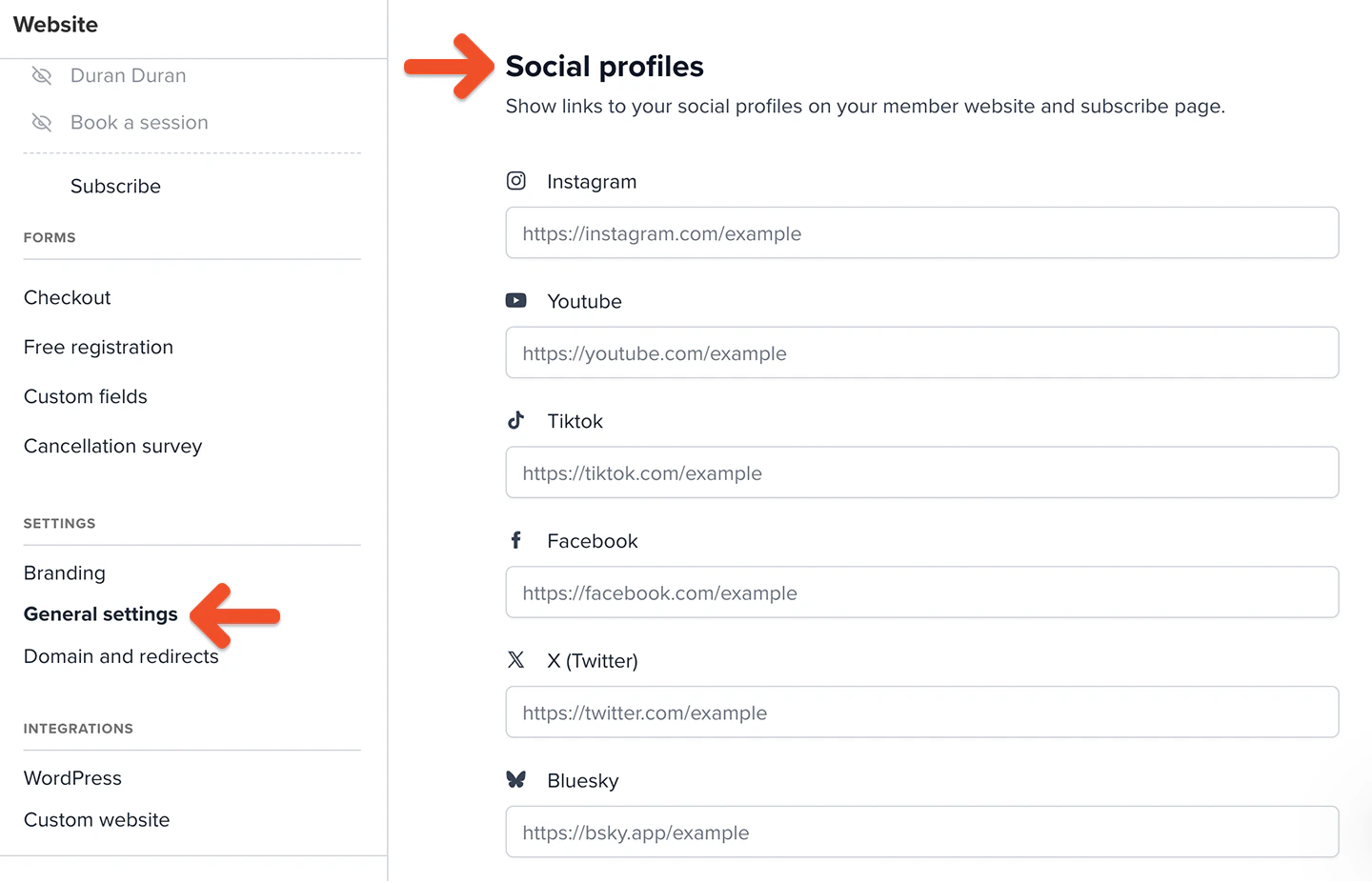 They will be displayed at the bottom of your member website's pages.
