> ## Documentation Index
> Fetch the complete documentation index at: https://memberful.com/docs/llms.txt
> Use this file to discover all available pages before exploring further.

# Manage post comments and likes

> Enable comments and likes on Memberful posts to build community. Manage moderation, allow replies, and let members react to the content you publish.

export const RelatedDocs = ({link1, link2, link3, link4, link5, link6, link7, link8, link9, link10, className = ""}) => {
  const links = [link1, link2, link3, link4, link5, link6, link7, link8, link9, link10].filter(Boolean);
  if (!links.length) return null;
  return <section className={`related-docs border dark:border-gray-700 rounded-2xl px-6 py-4 mt-6 ${className}`}>
      <p className="mb-2 font-medium">
        <strong>Related help docs:</strong>
      </p>
      <ul className="space-y-1 mb-1 mt-1">
        {links.map((link, index) => <li key={index}>
            <a href={link.url}>{link.label}</a>
          </li>)}
      </ul>
    </section>;
};

Comments and likes on Memberful posts give members a way to engage with your content and with each other. You control which posts allow comments, how members are notified, and how the comments section is moderated.

In this help article, we'll explore how to enable or disable comments, how members can see and publish comments, how members can get notified of future comments, and how you can moderate your comments section.

<Frame>
  <img src="https://mintcdn.com/memberful/smhj9OV438rrDb0l/images/hosted-member-website/manage-post-comments-and-likes/comments-and-likes-section.png?fit=max&auto=format&n=smhj9OV438rrDb0l&q=85&s=928955d2b2c05981bb1ad7a65c7f6cc8" alt="Comments & likes section" width="1440" height="987" data-path="images/hosted-member-website/manage-post-comments-and-likes/comments-and-likes-section.png" />
</Frame>

## Enable comments and likes on all posts

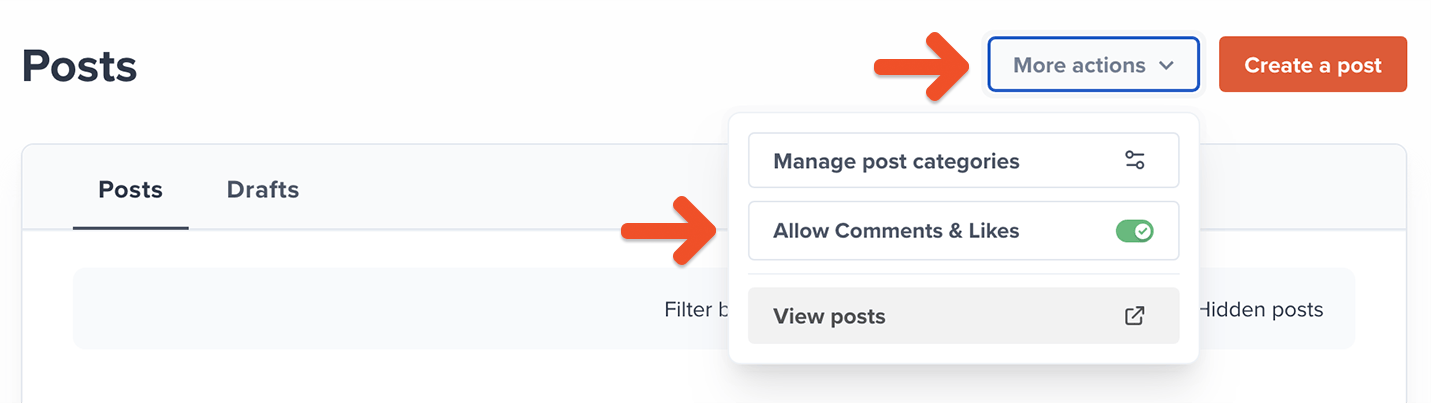
Comments and likes are enabled by default on all new posts. You can also enable or hide comments and likes on all existing and future posts at once by going to *Content → Posts → More actions* and toggling **Allow Comments & Likes**.
<Frame>
  <img src="https://mintcdn.com/memberful/smhj9OV438rrDb0l/images/hosted-member-website/manage-post-comments-and-likes/allow-comments-and-likes-for-all-posts.png?fit=max&auto=format&n=smhj9OV438rrDb0l&q=85&s=b289d7fe8b2bd17809c376ad3909b1c7" alt="Allow comments & likes for all posts" width="1440" height="403" data-path="images/hosted-member-website/manage-post-comments-and-likes/allow-comments-and-likes-for-all-posts.png" />
</Frame>

## Enable comments and likes on an individual post

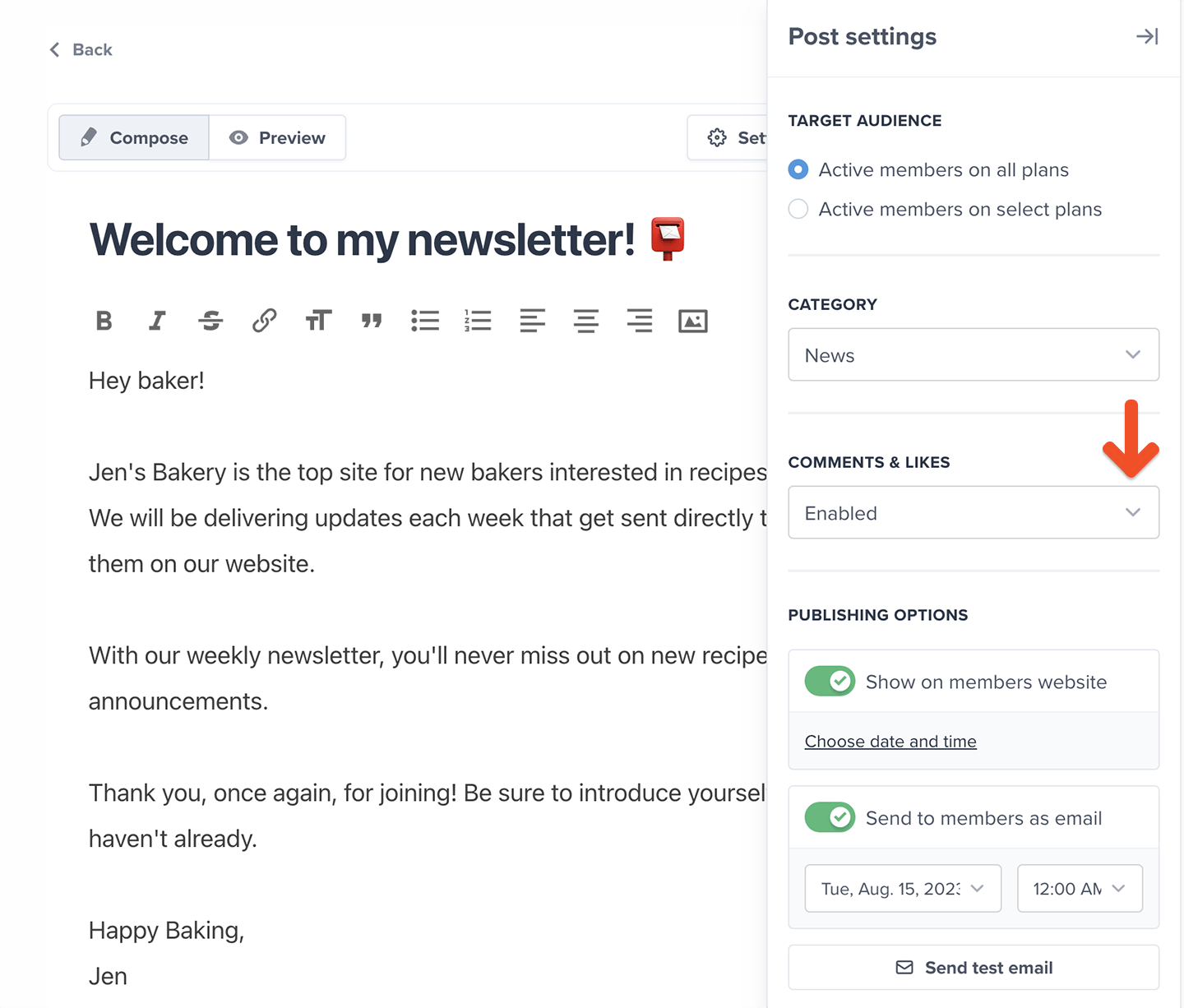
To enable or hide comments and likes on an individual post, go to the post, click **Settings**, then use the **Comments & likes** dropdown menu to make them *Enabled, Hidden or Locked (read-only)*.
<Frame>
  <img src="https://mintcdn.com/memberful/E280piP4Hg_k1L_m/images/hosted-member-website/manage-post-comments-and-likes/enable-or-hide-comments-and-likes-on-an-individual-post.png?fit=max&auto=format&n=E280piP4Hg_k1L_m&q=85&s=1d13c535e2a1092566da9aaeea4d3e62" alt="Enable or hide comments & likes on an individual post" width="1440" height="1226" data-path="images/hosted-member-website/manage-post-comments-and-likes/enable-or-hide-comments-and-likes-on-an-individual-post.png" />
</Frame>

## Prevent future comments by locking them

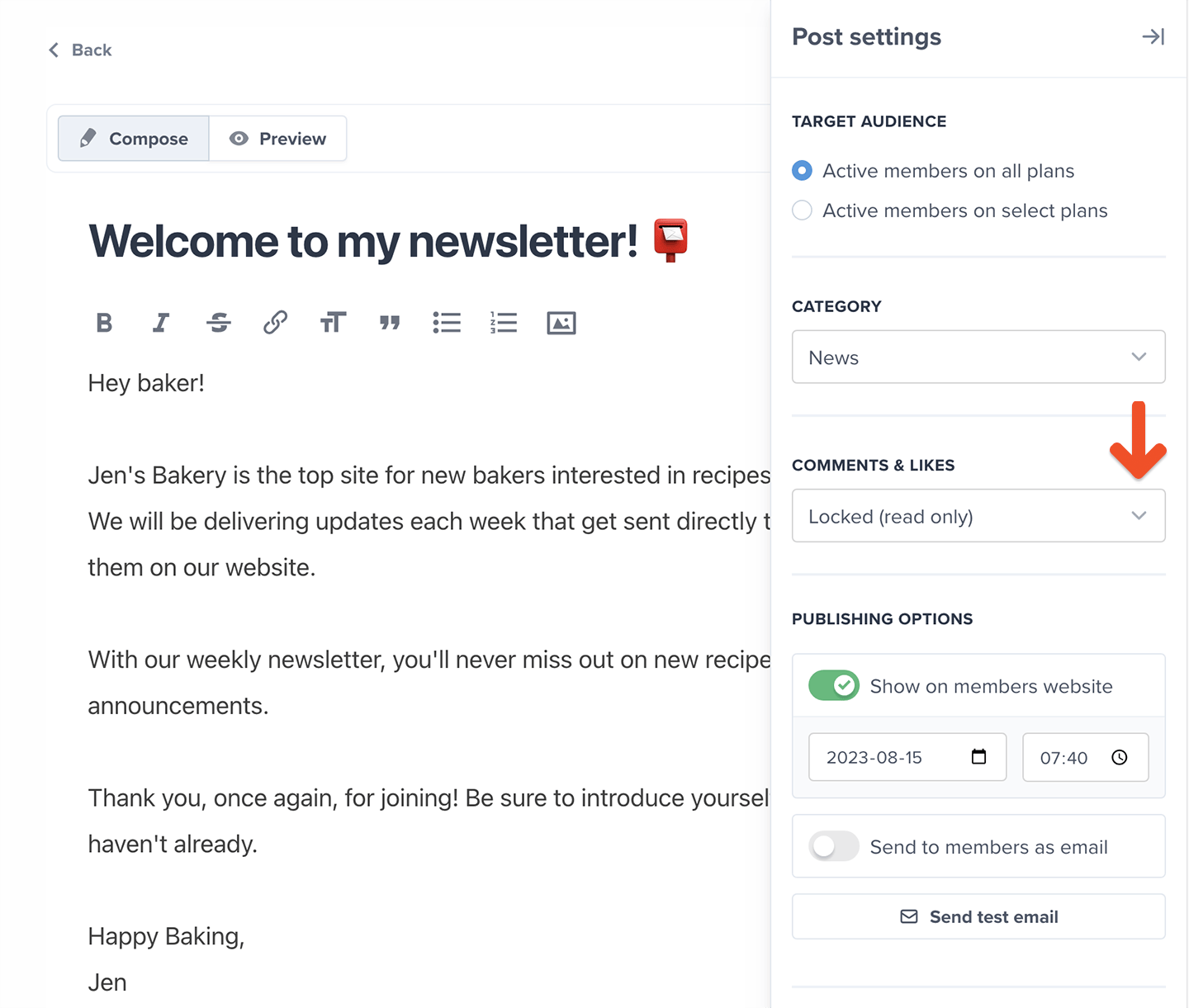
To prevent future comments on a post and continue to display previously published ones, edit the post and set **Comments & likes** as *Locked (read-only)*.
<Frame>
  <img src="https://mintcdn.com/memberful/E280piP4Hg_k1L_m/images/hosted-member-website/manage-post-comments-and-likes/lock-comments-and-likes.png?fit=max&auto=format&n=E280piP4Hg_k1L_m&q=85&s=8734f8eecc3af3758f53fd32a65771b6" alt="Lock comments & likes" width="1440" height="1221" data-path="images/hosted-member-website/manage-post-comments-and-likes/lock-comments-and-likes.png" />
</Frame>

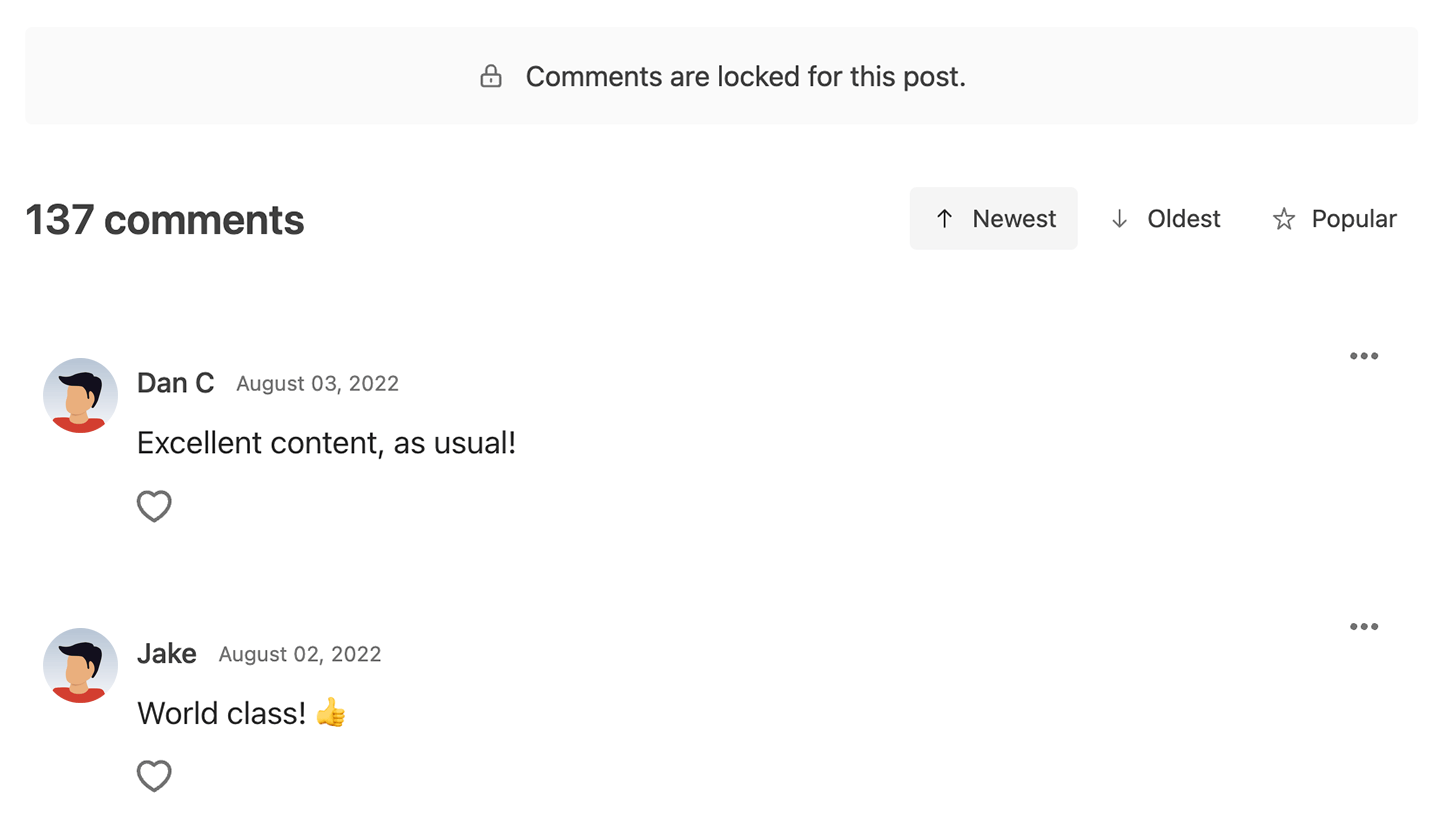
Members will be able to read existing comments, but they won't be able to write new comments or edit/delete their old ones. They won't be able to like or unlike the post, either.
<Frame>
  <img src="https://mintcdn.com/memberful/E280piP4Hg_k1L_m/images/hosted-member-website/manage-post-comments-and-likes/locked-comments-and-likes.png?fit=max&auto=format&n=E280piP4Hg_k1L_m&q=85&s=5c4f7a445e1af66987d701581bb68fd1" alt="Locked comments & likes" width="1440" height="818" data-path="images/hosted-member-website/manage-post-comments-and-likes/locked-comments-and-likes.png" />
</Frame>

## Where do comments and likes show up?

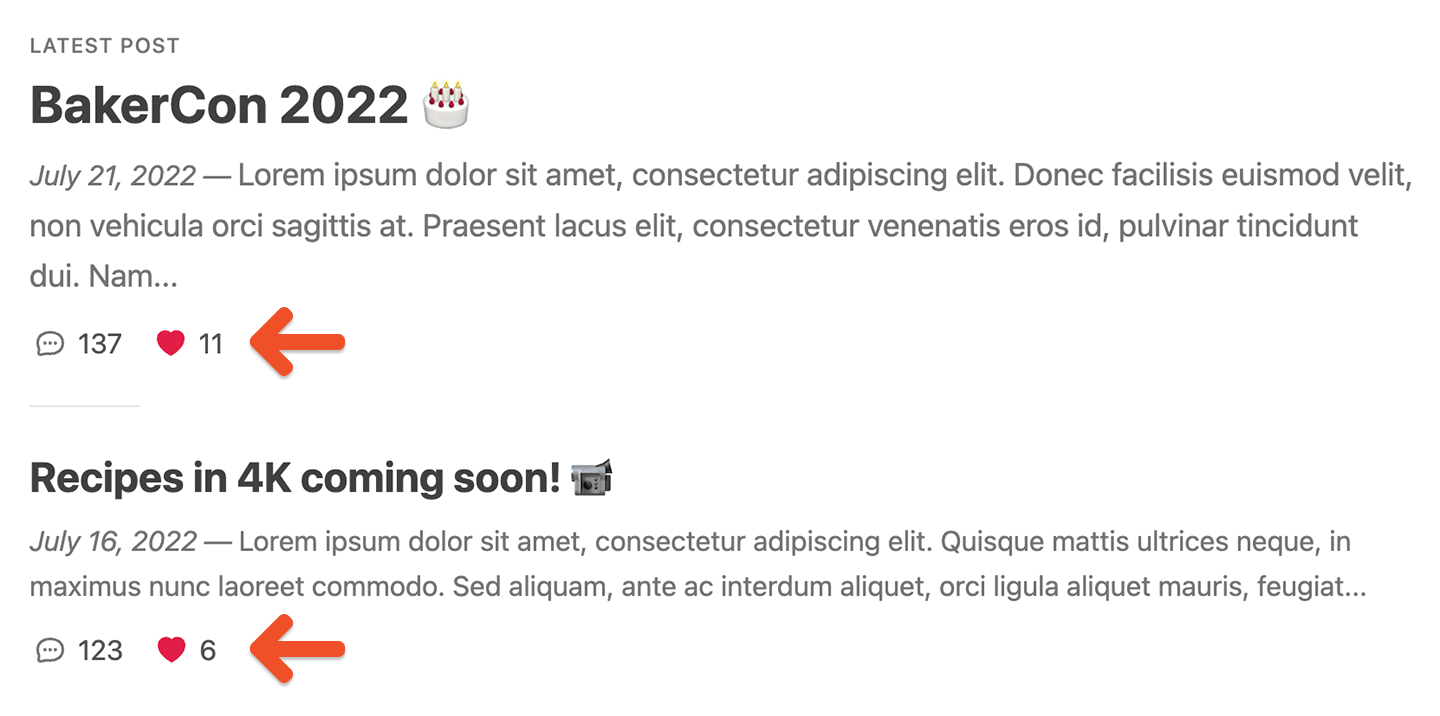
When comments are enabled, members will see comment and like (heart) counters in the list of posts.
<Frame>
  <img src="https://mintcdn.com/memberful/smhj9OV438rrDb0l/images/hosted-member-website/manage-post-comments-and-likes/comment-and-like-counters-in-the-list-of-posts.png?fit=max&auto=format&n=smhj9OV438rrDb0l&q=85&s=fe2ae6628ef05e92f8cbb7fa015047cb" alt="Comment and like counters in the list of posts" width="1440" height="716" data-path="images/hosted-member-website/manage-post-comments-and-likes/comment-and-like-counters-in-the-list-of-posts.png" />
</Frame>

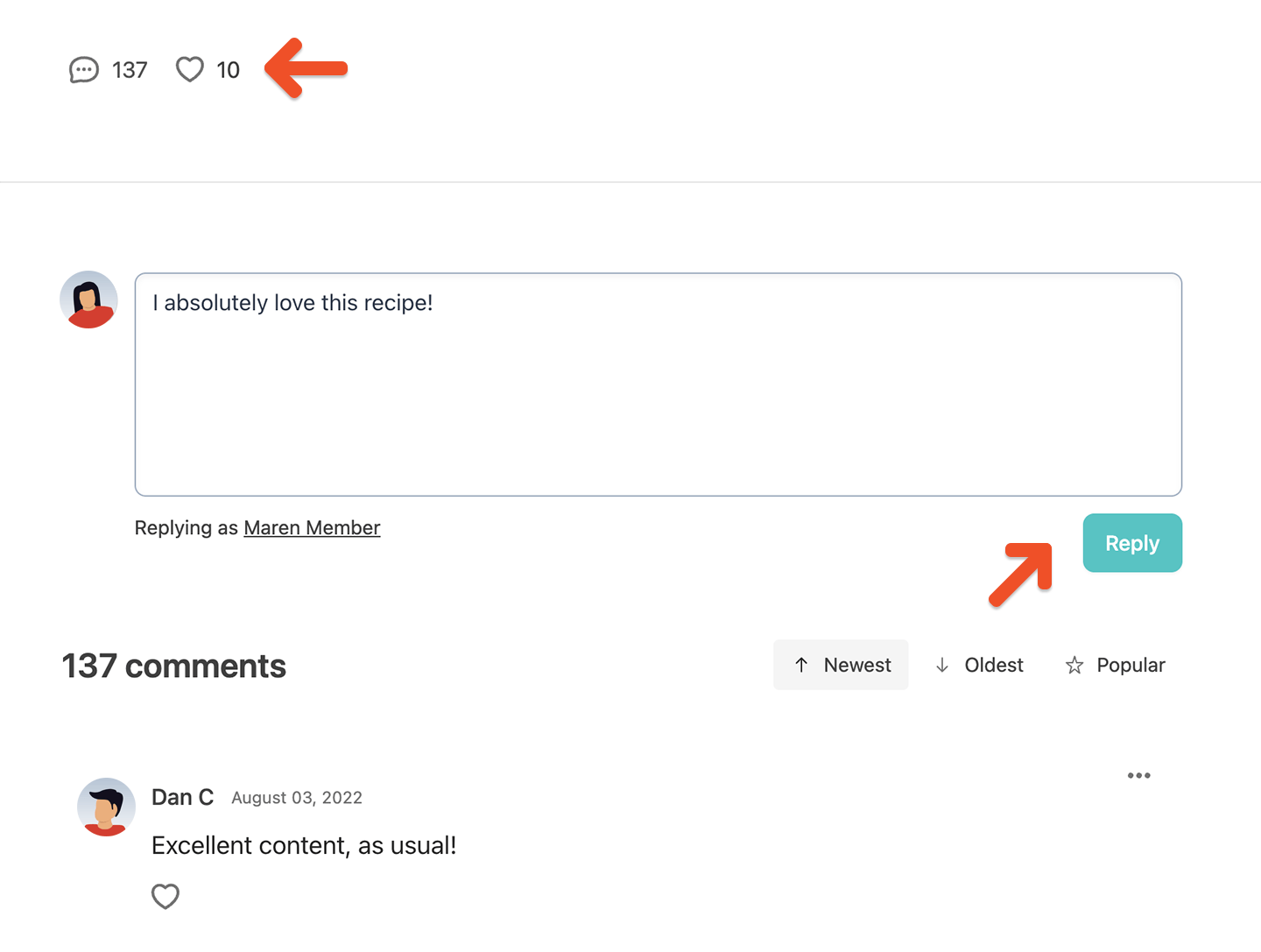
Members can open up the post to like it or comment on it.
<Frame>
  <img src="https://mintcdn.com/memberful/smhj9OV438rrDb0l/images/hosted-member-website/manage-post-comments-and-likes/commenting-and-liking.png?fit=max&auto=format&n=smhj9OV438rrDb0l&q=85&s=22c7a54908f4caeac0845dbcfdea9a40" alt="Commenting and liking" width="1440" height="1087" data-path="images/hosted-member-website/manage-post-comments-and-likes/commenting-and-liking.png" />
</Frame>

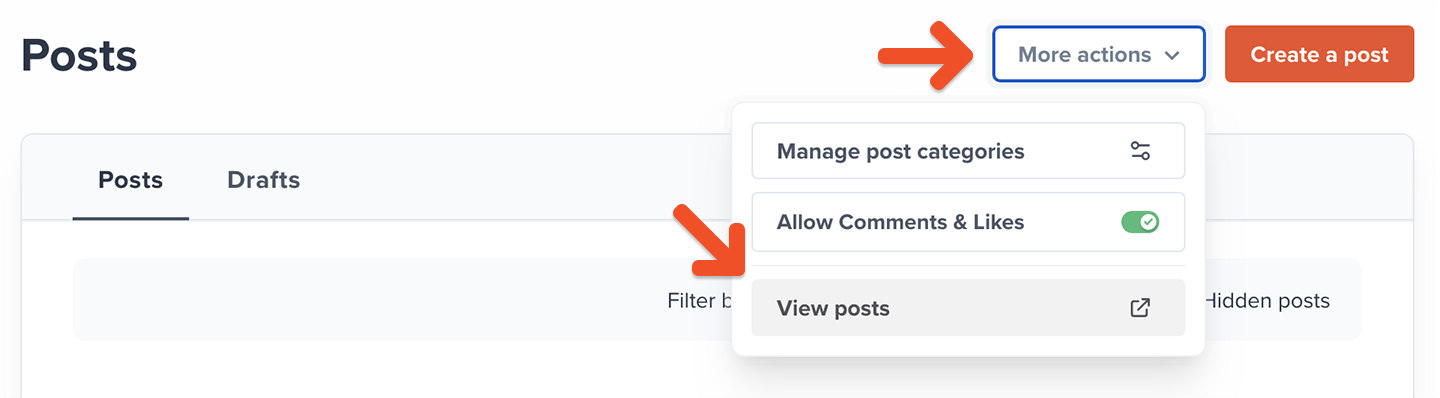
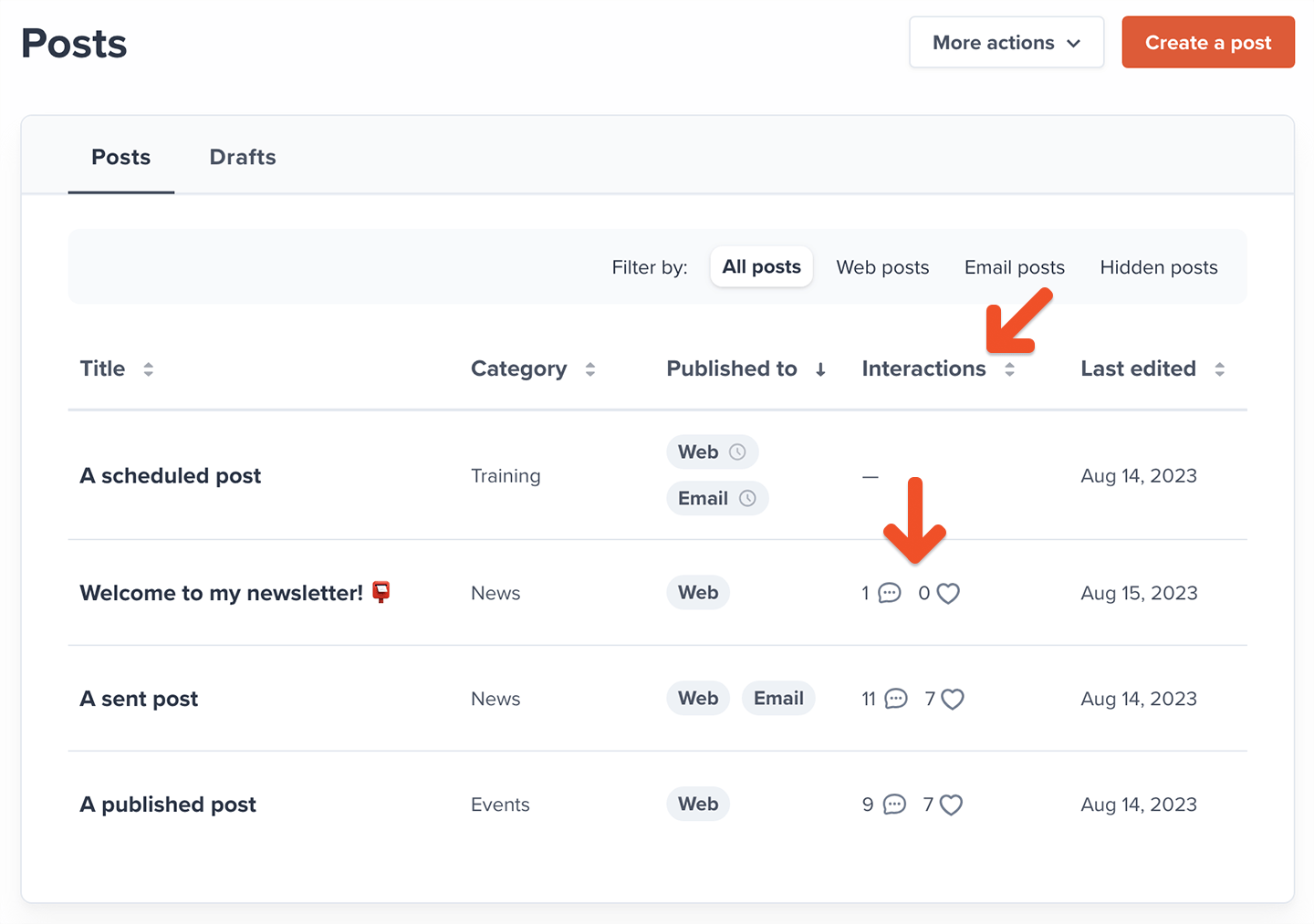
As a staff member or account owner, you can view the list of posts as a member would (showing comment and like counters) by going to *Content → Posts → More actions* and clicking **View posts**.
<Frame>
  <img src="https://mintcdn.com/memberful/E280piP4Hg_k1L_m/images/hosted-member-website/manage-post-comments-and-likes/view-posts-as-an-account-owner-or-staff-member.png?fit=max&auto=format&n=E280piP4Hg_k1L_m&q=85&s=90741e2c27c505d511eac66b147a0588" alt="View posts as an account owner or staff member" width="1440" height="398" data-path="images/hosted-member-website/manage-post-comments-and-likes/view-posts-as-an-account-owner-or-staff-member.png" />
</Frame>

<Callout icon="info" color="#22E273">
  If you've set up a [custom domain](/configuration/branding/set-up-a-custom-domain/), you might notice that the URL in your browser's address bar shows your old ACCOUNT-URL.memberful.com domain — Don't worry, this is only true when staff members or the account owner visit those pages. Your members will see your custom domain when looking at posts.
</Callout>

As a staff member or account owner, you can also track the overall engagement level of each post by going to *Content → Posts,* and reviewing the *Interactions* column.

<Frame>
  <img src="https://mintcdn.com/memberful/E280piP4Hg_k1L_m/images/hosted-member-website/manage-post-comments-and-likes/track-post-engagement.png?fit=max&auto=format&n=E280piP4Hg_k1L_m&q=85&s=2b2ed846f1802b7c51e59c407b9ce67a" alt="Track post engagement" width="1440" height="1013" data-path="images/hosted-member-website/manage-post-comments-and-likes/track-post-engagement.png" />
</Frame>

## How do members comment and like a post?

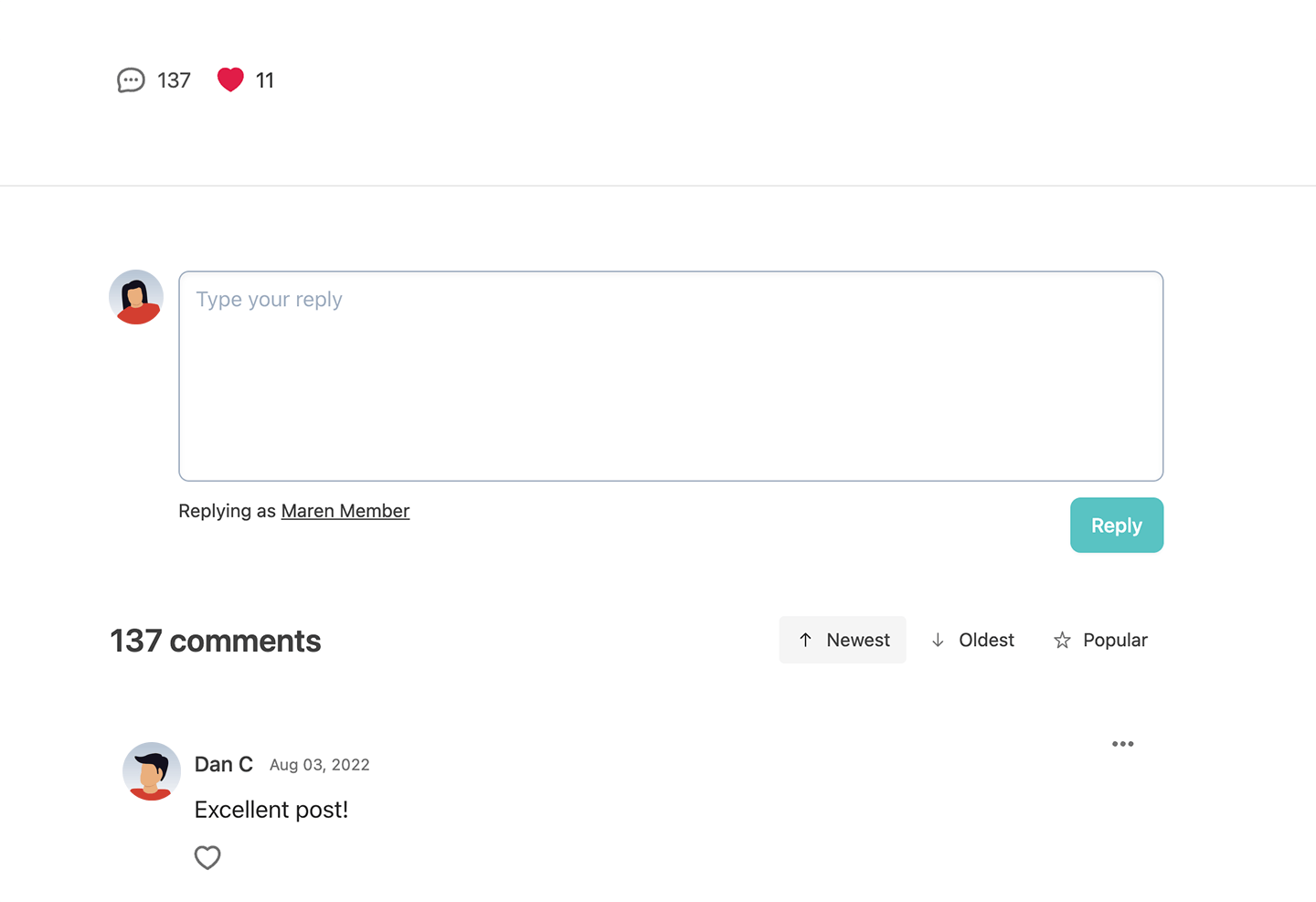
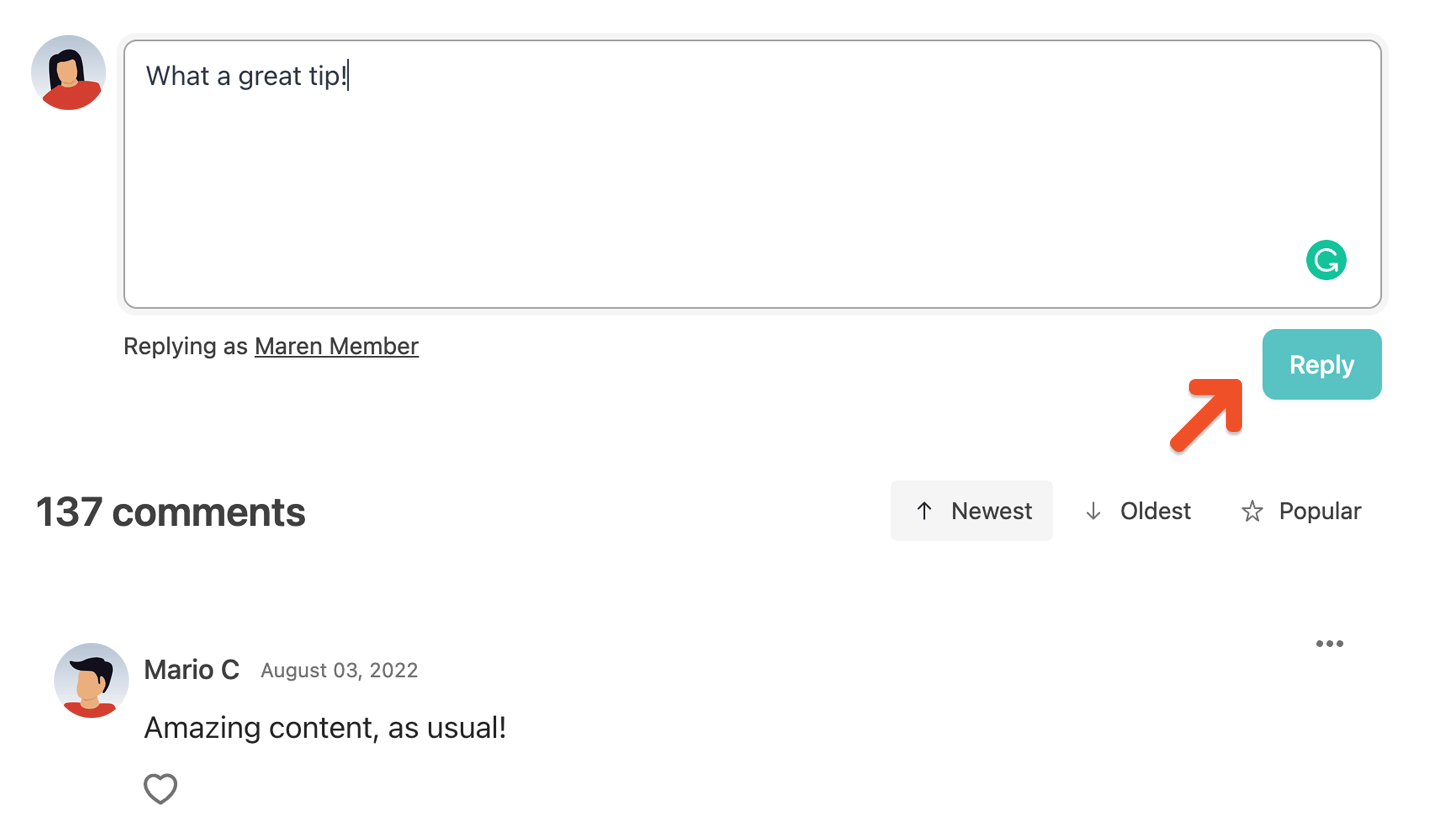
When a member opens a post, they'll see a comment form and a list of comments below the post. They can comment on the post by filling out the form and clicking the **Reply** button.
<Frame>
  <img src="https://mintcdn.com/memberful/E280piP4Hg_k1L_m/images/hosted-member-website/manage-post-comments-and-likes/post-a-new-comment.png?fit=max&auto=format&n=E280piP4Hg_k1L_m&q=85&s=3fd076d01ed0767d4bfab1d84e4b44cb" alt="Post a new Comment" width="1440" height="835" data-path="images/hosted-member-website/manage-post-comments-and-likes/post-a-new-comment.png" />
</Frame>

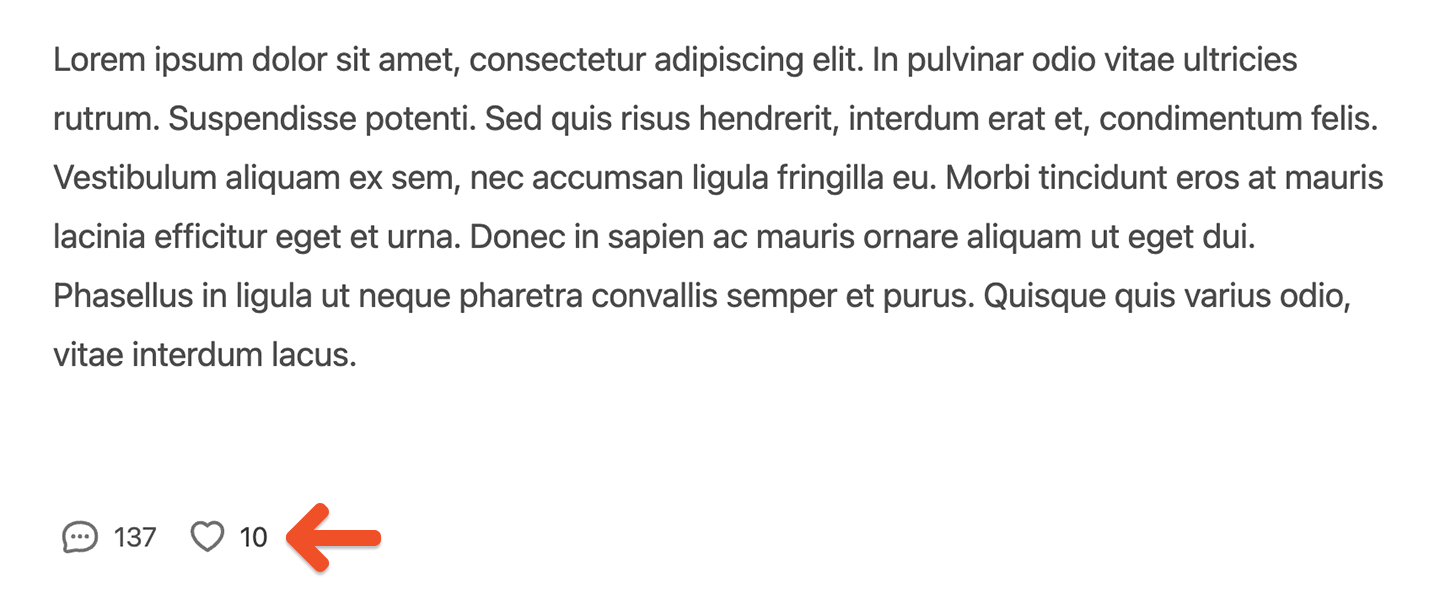
Members also see a comment and like (heart) counter at the bottom of the post. They can click the **heart icon** to like the post.
<Frame>
  <img src="https://mintcdn.com/memberful/E280piP4Hg_k1L_m/images/hosted-member-website/manage-post-comments-and-likes/like-a-post.png?fit=max&auto=format&n=E280piP4Hg_k1L_m&q=85&s=cf0a94b228a822c25fa44f4c72e90bd7" alt="Like a post" width="1440" height="609" data-path="images/hosted-member-website/manage-post-comments-and-likes/like-a-post.png" />
</Frame>

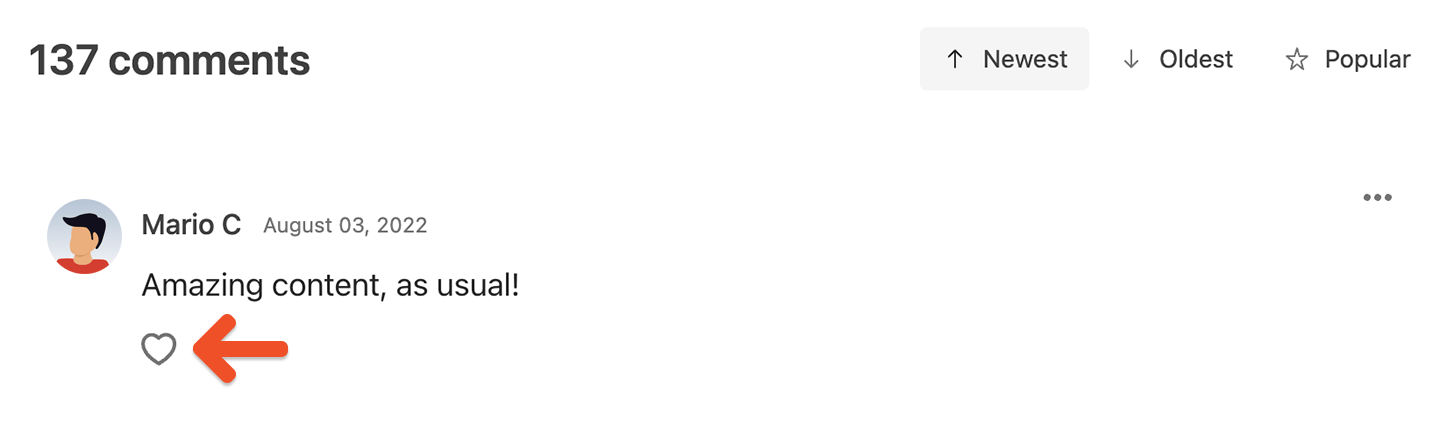
Members can also like a comment.

<Frame>
  <img src="https://mintcdn.com/memberful/E280piP4Hg_k1L_m/images/hosted-member-website/manage-post-comments-and-likes/like-a-comment.png?fit=max&auto=format&n=E280piP4Hg_k1L_m&q=85&s=e3c31753fea1e8df16c8526a26ecb6b6" alt="Like a comment" width="1440" height="431" data-path="images/hosted-member-website/manage-post-comments-and-likes/like-a-comment.png" />
</Frame>

## How members get notified of new comments

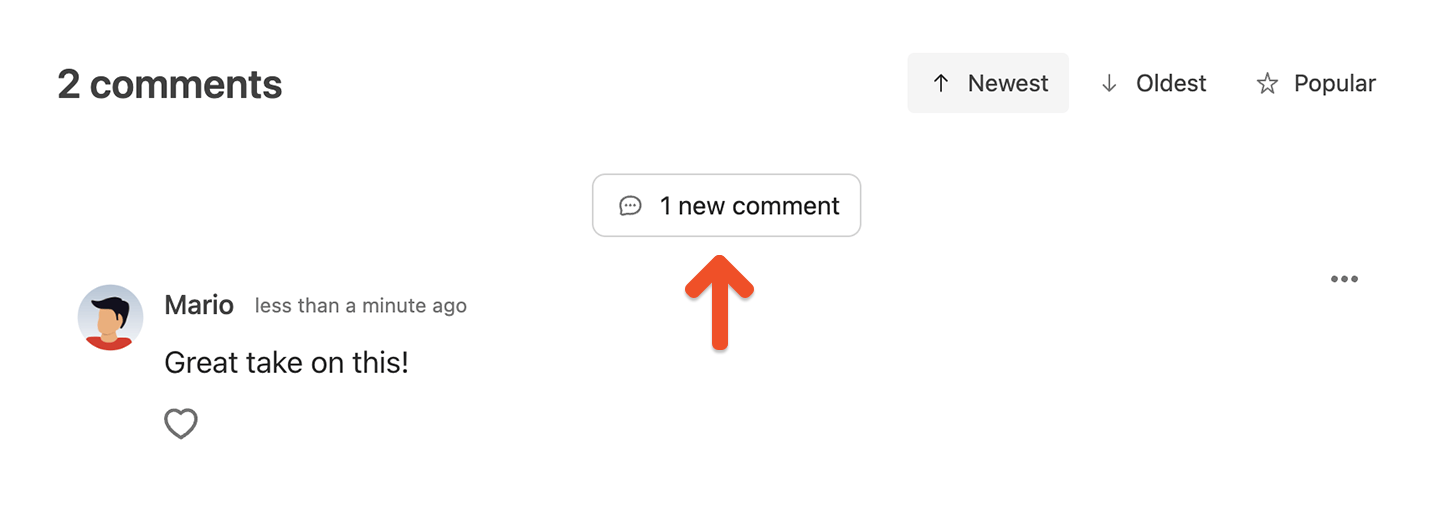
Members will engage more often if they feel like the community is alive. When they're viewing a post, we'll show a "new comment" button whenever there's a new comment they haven't seen yet. Clicking that button will load the new comment.
<Frame>
  <img src="https://mintcdn.com/memberful/E280piP4Hg_k1L_m/images/hosted-member-website/manage-post-comments-and-likes/load-new-comment.png?fit=max&auto=format&n=E280piP4Hg_k1L_m&q=85&s=b56e9232ef530dd166b3b8e77d374df2" alt="Load new comment" width="1440" height="506" data-path="images/hosted-member-website/manage-post-comments-and-likes/load-new-comment.png" />
</Frame>

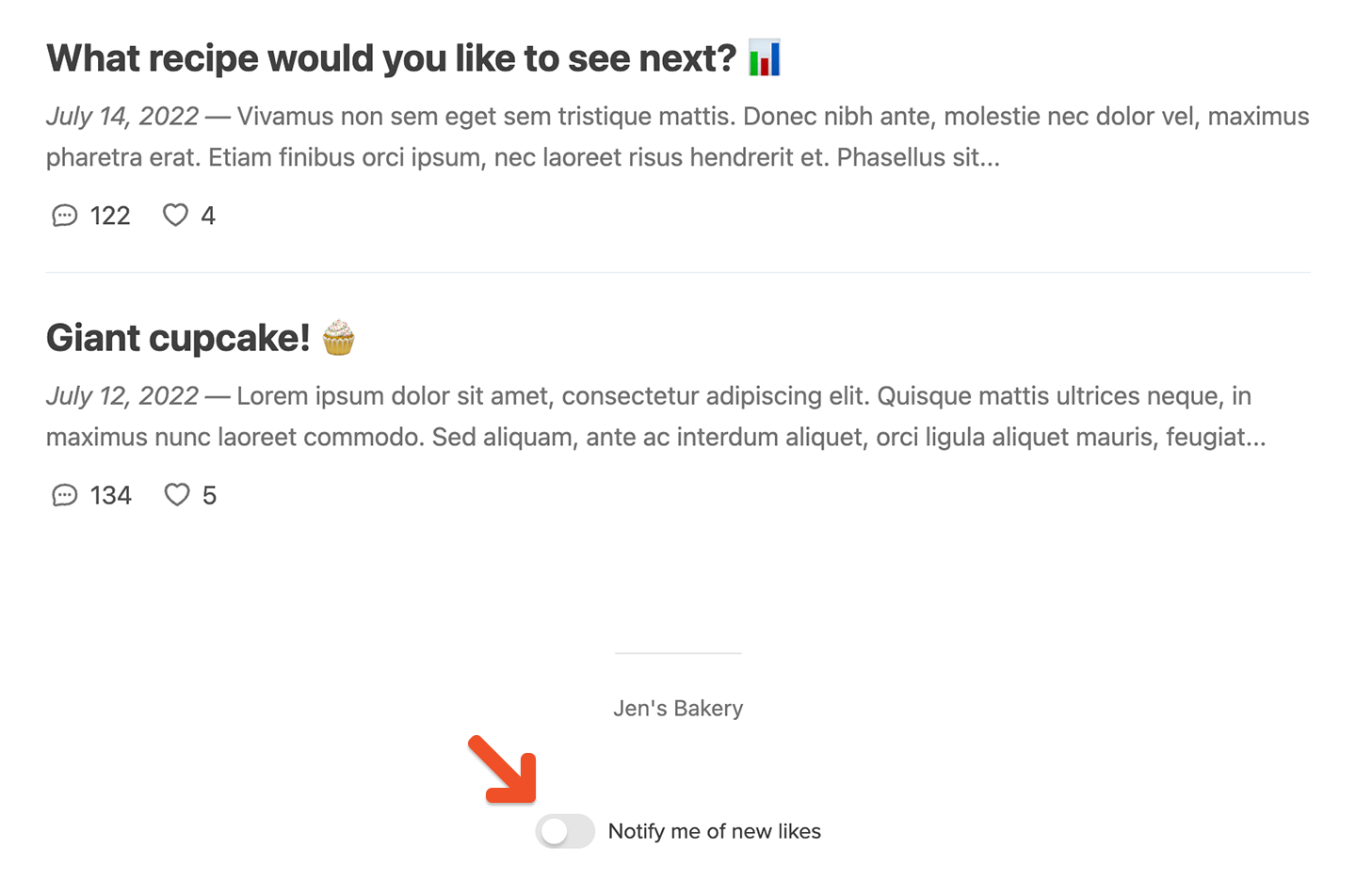
Members can also choose to be notified of new likes on their comments if they have any posts open in the browser. This is disabled by default and not available on iOS and Chrome for Android, but can be enabled in the list of posts.
<Frame>
  <img src="https://mintcdn.com/memberful/E280piP4Hg_k1L_m/images/hosted-member-website/manage-post-comments-and-likes/notify-me-of-new-likes.png?fit=max&auto=format&n=E280piP4Hg_k1L_m&q=85&s=43c4741cdf20c40348e26a02fcb54d6c" alt="Notify me of new likes" width="1440" height="952" data-path="images/hosted-member-website/manage-post-comments-and-likes/notify-me-of-new-likes.png" />
</Frame>

## Moderating comments

As a staff member or account owner, you can write your own comments to engage with other commenters.

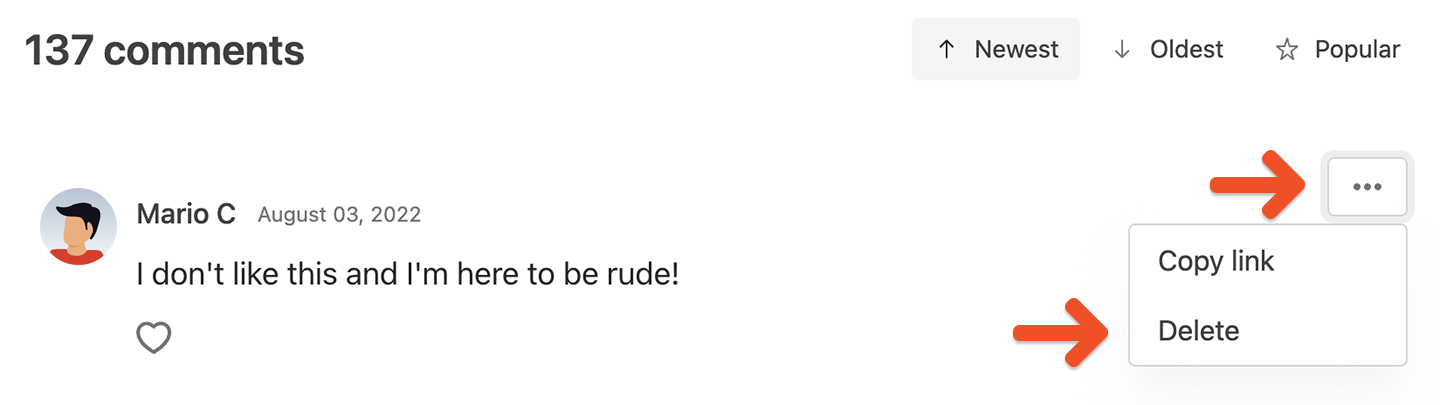
You can also delete abusive comments by clicking the **options button** (three dots) on the right side of a comment and clicking **Delete**.
<Frame>
  <img src="https://mintcdn.com/memberful/smhj9OV438rrDb0l/images/hosted-member-website/manage-post-comments-and-likes/delete-a-comment.png?fit=max&auto=format&n=smhj9OV438rrDb0l&q=85&s=26b524a21f8f46f469b2d0c65ecb9773" alt="Delete a comment" width="1440" height="405" data-path="images/hosted-member-website/manage-post-comments-and-likes/delete-a-comment.png" />
</Frame>

<RelatedDocs
  link1={{
url: "/newsletters/hosted-newsletter/create-a-post/",
label: "Create a post on your Memberful hosted site.",
}}
  link2={{
url: "/newsletters/hosted-newsletter/manage-posts/",
label: "Update your post content or settings.",
}}
/>