> ## Documentation Index
> Fetch the complete documentation index at: https://memberful.com/docs/llms.txt
> Use this file to discover all available pages before exploring further.

# Publish podcast episodes as posts

> Publish your podcast episodes as Memberful posts so members can listen on the web or in their newsletter alongside show notes, transcripts, and discussion.

export const RelatedDocs = ({link1, link2, link3, link4, link5, link6, link7, link8, link9, link10, className = ""}) => {
  const links = [link1, link2, link3, link4, link5, link6, link7, link8, link9, link10].filter(Boolean);
  if (!links.length) return null;
  return <section className={`related-docs border dark:border-gray-700 rounded-2xl px-6 py-4 mt-6 ${className}`}>
      <p className="mb-2 font-medium">
        <strong>Related help docs:</strong>
      </p>
      <ul className="space-y-1 mb-1 mt-1">
        {links.map((link, index) => <li key={index}>
            <a href={link.url}>{link.label}</a>
          </li>)}
      </ul>
    </section>;
};

It used to be that members would need to regularly check their listening apps or have notifications enabled to find out when you add a new podcast episode, but not anymore. Members who regularly experience your exclusive content are more likely to stay subscribed, so the easier you can make it to consume your exclusive content, the better.

In this help article, we'll show you how to configure Memberful to automatically generate a post that you can send via email or publish to your member website whenever you add a new podcast episode.

## Create a podcast

You'll need to configure a paid podcast in Memberful before you can publish posts announcing each new episode. [Learn how to create a paid podcast with Memberful.](/podcasting/setup/create-a-paid-podcast)

## Create draft posts for new episodes

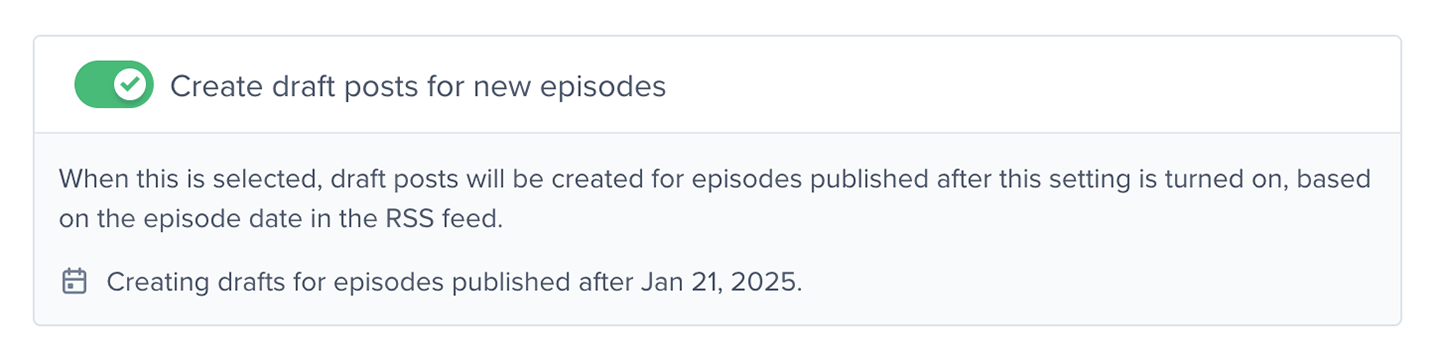
Go to *Content → Podcasts,* select your podcast, and toggle on **Create draft posts for new episodes**.

<Frame>
  <img src="https://mintcdn.com/memberful/yVoiOagJSDkuQDxk/images/media/publish-podcast-episodes-as-posts/enable-create-draft-posts-for-new-episodes.png?fit=max&auto=format&n=yVoiOagJSDkuQDxk&q=85&s=7c9426987ee7959d5133e7b8ca4c5091" alt="Enable Create draft posts for new episodes" width="1440" height="361" data-path="images/media/publish-podcast-episodes-as-posts/enable-create-draft-posts-for-new-episodes.png" />
</Frame>

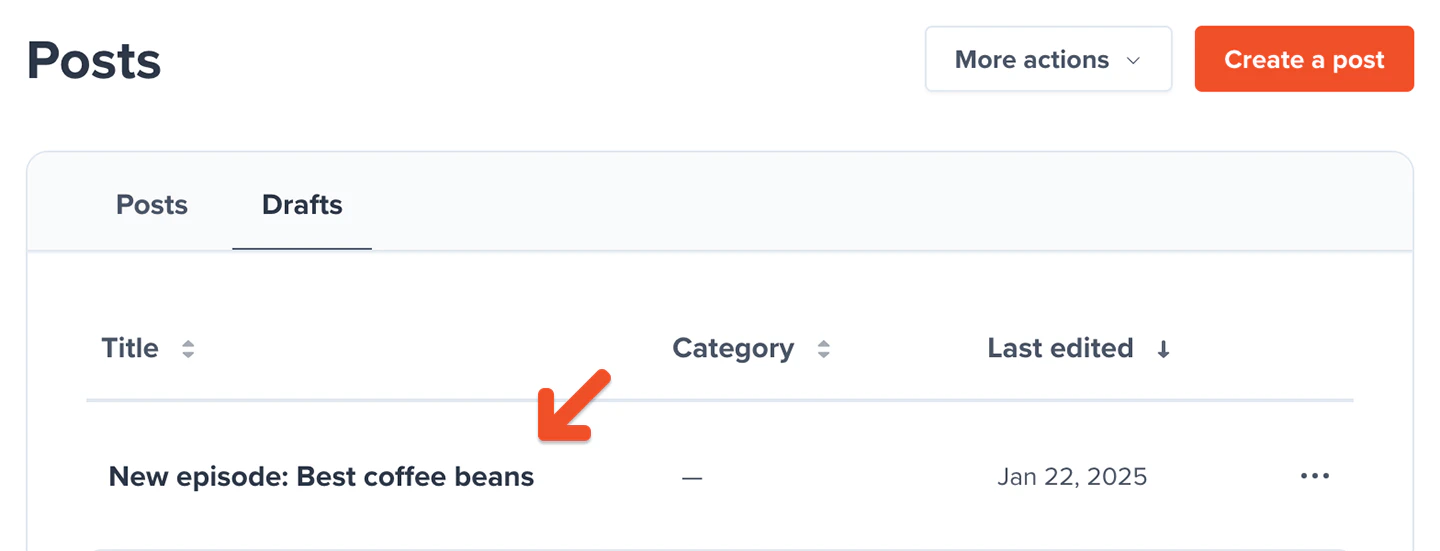
When a new podcast episode is published, a new draft post will be created and the account owner will be notified via email.
<Callout icon="triangle-alert" color="#FFE044">
  Post drafts will only be created for future episodes, not previously released ones.
</Callout>

<Frame>
  <img src="https://mintcdn.com/memberful/yVoiOagJSDkuQDxk/images/media/publish-podcast-episodes-as-posts/new-episodes-post-draft.png?fit=max&auto=format&n=yVoiOagJSDkuQDxk&q=85&s=d781296c53615cad3bf7847b2e27c477" alt="New episode post draft" width="1440" height="551" data-path="images/media/publish-podcast-episodes-as-posts/new-episodes-post-draft.png" />
</Frame>

## Customize your new podcast episode post

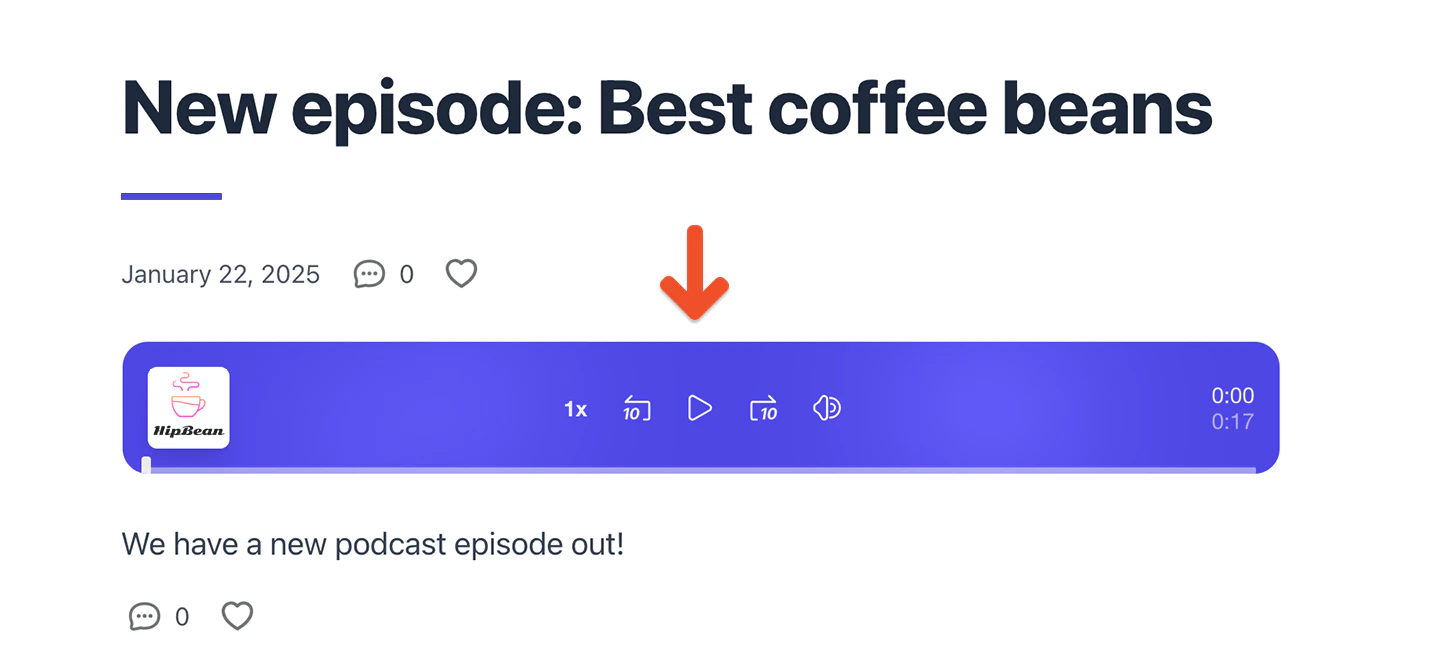
The podcast player follows the branding colors you've chosen for your site. [Learn how to customize your branding colors.](/configuration/branding/branding)

The image and meta data displayed is fetched directly from the podcast's RSS feed.
<Frame>
  <img src="https://mintcdn.com/memberful/yVoiOagJSDkuQDxk/images/media/publish-podcast-episodes-as-posts/play-podcast-episode-in-post.png?fit=max&auto=format&n=yVoiOagJSDkuQDxk&q=85&s=83a088ee831f875244ed214b804e4417" alt="Play podcast episode in post" width="1440" height="667" data-path="images/media/publish-podcast-episodes-as-posts/play-podcast-episode-in-post.png" />
</Frame>

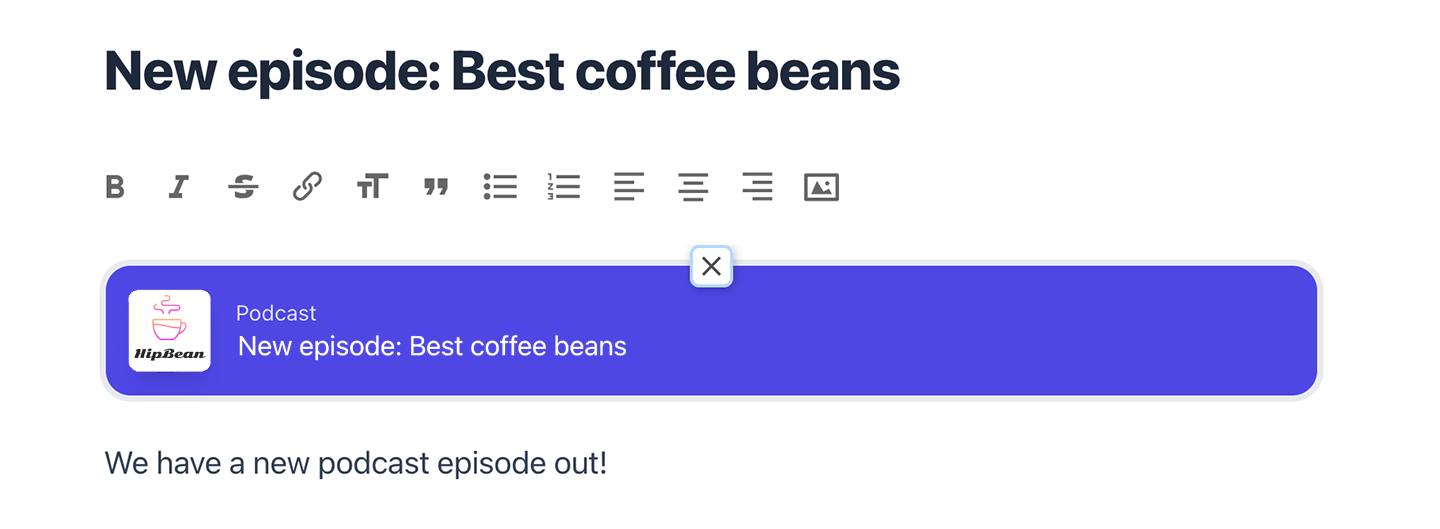
Inside the Post editor, we display a placeholder for the podcast player so you can move it around other content or remove it entirely from the post.
<Frame>
  <img src="https://mintcdn.com/memberful/yVoiOagJSDkuQDxk/images/media/publish-podcast-episodes-as-posts/podcast-player-in-post-editor.png?fit=max&auto=format&n=yVoiOagJSDkuQDxk&q=85&s=236a35ca901a3722608d1d8bb2e77f49" alt="Podcast player in post editor" width="1440" height="529" data-path="images/media/publish-podcast-episodes-as-posts/podcast-player-in-post-editor.png" />
</Frame>

## Publish your post

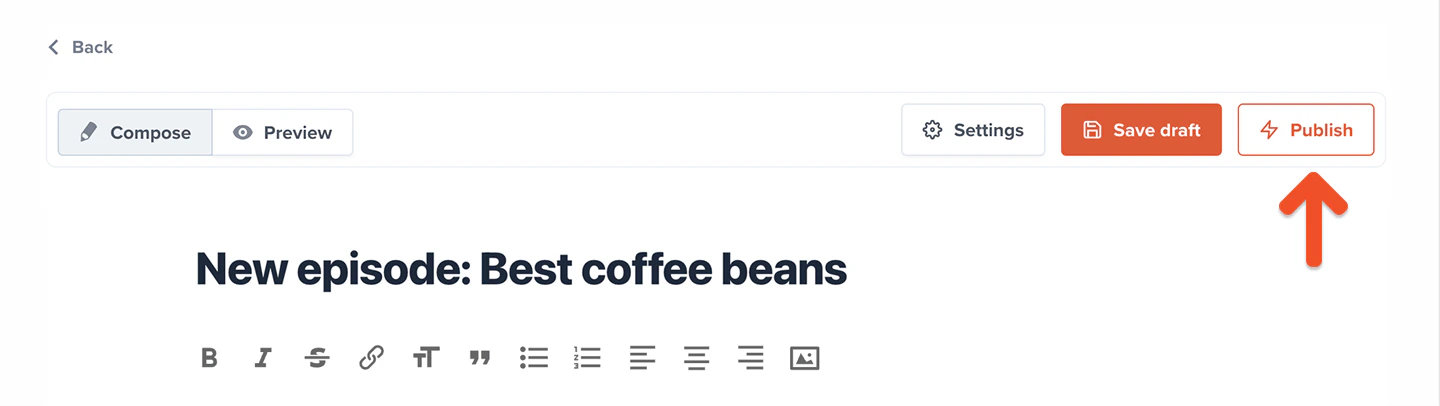
When you're ready to share this with your members, [review the post's settings](/newsletters/hosted-newsletter/create-a-post/) and click the **Publish** button. Posts can also be scheduled to be published at a later date.
<Frame>
  <img src="https://mintcdn.com/memberful/yVoiOagJSDkuQDxk/images/media/publish-podcast-episodes-as-posts/publish-post.png?fit=max&auto=format&n=yVoiOagJSDkuQDxk&q=85&s=0a0a603df80330f8fe4ebe81d4f4e185" alt="Publish post" width="1440" height="406" data-path="images/media/publish-podcast-episodes-as-posts/publish-post.png" />
</Frame>

## How members play your podcast episode inside a post

When a member views the post, they can play the episode directly from the post.

<Frame>
  <img src="https://mintcdn.com/memberful/yVoiOagJSDkuQDxk/images/media/publish-podcast-episodes-as-posts/play-podcast-episode-in-post.png?fit=max&auto=format&n=yVoiOagJSDkuQDxk&q=85&s=83a088ee831f875244ed214b804e4417" alt="Play podcast episode in post" width="1440" height="667" data-path="images/media/publish-podcast-episodes-as-posts/play-podcast-episode-in-post.png" />
</Frame>

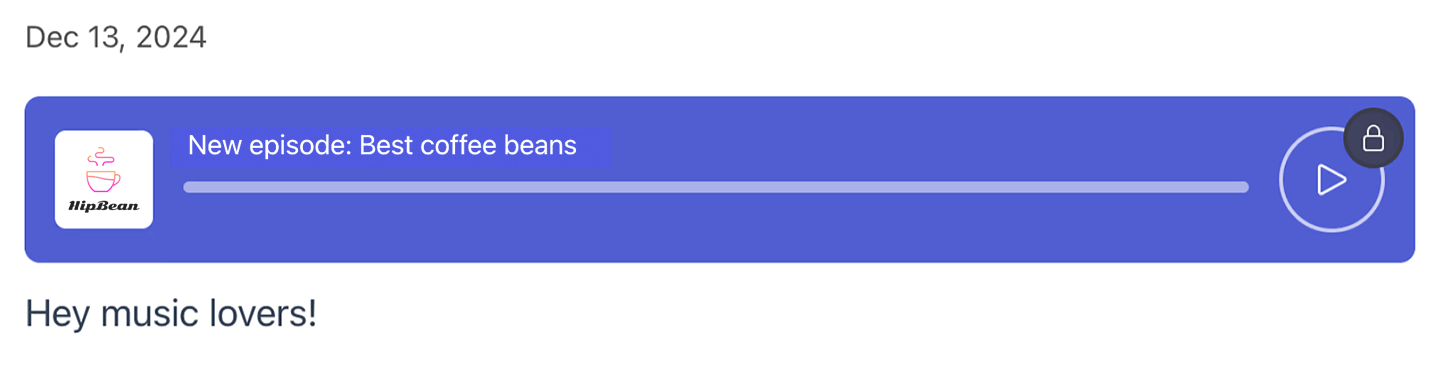
On posts that are exclusive to paying members, we display an excerpt showing a locked version of the player.
<Frame>
  <img src="https://mintcdn.com/memberful/yVoiOagJSDkuQDxk/images/media/publish-podcast-episodes-as-posts/locked-podcast-episode-in-post.png?fit=max&auto=format&n=yVoiOagJSDkuQDxk&q=85&s=113c17f56779022e638e9836da179814" alt="Locked podcast episode in post" width="1440" height="368" data-path="images/media/publish-podcast-episodes-as-posts/locked-podcast-episode-in-post.png" />
</Frame>

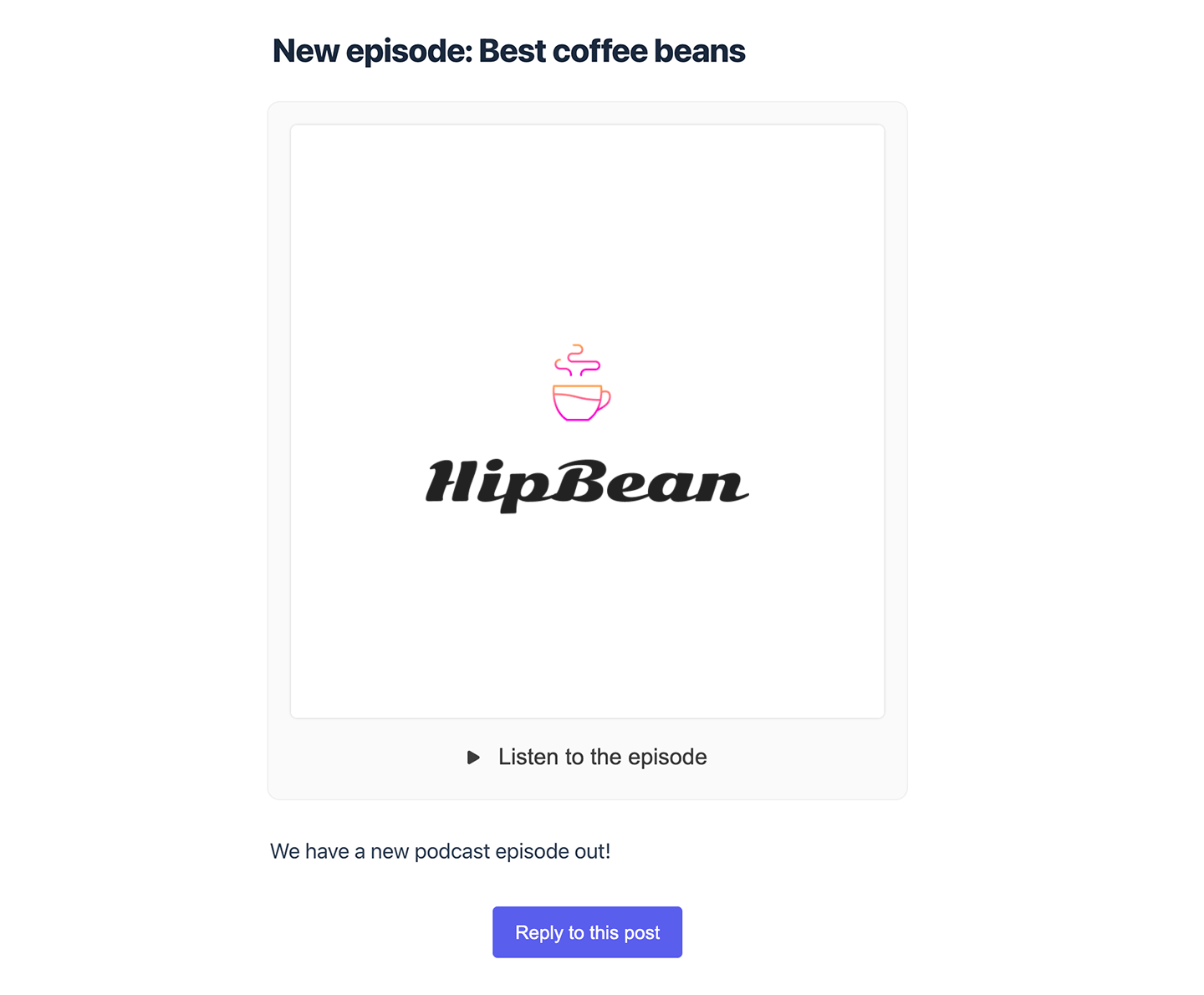
If the post is sent via email, we'll display the cover art and a link to open the web version of the post so your member can listen to the episode on your website.
<Frame>
  <img src="https://mintcdn.com/memberful/yVoiOagJSDkuQDxk/images/media/publish-podcast-episodes-as-posts/podcast-episode-post-email.png?fit=max&auto=format&n=yVoiOagJSDkuQDxk&q=85&s=7c5ebe7b6a3316605b6a27a6bce02da3" alt="Podcast episode post email" width="1440" height="1190" data-path="images/media/publish-podcast-episodes-as-posts/podcast-episode-post-email.png" />
</Frame>

## Import past episodes

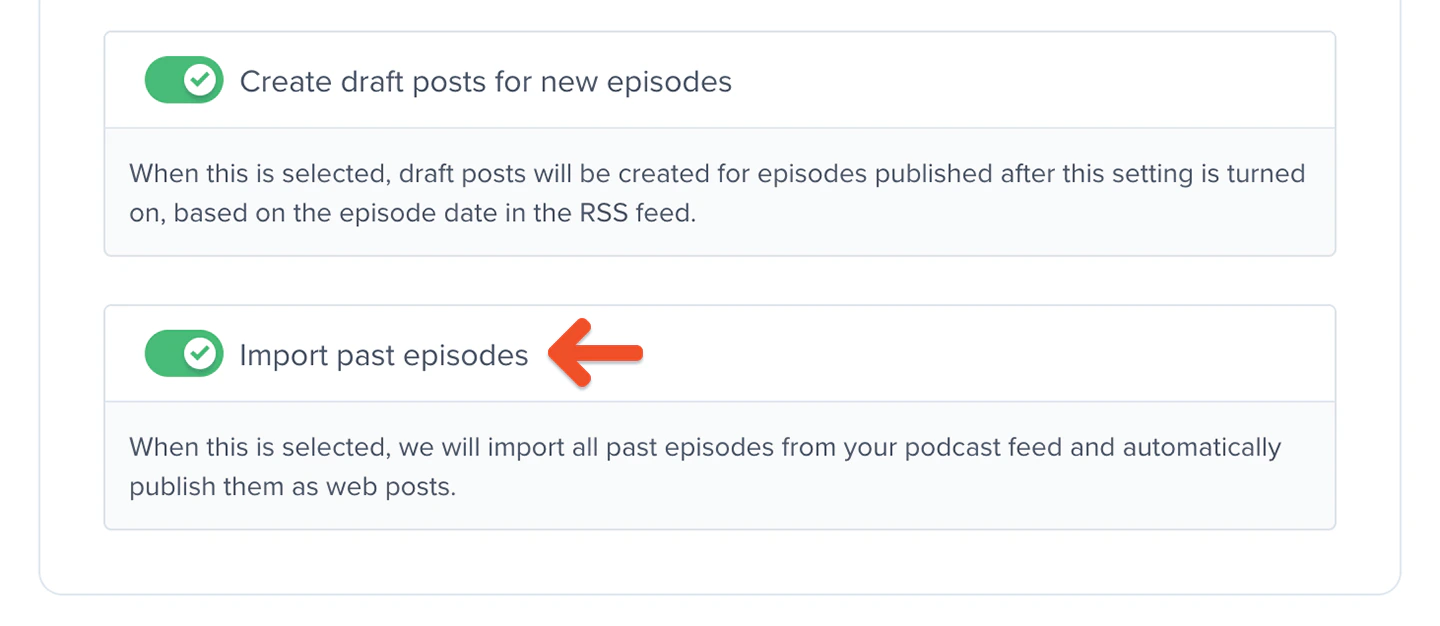
When you toggle on **Create draft posts for new episodes**, you'll also see an option to import past episodes.
<Frame>
  <img src="https://mintcdn.com/memberful/yVoiOagJSDkuQDxk/images/media/publish-podcast-episodes-as-posts/import-past-episodes-toggle.png?fit=max&auto=format&n=yVoiOagJSDkuQDxk&q=85&s=4ebce03eda822138948ed4c39e781d23" alt="Import past episodes toggle" width="1440" height="626" data-path="images/media/publish-podcast-episodes-as-posts/import-past-episodes-toggle.png" />
</Frame>

This will publish a post for each episode in your podcast's RSS feed that has not already been imported. This is useful if you want to have all of your past episodes available as posts on your member website, not just future episodes.

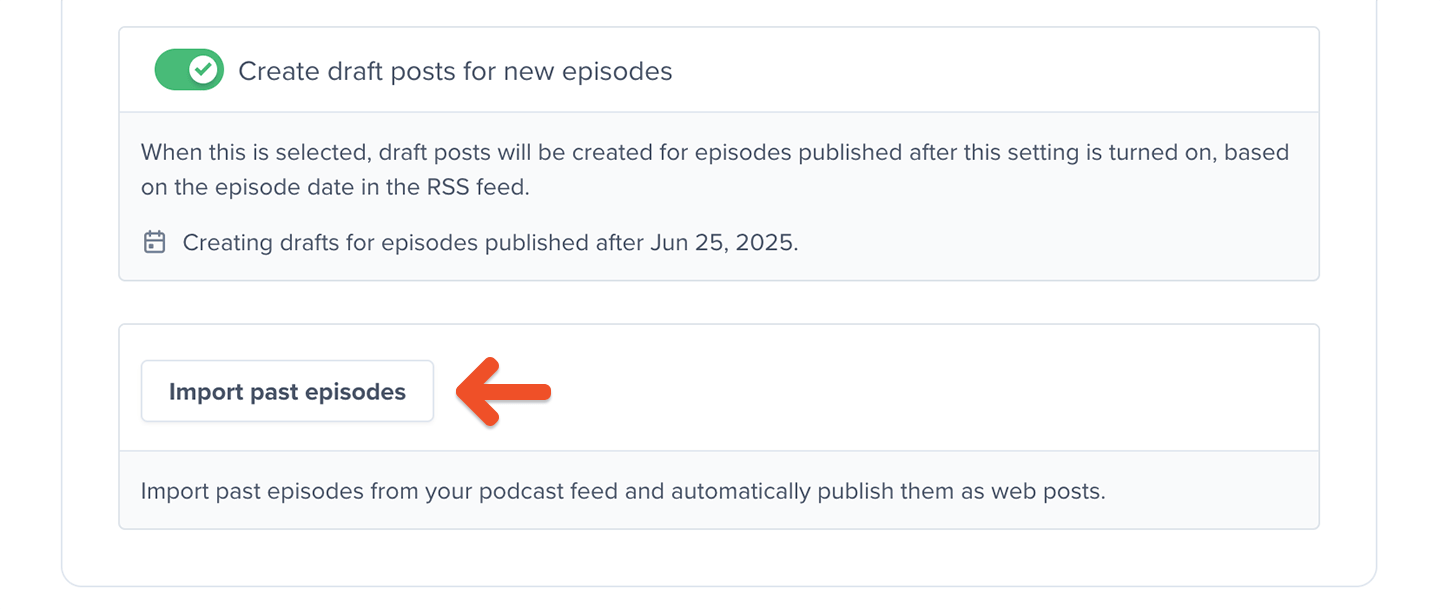
This is available for existing podcasts as well (even podcasts that were added before this feature was released). In those cases, you'll see an **Import past episodes** button instead of the toggle.
<Frame>
  <img src="https://mintcdn.com/memberful/yVoiOagJSDkuQDxk/images/media/publish-podcast-episodes-as-posts/import-past-episodes-button.png?fit=max&auto=format&n=yVoiOagJSDkuQDxk&q=85&s=cd7d14c474424417d059df5446f82c32" alt="Import past episodes button" width="1440" height="609" data-path="images/media/publish-podcast-episodes-as-posts/import-past-episodes-button.png" />
</Frame>

The import process takes some time, so the task will be scheduled to run in the background. You can navigate away from the page and the import will take place after some time.

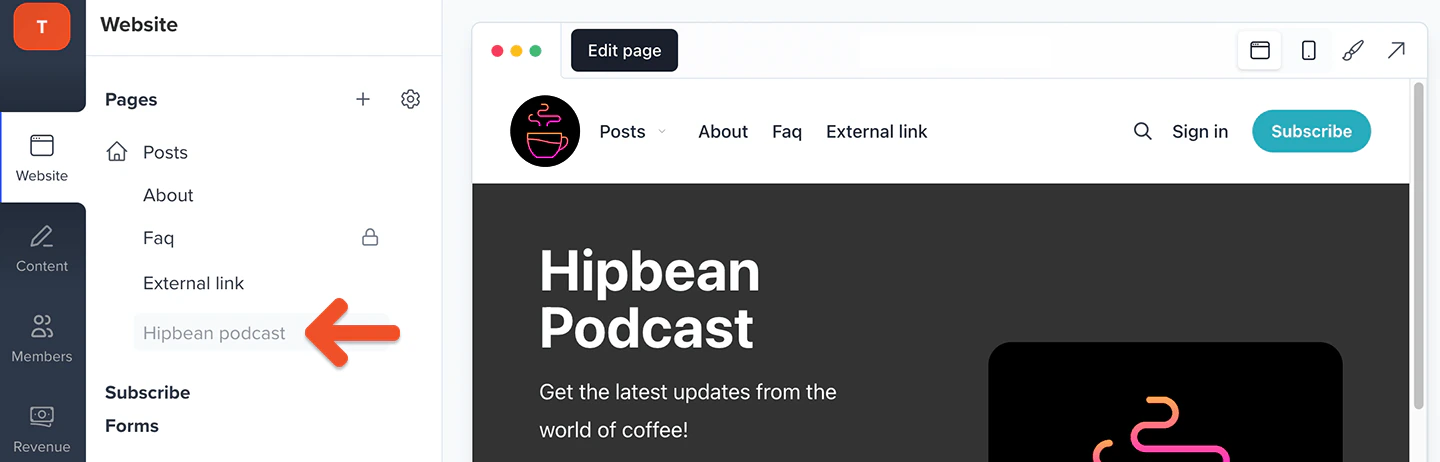
Once episodes are imported, Memberful will also create a draft page for that specific podcast.
<Frame>
  <img src="https://mintcdn.com/memberful/yVoiOagJSDkuQDxk/images/media/publish-podcast-episodes-as-posts/edit-podcast-page.png?fit=max&auto=format&n=yVoiOagJSDkuQDxk&q=85&s=2c5a7dacae74b5c546173ccfee2bbd93" alt="Edit podcast page" width="1440" height="462" data-path="images/media/publish-podcast-episodes-as-posts/edit-podcast-page.png" />
</Frame>

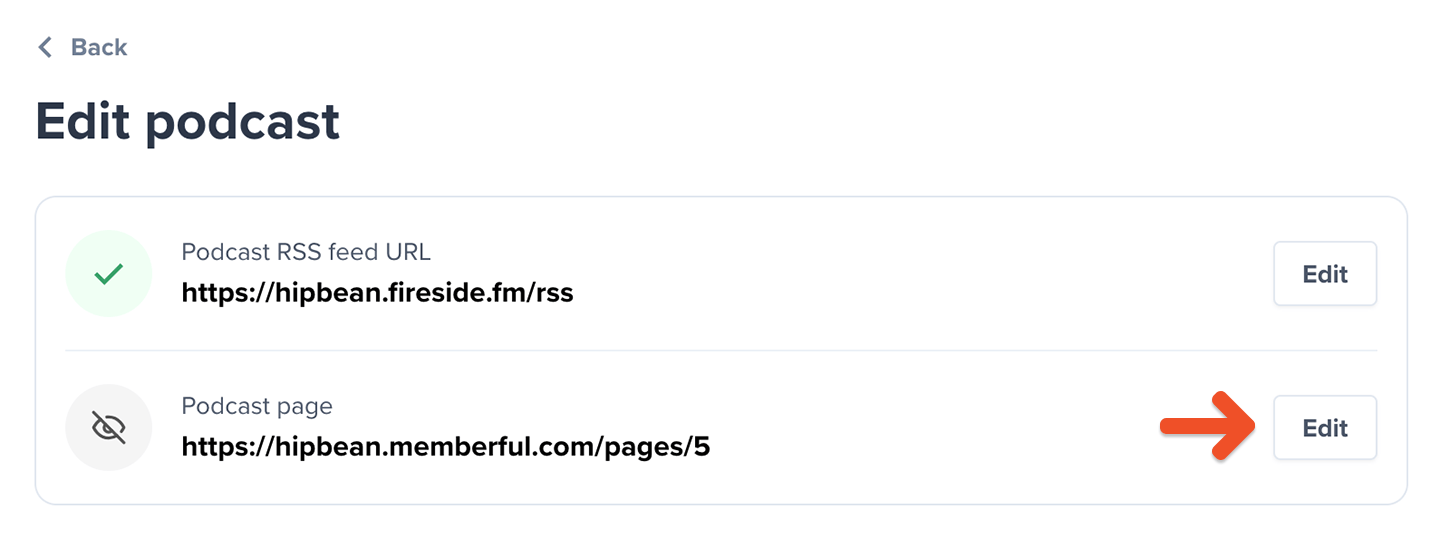
You can also find a reference to this page at the top of the podcast's settings page. You'll see the page's URL and a button to edit it.
<Frame>
  <img src="https://mintcdn.com/memberful/yVoiOagJSDkuQDxk/images/media/publish-podcast-episodes-as-posts/podcast-page-in-podcast-settings-section.png?fit=max&auto=format&n=yVoiOagJSDkuQDxk&q=85&s=58abbbb85809e80c42cb1d1e09ed881c" alt="Podcast page in podcast settings section" width="1440" height="538" data-path="images/media/publish-podcast-episodes-as-posts/podcast-page-in-podcast-settings-section.png" />
</Frame>

<RelatedDocs
  link1={{
url: "/podcasting/setup/create-a-paid-podcast/",
label: "Create a paid podcast.",
}}
  link2={{
url: "/podcasting/publishing/dynamic-podcast-episodes/",
label: "Create dynamic podcast episodes.",
}}
  link3={{
url: "/podcasting/setup/submit-a-paid-podcast-to-spotify/",
label: "Submit a paid podcast to Spotify.",
}}
/>
