> ## Documentation Index
> Fetch the complete documentation index at: https://memberful.com/docs/llms.txt
> Use this file to discover all available pages before exploring further.

# Include or sell downloads

> Sell digital downloads such as PDFs or MP3s in Memberful as standalone products, or bundle them with your membership plans for paid members to access.

export const ContactSupport = ({label = "Contact us to get set up →", fallbackEmail = "info@memberful.com", className = ""}) => {
  const handleClick = e => {
    e.preventDefault();
    if (typeof window !== 'undefined' && window.Intercom) {
      try {
        window.Intercom('showNewMessage');
        return;
      } catch (error) {
        console.warn('Intercom failed to open:', error);
      }
    }
    window.location.href = `mailto:${fallbackEmail}`;
  };
  return <a href={`mailto:${fallbackEmail}`} onClick={handleClick} className={className}>
      {label}
    </a>;
};

export const RelatedDocs = ({link1, link2, link3, link4, link5, link6, link7, link8, link9, link10, className = ""}) => {
  const links = [link1, link2, link3, link4, link5, link6, link7, link8, link9, link10].filter(Boolean);
  if (!links.length) return null;
  return <section className={`related-docs border dark:border-gray-700 rounded-2xl px-6 py-4 mt-6 ${className}`}>
      <p className="mb-2 font-medium">
        <strong>Related help docs:</strong>
      </p>
      <ul className="space-y-1 mb-1 mt-1">
        {links.map((link, index) => <li key={index}>
            <a href={link.url}>{link.label}</a>
          </li>)}
      </ul>
    </section>;
};

In this help article, we'll show you how to include downloads with plans, sell downloads individually, and explain how members access their purchased files.

## Include a download with a plan

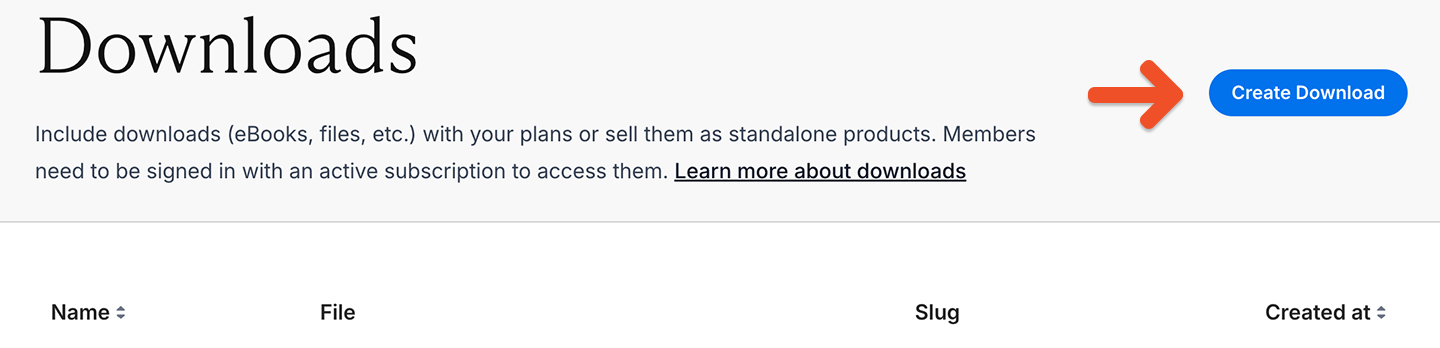
To begin, go to *Content → Downloads* and then click **Create Download.**

<Frame>
  <img src="https://mintcdn.com/memberful/7MafX4N4DXobEewS/images/media/include-or-sell-downloads/download-create-new.png?fit=max&auto=format&n=7MafX4N4DXobEewS&q=85&s=eb5ccae66ac625359c16c6fa5d4d1b9b" alt="New download" width="1440" height="348" data-path="images/media/include-or-sell-downloads/download-create-new.png" />
</Frame>

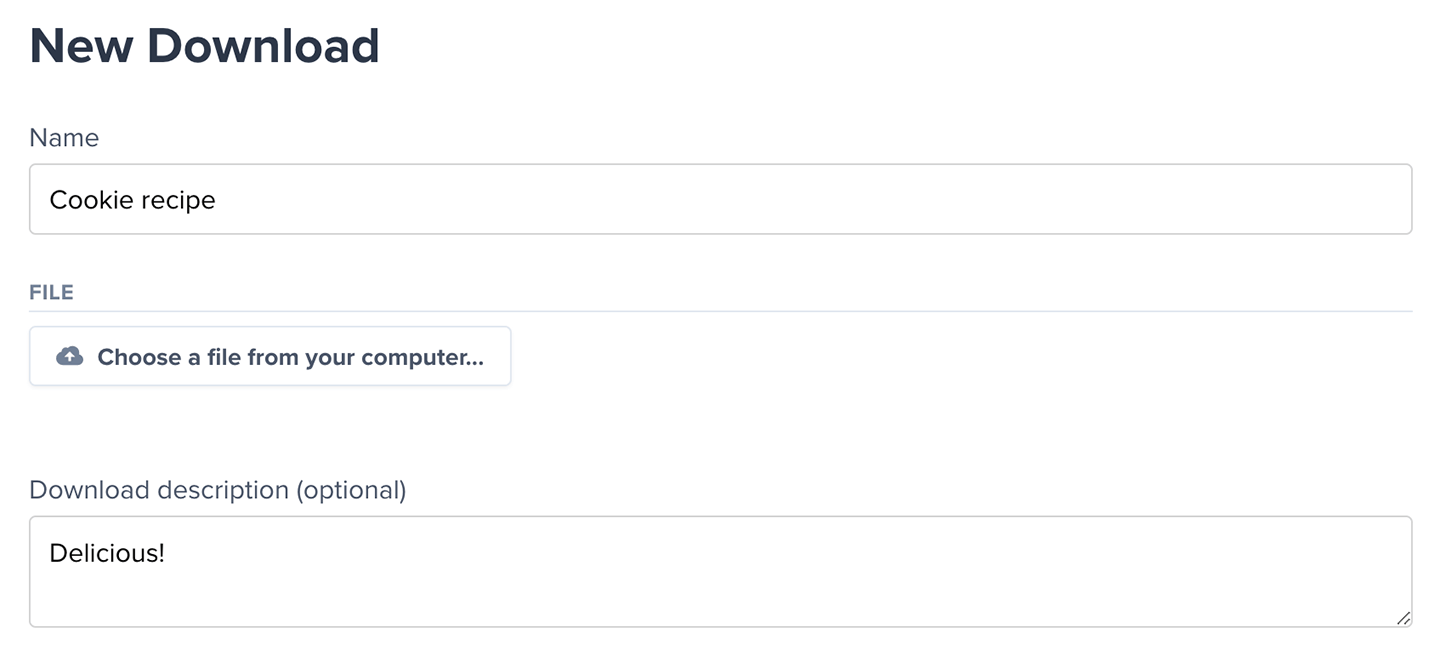
Name the download, choose the file from your computer, and add a description.
<Frame>
  <img src="https://mintcdn.com/memberful/yVoiOagJSDkuQDxk/images/media/include-or-sell-downloads/download-name-choose-file-and-description.png?fit=max&auto=format&n=yVoiOagJSDkuQDxk&q=85&s=c0e838d103f9ca986022af149e69213c" alt="Name and choose file" width="1440" height="655" data-path="images/media/include-or-sell-downloads/download-name-choose-file-and-description.png" />
</Frame>

In the *Which plans should include this download?* section: select **All plans** to include the download with all current and future plans.

Alternatively, choose **Select from your list of plans** to assign it to specific plans.

<Frame>
  <img src="https://mintcdn.com/memberful/kPJAB9aIOraP9OEM/images/media/include-or-sell-downloads/download-select-plans.png?fit=max&auto=format&n=kPJAB9aIOraP9OEM&q=85&s=ccf02e0d226b07f933a761915ad6a0a5" alt="Select plans" width="1440" height="665" data-path="images/media/include-or-sell-downloads/download-select-plans.png" />
</Frame>

Then, click **Create Download.**

You can also configure this for each plan via *Revenue → Plans → Select a plan → Included content* and click **Edit**.

## Sell a download

Go to *Content → Downloads,* then click **Create Download.**

<Frame>
  <img src="https://mintcdn.com/memberful/7MafX4N4DXobEewS/images/media/include-or-sell-downloads/download-create-new.png?fit=max&auto=format&n=7MafX4N4DXobEewS&q=85&s=eb5ccae66ac625359c16c6fa5d4d1b9b" alt="New download" width="1440" height="348" data-path="images/media/include-or-sell-downloads/download-create-new.png" />
</Frame>

Name the download, choose the file from your computer, and add a description.

<Frame>
  <img src="https://mintcdn.com/memberful/yVoiOagJSDkuQDxk/images/media/include-or-sell-downloads/download-name-choose-file-and-description.png?fit=max&auto=format&n=yVoiOagJSDkuQDxk&q=85&s=c0e838d103f9ca986022af149e69213c" alt="Name and choose file" width="1440" height="655" data-path="images/media/include-or-sell-downloads/download-name-choose-file-and-description.png" />
</Frame>

Toggle on *Available as a standalone purchase* and set the price.

<Frame>
  <img src="https://mintcdn.com/memberful/kPJAB9aIOraP9OEM/images/media/include-or-sell-downloads/download-standalone-purchase.png?fit=max&auto=format&n=kPJAB9aIOraP9OEM&q=85&s=5dc7ecae4d803741d02c13fd89197ecd" alt="Standalone purchase" width="1440" height="417" data-path="images/media/include-or-sell-downloads/download-standalone-purchase.png" />
</Frame>

Enter a redirect URL if you want customers to land on a specific page after buying this download.

<Frame>
  <img src="https://mintcdn.com/memberful/ypkv5jobLIhHxHM9/images/media/include-or-sell-downloads/redirect-after-download-purchase.png?fit=max&auto=format&n=ypkv5jobLIhHxHM9&q=85&s=790f628e735d26a7498a8ed9f9261119" alt="Download redirect" width="1440" height="368" data-path="images/media/include-or-sell-downloads/redirect-after-download-purchase.png" />
</Frame>

If you have taxes enabled, you can toggle off tax collection for the download.

<Frame>
  <img src="https://mintcdn.com/memberful/kPJAB9aIOraP9OEM/images/media/include-or-sell-downloads/download-collect-taxes.png?fit=max&auto=format&n=kPJAB9aIOraP9OEM&q=85&s=efd3975c138c2f5b20a2677078e2dd9c" alt="Collect taxes" width="1440" height="399" data-path="images/media/include-or-sell-downloads/download-collect-taxes.png" />
</Frame>

You also have the option to require a mailing address during checkout.

<Frame>
  <img src="https://mintcdn.com/memberful/kPJAB9aIOraP9OEM/images/media/include-or-sell-downloads/download-collect-address.png?fit=max&auto=format&n=kPJAB9aIOraP9OEM&q=85&s=9f9c1f6a87c505e5d079d8b6099511e7" alt="Collect address" width="1636" height="266" data-path="images/media/include-or-sell-downloads/download-collect-address.png" />
</Frame>

Copy the purchase link and add it to your website or newsletter.

<Frame>
  <img src="https://mintcdn.com/memberful/kPJAB9aIOraP9OEM/images/media/include-or-sell-downloads/download-purchase-link.png?fit=max&auto=format&n=kPJAB9aIOraP9OEM&q=85&s=e405bd5a27e9e52eacc580be9d5db90c" alt="Purchase link" width="1440" height="384" data-path="images/media/include-or-sell-downloads/download-purchase-link.png" />
</Frame>

## How members access downloads

Members can access all their downloads when they log in to their account. For ease of use, they can sort them alphabetically or by the date they were added.

```text theme={null}
https://ACCOUNT-URL.memberful.com/account/downloads
```

<Frame>
  <img src="https://mintcdn.com/memberful/kPJAB9aIOraP9OEM/images/media/include-or-sell-downloads/member-access-downloads.png?fit=max&auto=format&n=kPJAB9aIOraP9OEM&q=85&s=672e515ffdcd92374a5475049d6874ec" alt="Access Downloads" width="1440" height="785" data-path="images/media/include-or-sell-downloads/member-access-downloads.png" />
</Frame>

You can use our [WordPress shortcodes](/wordpress-plugin/protect-content/wordpress-shortcodes/) to directly link to downloads on your site. Alternatively, you can use the URL below, but make sure to replace the last four digits with the ones for your download found in the Downloads tab.

```text theme={null}
https://ACCOUNT-URL.memberful.com/account/downloads/get/1234
```

<Callout icon="info" color="#22E273">
  When a member clicks a download, Memberful generates a temporary link that expires after 10 minutes. This helps prevent unauthorized sharing. Members can click the download link again to generate a new link if needed.
</Callout>

<RelatedDocs
  link1={{
url: "/member-interface/account/access-their-account/",
label: "How members access their account.",
}}
  link2={{
url: "/member-interface/subscription/manage-their-subscriptions/",
label: "How members manage their subscriptions.",
}}
/>
