> ## Documentation Index
> Fetch the complete documentation index at: https://memberful.com/docs/llms.txt
> Use this file to discover all available pages before exploring further.
# WordPress membership site
> Add paid memberships to your WordPress website so you can share your passion with your audience and drive revenue for your business.
export const Video = ({url}) => {
return
;
};
In this guide, we'll show you how to set up your WordPress website. Once it's ready, you can install our WordPress plugin to sell memberships and create a members-only experience.
### Try the Memberful plugin on a live WordPress site
Want to test out the member experience? We've set up a demo site so you can see how Memberful works with WordPress.
✔️ Browse a real site using the Memberful WP plugin\
✔️ Go through the signup process with a [test credit card](/overview/getting-started/make-test-purchases/)\
✔️ See what the "logged in" experience could look like for your members
[**Access the demo site >**](https://www.filmforecasters.com/)
## Set up a WordPress website
**Some terms you should be familiar with:**
* **WordPress.org** is software you use to create a website; hosting is not included.
* **WordPress.com** is a commercial company that offers the WordPress.org software, but also provides the hosting for it. Memberful only works with their [Business plan or higher.](https://wordpress.com/pricing)
* **A WordPress theme** is something you install on your WordPress website to change the design and layout of the entire site.
* **Web hosting** is a service that stores your website on the internet.
* **SSL** is a technology that protects your information, and every website should have it today. It establishes an encrypted (secure) connection between your website and a web browser to ensure data passed between them remains private.
If you're new to WordPress, check out our [WordPress website help doc](/wordpress-plugin/setup/simple-wordpress-website/).
To start, make sure you have either a WordPress.org website with [reliable, managed hosting](/wordpress-plugin/setup/wordpress-hosting-providers/) and a great theme, or a WordPress.com hosted website (Creator plan or higher only) and a great theme. Most WordPress themes are [compatible with Memberful](/wordpress-plugin/troubleshooting/theme-and-plugin-compatibility/).
We also recommend [using an SSL certificate](/wordpress-plugin/setup/enable-ssl/) on your WordPress website. Memberful signs WordPress users into your WordPress website, and if you're not using SSL, that information is less secure. All our [recommended WordPress hosting providers](/wordpress-plugin/setup/wordpress-hosting-providers) support easy SSL certificate installation.
## Sign up and install Memberful on your website
Sign up for Memberful and [install](/wordpress-plugin/setup/install-the-memberful-plugin/) the Memberful WordPress plugin on your website. You can try Memberful for [free in test mode](/account-management/modes/manage-your-account-in-test-mode/) for as long as you need.
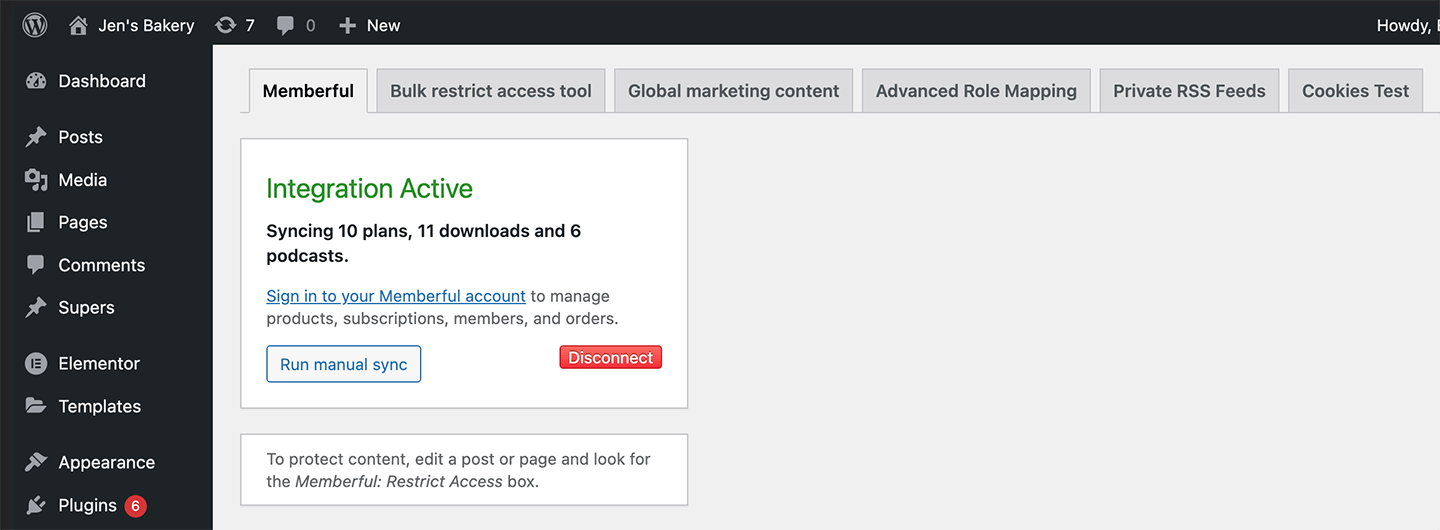
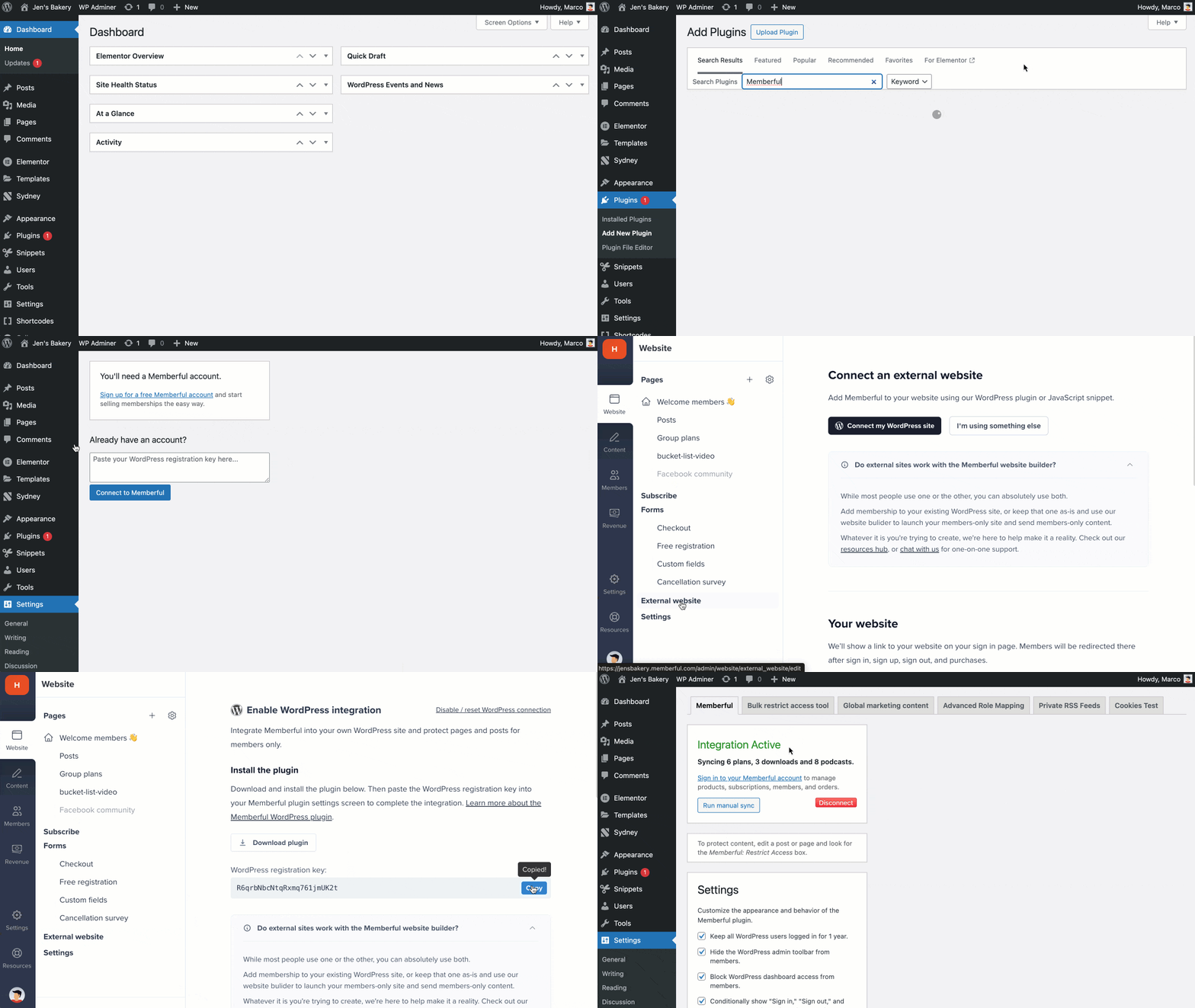 Once connected, your members will be signed in to WordPress when they log in to Memberful. Their plans are also automatically synced, which makes it easy to protect WordPress content.
 ## Create your plans and prices
Set up a membership plan that people can subscribe to.
Go to *Revenue → Plans* and click **Create plan**.
## Create your plans and prices
Set up a membership plan that people can subscribe to.
Go to *Revenue → Plans* and click **Create plan**.
 Add one or more prices, then choose how members can buy and access the plan.
For full setup guidance, see [Create a plan.](/plans/individual-plans/create-a-plan/)
### Configure your redirect settings
By default, members are redirected to the page they were on before signing in. If you want members to be redirected to a different page on your site after their purchase (like a "thank you" page), [configure the redirect URL in your Plan Settings.](/configuration/other-settings/configure-redirect-settings/#set-up-plan-specific-redirects)
## Add purchase links to your site
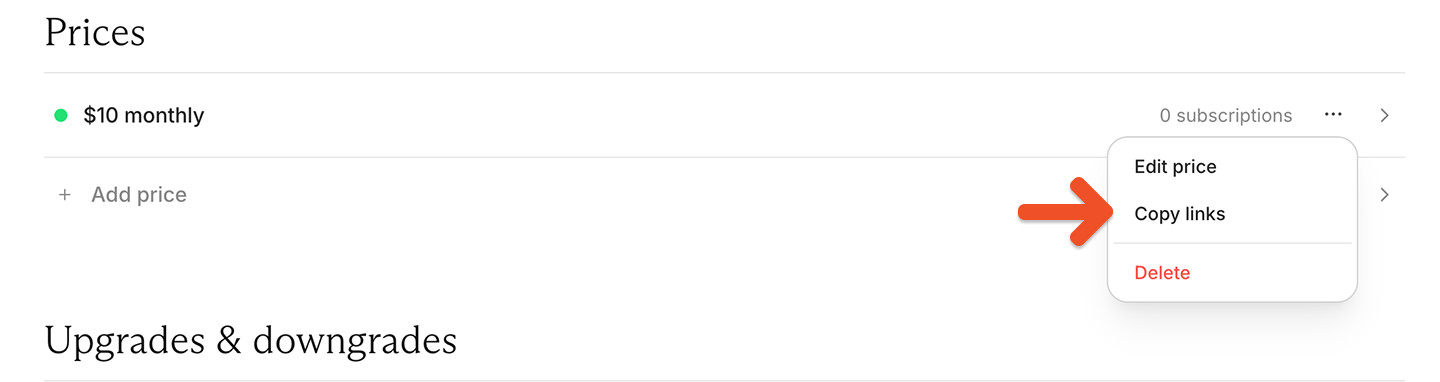
Copy the purchase link from your Memberful dashboard and paste it on your site. Alternatively, you can use the button options included with your WordPress theme. [Learn more about adding purchase links to your site.](/plans/promote-and-sell/add-a-link-to-buy-a-plan/)
Add one or more prices, then choose how members can buy and access the plan.
For full setup guidance, see [Create a plan.](/plans/individual-plans/create-a-plan/)
### Configure your redirect settings
By default, members are redirected to the page they were on before signing in. If you want members to be redirected to a different page on your site after their purchase (like a "thank you" page), [configure the redirect URL in your Plan Settings.](/configuration/other-settings/configure-redirect-settings/#set-up-plan-specific-redirects)
## Add purchase links to your site
Copy the purchase link from your Memberful dashboard and paste it on your site. Alternatively, you can use the button options included with your WordPress theme. [Learn more about adding purchase links to your site.](/plans/promote-and-sell/add-a-link-to-buy-a-plan/)
 ## Restrict access to your members-only content
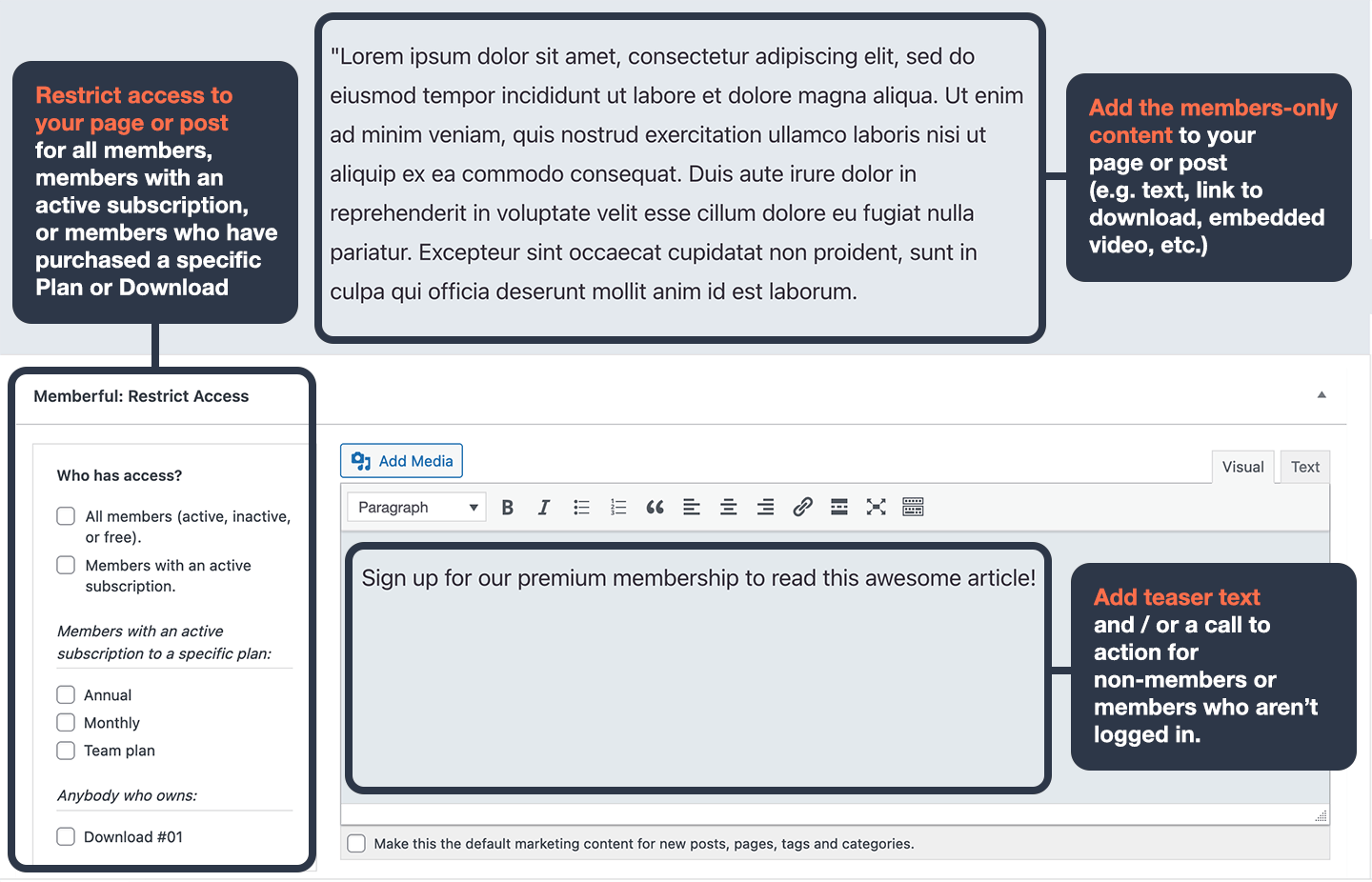
Next, you'll want to restrict access to all of your members-only content using the **Memberful: Restrict Access** meta box found at the bottom of every page and post.
[Learn more about your content restriction options.](/wordpress-plugin/protect-content/restrict-access-to-a-single-post/)
## Restrict access to your members-only content
Next, you'll want to restrict access to all of your members-only content using the **Memberful: Restrict Access** meta box found at the bottom of every page and post.
[Learn more about your content restriction options.](/wordpress-plugin/protect-content/restrict-access-to-a-single-post/)
 Want to restrict access to video content? [Learn more about hosting videos and embedding them into protected posts](/website-builder/video-content/restrict-access-to-video-content/).
## Add account management links
Give members an easy way to sign in to your site and manage their Memberful accounts. You can [add a sign-in link to any post or page](/wordpress-plugin/setup/member-account-links/#add-memberful-sign-in-and-sign-out-links-to-any-post-or-page) or [add sign-in, sign-out, and account links to your menu.](/wordpress-plugin/setup/member-account-links/#add-memberful-menu-links)
Any member account management links in your theme and content (as well as links added by plugins) will need to be updated. Learn more about [updating links in your theme, content, and plugins.](/wordpress-plugin/setup/member-account-links/#update-links-in-your-theme-content-and-plugins)
## Test the member experience
While your Memberful account is in test mode, [you can use Stripe's test credit cards](/overview/getting-started/make-test-purchases/) to complete example member purchases and recreate their onboarding experience.
Sign up with a different email address from the one associated with your website and Memberful account, as using the same email address can produce unexpected errors.
Make a lasting first impression with an onboarding program that highlights your best content and gets new members excited from the start. Set the tone for success and engagement right from day one. [Check out Operator](https://www.membershipoperator.com) for tips on designing an onboarding experience that wows.
## Go live
When you're ready to start processing orders, [choose your currency](/configuration/localization/choose-your-currency/) and connect to your Stripe account via *Settings → Stripe.* We will automatically delete your test orders, delete test member accounts, and reset your Memberful dashboard metrics when you switch to live payments. All your other settings and customizations will be maintained.
**Nice work connecting to Stripe.**
Now you're ready to start selling memberships to your audience. Here are a few ideas to make your launch a success:
* Announce the membership on your social media pages.
* Link to the membership sign-up page in your social media profiles and upload special banners for launch month.
* Send a membership-specific email blast, and include a link to the membership signup page in your email signature.
* Host a livestream or post a video to announce the membership.
Want to restrict access to video content? [Learn more about hosting videos and embedding them into protected posts](/website-builder/video-content/restrict-access-to-video-content/).
## Add account management links
Give members an easy way to sign in to your site and manage their Memberful accounts. You can [add a sign-in link to any post or page](/wordpress-plugin/setup/member-account-links/#add-memberful-sign-in-and-sign-out-links-to-any-post-or-page) or [add sign-in, sign-out, and account links to your menu.](/wordpress-plugin/setup/member-account-links/#add-memberful-menu-links)
Any member account management links in your theme and content (as well as links added by plugins) will need to be updated. Learn more about [updating links in your theme, content, and plugins.](/wordpress-plugin/setup/member-account-links/#update-links-in-your-theme-content-and-plugins)
## Test the member experience
While your Memberful account is in test mode, [you can use Stripe's test credit cards](/overview/getting-started/make-test-purchases/) to complete example member purchases and recreate their onboarding experience.
Sign up with a different email address from the one associated with your website and Memberful account, as using the same email address can produce unexpected errors.
Make a lasting first impression with an onboarding program that highlights your best content and gets new members excited from the start. Set the tone for success and engagement right from day one. [Check out Operator](https://www.membershipoperator.com) for tips on designing an onboarding experience that wows.
## Go live
When you're ready to start processing orders, [choose your currency](/configuration/localization/choose-your-currency/) and connect to your Stripe account via *Settings → Stripe.* We will automatically delete your test orders, delete test member accounts, and reset your Memberful dashboard metrics when you switch to live payments. All your other settings and customizations will be maintained.
**Nice work connecting to Stripe.**
Now you're ready to start selling memberships to your audience. Here are a few ideas to make your launch a success:
* Announce the membership on your social media pages.
* Link to the membership sign-up page in your social media profiles and upload special banners for launch month.
* Send a membership-specific email blast, and include a link to the membership signup page in your email signature.
* Host a livestream or post a video to announce the membership.