> ## Documentation Index
> Fetch the complete documentation index at: https://memberful.com/docs/llms.txt
> Use this file to discover all available pages before exploring further.
# Import from Stripe without Stripe Subscriptions
> Import members into Memberful from systems that use Stripe but not Stripe Subscriptions, such as WooCommerce or MemberMouse, with hands-on migration support.
export const RelatedDocs = ({link1, link2, link3, link4, link5, link6, link7, link8, link9, link10, className = ""}) => {
const links = [link1, link2, link3, link4, link5, link6, link7, link8, link9, link10].filter(Boolean);
if (!links.length) return null;
return ;
};
In this help article, we'll show you how to import members into Memberful from a system that uses Stripe but not Stripe Subscriptions.
If you're integrated with a system that uses **Stripe, but not Stripe Subscriptions (like WooCommerce and MemberMouse),** you'll prepare and generate an export from your old membership system (including the Stripe Customer IDs) and format it so it can be imported to Memberful via our CSV import file.
## Prepare for the migration
1. [Create your plan(s)](/plans/individual-plans/create-a-plan/) in Memberful.
2. Connect to Stripe via *Settings → Stripe.*
 3. Go to the Members tab, and click *Actions → Import members*.
4. Download our sample CSV import file, and import it into Google Sheets to avoid issues with special characters. (Excel generates these special characters so we recommend importing and exporting the CSV via Google Sheets.)
3. Go to the Members tab, and click *Actions → Import members*.
4. Download our sample CSV import file, and import it into Google Sheets to avoid issues with special characters. (Excel generates these special characters so we recommend importing and exporting the CSV via Google Sheets.)
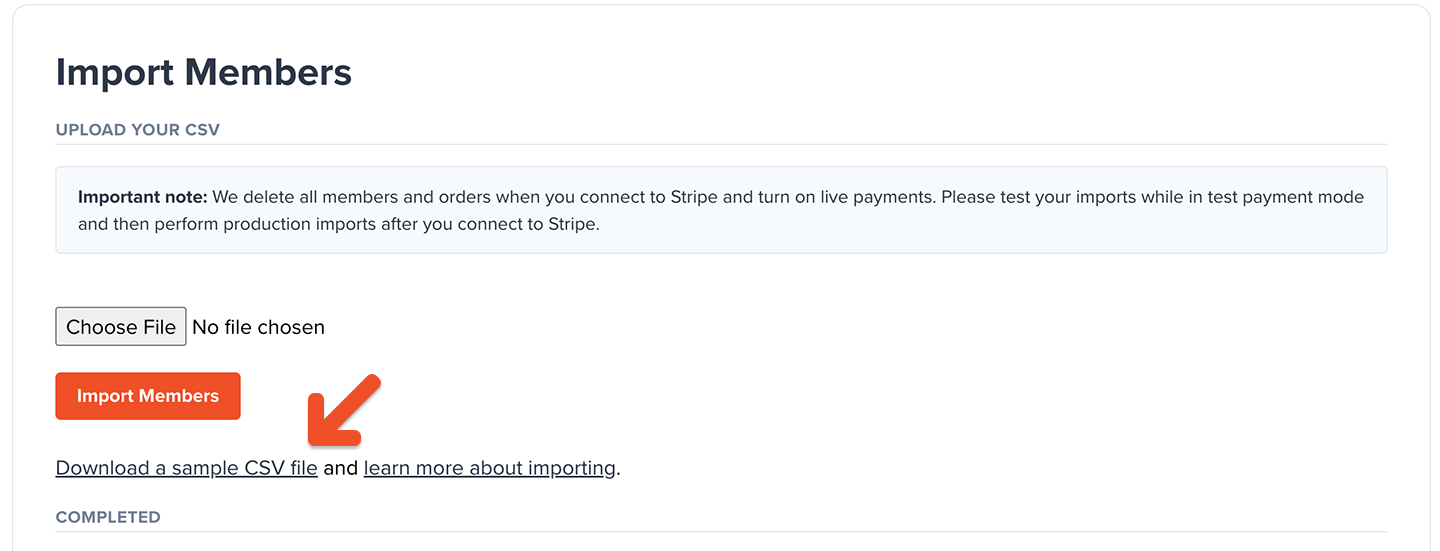 5. Export member data from your current membership system and format it in the Memberful import file. [See a list of the fields here.](/overview/import-members/import-members-via-csv#details-on-csv-import-fields) **If you'd like our help with an import, email us a link to a Google Sheet.** For security and privacy reasons, do not email us import files.
Watch out for duplicate email addresses (we will create two subscriptions for the same member), expired subscriptions, and date formatting—the renewal date format should be mm/dd/yyyy.
6. Disable signups on your old system. Also, to prevent your members from being notified of any changes, disable all automated emails in your old system (and Stripe if required), and make sure you turn off any automations in your email service provider (ESP) that are triggered by activities in Memberful.
Keep in mind that some ESPs, like Kit, will add the members to a "waiting" list and may still try to send them emails once the automations are turned back on. Remove the emails from the automation before turning it on.
7. After you've formatted your CSV import file, click *Actions → Import members*. Upload the file and import your members.
5. Export member data from your current membership system and format it in the Memberful import file. [See a list of the fields here.](/overview/import-members/import-members-via-csv#details-on-csv-import-fields) **If you'd like our help with an import, email us a link to a Google Sheet.** For security and privacy reasons, do not email us import files.
Watch out for duplicate email addresses (we will create two subscriptions for the same member), expired subscriptions, and date formatting—the renewal date format should be mm/dd/yyyy.
6. Disable signups on your old system. Also, to prevent your members from being notified of any changes, disable all automated emails in your old system (and Stripe if required), and make sure you turn off any automations in your email service provider (ESP) that are triggered by activities in Memberful.
Keep in mind that some ESPs, like Kit, will add the members to a "waiting" list and may still try to send them emails once the automations are turned back on. Remove the emails from the automation before turning it on.
7. After you've formatted your CSV import file, click *Actions → Import members*. Upload the file and import your members.
 The **member.signup** webhook is triggered for each member imported via the import file, which means that any Zaps connected to that webhook will also be triggered.
## Non-WordPress site post-migration steps
1. Disable your old membership system completely and terminate any recurring billing logic in your previous processor (if required).
2. Email members and tell them about the new system. When a member lands on the sign in form, they'll enter their email address, and Memberful will send them a link they can click to sign in. (If they prefer a password, they'll be able to set one and use it to sign in.)
## WordPress site post-migration steps
1. Disable your old membership system completely and terminate any recurring billing logic in your previous processor (if required).
2. Enable Memberful on your WordPress site and [push live any necessary design changes. ](/wordpress-plugin/setup/use-a-staging-site/)
3. Delete your users from WordPress. (We will recreate the members.) If you don't delete the users, we will ask them to sign in with their existing WordPress credentials so we can sync the WordPress / Memberful accounts.
The **member.signup** webhook is triggered for each member imported via the import file, which means that any Zaps connected to that webhook will also be triggered.
## Non-WordPress site post-migration steps
1. Disable your old membership system completely and terminate any recurring billing logic in your previous processor (if required).
2. Email members and tell them about the new system. When a member lands on the sign in form, they'll enter their email address, and Memberful will send them a link they can click to sign in. (If they prefer a password, they'll be able to set one and use it to sign in.)
## WordPress site post-migration steps
1. Disable your old membership system completely and terminate any recurring billing logic in your previous processor (if required).
2. Enable Memberful on your WordPress site and [push live any necessary design changes. ](/wordpress-plugin/setup/use-a-staging-site/)
3. Delete your users from WordPress. (We will recreate the members.) If you don't delete the users, we will ask them to sign in with their existing WordPress credentials so we can sync the WordPress / Memberful accounts.
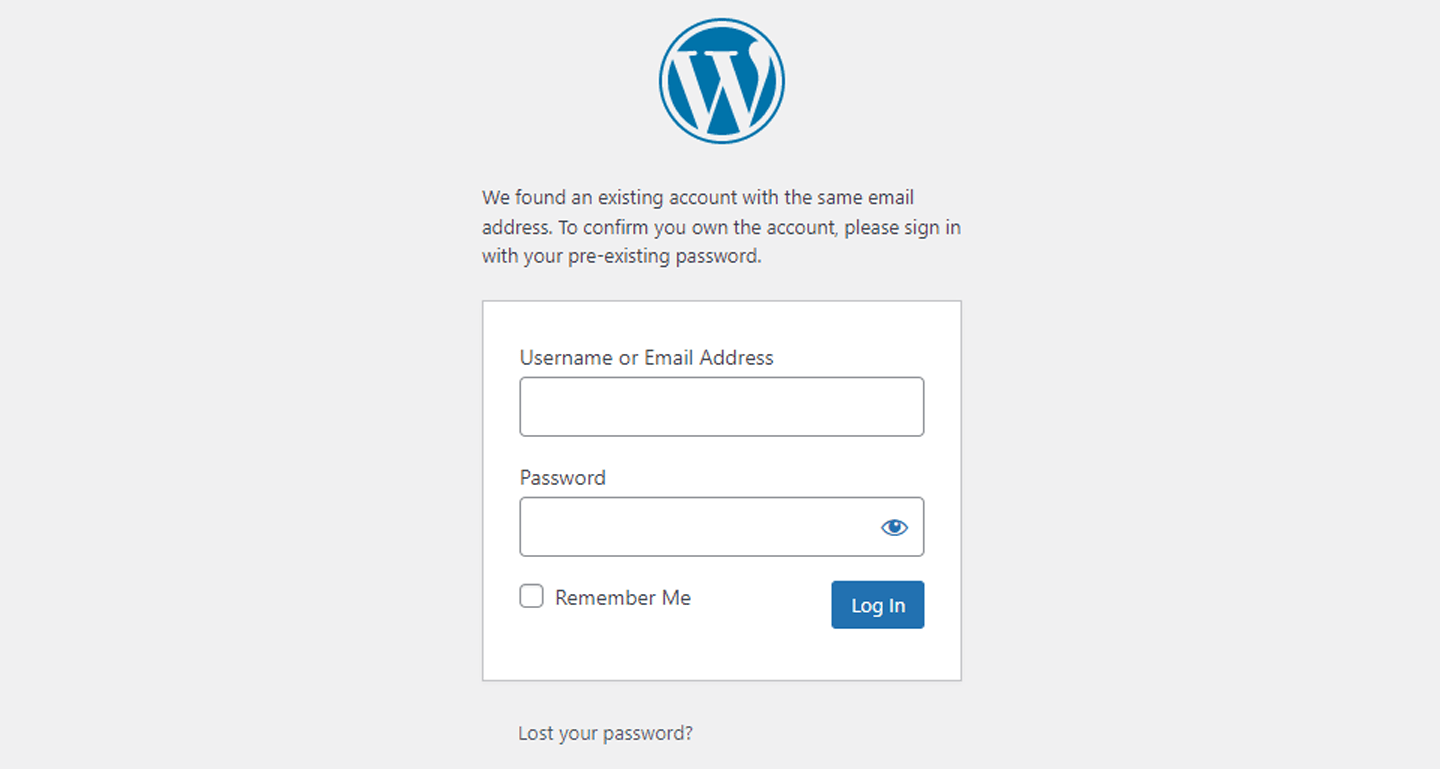 4. Email members and tell them about the new system. When a member lands on the sign in form, they'll enter their email address, and Memberful will send them a link they can click to sign in. (If they prefer a password, they'll be able to set one and use it to sign in.)