> ## Documentation Index
> Fetch the complete documentation index at: https://memberful.com/docs/llms.txt
> Use this file to discover all available pages before exploring further.
# Make test purchases
> Make test purchases in Memberful using Stripe's test credit cards while your account is in test mode, so you can preview the checkout and member experience.
export const RelatedDocs = ({link1, link2, link3, link4, link5, link6, link7, link8, link9, link10, className = ""}) => {
const links = [link1, link2, link3, link4, link5, link6, link7, link8, link9, link10].filter(Boolean);
if (!links.length) return null;
return ;
};
In this help article, we'll show you how to test your setup before going live so you can experience the membership flow from your members' perspective and resolve any issues along the way.
## How to make test purchases while in test mode
Once you've [created a membership plan,](/plans/individual-plans/create-a-plan/) use Stripe's test credit cards to "purchase" a subscription as a member. You can use any of the card numbers below, [or another card from Stripe's docs](https://stripe.com/docs/testing), along with any expiration date, name, CVC, and zip / postal code.
* **United States:** 4242 4242 4242 4242
* **Canada:** 4000 0012 4000 0000
* **United Kingdom:** 4000 0082 6000 0000
* **Australia:** 4000 0003 6000 0006
* **Japan:** 4000 0039 2000 0003
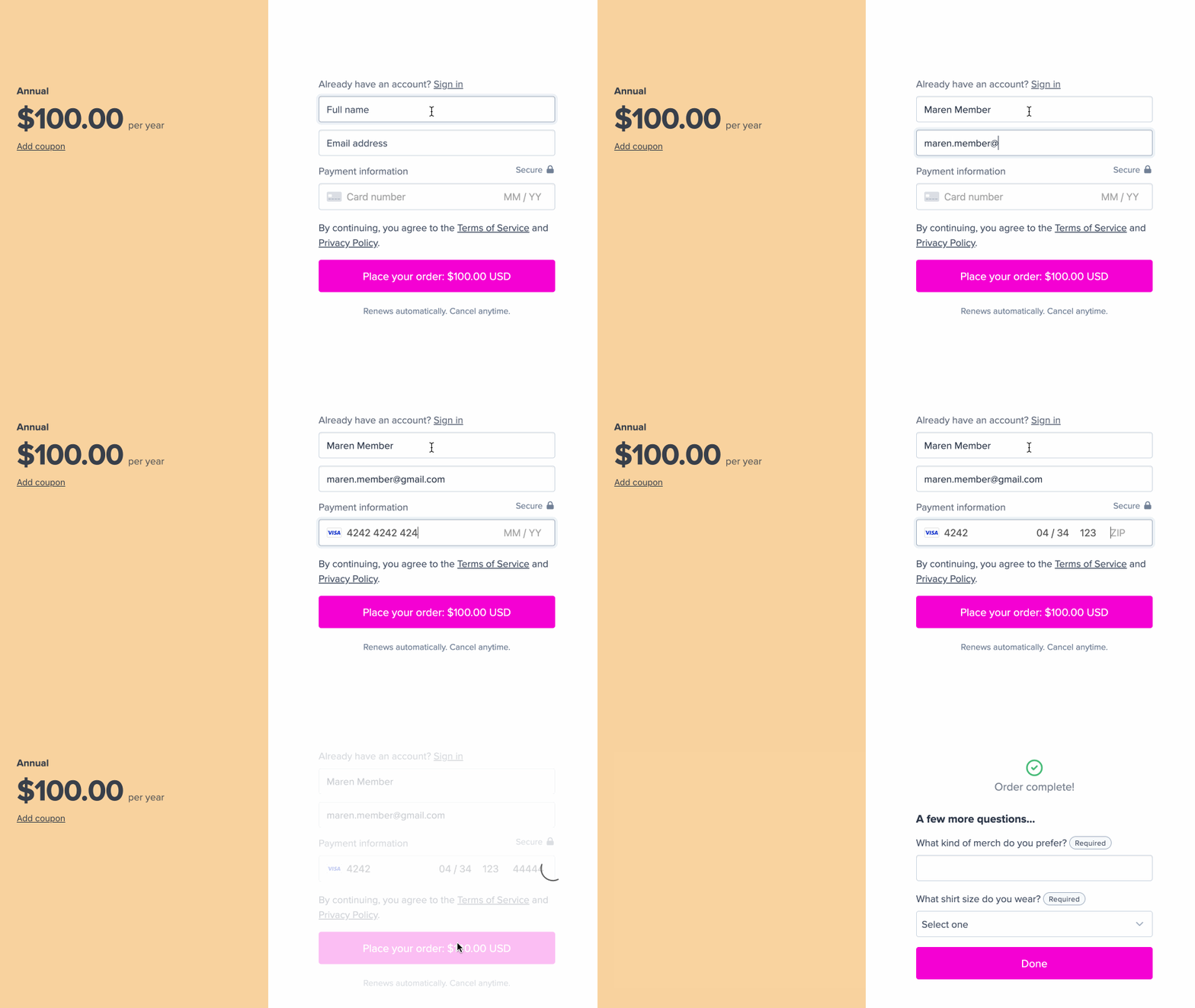 When making test purchases in test mode, you may receive example invoices via email. These invoices are not real charges and are sent only to the Memberful site owner's email address to prevent fraud and spam. Keep this in mind if other staff members run test purchases from different email addresses.
## How sign-in links work in test mode
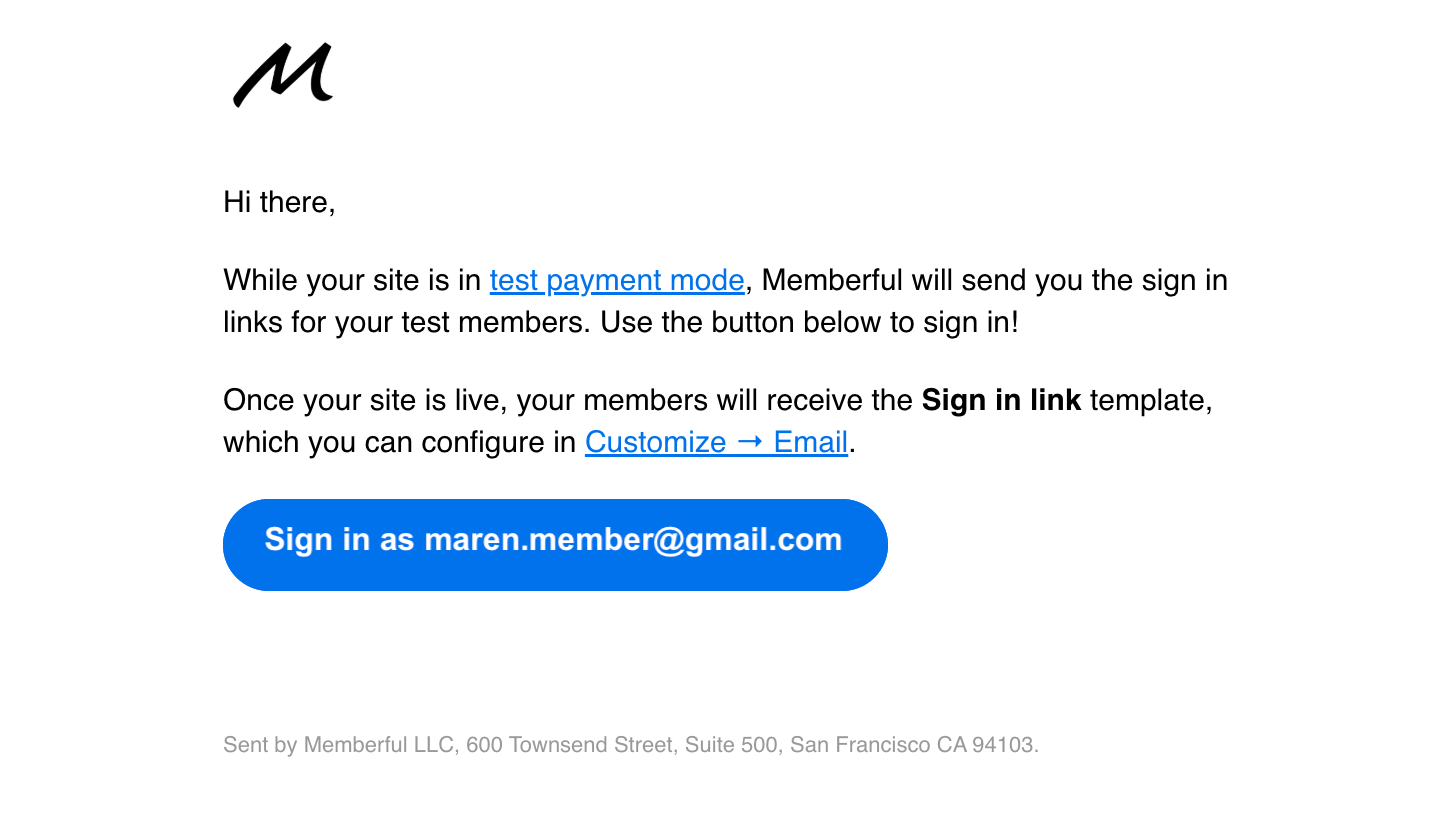
By default, all sign-in emails will be sent to the Memberful account owner while the site is in test mode. To send sign-in links to the test member's email address instead, you can either add a payment method to your account or take your account live by connecting to Stripe.
When making test purchases in test mode, you may receive example invoices via email. These invoices are not real charges and are sent only to the Memberful site owner's email address to prevent fraud and spam. Keep this in mind if other staff members run test purchases from different email addresses.
## How sign-in links work in test mode
By default, all sign-in emails will be sent to the Memberful account owner while the site is in test mode. To send sign-in links to the test member's email address instead, you can either add a payment method to your account or take your account live by connecting to Stripe.
 ## What email address to use for test purchases
For member test purchases, it's best to use an email address that's not currently associated with an admin or staff account. This can produce unexpected errors.
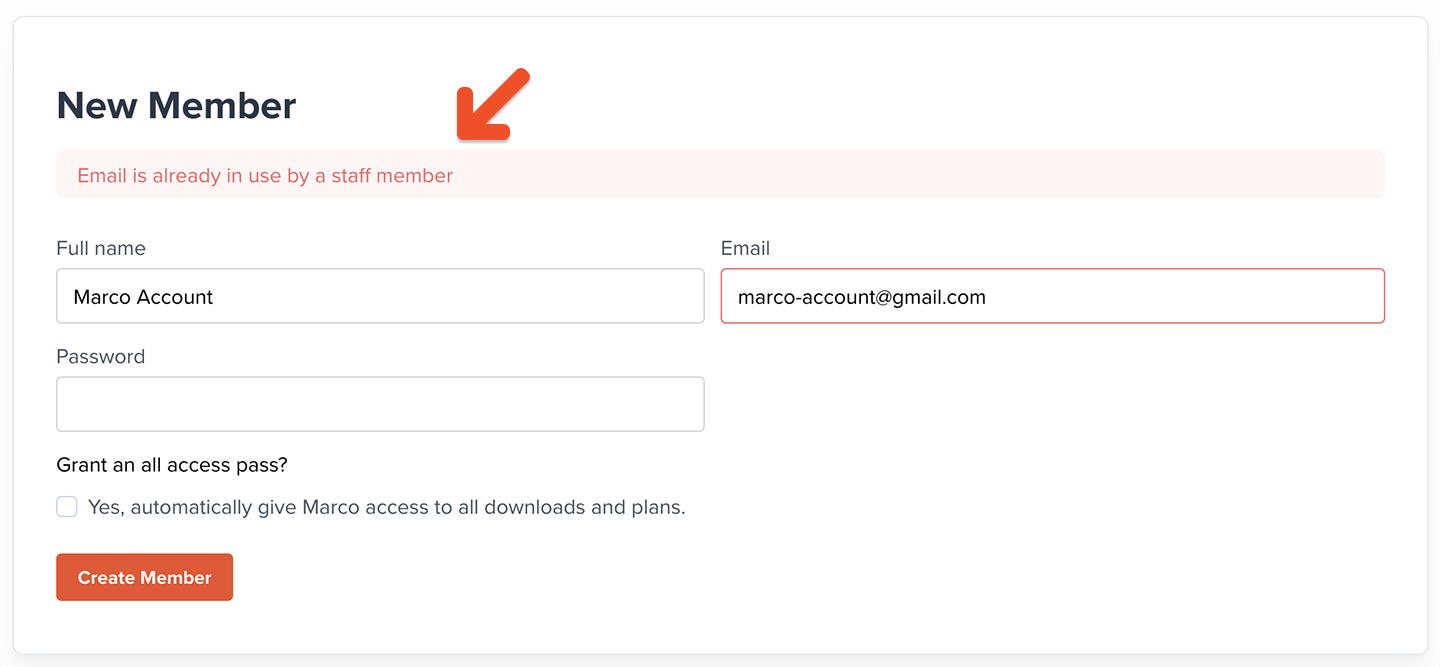
The Memberful dashboard will not let you create a test member with an email address matching an existing Memberful staff member.
## What email address to use for test purchases
For member test purchases, it's best to use an email address that's not currently associated with an admin or staff account. This can produce unexpected errors.
The Memberful dashboard will not let you create a test member with an email address matching an existing Memberful staff member.
 If you're using WordPress, you should also avoid creating a test member in Memberful using the same email as a WordPress administrator. This will create login issues on your site and not recreate the correct member login experience. To fix this, [edit the member profile](/member-management/subscription-management/admin-member-management/#manage-your-members) and update the email address.
If you're using Gmail, you can use the "+" sign with your existing email address to create additional test email addresses (e.g., marco-account\*\*+test\*\*@gmail.com).
## How to make test purchases after connecting to Stripe
Once you've connected to Stripe, you'll no longer be in test mode, and any transactions will generate real charges.
We'll also delete your test orders and test member accounts, and reset your dashboard metrics for a fresh start. All your other settings and customizations will remain unchanged.
However, you can still make test purchases by [creating a 100% recurring coupon.](/member-management/payments-and-access/give-free-access/#give-free-access-to-a-plan-indefinitely)
Alternatively, you can use our website editor to see which features are customizable, how they interact, and how [they'll appear to your members on different devices.](/overview/getting-started/checkout-experience/)
If you're using WordPress, you should also avoid creating a test member in Memberful using the same email as a WordPress administrator. This will create login issues on your site and not recreate the correct member login experience. To fix this, [edit the member profile](/member-management/subscription-management/admin-member-management/#manage-your-members) and update the email address.
If you're using Gmail, you can use the "+" sign with your existing email address to create additional test email addresses (e.g., marco-account\*\*+test\*\*@gmail.com).
## How to make test purchases after connecting to Stripe
Once you've connected to Stripe, you'll no longer be in test mode, and any transactions will generate real charges.
We'll also delete your test orders and test member accounts, and reset your dashboard metrics for a fresh start. All your other settings and customizations will remain unchanged.
However, you can still make test purchases by [creating a 100% recurring coupon.](/member-management/payments-and-access/give-free-access/#give-free-access-to-a-plan-indefinitely)
Alternatively, you can use our website editor to see which features are customizable, how they interact, and how [they'll appear to your members on different devices.](/overview/getting-started/checkout-experience/)