Related help docs:
 ## How we keep your list up to date and synced
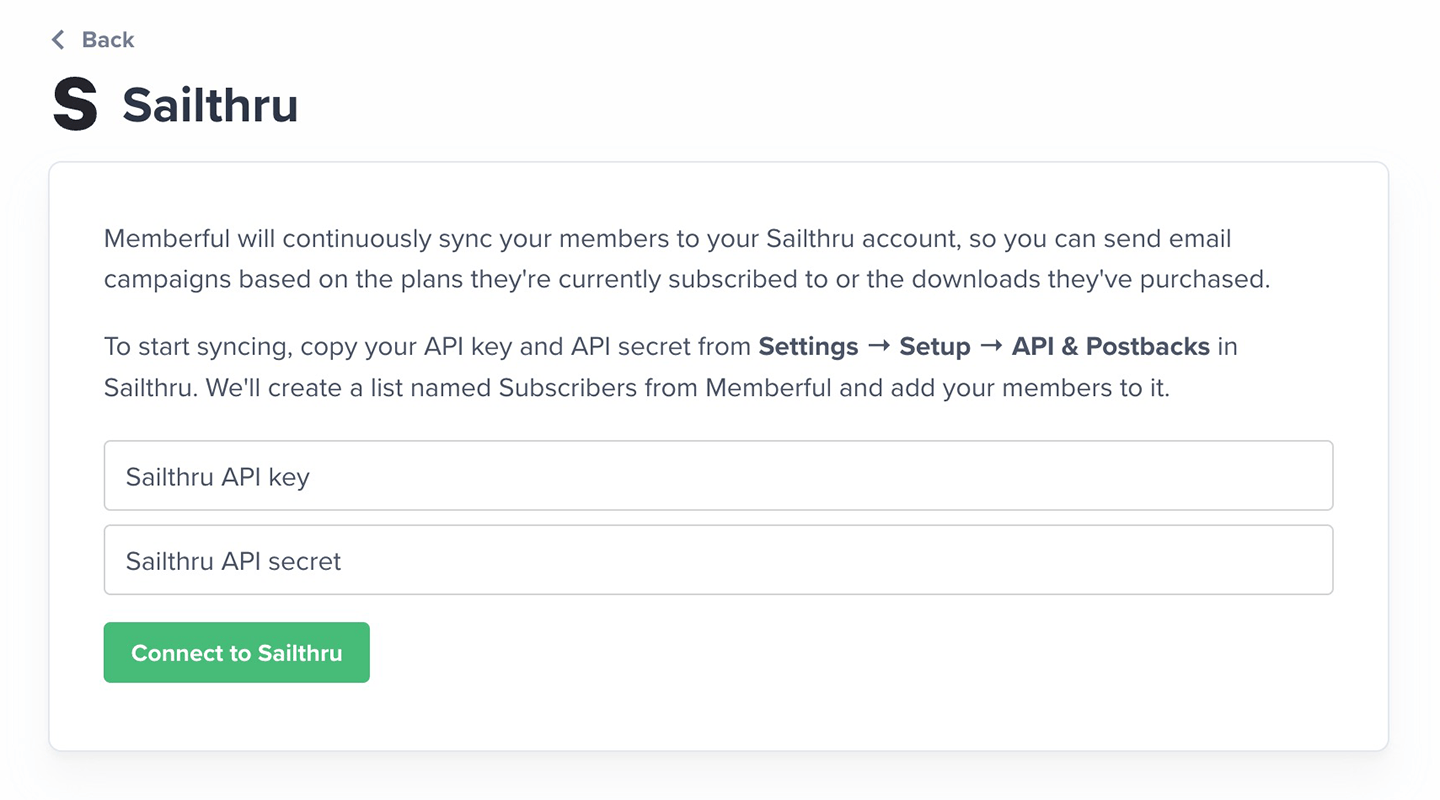
When you first connect, Memberful imports all your existing members as subscribers and creates a list called *Subscribers from Memberful* in your Sailthru account. This list stays automatically synced — new members are added, existing members are updated, and key details are synced as custom fields. You can use these custom fields to build [smart lists.](https://getstarted.sailthru.com/audience/managing-lists/smart-lists/)
To view them, open a subscriber's profile in Sailthru and select the **Custom Fields** tab.
## How we keep your list up to date and synced
When you first connect, Memberful imports all your existing members as subscribers and creates a list called *Subscribers from Memberful* in your Sailthru account. This list stays automatically synced — new members are added, existing members are updated, and key details are synced as custom fields. You can use these custom fields to build [smart lists.](https://getstarted.sailthru.com/audience/managing-lists/smart-lists/)
To view them, open a subscriber's profile in Sailthru and select the **Custom Fields** tab.
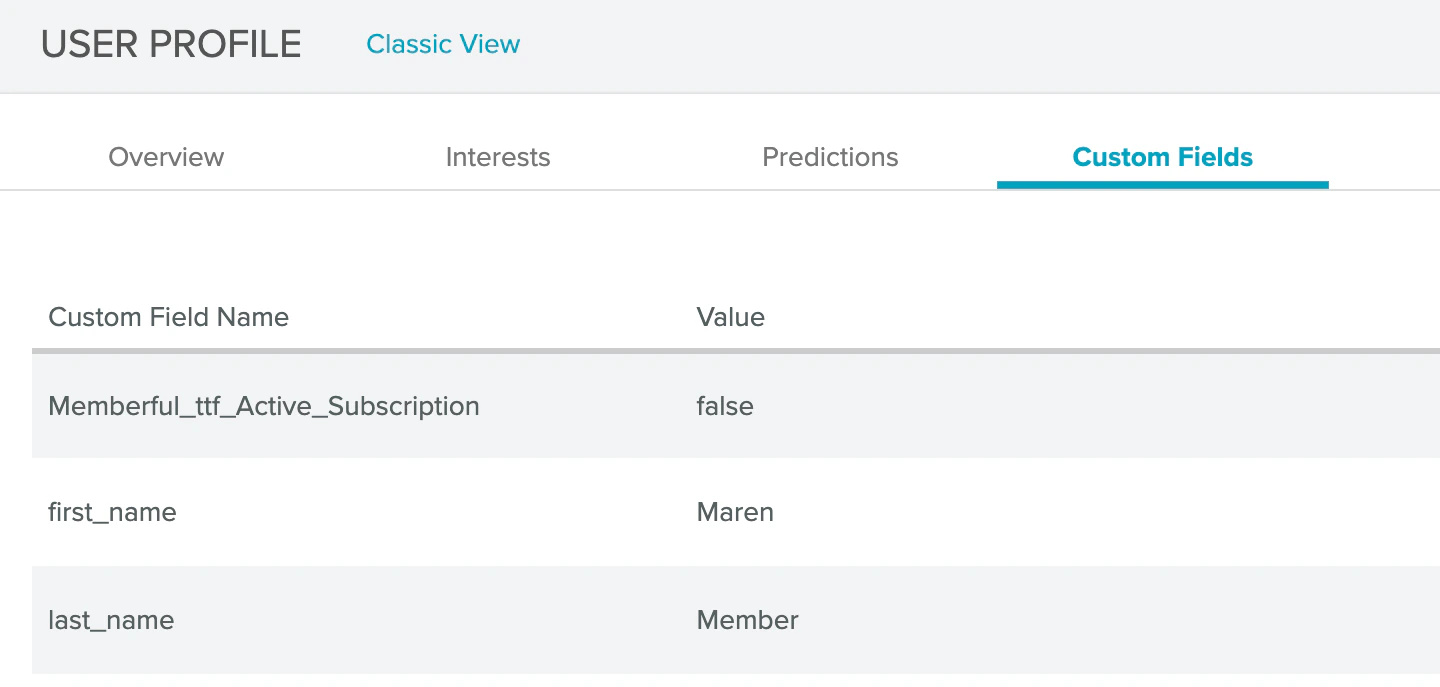 Here are the custom fields Memberful continuously syncs to Sailthru:
* **Memberful Active Subscription:** Set to `true` if the member has an active subscription.
* **Memberful All Access Pass:** Set to `true` if an All Access Pass was granted by you or a team member.
* **Memberful Plan \[Your plan slug]:** Set to `true` for each plan the member is subscribed to.
* **Memberful Download \[Your product slug]:** Set to `true` for each download the member has purchased.
* **Memberful Signup Source:**
* **Checkout:** Member signed up by purchasing a plan or a download.
* **Created by Admin:** Member was created manually by you or a staff member.
* **Free Registration:** Member signed up through the free registration form.
* **Gift:** Member signed up through a gifted subscription.
Here are the custom fields Memberful continuously syncs to Sailthru:
* **Memberful Active Subscription:** Set to `true` if the member has an active subscription.
* **Memberful All Access Pass:** Set to `true` if an All Access Pass was granted by you or a team member.
* **Memberful Plan \[Your plan slug]:** Set to `true` for each plan the member is subscribed to.
* **Memberful Download \[Your product slug]:** Set to `true` for each download the member has purchased.
* **Memberful Signup Source:**
* **Checkout:** Member signed up by purchasing a plan or a download.
* **Created by Admin:** Member was created manually by you or a staff member.
* **Free Registration:** Member signed up through the free registration form.
* **Gift:** Member signed up through a gifted subscription.
 ### Build a custom smart list
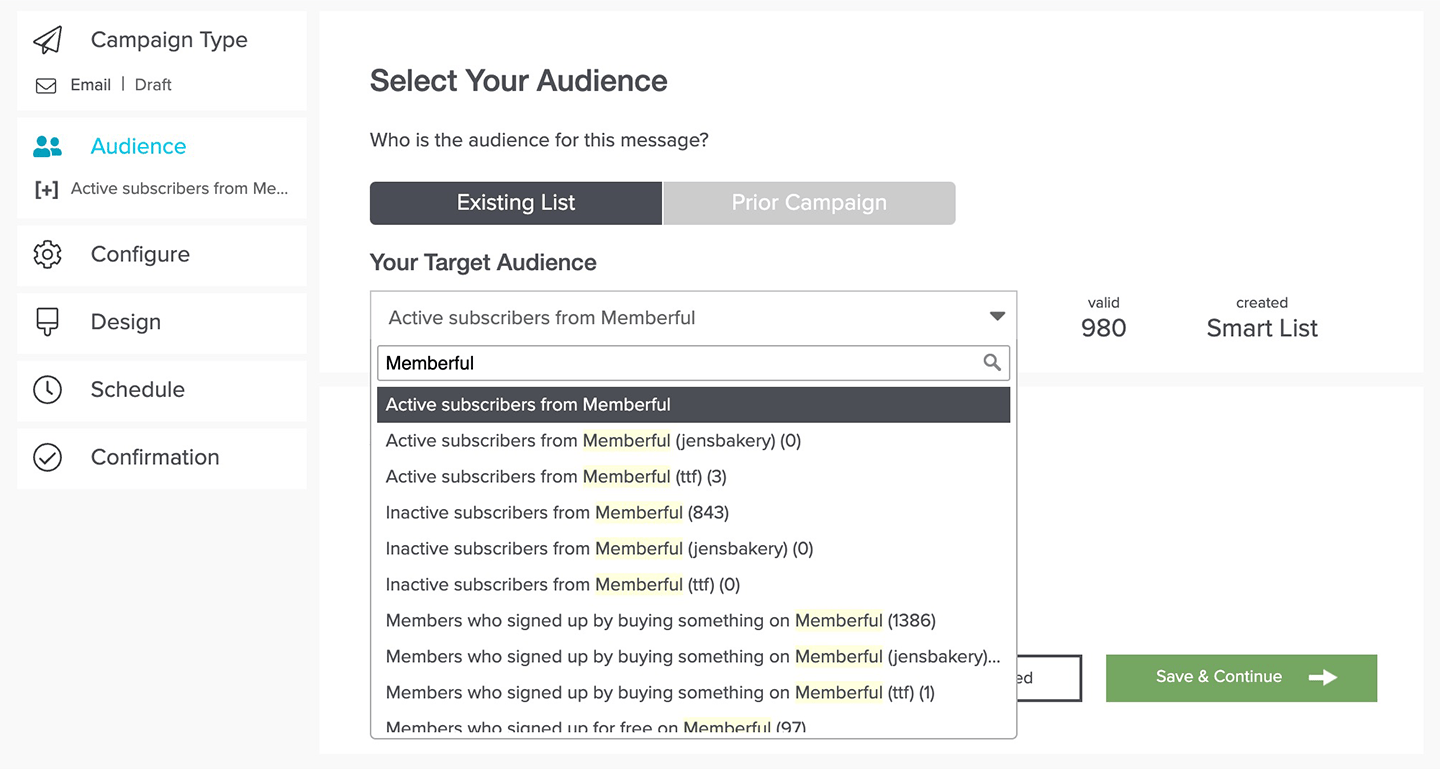
1. In Sailthru, go to *Users → Audience Builder.*
2. Select the **Subscribers from Memberful** list as the audience source, and click **Done**.
To build a list of members subscribed to your Gold plan, for example:
1. In Sailthru, go to *Users → Audience Builder.*
2. Select the **Subscribers from Memberful** list as the audience source and click **Done.**
3. Under *Custom Profile Field (Vars)*, select *Field: Exists, Contains, Is.*
4. Enter your Memberful field (for example, Memberful\_Plan\_Gold) and set its value to *true.*
5. Click **Save as Smart List**, give it a name, and use it in your campaign.
### Build a custom smart list
1. In Sailthru, go to *Users → Audience Builder.*
2. Select the **Subscribers from Memberful** list as the audience source, and click **Done**.
To build a list of members subscribed to your Gold plan, for example:
1. In Sailthru, go to *Users → Audience Builder.*
2. Select the **Subscribers from Memberful** list as the audience source and click **Done.**
3. Under *Custom Profile Field (Vars)*, select *Field: Exists, Contains, Is.*
4. Enter your Memberful field (for example, Memberful\_Plan\_Gold) and set its value to *true.*
5. Click **Save as Smart List**, give it a name, and use it in your campaign.
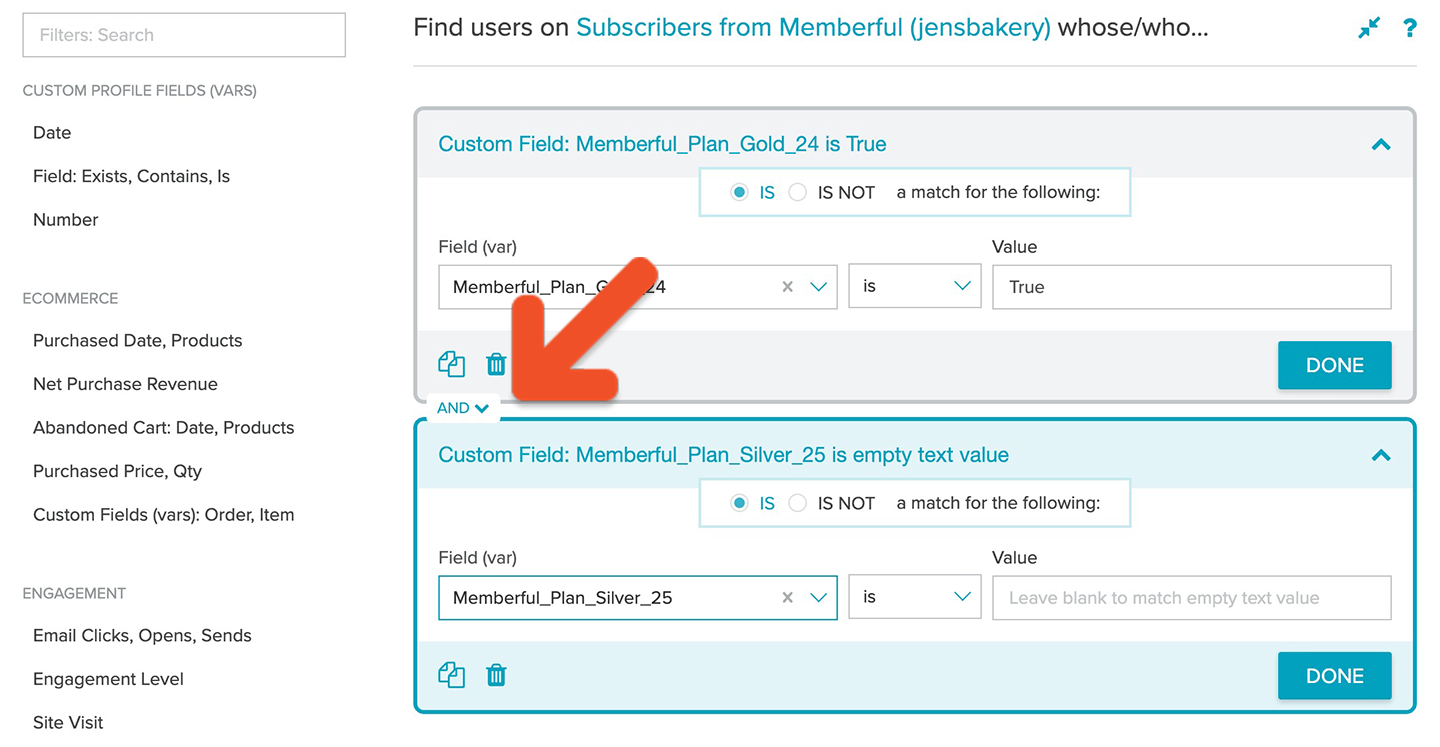
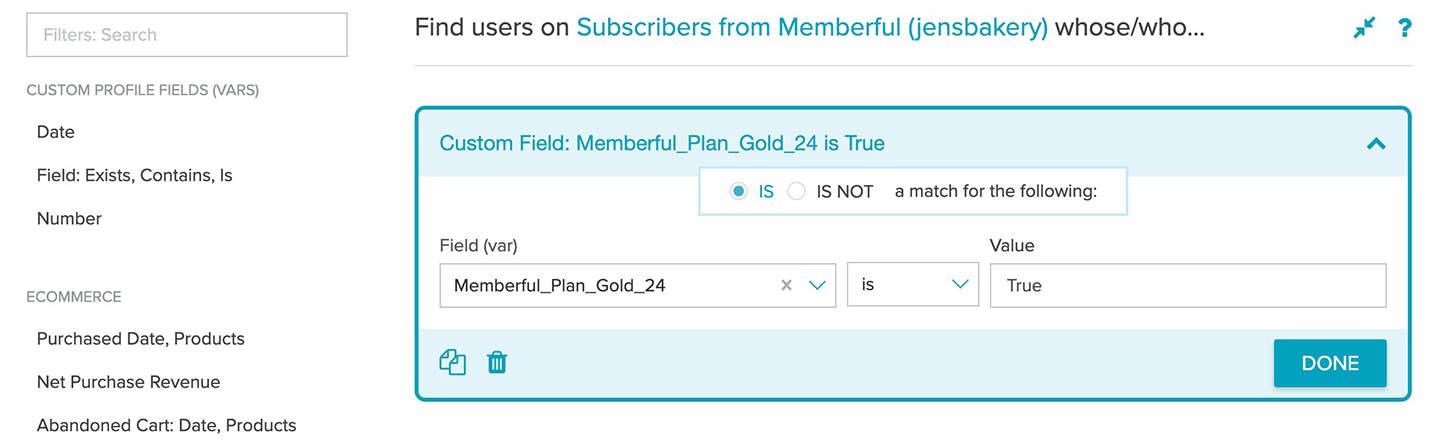 You can mix and match multiple custom fields to build complex lists. For example, to target members on the Gold plan **or** the Silver plan, add both fields and switch the connector from AND to OR before saving your Smart List.
 ## Add a referral link to your campaign
If you have enabled [Memberful referrals](https://memberful.com/discounts-and-gifting/track-member-referrals/), you can include a referral link in your campaign so members can earn rewards for referring others.
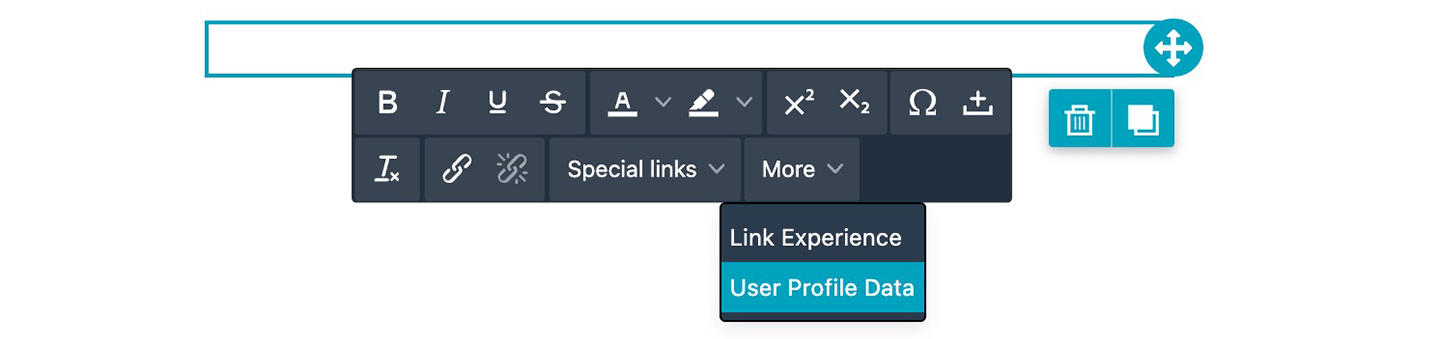
In your campaign editor, select **User Profile Data.**
## Add a referral link to your campaign
If you have enabled [Memberful referrals](https://memberful.com/discounts-and-gifting/track-member-referrals/), you can include a referral link in your campaign so members can earn rewards for referring others.
In your campaign editor, select **User Profile Data.**
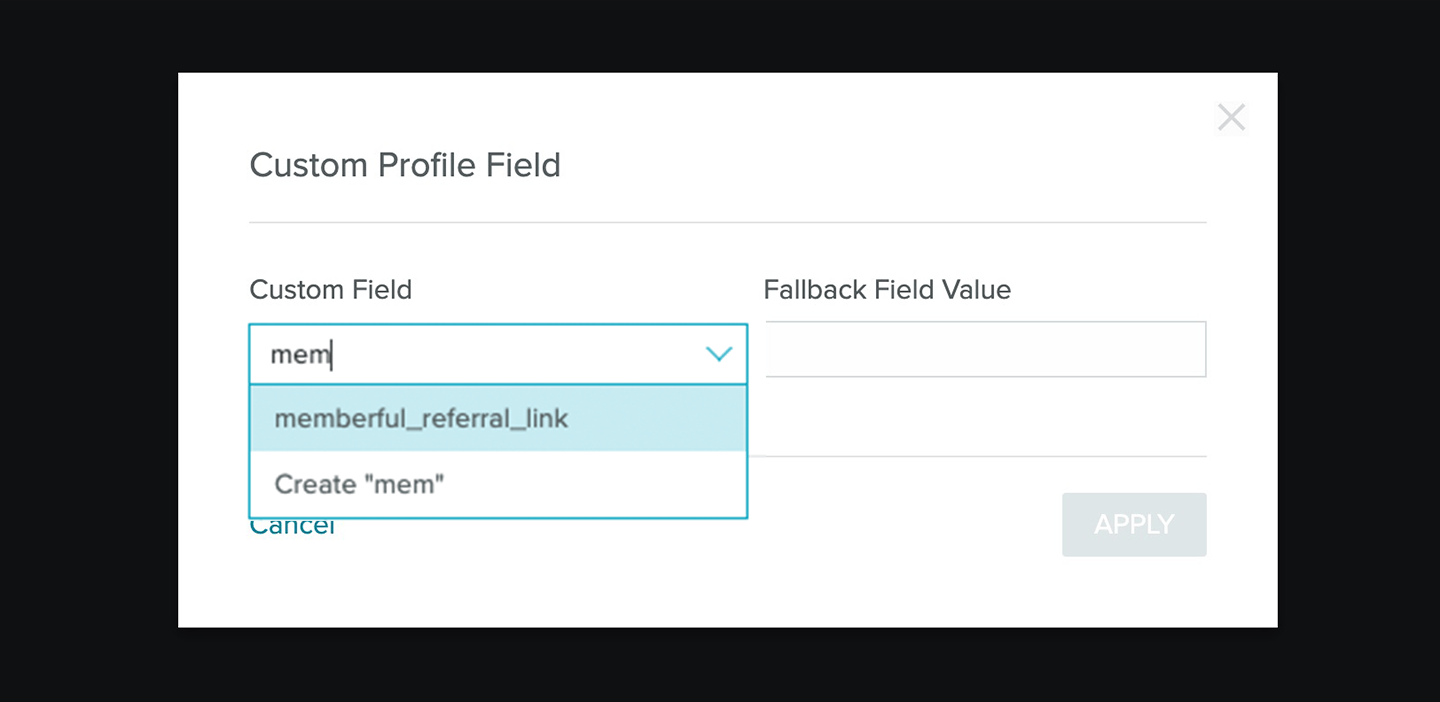
 Then search for *memberful\_referral\_link* in the custom field list to insert the referral link.
 ## Use custom field answers for segmentation and personalization
You can [collect up to 5 custom fields](/configuration/feedback-and-policies/create-custom-fields/) with Memberful right after your members complete the checkout form.
## Use custom field answers for segmentation and personalization
You can [collect up to 5 custom fields](/configuration/feedback-and-policies/create-custom-fields/) with Memberful right after your members complete the checkout form.
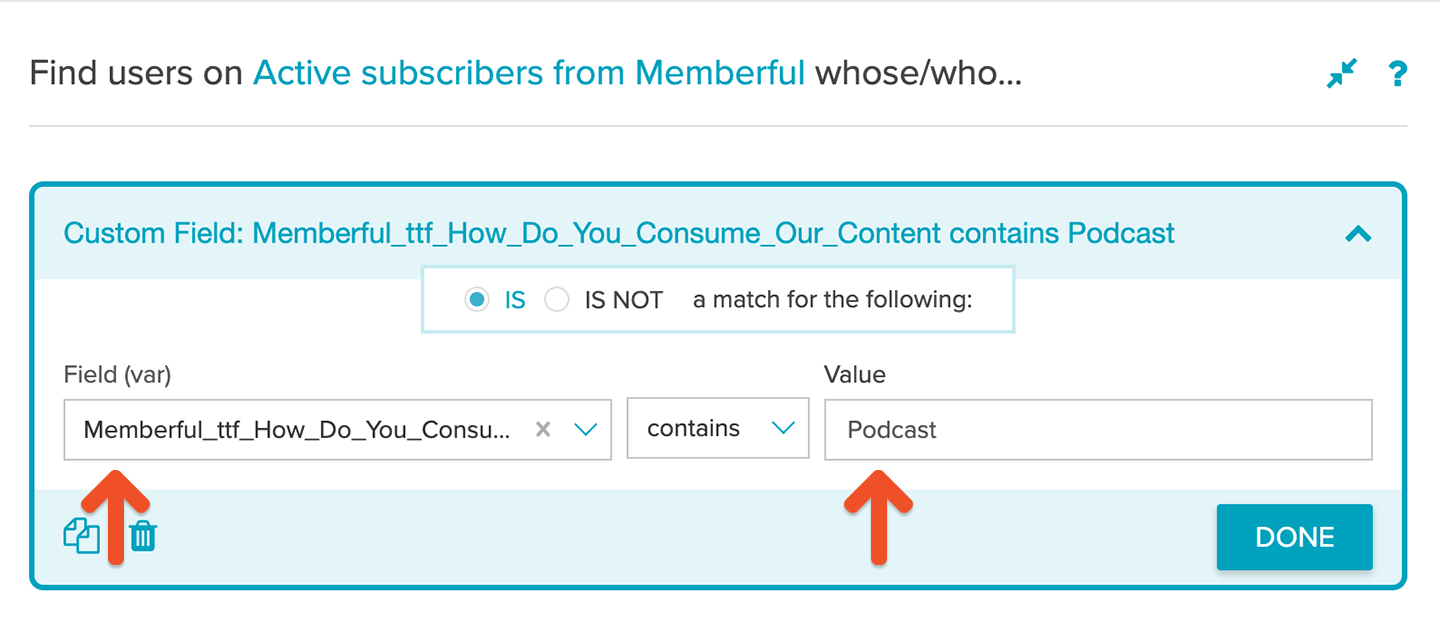
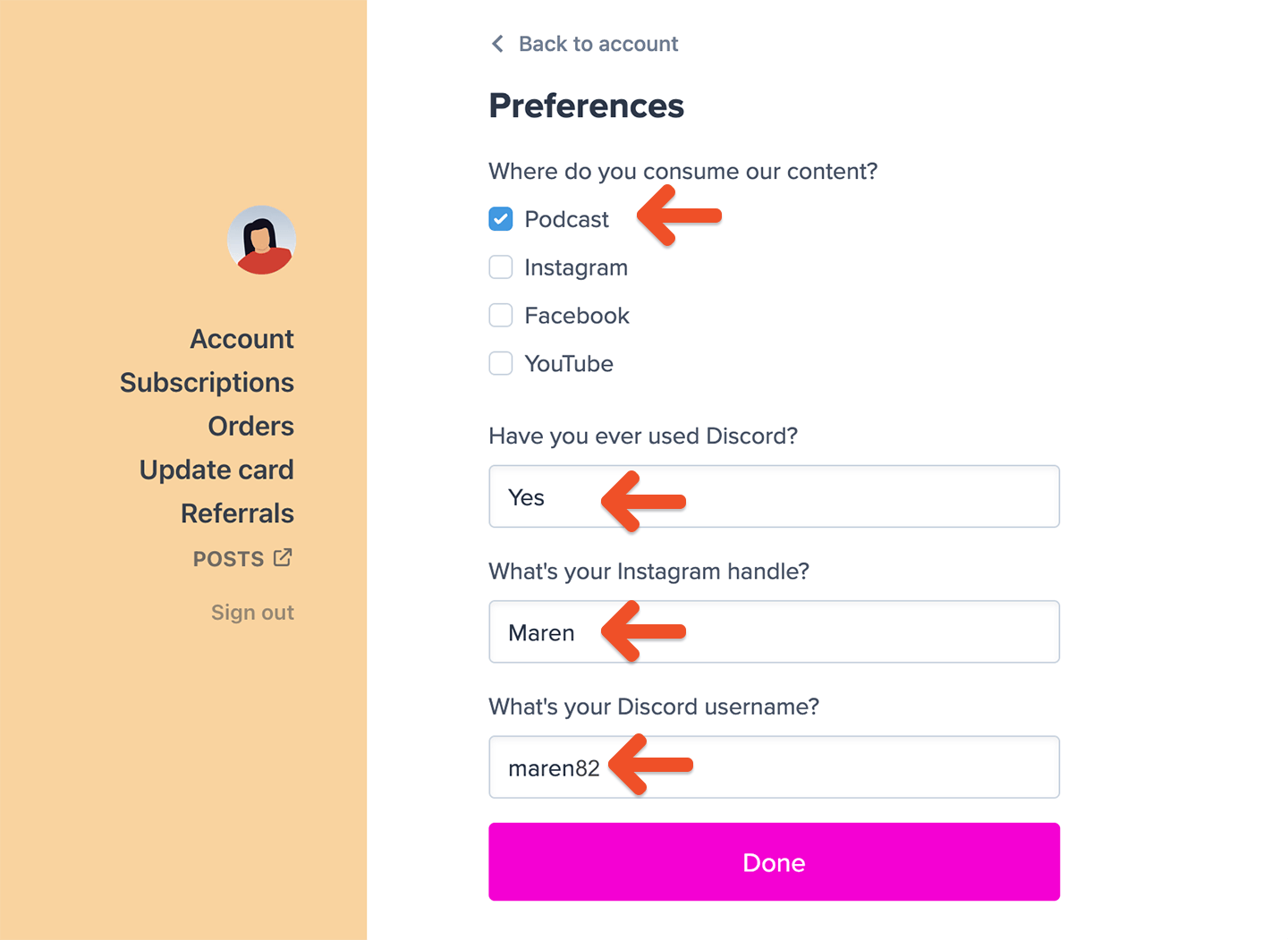 Fields with predefined options (checkbox and dropdown) are ideal for segmenting subscribers in Sailthru — for example, asking where they consume your content or which benefits interest them most.
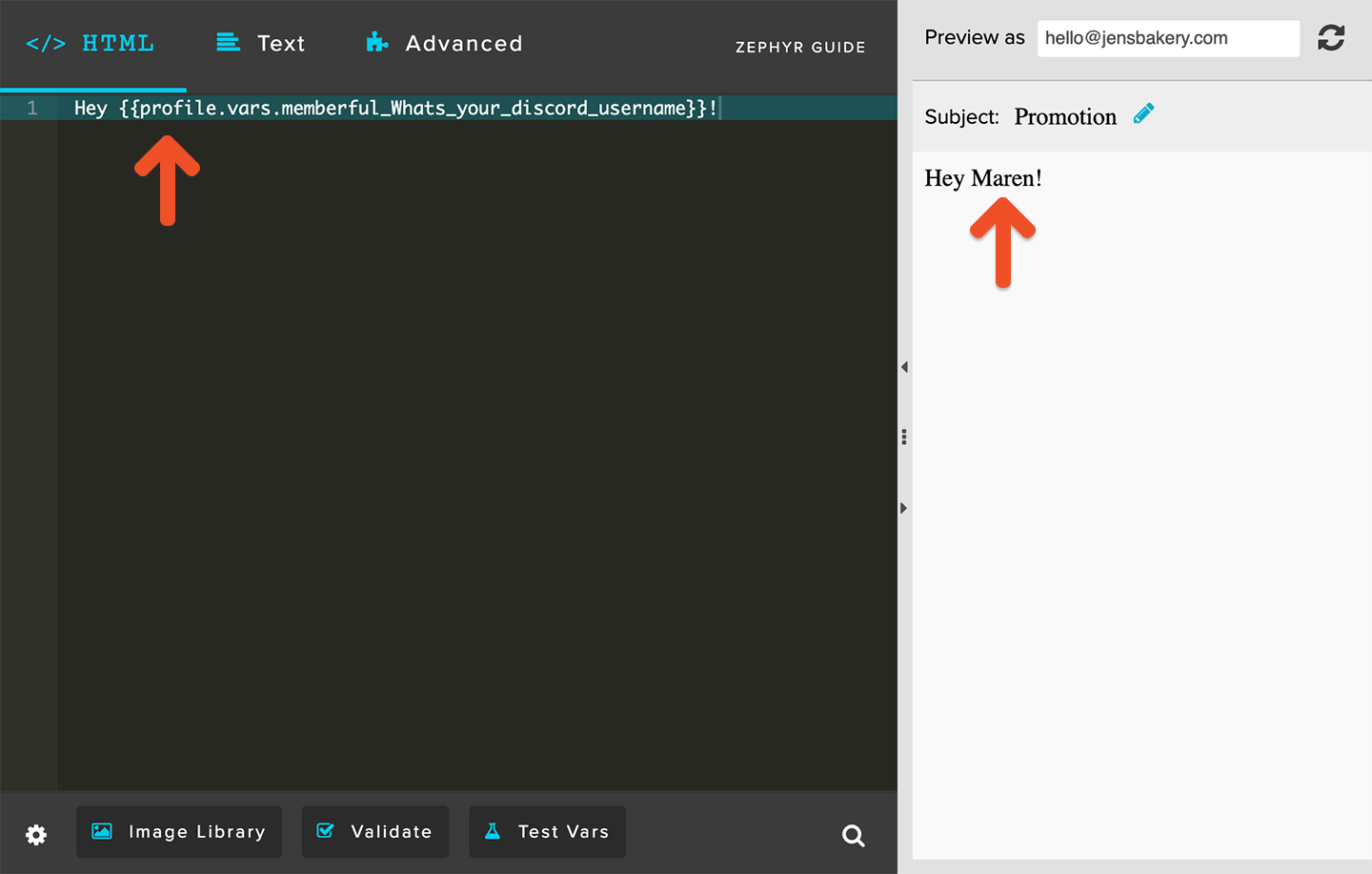
Fields with free-form answers (text and comment) are best for personalizing emails with details such as nicknames or social handles.
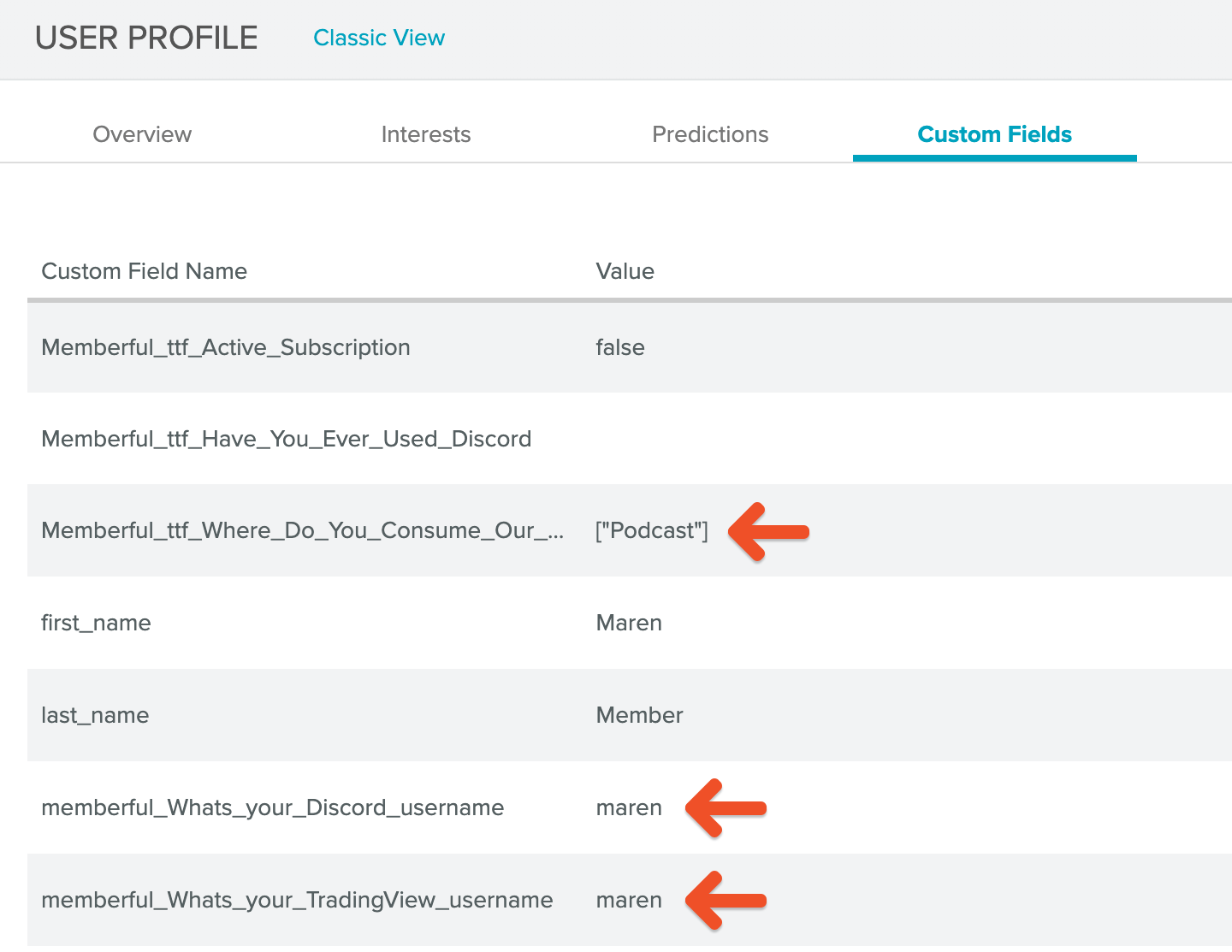
All answers appear as custom fields in Sailthru:
Fields with predefined options (checkbox and dropdown) are ideal for segmenting subscribers in Sailthru — for example, asking where they consume your content or which benefits interest them most.
Fields with free-form answers (text and comment) are best for personalizing emails with details such as nicknames or social handles.
All answers appear as custom fields in Sailthru:
 You can use predefined options to build custom segments:
 You can also use the free-form fields to personalize your emails:
 ## What happens when you reconnect your email service provider?
When you reconnect your integration, we'll resync your members and update the appropriate custom fields, applying them to active members and removing them from inactive ones. To avoid unintended email triggers, disable any [Sailthru triggered messaging](https://getstarted.meetmarigold.com/engagebysailthru/Content/messaging/email/trig-transac/trig-overview.html?tocpath=Messaging%7CTriggered%20and%20Transactional%20Messaging%7C_____1) before reconnecting.
## What happens when you reconnect your email service provider?
When you reconnect your integration, we'll resync your members and update the appropriate custom fields, applying them to active members and removing them from inactive ones. To avoid unintended email triggers, disable any [Sailthru triggered messaging](https://getstarted.meetmarigold.com/engagebysailthru/Content/messaging/email/trig-transac/trig-overview.html?tocpath=Messaging%7CTriggered%20and%20Transactional%20Messaging%7C_____1) before reconnecting.