Related help docs:
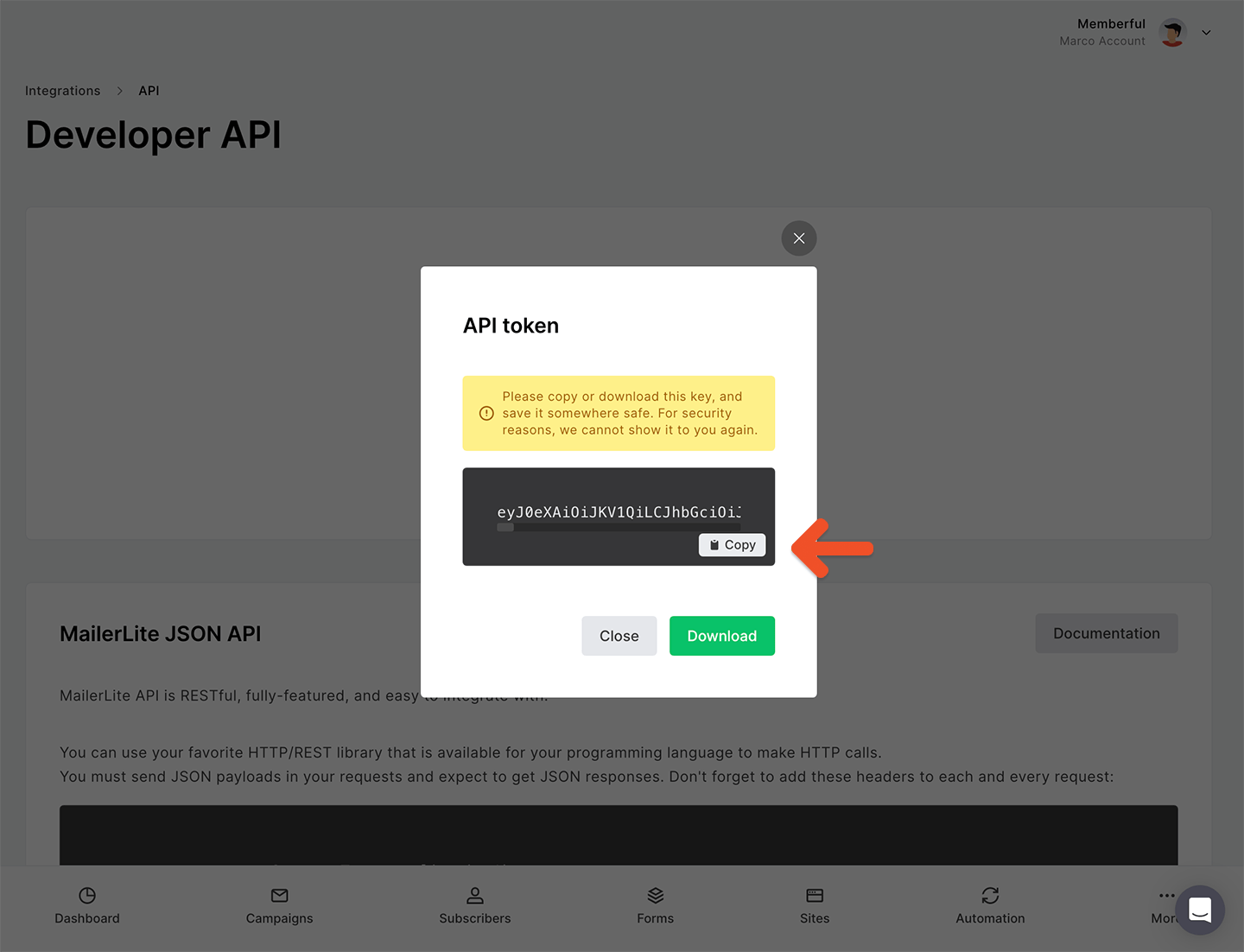
 3. In your MailerLite account, go to *Integrations → MailerLite API → Use → Generate new token*.
4. Enter a name for your token and click **Create token.**
5. Copy your API key.
3. In your MailerLite account, go to *Integrations → MailerLite API → Use → Generate new token*.
4. Enter a name for your token and click **Create token.**
5. Copy your API key.
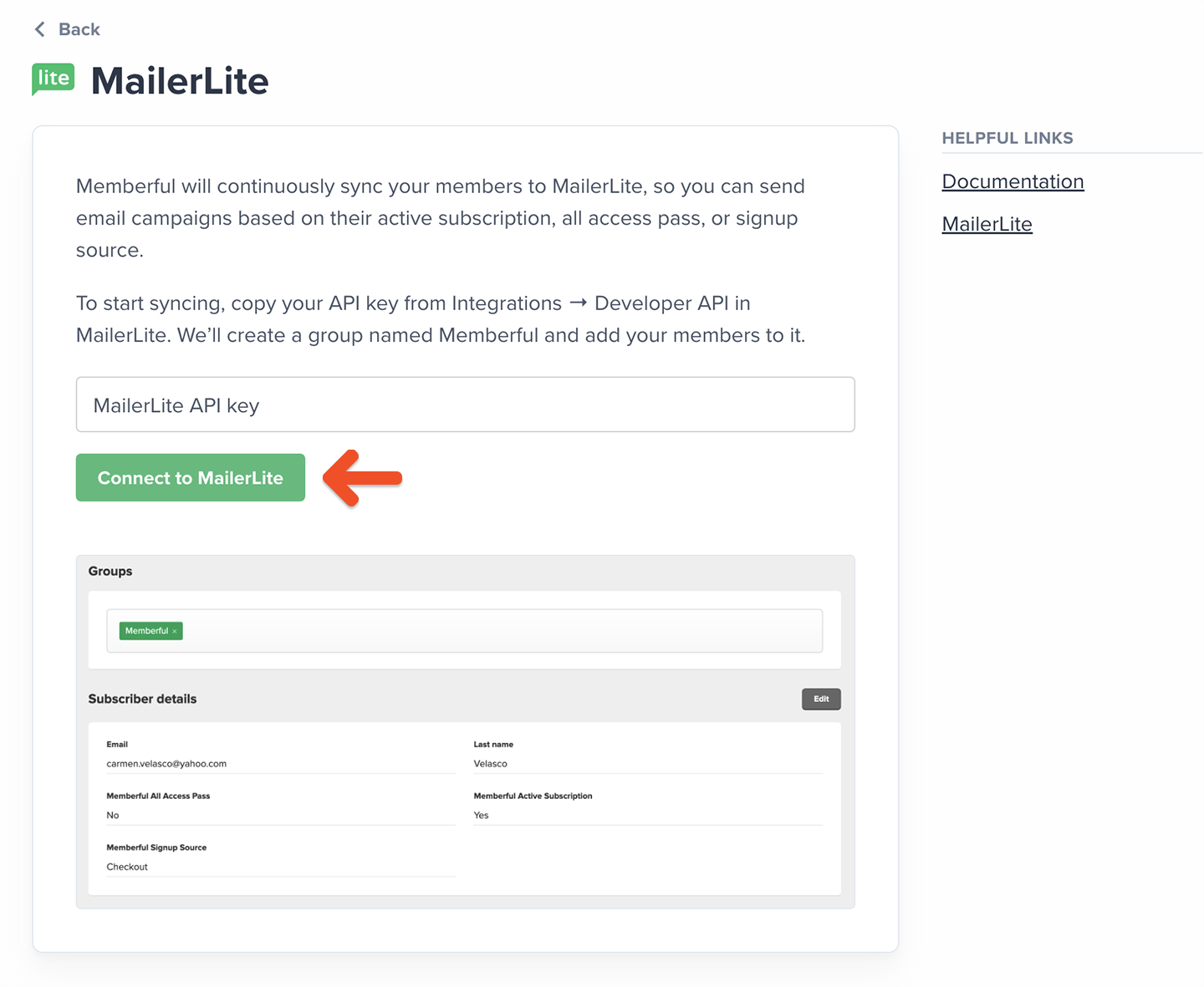
 6. Return to Memberful and paste your key into the field, then click **Connect to MailerLite.**
## How we keep your list up to date and synced
When you connect MailerLite, Memberful imports your existing members into a MailerLite group named **Memberful**. From there, we keep that group up to date by adding new members and updating existing ones. To view these details, click a subscriber in MailerLite to see the Memberful fields in their profile.
6. Return to Memberful and paste your key into the field, then click **Connect to MailerLite.**
## How we keep your list up to date and synced
When you connect MailerLite, Memberful imports your existing members into a MailerLite group named **Memberful**. From there, we keep that group up to date by adding new members and updating existing ones. To view these details, click a subscriber in MailerLite to see the Memberful fields in their profile.
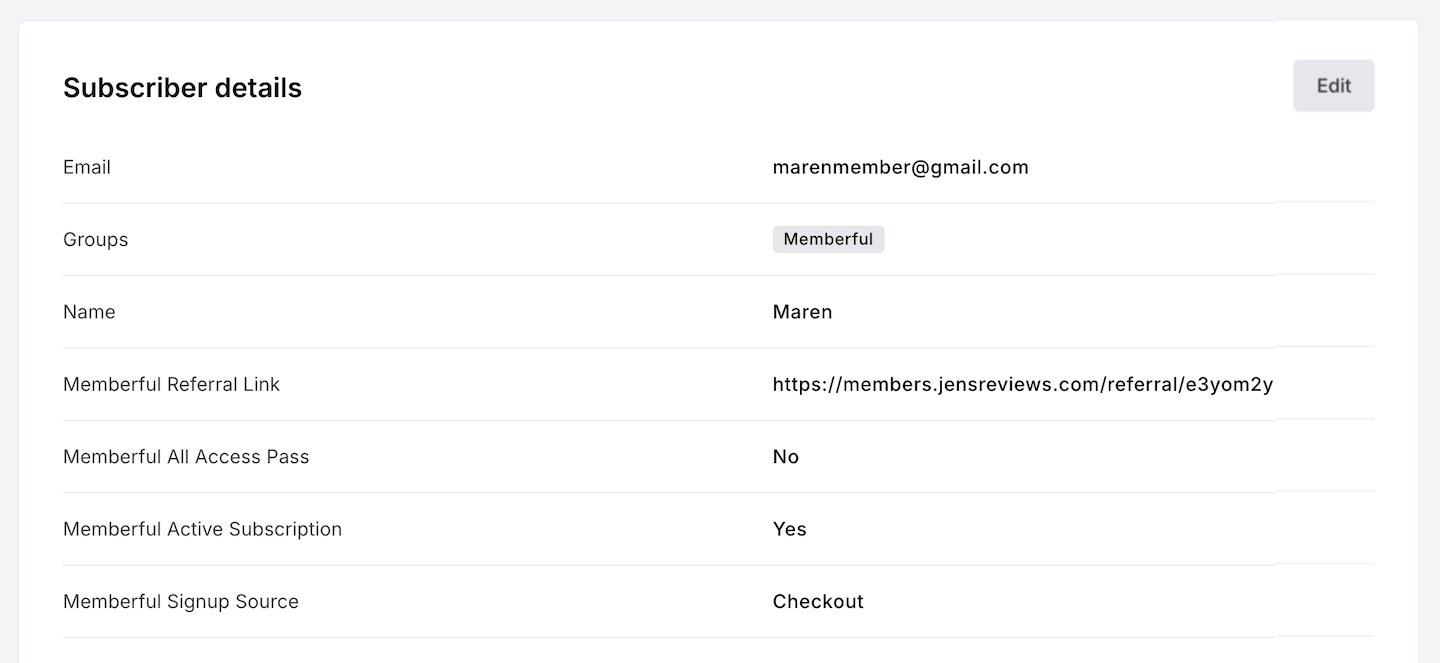 Here's what we sync continuously to MailerLite as subscriber fields:
* **Memberful Referral Link:** The member's unique referral link.
* **Memberful Signup Source:** How the member joined (e.g. checkout, free registration, created by admin, team subscription).
* **Memberful Active Subscription:** "Yes" for members with at least one active subscription, "No" otherwise.
* **Memberful All Access Pass:** "Yes" for members with an All Access Pass, "No" otherwise.
* **Memberful CUSTOM\_FIELD:** Responses from custom fields collected at checkout. Multiple answers are shown as an array.
What's not included:
* **No plan-level tags or segmentation:** The MailerLite integration doesn't apply tags or properties by plan or download, and it doesn't support advanced, per-plan or download targeting.
Here's what we sync continuously to MailerLite as subscriber fields:
* **Memberful Referral Link:** The member's unique referral link.
* **Memberful Signup Source:** How the member joined (e.g. checkout, free registration, created by admin, team subscription).
* **Memberful Active Subscription:** "Yes" for members with at least one active subscription, "No" otherwise.
* **Memberful All Access Pass:** "Yes" for members with an All Access Pass, "No" otherwise.
* **Memberful CUSTOM\_FIELD:** Responses from custom fields collected at checkout. Multiple answers are shown as an array.
What's not included:
* **No plan-level tags or segmentation:** The MailerLite integration doesn't apply tags or properties by plan or download, and it doesn't support advanced, per-plan or download targeting.
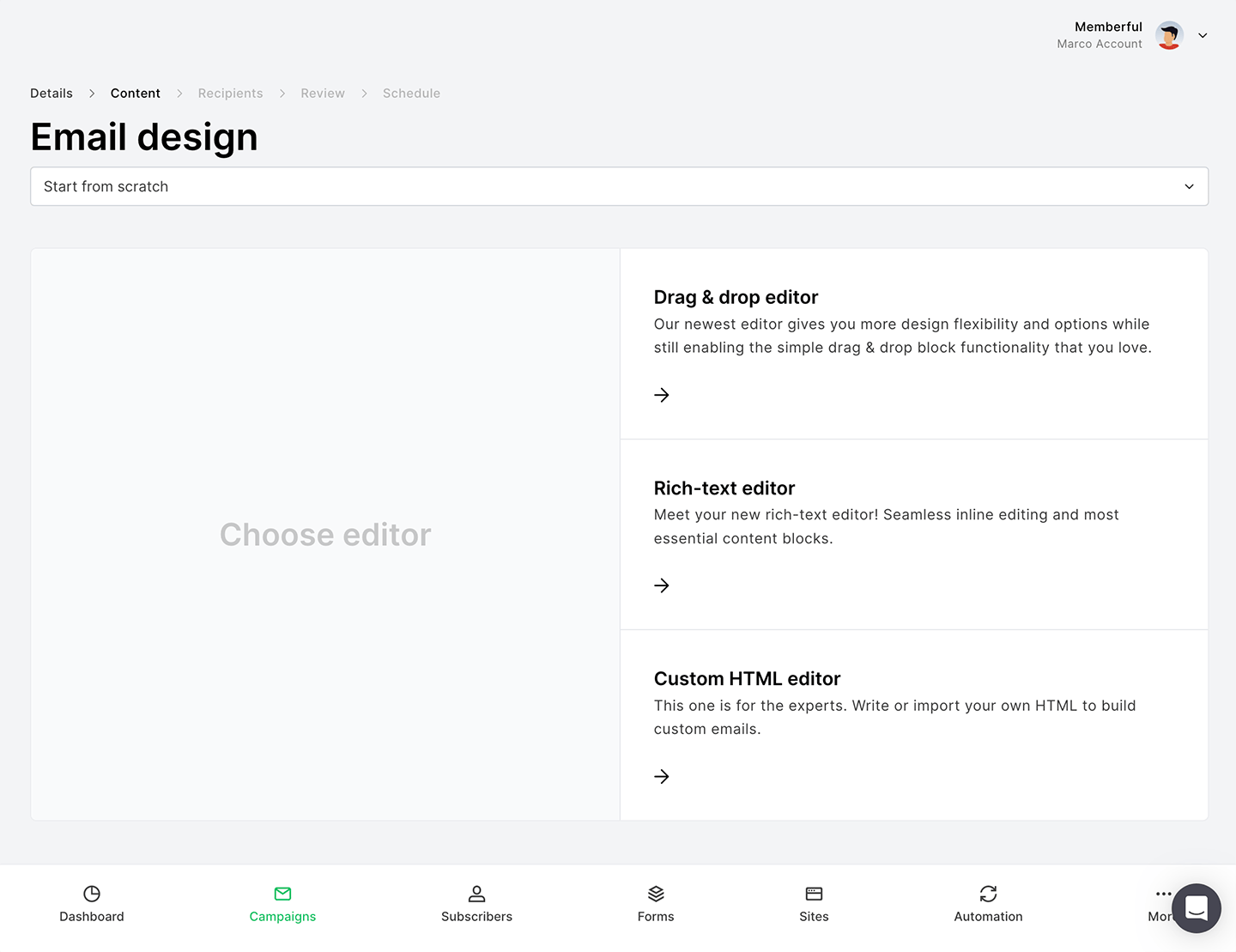
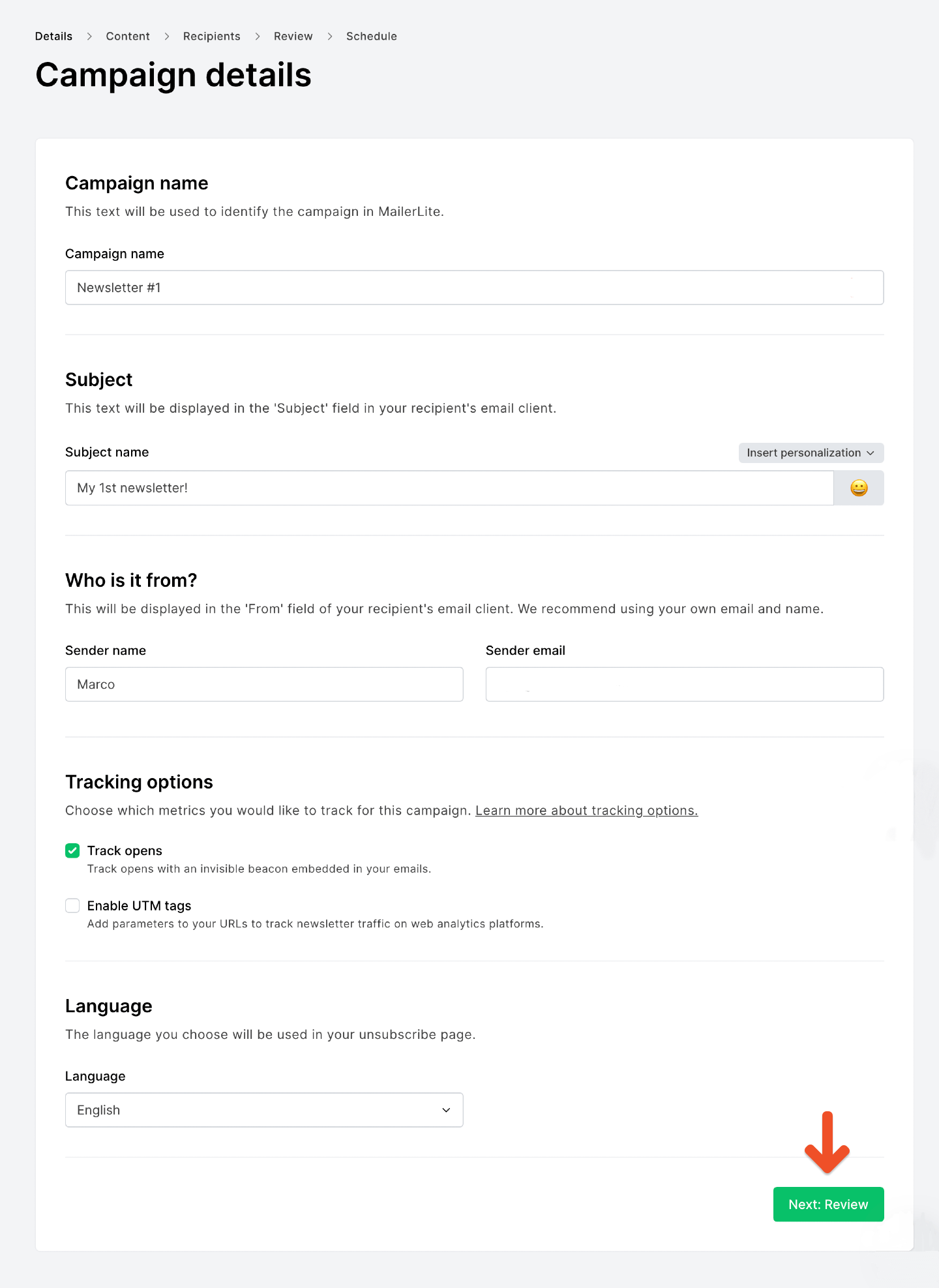 4. Choose your design editor (Drag & drop, Rich text, or Custom HTML for paid users).
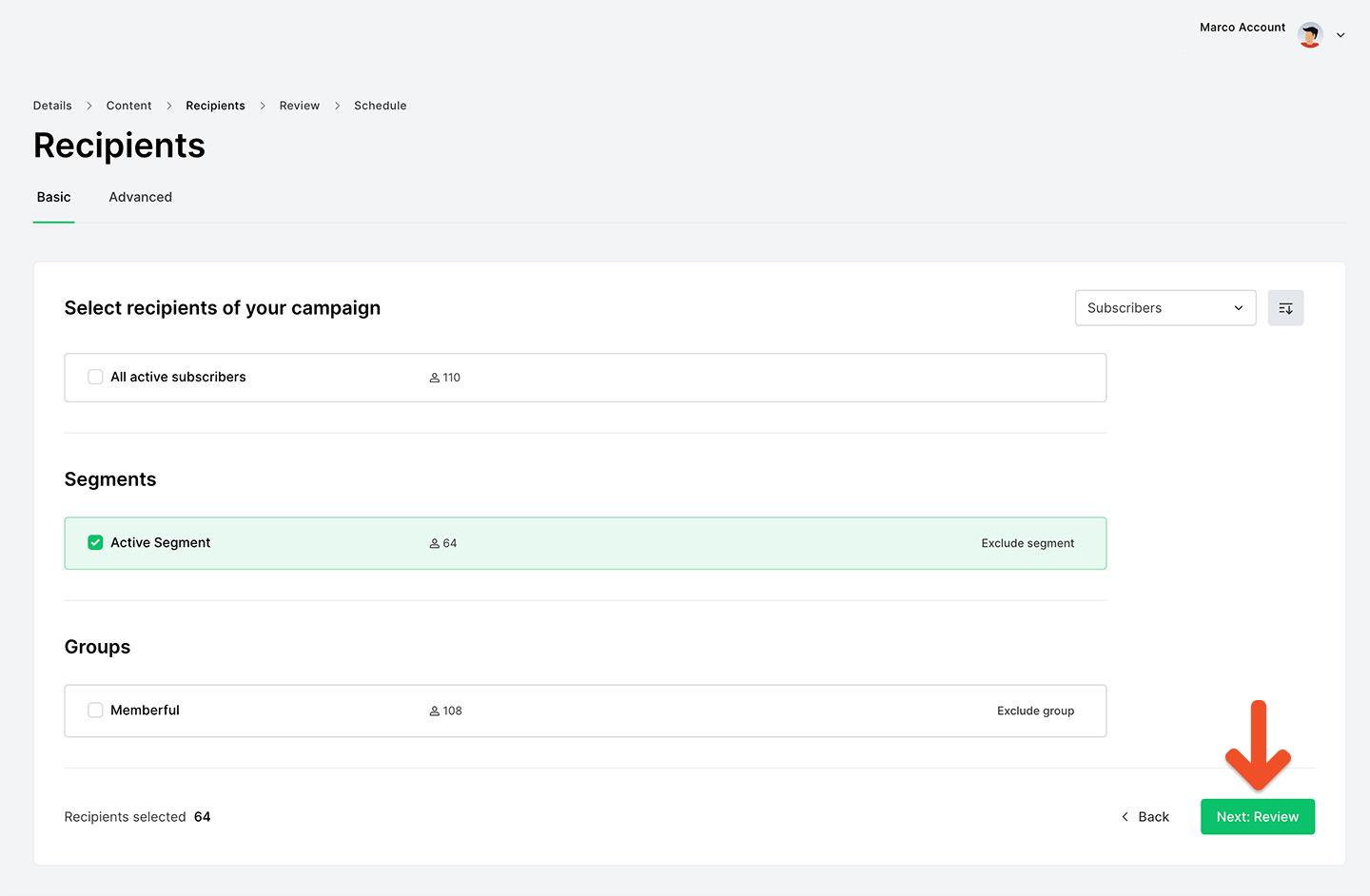
 5. When selecting recipients, choose the **Memberful** group or a segment that includes Memberful properties. Selecting either a Memberful group or an active segment allows you to send targeted messages to specific member audiences. [Read more about the difference between segments and groups](https://help.mailerlite.com/article/show/48133-what-is-the-difference-between-groups-and-segments).
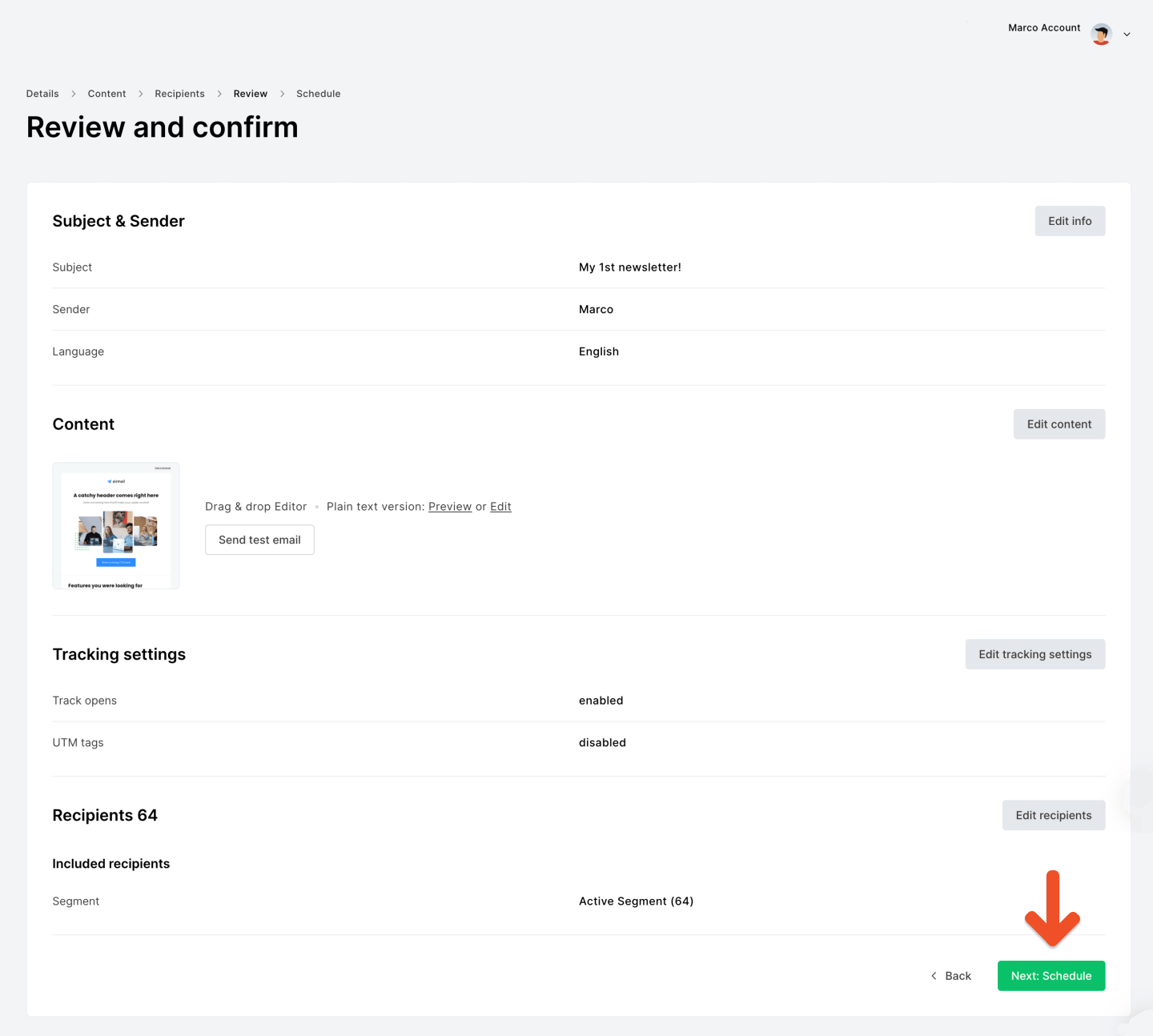
 6. When finished, click **Next: Review** to confirm your settings, then **Next: Schedule** to send your campaign.
 ## Add a referral link to your campaign
If you have enabled [Memberful referrals](/discounts-and-gifting/lifecycle-discounts/offer-referral-discounts), you can add a referral link to your campaign so members earn rewards for referring others.
1. In your MailerLite editor, select the "**X**" variable icon.
## Add a referral link to your campaign
If you have enabled [Memberful referrals](/discounts-and-gifting/lifecycle-discounts/offer-referral-discounts), you can add a referral link to your campaign so members earn rewards for referring others.
1. In your MailerLite editor, select the "**X**" variable icon.
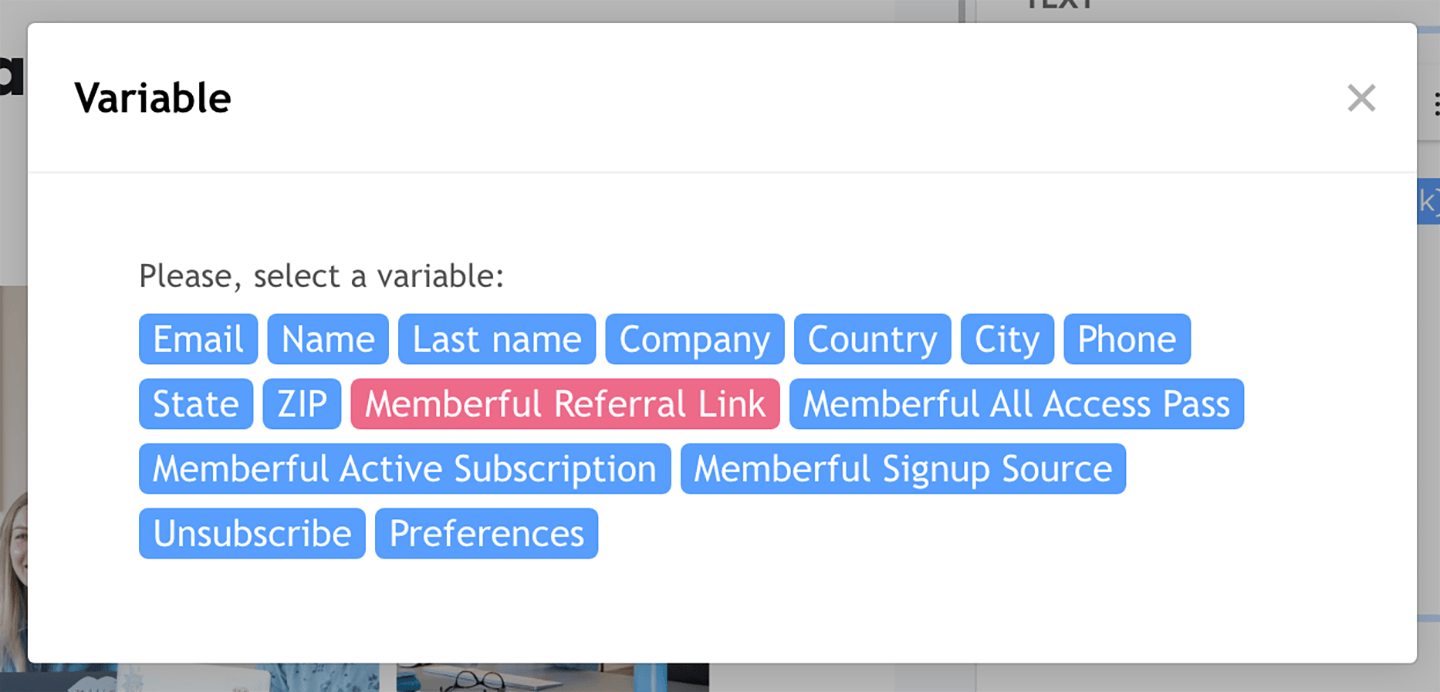
 2. Choose **Memberful referral link** from the variable list.
This automatically inserts each member's referral link, allowing them to earn rewards for referring others.
2. Choose **Memberful referral link** from the variable list.
This automatically inserts each member's referral link, allowing them to earn rewards for referring others.
 ## Use custom field answers for segmentation and personalization
You can [collect up to 5 custom fields](/configuration/feedback-and-policies/create-custom-fields/) from members after checkout. These answers sync to MailerLite as subscriber fields and can be used for segmentation or personalization.
## Use custom field answers for segmentation and personalization
You can [collect up to 5 custom fields](/configuration/feedback-and-policies/create-custom-fields/) from members after checkout. These answers sync to MailerLite as subscriber fields and can be used for segmentation or personalization.
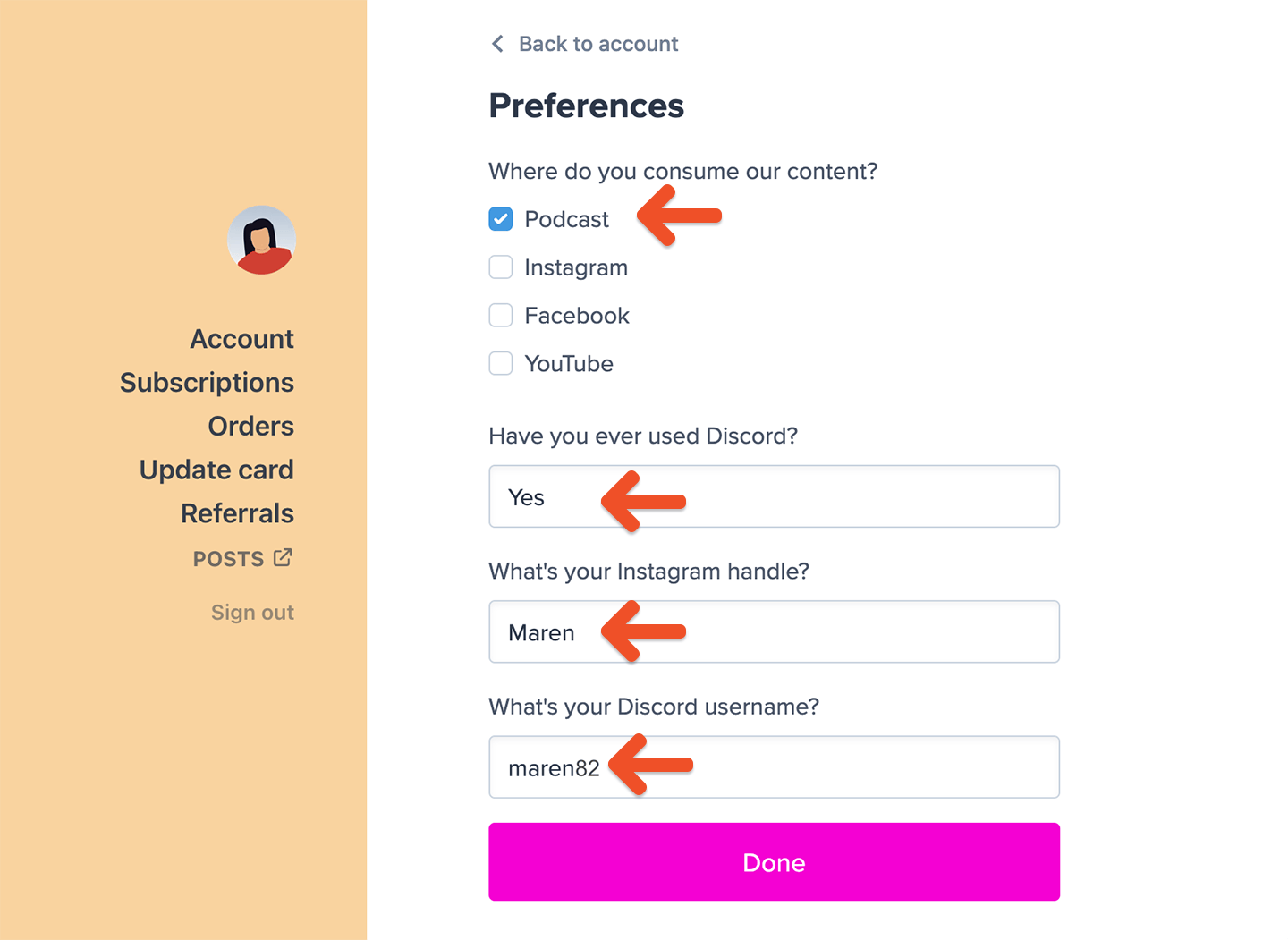 Predefined options (checkboxes or dropdowns) are best for segmentation — for example, "Where do you consume my content?" or "Which benefits are you most interested in?" Free-form answers (text or comments) are best for personalization — for example, using nicknames or social handles in your emails.
All answers appear as subscriber fields in MailerLite.
Predefined options (checkboxes or dropdowns) are best for segmentation — for example, "Where do you consume my content?" or "Which benefits are you most interested in?" Free-form answers (text or comments) are best for personalization — for example, using nicknames or social handles in your emails.
All answers appear as subscriber fields in MailerLite.
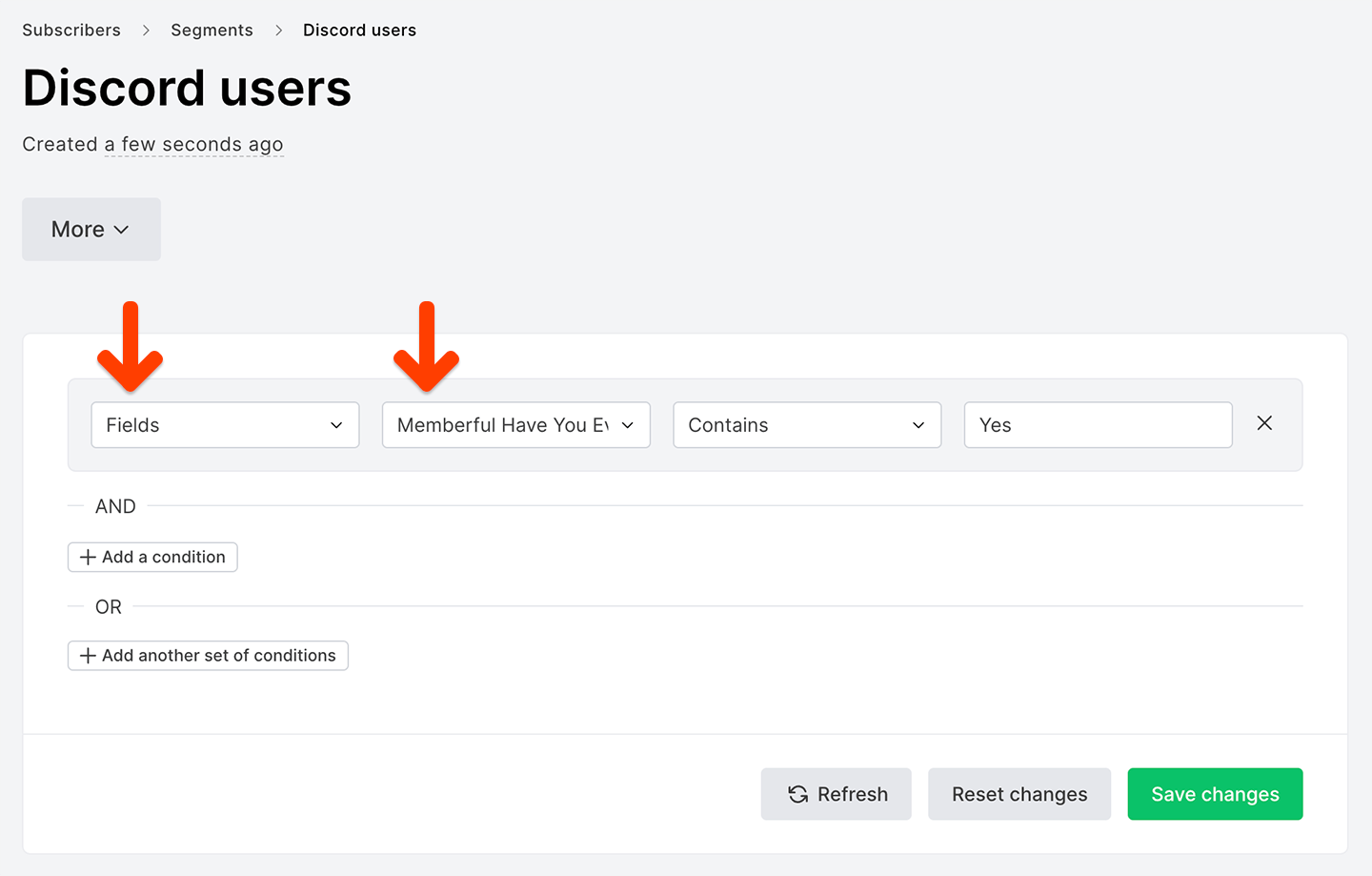
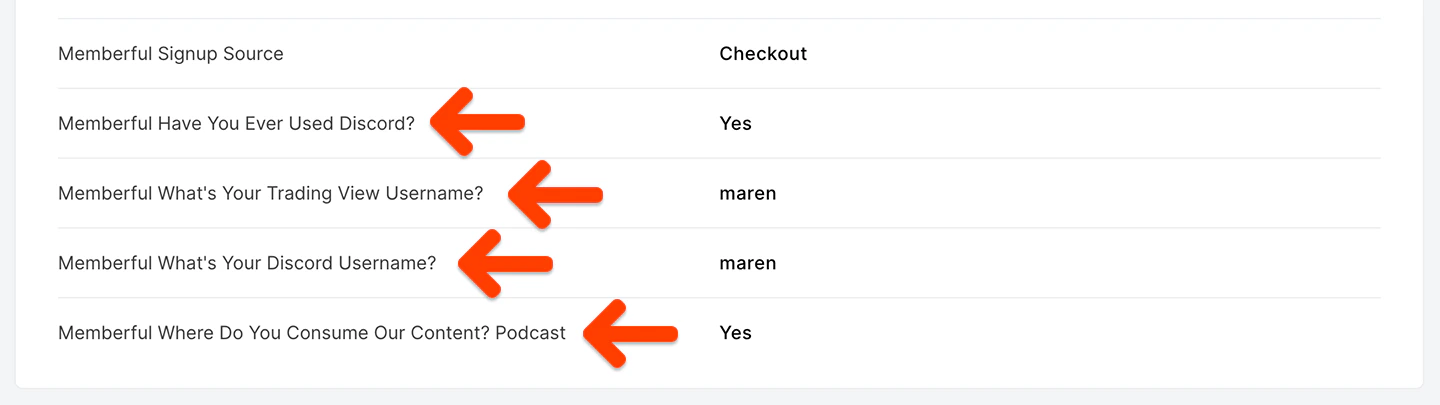 You can use checkbox or dropdown options to build targeted segments.
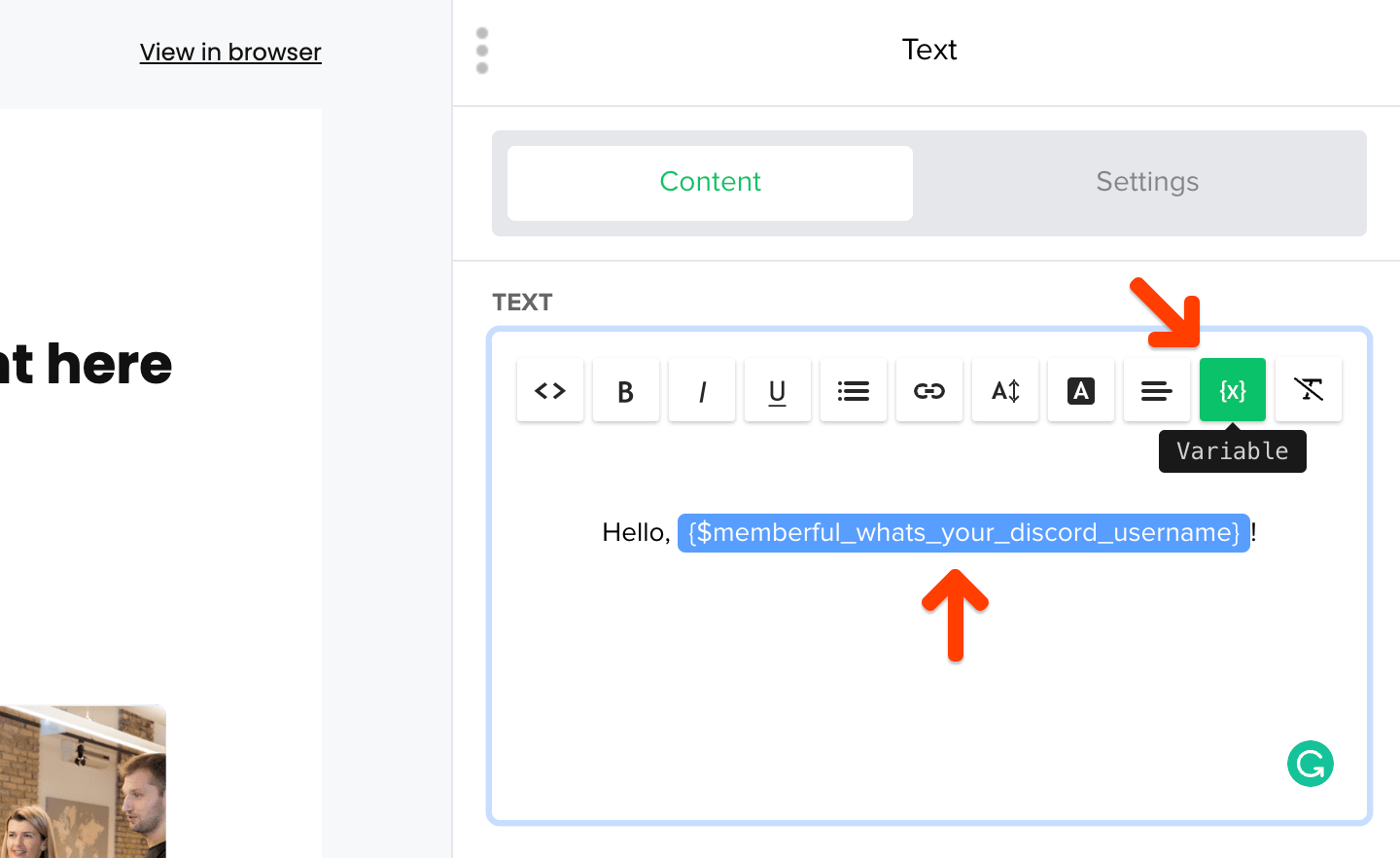
 Or use free-form responses to personalize your messages.
 ## View subscriber stats
MailerLite allows you to view detailed information for each subscriber. With the Memberful integration enabled, you can see membership-specific data — such as active subscriptions, signup sources, and plan details — directly in each subscriber's profile. Each member will also be added to a Memberful group.
Use this data to better understand your audience and target your campaigns more effectively.
## View subscriber stats
MailerLite allows you to view detailed information for each subscriber. With the Memberful integration enabled, you can see membership-specific data — such as active subscriptions, signup sources, and plan details — directly in each subscriber's profile. Each member will also be added to a Memberful group.
Use this data to better understand your audience and target your campaigns more effectively.
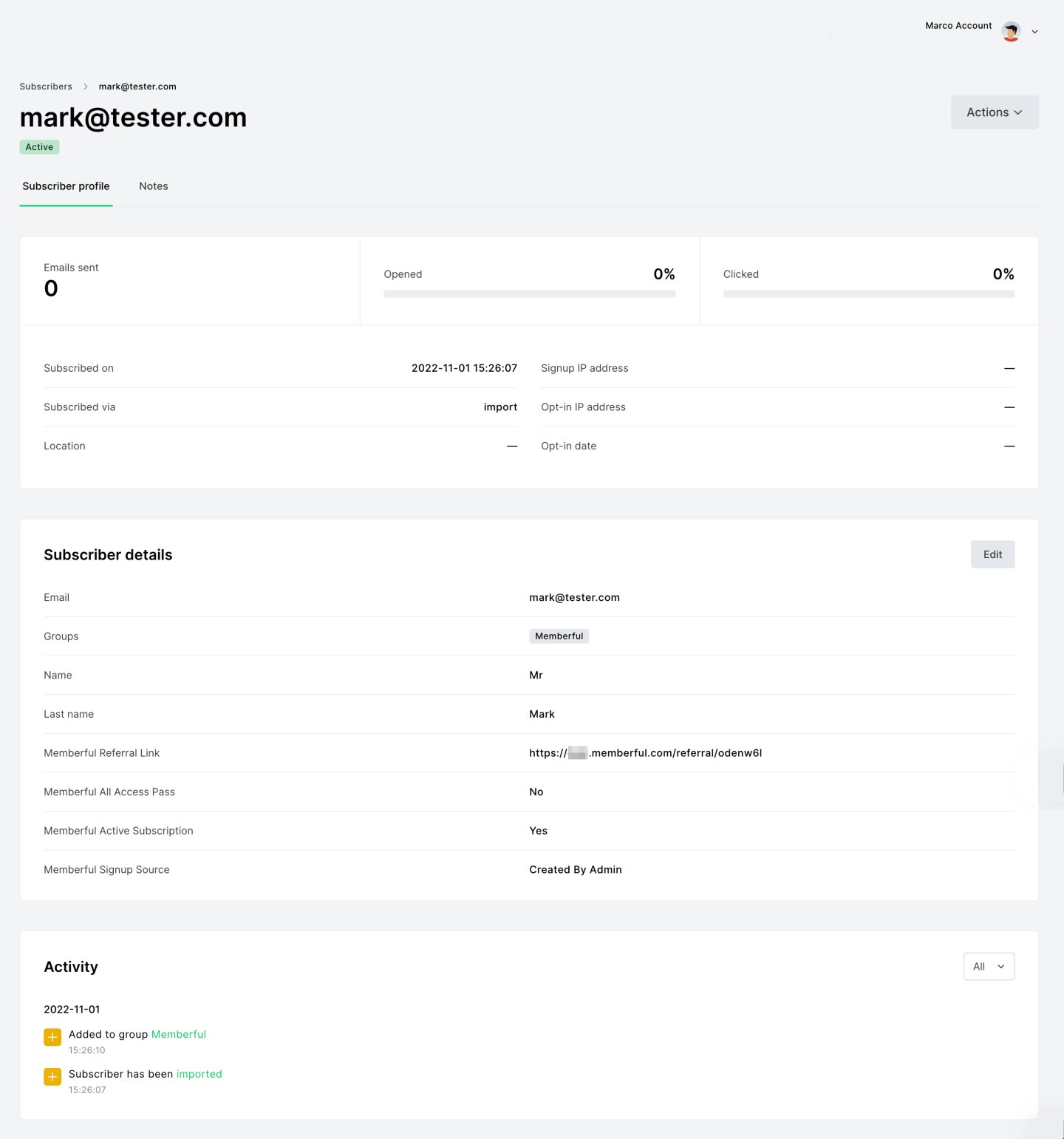 We keep track of active subscriptions, signup sources, and the general status of the MailerLite subscription based on a member's individual settings. Each member will also be added to a Memberful group.
## What happens when you reconnect your email service provider?
When you reconnect your integration, we'll resync your members as active or inactive. To avoid unintended email triggers, disable any [MailerLite automations](https://www.mailerlite.com/help/how-to-set-up-automation-triggers) before reconnecting.
We keep track of active subscriptions, signup sources, and the general status of the MailerLite subscription based on a member's individual settings. Each member will also be added to a Memberful group.
## What happens when you reconnect your email service provider?
When you reconnect your integration, we'll resync your members as active or inactive. To avoid unintended email triggers, disable any [MailerLite automations](https://www.mailerlite.com/help/how-to-set-up-automation-triggers) before reconnecting.