Related help docs:
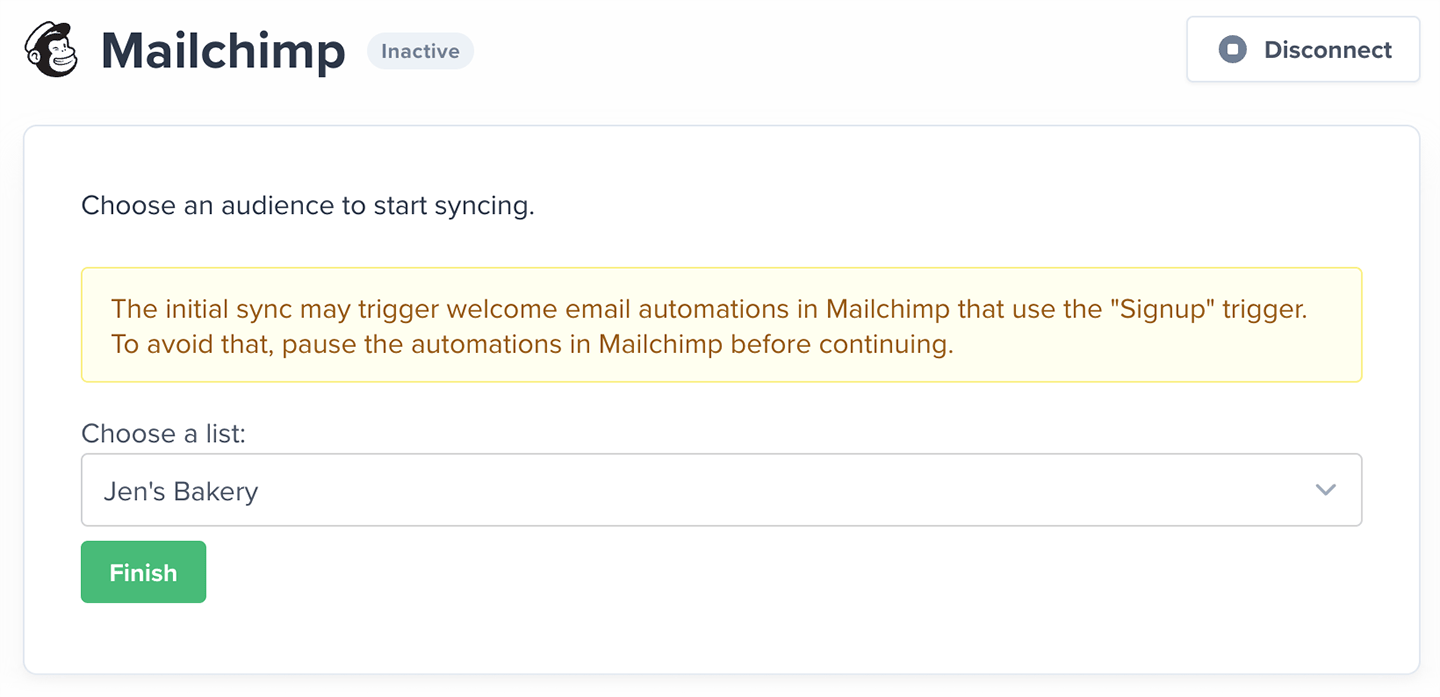
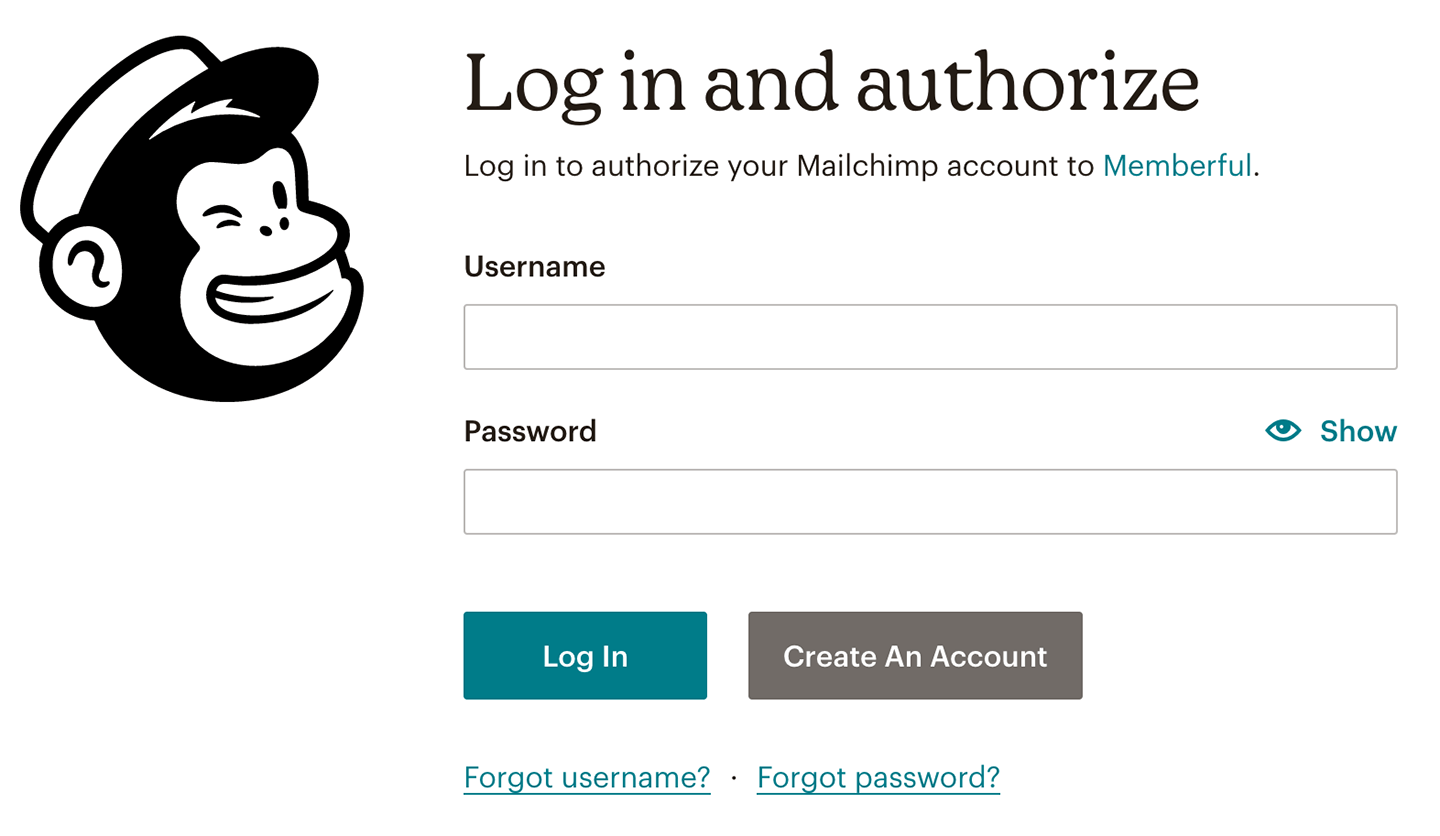 After authorization, you will return to Memberful, where you can confirm which list to sync your members to.
 ## How we keep your list up to date and synced
When you first connect, Memberful imports all your existing members as subscribers in Mailchimp. Your list stays automatically synced — new members are added, existing members are updated, and key details are synced as [Mailchimp Groups](http://kb.mailchimp.com/lists/groups-and-segments/add-groups-to-a-list). You can use these groups to segment your audience and send targeted campaigns.
## How we keep your list up to date and synced
When you first connect, Memberful imports all your existing members as subscribers in Mailchimp. Your list stays automatically synced — new members are added, existing members are updated, and key details are synced as [Mailchimp Groups](http://kb.mailchimp.com/lists/groups-and-segments/add-groups-to-a-list). You can use these groups to segment your audience and send targeted campaigns.
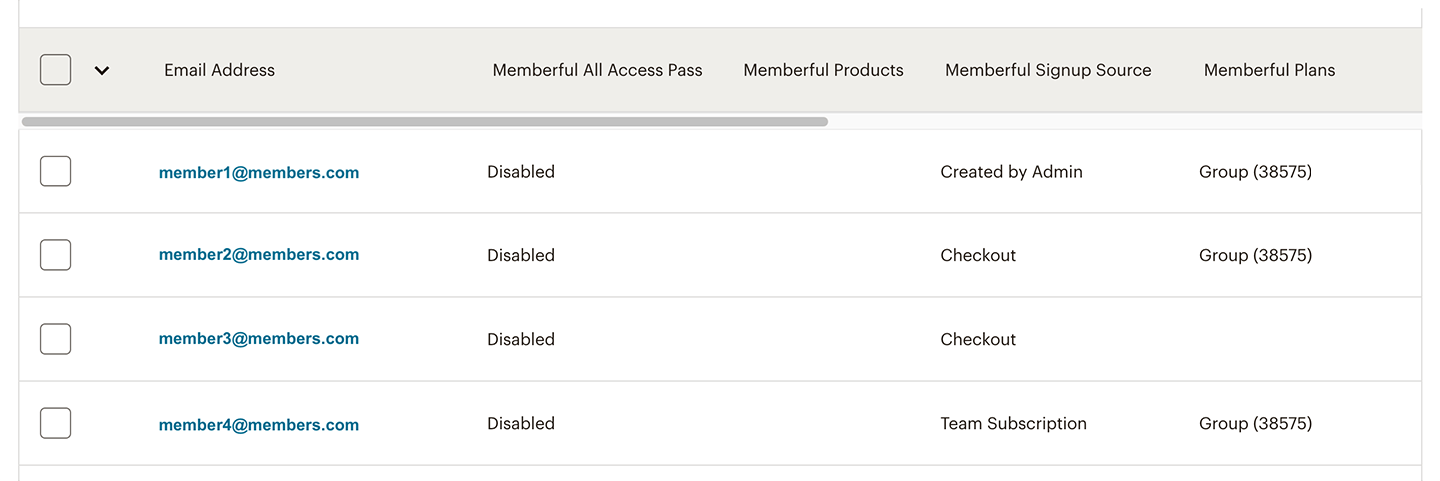 Here are the groups Memberful continuously syncs to Mailchimp:
* **Plans:** Lists all active plans a member is subscribed to. When a subscription expires, the member is removed from the group.
* **Products:** Lists all downloads owned by the member.
* **Signup Source:** Indicates how the member joined — Free Registration (free registration link), Checkout (plan purchase link), Created by Admin (added by you or a staff member), or Gift (activated a gift subscription). This value does not change.
* **All Access Pass:** Shows as enabled if an All Access Pass was granted by you or another team member.
Here are the groups Memberful continuously syncs to Mailchimp:
* **Plans:** Lists all active plans a member is subscribed to. When a subscription expires, the member is removed from the group.
* **Products:** Lists all downloads owned by the member.
* **Signup Source:** Indicates how the member joined — Free Registration (free registration link), Checkout (plan purchase link), Created by Admin (added by you or a staff member), or Gift (activated a gift subscription). This value does not change.
* **All Access Pass:** Shows as enabled if an All Access Pass was granted by you or another team member.
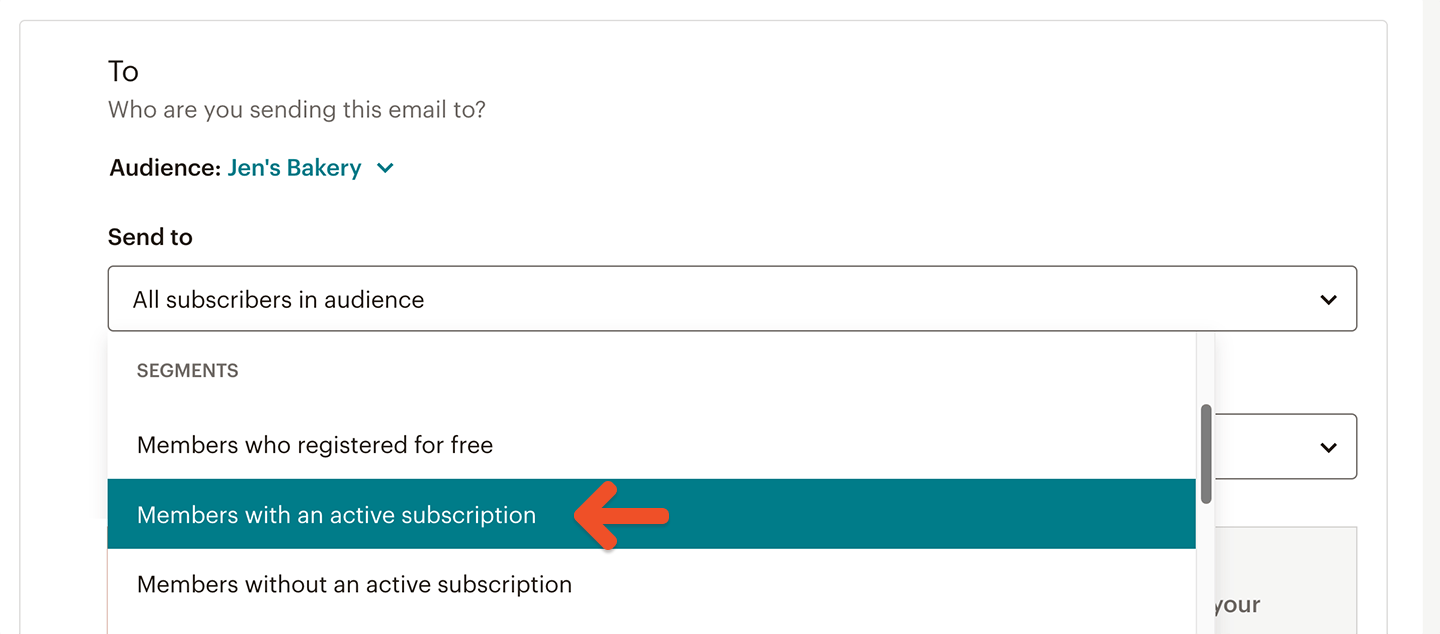 You can target:
* **All active members:** Use the pre-defined segment **Members with an active subscription** to email members currently on any paid plan.
* **Members without an active subscription:** Target lapsed or inactive members using the **Members without an active subscription** segment.
* **Free members or gift recipients:** Use the **Members who registered for free** or **Members who signed up by buying something** segments to reach specific signup types.
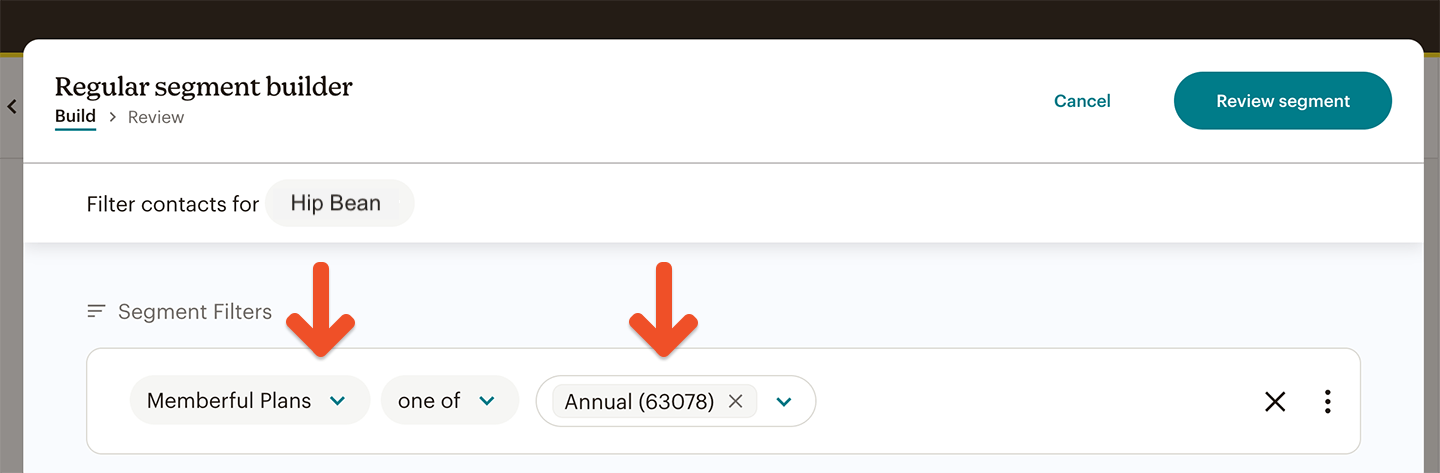
* **Specific plans or products:** Create your own custom segment using [Mailchimp Groups](https://mailchimp.com/help/getting-started-with-segments/) such as **Plans** or **Products** to target subscribers tied to certain Memberful plans or downloads.
1. Go to *Audience → Segments → Create Segment.*
2. Choose your desired condition (e.g., "Group: Plans → contains \[Plan Name]").
3. Click **Preview Segment** to confirm your target list before sending.
You can target:
* **All active members:** Use the pre-defined segment **Members with an active subscription** to email members currently on any paid plan.
* **Members without an active subscription:** Target lapsed or inactive members using the **Members without an active subscription** segment.
* **Free members or gift recipients:** Use the **Members who registered for free** or **Members who signed up by buying something** segments to reach specific signup types.
* **Specific plans or products:** Create your own custom segment using [Mailchimp Groups](https://mailchimp.com/help/getting-started-with-segments/) such as **Plans** or **Products** to target subscribers tied to certain Memberful plans or downloads.
1. Go to *Audience → Segments → Create Segment.*
2. Choose your desired condition (e.g., "Group: Plans → contains \[Plan Name]").
3. Click **Preview Segment** to confirm your target list before sending.
 ## Send automated flows
You can combine Memberful segments with [Mailchimp Automations](http://kb.mailchimp.com/automation/getting-started-with-automation) to send triggered emails based on member activity.
## Add a referral link to your campaign
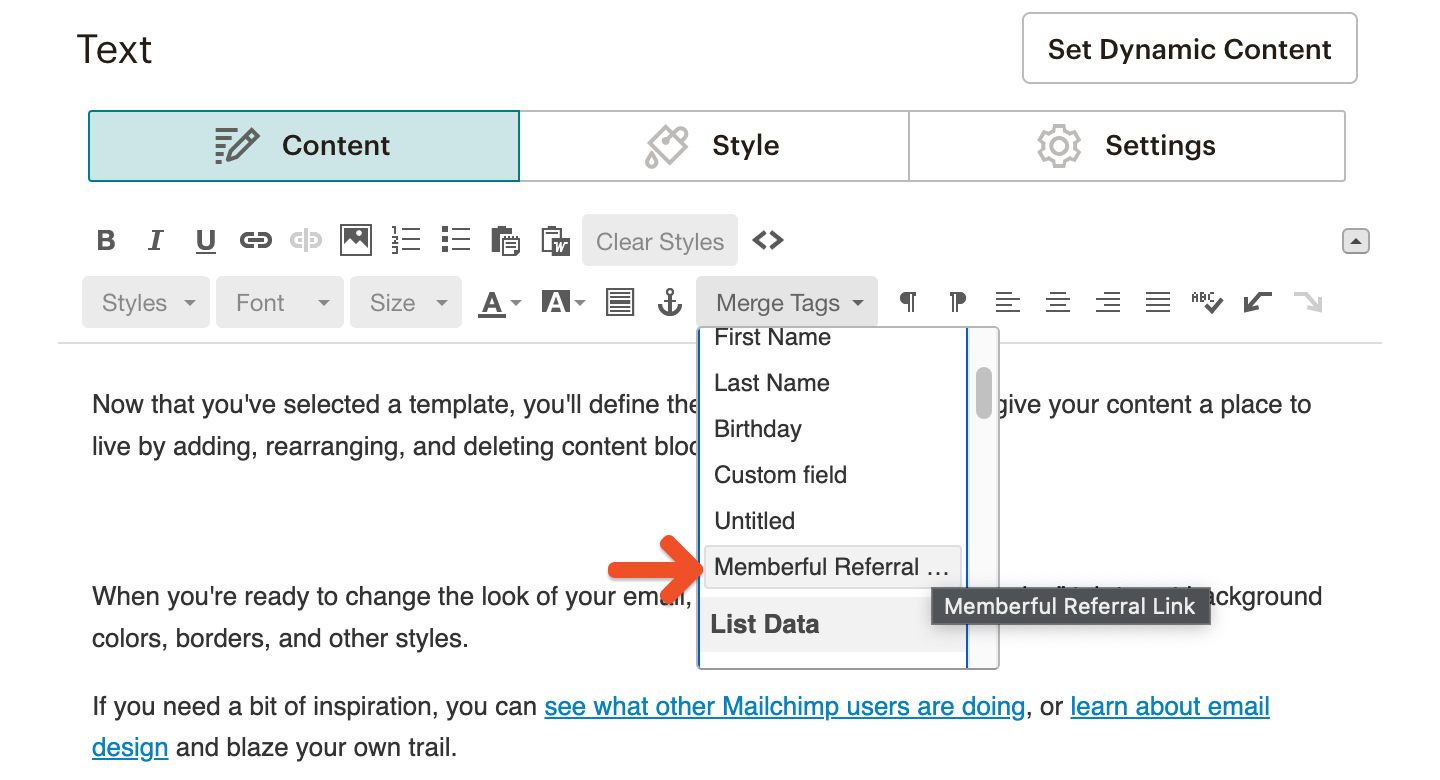
If you have enabled [Memberful referrals](https://memberful.com/discounts-and-gifting/track-member-referrals/), you can include a referral link in your campaign so members earn rewards for referring others.
In your campaign editor, go to *Merge Tags → Memberful Referral Link*.
## Send automated flows
You can combine Memberful segments with [Mailchimp Automations](http://kb.mailchimp.com/automation/getting-started-with-automation) to send triggered emails based on member activity.
## Add a referral link to your campaign
If you have enabled [Memberful referrals](https://memberful.com/discounts-and-gifting/track-member-referrals/), you can include a referral link in your campaign so members earn rewards for referring others.
In your campaign editor, go to *Merge Tags → Memberful Referral Link*.
 ## Use custom field answers for segmentation and personalization
You can [collect up to 5 custom fields](/configuration/feedback-and-policies/create-custom-fields/) with Memberful right after your members complete the checkout form. You can then use those answers to segment your subscribers or personalize email campaigns.
## Use custom field answers for segmentation and personalization
You can [collect up to 5 custom fields](/configuration/feedback-and-policies/create-custom-fields/) with Memberful right after your members complete the checkout form. You can then use those answers to segment your subscribers or personalize email campaigns.
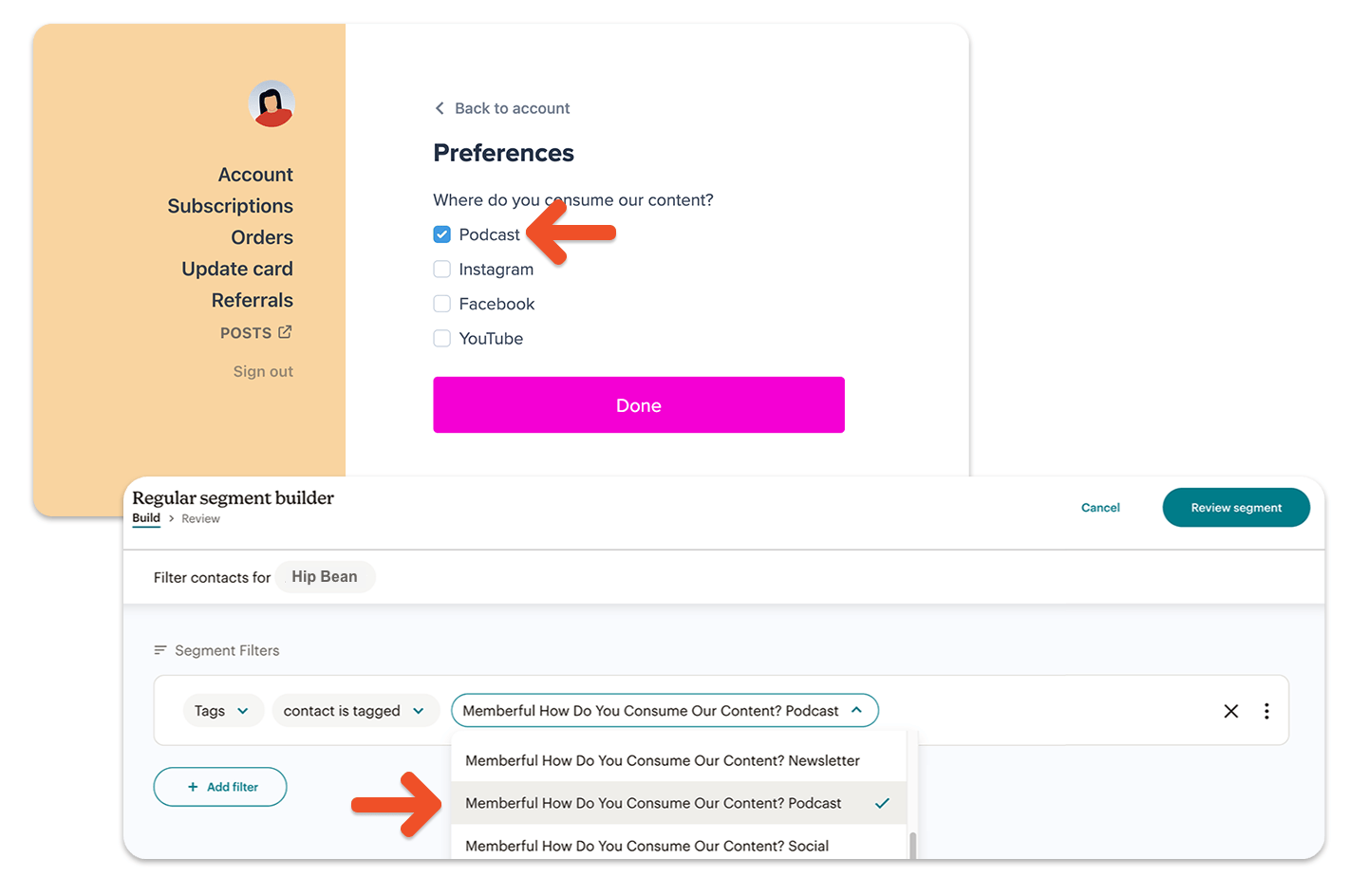
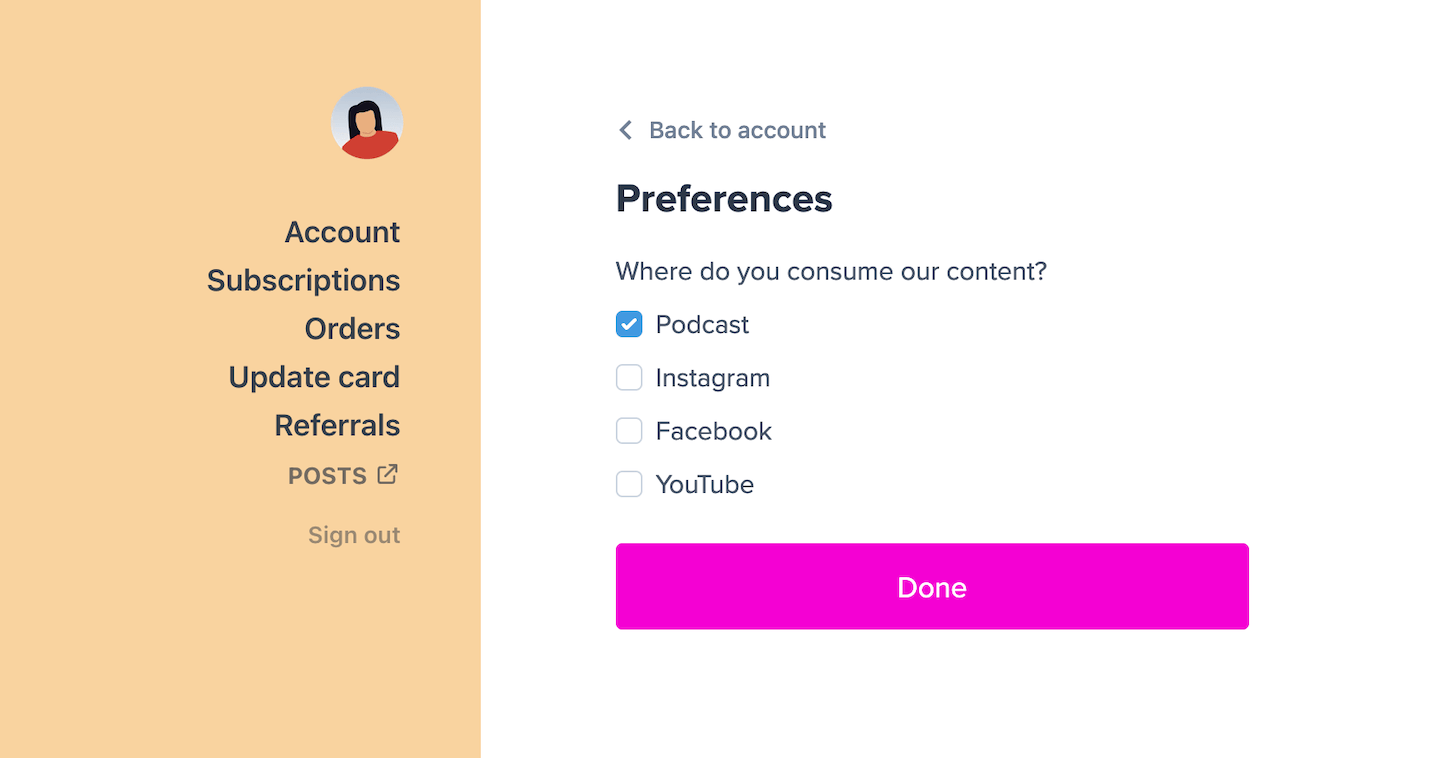 Fields with predefined options (checkbox and dropdown) are ideal for segmenting subscribers — for example, asking where they consume your content or which benefits interest them most.
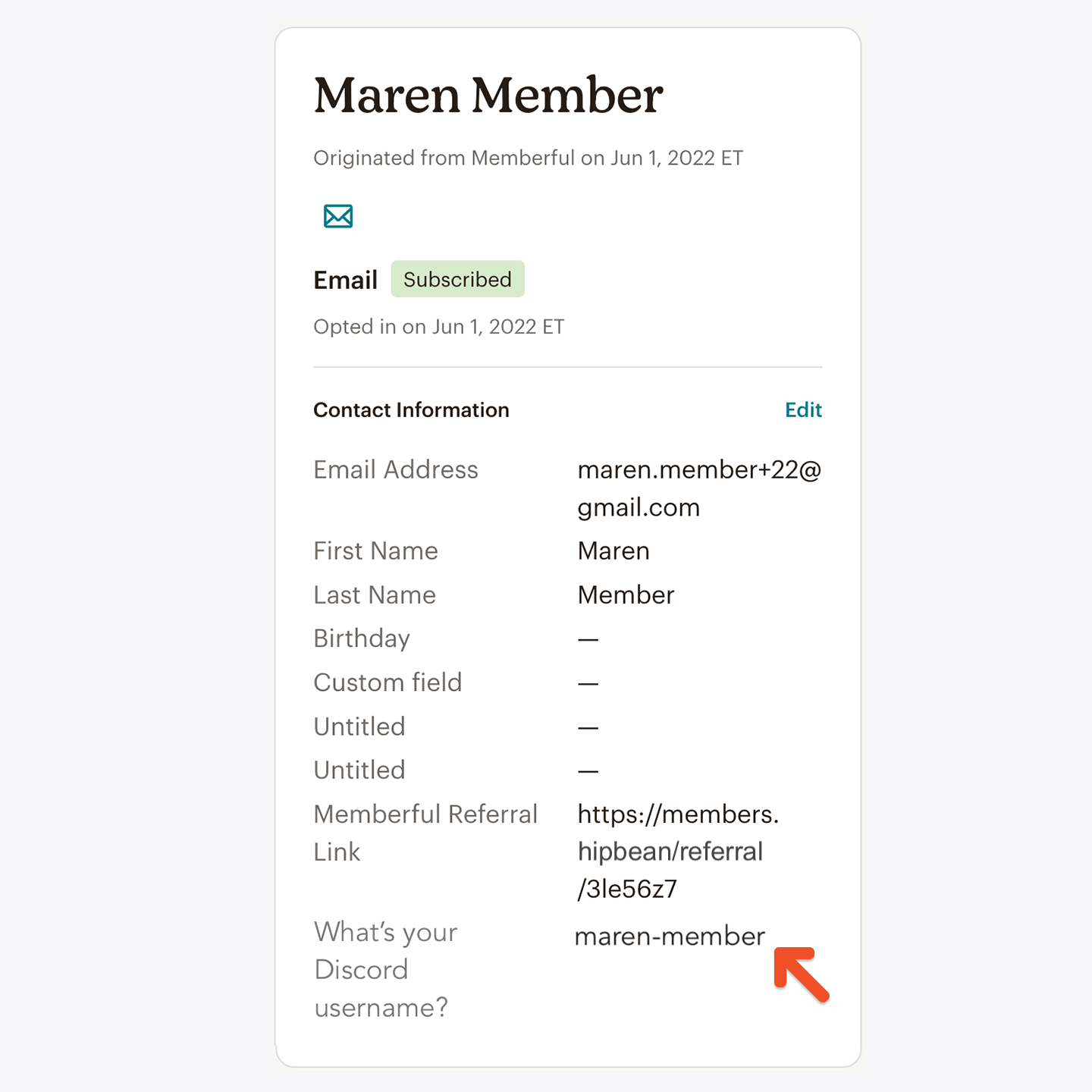
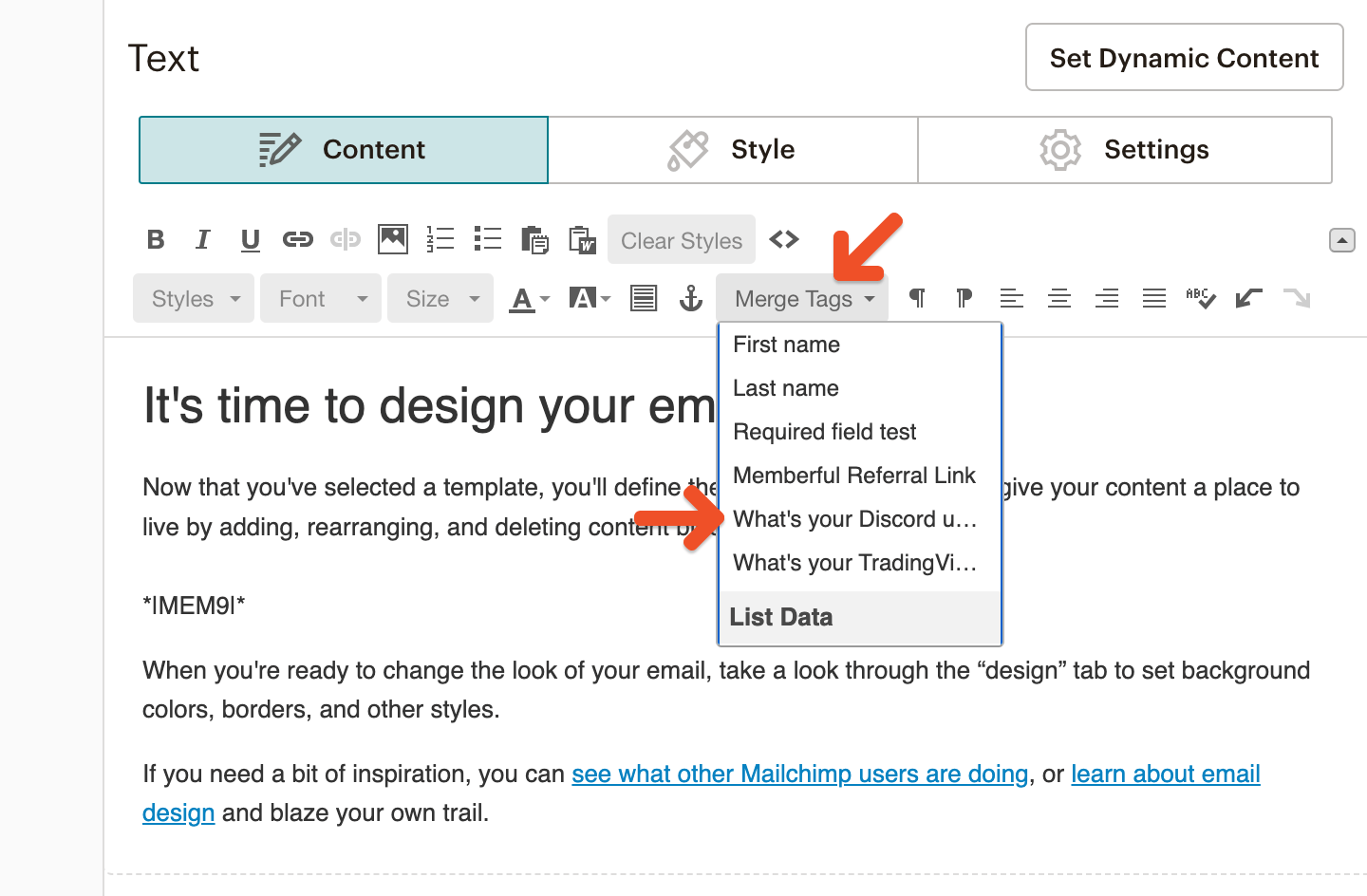
Fields with free-form answers (text or comment) are best for personalizing emails with nicknames, social handles, or other custom details.
Each selected option in a checkbox or dropdown field becomes a new tag inside Mailchimp.
Fields with predefined options (checkbox and dropdown) are ideal for segmenting subscribers — for example, asking where they consume your content or which benefits interest them most.
Fields with free-form answers (text or comment) are best for personalizing emails with nicknames, social handles, or other custom details.
Each selected option in a checkbox or dropdown field becomes a new tag inside Mailchimp.
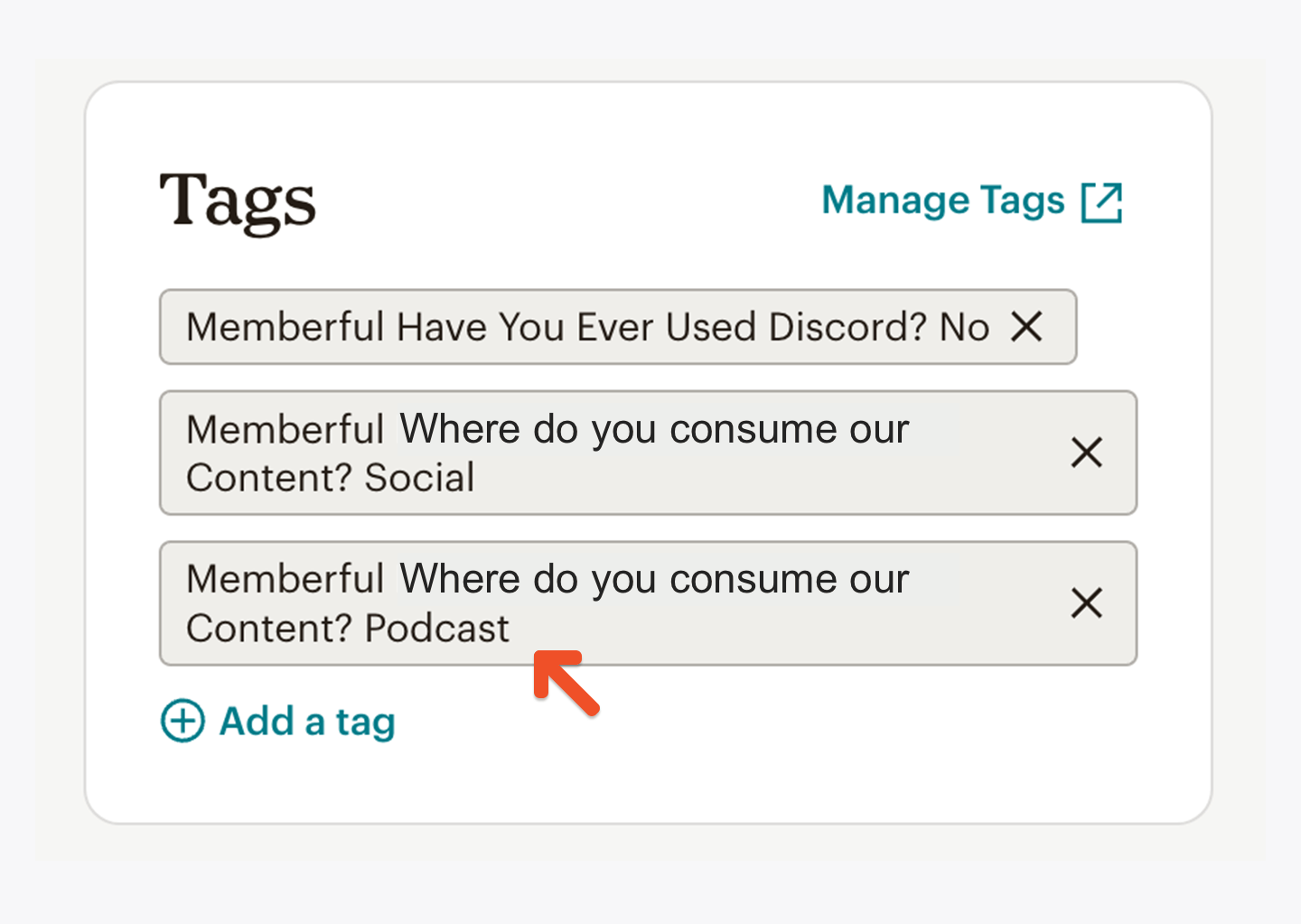 You can use these tags to build custom segments.
 Free-form answers show up as Audience Fields (also called merge tags).
 You can use these merge tags to personalize emails.
 ## What happens when you reconnect your email service provider?
When you reconnect your integration, we'll resync your members and update the appropriate Mailchimp Groups, applying them to active members and removing them from inactive ones. To avoid unintended email triggers, disable any [Mailchimp automations](https://memberful.com/docs/newsletters/integrations/mailchimp#send-automated-flows) before reconnecting.
## What happens when you reconnect your email service provider?
When you reconnect your integration, we'll resync your members and update the appropriate Mailchimp Groups, applying them to active members and removing them from inactive ones. To avoid unintended email triggers, disable any [Mailchimp automations](https://memberful.com/docs/newsletters/integrations/mailchimp#send-automated-flows) before reconnecting.