> ## Documentation Index
> Fetch the complete documentation index at: https://memberful.com/docs/llms.txt
> Use this file to discover all available pages before exploring further.
# Integrate with Klaviyo
> Integrate Memberful with Klaviyo to automatically sync your members, create segments, and send targeted newsletters based on their membership details.
export const RelatedDocs = ({link1, link2, link3, link4, link5, link6, link7, link8, link9, link10, className = ""}) => {
const links = [link1, link2, link3, link4, link5, link6, link7, link8, link9, link10].filter(Boolean);
if (!links.length) return null;
return ;
};
[Klaviyo](https://klaviyo.com/) is a marketing automation platform that connects seamlessly with Memberful. Once integrated, Memberful syncs your members as Klaviyo profiles — including their subscription details, tags, and custom fields — so you can create targeted, data-driven email campaigns.
In this help article, you will learn how to connect Memberful to Klaviyo, keep your subscriber list synced, and use custom properties to build and personalize campaigns.
## Integrate Klaviyo
To start syncing, you will need to provide a private API key. You can create a new one in your [Klaviyo dashboard:](https://www.klaviyo.com/login?next=/create-private-api-key)
1. Go to *Klaviyo → Account → Settings → API Keys → Create Private API Key.*
2. Name your API key.
3. Select **Custom Key** and enable **Full Access** for the *List*, *Profiles*, and *Subscriptions* scopes.
4. Click **Create.**
 5. Copy your private key.
 6. In your Memberful dashboard, go to *Content → Email marketing*, then click **Connect** under Klaviyo. Paste your API key and click **Connect to Klaviyo.**
## Create or select a Klaviyo list
After connecting, you can sync to an existing list or create a new one.
6. In your Memberful dashboard, go to *Content → Email marketing*, then click **Connect** under Klaviyo. Paste your API key and click **Connect to Klaviyo.**
## Create or select a Klaviyo list
After connecting, you can sync to an existing list or create a new one.
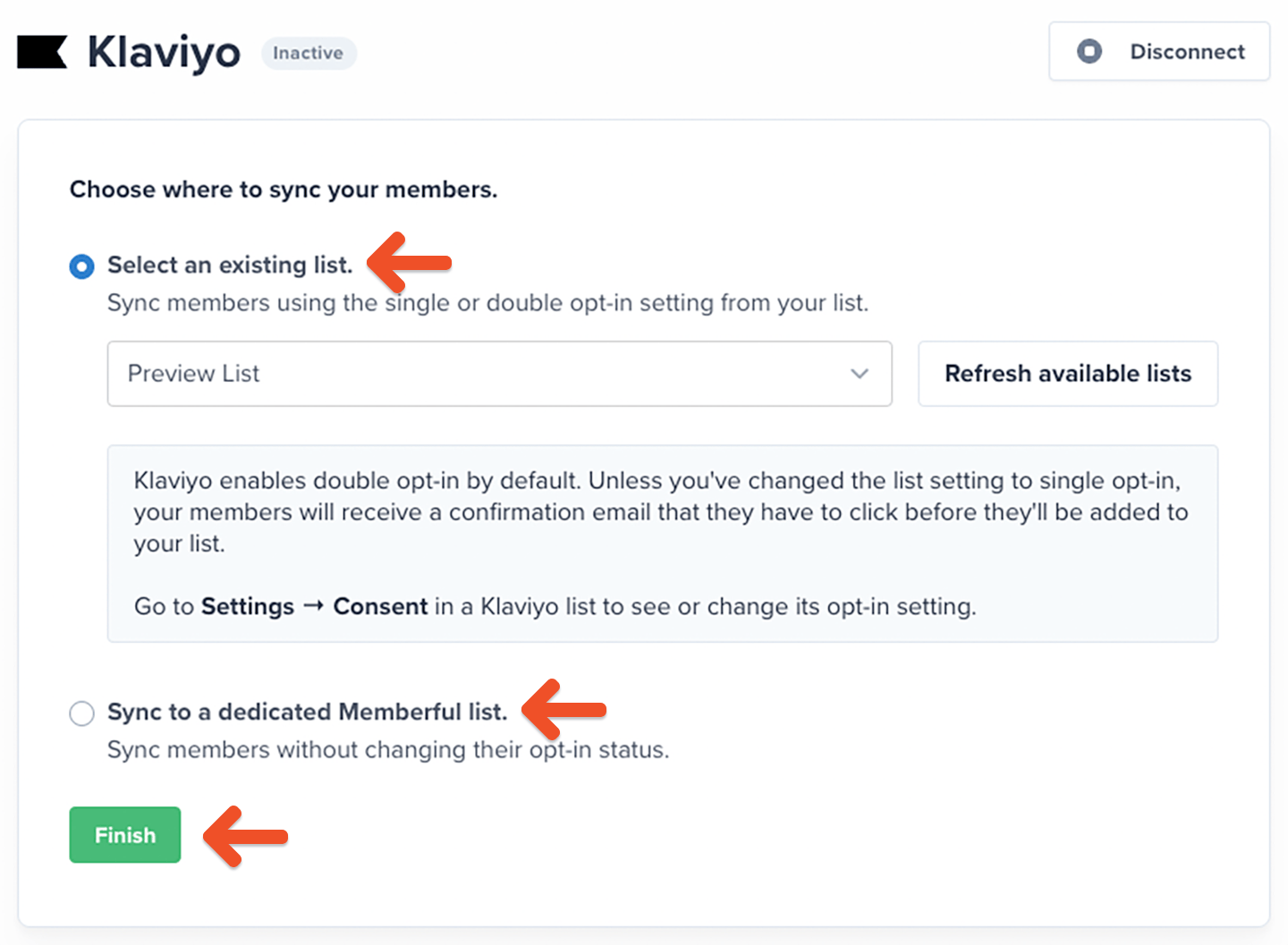 Review the two options below before moving ahead:
* [Select an existing list.](https://memberful.com/docs/newsletters/integrations/klaviyo#select-an-existing-list)
* [Sync to a dedicated Memberful list.](https://memberful.com/docs/newsletters/integrations/klaviyo#sync-to-a-dedicated-memberful-list)
### Select an existing list
Select an existing list and click **Finish.** You will return to Memberful, where a link to your Klaviyo list will appear for easy access.
Klaviyo uses double opt-in by default. Unless you change your list to single opt-in, members will receive a confirmation email they must click before being added to your list.
Review the two options below before moving ahead:
* [Select an existing list.](https://memberful.com/docs/newsletters/integrations/klaviyo#select-an-existing-list)
* [Sync to a dedicated Memberful list.](https://memberful.com/docs/newsletters/integrations/klaviyo#sync-to-a-dedicated-memberful-list)
### Select an existing list
Select an existing list and click **Finish.** You will return to Memberful, where a link to your Klaviyo list will appear for easy access.
Klaviyo uses double opt-in by default. Unless you change your list to single opt-in, members will receive a confirmation email they must click before being added to your list.
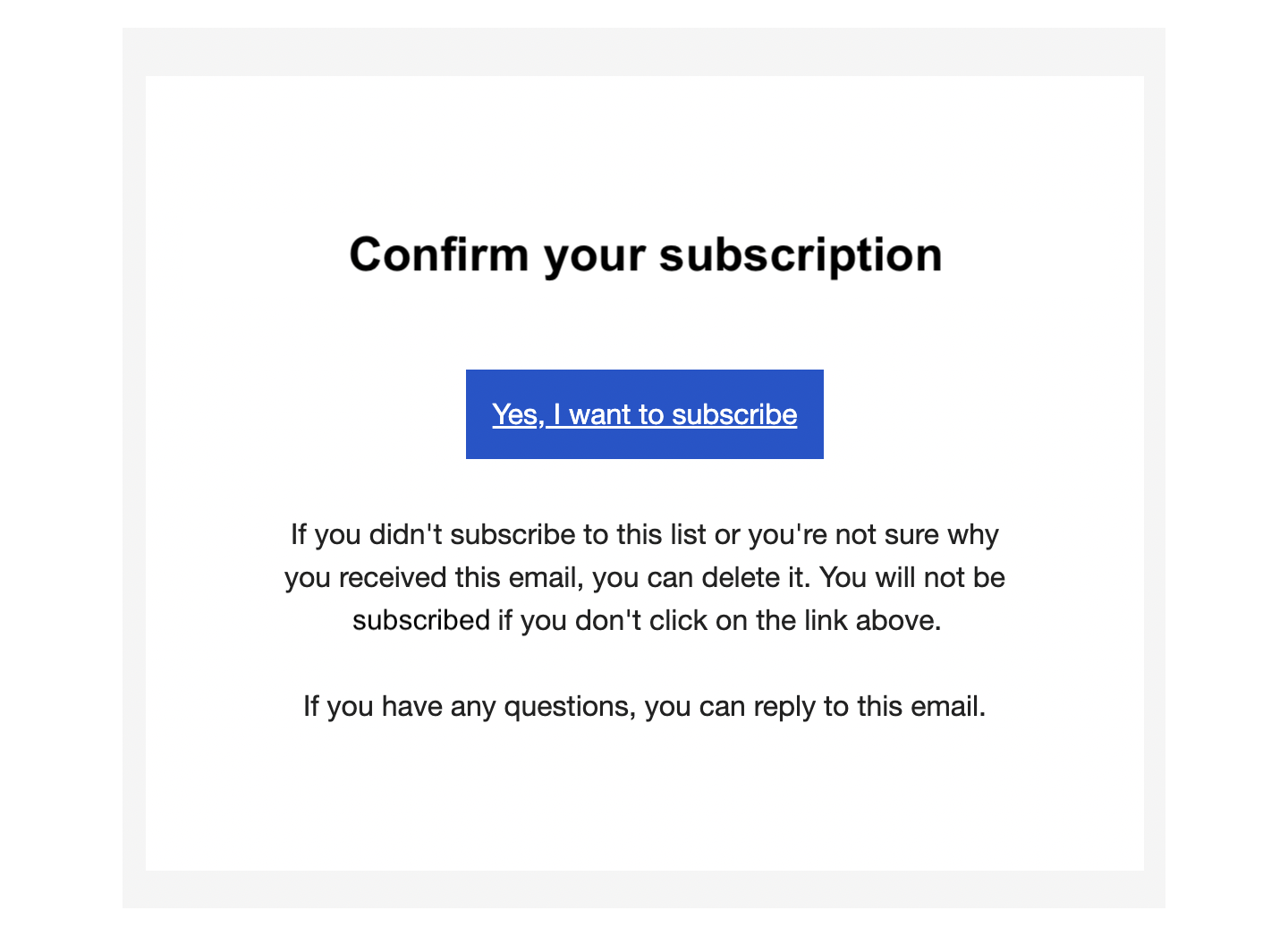 Go to *Settings → Consent* in your Klaviyo list to see or change the opt-in setting.
### Sync to a dedicated Memberful list
Create a new list through Memberful and click **Finish.** You will then be sent back to Memberful where we include a link for you to easily access your list. Your new list will be called **Memberful + your account name.**
Members are subscribed to your list automatically, but they will appear as "unsubscribed" in Klaviyo. This does not affect their ability to receive emails.
## How we keep your list up to date and synced
When you first connect, Memberful either syncs with your existing list or creates a new list called *Memberful + your account name* in Klaviyo. Memberful imports all your existing members into that list as [Klaviyo profiles.](https://help.klaviyo.com/hc/en-us/articles/115005247088)
Your list stays automatically synced — new members are added, existing members are updated, and key details are synced as [custom profile properties](https://help.klaviyo.com/hc/en-us/articles/115000250912). To view these details, click a subscriber in Klaviyo to see the Memberful properties in their profile.
Go to *Settings → Consent* in your Klaviyo list to see or change the opt-in setting.
### Sync to a dedicated Memberful list
Create a new list through Memberful and click **Finish.** You will then be sent back to Memberful where we include a link for you to easily access your list. Your new list will be called **Memberful + your account name.**
Members are subscribed to your list automatically, but they will appear as "unsubscribed" in Klaviyo. This does not affect their ability to receive emails.
## How we keep your list up to date and synced
When you first connect, Memberful either syncs with your existing list or creates a new list called *Memberful + your account name* in Klaviyo. Memberful imports all your existing members into that list as [Klaviyo profiles.](https://help.klaviyo.com/hc/en-us/articles/115005247088)
Your list stays automatically synced — new members are added, existing members are updated, and key details are synced as [custom profile properties](https://help.klaviyo.com/hc/en-us/articles/115000250912). To view these details, click a subscriber in Klaviyo to see the Memberful properties in their profile.
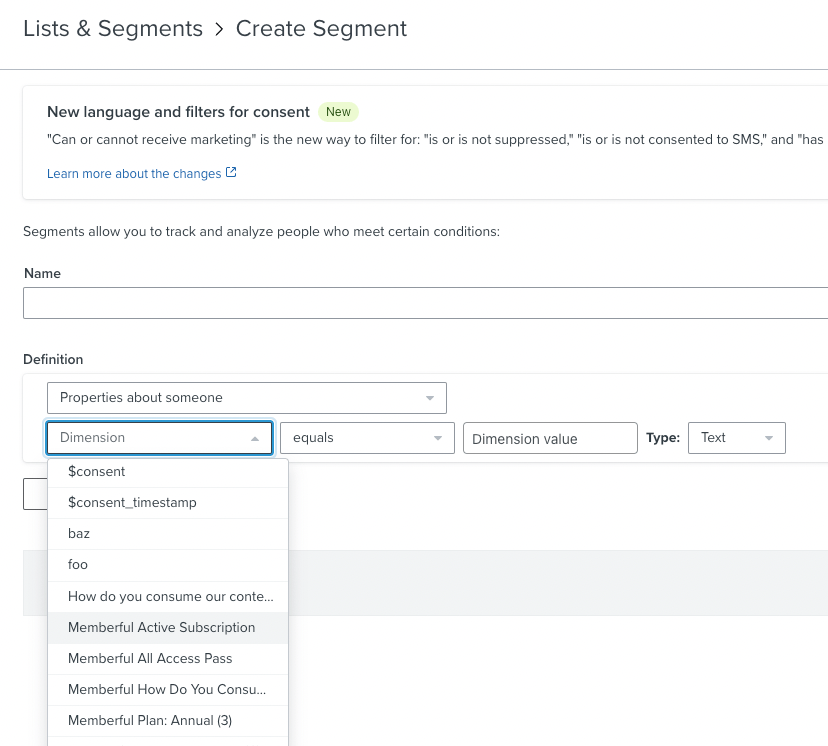 Here are the properties Memberful continuously syncs to Klaviyo:
* **Memberful Plans**: Lists the plans that the member is currently subscribed to. This property is not synced if the member is not subscribed to any plan.
* **Memberful Products:** Lists the downloads that the member has purchased. This property is not synced if the member has not purchased any product.
* **Memberful Referral Link:** The member's unique referral link.
* **Memberful Signup Source:** The member's signup source (for example, checkout, free registration, created by admin, team subscription).
* **Memberful Active Subscription:** "Yes" for members with at least one active subscription, "No" otherwise.
* **Memberful All Access Pass:** "Yes" for members with an All Access Pass, "No" otherwise.
* **Memberful CUSTOM\_FIELD:** Contains responses from Memberful custom fields. Multiple answers are shown as an array. This property is not synced if there are no answers.
Members are not removed from your Klaviyo list when their subscription expires. If a member's subscription ends, Memberful updates or removes the related properties. If a member changes their email address, Memberful adds the new address as a new subscriber and removes Memberful data from the old one.
## Send a targeted campaign
To send newsletters or targeted campaigns, create [segments](https://help.klaviyo.com/hc/en-us/articles/115005237908) using the Memberful properties synced to Klaviyo.
You can target:
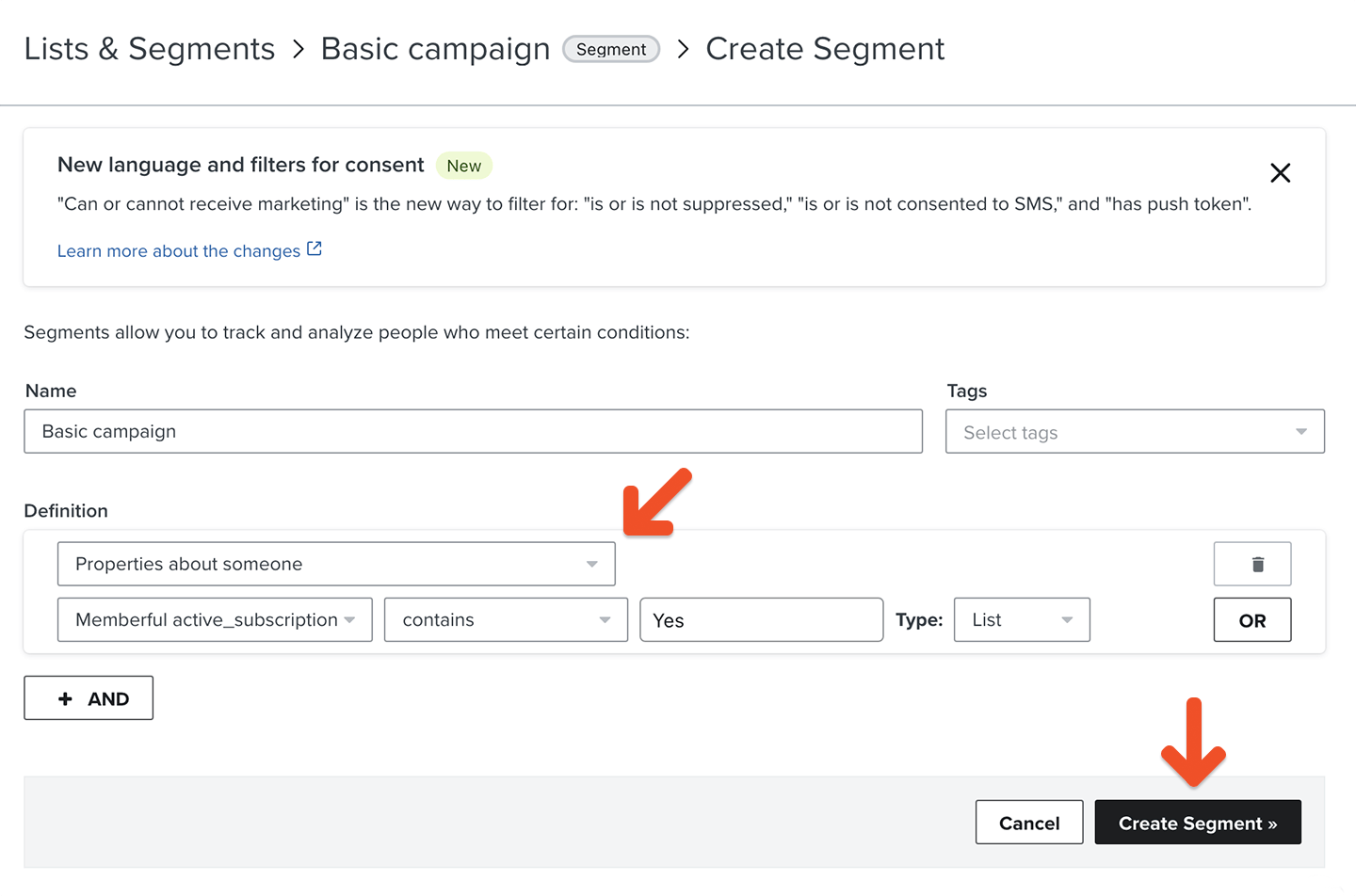
* All active members: Create a segment where Memberful Active Subscription contains "Yes."
* Specific plans: Create a segment based on the Memberful Plans property.
Here are the properties Memberful continuously syncs to Klaviyo:
* **Memberful Plans**: Lists the plans that the member is currently subscribed to. This property is not synced if the member is not subscribed to any plan.
* **Memberful Products:** Lists the downloads that the member has purchased. This property is not synced if the member has not purchased any product.
* **Memberful Referral Link:** The member's unique referral link.
* **Memberful Signup Source:** The member's signup source (for example, checkout, free registration, created by admin, team subscription).
* **Memberful Active Subscription:** "Yes" for members with at least one active subscription, "No" otherwise.
* **Memberful All Access Pass:** "Yes" for members with an All Access Pass, "No" otherwise.
* **Memberful CUSTOM\_FIELD:** Contains responses from Memberful custom fields. Multiple answers are shown as an array. This property is not synced if there are no answers.
Members are not removed from your Klaviyo list when their subscription expires. If a member's subscription ends, Memberful updates or removes the related properties. If a member changes their email address, Memberful adds the new address as a new subscriber and removes Memberful data from the old one.
## Send a targeted campaign
To send newsletters or targeted campaigns, create [segments](https://help.klaviyo.com/hc/en-us/articles/115005237908) using the Memberful properties synced to Klaviyo.
You can target:
* All active members: Create a segment where Memberful Active Subscription contains "Yes."
* Specific plans: Create a segment based on the Memberful Plans property.
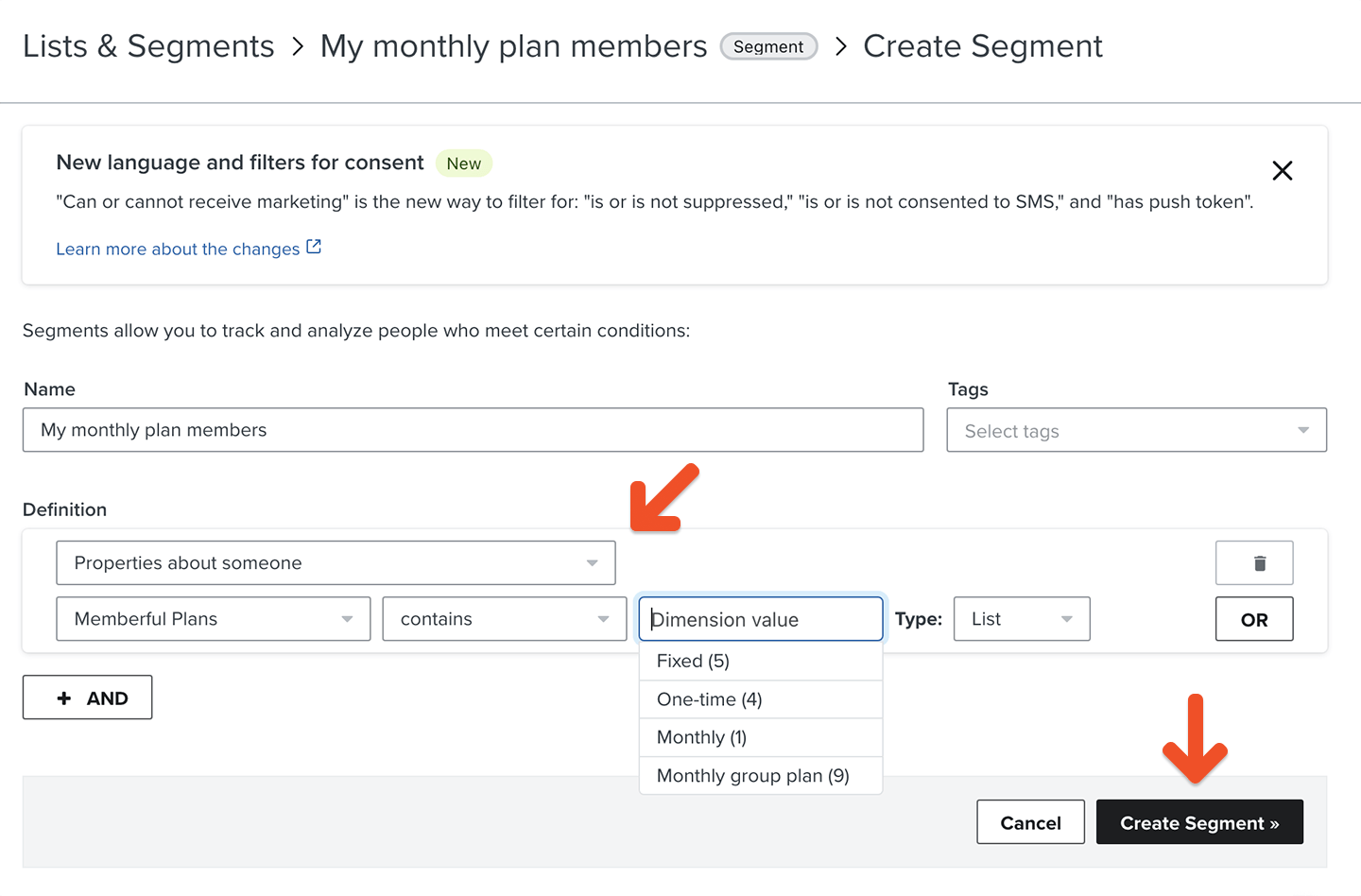 1. Go to *Audience → Lists & segments → Create List / Segment → Segment.*
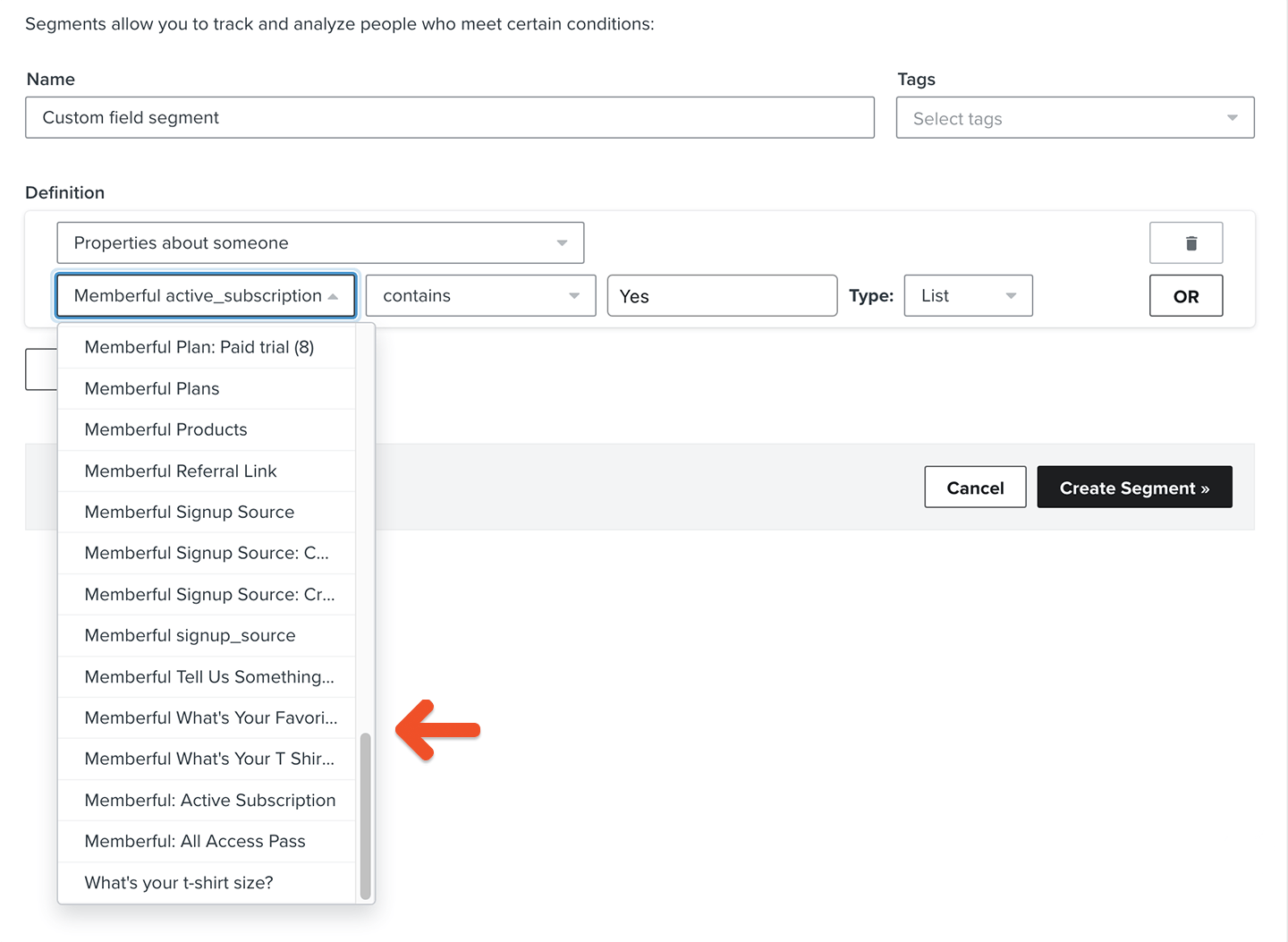
2. From the Definition dropdown, choose **Properties about someone**, then select the Memberful property and condition you want to use.
1. Go to *Audience → Lists & segments → Create List / Segment → Segment.*
2. From the Definition dropdown, choose **Properties about someone**, then select the Memberful property and condition you want to use.
 Want to learn more about customizing and personalizing Klaviyo's emails? [Read Klaviyo's guide.](https://developers.klaviyo.com/en/docs/django_message_design)
## Send automated flows
Combine [segments](https://help.klaviyo.com/hc/en-us/articles/115005237908) with [Klaviyo flows](https://help.klaviyo.com/hc/en-us/articles/115002774932) to send event-triggered emails.
## Add a referral link to your campaign
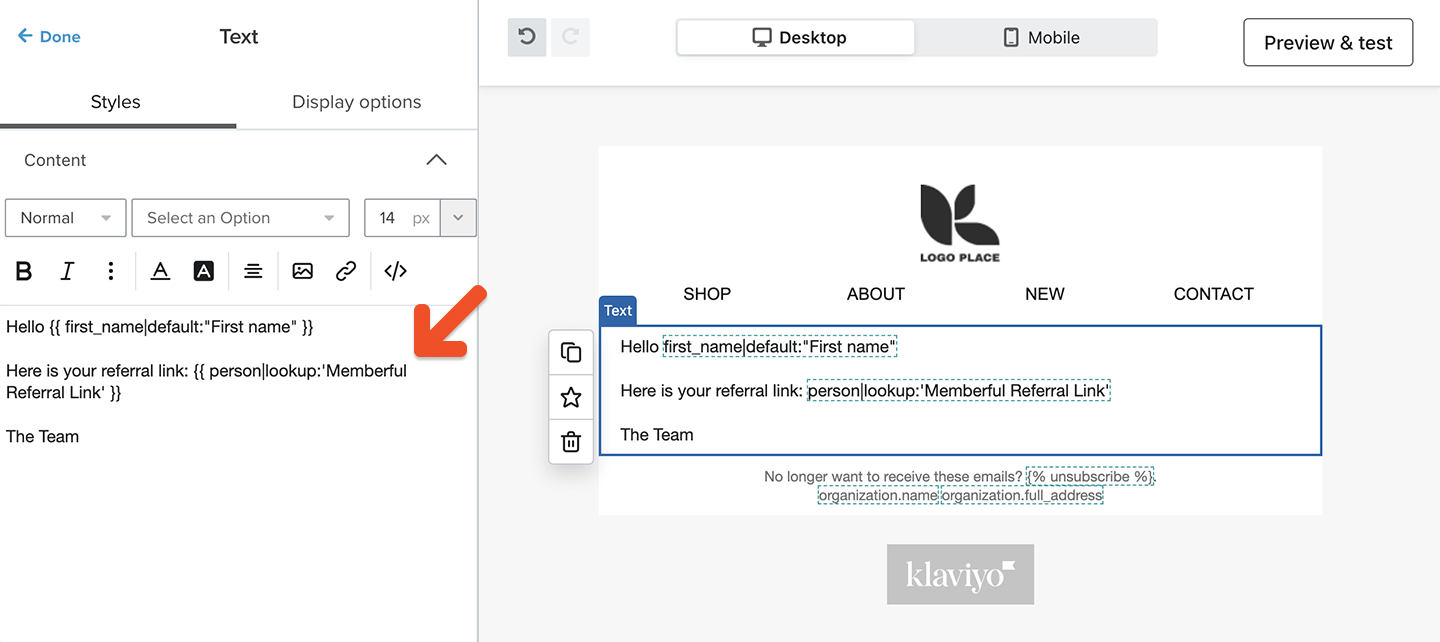
If you have enabled [Memberful referrals](/discounts-and-gifting/lifecycle-discounts/offer-referral-discounts), you can include referral links in your campaigns so members can earn rewards for referrals. We store your member's referral link as a custom property in their profile.
Use this code to insert a custom property in your campaign:
`{{ person|lookup:'' }}`
The "person" keyword refers to the member's profile, while this keyword retrieves the given custom property from the profile:
`lookup:''`
For example, to insert a member's referral link:
```text theme={null}
{{ person|lookup:'Memberful Referral Link' }}
```
Want to learn more about customizing and personalizing Klaviyo's emails? [Read Klaviyo's guide.](https://developers.klaviyo.com/en/docs/django_message_design)
## Send automated flows
Combine [segments](https://help.klaviyo.com/hc/en-us/articles/115005237908) with [Klaviyo flows](https://help.klaviyo.com/hc/en-us/articles/115002774932) to send event-triggered emails.
## Add a referral link to your campaign
If you have enabled [Memberful referrals](/discounts-and-gifting/lifecycle-discounts/offer-referral-discounts), you can include referral links in your campaigns so members can earn rewards for referrals. We store your member's referral link as a custom property in their profile.
Use this code to insert a custom property in your campaign:
`{{ person|lookup:'' }}`
The "person" keyword refers to the member's profile, while this keyword retrieves the given custom property from the profile:
`lookup:''`
For example, to insert a member's referral link:
```text theme={null}
{{ person|lookup:'Memberful Referral Link' }}
```
 ## Use custom field answers for segmentation and personalization
You can [collect up to 5 custom fields](/configuration/feedback-and-policies/create-custom-fields/) right after your members complete the checkout form. You can then use those answers to segment your subscribers or personalize email campaigns.
## Use custom field answers for segmentation and personalization
You can [collect up to 5 custom fields](/configuration/feedback-and-policies/create-custom-fields/) right after your members complete the checkout form. You can then use those answers to segment your subscribers or personalize email campaigns.
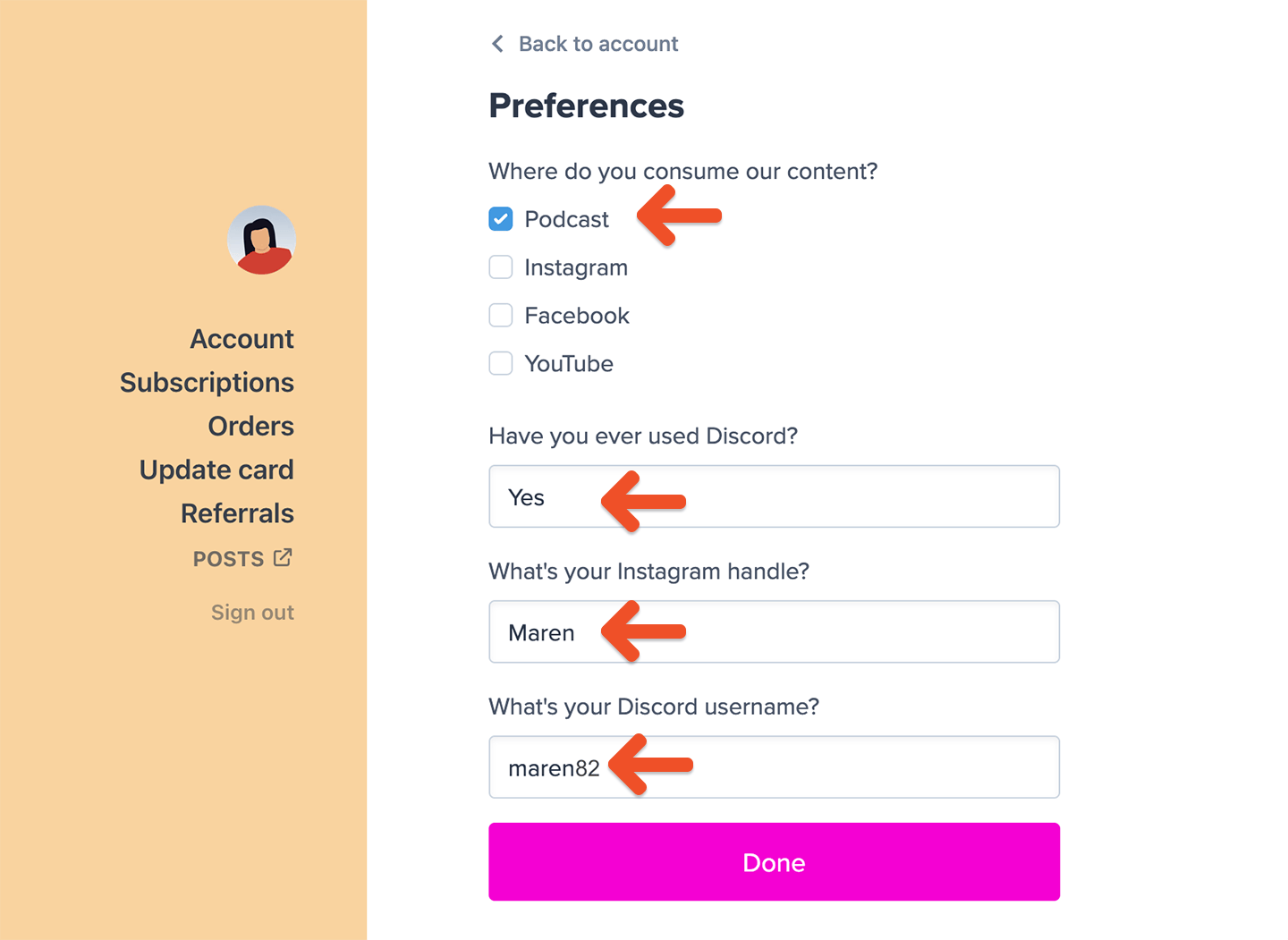 Fields with predefined options (checkbox and dropdown) are ideal for segmenting subscribers — for example, asking where they consume your content or which benefits interest them most.
Fields with free-form answers (text and comment) are best for personalizing emails such as including nicknames or social handles.
Each selected option in a checkbox or dropdown field becomes a new custom property inside Klaviyo.
Fields with predefined options (checkbox and dropdown) are ideal for segmenting subscribers — for example, asking where they consume your content or which benefits interest them most.
Fields with free-form answers (text and comment) are best for personalizing emails such as including nicknames or social handles.
Each selected option in a checkbox or dropdown field becomes a new custom property inside Klaviyo.
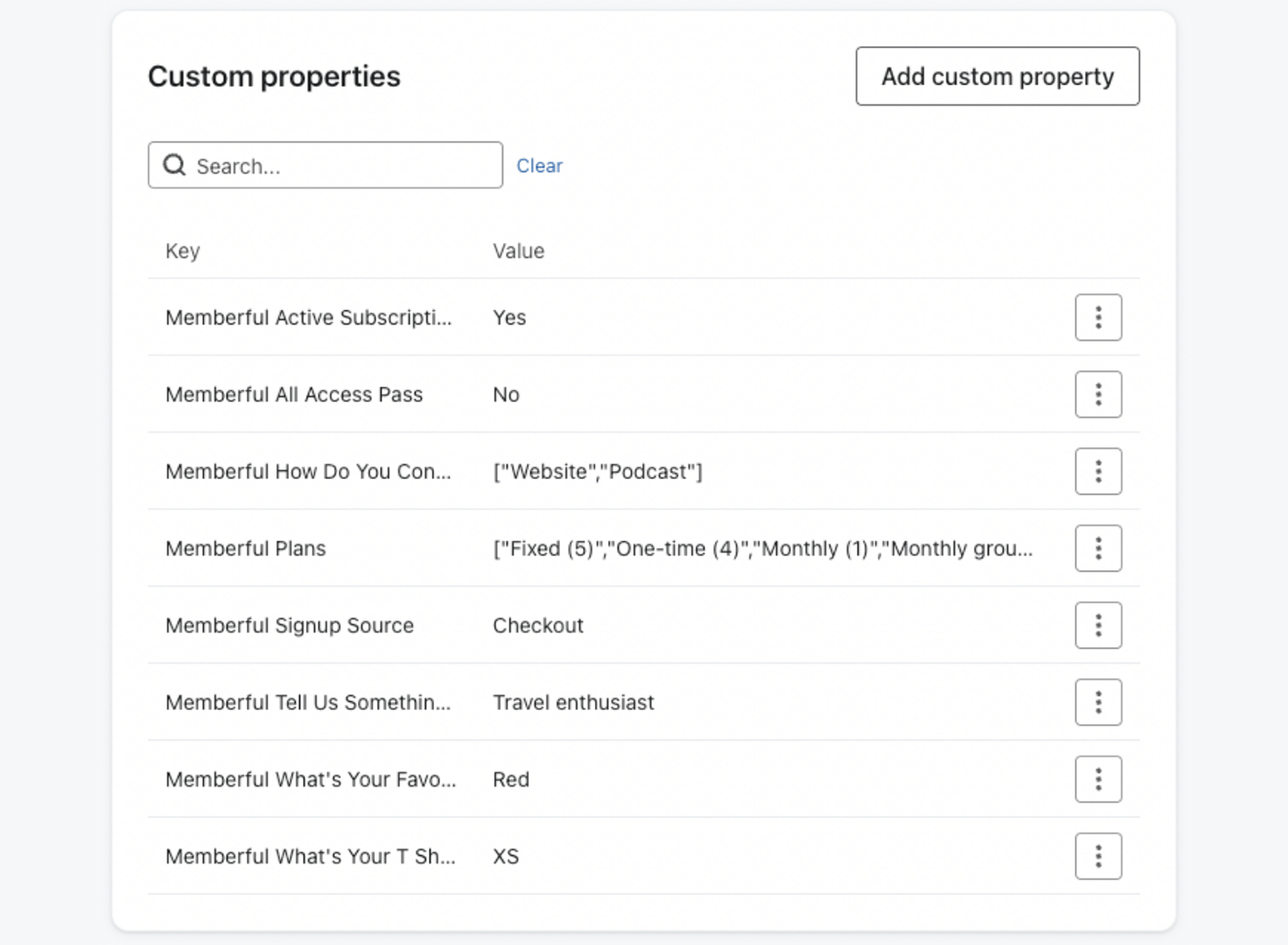 You can use these properties to build custom segments by choosing **Properties about someone** in the segment editor.
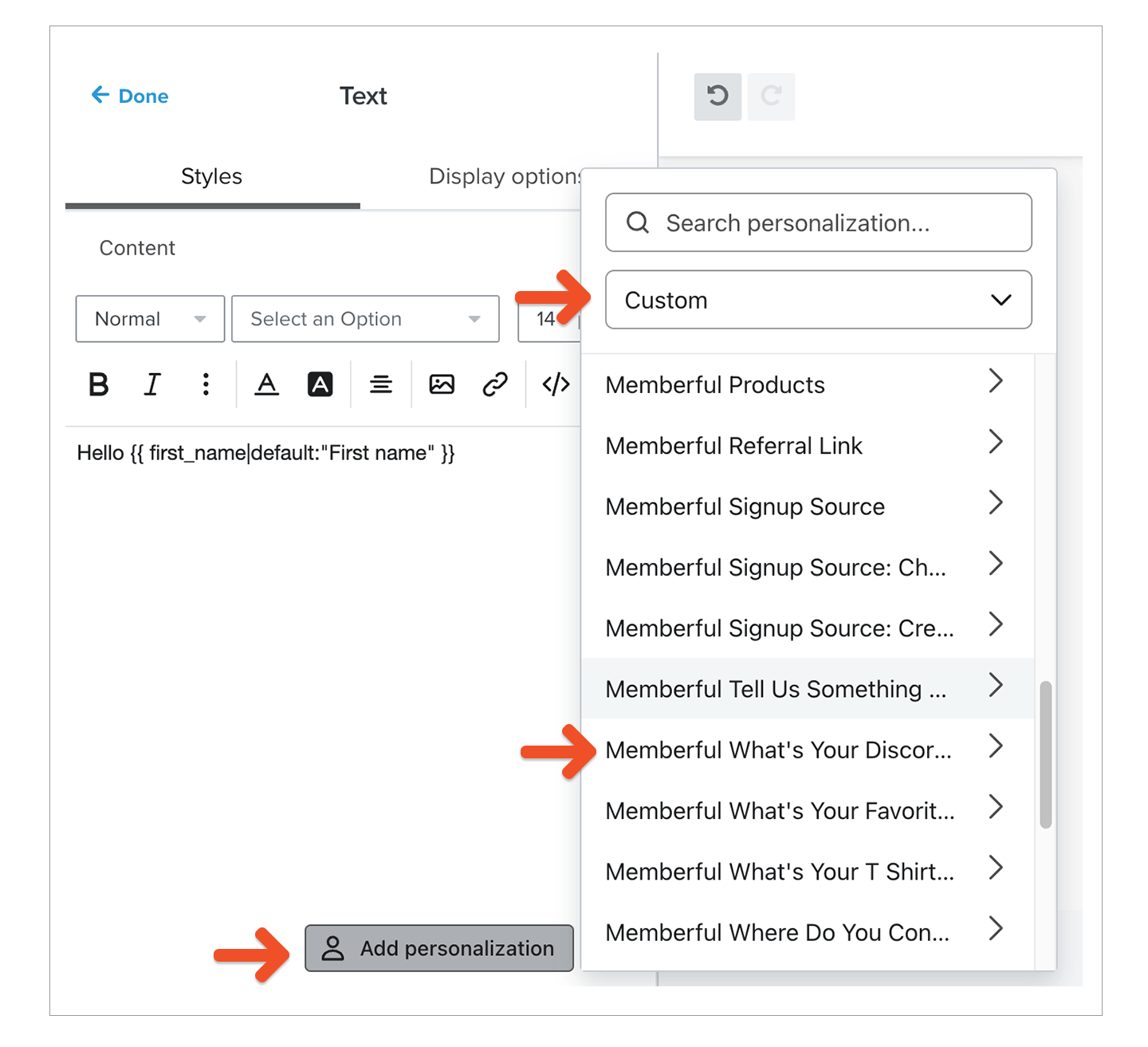
 You can also use them to personalize emails by clicking **Add personalization** in the campaign editor.
 ## What happens when you reconnect your email service provider?
When you reconnect your integration, we'll resync your members and update the appropriate custom profile properties, applying them to active members and removing them from inactive ones. To avoid unintended email triggers, disable any [Klaviyo automated flows](https://memberful.com/docs/newsletters/integrations/klaviyo#send-automated-flows) before reconnecting.
## What happens when you reconnect your email service provider?
When you reconnect your integration, we'll resync your members and update the appropriate custom profile properties, applying them to active members and removing them from inactive ones. To avoid unintended email triggers, disable any [Klaviyo automated flows](https://memberful.com/docs/newsletters/integrations/klaviyo#send-automated-flows) before reconnecting.