Related help docs:
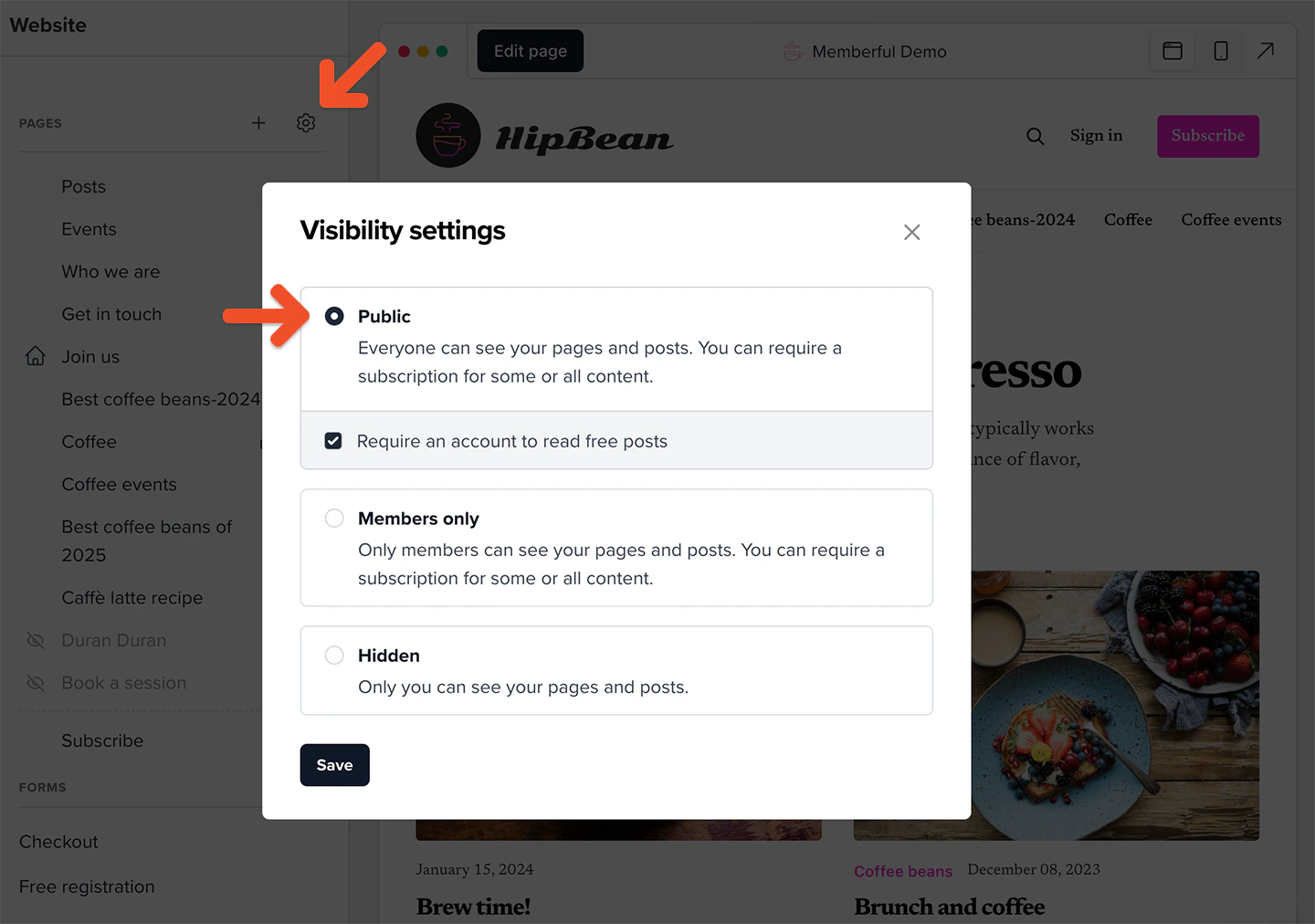
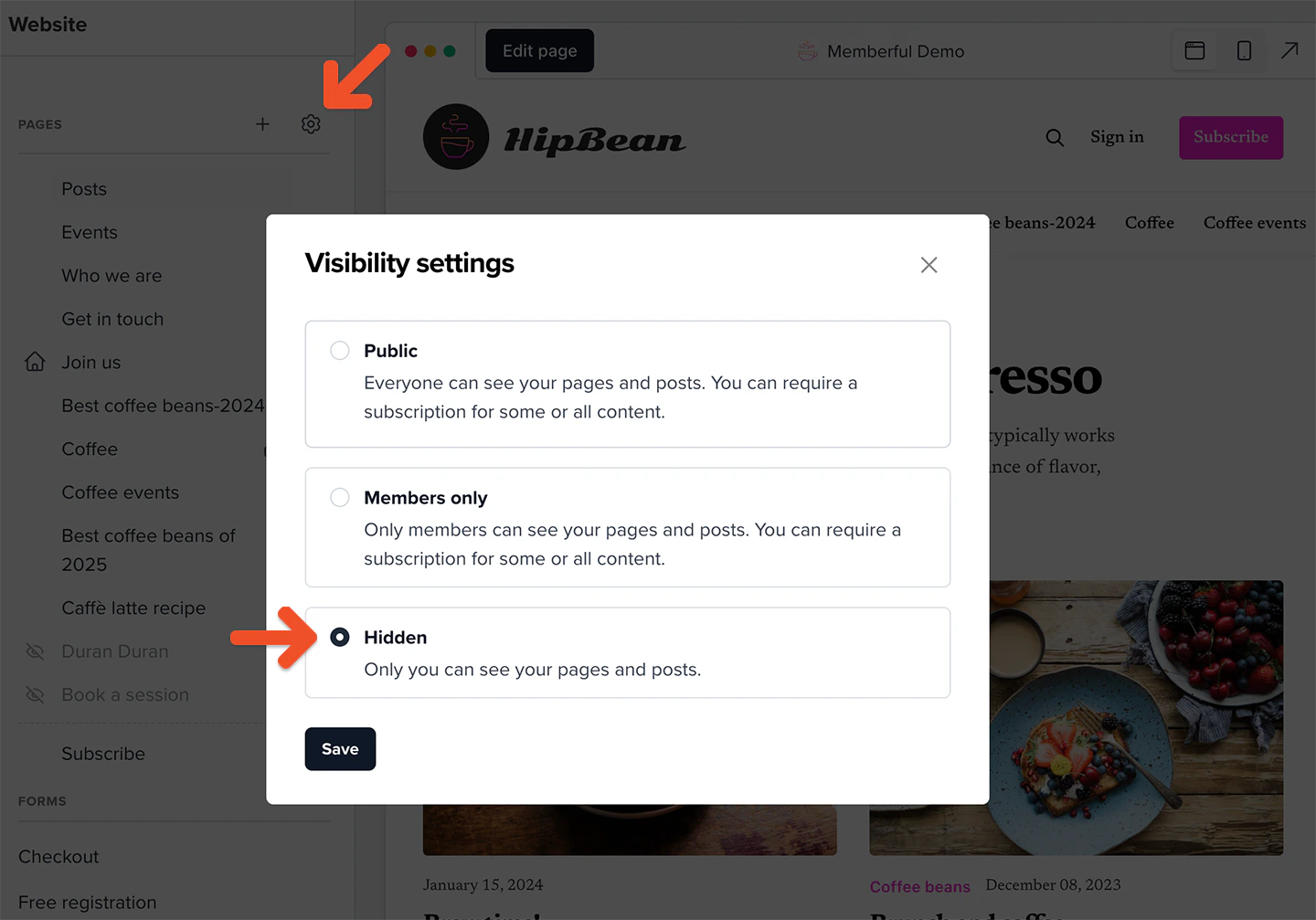 To enable the website again, go to the **Website** tab, click the **gear** icon, and select either **Public** or **Members-only**.
 ## Create a new post
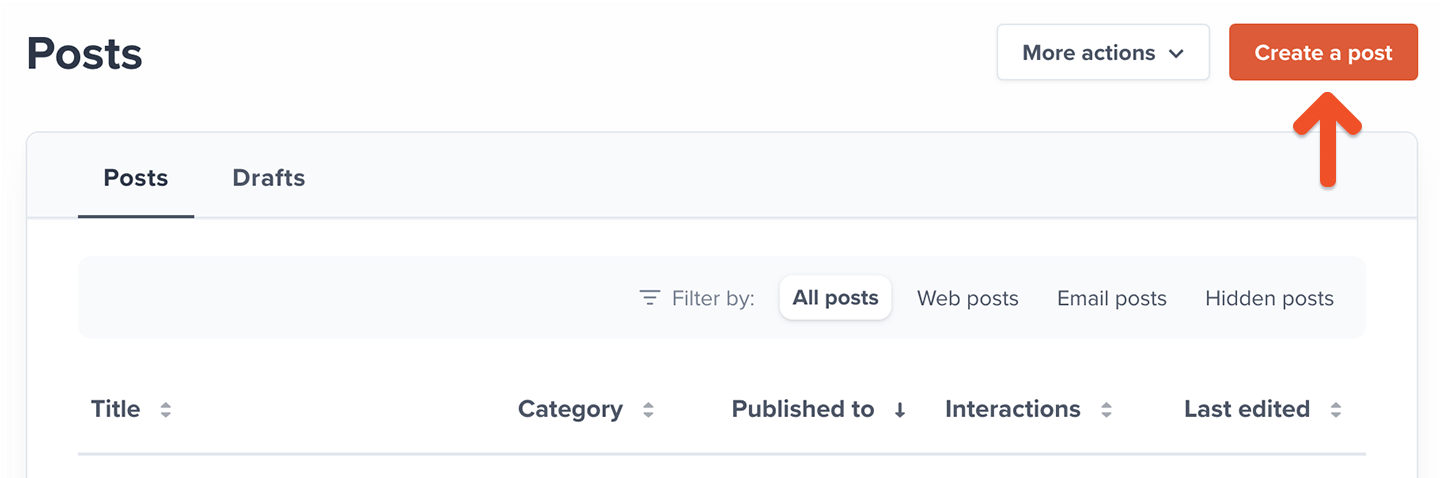
Go to *Content → Posts* from your Memberful dashboard, and click **Create a post.**
## Create a new post
Go to *Content → Posts* from your Memberful dashboard, and click **Create a post.**
 Add a title and content for your post. Use the icons at the top of the content editor to format your content and add elements like links and images.
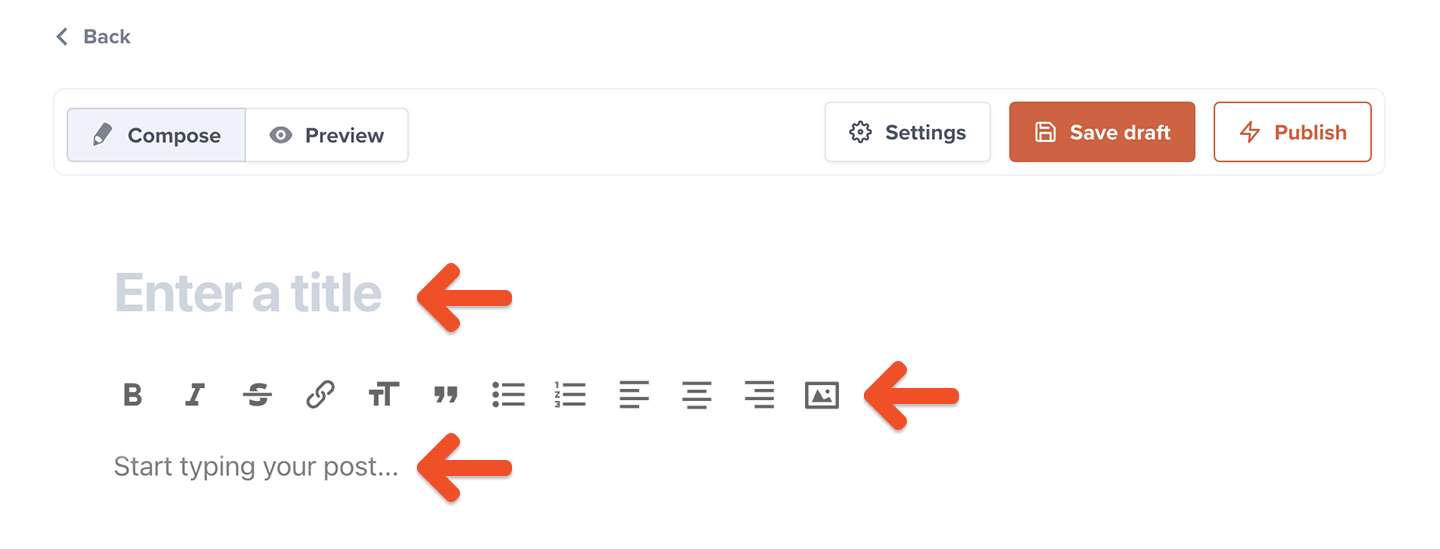 You can also drag and drop images from your computer into the content editor. We recommend images that are exactly 768px wide as we will automatically downsize images that are larger than that.
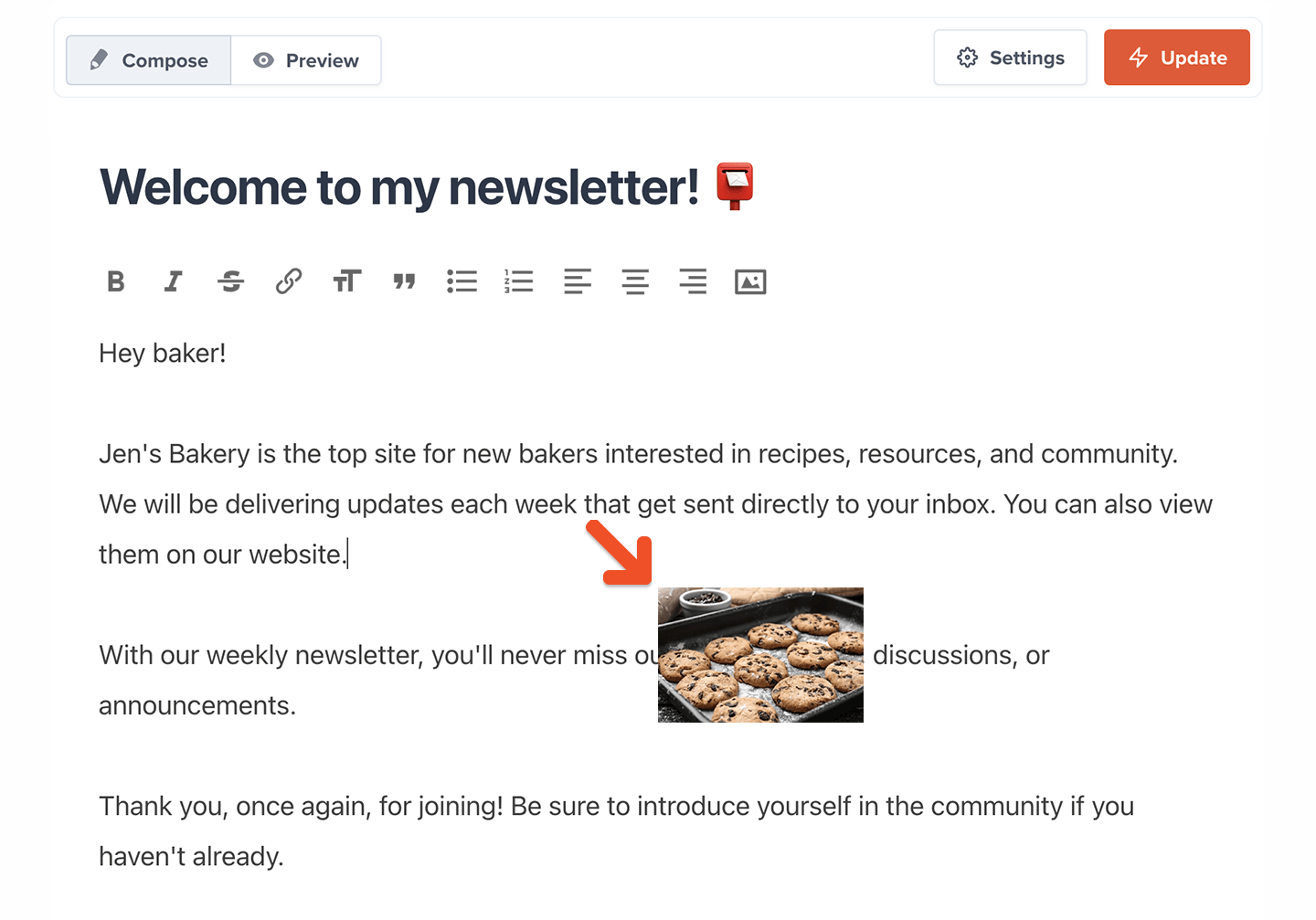 Images will be automatically resized to fit the width of the content area. If you'd like an image to appear smaller than the full width of the content editor, use your favorite image-editing app or a free online tool like [this one](https://onlinetools.com/image/pad-image) to add some margins to the left and right of the image before uploading it.
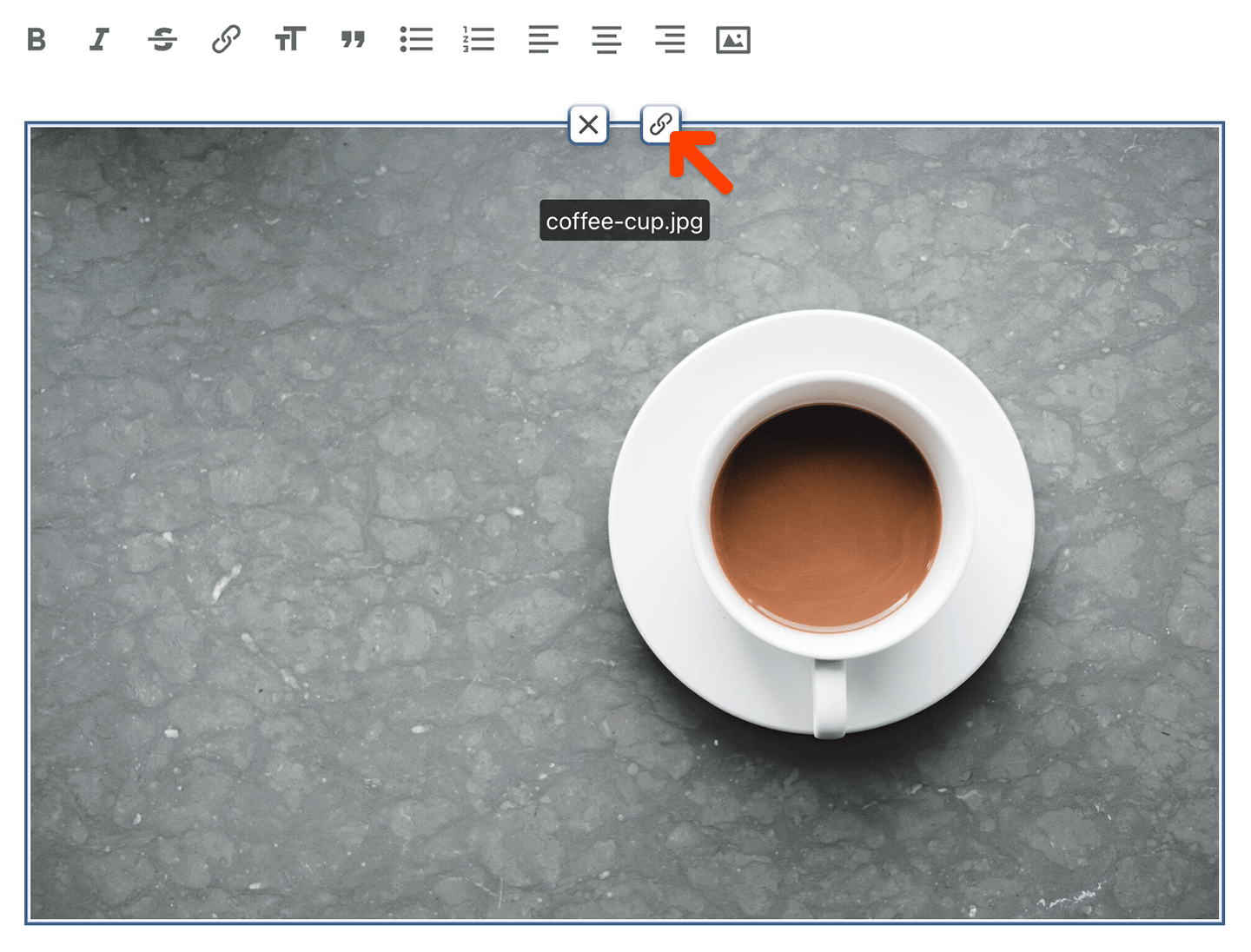
To turn an image into a clickable link, click the image in the editor, then click the **link** icon that appears on it.
Images will be automatically resized to fit the width of the content area. If you'd like an image to appear smaller than the full width of the content editor, use your favorite image-editing app or a free online tool like [this one](https://onlinetools.com/image/pad-image) to add some margins to the left and right of the image before uploading it.
To turn an image into a clickable link, click the image in the editor, then click the **link** icon that appears on it.
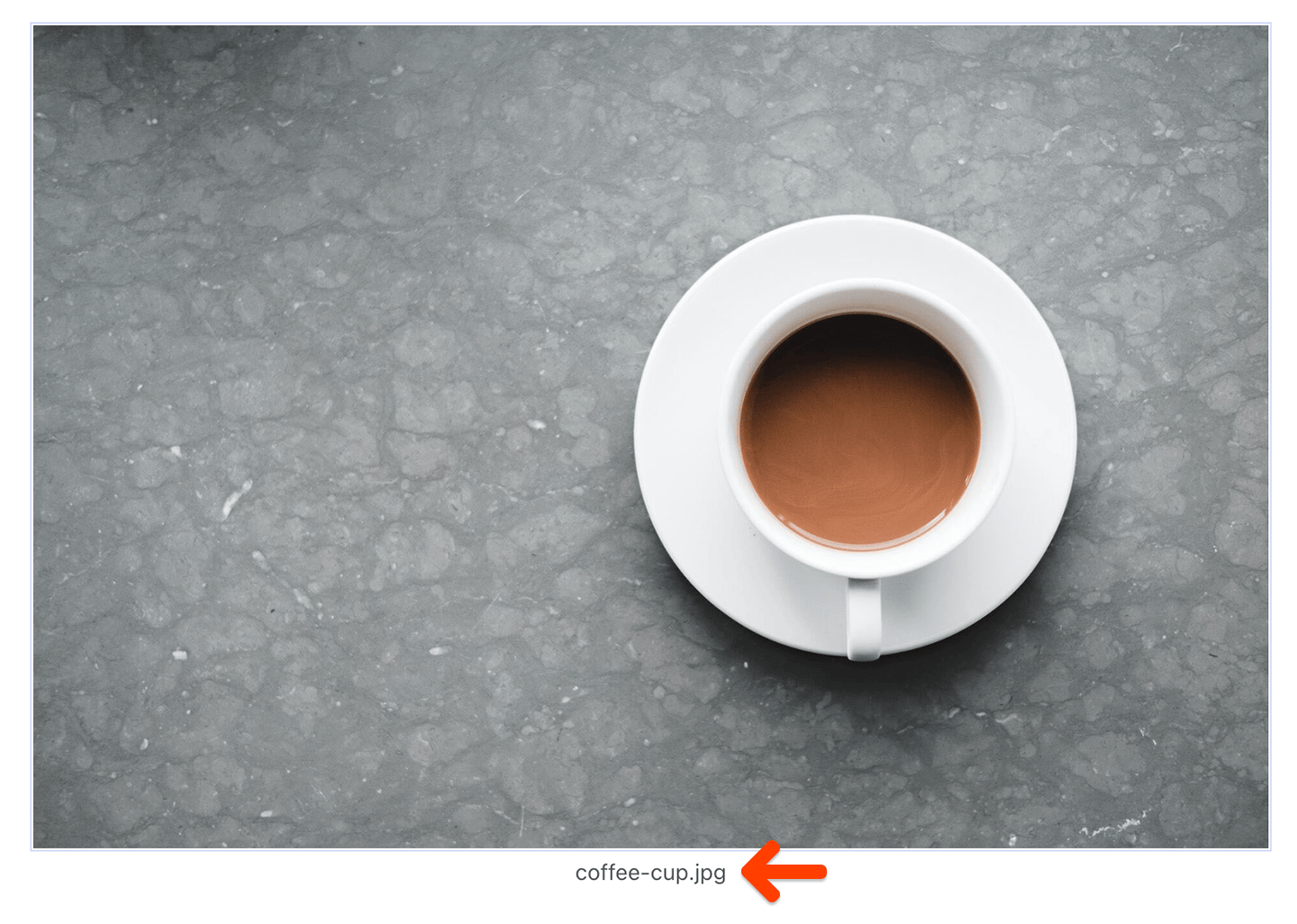
 Memberful will automatically use the name of the image file as the caption. Click the caption to enter a custom one.
 ## Upload videos to a post
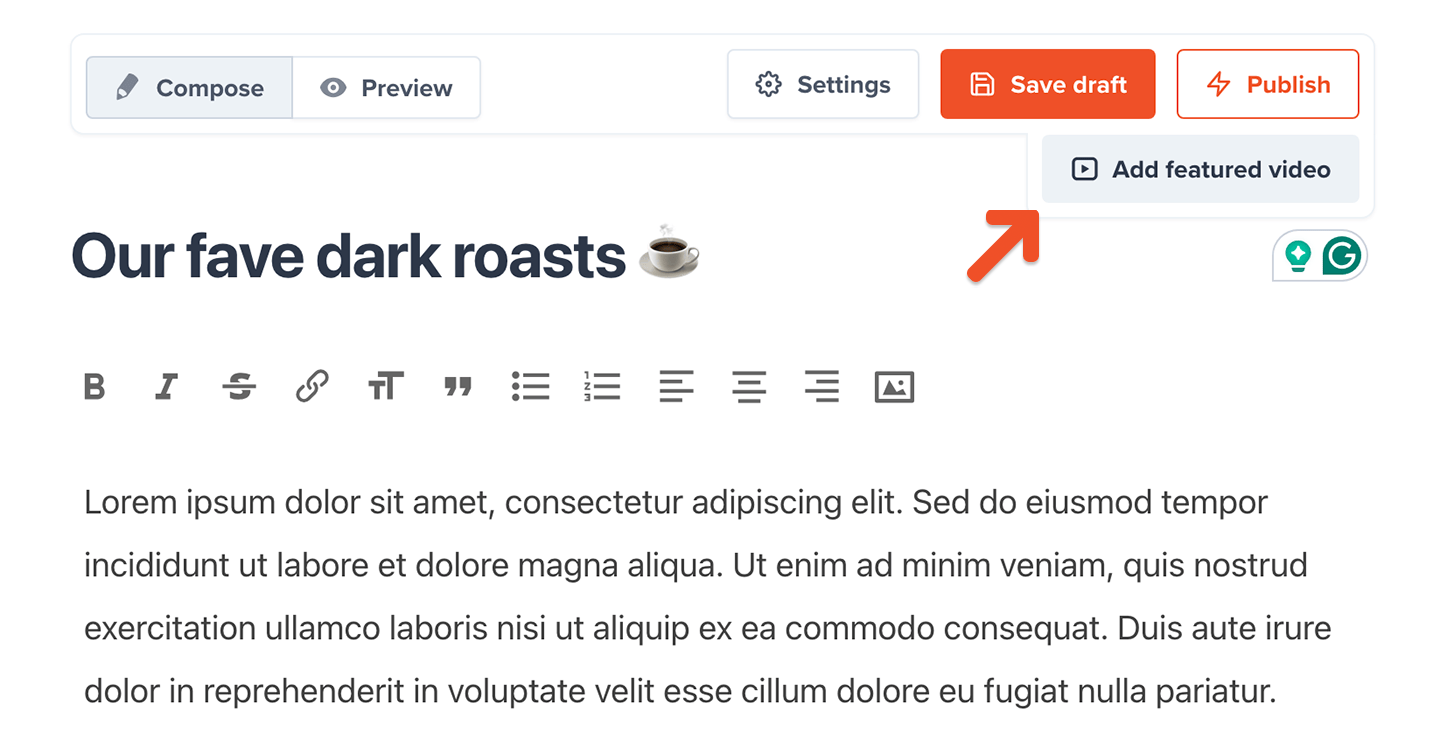
You can upload or drag and drop video files into your post for paid members. Follow our [video processing guidelines](/website-builder/video-content/video-processing) for the best streaming quality, then go to your post and click **Add featured video** to upload:
## Upload videos to a post
You can upload or drag and drop video files into your post for paid members. Follow our [video processing guidelines](/website-builder/video-content/video-processing) for the best streaming quality, then go to your post and click **Add featured video** to upload:
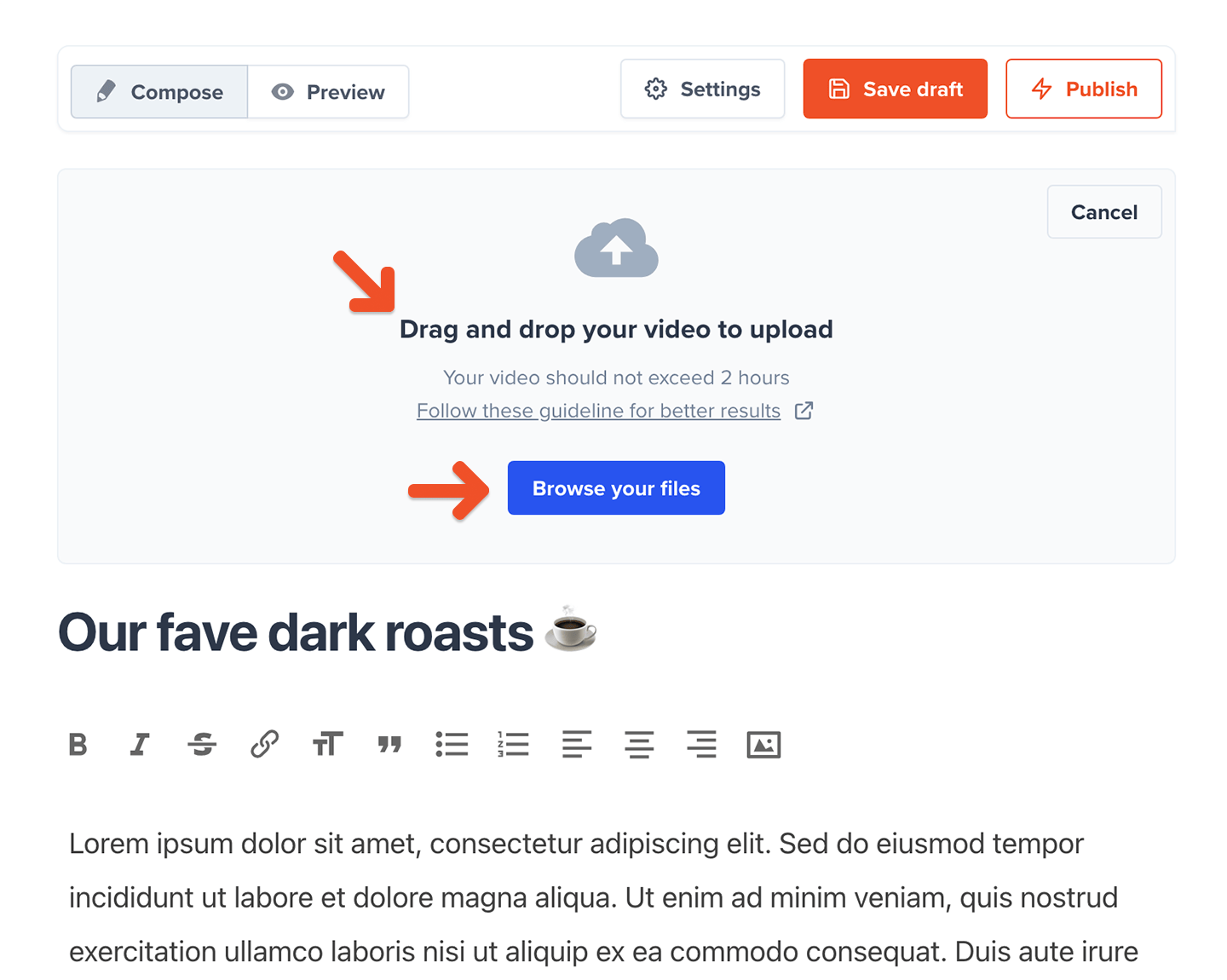
 **Drag and drop** your video or click **Browse your files** to select the video file to upload:
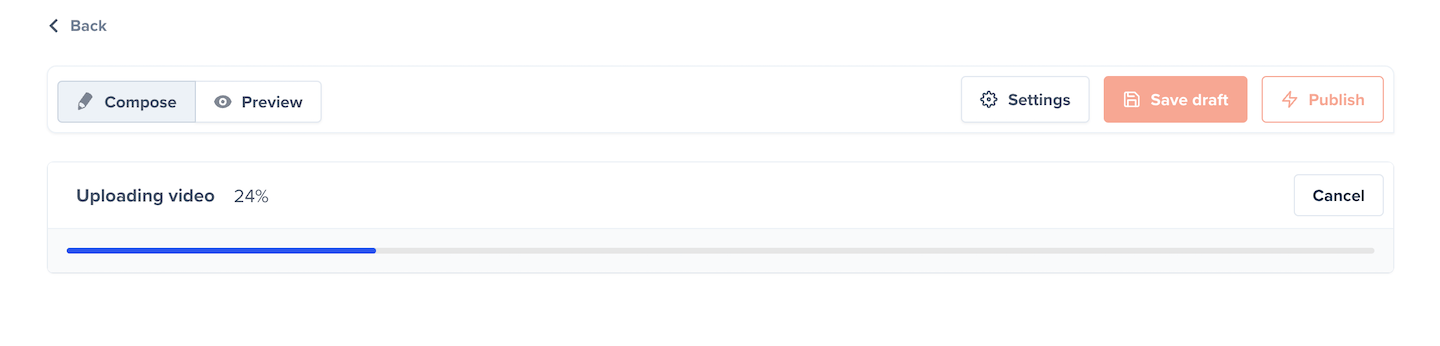 [Learn more](/website-builder/video-content/video-processing#review-available-processing-messages) about the video upload messages available.
 You can also add subtitles to your video. Click here to [learn more](website-builder/video-content/video-processing#add-video-captions).
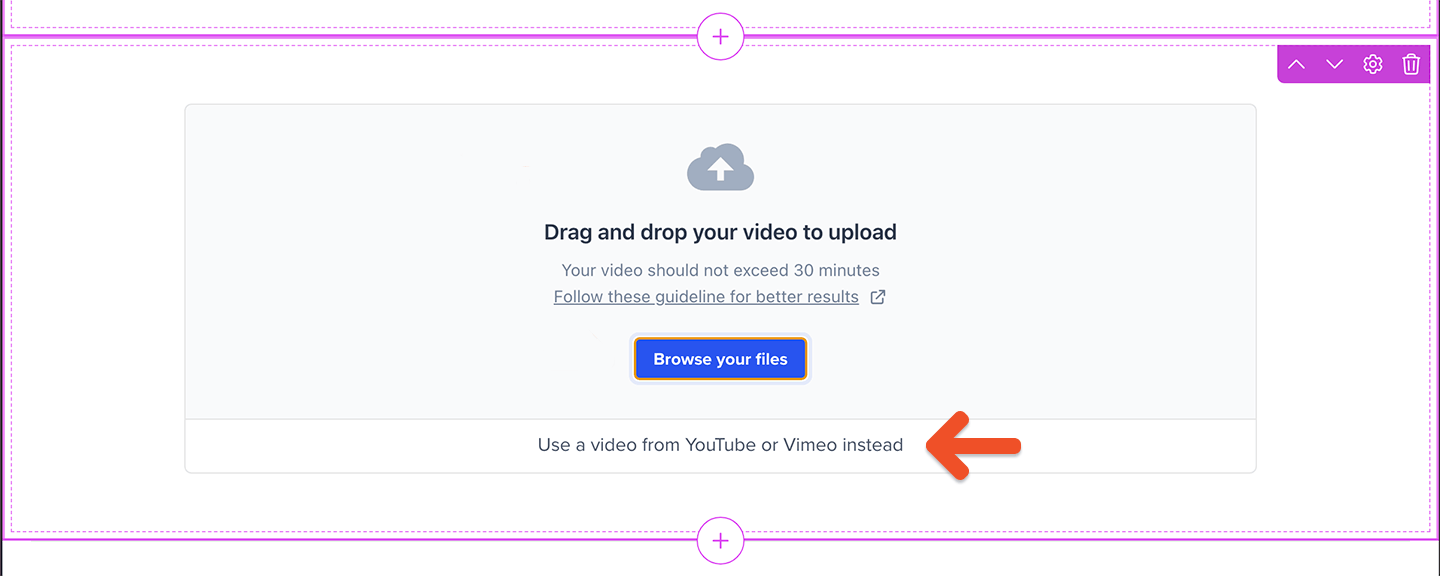
If you'd like to offer videos to *free* or *inactive members*, you can paste a YouTube or Vimeo video URL into the content editor of a video block.
[Learn more](/website-builder/video-content/restrict-access-to-video-content/#choose-a-video-hosting-platform) about using Vimeo or YouTube.
You can also add subtitles to your video. Click here to [learn more](website-builder/video-content/video-processing#add-video-captions).
If you'd like to offer videos to *free* or *inactive members*, you can paste a YouTube or Vimeo video URL into the content editor of a video block.
[Learn more](/website-builder/video-content/restrict-access-to-video-content/#choose-a-video-hosting-platform) about using Vimeo or YouTube.
 If you run into errors, [learn more](/website-builder/video-content/video-processing#troubleshooting-video-files) about troubleshooting videos.
## Duplicate an existing post
If you've already made a post, you have the option to duplicate it with its current settings and content.
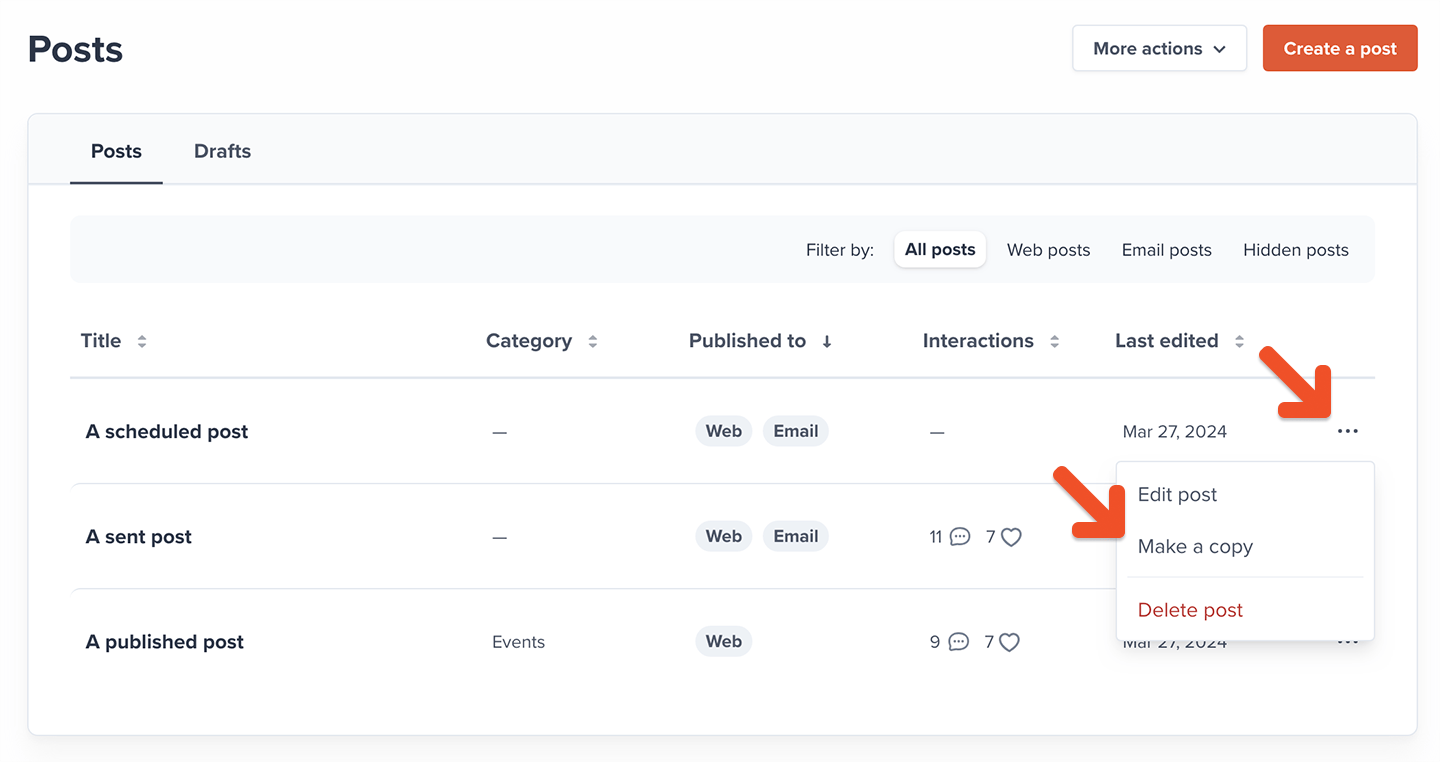
Go to *Content → Posts*, find the existing post to duplicate, click the ellipsis icon (**...**), and select **Make a copy**.
If you run into errors, [learn more](/website-builder/video-content/video-processing#troubleshooting-video-files) about troubleshooting videos.
## Duplicate an existing post
If you've already made a post, you have the option to duplicate it with its current settings and content.
Go to *Content → Posts*, find the existing post to duplicate, click the ellipsis icon (**...**), and select **Make a copy**.
 We copy the following attributes when a post is copied:
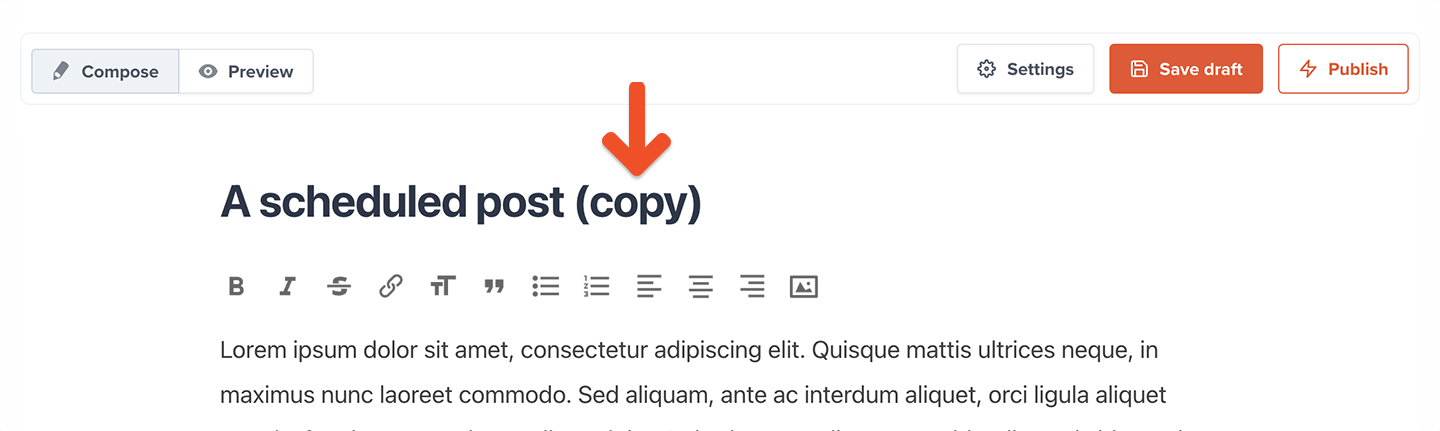
* The original post's title — which is appended with the word "(copy)"
* The original post's content and its attachments (videos, images, etc)
* The original post's visibility (e.g. if it's for public view, active members, or for members on certain plans)
* The original post's publishing options are:
* Show on members website
* Category
* Comments and likes
* Send to members as email
We copy the following attributes when a post is copied:
* The original post's title — which is appended with the word "(copy)"
* The original post's content and its attachments (videos, images, etc)
* The original post's visibility (e.g. if it's for public view, active members, or for members on certain plans)
* The original post's publishing options are:
* Show on members website
* Category
* Comments and likes
* Send to members as email
 Here's how the copy differs from the original post:
* The copied post will be a draft
* The delivery settings and "last edited at" timestamp will be reset
* Any uploaded featured video will not be duplicated
Here's how the copy differs from the original post:
* The copied post will be a draft
* The delivery settings and "last edited at" timestamp will be reset
* Any uploaded featured video will not be duplicated
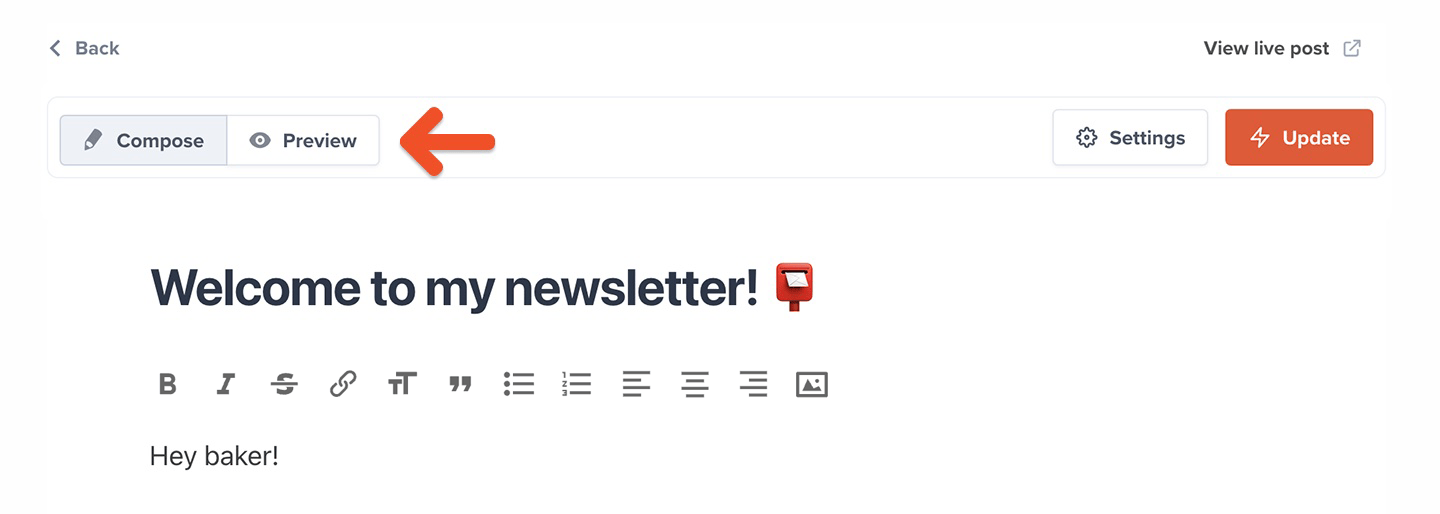 Keep in mind that certain elements are not displayed in the post preview. For example, the actual emailed post will include your custom branding elements while the preview does not.
## Save a draft
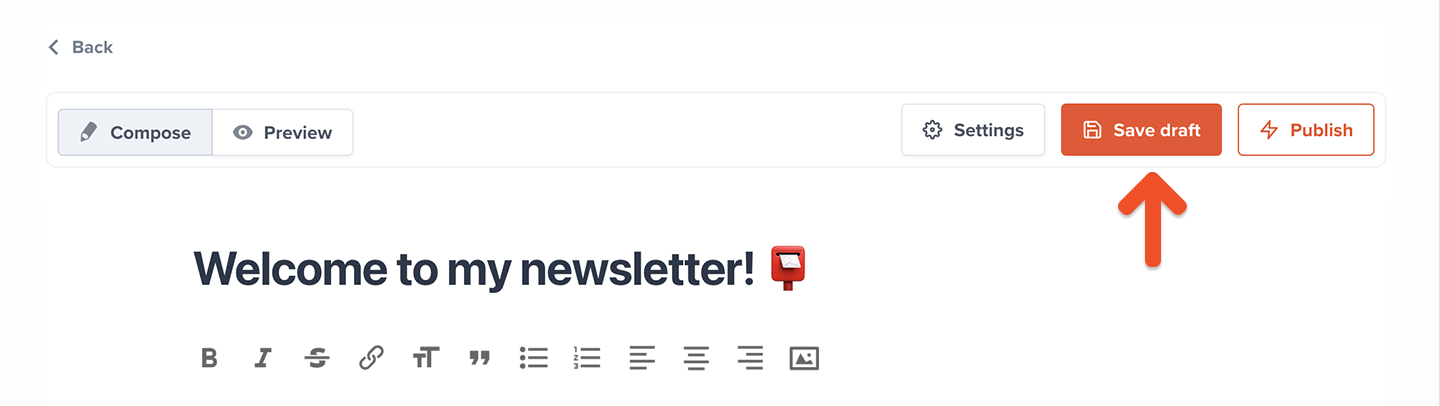
Click **Save draft** if you're not ready to email or publish your work.
Keep in mind that certain elements are not displayed in the post preview. For example, the actual emailed post will include your custom branding elements while the preview does not.
## Save a draft
Click **Save draft** if you're not ready to email or publish your work.
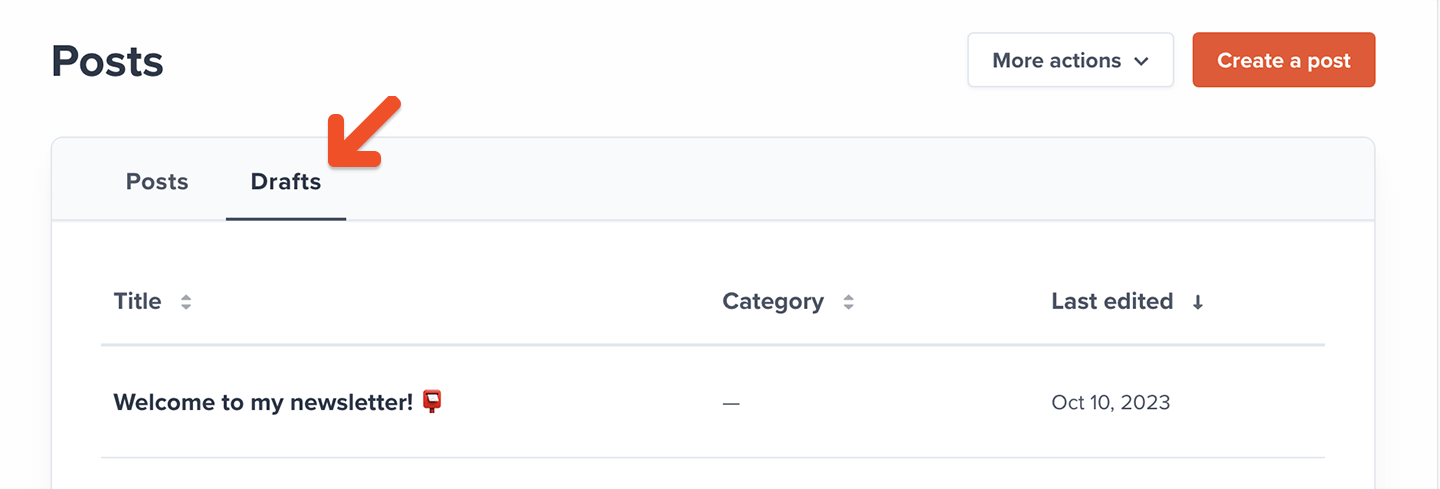
 Go to *Content → Posts → Drafts* to access and view all your drafts.
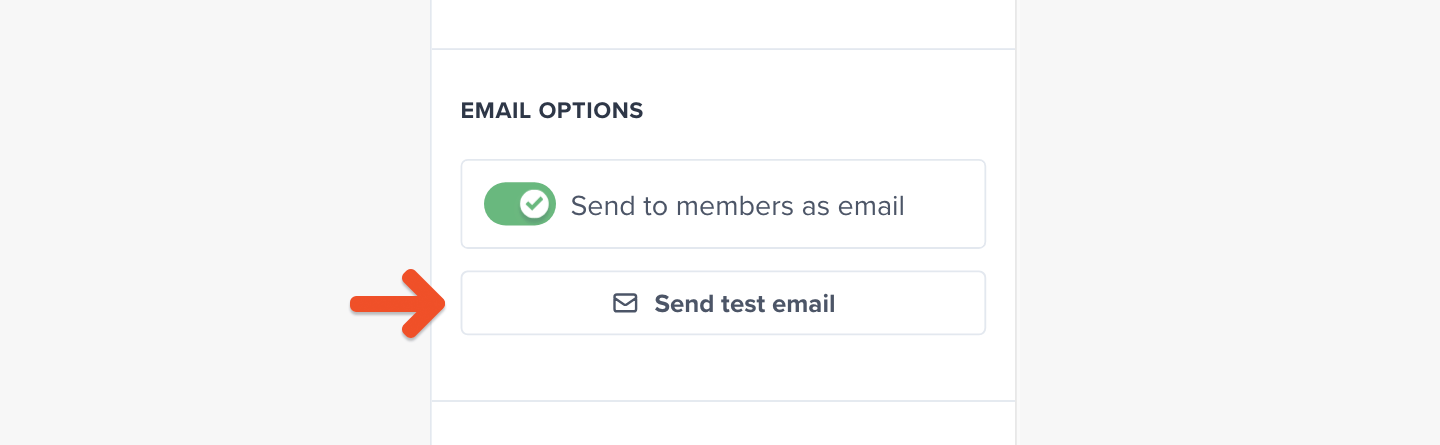
 Click **Send test email** to see an emailed preview of what your members will receive.
 ## Select an audience to target
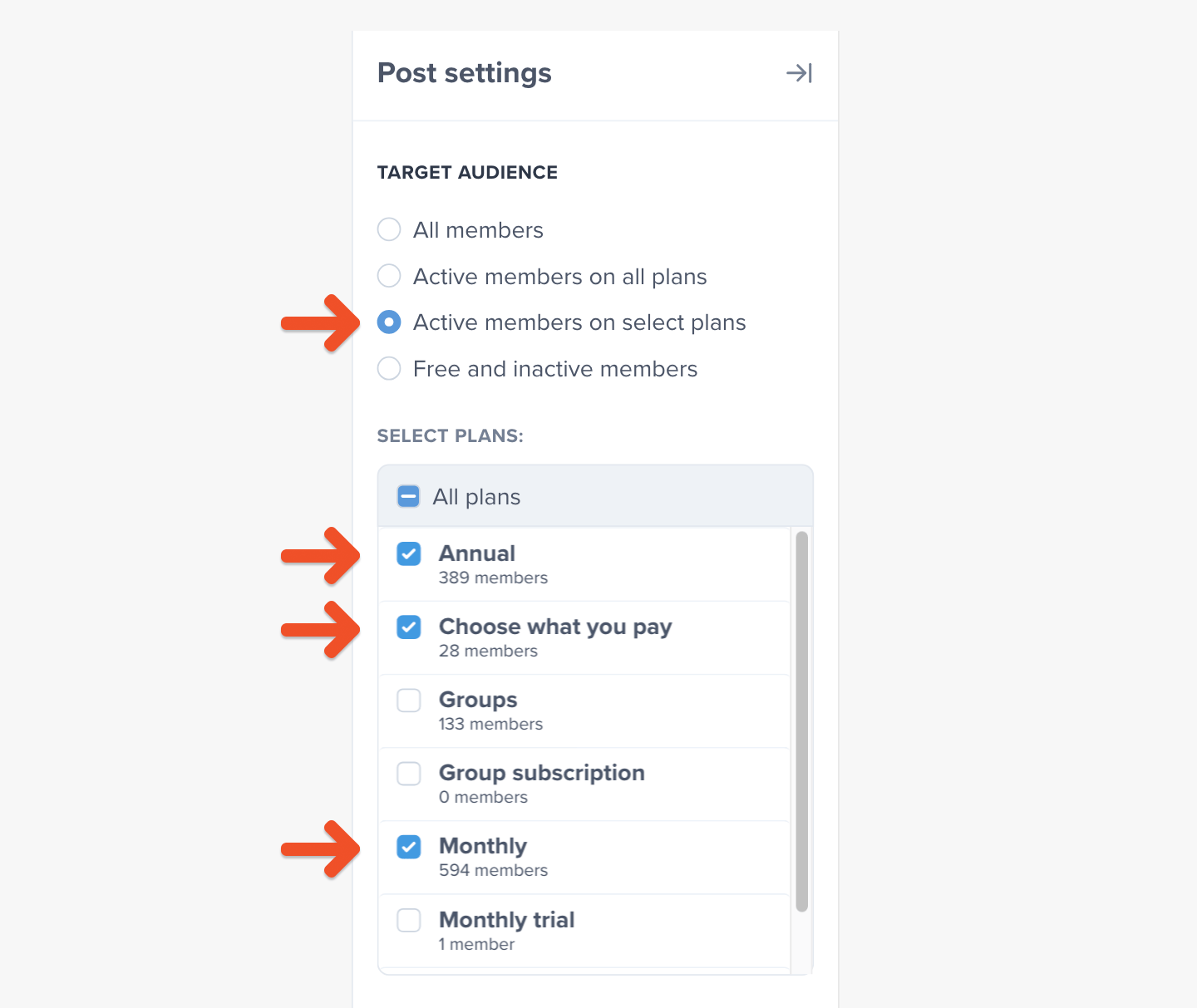
Your post can be made available to all members, active members on all plans, active members on select plans, or free and inactive members. However, a post with an uploaded video can only be made available to paid members on *all* plans or *select* plans.
## Select an audience to target
Your post can be made available to all members, active members on all plans, active members on select plans, or free and inactive members. However, a post with an uploaded video can only be made available to paid members on *all* plans or *select* plans.
 When you choose to target only members of selected plans, you can select which plans should be included.
 ## Create or select a post category
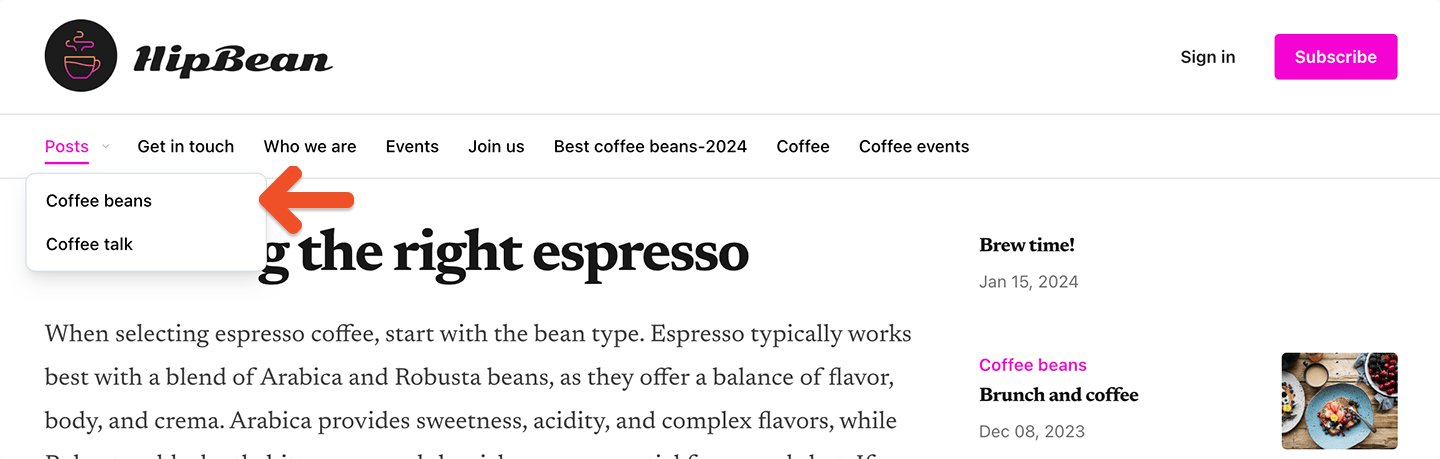
Categories allow you to easily organize your posts on your hosted member site. Members will be able to select from a posts dropdown button to view posts from that category.
## Create or select a post category
Categories allow you to easily organize your posts on your hosted member site. Members will be able to select from a posts dropdown button to view posts from that category.
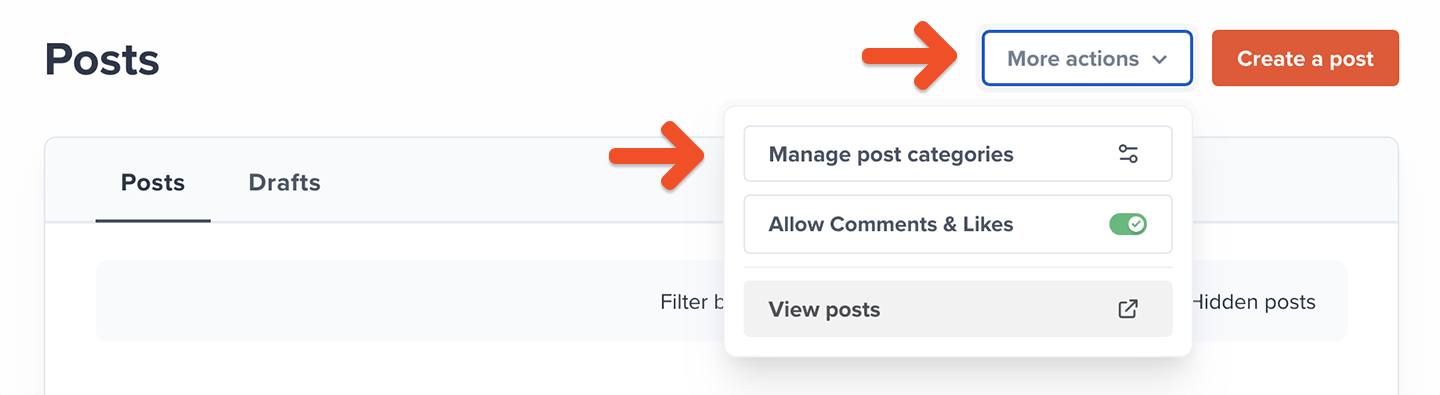
 Go to *Content → Posts → More actions → Manage post categories.*
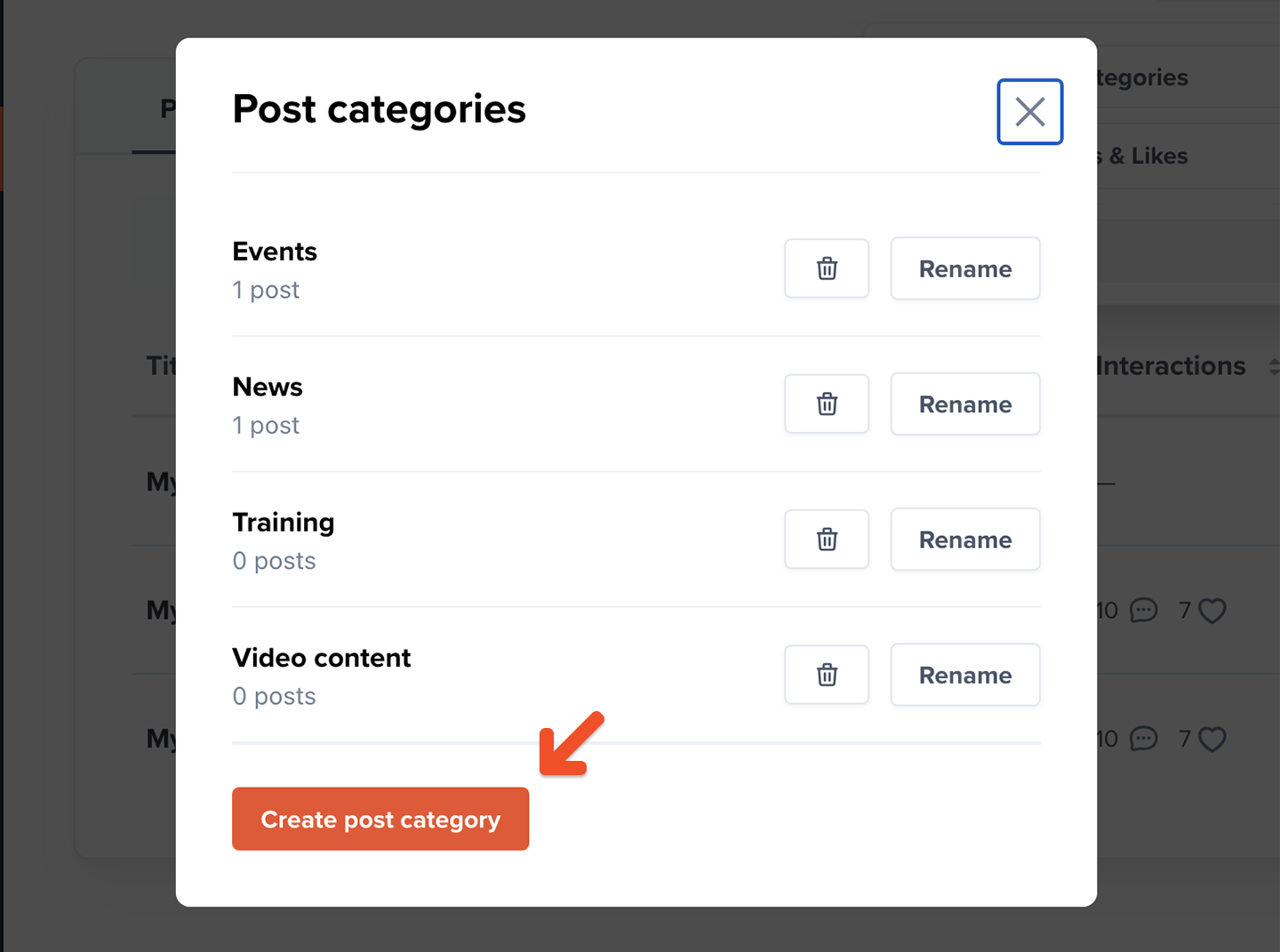
 To create a new category, click **Create post category.**
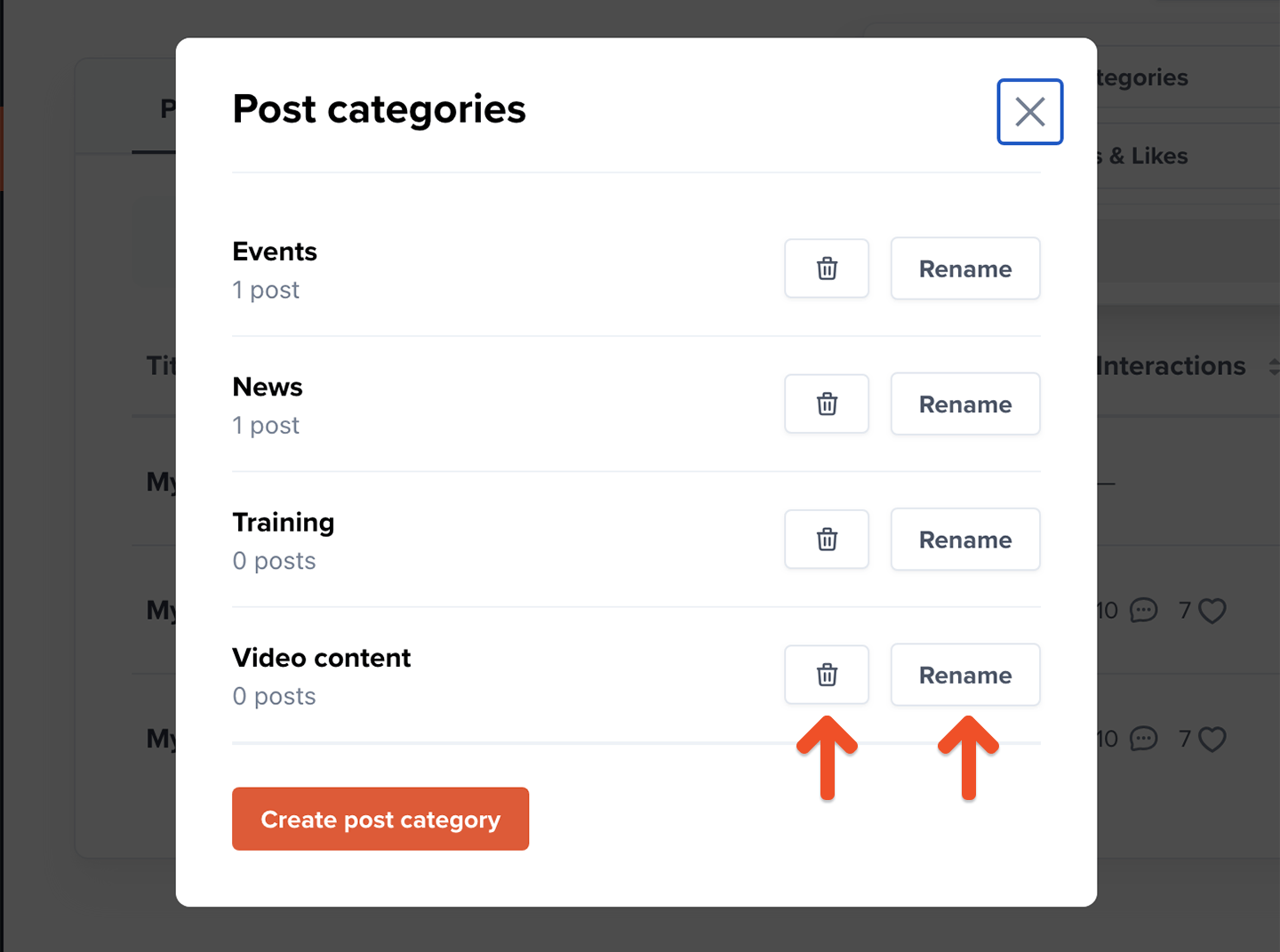
 After creating your categories, you can also rename or delete them from your *Manage post categories* setting.
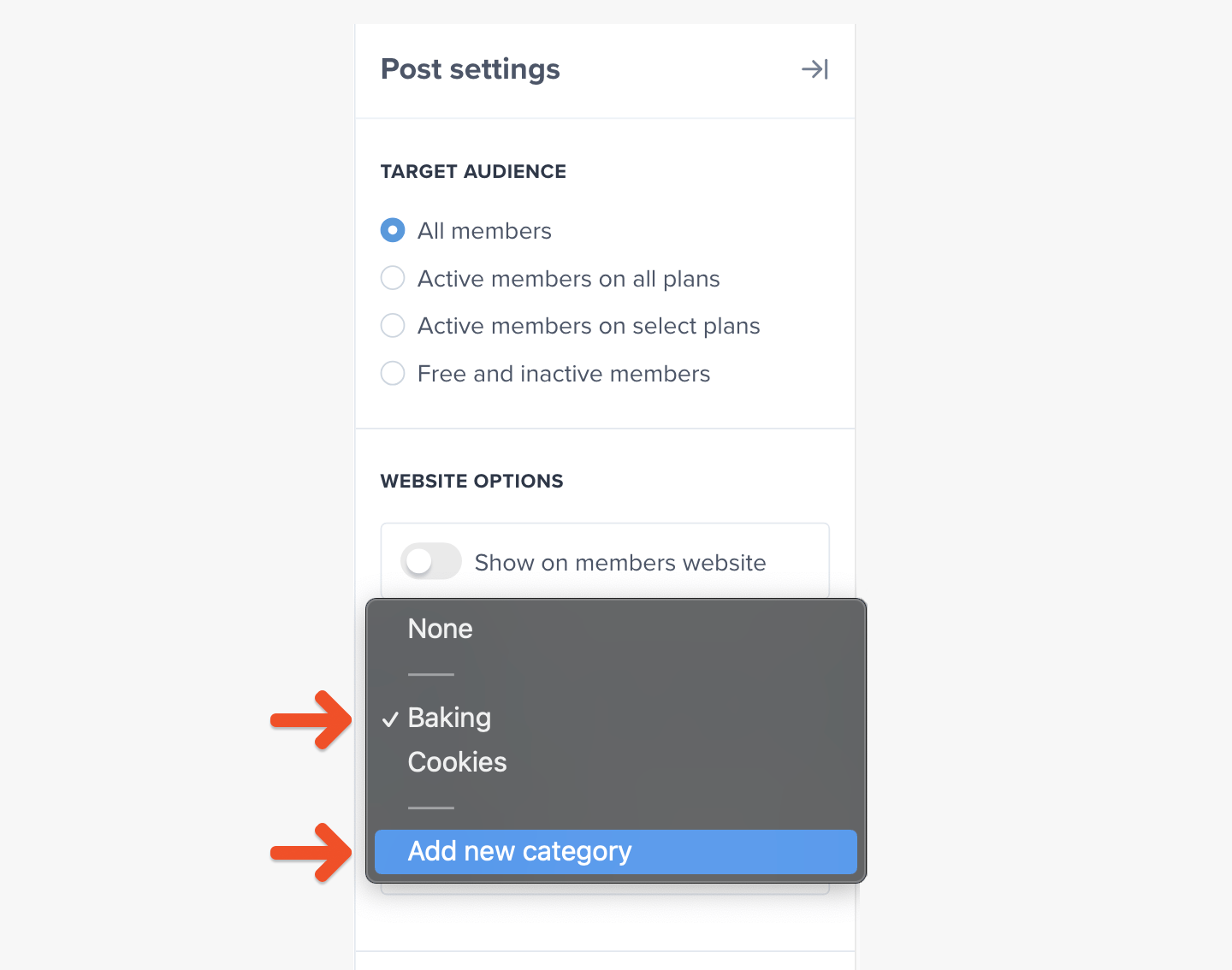
 You can then select your post category or click **Add new category** to manage your categories.
 ## Enable or disable comments and likes
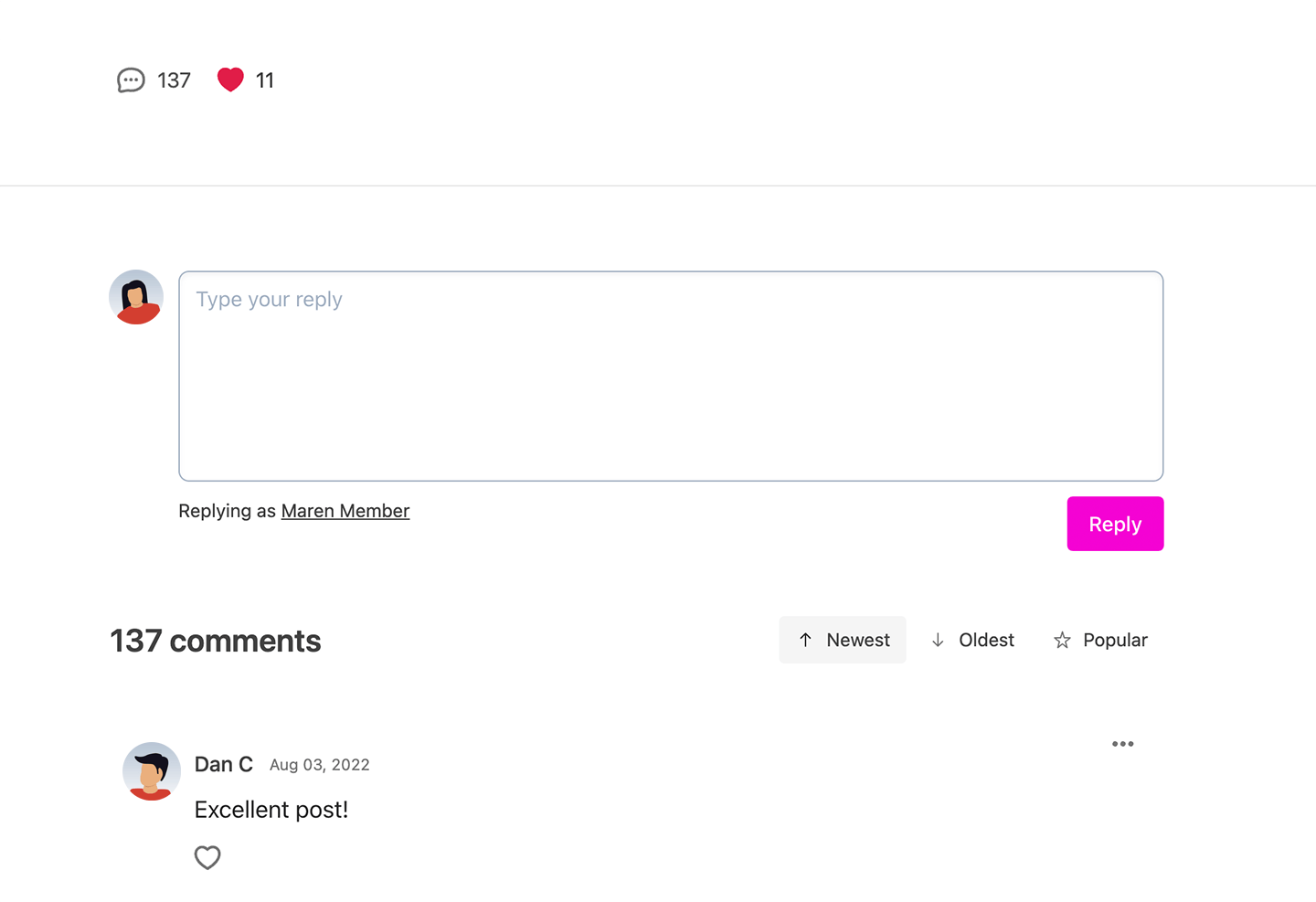
Memberful allows your members to comment on posts you've published to the web, and to 'like' those posts as well. [Learn more about comments and likes.](/website-builder/customization/manage-post-comments-and-likes/)
## Enable or disable comments and likes
Memberful allows your members to comment on posts you've published to the web, and to 'like' those posts as well. [Learn more about comments and likes.](/website-builder/customization/manage-post-comments-and-likes/)
 ## Choose to publish via email or website
With posts, you can:
* Send posts via **email** — allowing you to send out an email newsletter.
* Publish posts to a **Memberful-hosted website** — allowing you to offer content on a simple website that's automatically created and hosted for you by Memberful.
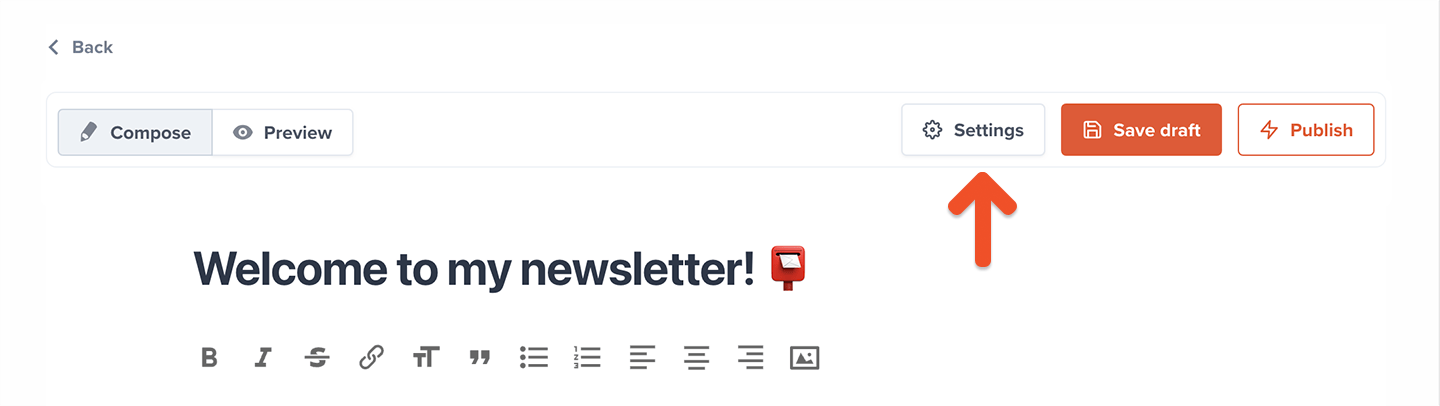
To access your post settings, click **Settings.**
## Choose to publish via email or website
With posts, you can:
* Send posts via **email** — allowing you to send out an email newsletter.
* Publish posts to a **Memberful-hosted website** — allowing you to offer content on a simple website that's automatically created and hosted for you by Memberful.
To access your post settings, click **Settings.**
 You can choose to deliver your posts via email, website, or both.
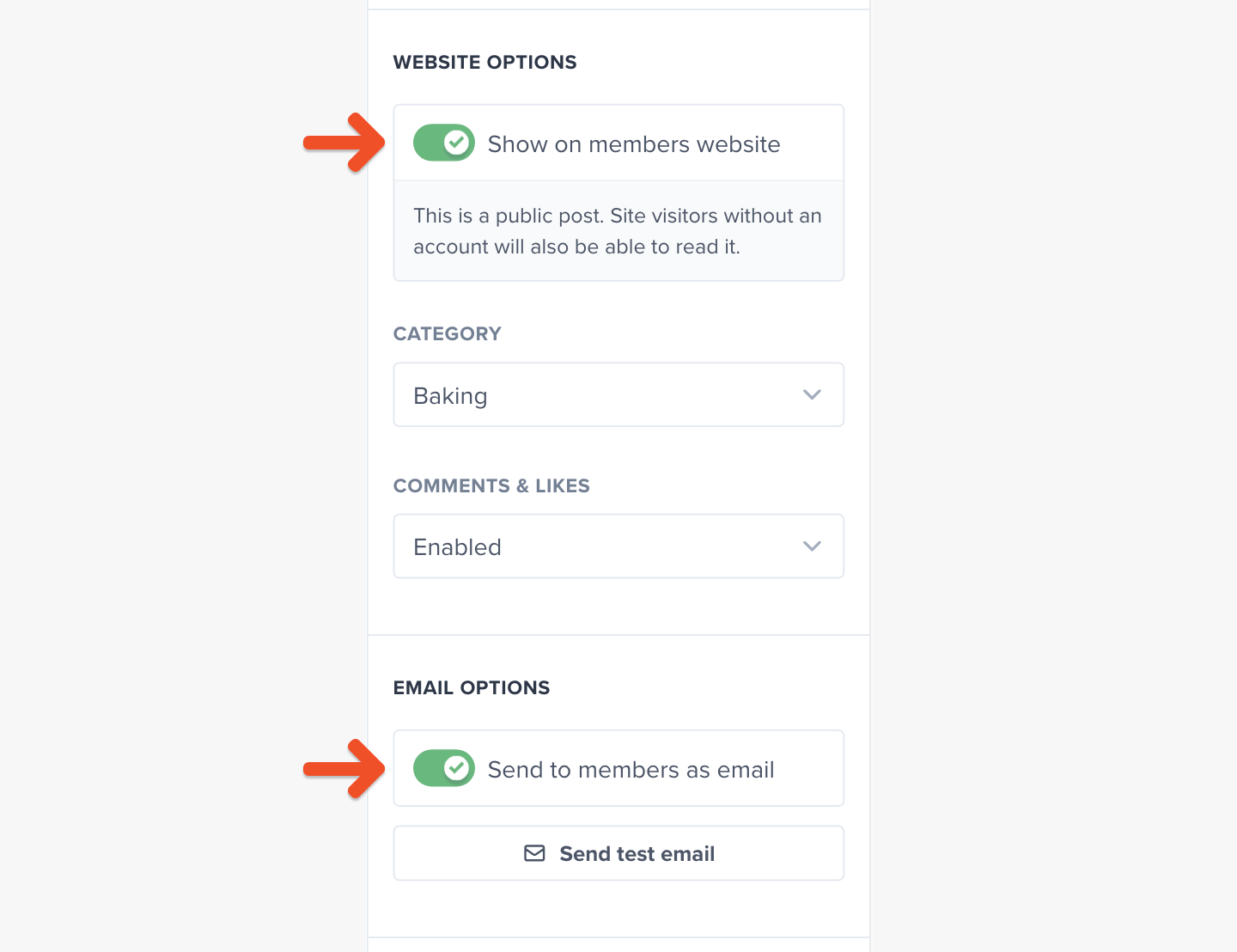 If you choose to publish this post to your Memberful-hosted website, your *Target Audience* setting will determine who can visit the published page.
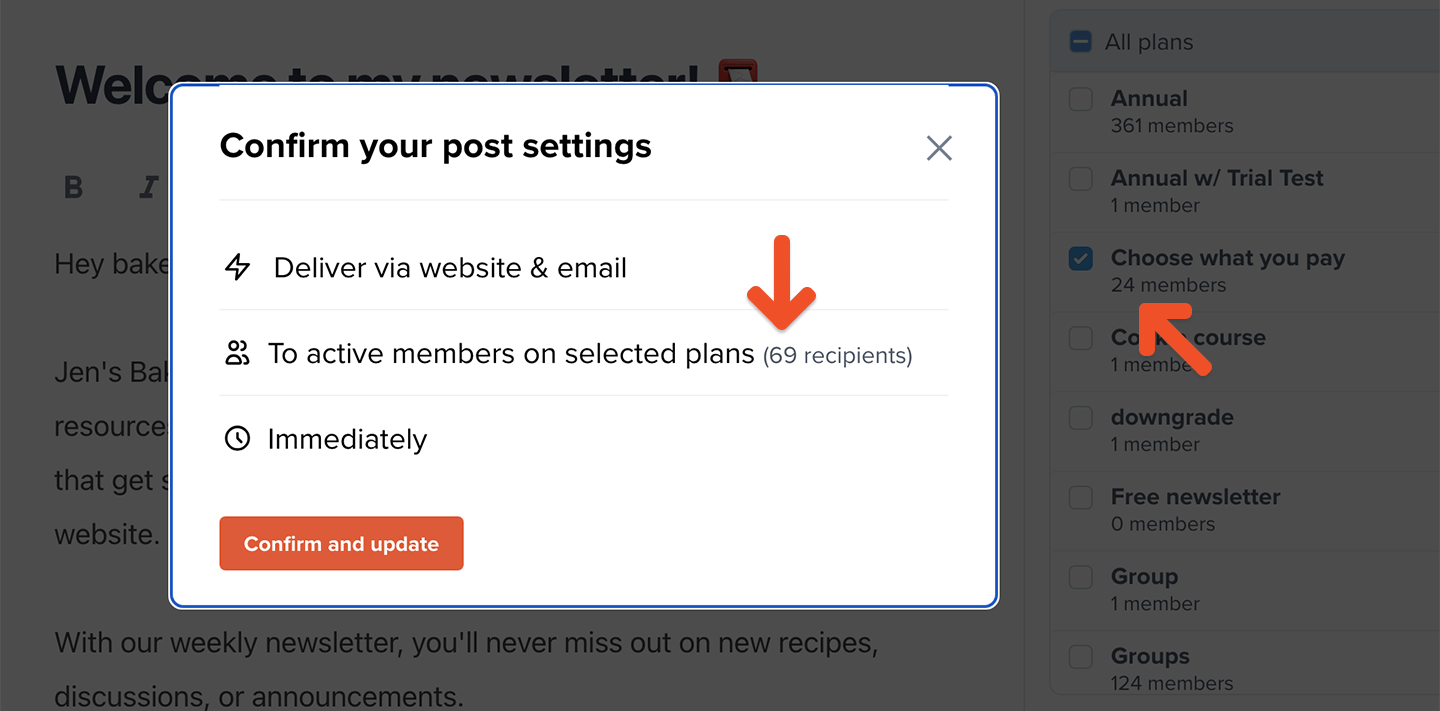
If you choose to send this post via email, your *Target Audience* setting will determine who will receive the email. Replies from members will be forwarded to the account owner's email address.
If you choose to publish this post to your Memberful-hosted website, your *Target Audience* setting will determine who can visit the published page.
If you choose to send this post via email, your *Target Audience* setting will determine who will receive the email. Replies from members will be forwarded to the account owner's email address.
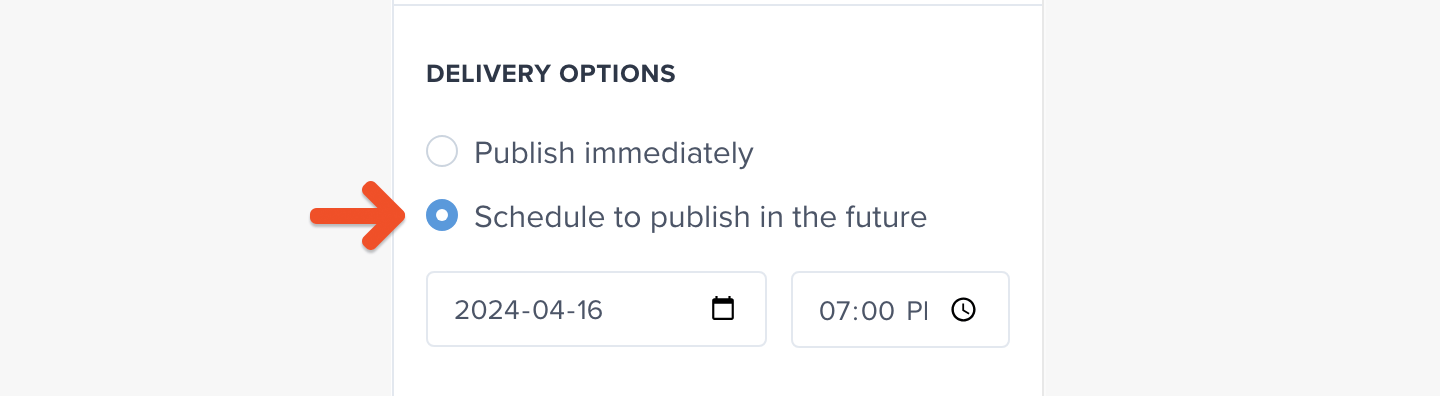 The timezone that is used for this can be changed by visiting *Settings* → *Localization.*
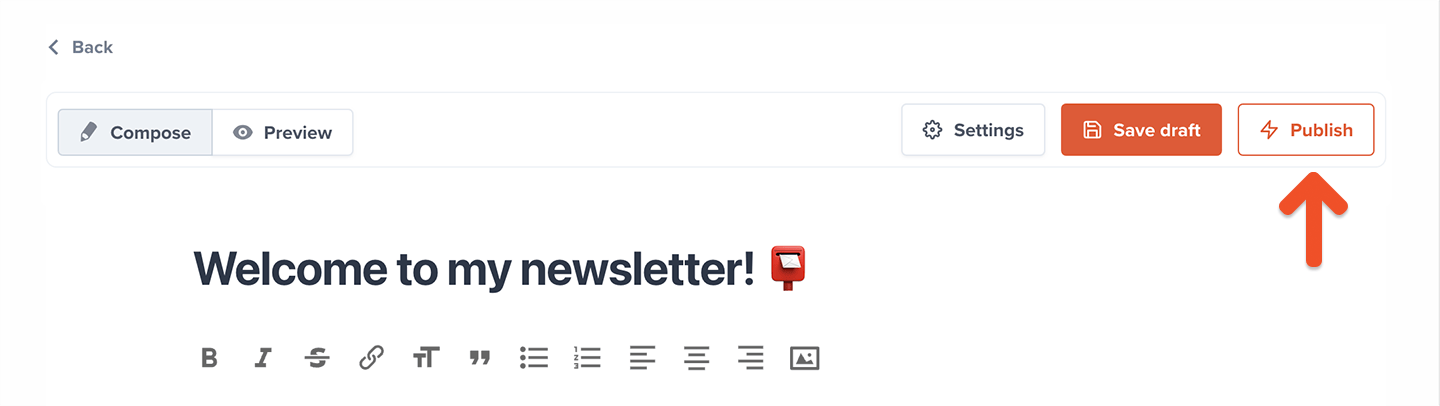
 Click **Publish** to email and/or publish your newsletter immediately or schedule it for the future.
 ## (Optional) Send a preview of your members-only newsletter
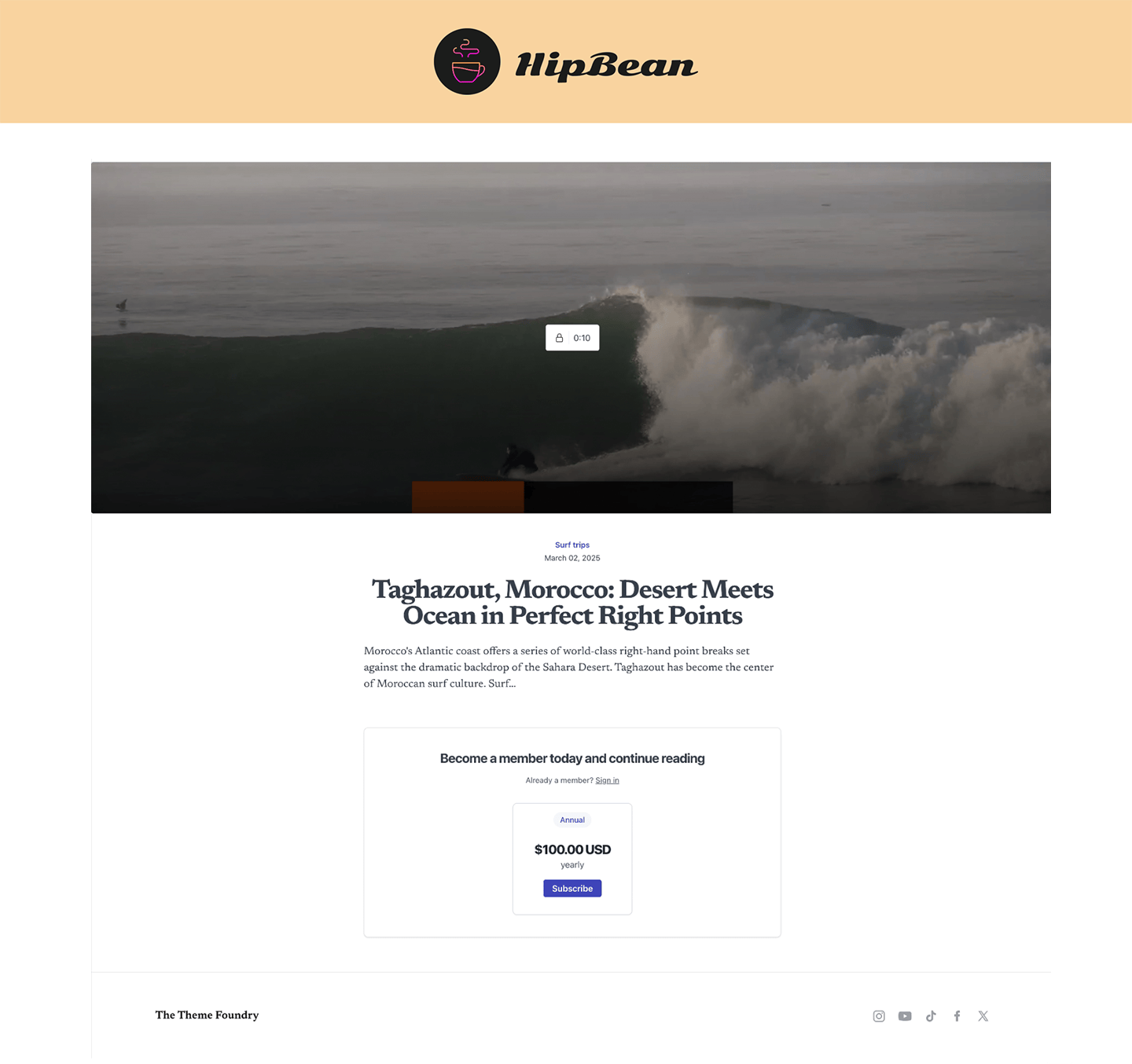
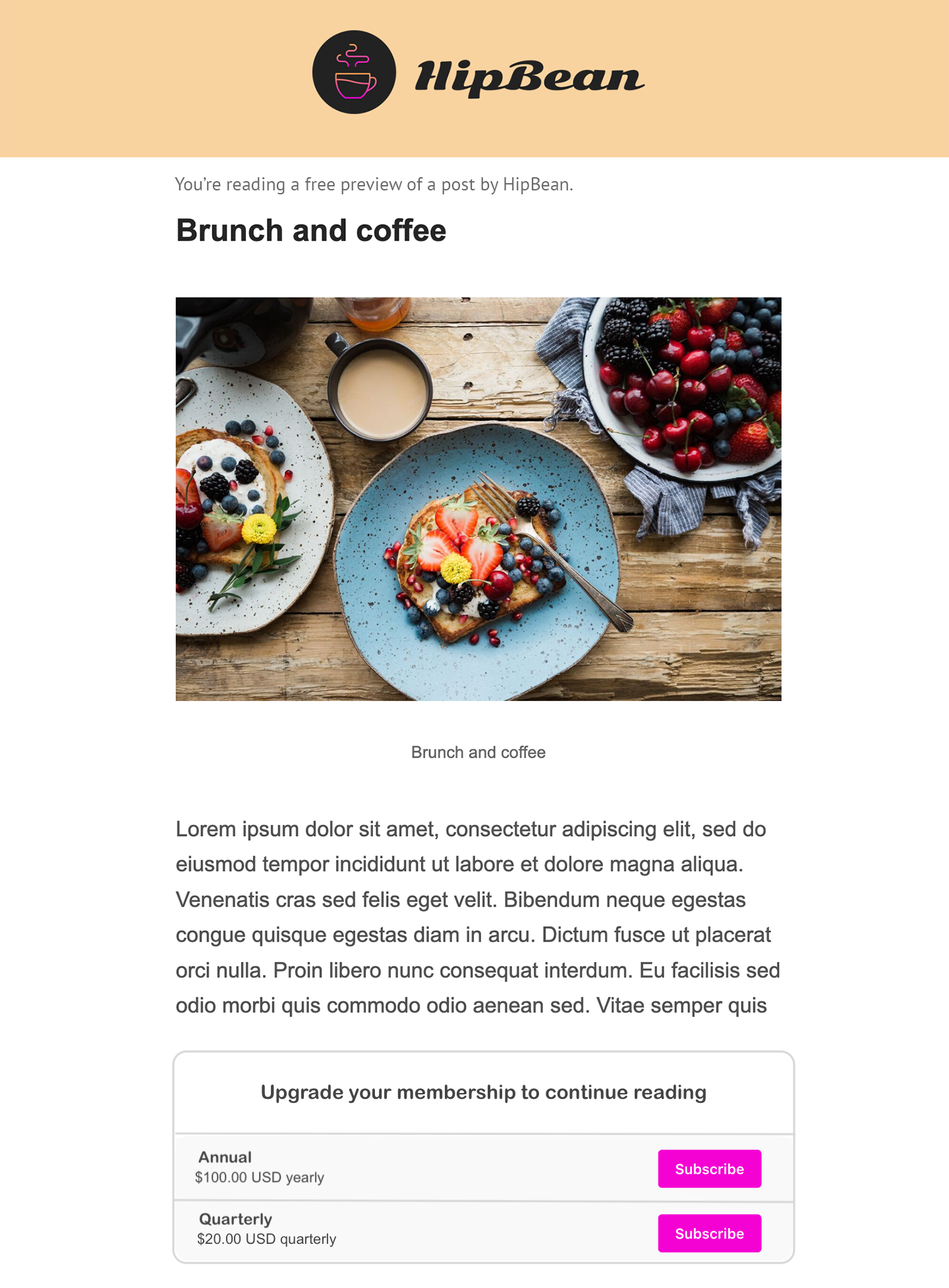
You can share a preview of your newsletter to encourage current members who haven't yet subscribed to that related plan. They'll see a snippet of your newsletter content and then a call to action to subscribe.
We show two paywall types depending on your [subscribe page settings](/website-builder/pages/subscribe-page/#enable-or-disable-your-subscription-page).
With your custom subscribe page enabled:
## (Optional) Send a preview of your members-only newsletter
You can share a preview of your newsletter to encourage current members who haven't yet subscribed to that related plan. They'll see a snippet of your newsletter content and then a call to action to subscribe.
We show two paywall types depending on your [subscribe page settings](/website-builder/pages/subscribe-page/#enable-or-disable-your-subscription-page).
With your custom subscribe page enabled:
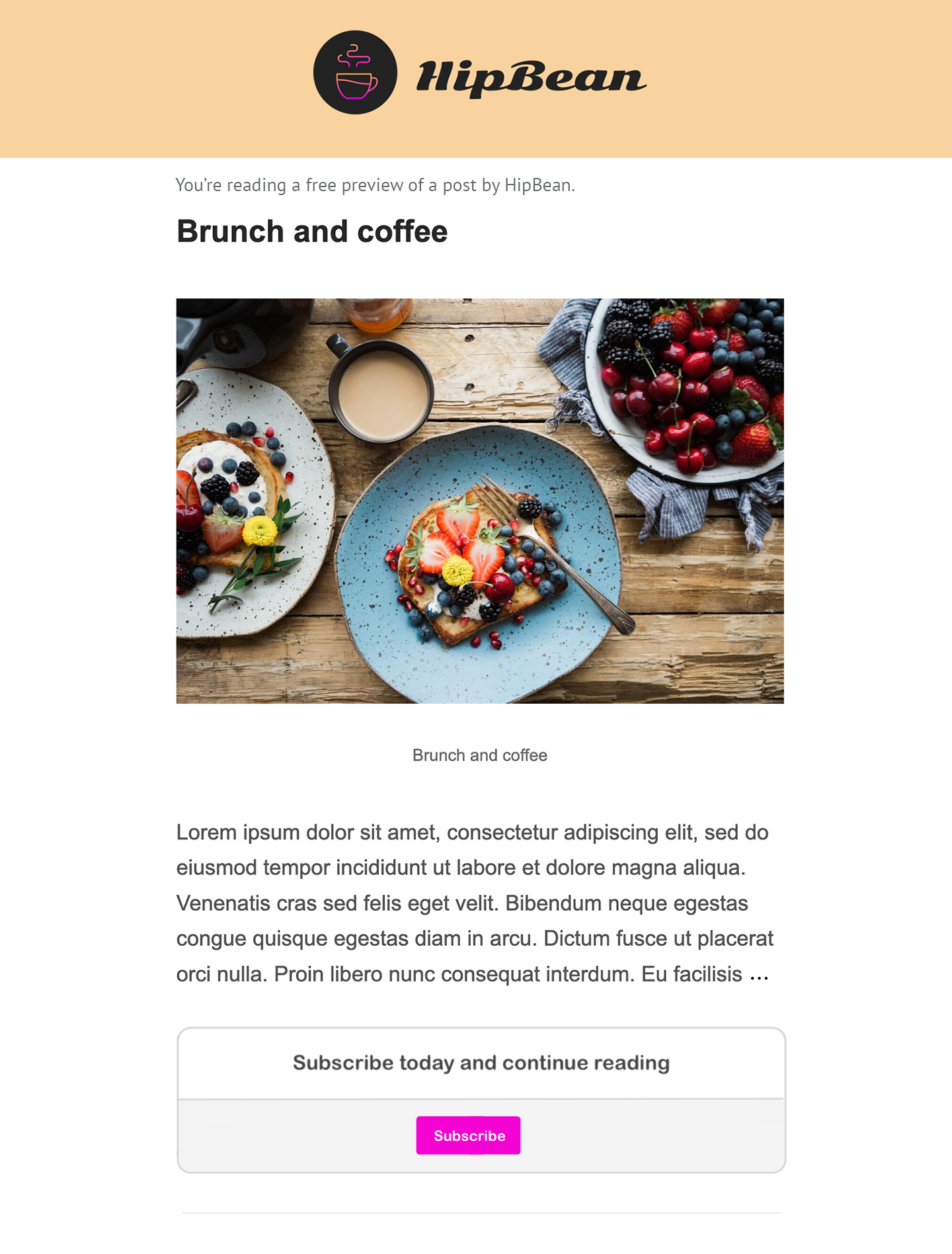 With your custom subscribe page disabled:
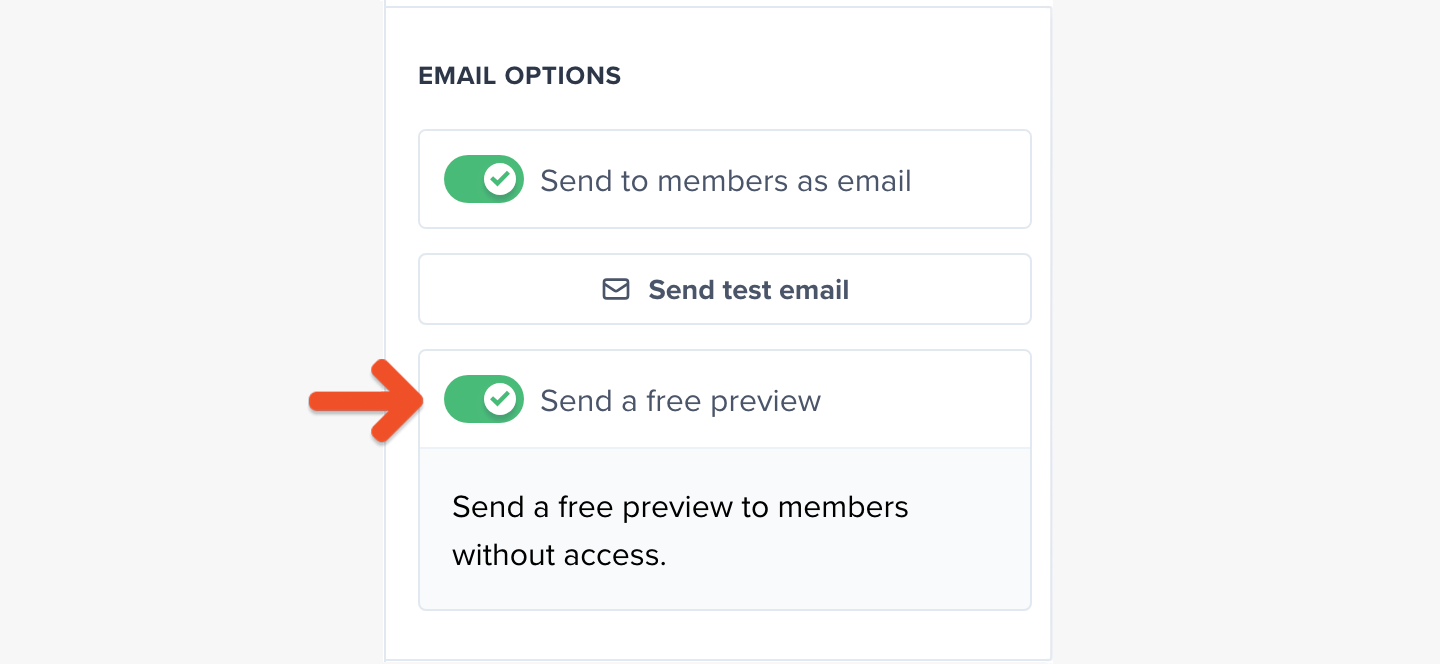
 To send your newsletter preview, toggle on **Send a free preview**.
 ## View your published posts
If you've chosen to publish posts to your member website, your members can find these posts at:
```text theme={null}
https://ACCOUNT-URL.memberful.com/posts
```
Replace `ACCOUNT-URL` with your actual account URL subdomain, which can be found via *Website → General settings.*
Make sure you've [enabled the member website](#enable-or-disable-the-member-website), too.
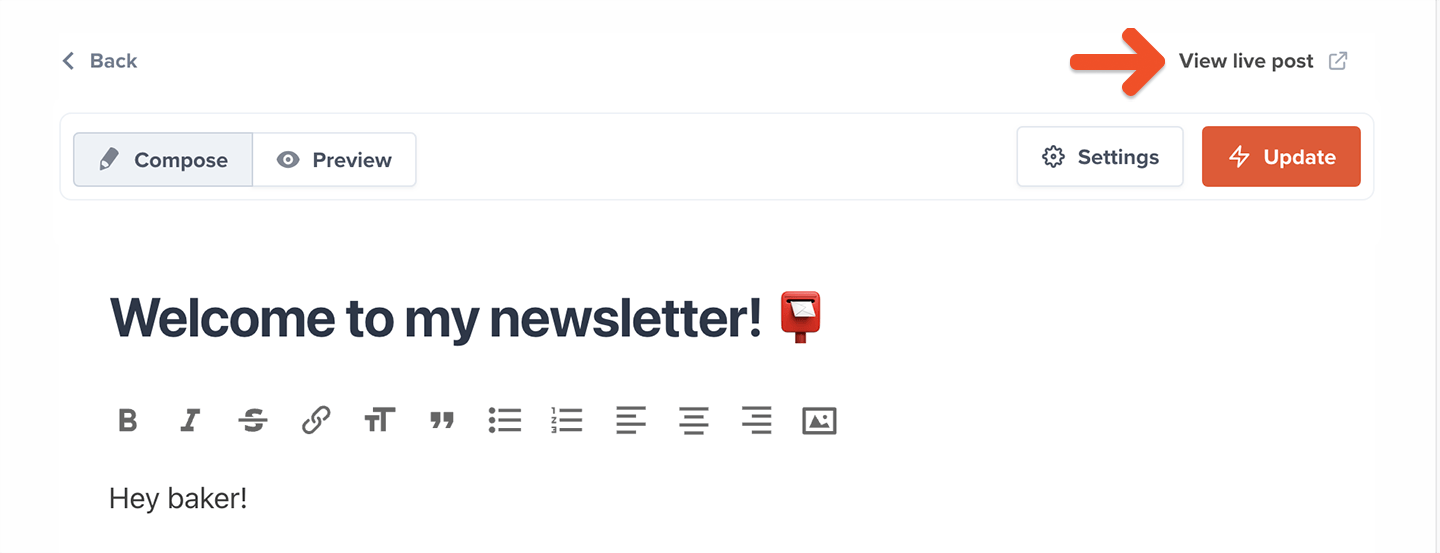
Click **View live post** to view the post on the hosted member website as an admin.
## View your published posts
If you've chosen to publish posts to your member website, your members can find these posts at:
```text theme={null}
https://ACCOUNT-URL.memberful.com/posts
```
Replace `ACCOUNT-URL` with your actual account URL subdomain, which can be found via *Website → General settings.*
Make sure you've [enabled the member website](#enable-or-disable-the-member-website), too.
Click **View live post** to view the post on the hosted member website as an admin.
 ## Search posts
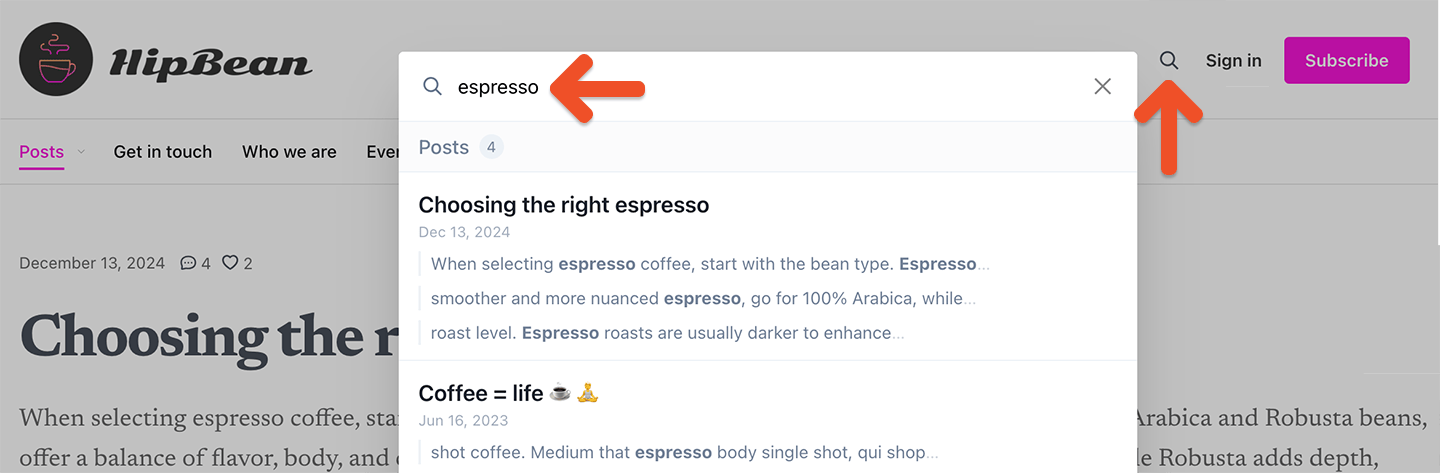
Click the **Search** icon in the top right corner of the hosted member website to search for posts by title or content. When members use the search function, they will only see posts that are available to them based on their plan.
## Search posts
Click the **Search** icon in the top right corner of the hosted member website to search for posts by title or content. When members use the search function, they will only see posts that are available to them based on their plan.