> ## Documentation Index
> Fetch the complete documentation index at: https://memberful.com/docs/llms.txt
> Use this file to discover all available pages before exploring further.
# Add a member
> Add a new member manually or delete an existing one from the Memberful dashboard. Useful for granting comped access, fixing imports, or removing test accounts.
export const RelatedDocs = ({link1, link2, link3, link4, link5, link6, link7, link8, link9, link10, className = ""}) => {
const links = [link1, link2, link3, link4, link5, link6, link7, link8, link9, link10].filter(Boolean);
if (!links.length) return null;
return ;
};
In this help article, you'll learn how to add new members, assign them a plan, or delete their account.
## Add a member through the dashboard
1. Go to the Members tab and click **New Member.**
 2. Enter the member's name and email address, and then click **Create Member.**
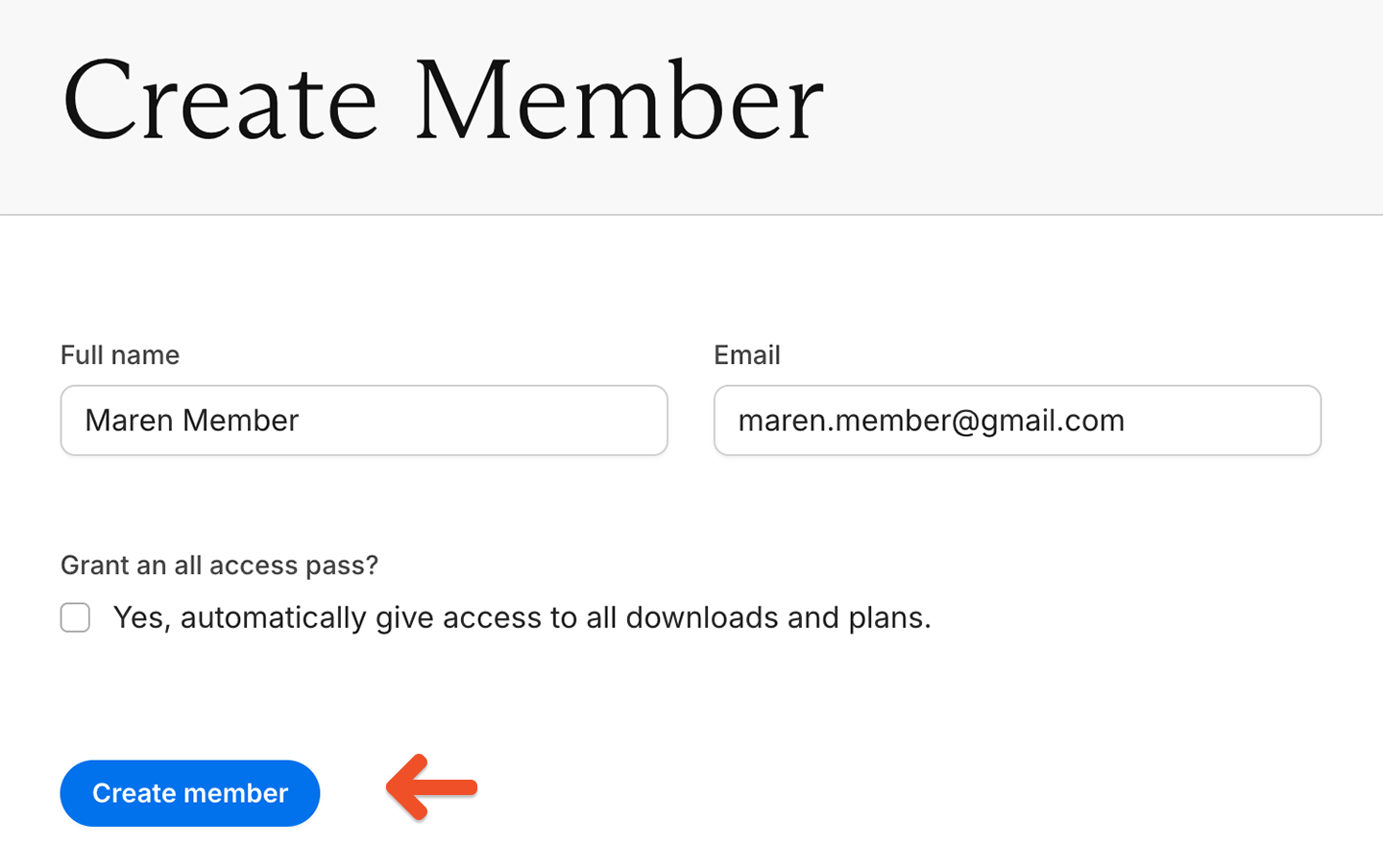 After adding a new member, they will require a subscription to access your paid content. If they do not have a subscription added, they will only have access to free member content.
## Add a subscription
1. From the member's profile, scroll down to the Subscriptions section.
2. (Optional) Add a credit card on the member's behalf. If you don't, the member will be prompted to add one a week before their subscription renews (assuming [the email template](/configuration/emails/email-templates/) is enabled).
After adding a new member, they will require a subscription to access your paid content. If they do not have a subscription added, they will only have access to free member content.
## Add a subscription
1. From the member's profile, scroll down to the Subscriptions section.
2. (Optional) Add a credit card on the member's behalf. If you don't, the member will be prompted to add one a week before their subscription renews (assuming [the email template](/configuration/emails/email-templates/) is enabled).
 3. Click **Add a new subscription.**
 4. Select the plan you want to add from the dropdown list.
5. If there's a credit card on file, uncheck the box labeled *Charge credit card for this plan...* if you don't want to charge for the subscription (or if it will be [paid externally](/plans/plan-options/accept-external-payments/)).
4. Select the plan you want to add from the dropdown list.
5. If there's a credit card on file, uncheck the box labeled *Charge credit card for this plan...* if you don't want to charge for the subscription (or if it will be [paid externally](/plans/plan-options/accept-external-payments/)).
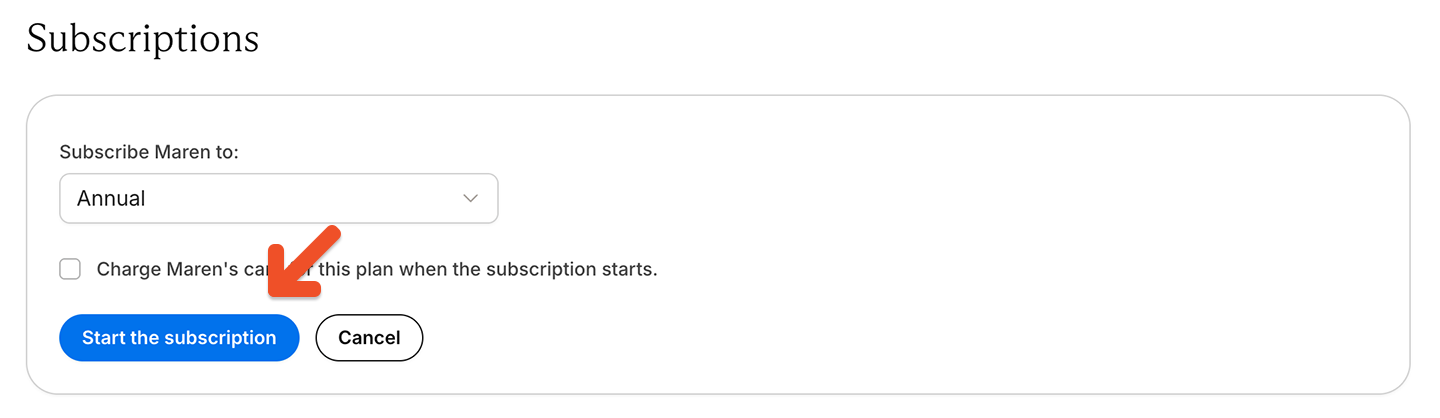 6. Click **Start the subscription.**
## Delete a member
1. Go to the member's profile and click **Edit member.**
6. Click **Start the subscription.**
## Delete a member
1. Go to the member's profile and click **Edit member.**
 2. Scroll down to the bottom of the page and click **Delete (member's name).**
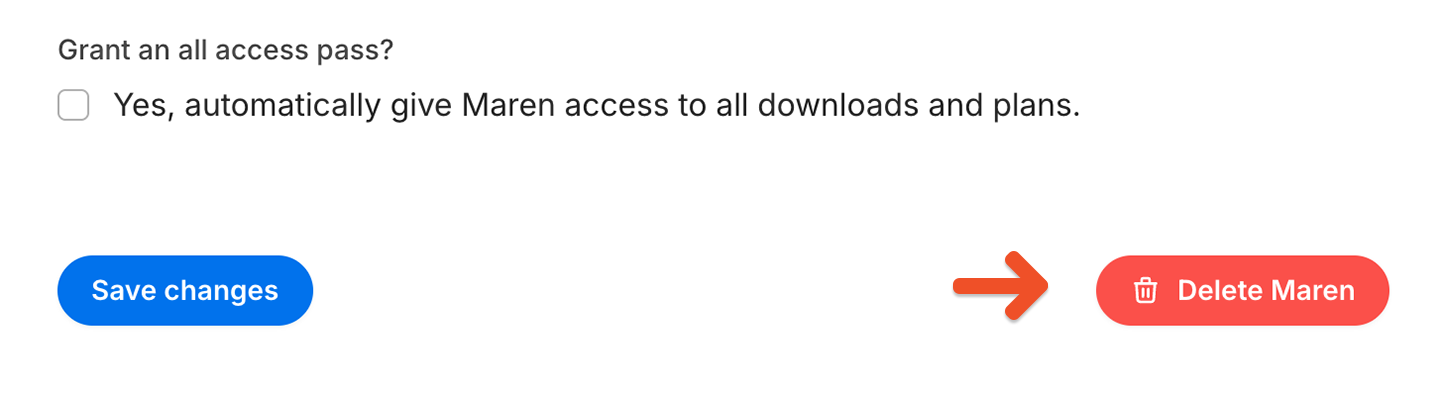 Deleting a member is permanent and cannot be reversed. Please proceed with caution.