> ## Documentation Index
> Fetch the complete documentation index at: https://memberful.com/docs/llms.txt
> Use this file to discover all available pages before exploring further.
# Digital membership cards with Zapier and PassKit
> If you interact with members at a physical location or event, you may want to quickly check whether someone has a subscription or not.
In this help article, you'll learn how to offer members a digital membership card that they can carry in their phone's digital wallet, which allows you to verify their membership status.
We'll use Memberful, [Zapier](http://zapier.com/), and [PassKit](https://passkit.com/) to set up your cards. Note that Zapier and PassKit have separate pricing, and this guide assumes you already have accounts with both.
## Set up your digital membership card in Passkit
[Read Passkit's guide for detailed instructions on how to create your digital membership card.](https://help.passkit.com/en/collections/3646432-design)
1. From your Passkit dashboard, click **Create New.**
2. Then, click **Basic Membership** as the pass type, and **Create Pass.**
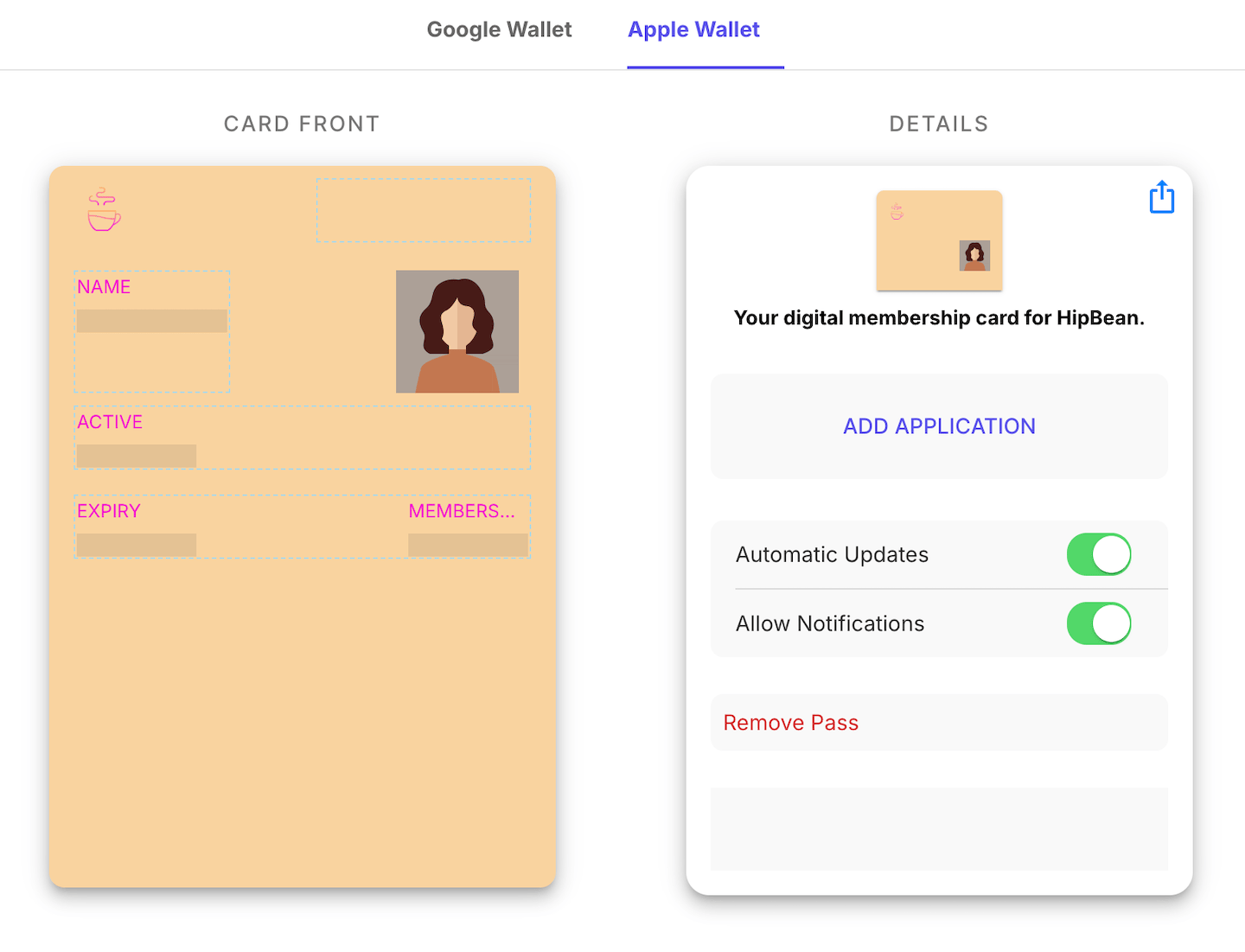
3. Now it's time to design your card: Include fields like the member's name, membership plan (via *New Dynamic Field*), active status, and renewal date.
4. Add your logo and colors for a polished look.
5. Go to your [program settings](https://help.passkit.com/en/articles/7127101-program-information-and-settings), use the auto-fill feature to automatically set the email address as the external ID. We'll refer back to this later on in the article.
Make sure to add the exact same fields in both the Google Wallet and Apple Wallet designs.
 ## Set up a pass certificate with Passkit
[Read Passkit's guide for more information about certificates and how to set them up.](https://intercom.help/PassKit/en/articles/5870574-setting-your-project-live#h_286a7d5895)
A pass certificate is a digital document that verifies the authenticity of your passes and allows them to be added to and updated in Apple Wallet. This certificate costs \$99/year, and Passkit can help facilitate the setup process.
## Set up Memberful as your Zapier trigger
[Read Zapier's guide for detailed instructions on how to create a Zap.](https://zapier.com/resources/guides/quick-start/create-zap)
1. Log in to your Zapier account.
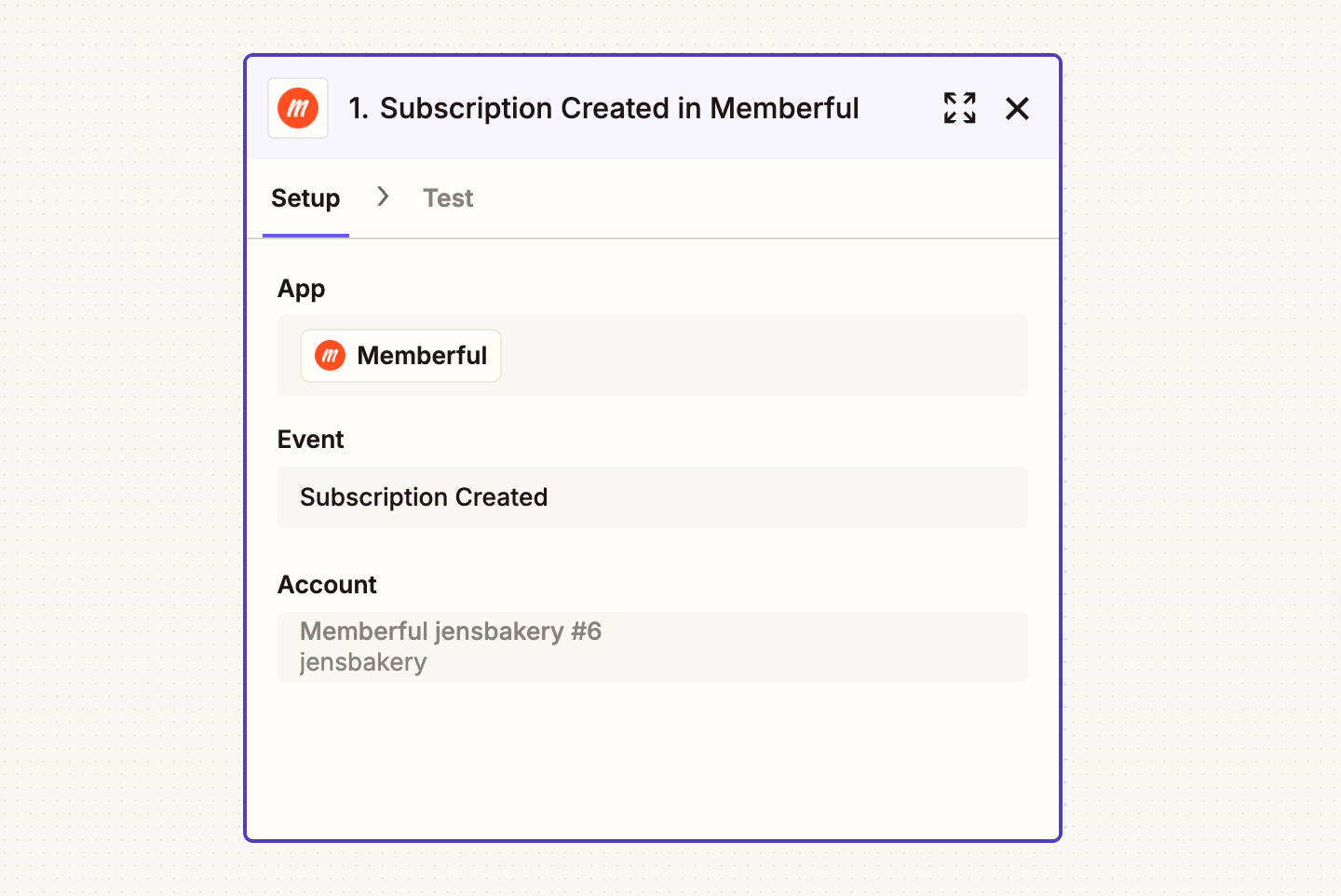
2. Create a new Zap and select **Memberful** as the trigger app.
3. Choose the **Subscription Created** trigger.
4. Connect your Memberful account to Zapier using your API key. [Details here.](/api-reference/integrate-with-zapier/#create-an-api-key-for-zapier)
5. Test the trigger to ensure Zapier successfully pulls member data from Memberful.
During this step, you'll see test data, not actual data from your Memberful account.
## Set up a pass certificate with Passkit
[Read Passkit's guide for more information about certificates and how to set them up.](https://intercom.help/PassKit/en/articles/5870574-setting-your-project-live#h_286a7d5895)
A pass certificate is a digital document that verifies the authenticity of your passes and allows them to be added to and updated in Apple Wallet. This certificate costs \$99/year, and Passkit can help facilitate the setup process.
## Set up Memberful as your Zapier trigger
[Read Zapier's guide for detailed instructions on how to create a Zap.](https://zapier.com/resources/guides/quick-start/create-zap)
1. Log in to your Zapier account.
2. Create a new Zap and select **Memberful** as the trigger app.
3. Choose the **Subscription Created** trigger.
4. Connect your Memberful account to Zapier using your API key. [Details here.](/api-reference/integrate-with-zapier/#create-an-api-key-for-zapier)
5. Test the trigger to ensure Zapier successfully pulls member data from Memberful.
During this step, you'll see test data, not actual data from your Memberful account.
 ## Set up PassKit as your Zapier action
1. Select **PassKit** as the action app in your Zap.
2. Choose the **Enroll Member** action.
3. Connect your PassKit account to Zapier.
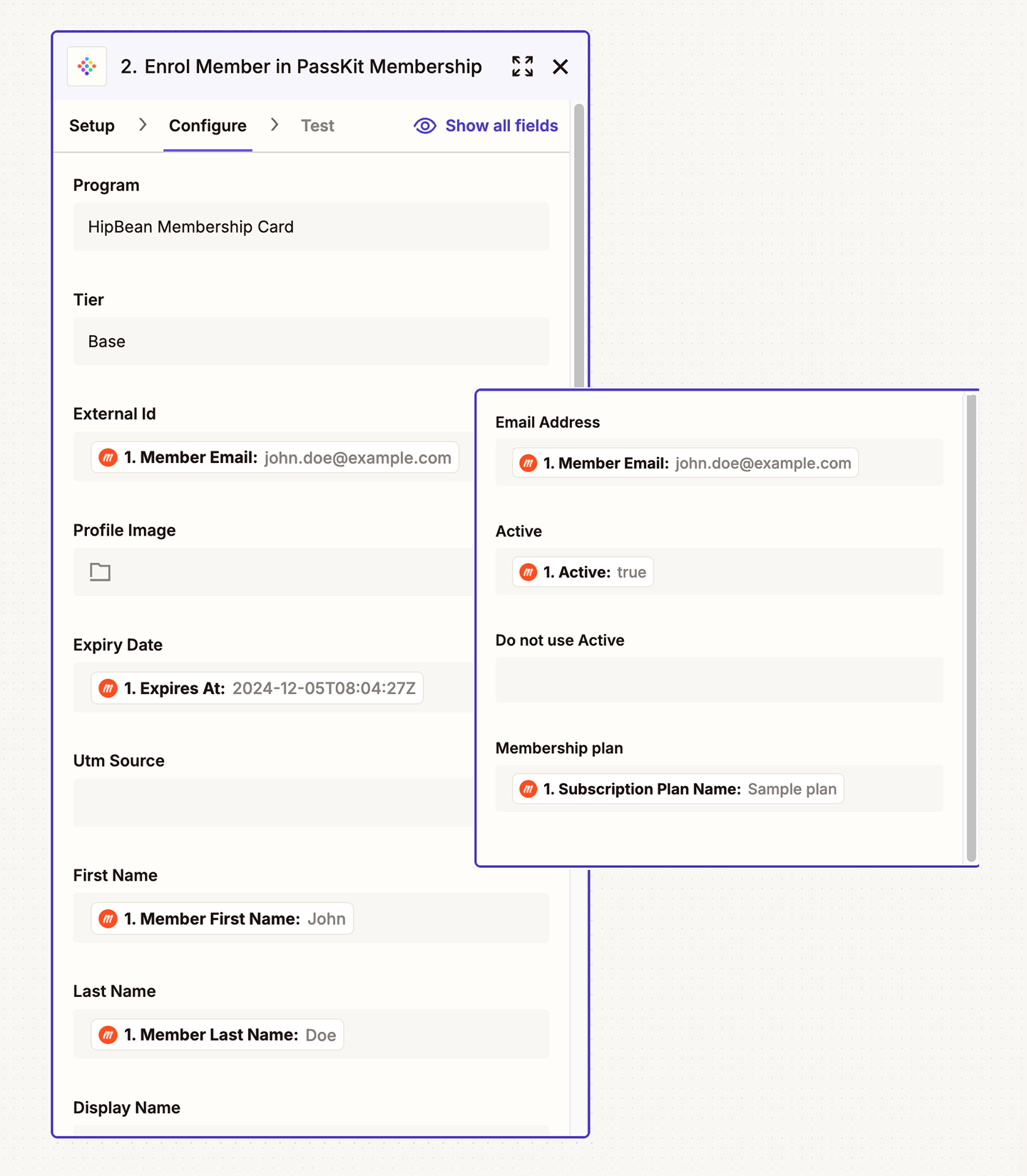
4. To configure the action, [map the fields](https://help.zapier.com/hc/en-us/articles/8496343026701-Send-data-between-steps-by-mapping-fields) in the digital card with the data from the *Subscription Created* trigger. Map the **external ID** field to the member email.
5. Test the action to ensure PassKit generates a digital card with the correct test member information.
## Set up PassKit as your Zapier action
1. Select **PassKit** as the action app in your Zap.
2. Choose the **Enroll Member** action.
3. Connect your PassKit account to Zapier.
4. To configure the action, [map the fields](https://help.zapier.com/hc/en-us/articles/8496343026701-Send-data-between-steps-by-mapping-fields) in the digital card with the data from the *Subscription Created* trigger. Map the **external ID** field to the member email.
5. Test the action to ensure PassKit generates a digital card with the correct test member information.
 ## Activate your Zap
1. Publish your Zap.
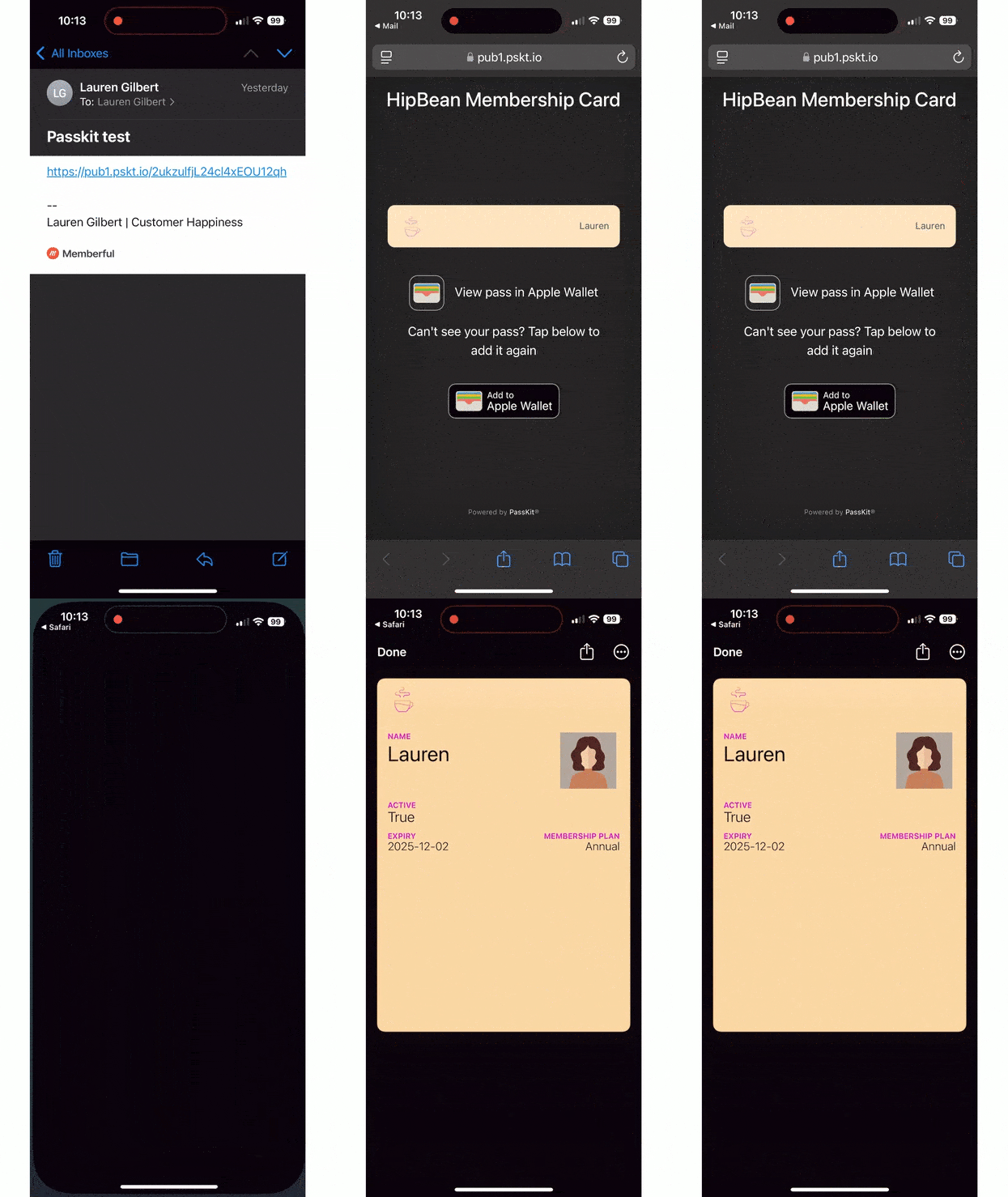
2. Enable Passkit's welcome email to automatically send a unique pass link to new members. Alternatively, you can use Passkit's [Mailchimp integration](https://help.passkit.com/en/articles/7104657-connecting-mailchimp-to-passkit-membership) to deliver the digital cards.
3. Members will click the link to add the card to either their Apple or Google Wallets.
The program ID changes in Passkit after you move the program from draft to live. Update your Zap to reflect these changes.
## Activate your Zap
1. Publish your Zap.
2. Enable Passkit's welcome email to automatically send a unique pass link to new members. Alternatively, you can use Passkit's [Mailchimp integration](https://help.passkit.com/en/articles/7104657-connecting-mailchimp-to-passkit-membership) to deliver the digital cards.
3. Members will click the link to add the card to either their Apple or Google Wallets.
The program ID changes in Passkit after you move the program from draft to live. Update your Zap to reflect these changes.
 ## Keep membership cards up to date
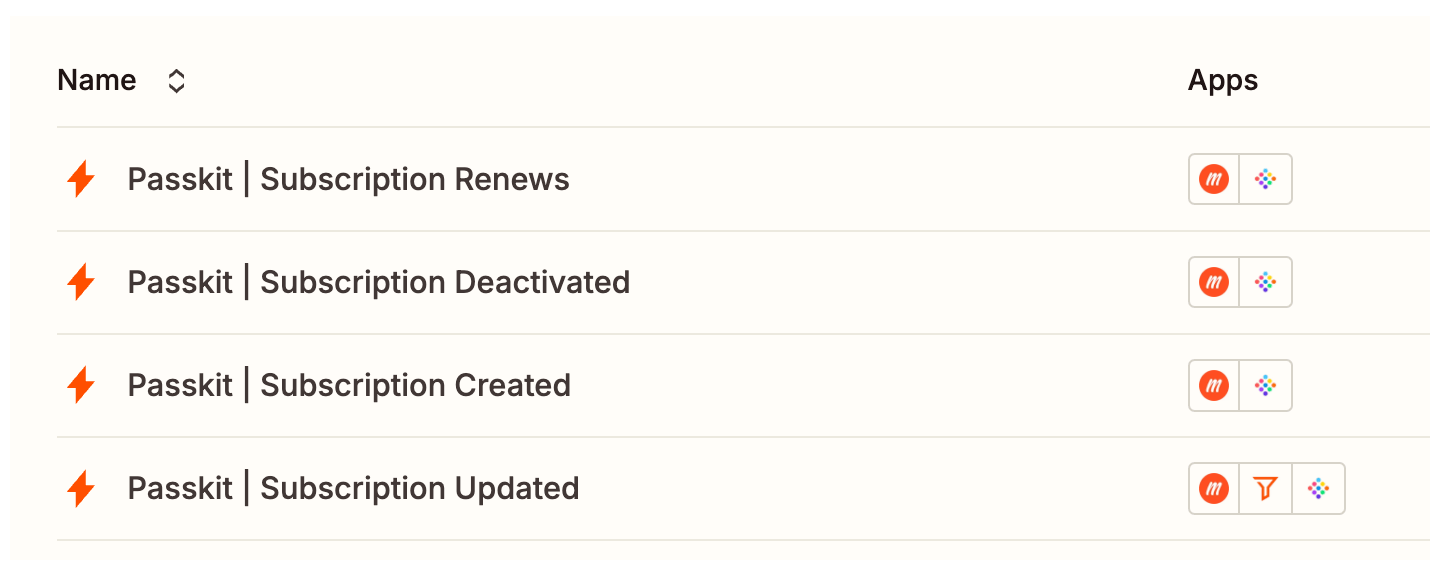
To keep the digital membership cards up to date, you'll need to set up other Zaps to update the card when a member's membership expires, renews, reactivates, or if they change plans:
* Subscription deactivated trigger → Update membership status.
* Subscription renewed trigger → Update expiration date and catch reactivated subscriptions.
* Subscription updated trigger → Update plan name if an upgrade/downgrade/crossgrade happens.
## Keep membership cards up to date
To keep the digital membership cards up to date, you'll need to set up other Zaps to update the card when a member's membership expires, renews, reactivates, or if they change plans:
* Subscription deactivated trigger → Update membership status.
* Subscription renewed trigger → Update expiration date and catch reactivated subscriptions.
* Subscription updated trigger → Update plan name if an upgrade/downgrade/crossgrade happens.