Related help docs:
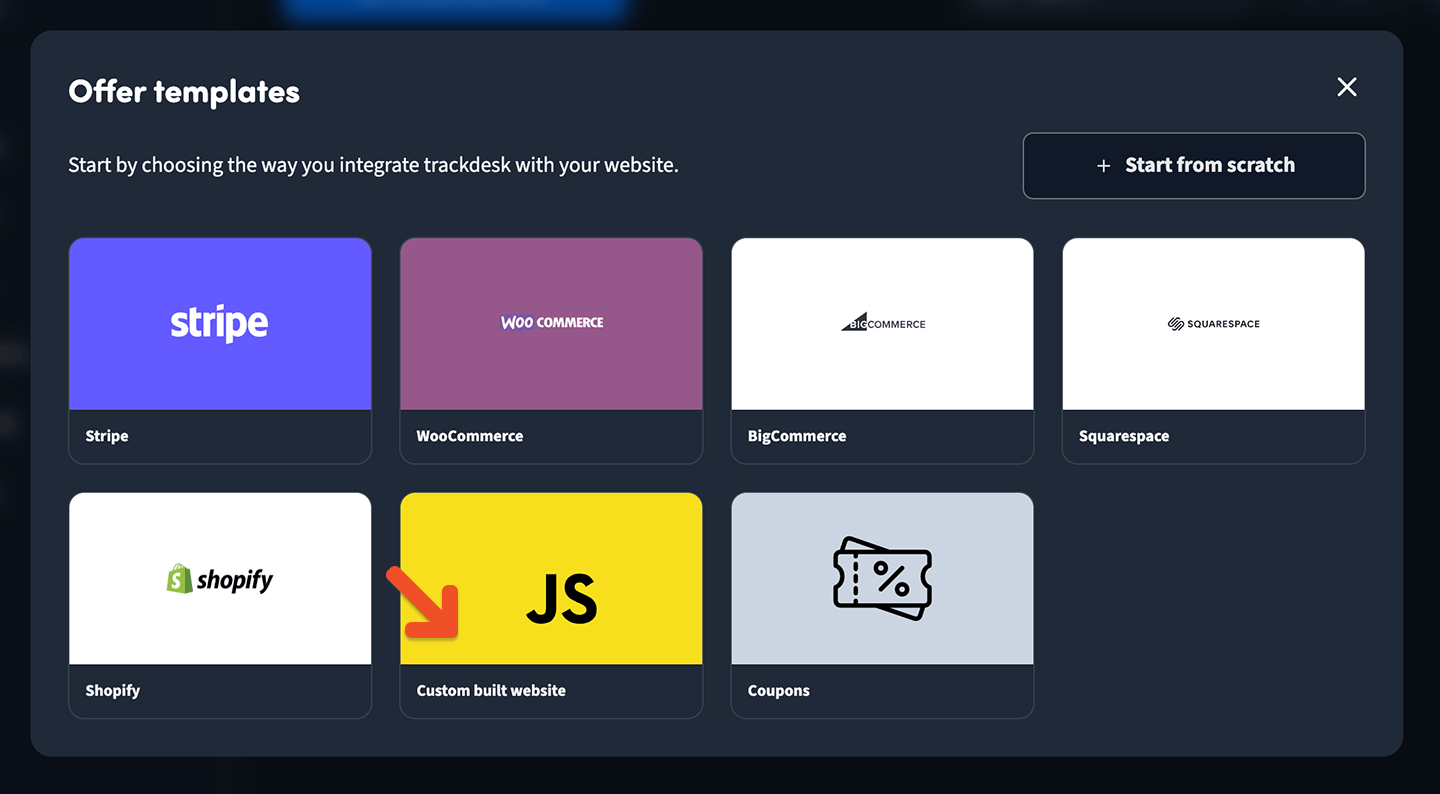
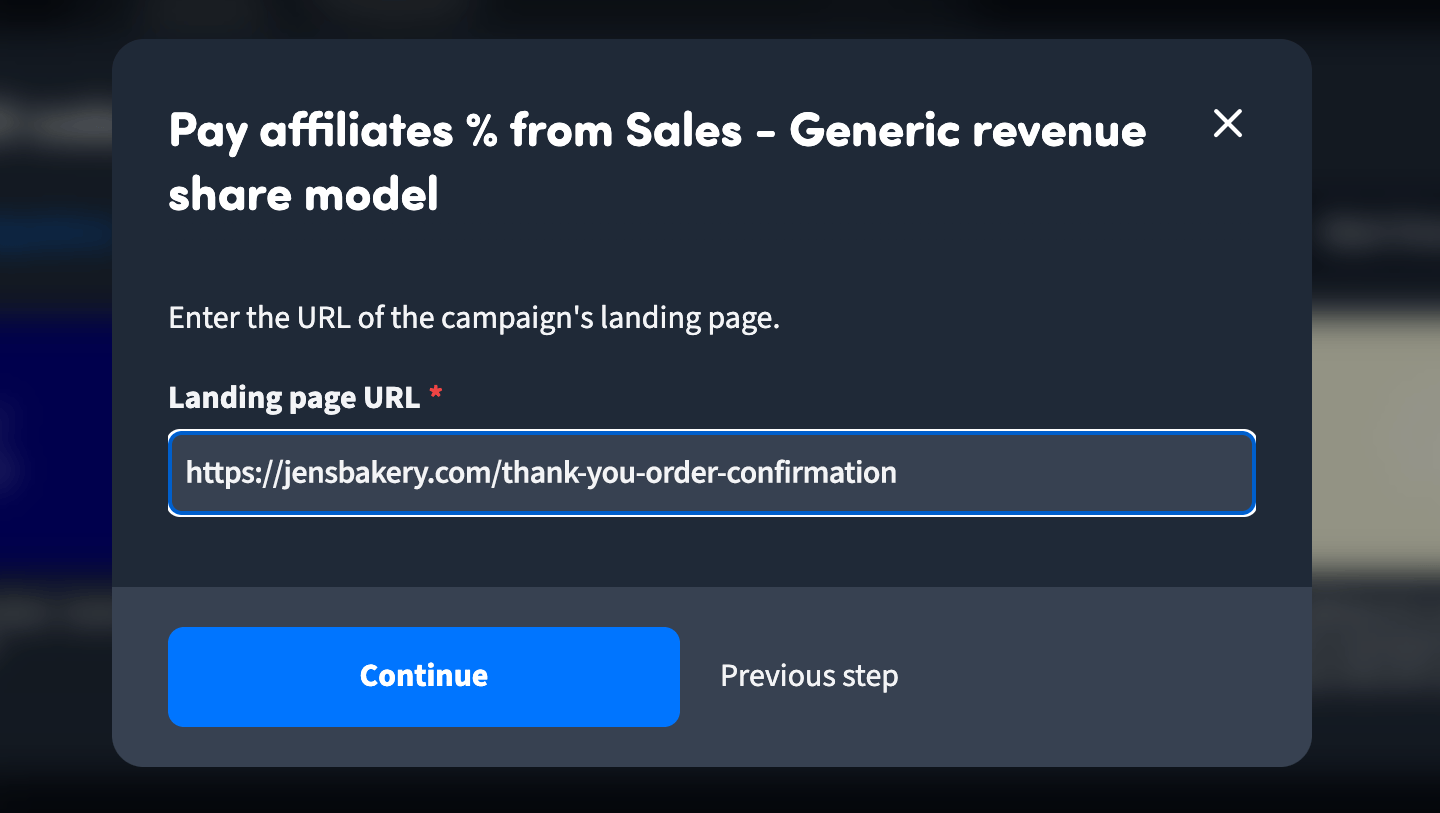
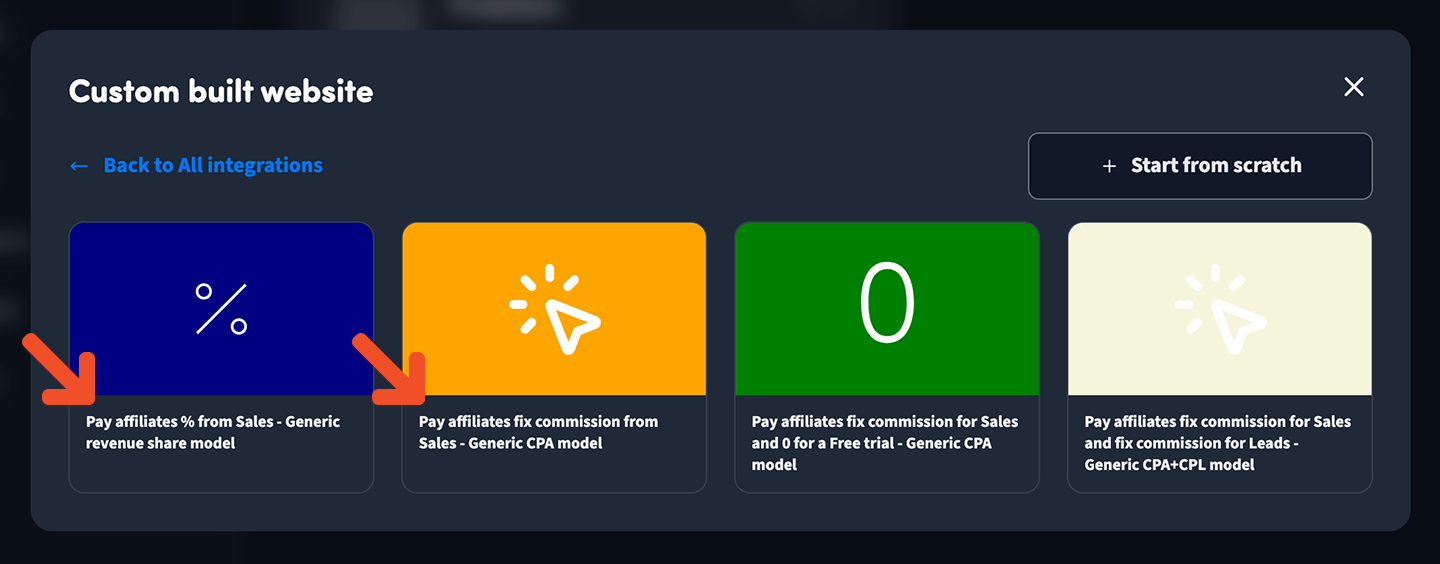 Next, enter the URL of your Landing Page. This is where leads will arrive when they open the links that your affiliates will share.
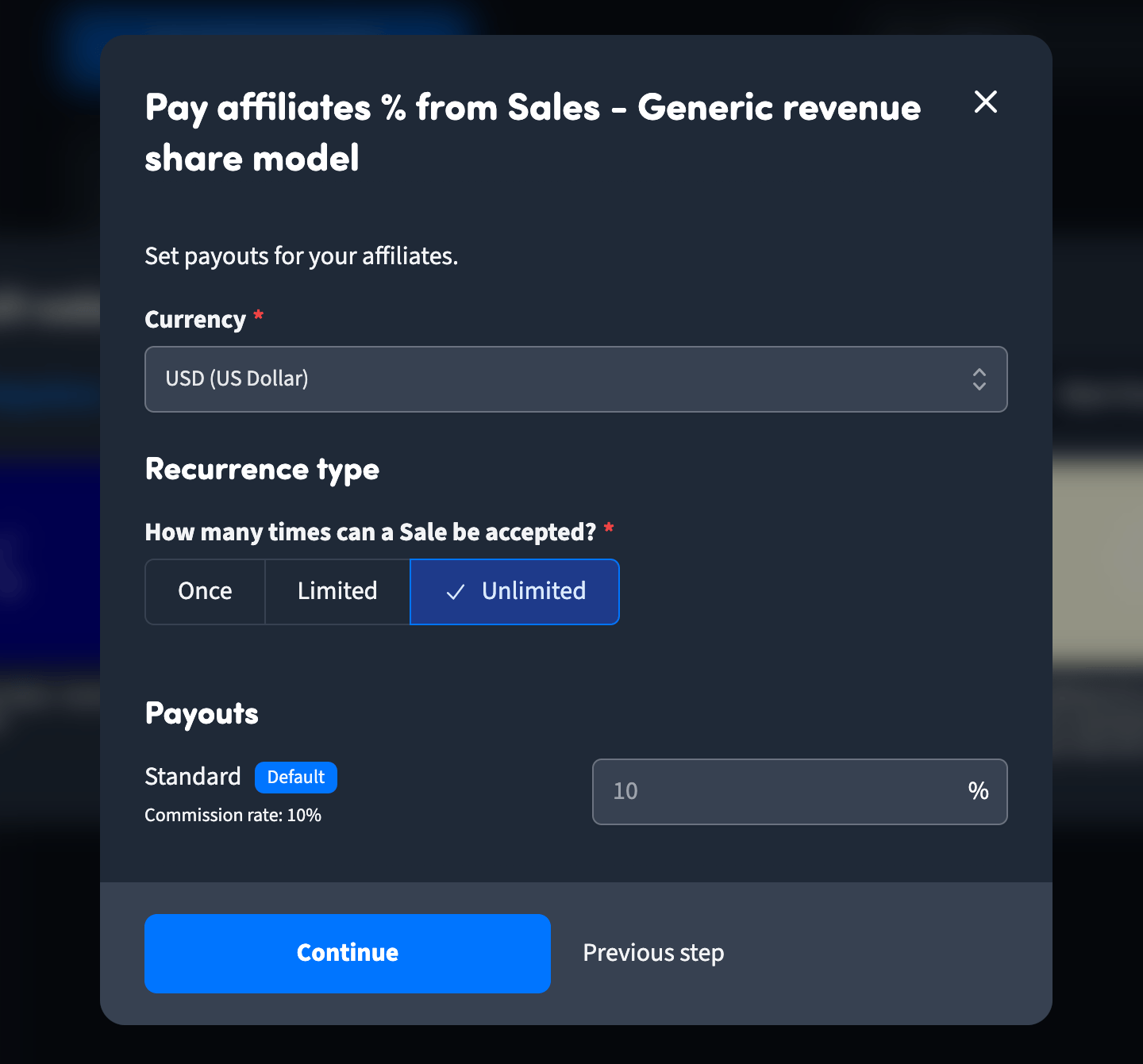
 Fill out the details of how much you'd like to pay your affiliates. You may see different fields depending on what you picked in previous steps.
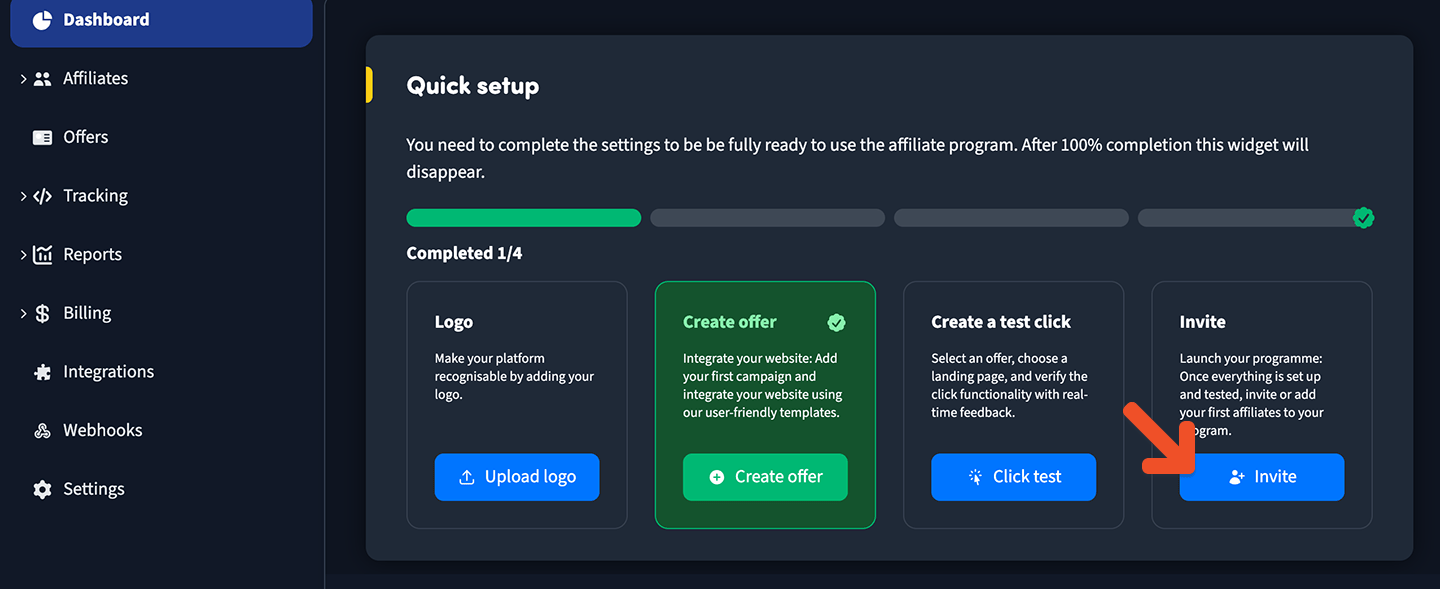
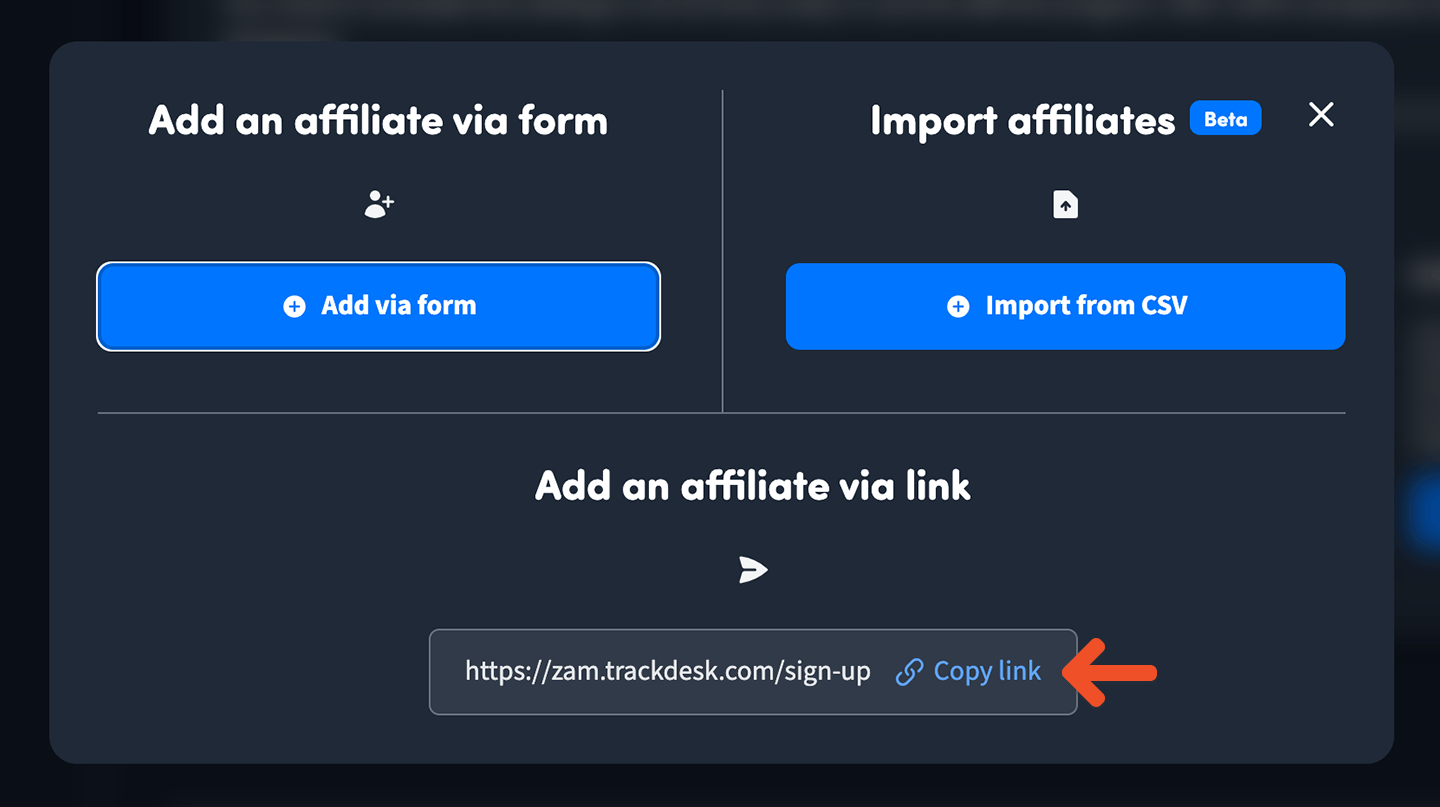
 Once you've created your offer, click the **Invite** button and copy the invite URL to share (on your website, via email, or through social media) so your affiliates can sign up.
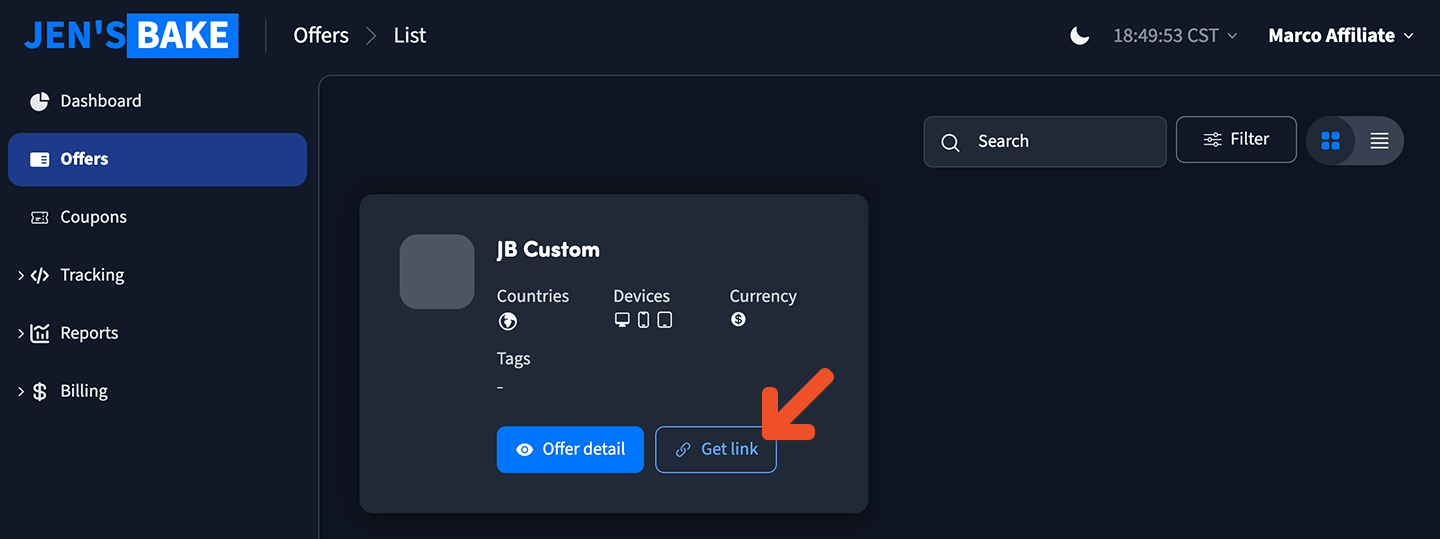
 Once a person signs up to become an affiliate, they will receive their own unique referral link to share with their customers or followers. They can find their unique link in the **Offers** section of their Trackdesk dashboard.
 ## Integrate Trackdesk with Memberful
Although we'll be using Trackdesk for our affiliate tracking, we'll be using Memberful's Tapfiliate integration to make this work. Memberful's Tapfiliate integration is really a generic integration that can be used with other affiliate tracking software, although it was initially designed for Tapfiliate.
Go to *Revenue → Tapfiliate* in your Memberful dashboard, and click **Connect to Tapfiliate.**
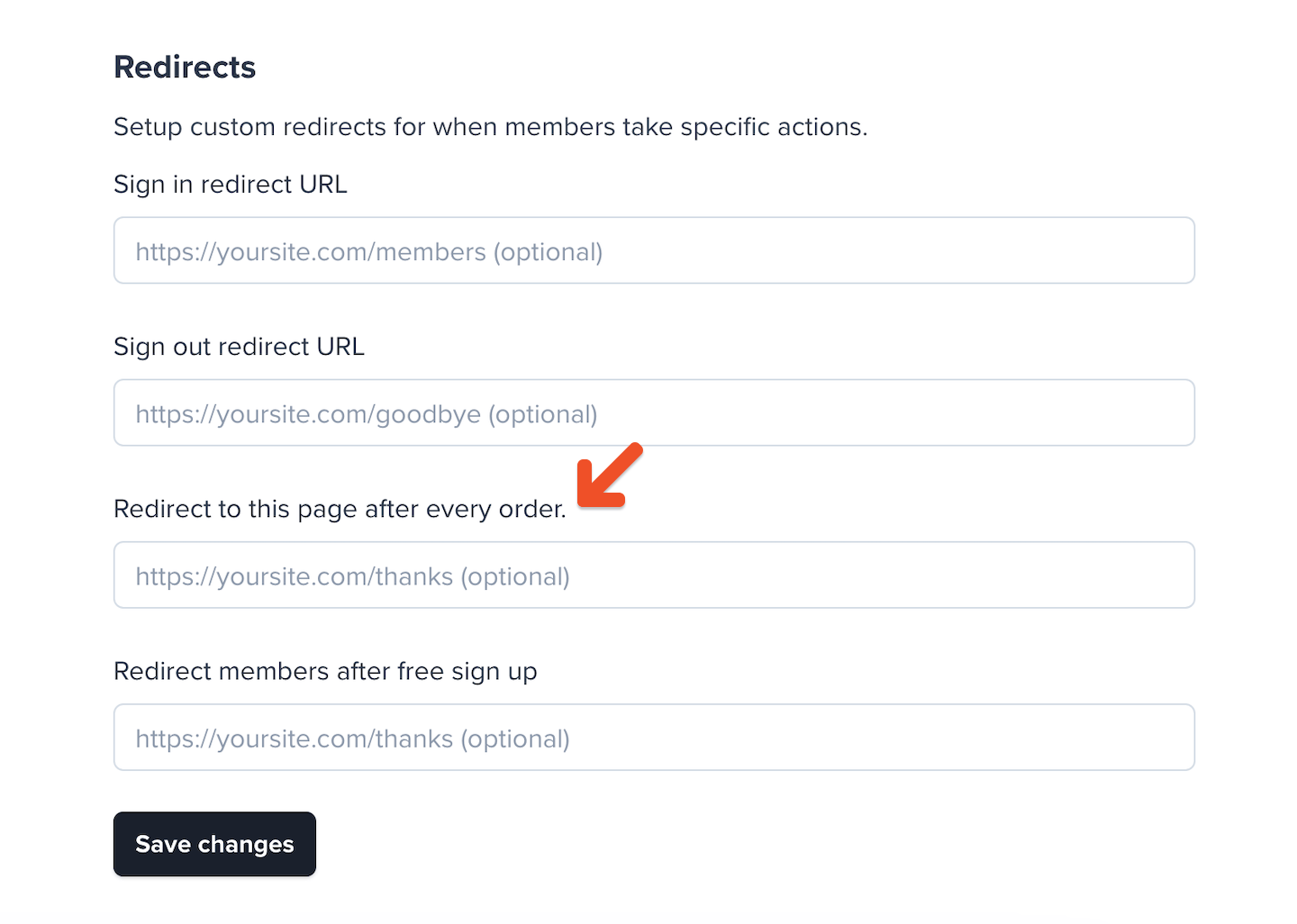
Then go to *Website → External website,* and fill the **Redirect to this page after every order** field. If you prefer, you can also set this on a per-plan basis by going to the desired plan and setting the redirect URL.
This should be the URL of a page on your website, usually a "Thank you" page. Memberful-hosted pages like [our subscribe page](/website-builder/pages/subscribe-page/) or [plan purchase URLs](/plans/promote-and-sell/add-a-link-to-buy-a-plan) won't work.
## Integrate Trackdesk with Memberful
Although we'll be using Trackdesk for our affiliate tracking, we'll be using Memberful's Tapfiliate integration to make this work. Memberful's Tapfiliate integration is really a generic integration that can be used with other affiliate tracking software, although it was initially designed for Tapfiliate.
Go to *Revenue → Tapfiliate* in your Memberful dashboard, and click **Connect to Tapfiliate.**
Then go to *Website → External website,* and fill the **Redirect to this page after every order** field. If you prefer, you can also set this on a per-plan basis by going to the desired plan and setting the redirect URL.
This should be the URL of a page on your website, usually a "Thank you" page. Memberful-hosted pages like [our subscribe page](/website-builder/pages/subscribe-page/) or [plan purchase URLs](/plans/promote-and-sell/add-a-link-to-buy-a-plan) won't work.
 ### Track conversions on your website
You'll need to add some JavaScript code to your pages to track visits to your website via affiliate links. Trackdesk calls these "clicks" but they're really visits to your website.
Place this code in every page of your website between the `` and `` HTML tags:
```javascript theme={null}
```
Replace **YOUR\_TENANT\_ID** with your actual Trackdesk account ID, which can be found in your Trackdesk account by going to *Settings → Your trackdesk identifiers → Tenant ID*.
### Track conversions on your website
You'll need to add some JavaScript code to your pages to track visits to your website via affiliate links. Trackdesk calls these "clicks" but they're really visits to your website.
Place this code in every page of your website between the `` and `` HTML tags:
```javascript theme={null}
```
Replace **YOUR\_TENANT\_ID** with your actual Trackdesk account ID, which can be found in your Trackdesk account by going to *Settings → Your trackdesk identifiers → Tenant ID*.
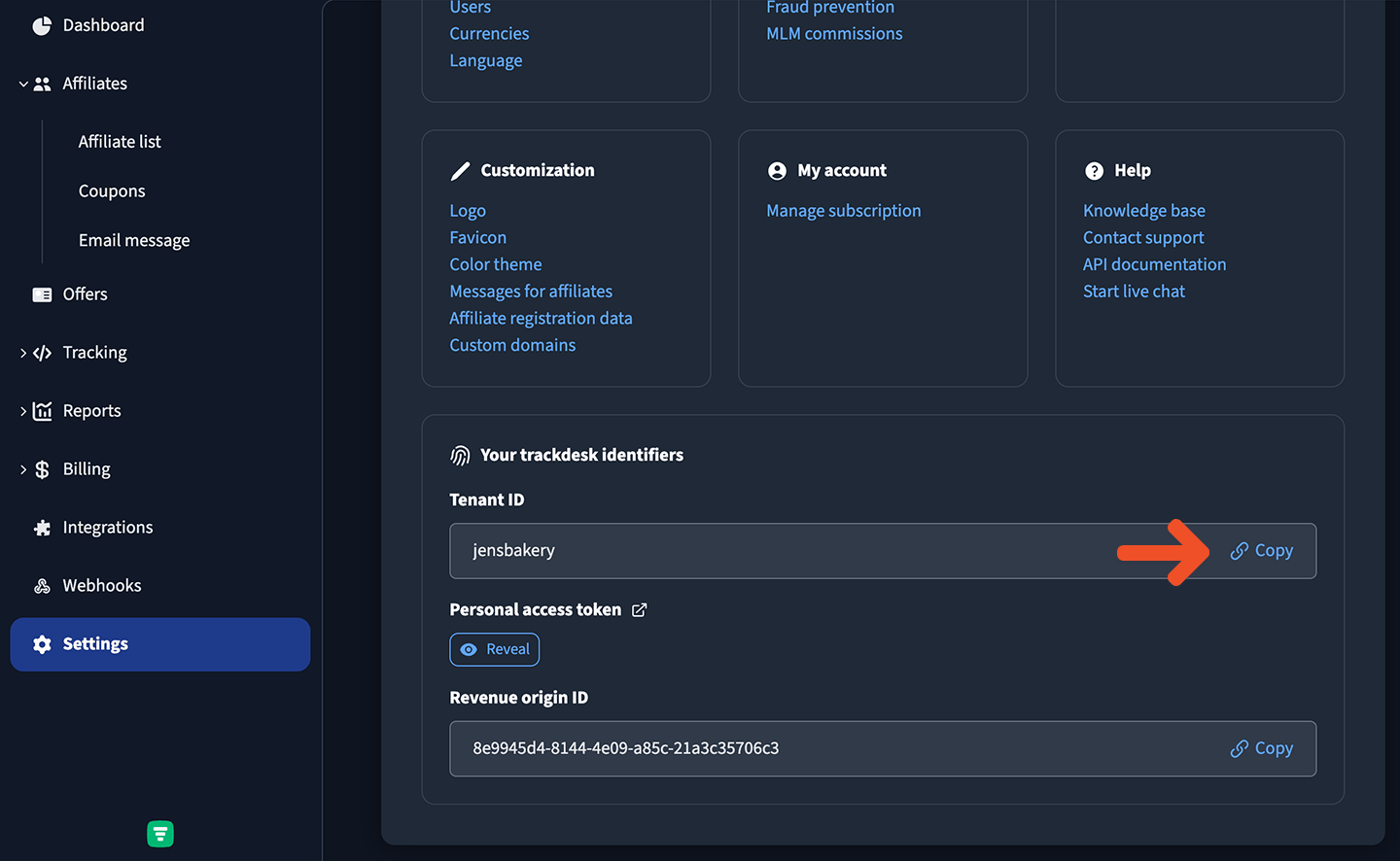 Next, you have two options:
1. If you want to issue one-time commissions for new orders and you don't need Trackdesk to automatically detect renewals, refunds, or disputes, you can insert some JavaScript code into your "Thank You" page. This code will report the conversion to Trackdesk.
2. However, if you want to issue recurring commissions to affiliates for the duration of the subscription, or you want Trackdesk to automatically react to refunds and disputes, you'll need to [integrate Trackdesk with Stripe](#integrate-trackdesk-with-stripe) and insert some more complex code into your "Thank You" page. This code will fetch the member's email address via Memberful's API so that Trackdesk and Stripe can continue to track future events for that member's subscription. Skip over to the [Integrate Trackdesk with Stripe](#integrate-trackdesk-with-stripe) section for instructions on how to do this.
If you picked option 1, place the following code inside the `` tag of your "Thank You" page, configured in the [Integrate Trackdesk with Memberful](#integrate-trackdesk-with-memberful) section. This will fetch the member's email address via Memberful's API and report your conversion to Trackdesk:
```javascript theme={null}
```
Replace the **YOUR\_TENANT\_ID** and **YOUR\_REVENUE\_ORIGIN\_ID** values with your Trackdesk tenant ID and revenue origin ID, both of which can be found in your Trackdesk account by going to *Settings → Your trackdesk identifiers*.
Next, you have two options:
1. If you want to issue one-time commissions for new orders and you don't need Trackdesk to automatically detect renewals, refunds, or disputes, you can insert some JavaScript code into your "Thank You" page. This code will report the conversion to Trackdesk.
2. However, if you want to issue recurring commissions to affiliates for the duration of the subscription, or you want Trackdesk to automatically react to refunds and disputes, you'll need to [integrate Trackdesk with Stripe](#integrate-trackdesk-with-stripe) and insert some more complex code into your "Thank You" page. This code will fetch the member's email address via Memberful's API so that Trackdesk and Stripe can continue to track future events for that member's subscription. Skip over to the [Integrate Trackdesk with Stripe](#integrate-trackdesk-with-stripe) section for instructions on how to do this.
If you picked option 1, place the following code inside the `` tag of your "Thank You" page, configured in the [Integrate Trackdesk with Memberful](#integrate-trackdesk-with-memberful) section. This will fetch the member's email address via Memberful's API and report your conversion to Trackdesk:
```javascript theme={null}
```
Replace the **YOUR\_TENANT\_ID** and **YOUR\_REVENUE\_ORIGIN\_ID** values with your Trackdesk tenant ID and revenue origin ID, both of which can be found in your Trackdesk account by going to *Settings → Your trackdesk identifiers*.
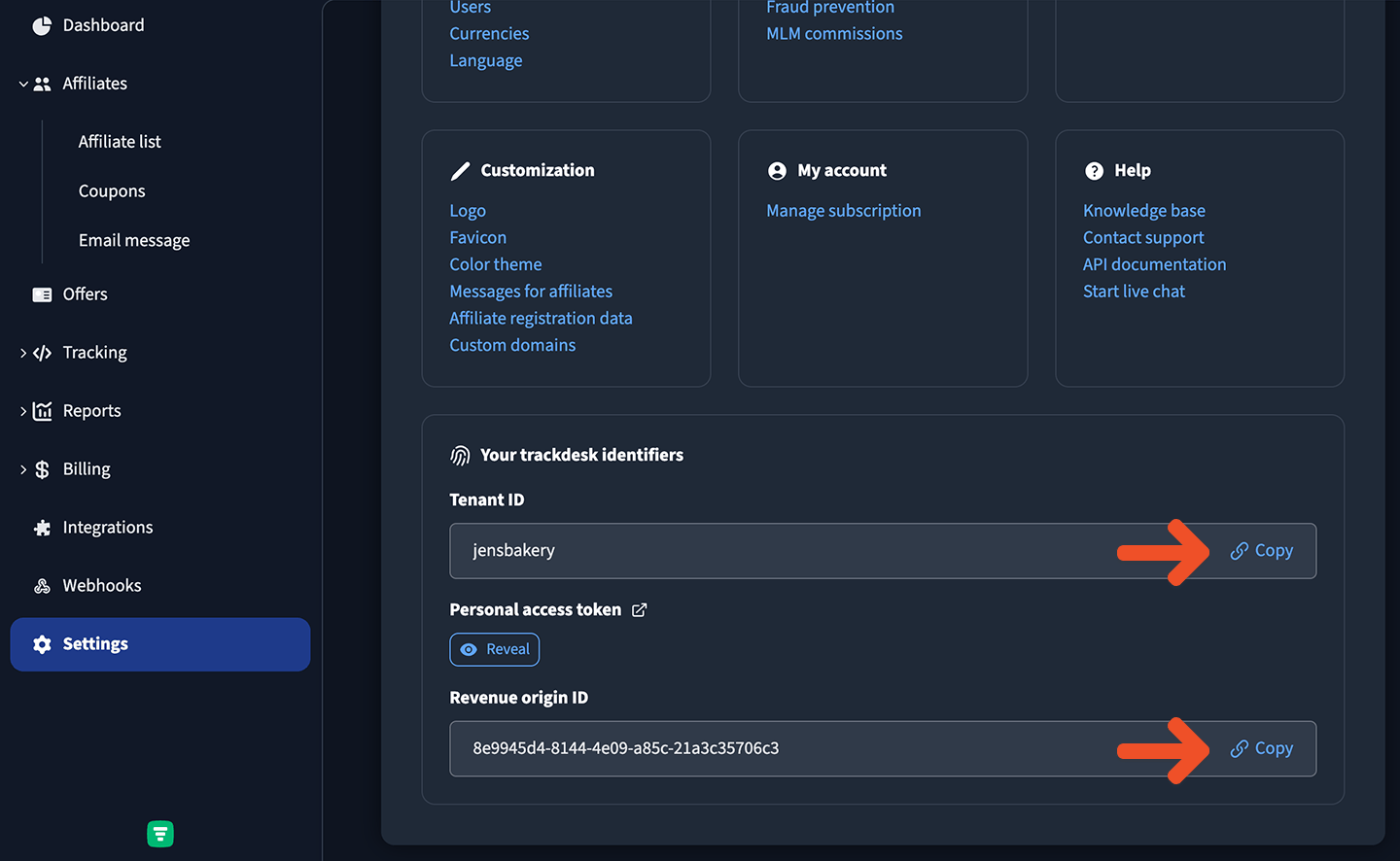 ## Integrate Trackdesk with Stripe
Trackdesk integrates with Stripe, which allows Trackdesk to automatically detect refunds, disputes, and renewals (to pay your affiliates a recurring commission for the duration of a subscription). To integrate Trackdesk with Stripe:
1. From your Trackdesk dashboard, go to *Integrations → Stripe via Customer Email*.
2. Follow the first 2 steps on this page to integrate Trackdesk with Stripe. Ignore the last two steps for now.
3. The last two steps on this page instruct you to add some JavaScript code to your pages, but you can ignore that code. We've prepared some code for you here which is already adapted to work with Memberful.
Insert this code in the head section of every page of your website, as high as possible within the `` and `` HTML tags.
```javascript theme={null}
```
Next, you'll need to insert some code into the post-purchase page of your website, which is the page that your members see after they complete a purchase. This is usually a "Thank you" page.
In this code, we're going to make an API call to Memberful to fetch the member's email address, which we'll then pass to Trackdesk. Trackdesk will use this email address to track renewals, refunds, and disputes.
This API call should be made on the server-side, so you'll need to use a server-side language like PHP, because you don't want to expose your Memberful API key to the public.
If you're using WordPress, you can use a plugin like [WPCode](https://wordpress.org/plugins/insert-headers-and-footers/) to insert PHP code into your pages, although you should consult with a web developer to ensure that the code you insert is secure and won't break your website, and that you are handling any possible errors gracefully.
## Integrate Trackdesk with Stripe
Trackdesk integrates with Stripe, which allows Trackdesk to automatically detect refunds, disputes, and renewals (to pay your affiliates a recurring commission for the duration of a subscription). To integrate Trackdesk with Stripe:
1. From your Trackdesk dashboard, go to *Integrations → Stripe via Customer Email*.
2. Follow the first 2 steps on this page to integrate Trackdesk with Stripe. Ignore the last two steps for now.
3. The last two steps on this page instruct you to add some JavaScript code to your pages, but you can ignore that code. We've prepared some code for you here which is already adapted to work with Memberful.
Insert this code in the head section of every page of your website, as high as possible within the `` and `` HTML tags.
```javascript theme={null}
```
Next, you'll need to insert some code into the post-purchase page of your website, which is the page that your members see after they complete a purchase. This is usually a "Thank you" page.
In this code, we're going to make an API call to Memberful to fetch the member's email address, which we'll then pass to Trackdesk. Trackdesk will use this email address to track renewals, refunds, and disputes.
This API call should be made on the server-side, so you'll need to use a server-side language like PHP, because you don't want to expose your Memberful API key to the public.
If you're using WordPress, you can use a plugin like [WPCode](https://wordpress.org/plugins/insert-headers-and-footers/) to insert PHP code into your pages, although you should consult with a web developer to ensure that the code you insert is secure and won't break your website, and that you are handling any possible errors gracefully.
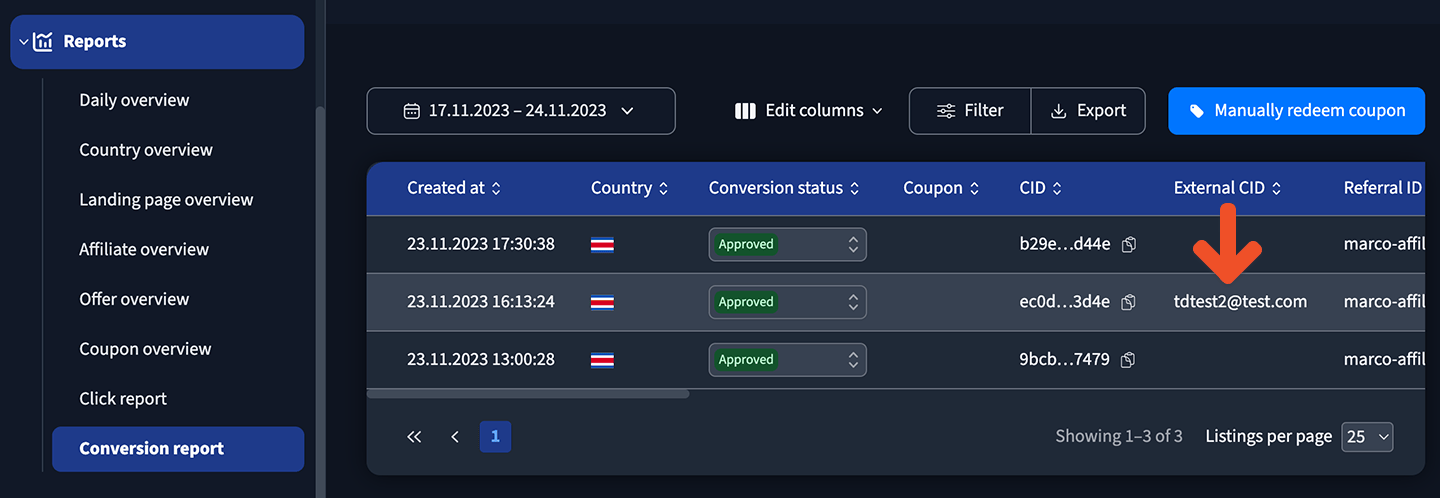
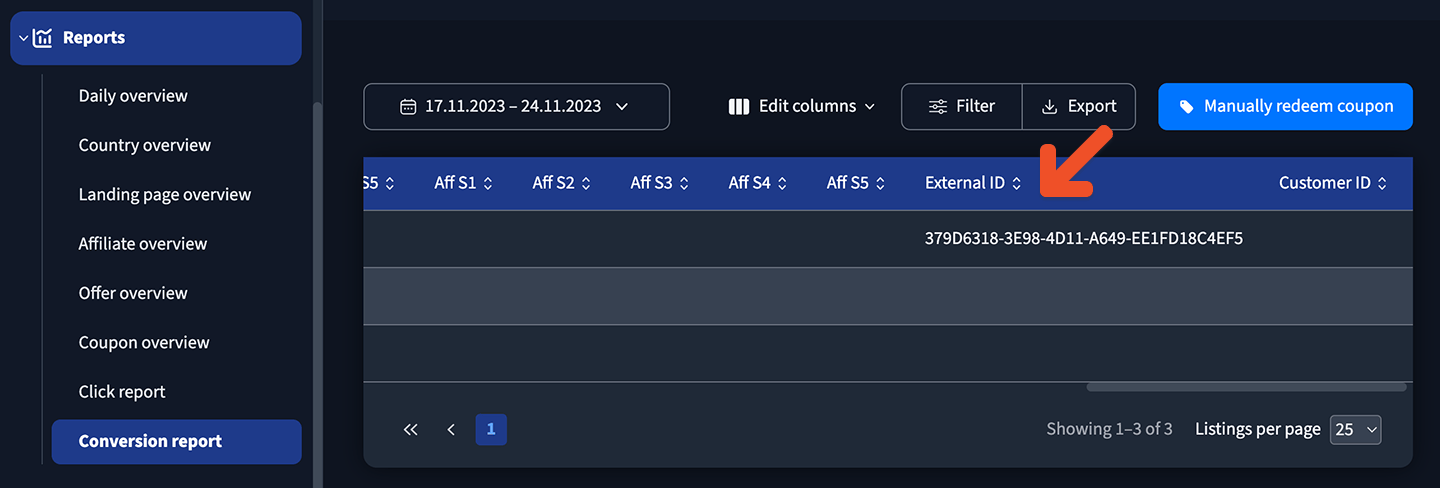 If you integrated Trackdesk with Stripe, conversions are detected automatically in Stripe, so the Memberful Order ID isn't present in Trackdesk. However, you can still locate the order by searching for the member's email address (displayed in the "External CID" column in Trackdesk) in Memberful and looking for an order placed by that member with an amount and date that matches the conversion in Trackdesk. The date might be off by 1 day due to time zone differences.
 ### Set up recurring commissions
If you've integrated your Trackdesk account with Stripe and implemented the [conversion tracking script](#track-conversions-on-your-website), Trackdesk will automatically track recurring conversions for you, as it will be able to identify a returning member by their email address.
### Automatically handle refunds
If you've integrated your Trackdesk account with Stripe and implemented the [conversion tracking script](#track-conversions-on-your-website), all refunds initiated inside Memberful will automatically be propagated to your Trackdesk account.
Full refunds will result in a commission being disapproved, while partial refunds will decrease the refunded amount from the total conversion amount.
### Automatically handle disputes
If you've integrated your Trackdesk account with Stripe and implemented the [conversion tracking script](#track-conversions-on-your-website), all disputes in Stripe will automatically result in a Trackdesk commission being disapproved.
### Set up recurring commissions
If you've integrated your Trackdesk account with Stripe and implemented the [conversion tracking script](#track-conversions-on-your-website), Trackdesk will automatically track recurring conversions for you, as it will be able to identify a returning member by their email address.
### Automatically handle refunds
If you've integrated your Trackdesk account with Stripe and implemented the [conversion tracking script](#track-conversions-on-your-website), all refunds initiated inside Memberful will automatically be propagated to your Trackdesk account.
Full refunds will result in a commission being disapproved, while partial refunds will decrease the refunded amount from the total conversion amount.
### Automatically handle disputes
If you've integrated your Trackdesk account with Stripe and implemented the [conversion tracking script](#track-conversions-on-your-website), all disputes in Stripe will automatically result in a Trackdesk commission being disapproved.