> ## Documentation Index
> Fetch the complete documentation index at: https://memberful.com/docs/llms.txt
> Use this file to discover all available pages before exploring further.
# Integrate Discourse with Memberful
> Integrate Memberful with Discourse to run a private discussion forum. Use single sign-on so members access the forum with their Memberful login.
export const RelatedDocs = ({link1, link2, link3, link4, link5, link6, link7, link8, link9, link10, className = ""}) => {
const links = [link1, link2, link3, link4, link5, link6, link7, link8, link9, link10].filter(Boolean);
if (!links.length) return null;
return ;
};
Memberful integrates directly with Discourse so you can manage access to a members-only discussion forum through your memberships. This integration uses groups and single sign-on settings in Discourse to control who can view and participate in your community.
In this help article, we'll show you how to create Discourse groups, connect your forum to Memberful, map plans to groups, protect categories, and manage important Discourse settings.
## Create a Discourse group
Before you connect Discourse to Memberful, create the Discourse groups you want to use for member access.
In Discourse, go to **Groups** from the menu icon.
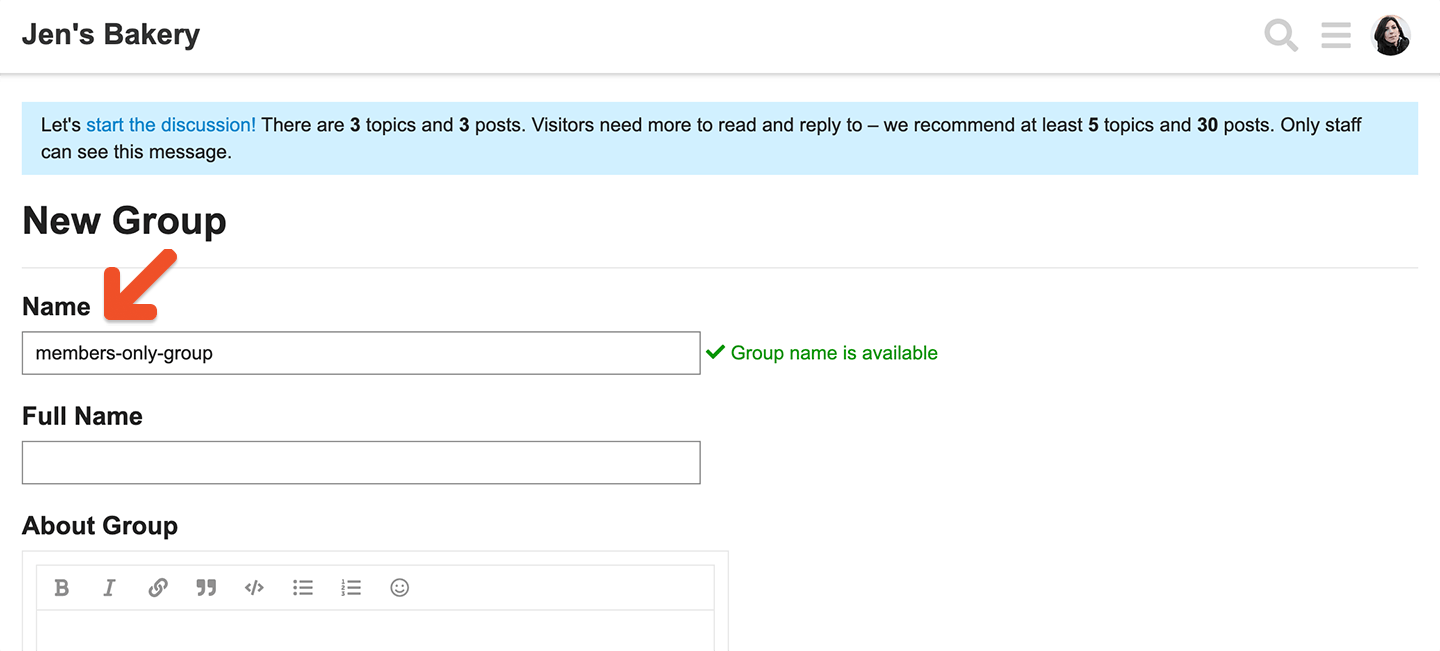
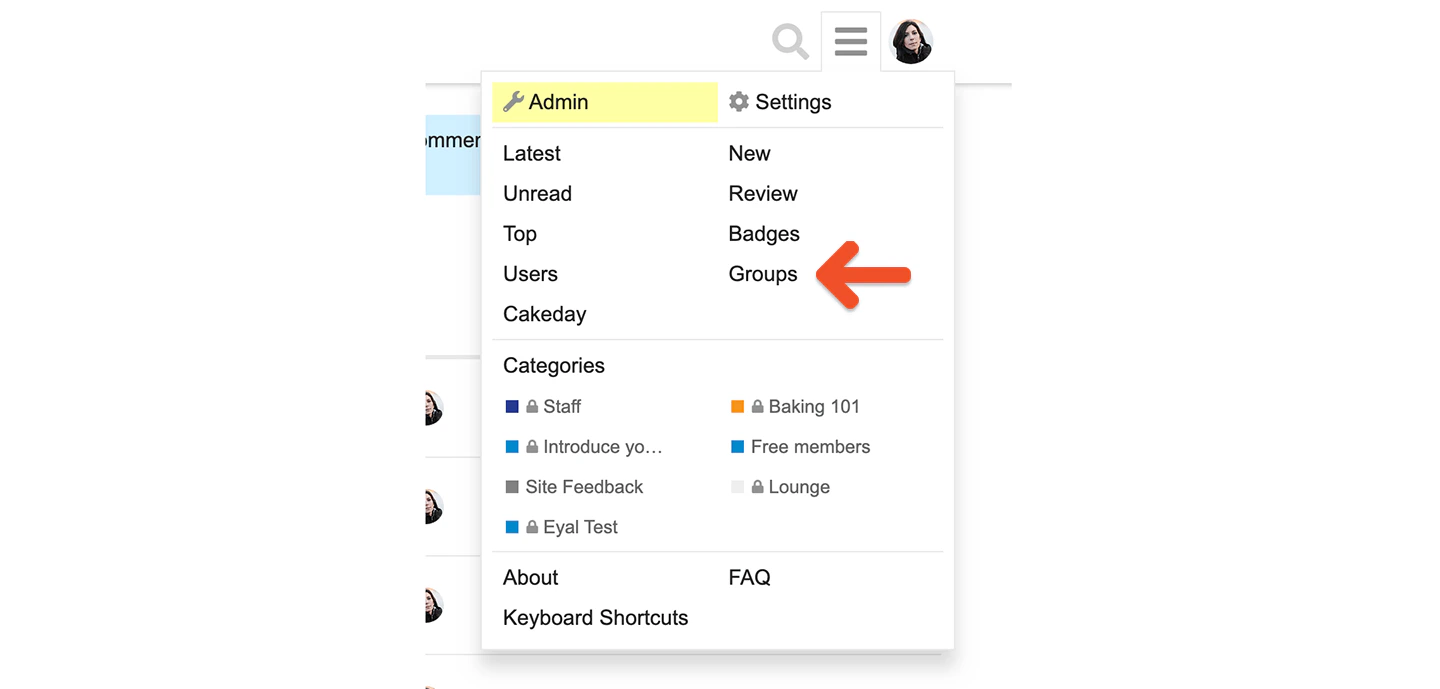 Click **New Group**.
 Enter a group name, then save it.
 If you update your Discourse groups after the initial integration, it may take some time for members to re-sync.
## Generate an API key
Generate a Discourse API key before connecting the integration.
In Discourse, go to **Admin** → **API**.
If you update your Discourse groups after the initial integration, it may take some time for members to re-sync.
## Generate an API key
Generate a Discourse API key before connecting the integration.
In Discourse, go to **Admin** → **API**.
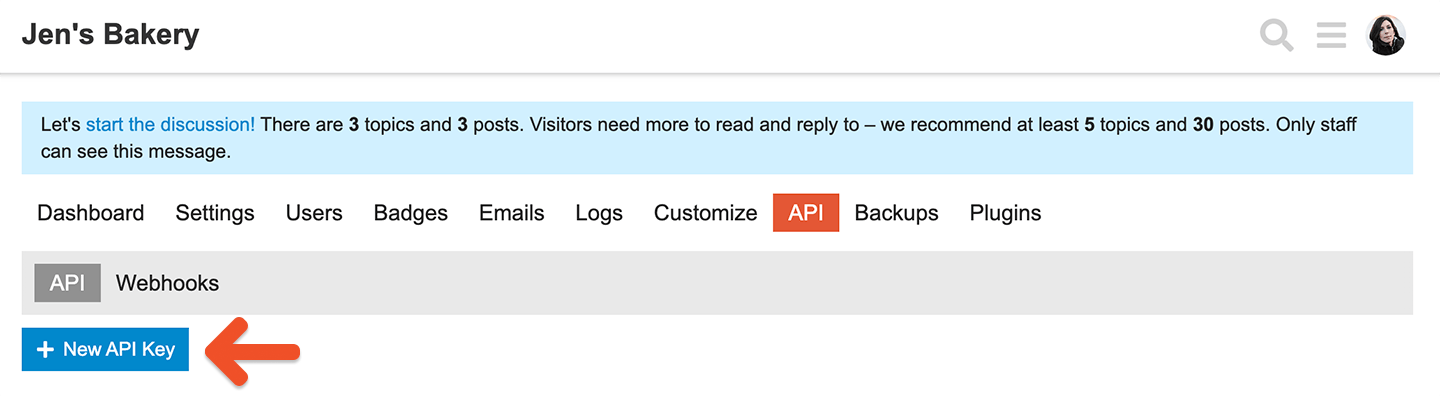 Create an API key for the integration.
## Connect Memberful to Discourse
Use the API key and your Discourse admin details to connect the integration in the Memberful dashboard.
Go to **Content** → **Community** → **Discourse**.
Click **Connect**.
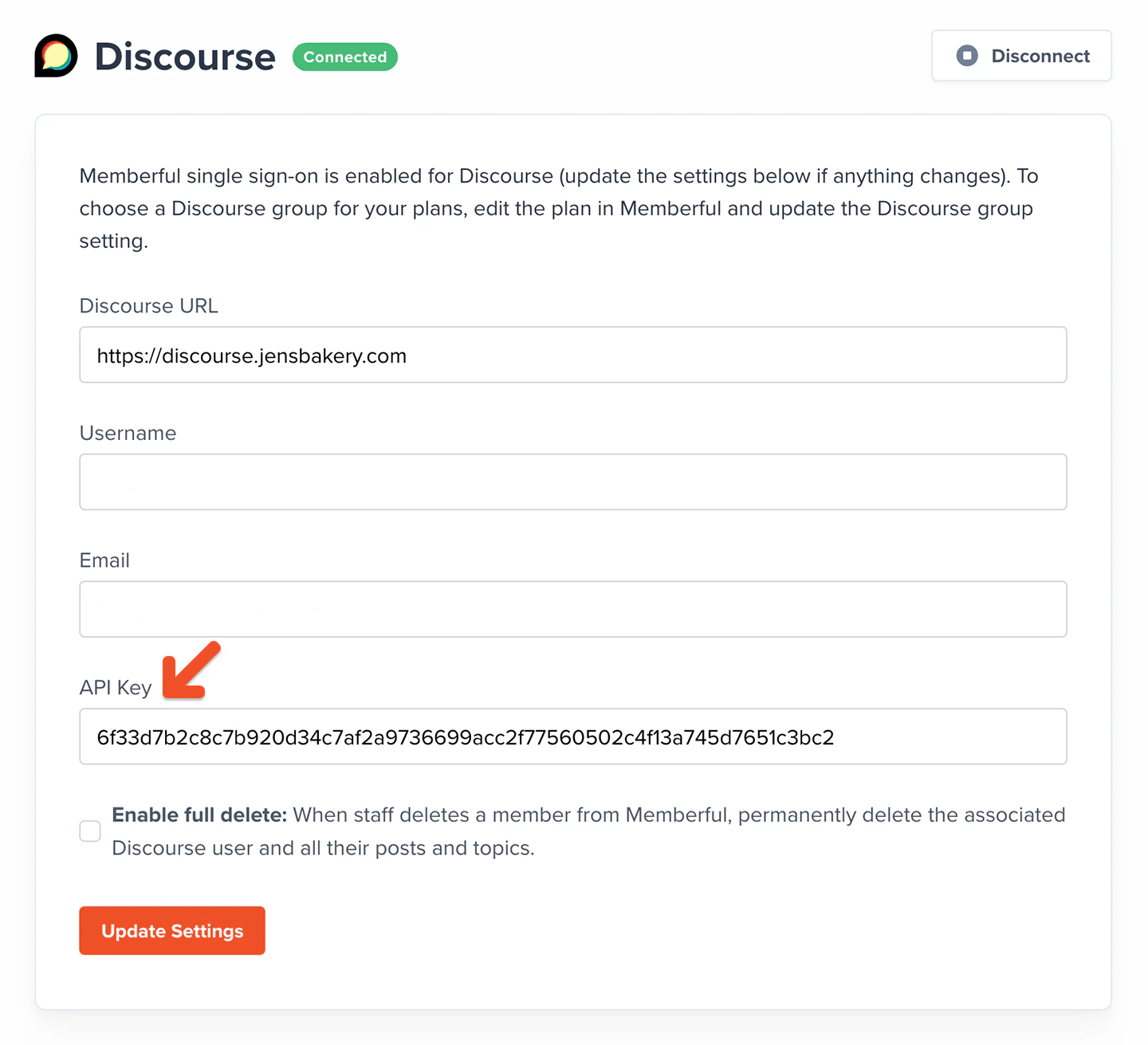
Enter your Discourse site information, including the API key you generated.
Enter the *Username* and *Email* for the Discourse admin.
Create an API key for the integration.
## Connect Memberful to Discourse
Use the API key and your Discourse admin details to connect the integration in the Memberful dashboard.
Go to **Content** → **Community** → **Discourse**.
Click **Connect**.
Enter your Discourse site information, including the API key you generated.
Enter the *Username* and *Email* for the Discourse admin.
 ## Review Discourse settings changed by Memberful
When Memberful connects to Discourse, it updates several Discourse settings automatically.
Do not reset the *DiscourseConnect (SSO)* settings. If you reset them, the integration stops working.
## Advanced: Discourse settings
When Memberful connects to Discourse, it updates some of your default Discourse settings. Don't reset the DiscourseConnect settings or the integration will stop working.
### **Settings → Login**
* `enable discourse connect`: On (formerly `enable_sso`)
* `enable discourse connect provider`: Off (formerly `enable sso provider`)
* `discourse connect url`: Set by Memberful (formerly `sso url`)
* `discourse connect secret`: Set by Memberful (formerly `sso secret`)
* `auth overrides email`: On (formerly `sso overrides email`)
* `auth overrides name`: On (formerly `sso overrides name`)
### **Settings → Users**
* `email editable`: Off
### **Settings → Posting**
* `display name on posts`: On
### **Settings → Plugins**
* `disable discourse narrative bot welcome post`: On
Go to **Content** → **Community** → **Discourse**.
Click **Edit settings**.
Choose which membership plans should be linked to which Discourse groups.
Click **Update settings**.
## Review Discourse settings changed by Memberful
When Memberful connects to Discourse, it updates several Discourse settings automatically.
Do not reset the *DiscourseConnect (SSO)* settings. If you reset them, the integration stops working.
## Advanced: Discourse settings
When Memberful connects to Discourse, it updates some of your default Discourse settings. Don't reset the DiscourseConnect settings or the integration will stop working.
### **Settings → Login**
* `enable discourse connect`: On (formerly `enable_sso`)
* `enable discourse connect provider`: Off (formerly `enable sso provider`)
* `discourse connect url`: Set by Memberful (formerly `sso url`)
* `discourse connect secret`: Set by Memberful (formerly `sso secret`)
* `auth overrides email`: On (formerly `sso overrides email`)
* `auth overrides name`: On (formerly `sso overrides name`)
### **Settings → Users**
* `email editable`: Off
### **Settings → Posting**
* `display name on posts`: On
### **Settings → Plugins**
* `disable discourse narrative bot welcome post`: On
Go to **Content** → **Community** → **Discourse**.
Click **Edit settings**.
Choose which membership plans should be linked to which Discourse groups.
Click **Update settings**.
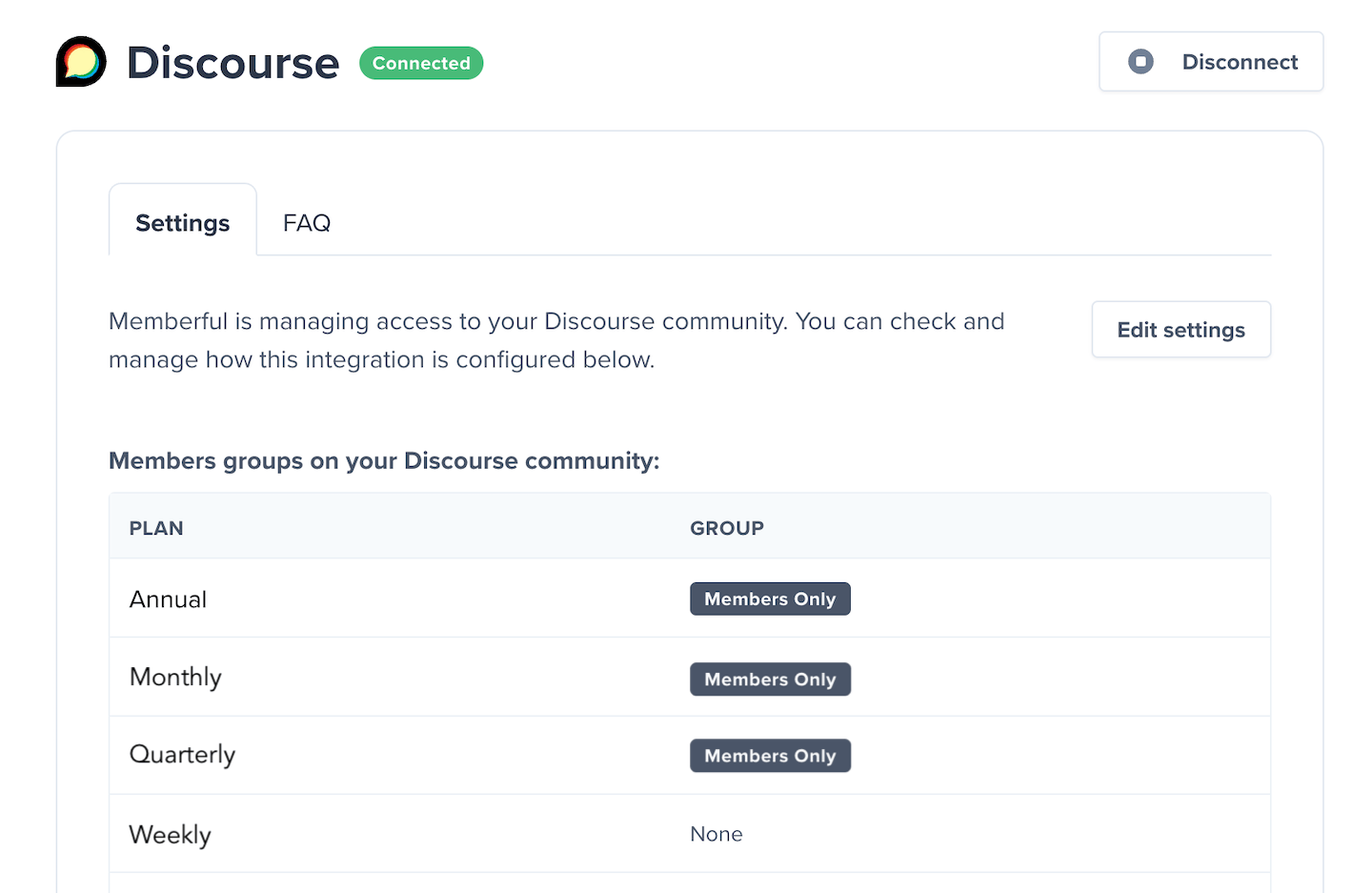 These settings do not apply to members who [register for free](/member-management/payments-and-access/give-free-access/#enable-free-registration).
Once setup is complete, active members are added automatically to their assigned Discourse group after they sign in through Memberful.
If a member's subscription expires, they are removed from the associated Discourse group, even if they still have a Discourse account.
## Protect your Discourse categories
To restrict access to member-only areas, update the security settings on the Discourse categories you want to protect.
Click the Discourse category, then click the **Wrench** icon.
These settings do not apply to members who [register for free](/member-management/payments-and-access/give-free-access/#enable-free-registration).
Once setup is complete, active members are added automatically to their assigned Discourse group after they sign in through Memberful.
If a member's subscription expires, they are removed from the associated Discourse group, even if they still have a Discourse account.
## Protect your Discourse categories
To restrict access to member-only areas, update the security settings on the Discourse categories you want to protect.
Click the Discourse category, then click the **Wrench** icon.
 Go to the **Security** settings for the category.
Click **Add a group** and select the Discourse group.
Go to the **Security** settings for the category.
Click **Add a group** and select the Discourse group.
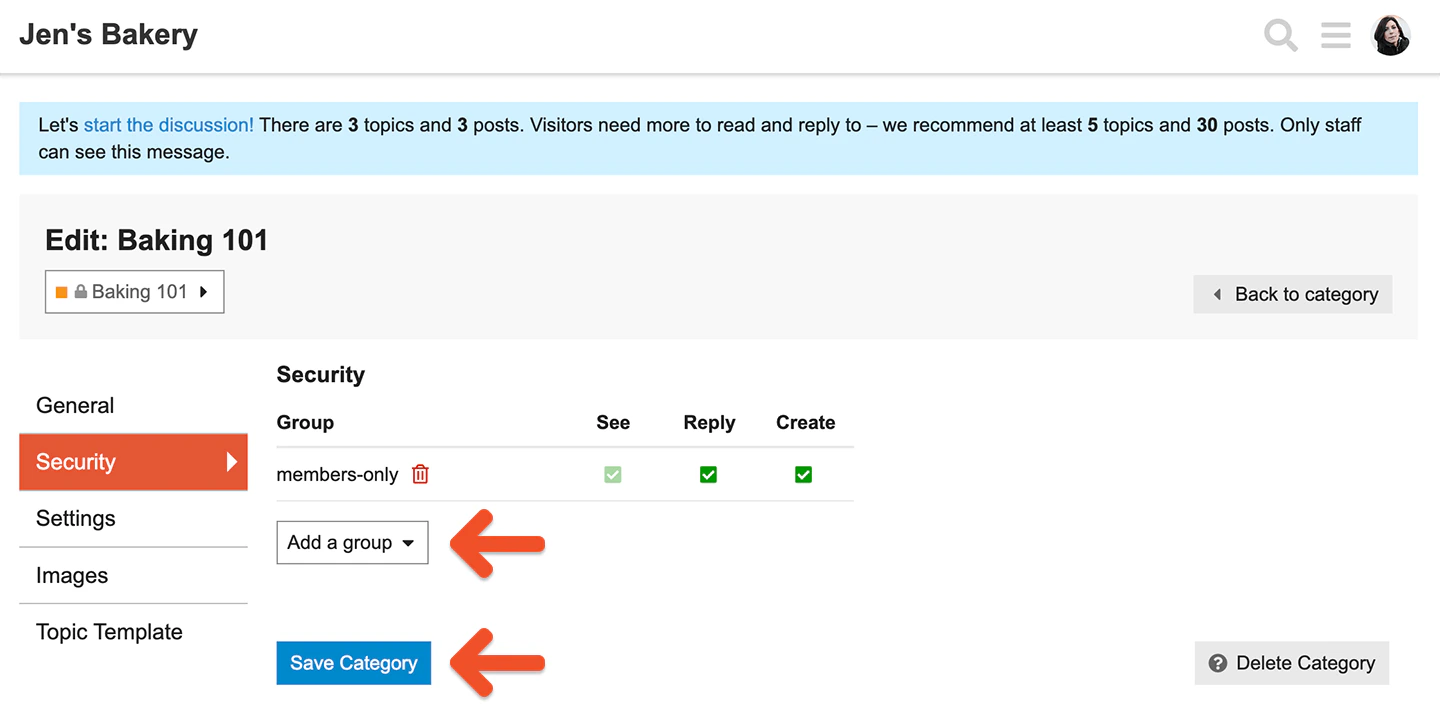 Choose the **See / Reply / Create** permissions for that group.
Click **Save Category**.
Choose the **See / Reply / Create** permissions for that group.
Click **Save Category**.
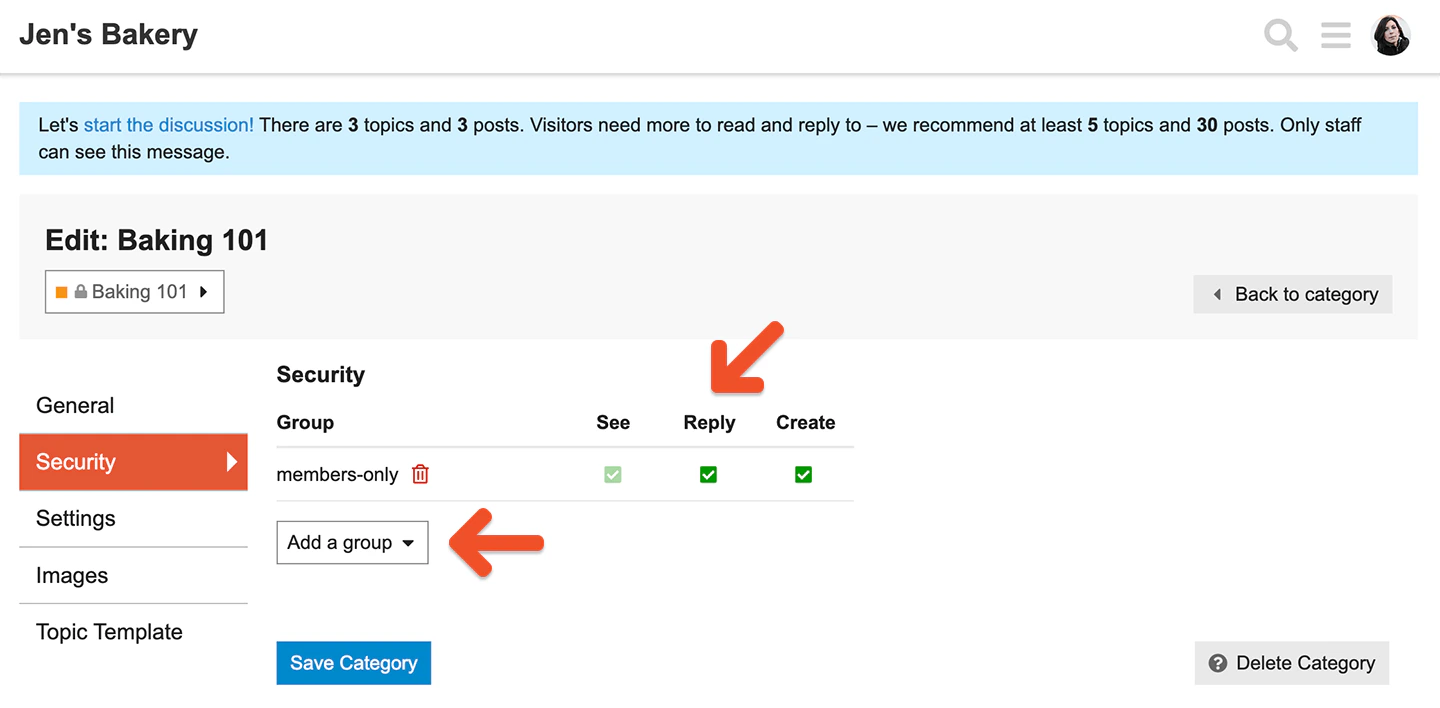 Repeat this process for each members-only category.
### Default categories
Default Discourse categories such as **Meta** do not have security settings. If you want a members-only forum, do not use the default categories for protected content.
### Disable posting to Uncategorized
The **Uncategorized** category does not include a **Security** tab. To prevent posting there, go to **Admin** → **Settings** → **Posting** and disable posting to **Uncategorized**.
Repeat this process for each members-only category.
### Default categories
Default Discourse categories such as **Meta** do not have security settings. If you want a members-only forum, do not use the default categories for protected content.
### Disable posting to Uncategorized
The **Uncategorized** category does not include a **Security** tab. To prevent posting there, go to **Admin** → **Settings** → **Posting** and disable posting to **Uncategorized**.
 ## Disallow anonymous access
If you run a protected Discourse forum, it is a good idea to disable anonymous access.
Go to **Settings** → **Login** and disallow anonymous access.
## Disallow anonymous access
If you run a protected Discourse forum, it is a good idea to disable anonymous access.
Go to **Settings** → **Login** and disallow anonymous access.
 When anonymous access is disabled, members must sign in through Memberful to view the forum.
## Set up Discourse admins
Memberful does not allow non-admin Memberful users to remain Discourse admins. This protects your Discourse admin access because Memberful does not verify email ownership for that role.
To set up Discourse admins correctly, create them as Memberful staff. Go to **Settings** → **Staff** in the Memberful dashboard.
### Access the forum as an admin
Memberful uses the member login page for single sign-on because most Discourse users are members. If you want to access your Discourse forum as an admin, sign in to the Memberful dashboard first.
### Make a paying member a moderator
If you make a paying member a Discourse admin, Memberful removes the admin flag the next time that member syncs. Memberful does not remove the moderator flag, so paying members can still be Discourse moderators.
## Add a signup link to your forum
When single sign-on is enabled, Discourse shows a login button but not a signup button.
To add a signup link to your forum, create a Memberful plan, copy the plan purchase link, and add that link to your website or forum. You can also [customize your Discourse header](https://meta.discourse.org/t/best-way-to-customize-the-header/13368/6) to include the link.
## Disable Discourse integration
When you disable the Discourse integration, Memberful attempts to disable Memberful single sign-on on your forum. After the integration is disabled successfully, you and your members can sign in to the forum normally again.
If you cannot sign in to your forum after disabling the integration, use this URL to access the admin login and fix your Discourse settings:
```text theme={null}
https://forum.yoursite.com/u/admin-login
```
When anonymous access is disabled, members must sign in through Memberful to view the forum.
## Set up Discourse admins
Memberful does not allow non-admin Memberful users to remain Discourse admins. This protects your Discourse admin access because Memberful does not verify email ownership for that role.
To set up Discourse admins correctly, create them as Memberful staff. Go to **Settings** → **Staff** in the Memberful dashboard.
### Access the forum as an admin
Memberful uses the member login page for single sign-on because most Discourse users are members. If you want to access your Discourse forum as an admin, sign in to the Memberful dashboard first.
### Make a paying member a moderator
If you make a paying member a Discourse admin, Memberful removes the admin flag the next time that member syncs. Memberful does not remove the moderator flag, so paying members can still be Discourse moderators.
## Add a signup link to your forum
When single sign-on is enabled, Discourse shows a login button but not a signup button.
To add a signup link to your forum, create a Memberful plan, copy the plan purchase link, and add that link to your website or forum. You can also [customize your Discourse header](https://meta.discourse.org/t/best-way-to-customize-the-header/13368/6) to include the link.
## Disable Discourse integration
When you disable the Discourse integration, Memberful attempts to disable Memberful single sign-on on your forum. After the integration is disabled successfully, you and your members can sign in to the forum normally again.
If you cannot sign in to your forum after disabling the integration, use this URL to access the admin login and fix your Discourse settings:
```text theme={null}
https://forum.yoursite.com/u/admin-login
```