> ## Documentation Index
> Fetch the complete documentation index at: https://memberful.com/docs/llms.txt
> Use this file to discover all available pages before exploring further.
# Discord post-setup
> Help members join your Discord server after setup, update role mappings between Memberful plans and Discord roles, and resolve common integration issues.
export const RelatedDocs = ({link1, link2, link3, link4, link5, link6, link7, link8, link9, link10, className = ""}) => {
const links = [link1, link2, link3, link4, link5, link6, link7, link8, link9, link10].filter(Boolean);
if (!links.length) return null;
return ;
};
The Discord integration connects your Memberful plans to Discord access and role management. After setup, you can use it to help members join your server, keep role mappings up to date, and resolve common syncing and account issues.
In this help article, we'll show you how to invite existing members, find members by their Discord ID, update Discord role mappings, and troubleshoot common role assignment and account issues.
## Invite existing members
Existing members can connect their Discord account from their member account page by authorizing the Memberful bot:
```text theme={null}
https://ACCOUNT-URL.memberful.com/account/
```
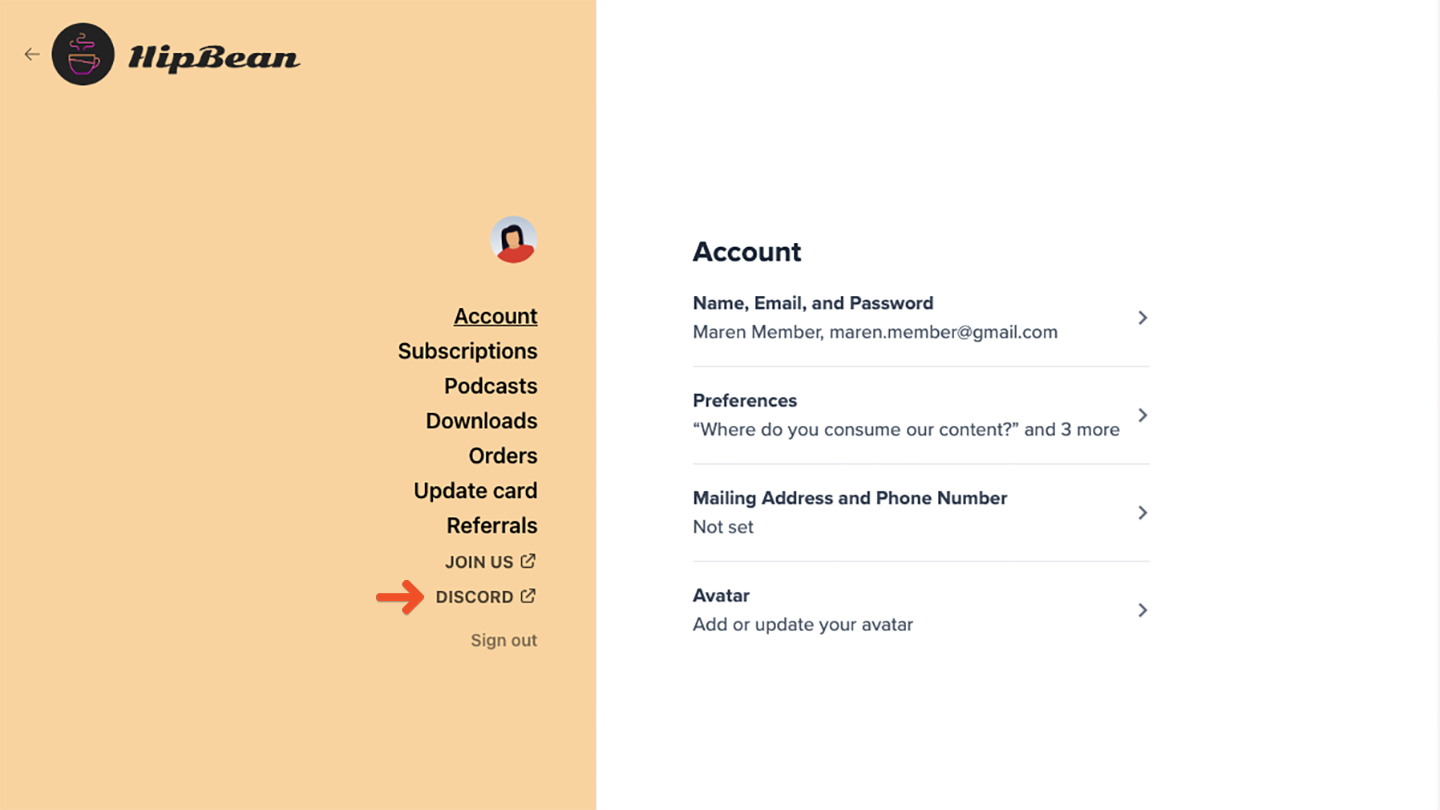 You can also share this direct authorization link with them:
```text theme={null}
https://ACCOUNT-URL.memberful.com/account/discord/authorize
```
Replace `ACCOUNT-URL` with your actual account URL subdomain, which you can find in **Website** → **Settings**.
Only one Discord account can be connected to an active member account at a time. If someone connects a different Discord account, the previous Discord account connection is removed.
The email address you use as a Discord admin should not also belong to a Memberful member account. A Discord admin cannot remove the server owner, which can cause problems if the integration tries to remove that account.
## Find a member by their Discord ID
You can search for a member by Discord ID in the Memberful dashboard.
First, get the member's Discord ID. To learn how to find it in Discord, see [Where can I find my User/Server/Message ID?](https://support.discord.com/hc/en-us/articles/206346498-Where-can-I-find-my-User-Server-Message-ID-).
You can also get Discord IDs from a member export. Go to **Members** and click **Export CSV**, then review the Discord ID column for members who have connected their Discord account.
After you copy the Discord ID, paste it into the [search bar](/overview/getting-started/admin-dashboard#search-for-members). If there is a matching member, that member appears as the only result. If no member appears and your server is open to all members, that Discord user is not a member yet.
## Add new roles or change settings
If you need to change Discord settings or map roles to a new plan after setup, go to **Content** → **Community** → **Discord** and click **Settings**.
Each plan can have an **Active role** and a **Trial role**. By default, trial members receive the same Discord role as active members. If you want trial members to have different Discord access, select a separate role from the **Trial role** dropdown.
Adding a new price to an existing plan does not require a new Discord role mapping. Only new plans need new role mappings.
You can also share this direct authorization link with them:
```text theme={null}
https://ACCOUNT-URL.memberful.com/account/discord/authorize
```
Replace `ACCOUNT-URL` with your actual account URL subdomain, which you can find in **Website** → **Settings**.
Only one Discord account can be connected to an active member account at a time. If someone connects a different Discord account, the previous Discord account connection is removed.
The email address you use as a Discord admin should not also belong to a Memberful member account. A Discord admin cannot remove the server owner, which can cause problems if the integration tries to remove that account.
## Find a member by their Discord ID
You can search for a member by Discord ID in the Memberful dashboard.
First, get the member's Discord ID. To learn how to find it in Discord, see [Where can I find my User/Server/Message ID?](https://support.discord.com/hc/en-us/articles/206346498-Where-can-I-find-my-User-Server-Message-ID-).
You can also get Discord IDs from a member export. Go to **Members** and click **Export CSV**, then review the Discord ID column for members who have connected their Discord account.
After you copy the Discord ID, paste it into the [search bar](/overview/getting-started/admin-dashboard#search-for-members). If there is a matching member, that member appears as the only result. If no member appears and your server is open to all members, that Discord user is not a member yet.
## Add new roles or change settings
If you need to change Discord settings or map roles to a new plan after setup, go to **Content** → **Community** → **Discord** and click **Settings**.
Each plan can have an **Active role** and a **Trial role**. By default, trial members receive the same Discord role as active members. If you want trial members to have different Discord access, select a separate role from the **Trial role** dropdown.
Adding a new price to an existing plan does not require a new Discord role mapping. Only new plans need new role mappings.
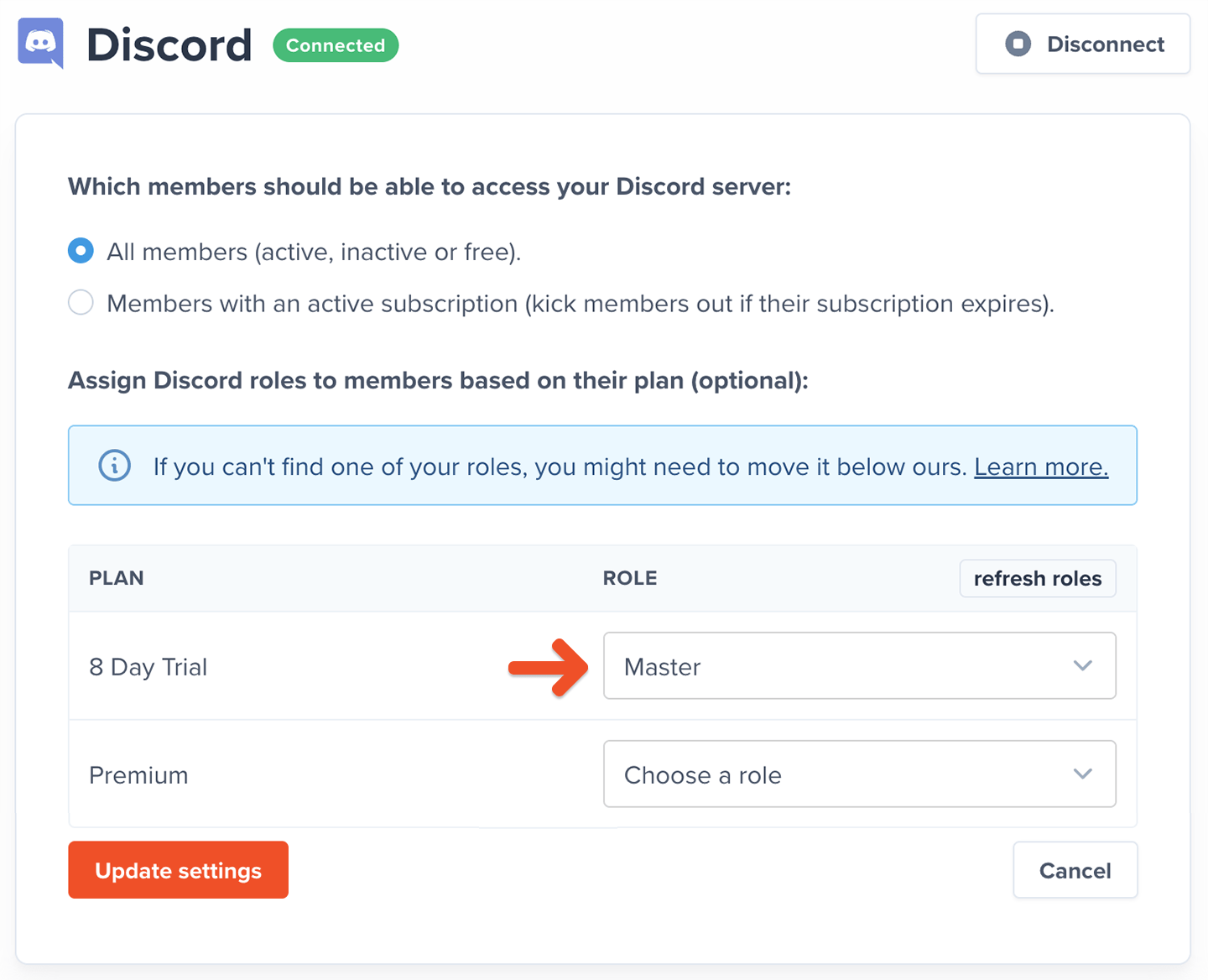 After you make your changes, click **Update settings**.
Discord syncing runs in the background between your Discord server and Memberful. Depending on the size of your server, role updates can take 10 minutes or more to sync.
## Troubleshoot role assignment issues
If members are not receiving the correct active or trial roles, or if you do not see all your Discord roles on the Memberful configuration page, review the common causes below.
### Role hierarchy
Discord roles follow a hierarchy based on their position in the server. A role can manage only roles below it in that hierarchy.
After you make your changes, click **Update settings**.
Discord syncing runs in the background between your Discord server and Memberful. Depending on the size of your server, role updates can take 10 minutes or more to sync.
## Troubleshoot role assignment issues
If members are not receiving the correct active or trial roles, or if you do not see all your Discord roles on the Memberful configuration page, review the common causes below.
### Role hierarchy
Discord roles follow a hierarchy based on their position in the server. A role can manage only roles below it in that hierarchy.
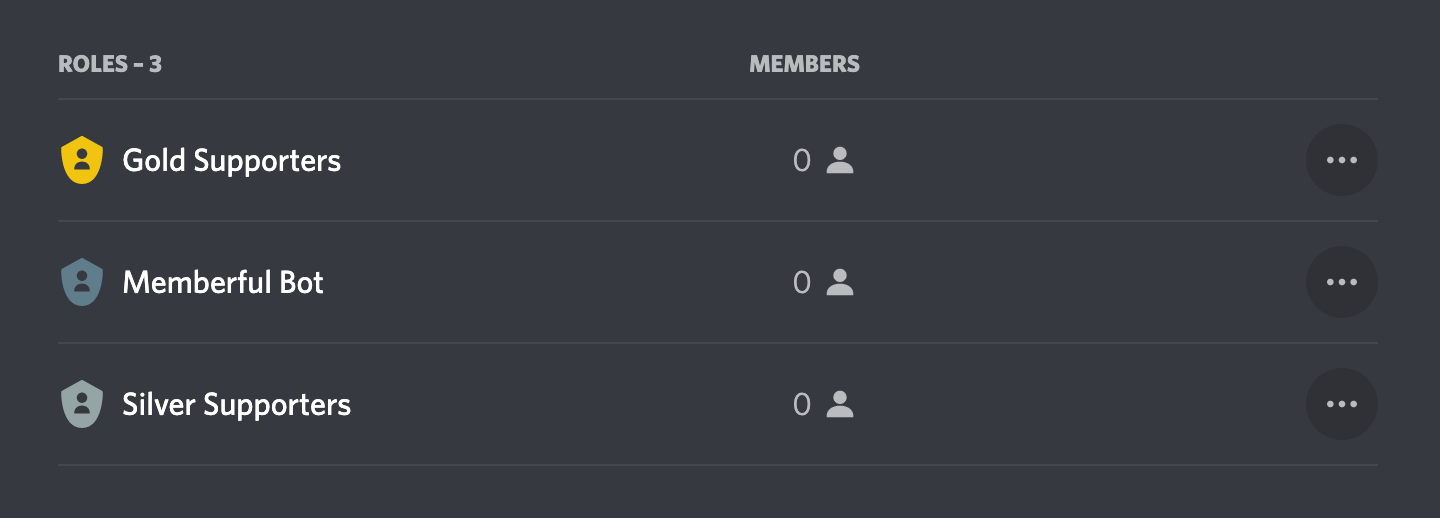 In the example above, the Memberful bot can assign the Silver role, but it cannot assign the Gold role. To fix this, drag the Memberful bot role above every role you want Memberful to manage, then click **Save Changes**.
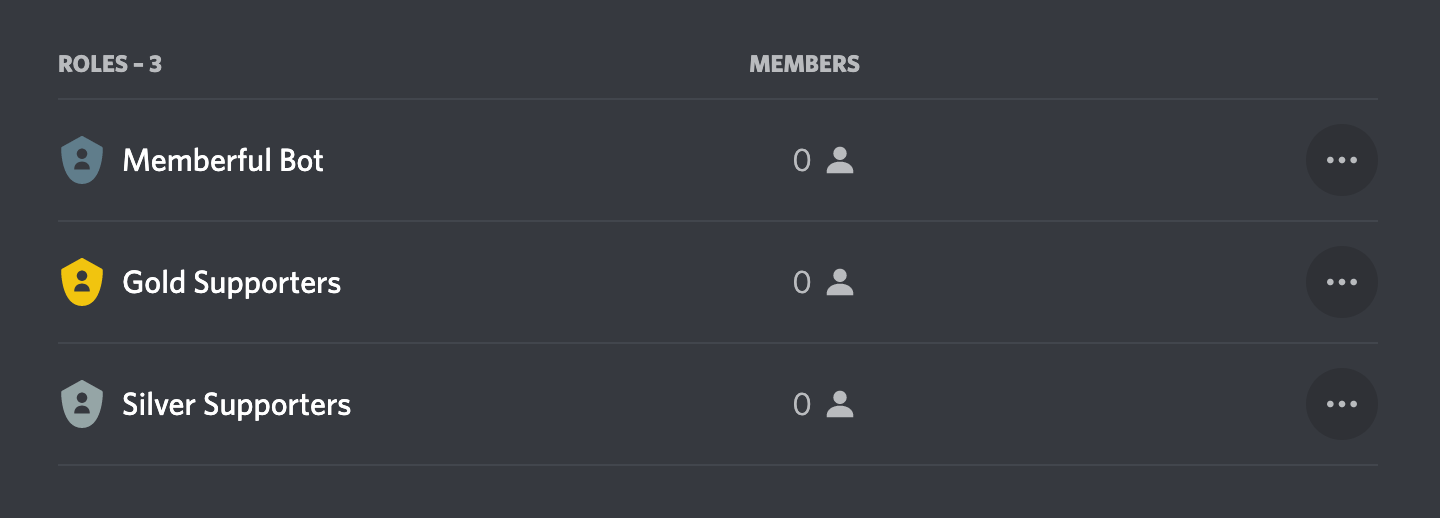 To review role hierarchy settings in Discord, go to **Server Settings** → **Roles**.
* for a server that is open to all members, the Memberful bot must be above all roles mapped in Memberful so it can remove those roles
* for a server that is only open to members with an active subscription, the Memberful bot must be above all roles that could be assigned to a Memberful member, even if those roles are not mapped in Memberful, so it can remove those members from the server when needed
### Bot permissions
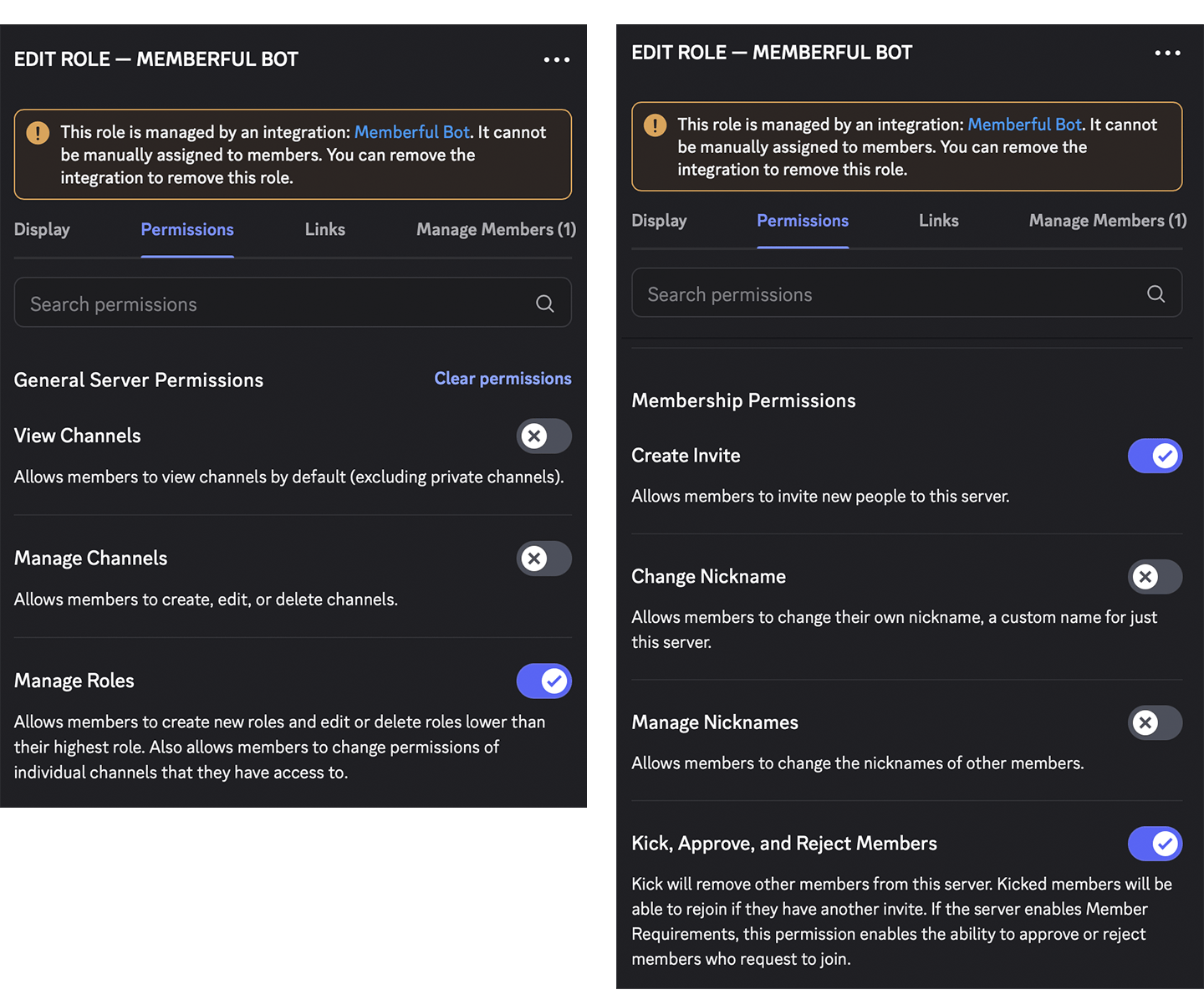
For the Discord integration to work correctly, the Memberful bot needs these permissions:
* Manage Roles
* Kick Members
* Create Invite
If any of these permissions were removed, restore them in **Server Settings** → **Roles** → **Memberful bot**.
To review role hierarchy settings in Discord, go to **Server Settings** → **Roles**.
* for a server that is open to all members, the Memberful bot must be above all roles mapped in Memberful so it can remove those roles
* for a server that is only open to members with an active subscription, the Memberful bot must be above all roles that could be assigned to a Memberful member, even if those roles are not mapped in Memberful, so it can remove those members from the server when needed
### Bot permissions
For the Discord integration to work correctly, the Memberful bot needs these permissions:
* Manage Roles
* Kick Members
* Create Invite
If any of these permissions were removed, restore them in **Server Settings** → **Roles** → **Memberful bot**.
 ### Member did not authorize the bot
Members must sign in to Discord and authorize the Memberful bot before they can access the server or receive the correct role.
They can do this by clicking the **Discord** link in their member account or payment receipt. To learn more, see [Discord member experience](/community/discord/discord-member-experience/).
You can also share this authorization link directly:
```text theme={null}
https://ACCOUNT-URL.memberful.com/account/discord/authorize
```
Replace `ACCOUNT-URL` with your actual account URL subdomain, which you can find in **Website** → **Settings**.
Do not assign Discord roles manually. If your Discord integration settings change, Memberful may remove those roles during the next sync.
## Troubleshoot member account issues
These are the two most common Discord account issues.
### Discord user is already connected to another account
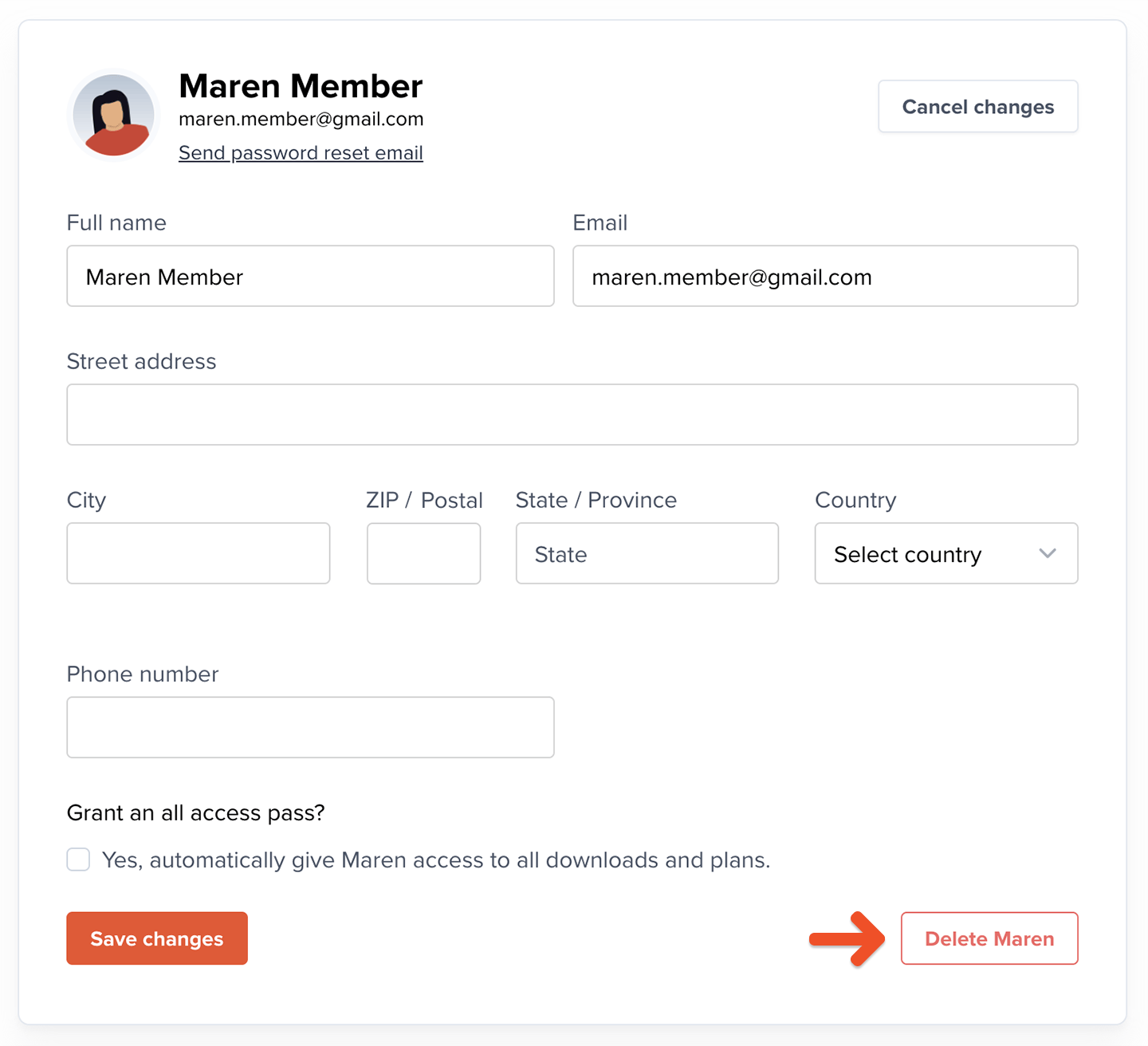
If a member sees the error message *Discord user is already connected to another account* when authorizing the Memberful bot, that Discord account is already linked to a different member account.
To fix this, find the other member account in the Memberful dashboard and delete it. Then ask the member to click the Discord link in their payment receipt or member account again.
### Member did not authorize the bot
Members must sign in to Discord and authorize the Memberful bot before they can access the server or receive the correct role.
They can do this by clicking the **Discord** link in their member account or payment receipt. To learn more, see [Discord member experience](/community/discord/discord-member-experience/).
You can also share this authorization link directly:
```text theme={null}
https://ACCOUNT-URL.memberful.com/account/discord/authorize
```
Replace `ACCOUNT-URL` with your actual account URL subdomain, which you can find in **Website** → **Settings**.
Do not assign Discord roles manually. If your Discord integration settings change, Memberful may remove those roles during the next sync.
## Troubleshoot member account issues
These are the two most common Discord account issues.
### Discord user is already connected to another account
If a member sees the error message *Discord user is already connected to another account* when authorizing the Memberful bot, that Discord account is already linked to a different member account.
To fix this, find the other member account in the Memberful dashboard and delete it. Then ask the member to click the Discord link in their payment receipt or member account again.
 ### Member connected the wrong Discord account
If a member connected the wrong Discord account, ask them to sign out of that account in Discord and sign in to the correct one. Then ask them to click the Discord link in their payment receipt or member account again.
### Member connected the wrong Discord account
If a member connected the wrong Discord account, ask them to sign out of that account in Discord and sign in to the correct one. Then ask them to click the Discord link in their payment receipt or member account again.