Related help docs:
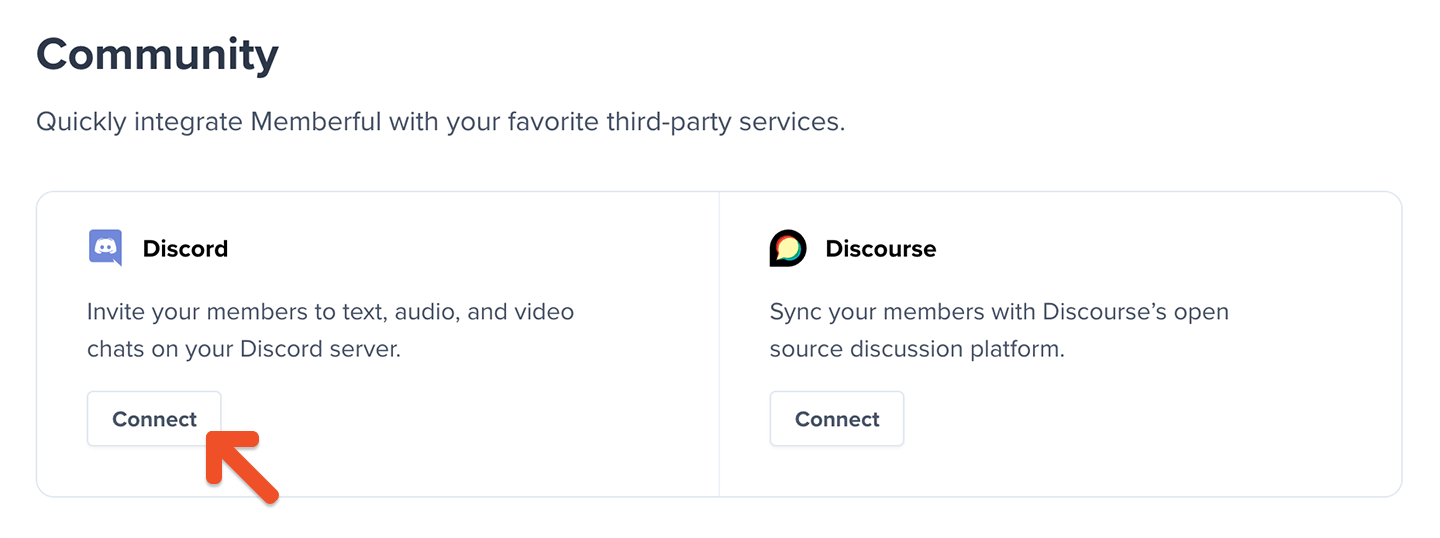 Select your server from the dropdown and click **Continue.** If you don't see your server you may be signed into Discord as a user that does not have admin access. If that's the case, sign out of Discord and sign in as the admin, and then follow the **Activate** link again.
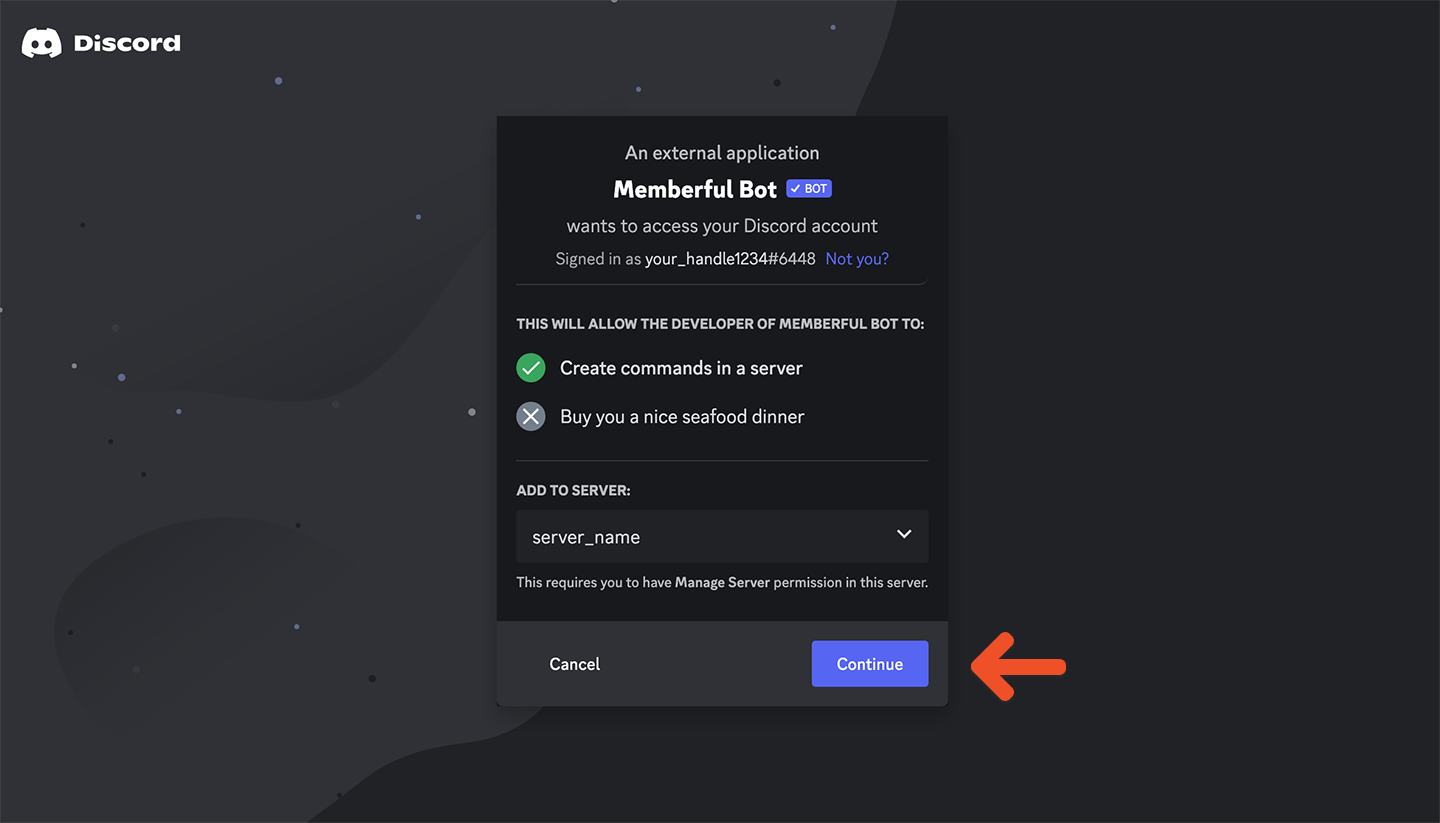 After selecting your server, you have to grant permissions for the bot. We ask for the following:
* Manage Roles
* Kick Members
* Create Invite
After selecting your server, you have to grant permissions for the bot. We ask for the following:
* Manage Roles
* Kick Members
* Create Invite
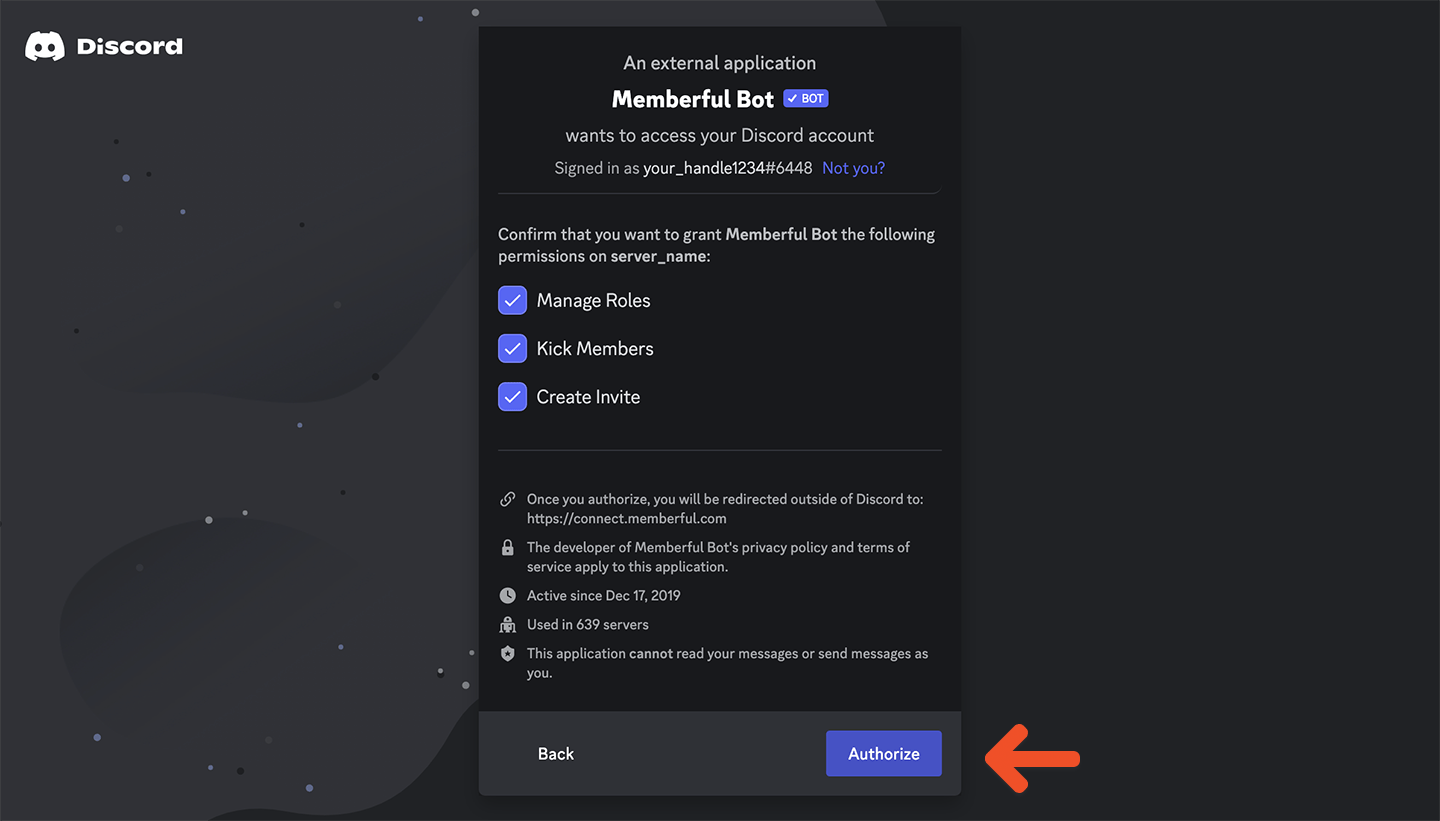 Once verified, click the **Authorize** button to connect. After a successful connection, you will be redirected to a configuration page within the Memberful dashboard.
## Configure Memberful's Discord settings
If you're not already there, go to *Content → Community → Discord,* and click the **Edit settings** button.
Configure the integration to determine who should be able to access your Discord server. (See options below.) Once you're done, click **Update settings.**
Once verified, click the **Authorize** button to connect. After a successful connection, you will be redirected to a configuration page within the Memberful dashboard.
## Configure Memberful's Discord settings
If you're not already there, go to *Content → Community → Discord,* and click the **Edit settings** button.
Configure the integration to determine who should be able to access your Discord server. (See options below.) Once you're done, click **Update settings.**
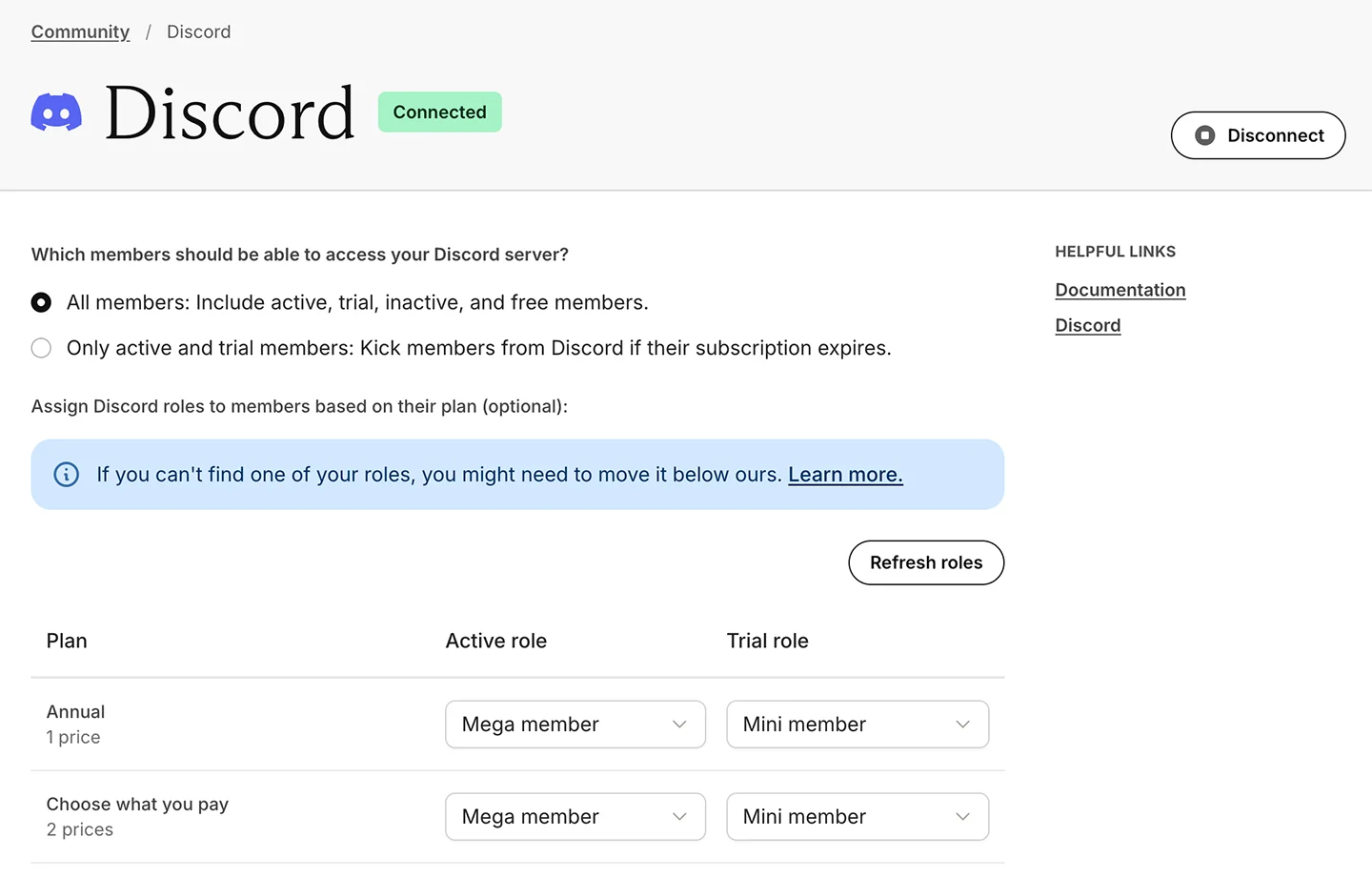 ### Associate Discord roles with Memberful plans
When a member subscribes to a plan, Memberful can assign them a Discord role based on their membership status. You can leverage [Discord roles](https://support.discord.com/hc/en-us/articles/206029707-Setting-Up-Permissions-FA) to set up [role-exclusive channels](https://support.discord.com/hc/en-us/articles/206143877-How-do-I-set-up-a-Role-Exclusive-channel-) in your Discord server.
Each plan can have:
* An **Active role** for members with an active paid subscription.
* A **Trial role** for members currently in a trial period.
### Associate Discord roles with Memberful plans
When a member subscribes to a plan, Memberful can assign them a Discord role based on their membership status. You can leverage [Discord roles](https://support.discord.com/hc/en-us/articles/206029707-Setting-Up-Permissions-FA) to set up [role-exclusive channels](https://support.discord.com/hc/en-us/articles/206143877-How-do-I-set-up-a-Role-Exclusive-channel-) in your Discord server.
Each plan can have:
* An **Active role** for members with an active paid subscription.
* A **Trial role** for members currently in a trial period.
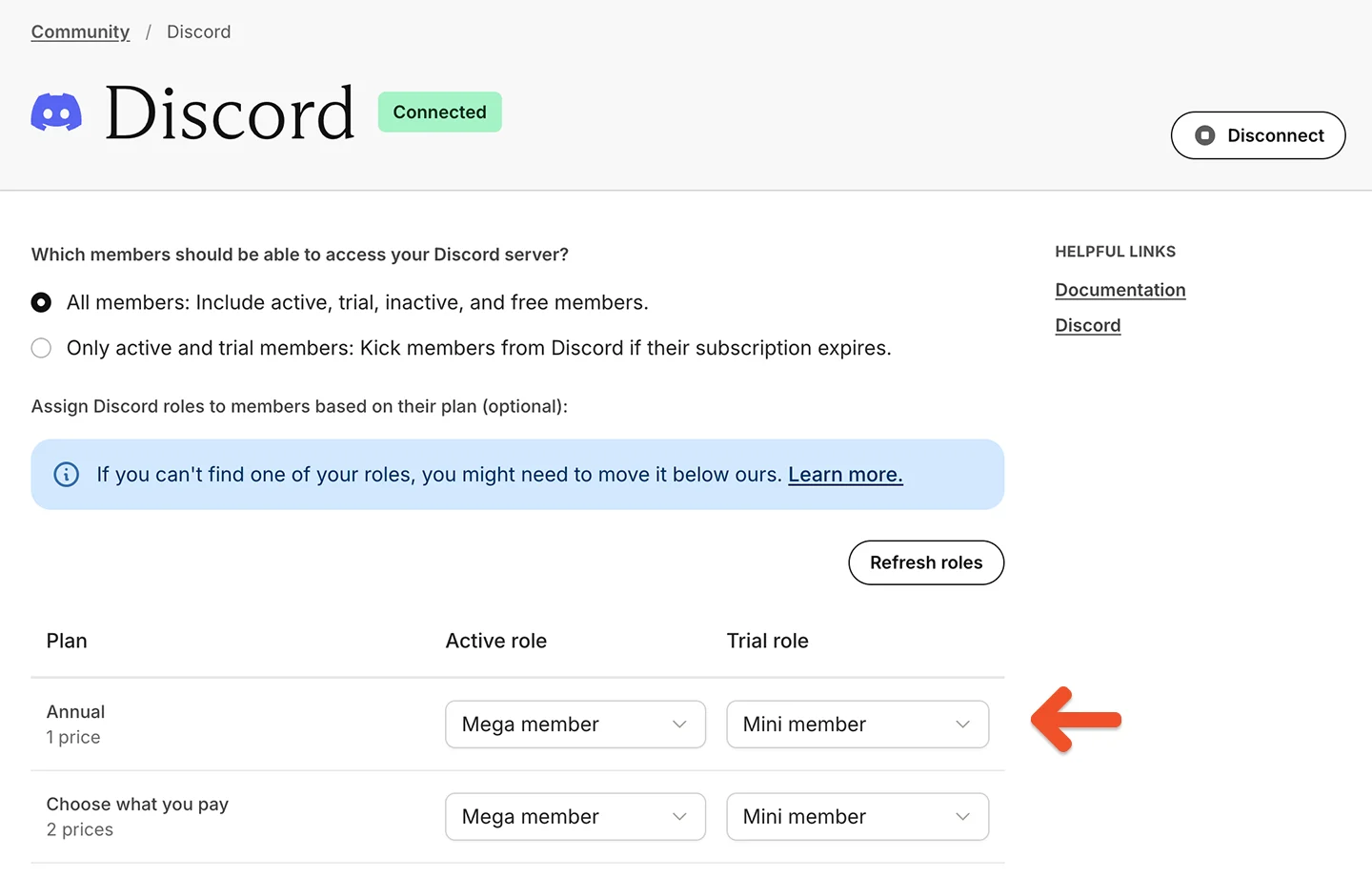 By default, trial members receive the same Discord role as active members. If you want trial members to have different Discord access, choose a separate role from the **Trial role** dropdown.
For example, you may want active members to receive a role with full access to your Discord server, while trial members receive a limited-access role. If you leave the **Trial role** set to the same role as the **Active role**, trial members will have the same Discord access as active paid members.
By default, trial members receive the same Discord role as active members. If you want trial members to have different Discord access, choose a separate role from the **Trial role** dropdown.
For example, you may want active members to receive a role with full access to your Discord server, while trial members receive a limited-access role. If you leave the **Trial role** set to the same role as the **Active role**, trial members will have the same Discord access as active paid members.
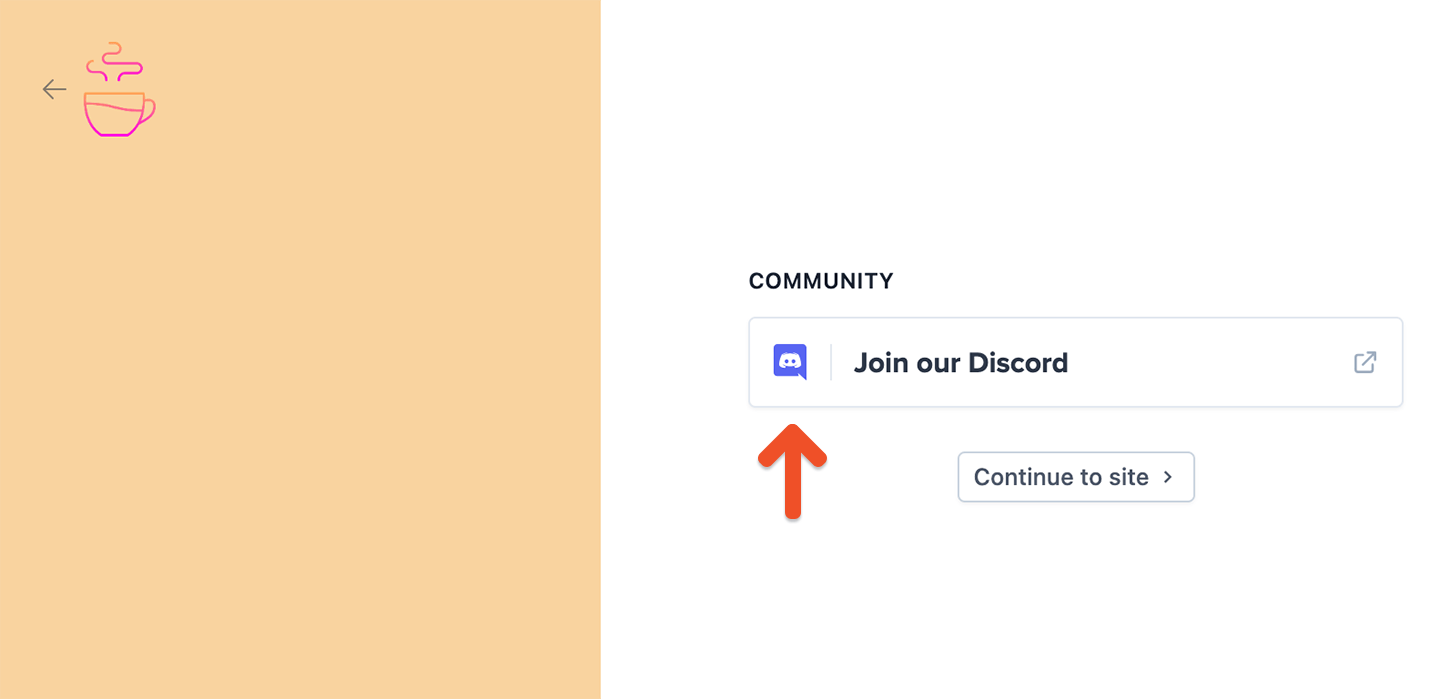 You can enable or disable this post-purchase invitation page in your plan settings.
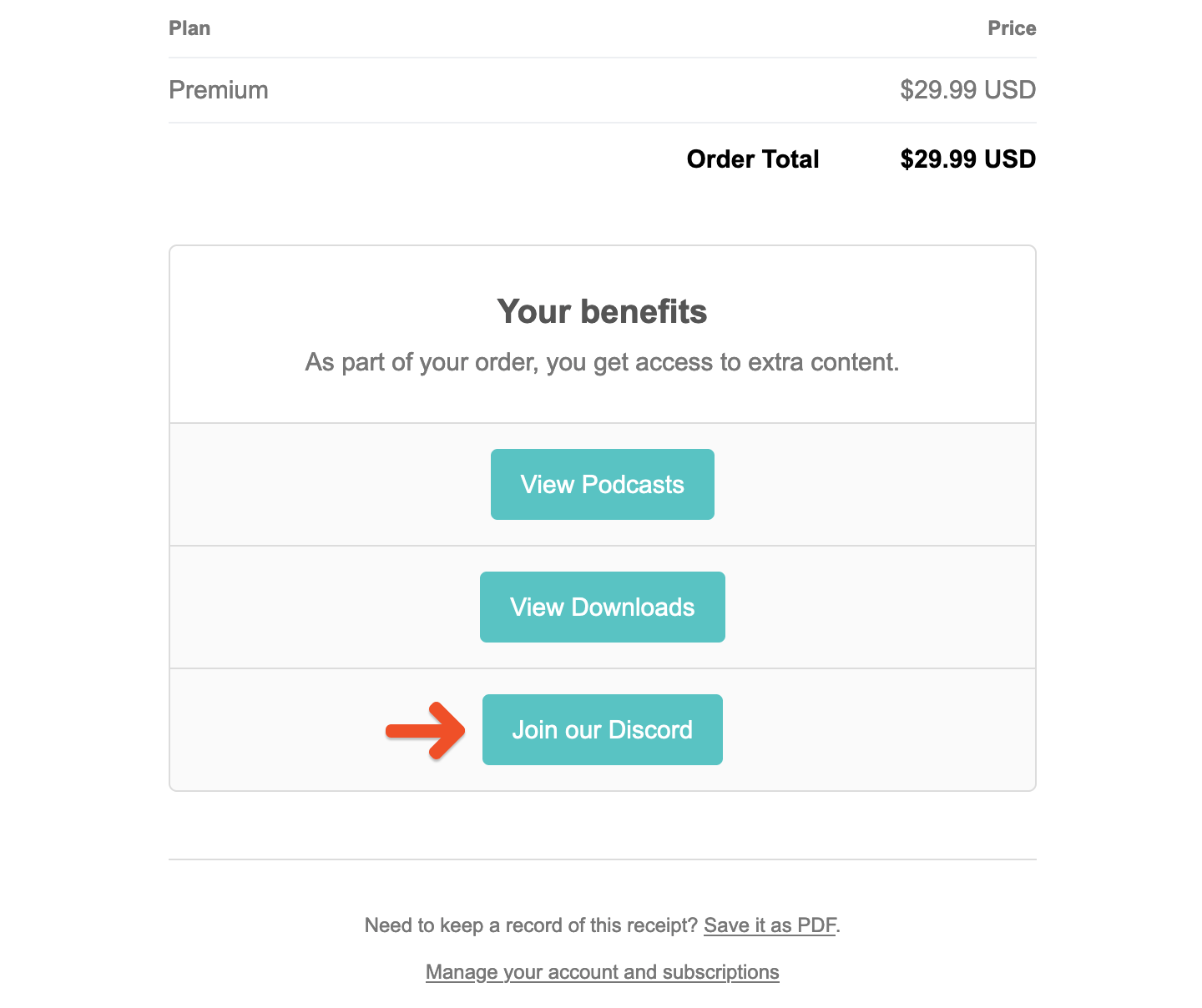
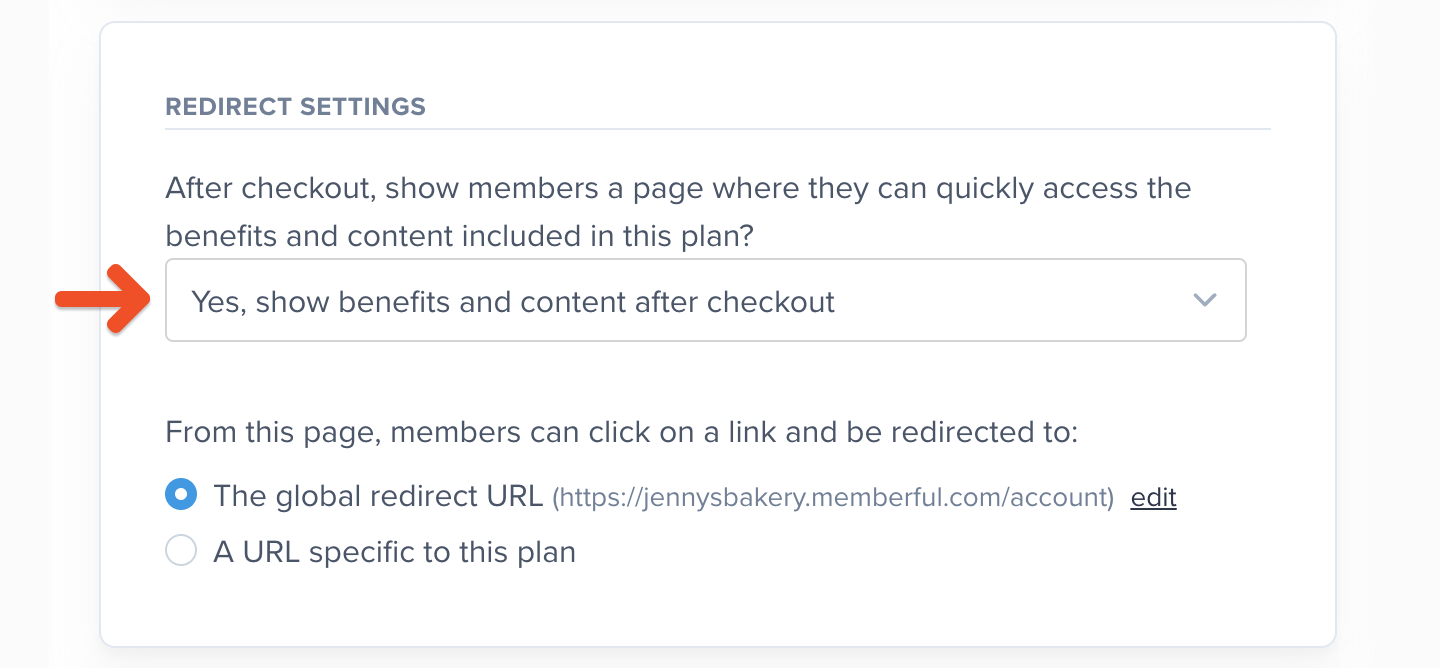 Additionally, our purchase receipts also include a button for your members to authorize the Memberful Discord bot and join your Discord server.
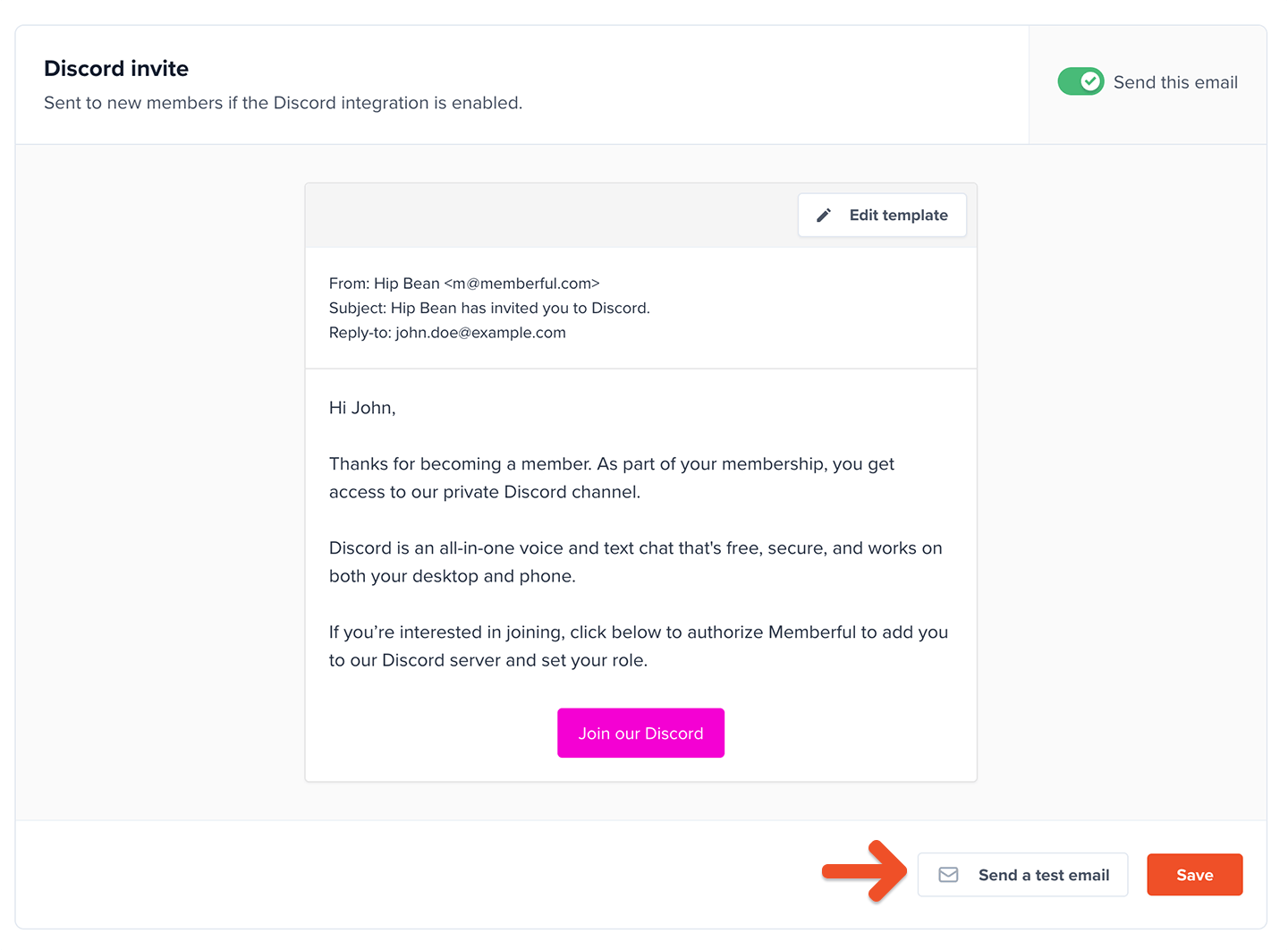
 You also may choose to send a separate email inviting members to join the Discord server. To enable this, visit your [email template settings](/configuration/emails/email-templates/) and enable sending the Discord invite email. This is optional, but it can give you additional certainty that your members will know how to join your server.